Showing posts with label FwTags Creations. Show all posts

March 26, 2017

Fleur Nature ~ by Joanne Salgado


Tutorial written by Joanne Salgado on March 25th, 2017
for those who have a working knowledge of PSP.
I'm using PSP9 to create my tuts.
Any resemblance to any other tutorial is coincidental.
Do not copy and paste this tutorial anywhere on the net.
If you want to translate please ask first. 

****************************************
Material:

Tube: "Fleur 2" by Alehandra Vanhek, you can purchase it here
do not use without the proper #license.
PTU Kit "Fleur 2" by FwTags Creations, you can purchase it here
Font: Afatar

****************************************

--> Remember to save often and use my tag as reference if necessary.

1. Open a new image 650x550

2. Open element 'FwTagsFleur2FRAME (2)' copy and paste as new layer. Resize 75%.

3. Open element 'FwTagsFleur2ELEMENT (5)' copy and paste as new layer. Move this layer below the frame layer. Arrange it to bottom.

4. Open element 'FwTagsFleur2ELEMENT (8)' copy and paste as new layer. Resize 50%. Arrange it to the bottom left. Duplicate. Arrange it to the bottom right.

5. Open element 'FwTagsFleur2ELEMENT (42)' copy and paste as new layer. Resize 50%. Arrange it to the bottom right.

6. Open element 'FwTagsFleur2ELEMENT (47)' copy and paste as new layer. Resize 80%. Arrange it to the left.

7. Open paper 'FwTagsFleur2PAPER (5)' copy and paste as new layer. Resize 50%. Arrange it inside the frame and clean the outside parts.

8. Open element 'FwTagsFleur2ELEMENT (10)' copy and paste as new layer. Resize 90%. Move this layer above the frame layer.

9. Open element 'FwTagsFleur2ELEMENT (17)' copy and paste as new layer. Resize 50%. Mirror. Arrange it to the right.

10. Open your tube. Copy and paste as new layer. Resize as needed and arrange it to the right.

11. Open element 'FwTagsFleur2ELEMENT (28)' copy and paste as new layer. Resize 30%. Arrange it to the bottom right.

12. Open element 'FwTagsFleur2ELEMENT (50)' copy and paste as new layer. Resize 20%. Arrange it to the bottom left.

13. Open element 'FwTagsFleur2ELEMENT (29)' copy and paste as new layer. Resize 30%. Arrange it to the bottom left.

14. Open element 'FwTagsFleur2ELEMENT (20)' copy and paste as new layer. Resize 15%. Arrange it to the right.

15. Open element 'FwTagsFleur2ELEMENT (12)' copy and paste as new layer. Resize 15%. Arrange it to the top left.

16. Open element 'FwTagsFleur2ELEMENT (9)' copy and paste as new layer. Resize 70%. Arrange it to the bottom left.

17. Open element 'FwTagsFleur2ELEMENT (33)' copy and paste as new layer. Resize 20%. Arrange it to the bottom right.

18. Open element 'FwTagsFleur2ELEMENT (39)' copy and paste as new layer. Resize 15%. Arrange it to the bottom left.

19. Add shadow as you prefer.

20. Add copyright. Add name. Save as PNG.

March 17, 2017

Lucky ~ by Joanne Salgado


Tutorial written by Joanne Salgado on March 15th, 2017
for those who have a working knowledge of PSP.
I'm using PSP9 to create my tuts.
Any resemblance to any other tutorial is coincidental.
Do not copy and paste this tutorial anywhere on the net.
If you want to translate please ask first. 

****************************************
Material:

Tube: "Trish" by Kelly Lynn
PTU Kit "Lucky Irish" by FwTags Creations
LUCKY THE IRISH COLLAB, you can purchase it here
do not use without the proper #license.
Font: Afatar

****************************************

--> Remember to save often and use my tag as reference if necessary.

1. Open a new image 650x550

2. Open frame 'FwTagsLuckyIrishFRAME (1)' copy and paste as new layer. Resize 85%.

3. Open element 'FwTagsLuckyIrishELEMENT (38)' copy and paste as new layer. Resize 50%. Move this layer below the frame layer. Arrange it to the top left.

4. Open element 'FwTagsLuckyIrishELEMENT (25)' copy and paste as new layer. Resize 50%. Arrange it to the left.

5. Open element 'FwTagsLuckyIrishELEMENT (6)' copy and paste as new layer. Resize 50%. Arrange it to top.

6. Open element 'FwTagsLuckyIrishELEMENT (30)' copy and paste as new layer. Resize 80%. Arrange it to bottom.

7. Open paper 'FwTagsLuckyIrishPAPER (6)' copy and paste as new layer. Resize 50%. Clean the parts outside the frame.

8. Open element 'FwTagsLuckyIrishELEMENT (23)' copy and paste as new layer. Mirror. Move this layer above the frame layer.

9. Open element 'FwTagsLuckyIrishELEMENT (24)' copy and paste as new layer. Resize 25%. Arrange it to the bottom left.

10. Open element 'FwTagsLuckyIrishELEMENT (17)' copy and paste as new layer. Resize 25%. Arrange it to the bottom left.

11. Open element 'FwTagsLuckyIrishELEMENT (14)' copy and paste as new layer. Resize 25%. Arrange it to the bottom right.

12. Open element 'FwTagsLuckyIrishELEMENT (9)' copy and paste as new layer. Resize 15%. Arrange it to the bottom  right.

13. Open element 'FwTagsLuckyIrishELEMENT (10)' copy and paste as new layer. Resize 15%. Mirror. Arrange it to the bottom left.

14. Open element 'FwTagsLuckyIrishELEMENT (45)' copy and paste as new layer. Resize 15%. Arrange it to the bottom right.

15. Open element 'FwTagsLuckyIrishELEMENT (2)' copy and paste as new layer. Resize 20%. Rotate 12. Arrange it to the left. Duplicate. Resize 70%. Mirror. Arrange it a little to the bottom to the right of the first one.

16. Open element 'FwTagsLuckyIrishELEMENT (28)' copy and paste as new layer. Resize 70%. Arrange it to the top.

17. Open your tube. Copy and paste as new layer. Resize as needed and arrange it to the right.

18. Add shadow as you prefer.

19. Add copyright. Add name. Save as PNG.

July 4, 2016

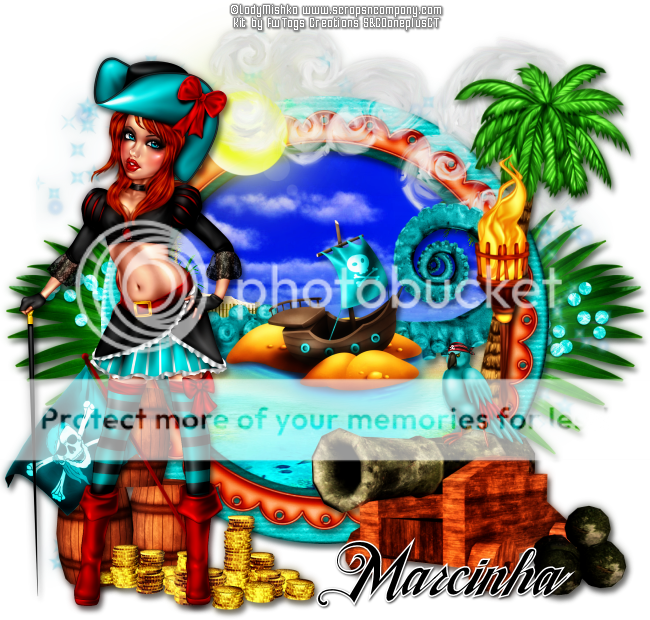
Pirate Ale

PIRATE'S LIFE TUTORIAL


Tutorial written by Marcia Salgado on July 4th, 2016
for those who have a working knowledge of PSP.
I'm using PSP9 to create my tuts.
Any resemblance to any other tutorial is coincidental.
Do not copy and paste this tutorial anywhere on the net.
If you want to translate please ask first. 

****************************************
Material:

Tube: "Pirate Ale" by LadyMishka, you can purchase it here
do not use without the proper #license.
PTU Kit "Pirate Ale" by FwTags Creations, you can purchase it here
Font: TradeWind

****************************************

--> Remember to save often and use my tag as reference if necessary. Use a Drop Shadow of your preference on layers. 


1. Create a new image 650x650.

2. Open FwTagsPirateAleFRAME (2). Resize 75%. Copy and paste as new layer.

3. Open FwTagsPirateAleELEMENT (37). Resize 55%. Copy and paste as new layer.Move it way to right. Send this layer below the frame layer.

4. Open FwTagsPirateAleELEMENT (15). Copy and paste as new layer. Move it a little up.

5. Open FwTagsPirateAleELEMENT (19). Copy and paste as new layer.

6. Click on the frame layer. Select inside the frame. Expand > 5. Add a new layer and send it below the frame layer. Open FwTagsPirateAlePAPER (4). Copy and paste into selection. Deselect.

7. Click on frame layer again. Open FwTagsPirateAleFRAME (4). Resize 70%. Copy and paste as new layer.

8. Open FwTagsPirateAleELEMENT (5). Resize 55%. Copy and paste as new layer. Move it up and to left.

9. Open FwTagsPirateAleELEMENT (28). Resize 80%. Copy and paste as new layer. Move it up and a little to right.

10. Open FwTagsPirateAleELEMENT (2). Resize 65%. Copy and paste as new layer. Move it a little to right. Clean the part is over the frame on the left.

11. Open FwTagsPirateAleELEMENT (6). Resize 40%. Copy and paste as new layer.

12. Open FwTagsPirateAleELEMENT (54). Resize 80%. Mirror. Copy and paste as new layer. Move it to right.

13. Open FwTagsPirateAleELEMENT (55). Resize 65%. Copy and paste as new layer. Place it over the tree.

14. Open FwTagsPirateAleELEMENT (48). Resize 55%. Copy and paste as new layer. move it down and to right.

15. Open FwTagsPirateAleELEMENT (7). Resize 20%. Copy and paste as new layer. Place it over the cannon.

16. Open FwTagsPirateAleELEMENT (46). Resize 35%. Copy and paste as new layer. Move it down and to left.

17. Open FwTagsPirateAleELEMENT (10). Resize 35%. Copy and paste as new layer. Move it down and to left. Place it over the barrel.

18. Open FwTagsPirateAleELEMENT (20). Resize 40%. Copy and paste as new layer. Move it down and to left. Place it over the flags bottom.

19. Open your tube. Resize. Copy and paste as new layer. Move it to left.

20. Use Crop > Merged Opaque to get rid of any extra space.


--> Add your copyright info and license#. Add your name and save as PNG.


March 20, 2016

Cowgirl ~ by Joanne Salgado


Tutorial written by Joanne Salgado on March 17th, 2016
for those who have a working knowledge of PSP.
Any resemblance to any other tutorial is coincidental.
Do not copy and paste this tutorial anywhere on the net.
If you want to translate please ask first. 

Tube: Babette 2 by Vi Nina - you can purchase here
Kit Babette 2 by FwTags Creations - you can purchase here
Font: Bachelor Script

Don't forget to save often.
At any point if you have doubts check my tag.

1. Open a new image 650x550.

2. Open frame 'FwTagsBabetteFRAME (4)' copy and paste as new layer.

3. Open element 'FwTagsBabetteELEMENT (58)' copy and paste as new layer. Move this layer below the frame layer. Arrange it to bottom.

4. Open element 'FwTagsBabetteELEMENT (11)' copy and paste as new layer. Resize 50%. Arrange it to the top left.

5. Open element 'FwTagsBabetteELEMENT (32)' copy and paste as new layer. Resize 50%. Arrange it to the bottom right.

6. Open element 'FwTagsBabetteELEMENT (60)' copy and paste as new layer. Resize 50%. Arrange it to the top.

7. Open paper 'FwTagsBabettePAPER (4)' copy and paste as new layer. Resize 70%. Arrange inside the frames and clean the outside parts.

8. Open element 'FwTagsBabetteELEMENT (14)' copy and paste as new layer. Move this layer above the frame layer. Arrange it to bottom.

9. Open element 'FwTagsBabetteELEMENT (56)' copy and paste as new layer. Resize 80%. Mirror. Arrange it to the top left.

10. Open element 'FwTagsBabetteELEMENT (59)' copy and paste as new layer. Resize 25%. Arrange it to the bottom left.

11. Open element 'FwTagsBabetteELEMENT (10)' copy and paste as new layer. Resize 35%. Arrange it to the bottom left - to the right of the barrel.

12. Open element 'FwTagsBabetteELEMENT (34)' copy and paste as new layer. Resize 35%. Arrange it to the bottom right.

13. Open element 'FwTagsBabetteELEMENT (31)' copy and paste as new layer. Resize 90%.

14. Open element 'FwTagsBabetteELEMENT (23)' copy and paste as new layer. Arrange it to the top.

15. Open element 'FwTagsBabetteELEMENT (50)' copy and paste as new layer. Resize 90%.

16. Open element 'FwTagsBabetteELEMENT (45)' copy and paste as new layer. Resize 70%. Arrange it to the bottom left.

17. Open element 'FwTagsBabetteELEMENT (12)' copy and paste as new layer. Resize 40%. Mirror. Arrage it to the bottom left.

18. Open your tube. Copy and paste as new layer. Resize as needed and arrange it to the right.

19. Open element 'FwTagsBabetteELEMENT (6)' copy and paste as new layer. Resize 80%. Arrange it to the bottom left.

20. Open element 'FwTagsBabetteELEMENT (4)' copy and paste as new layer. Resize 40%. Arrange it to the bottom right. -- my tube doesnt have the legs drawn, so I used this to cover it.

21. Open element 'FwTagsBabetteELEMENT (39)' copy and paste as new layer. Clean the three bottom ones. Mirror. Arrange the one left to the bottom right above the cowgirl.

22. Add shadow as you prefer.

23. Add copyright. Add name. Save as PNG.
February 9, 2016

Golden Thrones ~ by Joanne Salgado


Tutorial written by Joanne Salgado on February 09th, 2016
for those who have a working knowledge of PSP.
Any resemblance to any other tutorial is coincidental.
Do not copy and paste this tutorial anywhere on the net.
If you want to translate please ask first. 

Tube: Queen Thrones by SoulDesigner - you can purchase here
Kit Queen Thrones by FwTags Creations - you can purchase here
Font: Andover

Don't forget to save often.
At any point if you have doubts check my tag.

1. Open a new image 650x550

2. Open element 'FwTagsQueenThronesELEMENT (70)' copy and paste as new layer. Arrange it to bottom.

3. Open frame 'FwTagsQueenThronesFRAME (3)' copy and paste as new layer. Resize 70%. Rotate left 15.

4. Open element 'FwTagsQueenThronesELEMENT (26)' copy and paste as new layer. Resize 50%. Move this layer below the frame layer. Arrange it to the bottom left.

5. Open element 'FwTagsQueenThronesELEMENT (32)' copy and paste as new layer. Resize 50%. Arrange it to the left.

6. Open element 'FwTagsQueenThronesELEMENT (31)' copy and paste as new layer. Resize 50%. Arrange it above the gold flower.

7. Open element 'FwTagsQueenThronesELEMENT (23)' copy and paste as new layer. Resize 50%. Arrange it to the top left.

8. Open element 'FwTagsQueenThronesELEMENT (38)' copy and paste as new layer. Resize 70%. Arrange it to the right.

9. Open element 'FwTagsQueenThronesELEMENT (33)' copy and paste as new layer. Resize 50%. Arrange it to the bottom right.

10. Open paper 'FwTagsQueenThronesPAPER (5)' copy and paste as new layer. Clean the outside parts.

11. Open element FwTagsQueenThronesELEMENT (25)' copy and paste as new layer. Resize 90%.

12. Open element 'FwTagsQueenThronesELEMENT (45)' copy and paste as new layer. Resize 30%. Move this layer above the frame layer. Arrange it to the top left.

13. Open element 'FwTagsQueenThronesELEMENT (46)' copy and paste as new layer. Resize 90%.

14. Open your tube. Copy and paste as new layer. Resize as needed and arrange it to the right.

15. Add shadow as you prefer.

16. Add copyright. Add name. Save as PNG. 

January 17, 2016

Lady In Red - CT Tutorial

CHARM TUTORIAL


Tutorial written by Marcia Salgado on January 17th, 2016
for those who have a working knowledge of PSP.
I'm using PSP9 to create my tuts.
Any resemblance to any other tutorial is coincidental.
Do not copy and paste this tutorial anywhere on the net.
If you want to translate please ask first. 

****************************************
Material:

Tube: "Lady In Red" by The Hunter, you can purchase it here
do not use without the proper #license.
PTU Kit "Lady In Red" by FwTags Creations, you can purchase it here
Material: 2 wordarts by me, just click and save:


Font: Fabulous

****************************************

--> Remember to save often and use my tag as reference if necessary. Use a Drop Shadow of your preference on layers.

1. Create a new image 700x600.

2. Open FwTagsLadyInRedELEMENT (10). Resize 85%. Copy and paste as new layer. Move it down and a little to right.

3. Open FwTagsLadyInRedFRAME (1). Resize 50%. Copy and paste as new layer. Move to left. Select inside the frame. Expand > 5. Add a new layer and moveit below frame layer. Fill with color #e2b9a3. Apply Blinds as I show below. Keep selected.


4. Add a new layer. Create a gradient Linear, Angle: 45 and Repeat: 1. Using #808080 as Foreground Color and White as Background Color and fill the layer. Blend Mode: Burn. Low the opacity layer to 70. Keep selected. Apply ECWS Halftone > Dither 4x4 with the following settings:


5.Open your Closeup tube, Resize if needed. Copy and paste as new layer. Position it inside the frame. Invert selection. Delete. Select all. Clip to canvas. Crop to selection. Duplicate. On Copy apply Gaussian Blur > 4. Blend Mode > Soft Color. Low the opacity layer to 70. On original tube layer, change the Blend Mode to Luminance. Low the opacity layer to 70.

6. Open FwTagsLadyInRedELEMENT (12). Resize 70%. Free Rotate: Right-90. Copy and paste as new layer. Move it down and to right.

7. open FwTagsLadyInRedELEMENT (15). Resize 40%. Copy and paste as new layer. Place it over the frame bottom right corner.

8. Open FwTagsLadyInRedELEMENT (2). Resize 45%. Copy and paste as new layer. Move it down and to left. Place it over the frame bottom border.

9. Open FwTagsLadyInRedELEMENT (11). Rezize 75%. Mirror. Copy and paste as new layer. Place it over the previous flowers. 

10. Open FwTagsLadyInRedELEMENT (49). Resize 45%. Copy and paste as new layer. Place it over the frame top left corner.

11. Open FwTagsLadyInRedELEMENT (56). Resize 50% Mirror. Copy and paste as new layer. Place it over the frame left border.

12. Open FwTagsLadyInRedELEMENT (37). Resize 35%. Copy and paste as new layer. Move it down and way to left.

13. Open FwTagsLadyInRedELEMENT (36). Resize 30%. Mirror. Copy and paste as new layer. Place it over the present box and after applied a suitable shadow erase the bottom part of the element to look like it is inside the box. Like I show below:


14. Open both wordarts I made. Copy mar2016_charmwordart1 and paste as new layer. Move it up and to right. Add a white border. Copy mar2016_charmwordart2 and paste as new layer. Move it to right. Add a border with the color #a70003.

--> Add your copyright info and license#. Add your name and save as PNG.


January 13, 2016

Ciggy Mad

STRESSED TUTORIAL


Tutorial written by Marcia Salgado on January 12th, 2016
for those who have a working knowledge of PSP.
I'm using PSP9 to create my tuts.
Any resemblance to any other tutorial is coincidental.
Do not copy and paste this tutorial anywhere on the net.
If you want to translate please ask first. 

****************************************
Material:

Tube: "Ciggy Mad" by kiwiBG, you can purchase it here
do not use without the proper #license.
PTU Kit "Ciggy Mad" by FwTags Creations, you can purchase it here
Template: by me, here
Font: Montelago Flare

****************************************

--> Remember to save often and use my tag as reference if necessary. Use a Drop Shadow of your preference on layers. 


1. Open my template, duplicate and close the original.

2. Delete the © layer. 

3. Click on back layer. Open FwTagsCiggyMadELEMENT (18). Resize 70%. Copy and paste as new layer. Move it up and to right.

4. Open FwTagsCiggyMadELEMENT (14). Resize 60%. Copy and paste as new layer. Move it up and to right.

5. Click on top square back layer. Select it. Open paper FwTagsCiggyMadPAPER (1). Copy and paste into selection. Deselect.

6. Click on top square border layer. Apply Noise: 50, Gaussian, Monochrome. 

7. Click on top square layer. Open FwTagsCiggyMadELEMENT (19). Resize 40%. Copy and paste as new layer. Move it up and to left. Place it like in hanging from the blue border of the frame.

8. Click on bottom square back layer. Select it. Open paper FwTagsCiggyMad (1). Copy and paste into selection. Deselect.

9. Click on bottom square border layer. Apply Noise: 50, Gaussian, Monochrome. 

10. Click on bottom sqaure layer. Open FwTagsCiggyMadELEMENT (1). Resize 25%. Copy and paste as new layer. Move it down and to right. 

11. Click on circle back layer. Select it. Open FwTagsCiggyMadPAPER (3). Copy and paste into selection. Save this selection to Alpha Channel. Deselect.

12. Open FwTagsCiggyMadELEMENT (29). Resize 50%. Copy and paste as new layer. Move it down. Position it on circle's bottom. Loand slection from Alpha Channel. Invert selection. Delete. Deselect. 

13. Open FwTagsCiggyMadELEMENT (21). Resize 50%. Move it to left. Duplicate. Mirror. Merge down. Load selection from Alpha Channel. Invert selection. Delete. Deselect.

14. Open your tube. Resize if needed. Copy and paste as new layer. Clean the area that is over the frame's bottom border.

15. Open FwTagsCiggyMadELEMENT (28). Resize 25%. Free Rotate: Left-30. Copy and paste as new layer. Move it down and to left.

16. Click on wordart layer. Add a border using color #3958a8.

17. Click on dashes layer and add a border using color white.

--> Add your copyright info and license#. Add your name and save as PNG.


December 17, 2015

Candy Cane

DOLCEZZA TUTORIAL

**Click to see original size**

Tutorial written by Marcia Salgado on December 17th, 2015
for those who have a working knowledge of PSP.
Any resemblance to any other tutorial is coincidental.
Do not copy and paste this tutorial anywhere on the net.
If you want to translate please ask first. 

****************************************
Material:

Tube: "Candy Cane" by Andy Cooper, you can purchase it here
do not use without the proper #license.
PTU Kit "Candy Cane" by FwTags Creations, you can purchase it here
Font: Helena

****************************************

--> Remember to save often and use my tag as reference if necessary. Use a Drop Shadow of your preference on layers. 

1. Create a new image 851x315.

2. Open FwTagsCandyCanePAPER (2). Copy and paste as new layer. 

3. Open FwTagsCandyCanePAPER (1). Copy and paste as new layer. Blend Mode: Soft Light.

4. Add a new layer. Fill with the color #f4eee4. Select all. Contract > 15. Delete. Deselect.

5. Open FwTagsCandyCaneELEMENT (71). Resize 40%. Copy and paste as new layer. Move it way to right. Show only half of element.

6. Open FwTagsCandyCaneELEMENT (60). Resize 60%. Copy and paste as new layer. Move it a little to right.

7. Open FwTagsCandyCaneELEMENT (61). Resize 60%. Free Rotate: Left-90. Copy and paste as new layer.

8. Open FwTagsCandyCaneELEMENT (33). Resize 60%. Copy and paste as new layer. Move it a little down and to right.

9. Open FwTagsCandyCaneELEMENT (23). Resize 50%. Mirror. Copy and paste as new layer. Move it to left.

10. Open FwTagsCandyCaneELEMENT (12). Resize 25%. Copy and paste as new layer and place it over the mailbox at top.

11. Open your tube close up. Resize if needed. Copy and paste as new layer. Move it to right.

12. Add a new layer. Select all. Fill with black. Contract > 1. Delete. Deselect.

--> Add your copyright info (no URL by Facebook TOU) and license#. Add your name. Save as PNG.

--> Sometimes I had to change my Timeline size to 846x313 because when I add it to Facebook the image has extra pixels and do not fit perfectly. So try this size if the same is happening to you.


June 1, 2015

Blue Fairy ~ by Joanne Salgado


Tutorial written by Joanne Salgado on June 01st, 2015
for those who have a working knowledge of PSP.
Any resemblance to any other tutorial is coincidental.
Do not copy and paste this tutorial anywhere on the net.
If you want to translate please ask first. 

Tube: Blue Fairy by Danny Lee - you can purchase here
Kit Blue Fairy by FwTags Creations - you can purchase here
Font: Bodoni MT Poster Compressed

Don't forget to save often.
At any point if you have doubts check my tag.

1. Open a new image 700x600

2. Open element 'FwTagsBlueFairyELEMENT (15)' copy and paste as new layer. Resize 70%.

3. Open element 'FwTagsBlueFairyELEMENT (67)' copy and paste as new layer. Resize 70%. Arrange it to the left.

4. Open element 'FwTagsBlueFairyELEMENT (20)' copy and paste as new layer. Resize 85%. Arrange it to bottom.

5. Open element 'FwTagsBlueFairyELEMENT (40)' copy and paste as new layer. Resize 20%. Arrange it to the bottom left.

6. Open element 'FwTagsBlueFairyELEMENT (62)' copy and paste as new layer. Resize 10%. Mirror. Arrange it to the left.

7. Open element 'FwTagsBlueFairyELEMENT (41)' copy and paste as new layer. Resize 70%. Arrange it to the right.

8. Open element 'FwTagsBlueFairyELEMENT (32)' copy and paste as new layer. Resize 20%. Mirror. Arrange it to bottom.

9. Open element 'FwTagsBlueFairyELEMENT (12)' copy and paste as new layer. Resize 40%. Mirror. Arrange it to the right.

10. Open element 'FwTagsBlueFairyELEMENT (14)' copy and paste as new layer. Resize 40%. Arrange it to the left.

11. Open element 'FwTagsBlueFairyELEMENT (47)' copy and paste as new layer. Resize 30%. Arrange it to the top left.

12. Open your tube. Copy and paste as new layer. Resize as you prefer and arrange it to the right.

14. I didn't use shadow. If you want use an light color.

15. Add copyright.

16. Add name. I used: Bodoni MT Poster Compressed / size: 48

Save as PNG

May 24, 2015

Red Leather ~ by Joanne Salgado


Tutorial written by Joanne Salgado on May 24th, 2015
for those who have a working knowledge of PSP.
Any resemblance to any other tutorial is coincidental.
Do not copy and paste this tutorial anywhere on the net.
If you want to translate please ask first. 

Tube: Red Leather by Danny Lee - you can purchase here
Kit Red Leather by FwTags Creations - you can purchase here
Font: Shelby

Don't forget to save often.
At any point if you have doubts check my tag.

1. Open a new image 600x500

2. Open frame 'FwTagsRedLeatherFRAME (5)' copy and paste as new layer. Resize 40%.

3. Open your tube. Copy and paste as new layer. Resize as you prefer and arrange it to the bottom.

4. Open paper 'FwTagsRedLeatherPAPER (1)' copy and paste as new layer. Resize 35%. Move this below the frame layer. Clean the parts that appears outside the frame.

5. Open element 'FwTagsRedLeatherELEMENT (17)' copy and paste as new layer. Resize 60%. Move this below the paper layer. Arrange it to bottom.

6. Open element 'FwTagsRedLeatherELEMENT (12)' copy and paste as new layer. Resize 60%. Flip/Mirror. Arrange it to the top.

7. Open element 'FwTagsRedLeatherELEMENT (67)' copy and paste as new layer. Resize 60%. Move this below the paper layer. Arrange it to the top right. Clean the parts that appears at the bottom.

8. Open element 'FwTagsRedLeatherELEMENT (34)' copy and paste as new layer. Resize 40%. Mirror. Move this above the frame layer. Arrange it to the right.

9. Open element 'FwTagsRedLeatherELEMENT (36)' copy and paste as new layer. Resize 25%. Arrange it to the bottom right.

10. Open element 'FwTagsRedLeatherELEMENT (69)' copy and paste as new layer. Resize 50%.

11. Add shadow. I used: 1-1-65-2 black.

12. Add copyright.

13. Add name. I used: Shelby / size: 48.

Save as PNG

May 17, 2015

Blue Flor ~ by Joanne Salgado


Tutorial written by Joanne Salgado on May 17th, 2015
for those who have a working knowledge of PSP.
Any resemblance to any other tutorial is coincidental.
Do not copy and paste this tutorial anywhere on the net.
If you want to translate please ask first. 

Tube: Flor by Vi Nina - you can purchase here
Kit Flor by FwTags Creations - you can purchase here
Font: KG Next to Me Solid 

Don't forget to save often.
At any point if you have doubts check my tag.

1. Open a new image 600x500

2. Open element 'FwTagsFlorELEMENT (63)' copy and paste as new layer. Resize 55%.

3. Open your tube. Copy and paste as new layer. Resize as you prefer and arrange it inside the window. Clean the lower parts so it looks she's inside the window.

4. Open element 'FwTagsFlorELEMENT (2)' copy and paste as new layer. Resize 40%. Free Rotate left-90. Arrange it to the right.

5. Open element 'FwTagsFlorELEMENT (38)' copy and paste as new layer. Resize 30%. Arrange it to the top left.

6. Open element 'FwTagsFlorELEMENT (52)' copy and paste as new layer. Resize 25%. Arrange it to the right.

7. Open element 'FwTagsFlorELEMENT (40)' copy and paste as new layer. Resize 63%. Move this below the tube layer.

8. Open paper 'FwTagsFlorPAPER (3)' copy and paste as new layer. Move this below all layers (will be the last one). Clean the parts that appears outside the window. Duplicate. Change the duplicade layer blend mode to screen.

9. Open element 'FwTagsFlorELEMENT (50)' copy and paste as new layer. Resize 50%. Move this above all layers.

10. Add shadow. I used: 1-1-65-2 #404040.

11. Add copyright.

12. Add name. I used: KG Next to Me Solid / size: 30

Save as PNG

May 14, 2015

Blue Moon ~ by Joanne Salgado


Tutorial written by Joanne Salgado on May 14th, 2015
for those who have a working knowledge of PSP.
Any resemblance to any other tutorial is coincidental.
Do not copy and paste this tutorial anywhere on the net.
If you want to translate please ask first. 

Tube: Maya Steampunk 4 by LadyMishka Dolls - you can purchase here
Kit Black Magic by FwTags Creations - you can purchase here
Font: Segoe Print

Don't forget to save often.
At any point if you have doubts check my tag.

1. Open a new image 500x500

2. Open element 'FwTagsBlackMagicELEMENT (62)' copy and paste as new layer. Resize 50%. Arrange to bottom.

3. Open element 'FwTagsBlackMagicELEMENT (14)' copy and paste as new layer. Resize 50%. Arrange it to the left.

4. Open element 'FwTagsBlackMagicELEMENT (83)' copy and paste as new layer. Resize 50%.

5. Open element 'FwTagsBlackMagicELEMENT (7)' copy and paste as new layer. Resize 30%. Arrange it to the bottom right.

6. Open element 'FwTagsBlackMagicELEMENT (63)' copy and paste as new layer. Resize 25%. Mirror. Arrange it to the bottom right.

7. Open element 'FwTagsBlackMagicELEMENT (10)' copy and paste as new layer. Resize 15%. Mirror. Arrange it to the top right.

8. Open your tube. Copy and paste as new layer. Resize as you prefer and arrange it to the left.

9. Add shadow. I used: 1-1-65-2 black.

10. Add copyright.

11. Add name. I used: Segoe Print / size: 36

Save as PNG

April 8, 2015

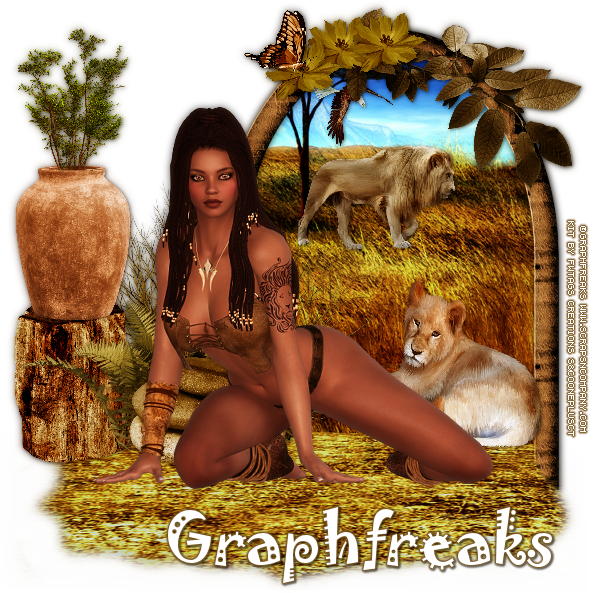
Lioness

LIONESS TUTORIAL


Tutorial written by Marcia Salgado on April 8th, 2015
for those who have a working knowledge of PSP.
Any resemblance to any other tutorial is coincidental.
Do not copy and paste this tutorial anywhere on the net.
If you want to translate please ask first. 

****************************************
Material:

Tube: "Lioness" GraphFreaks, you can purchase it at S&Co., here
do not use without the proper #license.
PTU Kit "Lioness" by FwTags Creations Kits,
you can purchase it at S&Co., here
Font: Jokerman

****************************************

--> Remember to save often and use my tag as reference if necessary. Used the Drop Shadow: 1-1-50-5 in most layers. 

1. Create a new image 600x600. Open FwTagsLionessPAPER (2). Copy and paste as new layer. Duplicate and turn the copy invisible. Click on original layer. Open FwTagsLionessFRAME (4). Resize 51%. Copy and paste as new layer. Move it to right, place over a part of the background image that shows sky and earth. Select inside the frame. Expand > 4. Click on background image. Invert selection. Delete. Click on invisible background copy and move the layer above the frame. Turn it visible again. Select all. Selections > Clip to canvas. Image > Crop to selection. Erase most part of the image, leave only the ground part as it's coming out the frame. 

2. Open FwTagsLionessELEMENT (11). Resize 40%. Copy and paste as new layer. Place it at frame bottom left side. Open FwTagsLionessELEMENT (8). Resize 20%. Copy and paste as new layer. Place it at frame left side a little ahead of bushes.

3. Open FwTagsLionessELEMENT (6). Resize 20%. Copy and paste as new layer. Place ot above the log. Open FwTagsLionessELEMENT (60). Resize 20%. Copy and paste as new layer. Place ot above the vase. Erase the steam, so it looks like is inside the vase.

4. Open FwTagsLionessELEMENT (7). Resize 40%. Copy and paste as new layer. Move it to bottom left side of the frame. Open FwTagsLionessELEMENT (1). Resize 30%. Mirror. Copy and paste as new layer. Move it to bottom right side of the frame. Open FwTagsLionessELEMENT (26). Resize 20%. Mirror. Copy and paste as new layer. Place it inside the frame, near a tree. 

5. Open FwTagsLionessELEMENT (17). Resize 10%. Mirror. Copy and paste as new layer. Move it inside the frame and place somewhere in the sky. Open FwTagsLionessELEMENT (18). Resize 30%. Copy and paste as new layer. Place it over the right top of the frame. 

6. Open FwTagsLionessELEMENT (24). Resize 20%. Copy and paste as new layer. Place it at bottom left side really near the frame. Open FwTagsLionessELEMENT (27). Resize 10%. Copy and paste as new layer. Place it at top frame border. Duplicate and move it a little to left. Duplicate again and move it a little to left too.  

7. Open FwTagsLionessELEMENT (31). Resize 10%. Mirror. Copy and paste as new layer. Place it over one of the top flowers. 

8. Open your tube and resize if needed. Copy and paste as new layer and place it somewhere over the outside ground. Add a suitable shadow.

--> Add your copyright info and license#. Add your name and save as PNG.


April 2, 2015

Teddy ~ by Joanne Salgado


Tutorial written by Joanne Salgado on February 18th, 2015
for those who have a working knowledge of PSP.
Any resemblance to any other tutorial is coincidental.
Do not copy and paste this tutorial anywhere on the net.
If you want to translate please ask first. 

Tube: CU/PU I LOVE MY TEDDY by Sweet Doll Artist - you can purchase here 
Kit I Love My Teddy by FwTags Creations - you can purchase here 
Font: AR HERMANN

Don't forget to save often.
At any point if you have doubts check my tag.

1. Open a new image 500x500.

2. Open element 'FwTagsILoveMyTeddyELEMENT (60)' copy and paste as new layer. Resize 50%. Arrange it to bottom.

3. Open element 'FwTagsILoveMyTeddyELEMENT (73)' copy and paste as new layer. Resize 55%. 

4. Open element 'FwTagsILoveMyTeddyELEMENT (37)' copy and paste as new layer. Resize 55%.

5. Open element 'FwTagsILoveMyTeddyELEMENT (30)' copy and paste as new layer. Resize 30%. Arrange it to the top left.

6. Open element 'FwTagsILoveMyTeddyELEMENT (67)' copy and paste as new layer. Resize 25%. Arrange it to the bottom right above the rug.

7. Open element 'FwTagsILoveMyTeddyELEMENT (49)' copy and paste as new layer. Resize 15%. Arrange it to the bottom right.

8. Open element 'FwTagsILoveMyTeddyELEMENT (62)' copy and paste as new layer. Resize 30%. Arrange it to the top left.

9. Open element 'FwTagsILoveMyTeddyELEMENT (26)' copy and paste as new layer. Resize 15%. Arrange it to the bottom left.

10. Open your tube. Copy and paste as new layer. Resize as you prefer. Arrange it to the right.

11. Open element 'FwTagsILoveMyTeddyELEMENT (9)' copy and paste as new layer. Resize 15%. Arrange it to the left of the tube.

12. Add shadow as you prefer. I used 1-1-65-2 black.

13. Add copyright.

14. Add name. I used: AR HERMANN / size: 48

Save as PNG

March 29, 2015

Black Magic ~ by Joanne Salgado


Tutorial written by Joanne Salgado on February 18th, 2015
for those who have a working knowledge of PSP.
Any resemblance to any other tutorial is coincidental.
Do not copy and paste this tutorial anywhere on the net.
If you want to translate please ask first. 

Tube: Black Magic by Graphfreaks - you can purchase here
Kit Black Magic by FwTags Creations - you can purchase here 
Template by Dee here 
Font: AR BERKLEY

Don't forget to save often.
At any point if you have doubts check my tag.

1. Open the template. Duplicate. Close original. Delete layers: font info, info, mistake black, mistake white, raster 17, biggest blue, biggest white, copy of raster 17, you look like (both layers), copy (2), pink star, pink star white, small white star, small blue star, black star, black stripe and bg.

2. Open element 'FwTagsBlackMagicELEMENT (62)' copy and paste as new layer. Resize 60%. Mirror. Arrange it to bottom. Move this layer bellow the pink rectangle layer.

3. Open paper 'FwTagsBlackMagicPAPER (1)' colorize the layer pink rectangle with it. Now open paper 'FwTagsBlackMagicPAPER (5)' colorize the layer blue rectangle. Now open paper 'FwTagsBlackMagicPAPER (2)' colorize the layer pink circle. With the same paper colorize the layer blue circle and center blue rectangle. Now open paper 'FwTagsBlackMagicPAPER (4)' colorize layers bottom black circle, top black circle and center pink rectangle.

4. Select layer pink circle, apply plugins/penta.com/jeans (amount 62/border width 4). Select layer blue circle, apply plugins/penta.com/color dot (value 90/distance 2/all three color 255).

5. Add noise with uniform/50/monochrome checked on layers pink circle back, blue circle back, bottom black circle back, top black circle back, center pink rectangle, center white rectangle.

6. Open element 'FwTagsBlackMagicELEMENT (83)' copy and paste as new layer. Resize 60%. Move this layer above the center blue rectangle.

7. Open element 'FwTagsBlackMagicELEMENT (78)' copy and paste as new layer. Resize 75%. 

8. Open element 'FwTagsBlackMagicELEMENT (21)' copy and paste as new layer. Resize 30%. Arrange it to the bottom left.

9. Open element 'FwTagsBlackMagicELEMENT (13)' copy and paste as new layer. Resize 30%. Arrange it to the bottom left. Duplicate. Arrange it to the bottom right.

10. Open element 'FwTagsBlackMagicELEMENT (75)' copy and paste as new layer. Resize 30%. Arrange it to the bottom right.

11. Open element 'FwTagsBlackMagicELEMENT (14)' copy and paste as new layer. Resize 60%. Arrange it to the upper right.

12. Open element 'FwTagsBlackMagicELEMENT (46)' copy and paste as new layer. Resize 50%. Arrange it to the upper left.

13. Open element 'FwTagsBlackMagicELEMENT (77)' copy and paste as new layer. Resize 40%. Arrange it to the bottom right.

14. Open element 'FwTagsBlackMagicELEMENT (73)' copy and paste as new layer. Resize 40%. Arrange it to the bottom left. Duplicate. Change blend mode to screen. Blur/Gaussian Blur 3. 

15. Open element 'FwTagsBlackMagicELEMENT (64)' copy and paste as new layer. Resize 15%. Arrange it to the left next the ball we just added.

16. Open element 'FwTagsBlackMagicELEMENT (43)' copy and paste as new layer. Resize 20%. Arrange it to the bottom left.

17. Open element 'FwTagsBlackMagicELEMENT (21)' copy and paste as new layer. Resize 30%. Arrange it to the bottom left.

18. Open element 'FwTagsBlackMagicELEMENT (39)' copy and paste as new layer. Resize 20%. Arrange it to the bottom left.

19. Open element 'FwTagsBlackMagicELEMENT (70)' copy and paste as new layer. Resize 15%. Arrange it to the bottom left.

20. Open your tube. I'm using Black Magic from Graphfreaks. Copy and paste as new layer. Resize as you prefer and arrange it to the right. 

21. Open element 'FwTagsBlackMagicELEMENT (42)' copy and paste as new layer. Resize 75%. Arrange it to bottom.

22. Open element 'FwTagsBlackMagicELEMENT (56)' copy and paste as new layer. Resize 75%. Arrange it to bottom.

23. Add shadow as you prefer. I used 1-1-65-2 black.

24. Add copyright.

25. Add name. I used: AR BERKLEY / size: 72

Save as PNG