Showing posts with label Souldesigner. Show all posts

December 5, 2016

S&Co 3RD ANNIVERSARY COLLAB 2


== NEW PTU TAG S&CO. CT - STORE COLLAB ==
== 3RD ANNIVERSARY COLLAB 2  ==

SOULDESIGNER AND BLISSFUL DESIGNS

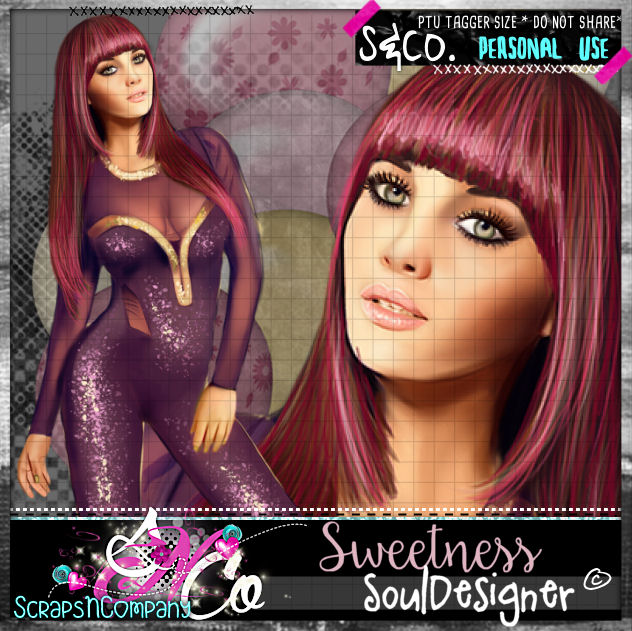
Featuring "Sweetness", a SoulDesigner tube and
 "Romantic Sweet", Blissful Designs kit at Scraps N Company - S&Co.


Add this STORE COLLAB to your cart and get it as a free gift with a purchase. 
The kit used has 8 papers and 58 elements so you can play with it. 
Very versatile and can be used with any other tubes and artists you have.

3RD ANNIVERSARY STORE COLLAB 2 can be found  at:
-> Scraps N Company - S&Co., here 


November 14, 2016

SHOW OFF - Scarlett


== NEW PTU S&CO. CT ==
FOR SOULDESIGNER AND LA GALERIE DE JACKIE 

Featuring "Scarlett" tube by SoulDesigner and
"Teddy Bear Concert" Kit by La Galerie de Jackie at Scraps N Company - S&Co.

Tube by SoulDesigner - you can purchase here

Kit by La Galerie de Jackie - you can purchase here


SHOW OFF - Shine


== NEW PTU S&CO. CT ==
FOR SOULDESIGNER AND RIENEKE DESIGNS

Featuring "Shine" tube by SoulDesigner and
"Shine" Kit by Rieneke Designs at Scraps N Company - S&Co.

Tube by SoulDesigner - you can purchase here

Kit by Rieneke Designs - you can purchase here


June 8, 2016

Lili and Lilis Kit

UPTOWN GIRL TUTORIAL


Tutorial written by Marcia Salgado on June 8th, 2016
for those who have a working knowledge of PSP.
I'm using PSP9 to create my tuts.
Any resemblance to any other tutorial is coincidental.
Do not copy and paste this tutorial anywhere on the net.
If you want to translate please ask first. 

****************************************
Material:

Tube: "Lili" by SoulDesigner, you can purchase it here 
do not use without the proper #license.
PTU Kit "Lilis" by Bibi's Collection, you can purchase it here 
Font: AlwaysHere

****************************************

--> Remember to save often and use my tag as reference if necessary. Use a Drop Shadow of your preference on layers.

1. Create a new image 650x650.

2. Open BIBI-LILIS ELEMS (4). Resize 45%. Copy and paste as new layer.

3. Open BIBI-LILIS ELEMS (75). Resize 40%. Copy and paste as new layer. Move down and to left. Duplicate. Mirror. Merge down.

4. Open BIBI-LILIS ELEMS (42). Copy and paste as new layer. Move it up and to left.

5. Open BIBI-LILIS ELEMS (19). Resize 50%. Copy and paste as new layer. Blend Mode: Hard Light.

6. Open BIBI-LILIS ELEMS (108). Resize 75%. Copy and paste as new layer. 

7. Open BIBI-LILIS ELEMS (61). Resize 30%. Copy and paste as new layer. Move it up and to left.

8. Open BIBI-LILIS ELEMS (66). Resize 50%. Free Rotate: Left-60. Copy and paste as new layer. Move it to left and a little up.

8. Open BIBI-LILIS ELEMS (29). Resize 45%. Copy and paste as new layer. Move it up and to left.

9. Open BIBI-LILIS ELEMS (63). Resize 65%. Copy and paste as new layer. Place it over the previous leaves.

10. Open BIBI-LILIS ELEMS (41). Resize 45%. Mirror. Copy and paste as new layer. Move it a little down and to left.

11. Open BIBI-LILIS ELEMS (25). Resize 45%. Copy and paste as new layer. Move it down and to left.

12. Open BIBI-LILIS ELEMS (65). Resize 15%. Copy and paste as new layer. Move it down and to left.

13. Open BIBI-LILIS ELEMS (59). Resize 30%. Copy and paste as new layer. Place it on dog's head.

14. Open BIBI-LILIS ELEMS (62). Resize 35%. Free Rotate: Left-30. Copy and paste as new layer. Move it down and to right.

15. Open BIBI-LILIS ELEMS (69). Resize 30%. Copy and paste as new layer. Move it down and way to right.

16. Open your tube. Resize. Copy and paste as new layer. Move it to right.


--> Add your copyright info and license#. Add your name and save as PNG.


March 12, 2016

Betty ~ by Joanne Salgado


Tutorial written by Joanne Salgado on March 09th, 2016
for those who have a working knowledge of PSP.
Any resemblance to any other tutorial is coincidental.
Do not copy and paste this tutorial anywhere on the net.
If you want to translate please ask first. 

Tube: Betty by Souldesigner - you can purchase here
Kit Love Her Madly by Disturbed Scraps - you can purchase here
Font: Alex Brush

Don't forget to save often.
At any point if you have doubts check my tag.

1. Open a new image 650x550

2. Open element 'DS - LHM Element (72)' copy and paste as new layer. Resize 70%.

3. Open element 'DS - LHM Element (81)' copy and paste as new layer. Resize 80%. Move this layer below the frame layer. Arrange it to the top left. Duplicate. Mirror/Flip.

4. Open element 'DS - LHM Element (8)' copy and paste as new layer.

5. Open element 'DS - LHM Element (2)' copy and paste as new layer. Arrange it to the left a little to the top.

6. Open element 'DS - LHM Element (43)' copy and paste as new layer. Resize 40%. Arrange it to the top right.

7. Open element 'DS - LHM Element (69)' copy and paste as new layer. Rotate left 20. Arrange it to the bottom right.

8. Open element 'DS - LHM Element (4)' copy and paste as new layer. Arrange it to the right.

9. Open element 'DS - LHM Element (55)' copy and paste as new layer. Resize 50%. Mirror. Arrange it to the bottom right.

10. Open element 'DS - LHM Element (35)' copy and paste as new layer. Resize 60%. Arrange it to the bottom right.

11. Open paper 'DS - LHM Paper 13' copy and paste as new layer. Resize 40%.

12. Open element 'DS - LHM Element (82)' copy and paste as new layer. Arrange it to the bottom. Duplicate. Flip. Duplicate. Arrange it at the middle. Mirror.

13. Open your tube. Copy and paste as new layer. Resize as needed. Arrange it inside the frame. Duplicate. Change original layer blend mode to luminance (L). Change the duplicated layer blend mode to soft light. Clean the parts that appears outside the frame.

14. Open element 'DS - LHM Element (80)' copy and paste as new layer. Resize 50%. Move this layer above the frame layer. Arrange it to the bottom left.

15. Open element 'DS - LHM Element (24)' copy and paste as new layer. Resize 40%. Arrange it to the bottom left.

16. Open element 'DS - LHM Element (26)' copy and paste as new layer. Resize 40%. Arrange it to the bottom left.

17. Open element 'DS - LHM Element (57)' copy and paste as new layer. Resize 60%. Arrange it to the top right.

18. Open paper 'DS - LHM Paper 14' copy and paste as new layer. Move this layer below the heart lines we just added. Resize 40%. Arrange it inside the top heart, clean the parts outside the inner heart.

19. Open paper 'DS - LHM Paper 2' copy and paste as new layer. Resize 40%. Arrange it inside the middle heart. Clean the parts outside.

20. Open paper 'DS - LHM Paper 11' copy and paste as new layer. Resize 40%. Arrange it inside the bottom heart. Clean the parts outside the inner heart.

21. Open element 'DS - LHM Element (45)' copy and paste as new layer. Resize 60%. Rotate right 20. Arrange it to the top left.

22. Add shadow as you prefer.

23. Add copyright. Add name. Save as PNG.

February 19, 2016

Hippie Girl ~ by Joanne Salgado


Tutorial written by Joanne Salgado on February 19th, 2016
for those who have a working knowledge of PSP.
Any resemblance to any other tutorial is coincidental.
Do not copy and paste this tutorial anywhere on the net.
If you want to translate please ask first. 

Tube: Hippie Girl by Souldesigner - you can purchase here
Kit Hippie Girl by Bibi's Collection - you can purchase here
Font: A.D.MONO

Don't forget to save often.
At any point if you have doubts check my tag.

1. Open a new image 650x550

2. Open element 'BIBI-HIPPIE GIRL (30)' copy and paste as new layer. Resize 60%.

3. Open element 'BIBI-HIPPIE GIRL (18)' copy and paste as new layer. Resize 80%. Move this below the frame layer. Arrange it to the bottom left.

4. Open element 'BIBI-HIPPIE GIRL (6)' copy and paste as new layer. Arrange it to the top left.

5. Open element 'BIBI-HIPPIE GIRL (1)' copy and paste as new layer. Resize 60%. Arrange it to bottom.

6. Open paper 'BIBI-HIPPIE GIRL PAPERS (9)' copy and paste as new layer. Resize 60%. Arrange it inside the frame and clean the outside parts.

7. Open element 'BIBI-HIPPIE GIRL (5)' copy and paste as new layer. Move this layer above the frame layer. Arrange it to top.

8. Open element 'BIBI-HIPPIE GIRL (10)' copy and paste as new layer. Resize 80%. Arrange it to the top.

9. Open element 'BIBI-HIPPIE GIRL (61)' copy and paste as new layer. Resize 60%. Arrange it to the top of the frame.

10. Open element 'BIBI-HIPPIE GIRL (78)' copy and paste as new layer. Resize 70%. Arrange it to the bottom of the frame.

11. Open your tube. Copy and paste as new layer. Resize as needed and arrange it to the left.

12. Add shadow as you prefer.

13. Add copyright. Add name. Save as PNG.

February 9, 2016

Golden Thrones ~ by Joanne Salgado


Tutorial written by Joanne Salgado on February 09th, 2016
for those who have a working knowledge of PSP.
Any resemblance to any other tutorial is coincidental.
Do not copy and paste this tutorial anywhere on the net.
If you want to translate please ask first. 

Tube: Queen Thrones by SoulDesigner - you can purchase here
Kit Queen Thrones by FwTags Creations - you can purchase here
Font: Andover

Don't forget to save often.
At any point if you have doubts check my tag.

1. Open a new image 650x550

2. Open element 'FwTagsQueenThronesELEMENT (70)' copy and paste as new layer. Arrange it to bottom.

3. Open frame 'FwTagsQueenThronesFRAME (3)' copy and paste as new layer. Resize 70%. Rotate left 15.

4. Open element 'FwTagsQueenThronesELEMENT (26)' copy and paste as new layer. Resize 50%. Move this layer below the frame layer. Arrange it to the bottom left.

5. Open element 'FwTagsQueenThronesELEMENT (32)' copy and paste as new layer. Resize 50%. Arrange it to the left.

6. Open element 'FwTagsQueenThronesELEMENT (31)' copy and paste as new layer. Resize 50%. Arrange it above the gold flower.

7. Open element 'FwTagsQueenThronesELEMENT (23)' copy and paste as new layer. Resize 50%. Arrange it to the top left.

8. Open element 'FwTagsQueenThronesELEMENT (38)' copy and paste as new layer. Resize 70%. Arrange it to the right.

9. Open element 'FwTagsQueenThronesELEMENT (33)' copy and paste as new layer. Resize 50%. Arrange it to the bottom right.

10. Open paper 'FwTagsQueenThronesPAPER (5)' copy and paste as new layer. Clean the outside parts.

11. Open element FwTagsQueenThronesELEMENT (25)' copy and paste as new layer. Resize 90%.

12. Open element 'FwTagsQueenThronesELEMENT (45)' copy and paste as new layer. Resize 30%. Move this layer above the frame layer. Arrange it to the top left.

13. Open element 'FwTagsQueenThronesELEMENT (46)' copy and paste as new layer. Resize 90%.

14. Open your tube. Copy and paste as new layer. Resize as needed and arrange it to the right.

15. Add shadow as you prefer.

16. Add copyright. Add name. Save as PNG. 
January 30, 2016

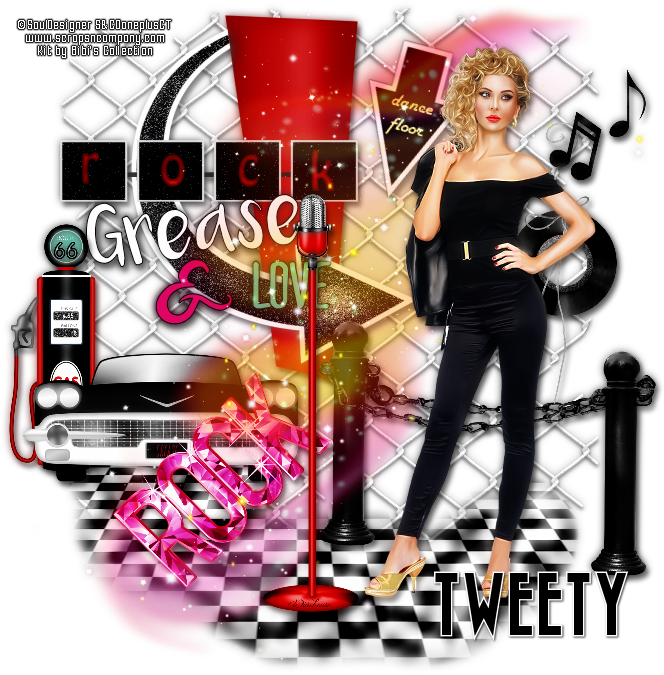
Olivia

GREASE TUTORIAL


Tutorial written by Marcia Salgado on January 30th, 2016
for those who have a working knowledge of PSP.
I'm using PSP9 to create my tuts.
Any resemblance to any other tutorial is coincidental.
Do not copy and paste this tutorial anywhere on the net.
If you want to translate please ask first. 

****************************************
Material:

Tube: "Olivia" by SoulDesigner, you can purchase it here
do not use without the proper #license.
PTU Kit "Olivia" by Bibi's Collection, you can purchase it here
Font: Bazar

****************************************

--> Remember to save often and use my tag as reference if necessary. Use a Drop Shadow of your preference on layers.

1. Create a new image 700x700.

2. Open BIBI-OLIVIAS ELEMS (66). Resize 50%. Copy and paste as new layer. Move it up.

3. Open BIBI-OLIVIAS ELEMS (15). Resize 35%. Copy and paste as new layer. Move it down.

4. Open BIBI-OLIVIAS ELEMS (40). Copy and paste as new layer. Move it up and to left. 

5. Open BIBI-OLIVIAS ELEMS (37). Resize 65%. Free Rotate: Right-15. Copy and paste as new layer. Move it up and a little to right.

6. Open. BIBI-OLIVIAS ELEMS (39). Resize 35%. Copy and paste as new layer. Move it down and way to left.

7. Open BIBI-OLIVIAS ELEMS (38). Resize 40%. Copy and paste as new layer. Move it down and to left.

8. Open BIBI-OLIVIAS ELEMS (82). Resize 45%. Copy and paste as new layer. Move it down and to right.

9. Open BIBI-OLIVIAS ELEMS (76). Resize 50%. Copy and paste as new layer. Move it down and a little to left.

10. Open BIBI-OLIVIAS ELEMS (34). Resize 40%. Copy and paste as new layer. Move it up and to right.

11. Open BIBI-OLIVIAS ELEMS (12). Resize 60%. Copy and paste as new layer.

12. Open BIBI-OLIVIAS ELEMS (29). Resize 45%. Copy and paste as new layer. Move it down.

13. Open BIBI-OLIVIAS ELEMS (72). Resize 45%. Copy and paste as new layer. Move it up and to right.

14. Open your tube. Resize if needed. Copy and paste as new layer. Move it to right. You may want to rearrange the elements to better fit your tube.


--> Add your copyright info and license#. Add your name and save as PNG.


January 26, 2016

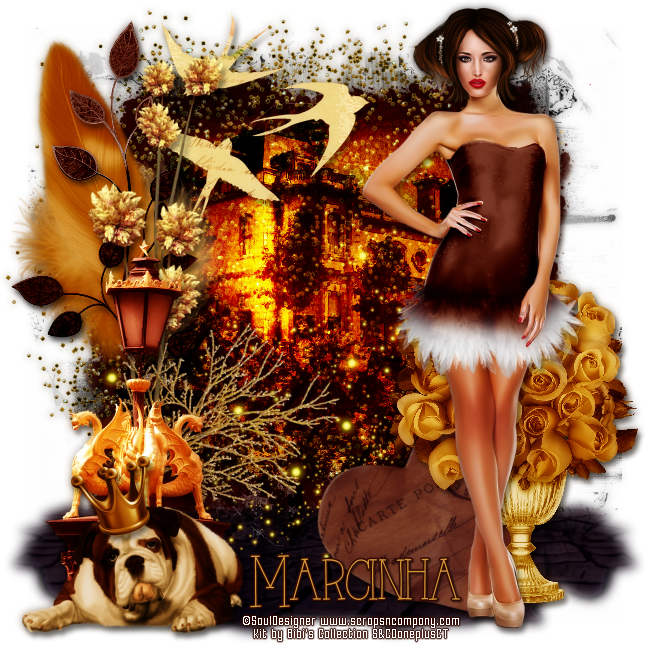
Thrones ~ by Joanne Salgado


Tutorial written by Joanne Salgado on January 26th, 2016
for those who have a working knowledge of PSP.
Any resemblance to any other tutorial is coincidental.
Do not copy and paste this tutorial anywhere on the net.
If you want to translate please ask first. 

Tube: Queen Thrones by SoulDesigner - you can purchase here
Kit Thrones by Bibi's Collection - you can purchase here
Font: Tenebrae

Don't forget to save often.
At any point if you have doubts check my tag.

1. Open a new image 650x550

2. Open element 'BIBI-THRONES ELEMS (97)' copy and paste as new layer.

3. Open element 'BIBI-THRONES ELEMS (94)' copy and paste as new layer. Resize 55%. Arrange it to the left.

4. Open element 'BIBI-THRONES ELEMS (91)' copy and paste as new layer. Rotate right 25. Move this layer below the frame layer. Arrange it to the bottom right of the frame.

5. Open element 'BIBI-THRONES ELEMS (89)' copy and paste as new layer. Resize 40%. Move this layer below the white flower layer. Rotate right 90. Arrange it to the bottom right of the flower (we only need the leaves).

6. Open paper 'BIBI-THRONES PAPERS (4)' copy and paste as new layer. Resize 30%. Arrange it behind the frame and clean the parts that appears outside it.

7. Open your tube. Copy and paste as new layer. Arrange it inside the frame as you like, clean the parts that appears outside the frame. Change opacity to 66 and blend mode to Luminance (L).

8. Open element 'BIBI-THRONES ELEMS (87)' copy and paste as new layer. Resize 50%. Rotate left 15. Arrange it to the middle right.

9. Open element 'BIBI-THRONES ELEMS (104)' copy and paste as new layer. Resize 90%. Move this layer above the frame layer. clean the parts above the inside of the frame.

10. Add shadow as you like.

11. Add copyright. Add name. Save as PNG.

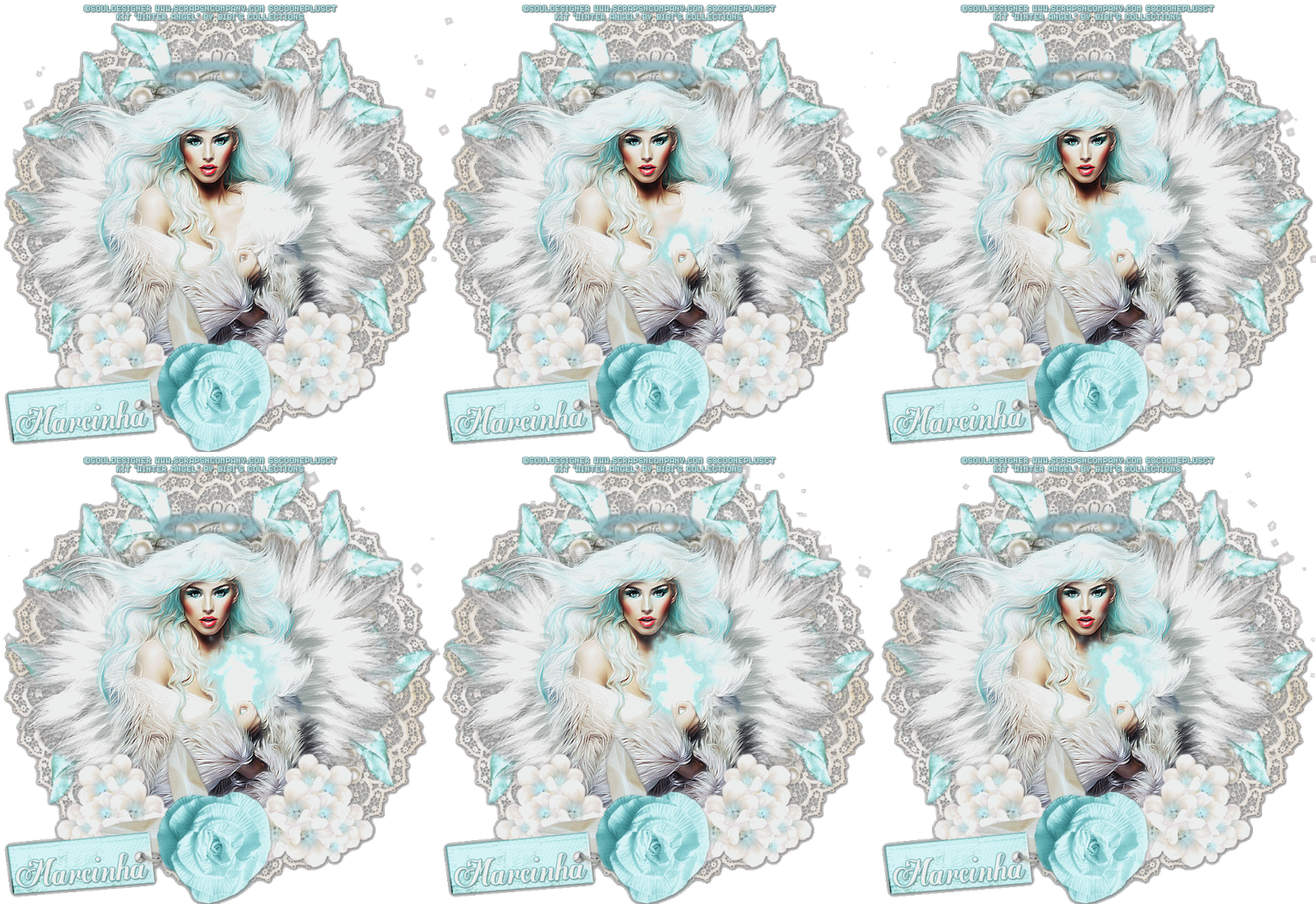
January 5, 2016

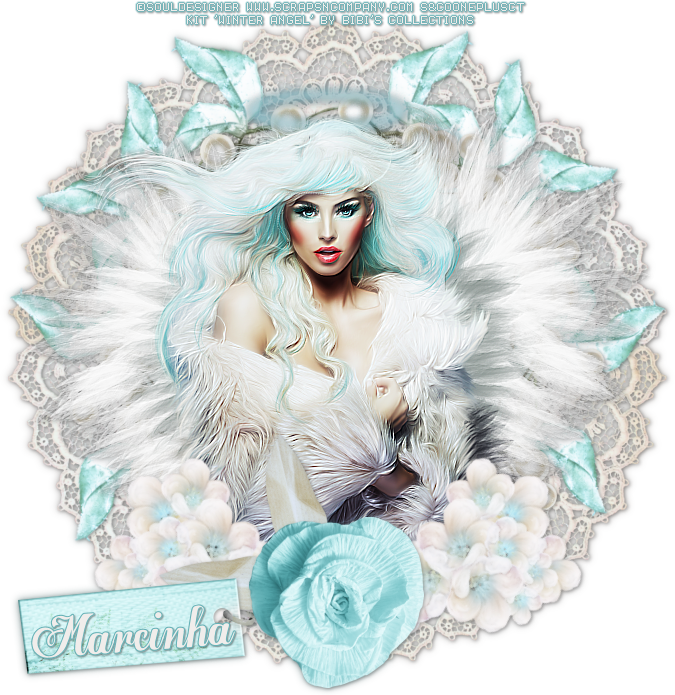
Winter Angel

LUMINESCENSE TUTORIAL


Tutorial written by Marcia Salgado on January 5th, 2016
for those who have a working knowledge of PSP.
I'm using PSP9 to create my tuts.
Any resemblance to any other tutorial is coincidental.
Do not copy and paste this tutorial anywhere on the net.
If you want to translate please ask first. 

****************************************
Material:

Tube: "Winter Angel" by SoulDesigner, you can purchase it here
do not use without the proper #license.
PTU Kit "Winter Angel" by Bibi's Collection, you can purchase it here
Font: Egregio Script

****************************************

--> Remember to save often and use my tag as reference if necessary. Use a Drop Shadow of your preference on layers. 

1. Create a new image 700x700.

2. Open BIBI-WINTER ANGEL ELEMS (3). Resize 70%. Copy and paste as new layer.

3. Select inside the frame. Add a new layerand move it below the frame layer. Expand > 5. Open BIBI-WINTER ANGEL PAPERS (11). Copy and paste into selection. Deselect.

3. Open BIBI-WINTER ANGEL ELEMS (18), Resize 90%. Copy and paste as new layer.

4. Open BIBI-WINTER ANGEL ELEMS (19). Copy and paste as new layer.

5. Open your tube closeup. Resize if needed. Copy and paste as new layer. Place it as you want ovr the frame. Later we'll clean some parts if needed. Rename this layer to TUBE.

6. OPen BIBI-WINTER ANGEL ELEMS (46). Resize 45%. Free Rotate: Left-30. Copy and paste as new layer. Move it down and to left. Place it over the tube's bottom to hide it a little. Duplicate. Mirror. Mrge down.

7. Open BIBI-WINTER ANGEL ELEMS (21). Resize 45%. Mirror. Copy and paste as new layer. Move it down and to left.

8. Open BIBI-WINTER ANGEL ELEMS (94). Resize 50%. Copy and paste as new layer. Move it down and way to left.

9. Open BIBI-WINTER ANGEL ELEMS (92). Resize 45%. Copy and paste as new layer. Move it down.

10. Now, iof needed, click on TUBE's layer and clean any part is still showing down, below the elements used to cover it.

--> Add your copyright info and license#. Add your name and save as PNG.

-----------------------------------------------

Some animations I made using: 
SimoneAni71-TheBlingSeries-00 (cull animation by 2 - rested only 16 frames)
and pinkblur_bymissy (colorized in AS with shades of tube's blue color)


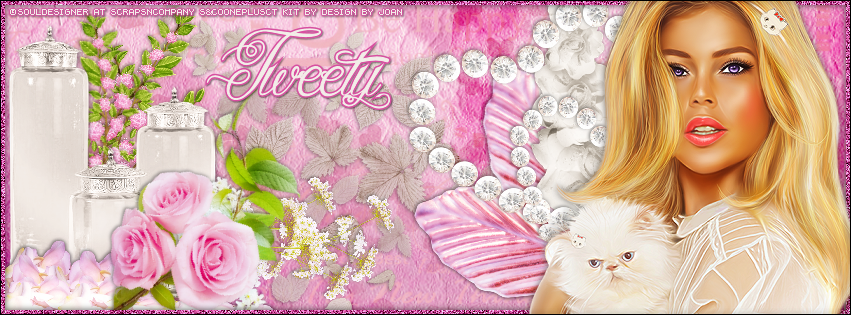
May 28, 2015

Mimi

PINKALICIOUS TUTORIAL

**Click to see the original size**

Tutorial written by Marcia Salgado on May 28th, 2015
for those who have a working knowledge of PSP.
Any resemblance to any other tutorial is coincidental.
Do not copy and paste this tutorial anywhere on the net.
If you want to translate please ask first. 

****************************************
Material:

Tube: "Mimi" by Souldesigner, you can purchase it here
do not use without the proper #license.
PTU Kit "Mimi" by Design by Joan,
you can purchase it here or here
Font: Queen of the Moon

****************************************

--> Remember to save often and use my tag as reference if necessary. Used the Drop Shadow: 1-1-50-5 in most layers. 

1. Create a new image 851x315. Add a new layer. Select all. Open MIMI_DBJ-PP (2). Custom Selection: Left-0, Top-490, Right-800, Bottom-800. Copy and paste into selection. Keep selected.

2. Add a new layer. Open MIMI_DBJ-PP (6). Repeat the same Custom Selection. Copy and paste into selection. Blend Mode: Burn. Deselect. 

3. Open MIMI_DBJ (6). Copy and paste as new layer. Move it to left. Blend Mode: Multiply. Low the layer opacity to 60.

4. Open MIMI_DBJ (89). Resize 60%. Mirror. Copy and paste as new layer. Move it to left. 

5. Open MIMI_DBJ (15). Resize 80%. Copy and paste as new layer. Move it to right top. Blend Mode: Burn.

6. Open MIMI_DBJ (48). Resize 50%. Mirror. Copy and paste as new layer. Move it to right. Duplicate. Free Rotate: Right-45. Move it a little up. Merge down.

7. Open MIMI_DBJ (25). Resize 30%. Copy and paste as new layer. Move it to left. Duplicate. Mirror. Move it more to left and a little down. Merge down.

8. Open MIMI_DBJ (9). Resize 30%. Copy and paste as new layer. Move it down and left. Duplicate. Flip. Place it over the first one. Merge down.

9. Open MIMI_DBJ (52). Resize 70%. Copy and paste as new layer. Move it way left.

10. Open MIMI_DBJ (63). Resize 40%. Copy and paste as new layer. Move it down left. Place in front of white bottles.

11. Open MIMI_DBJ (24). Resize 50%. Mirror. Free Rotate: Right-45. Copy and paste as new layer. Place it over the white bottles at the bottom right side.

12. Open MIMI_DBJ (65). Resize 70%. Free Rotate: Right-90. Copy and paste as new layer. Move it to right. 

13. Open MIMI_DBJ (34). Resize 50%. Copy and paste as new layer. Move it to right.

14. Add a new layer. Select all. Fill with #d84fa1. Contract > 5. Delete. Deselect. Noise: Gaussian-100. Monochrome.


--> Add your copyright info (no URL by Facebook TOU) and license#. Add your name. Save as PNG.

--> Sometimes I had to change my Timeline size to 846x313 because when I add it to Facebook the image has extra pixels and do not fit perfectly. So try this size if the same is happening to you.


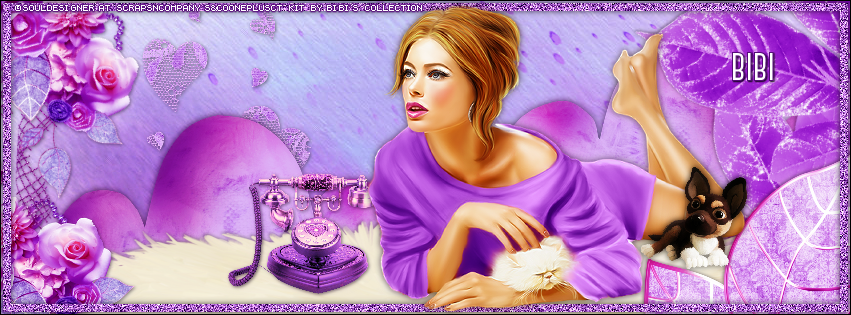
May 19, 2015

Sweet

PURPLE CANDY TUTORIAL

**Click to see original size**

Tutorial written by Marcia Salgado on May 20th, 2015
for those who have a working knowledge of PSP.
Any resemblance to any other tutorial is coincidental.
Do not copy and paste this tutorial anywhere on the net.
If you want to translate please ask first. 

****************************************
Material:

Tube: "Sweet" by SoulDesigner, you can purchase it here
do not use without the proper #license.
PTU Kit "Sweet Bow" by Bibi's Collection Scraps,
you can purchase it here 
Font: Canter Bold

****************************************

--> Remember to save often and use my tag as reference if necessary. Used the Drop Shadow: 1-1-50-5 in most layers. 

1. Create a new image 851x315. Open BIBI-SWEET BOW PAPER (4). Copy and paste as new layer.

2. Open BIBI-SWEETBOW ELEMS (7). Mirror. Flip. Copy and paste as new layer. Blend Mode: Multiply.

3. Open BIBI-SWEETBOW ELEMS (18). Resize 45%. Copy and paste as new layer. Move it to left.

4. Open BIBI-SWEETBOW ELEMS (10). Resize 40%. Copy and paste as new layer. Move it down left. Duplicate. Mirror. Move it a little up. Merge down.

5. Open BIBI-SWEETBOW ELEMS (40). Resize 60%. Free Rotate: Left-35. Copy and paste as new layer. Move it to bottom right corner. Duplicate. Move it up. On both just show a piece of the element.

6. Open BIBI-SWEETBOW ELEMS (43). Copy and paste as new layer. Move it to bottom.

7. Open BIBI-SWEETBOW ELEMS (70). Resize 50%. Copy and paste as new layer. Move it to bottom left corner. Duplicate. Free Rotate: Right-45. Move it up.

8. Open BIBI-SWEETBOW ELEMS (82). Resize 25%. Copy and paste as new layer. Move it down left.

9. Open BIBI-SWEETBOW ELEMS (68). Resize 50%. Mirror. Copy and paste as new layer. Move it to bottom right corner. Add a new layer. Select all. Contract > 3. Fill the selection with the color #B167D5
. Contract > 8. Delete. Deselect. Noise: Gaussian-100-Monochrome.

10. Open your tube. Resize if needed. Copy and paste as new layer. Move it right down. Add a suitable shadow.

11. Open BIBI-SWEETBOW ELEMS (44). Resize 15%. Copy and paste as new layer. Move it down right. I use it in front my tube legs. Add a new layer. Fill it with black. Select all. Contract > 1. Delete. Deselect.

--> Add your copyright info (no URL by Facebook TOU) and license#. Add your name. Save as PNG.
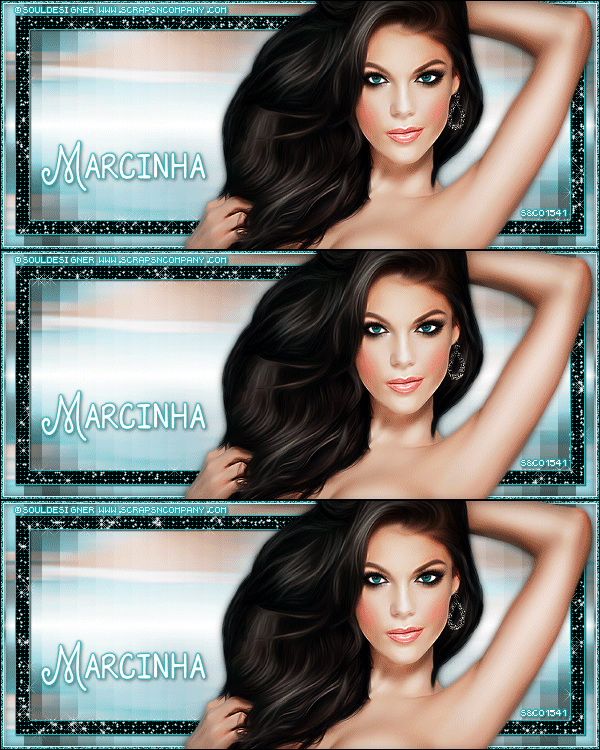
--> Sometimes I had to change my Timeline size to 846x313 because when I add it to Facebook the image has extra pixels and do not fit perfectly. So try this size if the same is happening to you.


May 17, 2015

Romance ~ by Joanne Salgado


Tutorial written by Joanne Salgado on May 17th, 2015
for those who have a working knowledge of PSP.
Any resemblance to any other tutorial is coincidental.
Do not copy and paste this tutorial anywhere on the net.
If you want to translate please ask first. 

Tube: Anette by SoulDesigner - you can purchase here
Kit Romance by Bibi's Collection - you can purchase here
Font: PonytailScriptSSK

Don't forget to save often.
At any point if you have doubts check my tag.

1. Open a new image 600x500

2. Open element 'BIBI-ROMANCE ELEM (73)' copy and paste as new layer. Resize 50%.

3. Open your tube. Copy and paste as new layer. Resize as you prefer and arrange it to the right. Clean the lower parts so it looks like its coming from inside the frame.

4. Open paper 'BIBI-ROMANCE PAPERS (5)' copy and paste as new layer. Resize 50%. Move this below the frame layer. Clean the parts that appears outside the frame.

5. Open element 'BIBI-ROMANCE ELEM (31)' copy and paste as new layer. Resize 90%. Clean the inside so it just appears outside the frame.

6. Open element 'BIBI-ROMANCE ELEM (23)' copy and paste as new layer. Resize 50%. Arrange it to the bottom left of the frame, clean the parts that appears outside.

7. Open element 'BIBI-ROMANCE ELEM (17)' copy and paste as new layer. Resize 30%. Arrange it above the fireplace.

8. Open element 'BIBI-ROMANCE ELEM (5)' copy and paste as new layer. Resize 18%. Arrange it above the fireplace.

9. Open element 'BIBI-ROMANCE ELEM (9)' copy and paste as new layer. Resize 10%. Mirror. Arrange it above the fireplace.

10. Add shadow. I used: 1-1-65-2 black.

11. Add copyright.

12. Add name. I used: PonytailScriptSSK / size: 48

Save as PNG

April 26, 2015

Sensual ~ by Joanne Salgado


Tutorial written by Joanne Salgado on April 26th, 2015
for those who have a working knowledge of PSP.
Any resemblance to any other tutorial is coincidental.
Do not copy and paste this tutorial anywhere on the net.
If you want to translate please ask first. 

Tube: Sensual by SoulDesigner - you can purchase here 
Kit Sensual by Bibi's Collection - you can purchase here 
Mask 'DD_SM_9' by Dee here 
Font: Great Vibes

Don't forget to save often.
At any point if you have doubts check my tag.

1. Open a new image 600x500.

2. Open paper 'BIBI-SENSUAL PAPERS (1)' copy and paste as new layer. Open your mask, I used DD_SM_9, apply it. Merge group. Change opacity to 50.

3. Open element 'BIBI-SENSUAL ELEMS (30)' copy and paste as new layer. Arrange it to the top left corner.

4. Open element 'BIBI-SENSUAL ELEMS (44)' copy and paste as new layer. Resize 60%. Arrange it to the right.

6. Open element 'BIBI-SENSUAL ELEMS (18)' copy and paste as new layer. Resize 40%. Mirror. Move this layer below the frame layer. Arrange it to the bottom left of the frame.

7. Open paper 'BIBI-SENSUAL PAPERS (2)' copy and paste as new layer. Resize 60%. Arrange it inside the frame. Clean all the parts that appears outside the frame.

8. Open element 'BIBI-SENSUAL ELEMS (16)' copy and paste as new layer, Resize 60%. Move this layer above the frame layer. Arrange it to the left of the frame.

9. Open your tube. Copy and paste as new layer. Resize as you prefer and arrange it inside the frame. Clean all the lower parts of your tube that appears outside the frame.

10. Open element 'BIBI-SENSUAL ELEMS (78)' copy and paste as new layer. Arrange it to the bottom of the frame.

11. Open element 'BIBI-SENSUAL ELEMS (34)' copy and paste as new layer. Resize 40%. Arrange it to the bottom right of the frame.

12. Add shadow. I used: 1-1-65-2 black.

13. Add copyright.

14. Add name. I used: Great Vibes / size: 55

Save as PNG

March 13, 2015

Blue Star Shine

BLUE STAR SHINE TUTORIAL


Tutorial written by Marcia Salgado on March 13th, 2015
for those who have a working knowledge of PSP.
Any resemblance to any other tutorial is coincidental.
Do not copy and paste this tutorial anywhere on the net.
If you want to translate please ask first. 

****************************************
Material:

Tube: Souldesigner "Amanda", you can purchase it at S&Co. here,
do not use without the proper #license.
Plugin: Mura's Meister > Copies > Wallpaper (rotate)
Xenofex 2 > Constelation
Font: DJB Holly Enchanted

****************************************

--> Remember to save often and use my tag as reference if necessary. 

1. Open a new image 600x250. Open your tube. Copy and paste s new layer. Move it until the colors you want are showing. Select All. Selections > Clip to canvas. Image > Crop to selection. Apply Mura's Meister > Copies > Wall Paper (rotate) > Default. If the image do not cover all space, apply it again. Blur > Motion Blur > Angle=90 Strength=100. Duplicate. Mirror. Change blend mode to Soft Light. Merge Visible. 

2. Add a new layer. White on foreground and black on background layer. Create a gradient: Style=Radial Angle=0 Repeats=7 Center Point=H:100 V:50. Fill the layer. Move it down. Duplicate. Mirror. Low opcity to 50. Mege down. Duplicate. Change blend mode to Multiply.

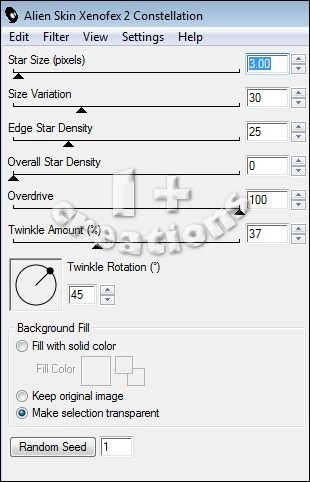
3. Click on first layer. Select all. Contract > 15. Fill with black. Contract > 15. Delete. Effects > Texture Effects > Wave > Gap size=3 Width=3 Opacity=10 Use a color from your tube in both squares Fill gap marked. I'm using the color:#1fb4ba. Rename the layer BASE. Duplicate it three times, in a total of 4 layers. Rename the duplicated layers to 1,2 and 3. Click on layer 1 and apply Alien Skin Xenofex2 > Constelation > Settings below. Repeat the same on layers 2 and 3 just cliking one on Random Seed button. Leave layers 2 and 3 invisible.


4. Click on first layer. Select all. Contract 15. Fill with same color used on Wave effect. Contract 1. Delete. Contract> 13. Fill with same color. Contract > 1. Delete. Drop Shadow: 1-1-85-2-Black. 

5. Add new layer. Select all. Fill with white. Contract > 4. Delete. Drop Shadow: 0-0-70-10-Black. Add new layer. Select All. Fill with same color used before. Contract > 3. Delete. Duplicate this layer twice. In a total of 3 layer. Rename layer 1N, 2N and 3N. Click on 1N and apply Noise: Gaussian-75-Monochrome. Apply the same in layer 2N and 3N but repeat all process, do not use Edit > Repeat. Leave layers 2N and 3N invisible.

6. Add your tube close up. Resize it and move it to right. Add a suitable shadow. Add a new alyer. Select all. Contract > 1. Delete. Drop Shadow: 0-0-70-10-Black. Add your copyright info and #license. Add your name. Edit > Copy Merged.

ANIMATION

1. In Animation Shop paste as new animation. Back to PSP, let invisible layers 1 and 1N and visible layers 2 and 2N. Copy Merged.

2. In Animation Shop paste after current frame. Back to PSP, let invisible layers 2 and 2N and visible layers 3 and 3N. Copy Merged. 

3. In Animation Shop paste after current frame. Select all frames. Animation > Frame Properties > 18. Save.


March 9, 2015

HOT ~ by Joanne Salgado


Tutorial written by Joanne Salgado on February 18th, 2015
for those who have a working knowledge of PSP.
Any resemblance to any other tutorial is coincidental.
Do not copy and paste this tutorial anywhere on the net.
If you want to translate please ask first. 

Tube: HOT by Souldesigner - you can purchase here 
Kit HOT by Design by Joan - you can purchase here 
Mask (first one) by Dee here 
Font: Almond Script

Don't forget to save often.
At any point if you have doubts check my tag.

1. Open a new image 600x600.

2. Open element 'DBJ_HOT78' copy and paste as new layer. Resize 70%. Free Rotate 65-right.

3. Open element 'DBJ_HOT134' copy and paste as new layer. Resize 90%. Move this layer bellow the frame layer.

4. Open element 'DBJ_HOT12' copy and paste as new layer. Resize 50%. Arrange it to the top right of the frame.

5. Open element 'DBJ_HOT118' copy and paste as new layer. Resize 50%. Arrange it to the top left of the frame.

6. Open element 'DBJ_HOT54' copy and paste as new layer. Arrange it to the bottom right of the frame.

7. Open element 'DBJ_HOT58' copy and paste as new layer. Resize 80%.

8. Open paper 'DBJ-HOT_PP10' copy and paste as new layer. Resize 80%. Select the layer with the freehand selection tool, invert and delete or use the eraser tool to clean the paper out of the frame.

9. Open element 'DBJ_HOT46' copy and paste as new layer. Resize 60%. Move this layer above the frame layer. Arrange it to the upper left of the frame.

10. Open element 'DBJ_HOT39' copy and paste as new layer. Resize 50%. Free Rotate 15-left. Arrange it to the right above the black rose.

11. Open your tube. I'm using the tube HOT by Souldesigner. Copy and paste as new layer. Resize as you like, I resized at 60%. Mirror. Arrange it to the bottom as her legs are inside the frame. Use the eraser tool to clean the parts that are outside the frame.

12. Open element 'DBJ_HOT63' copy and paste as new layer. Resize 80%.

13. Open element 'DBJ_HOT52' copy and paste as new layer. Arrange it to the bottom.

14. Open paper 'DBJ-HOT_PP11' copy and paste as new layer. Layers/Arrange/Send to bottom. Open your mask, I used DD_NGM1_2015_1. Apply the mask to the paper, layers/merge/merge group.

15. Add your copyright.

16. Add your name. I used: Almond Script / size: 72

Save.

March 7, 2015

Amanda

AMANDA TUTORIAL


Tutorial written by Marcia Salgado on March 7th, 2015
for those who have a working knowledge of PSP.
Any resemblance to any other tutorial is coincidental.
Do not copy and paste this tutorial anywhere on the net.
If you want to translate please ask first. 

****************************************
Material:

Tube: Souldesigner,  you can purchase it here
PTU Kit "Amanda" by Kizzed By Kelz Kits,  you can purchase it here
Template by Divine Intentionz here
Filter: AP Lines
Font: Oxida

****************************************

--> Remember to save often and use my tag as reference if necessary.

1. Open template. Duplicate. Close original. Delete layers: by missy, words and raster 1. Open element 'KBK_Amanda (132)'. Copy and paste as new layer. Layers > arrange > send to bottom. Open element 'KBK_Amanda (35)'. Copy and paste as new layer. Resize 70%. Move it to the right. Duplicate. Mirror.

2. Open paper 'KBK_Amanda (29)'. Go to your Material Palette and change the foreground color to pattern. Look for the paper. Change match mode to RGB Value. Select square1 layer and fill it. Select square 2 layer and do the same. Select thin rectangle1 layer and repeat. 

3. Select 'frame1' layer. Add Noise > Uniform-30-Monochrome. Drop Shadow: 1-1-35-2 black. Select 'frame2' layer. Add Noise > Uniform-30-Monochrome. Same shadow. Open element 'KBK_Amanda (60)'. Copy and paste as new layer. Resize 50%. Move it to the left, around the circle border. Duplicate. Mirror. Move it a little bellow the first petals we added. Same shadow.

4. Open element 'KBK_Amanda (62)'. Copy and paste as new layer. Duplicate. On the original layer > Resize 60%. Arrange it to the right around the circle border. Add shadow 1-1-35-2 black. On the duplicated layer > Resize 30%. Arrange it to the upper part of the circle border next to the petals we added. Same shadow.

5. Open paper 'KBK_Amanda (20)' with the flood fill tool change to pattern. Find the paper. Change match mode to RGB Value. Select layer 'circle' and fill it. Plugins > AP [Lines] > SilverLining > Breaks - change the three color[R] to 255 - create lines not gaps checked.

6. Select 'frame3' layer. Adjust > Color Balance > Manual Color Correction > First square color: #fec5d8 Second square color: #ffffff. Add Noise > Uniform-30-Monochrome. Same shadow.

7. Open your tube. Copy and paste as new layer. Resize as you like. Arrange it to the right. With the eraser tool clean the parts of the tube that appears under the bottom rectangles. Add a suitable shadow.

8. Select 'thin rectangle2' layer. Manual Color Correction > First square color: #fec5d8 Second square color: #ffffff. Add Noise > Uniform-10-Monochrome. Drop shadow 1-1-35-2 black. Select 'thin rectangle3' layer. Manual Color Correction > First square color: #fec5d8 Second square color: #ffffff. Add Noise > Uniform-10-Monochrome. Same shadow.

9. Select 'dotted line1' layer. Manual Color Correction > First square color: #fec5d8 Second square color: #ffffff). Same shadow. Select 'dotted line2' layer. Manual Color Correction > First square color: #fec5d8 Second square color: #ffffff. Same shadow.

10. Open element 'KBK_Amanda (6)'. Copy and paste as new layer. Resize 80%. Move it to the left. Same shadow. Open element 'KBK_Amanda (69)'. Copy and paste as new layer. Resize 50%. Mirror. Move it to the bottom right of the rectangle. Same shadow.

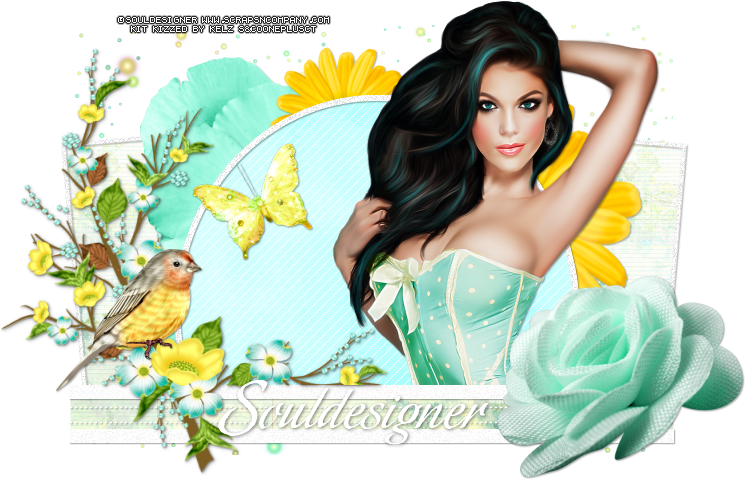
11. Open element 'KBK_Amanda (15)'. Select the yellow butterfly. Copy and paste as new layer. Resize 50%. Free Rotate: Left-25. Move it to the left, inside the circle. Same shadow. Open element 'KBK_Amanda (9)'. Copy and paste as new layer. Resize 30%. Move it to the left above the branch.

--> Resize if wanted. Add your copyright and # license. Add your name. I used Oxida/Size: 48. Save as PNG.