Showing posts with label Lady Mishka. Show all posts

May 28, 2017

SHOW OFF - Lola


== NEW PTU TUTORIAL S&CO. CT ==
FOR LADYMISHKA AND ANGELWING SCRAPS

Featuring "Lola" tube by LadyMishka and
"DarkSide" Kit by AngelWing Scraps at Scraps N Company - S&Co.

Tube by LadyMishka - you can purchase here

Kit by AngelWing Scraps - you can purchase here


March 3, 2017

St. Paty ~ by Joanne Salgado


Tutorial written by Joanne Salgado on March 03th, 2017
for those who have a working knowledge of PSP.
I'm using PSP9 to create my tuts.
Any resemblance to any other tutorial is coincidental.
Do not copy and paste this tutorial anywhere on the net.
If you want to translate please ask first. 

****************************************
Material:

Tube: "Paty 5" by LadyMishka, you can purchase it here
do not use without the proper #license.
PTU Kit "Lucky" by Chili Designz, you can purchase it here
Font: Weltron

****************************************

--> Remember to save often and use my tag as reference if necessary.

1. Open new image 650x550

2. Open frame 'CHILI_DESIGNZ_Lucky_frame7' copy and paste as new layer. Resize 80%.

3. Open element 'CHILI_DESIGNZ_Lucky_flower' copy and paste as new layer. Move this later below the frame layer. Arrange it to the top left.

4. Open element 'CHILI_DESIGNZ_Lucky_clover3' copy and paste as new layer. Arrange it to the top right.

5. Open element 'CHILI_DESIGNZ_Lucky_deco' copy and paste as new layer. Arrange it to the top.

6. Open element 'CHILI_DESIGNZ_Lucky_doily2' copy and paste as new layer. Arrange it to the bottom right.

7. Open element 'CHILI_DESIGNZ_Lucky_clover2' copy and paste as new layer. Arrange it to the top left.

8. Open element 'CHILI_DESIGNZ_Lucky_charm2' copy and paste as new layer. Arrange it to the bottom right.

9. Open paper 'CHILI_DESIGNZ_Lucky_paper4' copy and paste as new layer. Resize 71%. Clean outside parts.

10. Open element 'CHILI_DESIGNZ_Lucky_horseshoe2' copy and paste as new layer. Resize 40%. Move this layer above the frame layer. Arrange it to the bottom left.

11. Open your tube. Copy and paste as new layer. Resize as needed and arrange it to the right.

12. Open element 'CHILI_DESIGNZ_Lucky_tree' copy and paste as new layer. Resize 60%. Mirror. Arrange it to the left.

13. Open element 'CHILI_DESIGNZ_Lucky_squirrel' copy and paste as new layer. Resize 60%. Arrange it to the bottom left.

14. Open element 'CHILI_DESIGNZ_Lucky_plate' copy and paste as new layer. Resize 60%. Arrange it to the top left.

15. Open element 'CHILI_DESIGNZ_Lucky_rainbow' copy and paste as new layer. Resize 60%. Arrange it to the left.

16. Open element 'CHILI_DESIGNZ_Lucky_worm' copy and paste as new layer. Resize 40%. Arrange it to the bottom left.

17. Open element 'CHILI_DESIGNZ_Lucky_butterfly' copy and paste as new layer. Resize 40%. Arrange it to the left. Duplicate. Mirror. Arrange it a little lower to the right.

18. Open element 'CHILI_DESIGNZ_Lucky_deco2' copy and paste as new layer. Resize 70%. Arrange it to the bottom right.

19. Open element 'CHILI_DESIGNZ_Lucky_deco3' copy and paste as new layer. Resize 50%. Arrange it to the bottom right.

20. Open element 'CHILI_DESIGNZ_Lucky_sparkles' copy and paste as new layer. Resize 70%.

21. Add shadow as you prefer.

22. Add copyright. Add name. Save as PNG.

Paty ~ by Joanne Salgado


Tutorial written by Joanne Salgado on March 03th, 2017
for those who have a working knowledge of PSP.
I'm using PSP9 to create my tuts.
Any resemblance to any other tutorial is coincidental.
Do not copy and paste this tutorial anywhere on the net.
If you want to translate please ask first. 

****************************************
Material:

Tube: "Paty 1" by LadyMishka, you can purchase it here
do not use without the proper #license.
PTU Kit "Paty 1" by Rieneke Designs, you can purchase it here
Font: AppleJaxDotsPro

****************************************

--> Remember to save often and use my tag as reference if necessary.

1. Open a new image 650x550

2. Open element 'RD-Paty1-element (40)' copy and paste as new layer. Resize 90%.

3. Open paper 'RD-Paty1-paper (6)' copy and paste as new layer. Resize 60%. Clean outside the frame once we add it.

4. Open element 'RD-Paty1-element (20)' copy and paste as new layer. Resize 80%.

5. Open element 'RD-Paty1-element (14)' copy and paste as new layer Arrange it to bottom.

6. Open element 'RD-Paty1-element (36)' copy and paste as new layer. Resize 50%. Mirror. Arrange it to the left.

7. Open your tube. Copy and paste as new layer. Resize as needed and arrange it to the right.

8. Open element 'RD-Paty1-element (26)' copy and paste as new layer. Resize 35%. Arrange it to the bottom left.

9. Open element 'RD-Paty1-element (43)' copy and paste as new layer. Resize 70%. Arrange it a little to bottom.

10. Open element 'RD-Paty1-element (39)' copy and paste as new layer. Resize 30%. Arrange it to bottom left.

11, Open element 'RD-Paty1-element (19)' copy and paste as new layer. Resize 20%. Arrange it to the bottom left.

12. Open element 'RD-Paty1-element (7)' copy and paste as new layer. Resize 20%. Arrange it to bottom.

13. Open element 'RD-Paty1-element (29)' copy and paste as new layer. Resize 20%. Arrange it to the bottom right.

14. Add shadow as you prefer.

15. Add copyright. Add name. Save as PNG.

December 4, 2016

SHOW OFF - Santa


== NEW PTU S&CO. CT ==
FOR LADYMISHKA AND RIENEKE DESIGNS

Featuring "Santa-1" tube by LadyMishka and
"Traditional Christmas" Kit by Rieneke Designs at Scraps N Company - S&Co.

Tube by LadyMishka - you can purchase here

Kit by Rieneke Designs - you can purchase here


November 27, 2016

Pirate Elli ~ by Joanne Salgado


Tutorial written by Joanne Salgado on November 27th, 2016
for those who have a working knowledge of PSP.
I'm using PSP9 to create my tuts.
Any resemblance to any other tutorial is coincidental.
Do not copy and paste this tutorial anywhere on the net.
If you want to translate please ask first. 

****************************************
Material:

Tube: "Pirate Elli" by LadyMishka - you can purchase it here
do not use without the proper #license.
PTU Kit "Pirate Elli" by Lizquis Scraps - you can purchase it here
Font: Thinking of Betty

****************************************

Don't forget to save often.
At any point if you have doubts check my tag.

1. Open a new image 650x550

2. Open element 'LS_PirateElli_frame1' copy and paste as new layer. Resize 70%.

3. Open element 'LS_PirateElli_flower1' copy and paste as new layer. Resize 50%. Move this layer below the frame layer. Arrange it to the top left. Duplicate. Arrange it to middle left. Duplicate both and mirror/flip both.

4. Open element 'LS_PirateElli_flower2' copy and paste as new layer. Resize 50%. Arrange it to the top left. Duplicate. Arrange it to the bottom left. Duplicate. Arrange it to the top right. Duplicate. Arrange it to the bottom right. (always between the black flowers).

5. Open paper 'LS_PirateElli_paper6' copy and paste as new layer. Resize 55%. Arrange it inside the frame and clean the outside parts.

6. Open element 'LS_PirateElli_sand' copy and paste as new layer. Arrange it to bottom. Clean parts outside the frame.

7. Open element 'LS_PirateElli_crystals' copy and paste as new layer. Resize 30%. Arrange it to bottom.

8. Open element 'LS_PirateElli_water' copy and paste as new layer. arrange it a little to top. Clean parts outside the frame.

9. Open element 'LS_PirateElli_watersplash' copy and paste as new layer. Resize 50%. Mirror. Arrange it to the left.

10. Open element 'LS_PirateElli_palm tree' copy and paste as new layer. Resize 50%. Mirror. Arrange it a little to the right.

11. Open element 'LS_PirateElli_chest' copy and paste as new layer. Resize 30%. Arrange it to the bottom right.

12. Open element 'LS_PirateElli_skull chest' copy and paste as new layer. Resize 30%. Arrange it to the bottom right.

13. Open element 'LS_PirateElli_flag' copy and paste as new layer. Resize 30%. Arrange it to the left.

14. Open element 'LS_PirateElli_cannon' copy and paste as new layer. Resize 40%. Mirror. Arrange it to the bottom left.

15. Open element 'LS_PirateElli_bomb' copy and paste as new layer. Resize 30%. Arrange it to the bottom left.

16. Open element 'LS_PirateElli_crab' copy and paste as new layer. Resize 30%. Arrange it to bottom.

17. Open element 'LS_PirateElli_hat' copy and paste as new layer. Resize 30%. Move this layer above the frame layer. Arrange it to the top right.

18. Open element 'LS_PirateElli_rope' copy and paste as new layer. Resize 70%. Arrange it to bottom.

19. Open element 'LS_PirateElli_parrot1' copy and paste as new layer. Resize 30%. Arrange it to the bottom right.

20. Open your tube. Copy and paste as new layer. Resize as needed and arrange it a little to the left.

21. Open element 'LS_PirateElli_sparkles2' copy and paste as new layer.

22. Open element 'LS_PirateElli_light1' copy and paste as new layer. Resize 80%.

23. Add shadow as you prefer.

24. Add copyright. Add name. Save as PNG.

November 26, 2016

SHOW OFF - 3RD ANNIVERSARY COLLAB 2


== NEW PTU S&CO. CT ==
FOR LADYMISHKA AND KIZZED BY KELZ

Featuring "3rd Anniversary JOAN & BIBI DOLLS" tube by LadyMishka and
"Romantic Sweet" Kit by Kizzed by Kelz at Scraps N Company - S&Co.

Tube by LadyMishka - you can purchase here

3RD ANNIVERSARY COLLAB 2 - you can purchase here


October 27, 2016

Sleepy Hollow kit with Kawaii Witch


**Click to see original size**


== NEW PTU TAG TINY TURTLE DESIGNS CT ==
AND THE ART OF LADY MISHKA

Featuring "Kawaii Witch 01", Art from © Lady Mishka CU tube and
 "Sleepy Hollow", Tiny Turtle Design kit at TinyTurtleDesign Store.


Tiny Turtle Design kit has 20 papers and 131 elements so you can play with it. 

Lady Mishka's tube can be found  at:
-> TinyTurtleDesign Store, here 

Tiny Turtle Design kit can be found  at:
-> TinyTurtleDesign Store, here 


September 16, 2016

Gothic Red ~ by Joanne Salgado


Tutorial written by Joanne Salgado on September 16th, 2016
for those who have a working knowledge of PSP.
I'm using PSP9 to create my tuts.
Any resemblance to any other tutorial is coincidental.
Do not copy and paste this tutorial anywhere on the net.
If you want to translate please ask first. 

****************************************
Material:

Tube: "Gothic Beauty Red" by LadyMishka - you can purchase it here
do not use without the proper #license.
PTU Kit "Gothic Beauty Red" by Blissful Designs - you can purchase it here
Font: A Gothique Time

****************************************

Don't forget to save often.
At any point if you have doubts check my tag.

1. Open a new image 650x550

2. Using preset shape, rounded rectangle, width 3, anti-alias and vector checked. Create a frame with black border.

3. Open element 'BD_GothicBeautyRedElement (43)' copy and paste as new layer. Resize 50%. Move this layer below the frame layer. Arrange it to the top left. Duplicate. Mirror, flip. Duplicate. Arrange it to the top left a little to the top right of the last one. Duplicate. Mirror, flip.

4. Open element 'BD_GothicBeautyRedElement (11)' copy and paste as new layer. Arrange it to the top of the frame, duplicate. Mirror, flip.

5. Open paper 'BD_GothicBeautyRedPaper (3)' copy and paste as new layer. Resize 75%. Arrange it inside the frame and clean the outside parts.

6. Open element 'BD_GothicBeautyRedElement (14)' copy and paste as new layer. Resize 50%. Arrange it to the left inside the frame.

7. Open element 'BD_GothicBeautyRedElement (63)' copy and paste as new layer. Flip. Arrange it to the bottom inside the frame and clean the outside parts.

8. Open element 'BD_GothicBeautyRedElement (63)' again, copy and paste as new layer. Resize 40%. Mirror. Arrange it to the bottom left.

9. Open element 'BD_GothicBeautyRedElement (60)' copy and paste as new layer. Resize 30%. Arrange it to bottom.

10. Open element 'BD_GothicBeautyRedElement (47)' copy and paste as new layer. Resize 40%. Arrange it to the bottom right.

11. Open element 'BD_GothicBeautyRedElement (61)' copy and paste as new layer. Resize 20%. Arrange it to the bottom right.

12. Open element 'BD_GothicBeautyRedElement (40)' copy and paste as new layer. Resize 20%. Arrange it to the bottom left.

13. Open element 'BD_GothicBeautyRedElement (46)' copy and paste as new layer. Resize 8%. Arrange it to the bottom left.

14. Open your tube. Copy and paste as new layer. Resize as needed. Move this layer above the frame layer. Arrange your tube to the left.

15. Open element 'BD_GothicBeautyRedElement (1)' copy and paste as new layer. Resize 25%. Arrange it to the bottom left.

16. Open element 'BD_GothicBeautyRedElement (48)' copy and paste as new layer. Resize 35%. Arrange it to the top right of the frame.

17. Open element 'BD_GothicBeautyRedElement (16)' copy and paste as new layer. Resize 20%. Arrange it to the bottom left.

18. Open element 'BD_GothicBeautyRedElement (50)' copy and paste as new layer. Resize 20%. Rotate 90 right. Arrange it to the bottom left.

19. Add shadow as you prefer.

20. Add copyright. Add name. Save as PNG.

July 9, 2016

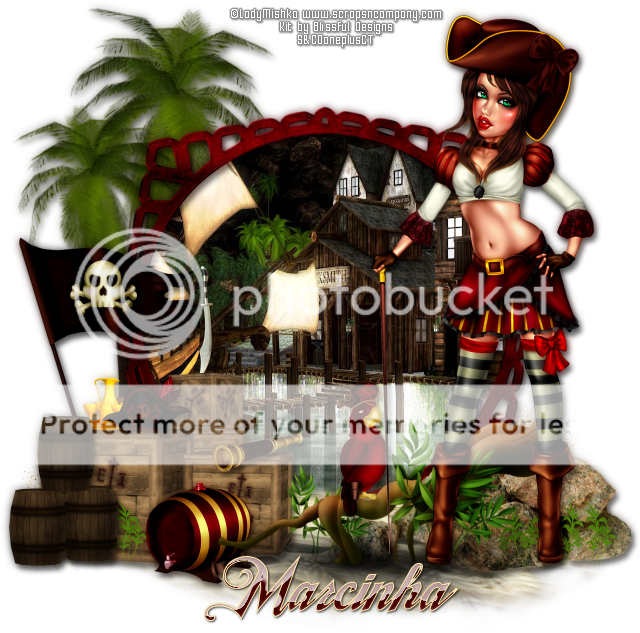
Pirate Molly

ARRRRRRR TUTORIAL


Tutorial written by Marcia Salgado on July 9th, 2016
for those who have a working knowledge of PSP.
I'm using PSP9 to create my tuts.
Any resemblance to any other tutorial is coincidental.
Do not copy and paste this tutorial anywhere on the net.
If you want to translate please ask first. 

****************************************
Material:

Tube: "Pirate Molly" by LadyMishka, you can purchase it here 
do not use without the proper #license.
PTU Kit "Pirate Molly" by Blissful Designs, you can purchase it here 
Font: TradeWind

****************************************

--> Remember to save often and use my tag as reference if necessary. Use a Drop Shadow of your preference on layers. 

1. Create a new image 650x650.

2. Open BD_PirateMollyElement (27). Resize 70%. Copy and paste as new layer. 

3. Open BD_PirateMollyElement (11). Resize 80%. Mirror. Copy and paste as new layer. Move it a little up and to left. Send it beloew frame layer. Duplicate. Resize 80%. Mirror. Place it in front of previous tree.

4. Open BD_PirateMollyElement (43). Copy and paste as new layer. Place it over the tree at bottom.

5. Click on frame layer. Select inside it. Expand > 8. Add a new layer and send it below frame layer. Open BD_PirateMollyPaper (2). Copy and paste into selection. Deselect.

6. Click on frame layer. Open BD_PirateMollyElement (22). Mirror. Copy and paste as new layer. Move it down.

7. Open BD_PirateMollyElement (18). Resize 35%. Copy and paste as new layer. Move it to left.

8. Open BD_PirateMollyElement (31). Resize 60%. Copy and paste as new layer. Move it down and to left. Keep it over the frame border.

9. Open BD_PirateMollyElement (33). Resize 20%. Copy and paste as new layer. Place it above the left box a little to left.

10. Open BD_PirateMollyElement (14). Resize 20%. Copy and paste as new layer. Place it over the middle box, move it a little down and erase the tip of the blade to look like it is spiked on the box.

11. Open BD_PirateMollyElement (17). Resize 15%. Copy and paste as new layer. Place it over the left box a little to right.

12. Open BD_PirateMollyElement (52). Resize 15%. Copy and paste as new layer. Place it above the right box.

13. Open BD_PirateMollyElement (72). Resize 20%. Copy and paste as new layer. Move it down and to left. between the left and the right boxes.

14. Open BD_PirateMollyElement (42). Resize 50%. Move it down and to the right.

15. Open BD_PirateMollyElement (23). Resize 20%. Copy and paste as new layer. Move it down and to right. Place it in front of the stones at bottom. Duplicate. Place it in front of the box on the left at bottom.

16. Open BD_PirateMollyElement (10). Resize 25%. Copy and paste as new layer. Move it down and way to left.

17. Open BD_PirateMollyElement (49). Resize 70%. Copy and paste as new layer. Move it down and to right.

18. Open BD_PirateMollyElement (65). Resize 25%. Copy and paste as new layer. Place it over the brach on the left side.

19. Open your tube. Resize. Copy and paste as new layer. Move it to right.

20. Use Crop > Mrged Opaque to get rid of all extra spaces.


--> Add your copyright info and license#. Add your name and save as PNG.


July 4, 2016

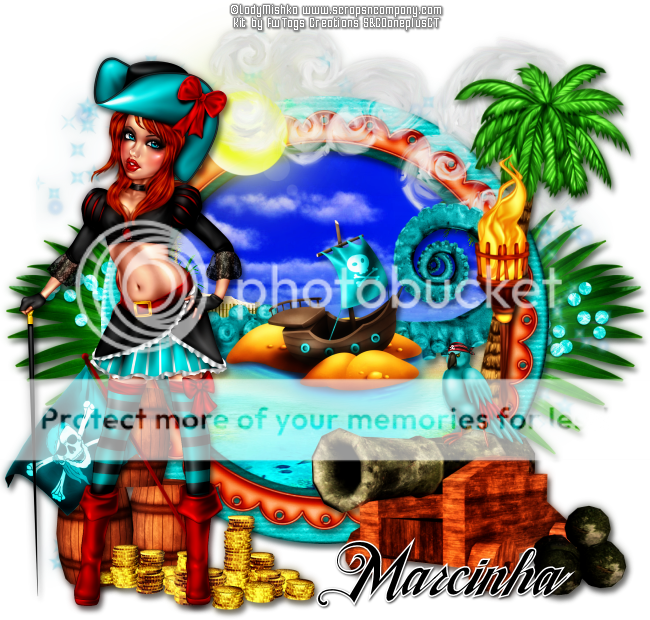
Pirate Ale

PIRATE'S LIFE TUTORIAL


Tutorial written by Marcia Salgado on July 4th, 2016
for those who have a working knowledge of PSP.
I'm using PSP9 to create my tuts.
Any resemblance to any other tutorial is coincidental.
Do not copy and paste this tutorial anywhere on the net.
If you want to translate please ask first. 

****************************************
Material:

Tube: "Pirate Ale" by LadyMishka, you can purchase it here
do not use without the proper #license.
PTU Kit "Pirate Ale" by FwTags Creations, you can purchase it here
Font: TradeWind

****************************************

--> Remember to save often and use my tag as reference if necessary. Use a Drop Shadow of your preference on layers. 


1. Create a new image 650x650.

2. Open FwTagsPirateAleFRAME (2). Resize 75%. Copy and paste as new layer.

3. Open FwTagsPirateAleELEMENT (37). Resize 55%. Copy and paste as new layer.Move it way to right. Send this layer below the frame layer.

4. Open FwTagsPirateAleELEMENT (15). Copy and paste as new layer. Move it a little up.

5. Open FwTagsPirateAleELEMENT (19). Copy and paste as new layer.

6. Click on the frame layer. Select inside the frame. Expand > 5. Add a new layer and send it below the frame layer. Open FwTagsPirateAlePAPER (4). Copy and paste into selection. Deselect.

7. Click on frame layer again. Open FwTagsPirateAleFRAME (4). Resize 70%. Copy and paste as new layer.

8. Open FwTagsPirateAleELEMENT (5). Resize 55%. Copy and paste as new layer. Move it up and to left.

9. Open FwTagsPirateAleELEMENT (28). Resize 80%. Copy and paste as new layer. Move it up and a little to right.

10. Open FwTagsPirateAleELEMENT (2). Resize 65%. Copy and paste as new layer. Move it a little to right. Clean the part is over the frame on the left.

11. Open FwTagsPirateAleELEMENT (6). Resize 40%. Copy and paste as new layer.

12. Open FwTagsPirateAleELEMENT (54). Resize 80%. Mirror. Copy and paste as new layer. Move it to right.

13. Open FwTagsPirateAleELEMENT (55). Resize 65%. Copy and paste as new layer. Place it over the tree.

14. Open FwTagsPirateAleELEMENT (48). Resize 55%. Copy and paste as new layer. move it down and to right.

15. Open FwTagsPirateAleELEMENT (7). Resize 20%. Copy and paste as new layer. Place it over the cannon.

16. Open FwTagsPirateAleELEMENT (46). Resize 35%. Copy and paste as new layer. Move it down and to left.

17. Open FwTagsPirateAleELEMENT (10). Resize 35%. Copy and paste as new layer. Move it down and to left. Place it over the barrel.

18. Open FwTagsPirateAleELEMENT (20). Resize 40%. Copy and paste as new layer. Move it down and to left. Place it over the flags bottom.

19. Open your tube. Resize. Copy and paste as new layer. Move it to left.

20. Use Crop > Merged Opaque to get rid of any extra space.


--> Add your copyright info and license#. Add your name and save as PNG.


June 18, 2016

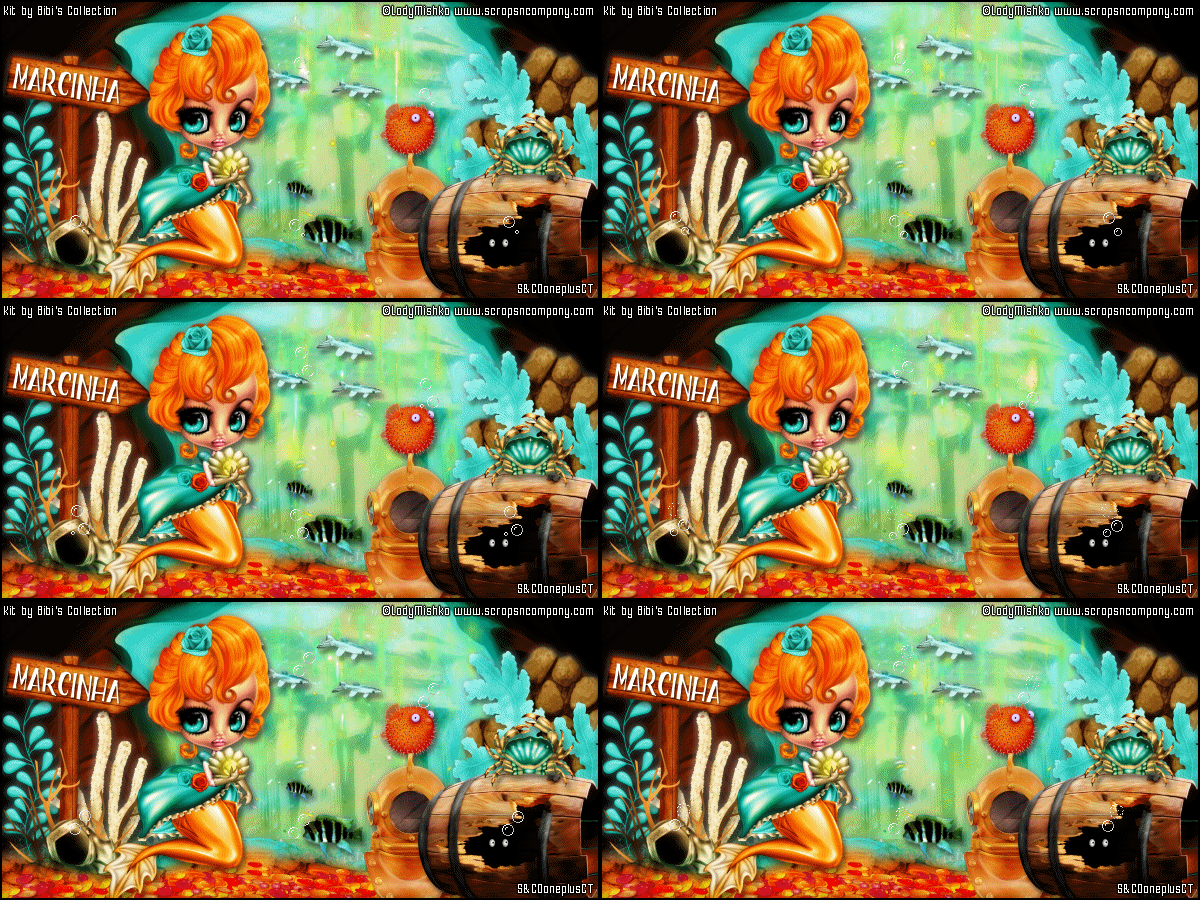
Sea Queen with Under The Sea

SEA LIGHTS TUTORIAL


Tutorial written by Marcia Salgado on June 18th, 2016
for those who have a working knowledge of PSP.
I'm using PSP9 to create my tuts.
Any resemblance to any other tutorial is coincidental.
Do not copy and paste this tutorial anywhere on the net.
If you want to translate please ask first. 

****************************************
Material:

Tube: "Sea Queen" by Lady Mishka, you can purchase it here 
do not use without the proper #license.
PTU Kit "Under The Sea" by Bibi's Collection, you can purchase it here 
Animation: "Aurora" by Sphisticat Simone, HERE 
and any little bubbles animation (OPCIONAL)
Font: Boller Typeface

****************************************

--> Remember to save often and use my tag as reference if necessary. Use a Drop Shadow of your preference on layers.


1. Create a new image 600x300.

2. Open BIBI-UNDER THE SEA PAPERS (3), Resize 51%. Copy and paste as new layer. Move it down.

3. Open BIBI-UNDER THE SEA  ELEMS (11). Resize 45%. Copy and paste as new layer. Move it a very little to right and a very little up. Blend Mode: Soft Light. You see some parts overlapping the paper on back. Clean it.

4. Open BIBI-UNDER THE SEA  ELEMS (78). Resize 45%. Copy and paste as new layer. Move it a little down.

5. Merge visible layers. Rename it BACK.

6. Open BIBI-UNDER THE SEA  ELEMS (33). Resize 66%. Copy and paste as new layer. Move it down showing only the top border. not too close to the edge.

7. Open BIBI-UNDER THE SEA  ELEMS (80). Resize 50%. Flip. Copy and paste as new layer. Move it down, a little more than previous element and to left. Duplicate amd move it to right.

8. Open BIBI-UNDER THE SEA  ELEMS (57). Resize 50%. Copy and paste as new layer. Duplicate it twice. Spread the elements at the bottom creating a line.

9. Open BIBI-UNDER THE SEA  ELEMS (48). Resize 30%. Copy and paste as new layer. Move it to right and a little up.

10. Open BIBI-UNDER THE SEA  ELEMS (67). Resize 25%. Copy and paste as new layer. Place it in front of the previous rock wall.

11. Open BIBI-UNDER THE SEA  ELEMS (69). Resize 15%. Copy and paste as new layer. Move it way to left.

12. Open BIBI-UNDER THE SEA  ELEMS (8). Resize 20%. Copy and paste as new layer. Place it on right side of the previous element.

13. Open BIBI-UNDER THE SEA  ELEMS (22). Resize 40%. Copy and paste as new layer. Place it between the foliage and the white coral.

14. Open BIBI-UNDER THE SEA  ELEMS (19). Resize 35%. Copy and paste as new layer. Place it in front of the wood plaque at bottom.

15. Open BIBI-UNDER THE SEA  ELEMS (12). Resize 20%. Copy and paste as new layer. Place it over the cave opening at bottom.

16. Open BIBI-UNDER THE SEA  ELEMS (65). Resize 10%. Copy and paste as new layer. Place it on right side above the first fishes.

17. Open BIBI-UNDER THE SEA  ELEMS (73). Resize 30%. Copy and paste as new layer. lace it over the cave opening at top.

18. Open BIBI-UNDER THE SEA  ELEMS (66). Resize 20%. Copy and paste as new layer. Move it down and a little to right.

19. Open BIBI-UNDER THE SEA  ELEMS (68). Resize 30%. Copy and paste as new layer. Move it down and way to right.

20. Open BIBI-UNDER THE SEA  ELEMS (3). Resize 30%. Mirror. Copy and paste as new layer. Place it over the wood plaque at bottom.

21. Open BIBI-UNDER THE SEA  ELEMS (85). Resize 10%. Copy and paste as new layer.

22. Open your tube. Resize. Copy and paste as new layer. Move it to left.

23. Add a new layer and select all. Fill with black. Contract > 2. Delete.

24. Add your copyright info and license#. Add your name, if you do not want add the animation just save it as PNG.

25. Turn BACK layer invisible. Merge visible layer and rename it TOP. Copy merged.


ANIMATING:


1. AS -> Paste as new animation. Activate Propagate Paste.

2. PSP -> Turn TOP layer invisible and BACK layer visible. Copy merged.

3. AS -> Paste as new animation and duplicate it until you get 13 frames. Select all. Open Simone's animation. Select all. Resize 75%. Flip. Copy.

4. Activate your BACK and Paste into selected frames. Place it on top at center.

5. Activate your TOP. Copy. Click on BACK. Paste into selected frames.

6. (OPCIONAL) - Open your bubbles gif and select all frames. Copy and paste as many times you want and wherever you wish.

7. Change the Frame Properties to 18. Save as GIF.


June 13, 2016

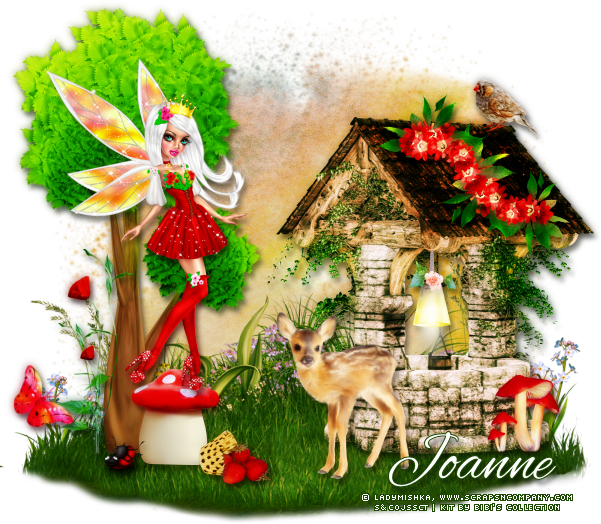
Fairy Red Queen ~ by Joanne Salgado


Tutorial written by Joanne Salgado on June 13th, 2016
for those who have a working knowledge of PSP.
I'm using PSP9 to create my tuts.
Any resemblance to any other tutorial is coincidental.
Do not copy and paste this tutorial anywhere on the net.
If you want to translate please ask first. 

****************************************
Material:

Tube: "Fairy Queen 4" by LadyMishka - you can purchase it here
do not use without the proper #license.
PTU Kit "Red Fairy" by Bibi's Collection - you can purchase it here
Font: Alex Brush

****************************************

Don't forget to save often.
At any point if you have doubts check my tag.

1. Open a new image 650x550

2. Open element 'BIBI-RED FAIRY ELEMS (83)' copy and paste as new layer. Resize 50%.

3. Open element 'BIBI-RED FAIRY ELEMS (53)' copy and paste as new layer. Resize 60%. Arrange it to bottom. I cleaned the red flowers, but if you want leave it there.

4. Open element 'BIBI-RED FAIRY ELEMS (19)' copy and paste as new layer. Resize 50%. Arrange it to the bottom left.

5. Open element 'BIBI-RED FAIRY ELEMS (21)' copy and paste as new layer. Resize 50%. Arrange it to the bottom left.

6. Open element 'BIBI-RED FAIRY ELEMS (59)' copy and paste as new layer. Resize 50%. Arrange it to the bottom right.

7. Open element 'BIBI-RED FAIRY ELEMS (10)' copy and paste as new layer. Resize 27%. Mirror. Arrange it above the well.

8. Open element 'BIBI-RED FAIRY ELEMS (69)' copy and paste as new layer. Resize 20%. Arrange it to the bottom right.

9. Open element 'BIBI-RED FAIRY ELEMS (57)' copy and paste as new layer. Resize 15%. Arrange it to the bottom left.

10. Open element 'BIBI-RED FAIRY ELEMS (8)' copy and paste as new layer. Resize 20%. Arrange it to the bottom left.

11. Open element 'BIBI-RED FAIRY ELEMS (17)' copy and paste as new layer. Resize 20%. Arrange it to the top inside the well.

12. Open element 'BIBI-RED FAIRY ELEMS (31)' copy and paste as new layer. Resize 10%. Arrange it to the bottom left.

13. Open element 'BIBI-RED FAIRY ELEMS (14)' copy and paste as new layer. Resize 25%. Arrange it to the bottom right.

14. Open element 'BIBI-RED FAIRY ELEMS (75)' copy and paste as new layer. Resize 17%. Arrange it to the top right.

15. Open your tube. Copy and paste as new layer. Resize as needed and arrange it to the left.

16. Open element 'BIBI-RED FAIRY ELEMS (12)' copy and paste as new layer. Resize 17%. Arrange it to the bottom left.

17. Add shadow as you prefer.

18. Add copyright. Add name. Save as PNG.

June 9, 2016

Pirate Lia ~ by Joanne Salgado


Tutorial written by Joanne Salgado on June 8th, 2016
for those who have a working knowledge of PSP.
I'm using PSP9 to create my tuts.
Any resemblance to any other tutorial is coincidental.
Do not copy and paste this tutorial anywhere on the net.
If you want to translate please ask first. 

****************************************
Material:

Tube: "Pirate Lia" by LadyMishka - you can purchase it here
do not use without the proper #license.
PTU Kit "Pirate Lia" by Rieneke Designs - you can purchase it here
Font: White Pine

****************************************

Don't forget to save often.
At any point if you have doubts check my tag.

1. Open a new image 650x550

2. Open element 'RD-PirateLia-element (63)' copy and paste as new layer. Rotate right 90.

3. Open paper 'RD-PiratLia-paper (9)' copy and paste as new layer. Resize 60%. Move this layer below the frame layer. Arrange it inside the frame and clean the outside parts.

4. Open element 'RD-PirateLia-element (13)' copy and paste as new layer. Resize 70%. Arrange it to the top inside the frame. Clean the outside parts.

5. Open element 'RD-PirateLia-element (62)' copy and paste as new layer. Arrange it to bottom inside the frame and clean the outside parts.

6. Open element 'RD-PirateLia-element (69)' copy and paste as new layer. Arrange it to the middle and clean the outside parts.

7. Open element 'RD-PirateLia-element (55)' copy and paste as new layer. Resize 30%. Arrange it to the left.

8. Open element 'RD-PirateLia-element (51)' copy and paste as new layer. Resize 40%. Arrange it to the right.

9. Open element 'RD-PirateLia-element (37)' copy and paste as new layer. Resize 15%. Arrange it above the boat.

10. Open element 'RD-PirateLia-element (67)' copy and paste as new layer. Arrange it to the left. Clean the outside parts.

11. Open element 'RD-PirateLia-element (40)' copy and paste as new layer. Arrange it to bottom inside the frame and clean the outside parts.

12. Open element 'RD-PirateLia-element (7)' copy and paste as new layer. Resize 20%. Arrange it to the bottom left.

13. Open element 'RD-PirateLia-element (3)' copy and paste as new layer. Resize 15%. Arrange it to the bottom left.

14. Open element 'RD-PirateLia-element (2)' copy and paste as new layer. Resize 25%. Arrange it to the bottom right. Clean if any parts appears outside the frame.

15. Open element 'RD-PirateLia-element (22)' copy and paste as new layer. Resize 20%. Arrange it to bottom.

16. Open element 'RD-PirateLia-element (24)' copy and paste as new layer. Resize 20%. Arrange it to bottom right.

17. Open element 'RD-PirateLia-element (45)' copy and paste as new layer. Resize 25%. Arrange it to bottom right.

18. Open element 'RD-PirateLia-element (27)' copy and paste as new layer. Resize 20%. Mirror. Arrange it to bottom right.

19. Open element 'RD-PirateLia-element (19)' copy and paste as new layer. Resize 30%. Arrange it to bottom right.

20. Open element 'RD-PirateLia-element (38)' copy and paste as new layer. Resize 30%. Mirror. Arrange it to bottom left.

21. Open element 'RD-PirateLia-element (47)' copy and paste as new layer. Resize 20%. Arrange it to bottom left.

22. Open element 'RD-PirateLia-element (66)' copy and paste as new layer. Resize 20%. Arrange it to bottom right.

23. Open element 'RD-PirateLia-element (54)' copy and paste as new layer. Resize 30%. Arrange it to top.

24. Open element 'RD-PirateLia-element (57)' copy and paste as new layer. Resize 15%. Arrange it to bottom right.

25. Open element 'RD-PirateLia-element (6)' copy and paste as new layer. Resize 30%. Move this layer above the frame layer. Arrange it to the top right.

26. Open your tube. Copy and paste as new layer. Resize as needed and arrange it to the left.

27. Add shadow as you prefer.

28. Add copyright. Add name. Save as PNG.

Fairy Queen ~ by Joanne Salgado


Tutorial written by Joanne Salgado on June 8th, 2016
for those who have a working knowledge of PSP.
I'm using PSP9 to create my tuts.
Any resemblance to any other tutorial is coincidental.
Do not copy and paste this tutorial anywhere on the net.
If you want to translate please ask first. 

****************************************
Material:

Tube: "Fairy Queen 1" by LadyMishka - you can purchase it here
do not use without the proper #license.
PTU Kit "Fairy Queen 1" by Rieneke Designs - you can purchase it here
Font: Andover

****************************************

Don't forget to save often.
At any point if you have doubts check my tag.

1. Open a new image 851x315

2. Open paper 'RD-FairyQueen1-paper (7)' copy and paste as new layer. Use Raster Deform Tool and stretch the paper so it fits the canvas.

3. Open element 'RD-FairyQueen1-element (25)' copy and paste as new layer. Arrange it to the bottom right. Duplicate. Mirror.

4. Open element 'RD-FairyQueen1-element (10)' copy and paste as new layer. Arrange it a little to the left.

5. Open element 'RD-FairyQueen1-element (66)' copy and paste as new layer. Resize 50%. Arrange it a little to the bottom left.

6. Open element 'RD-FairyQueen1-element (29)' copy and paste as new layer. Arrange it to bottom.

7. Open element 'RD-FairyQueen1-element (22)' copy and paste as new layer. Resize 50%. Arrange it a little to the left.

8. Open element 'RD-FairyQueen1-element (36)' copy and paste as new layer. Resize 30%. Mirror. Arrange it to the top left of the arch.

9. Open element 'RD-FairyQueen1-element (47)' copy and paste as new layer. Arrange it to the bottom left. Duplicate. Mirror.

10. Open element 'RD-FairyQueen1-element (52)' copy and paste as new layer. Resize 50%. Arrange it to the bottom right.

11. Open element 'RD-FairyQueen1-element (1)' copy and paste as new layer. Resize 40%. Arrange it a little to the bottom left.

12. Open element 'RD-FairyQueen1-element (34)' copy and paste as new layer. Arrange it to bottom a little to the left.

13. Open element 'RD-FairyQueen1-element (70)' copy and paste as new layer. Resize 50%. Arrange it to the bottom right. Duplicate. Mirror.

14. Open element 'RD-FairyQueen1-element (71)' copy and paste as new layer. Resize 50%. Arrange it to the bottom left.

15. Open element 'RD-FairyQueen1-element (65)' copy and paste as new layer. Resize 50%. Arrange it to the bottom left. Duplicate. Mirror.

16. Open element 'RD-FairyQueen1-element (13)' copy and paste as new layer. Resize 50%. Arrange it to the bottom left. Duplicate. Mirror.

17. Open element 'RD-FairyQueen1-element (35)' copy and paste as new layer. Arrange it to the bottom right. Duplicate. Mirror.

18. Open element 'RD-FairyQueen1-element (33)' copy and paste as new layer. Resize 40%. Arrange it to bottom.

19. Open element 'RD-FairyQueen1-element (32)' copy and paste as new layer. Resize 40%. Arrange it to the bottom left.

20. Open element 'RD-FairyQueen1-element (44)' copy and paste as new layer. Resize 15%. Arrange it to the top left of the arch.

21. Open element 'RD-FairyQueen1-element (14)' copy and paste as new layer. Resize 50%. Arrange it to the top right. Duplicate. Arrange it to the middle. Duplicate. Arrange it to the left.

22. Open element 'RD-FairyQueen1-element (73)' copy and paste as new layer. Arrange it to the right. Duplicate. Mirror/Flip.

23. Open element 'RD-FairyQueen1-element (50)' copy and paste as new layer. Arrange it to the left. Duplicate. Mirror/Flip.

24. Open element 'RD-FairyQueen1-element (5)' copy and paste as new layer. Arrange it to the left. Duplicate. Mirror/Flip.

25. Open element 'RD-FairyQueen1-element (2)' copy and paste as new layer. Resize 25%. Arrange it to the top left.

26. Open element 'RD-FairyQueen1-element (4)' copy and paste as new layer. Resize 15%. Arrange it to the bottom left.

27. Open your tube. Copy and paste as new layer. Resize as needed and arrange it to the right.

28. Add a new layer. Select all. Fill with white, contract 6. hit delete on your keyboard. Select none. Add noise 50.

29. Add a new layer. Select all. Fill with black. Contract 1. Hit delete on your keyboard. Select none.

30. Add shadow as you prefer.

31. Add copyright. Add name. Save as PNG.

May 15, 2016

Fairytale ~ by Joanne Salgado


Tutorial written by Joanne Salgado on May 15th, 2016
for those who have a working knowledge of PSP.
I'm using PSP9 to create my tuts.
Any resemblance to any other tutorial is coincidental.
Do not copy and paste this tutorial anywhere on the net.
If you want to translate please ask first. 

****************************************
Material:

Tube: "Fairytale" by LadyMishka - you can purchase it here
do not use without the proper #license.
PTU Kit "Fairy Tale" by Design by Joan, part of
FAIRY TALE Collab - you can purchase it here
Font: Lemonade

****************************************

Don't forget to save often.
At any point if you have doubts check my tag.

1. Open a new image 650x550

2. Open element 'FAIRY TALE COLLAB_DBJ-ELEM (3)' copy and paste as new layer. Resize 40%. Arrange it to bottom.

3. Open element 'FAIRY TALE COLLAB_DBJ-ELEM (31)' copy and paste as new layer. Resize 55%. Mirror. Arrange it to the right.

4. Open paper 'FAIRY TALE COLLAB_DBJ-PP (2)' copy and paste as new layer. Resize 50%. Move this layer below the arch layer. Arrange it inside the frame and clean the outside parts.

5. Open element 'FAIRY TALE COLLAB_DBJ-ELEM (64)' copy and paste as new layer. Resize 60%. Arrange it to the left of the arch. Clean the parts inside the frame.

6. Open element 'FAIRY TALE COLLAB_DBJ-ELEM (48)' copy and paste as new layer. Resize 80%.

7. Open element 'FAIRY TALE COLLAB_DBJ-ELEM (52)' copy and paste as new layer. Resize 30%. Arrange it inside the arch to the top.

8. Open element 'FAIRY TALE COLLAB_DBJ-ELEM (17)' copy and paste as new layer. Resize 40%. Move this layer above the arch layer. Arrange it to the bottom right.

9. Open element 'FAIRY TALE COLLAB_DBJ-ELEM (7)' copy and paste as new layer. Resize 30%. Arrange it to the bottom left of the arch.

10. Open element 'FAIRY TALE COLLAB_DBJ-ELEM (13)' copy and paste as new layer. Resize 20%. Arrange it to the bottom right.

11. Open element 'FAIRY TALE COLLAB_DBJ-ELEM (9)' copy and paste as new layer. Resize 20%. Arrange it to the bottom right.

12. Open element 'FAIRY TALE COLLAB_DBJ-ELEM (65)' copy and paste as new layer. Resize 25%. Arrange it to the bottom left of the arch.

13. Open element 'FAIRY TALE COLLAB_DBJ-ELEM (18)' copy and paste as new layer. Resize 40%. Arrange it to the bottom left.

14. Open element 'FAIRY TALE COLLAB_DBJ-ELEM (10)' copy and paste as new layer. Resize 30%. Arrange it above the mushroom.

15. Open element 'FAIRY TALE COLLAB_DBJ-ELEM (23)' copy and paste as new layer. Resize 20%. Arrange it to the left around the flower we just added.

16. Open element 'FAIRY TALE COLLAB_DBJ-ELEM (32)' copy and paste as new layer. Resize 62%. Arrange it above the arch.

17. Open element 'FAIRY TALE COLLAB_DBJ-ELEM (50)' copy and paste as new layer. Resize 50%. Arrange it to the bottom right.

18. Open element 'FAIRY TALE COLLAB_DBJ-ELEM (26)' copy and paste as new layer. Resize 30%. Mirror. Arrange it to the bottom right.

19. Open element 'FAIRY TALE COLLAB_DBJ-ELEM (19)' copy and paste as new layer. Resize 20%. Arrange it to the bottom right.

20. Open element 'FAIRY TALE COLLAB_DBJ-ELEM (6)' copy and paste as new layer. Resize 20%. Arrange it to the left.

21. Open element 'FAIRY TALE COLLAB_DBJ-ELEM (42)' copy and paste as new layer. Resize 20%. Arrange it to the bottom next the mushroom.

22. Open element 'FAIRY TALE COLLAB_DBJ-ELEM (41)' copy and paste as new layer. Resize 20%. Arrange it to the right.

23. Open your tube. Copy and paste as new layer. Resize as needed and arrange it to the left.

24. Add shadow as you prefer.

25. Add copyright. Add name. Save as PNG.