Showing posts with label Alehandra Vanhek. Show all posts

May 21, 2017

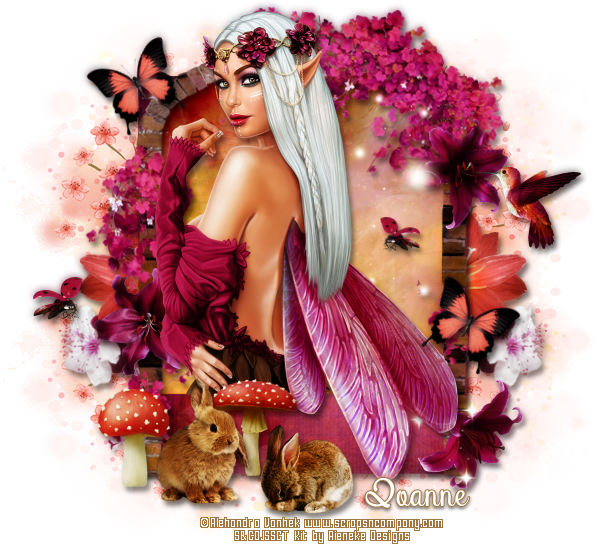
Fairy Queen ~ by Joanne Salgado


Tutorial written by Joanne Salgado on May 15th, 2017
for those who have a working knowledge of PSP.
I'm using PSP9 to create my tuts.
Any resemblance to any other tutorial is coincidental.
Do not copy and paste this tutorial anywhere on the net.
If you want to translate please ask first. 

****************************************
Material:

Tube: "Fleur 4" by Alehandra Vanhek, you can purchase it here
do not use without the proper #license.
PTU Kit "Fleur 4" by Rieneke Designs, you can purchase it here
Font: Atlantis Heart

****************************************

--> Remember to save often and use my tag as reference if necessary.

1. Open a new image 650x550

2. Open element 'RD-Fleur4-element (49)' copy and paste as new layer. Resize 80%.

3. Open element 'RD-Fleur4-element (10)' copy and paste as new layer. Move this layer below the frame layer. Arrange it to the top. Duplicate. Flip.

4. Open element 'RD-Fleur4-element (29)' copy and paste as new layer. Arrange it to the right. Clean all, leave just the little flower showing (like mine). Duplicate, mirror.

5. Open element 'RD-Fleur4-element (21)' copy and paste as new layer. Resize 30%. Arrange it to the right. Duplicate. Mirror.

6. Open paper 'RD-Fleur4-paper (1)' copy and paste as new layer. Resize 50%. Arrange it inside the frame. Don't clean yet.

7. Open element 'RD-Fleur4-element (19)' copy and paste as new layer. Move this layer above the frame layer. Arrange it around the frame, clean the lower parts. Now clean the top part of the frame that appears inside the arch and clean the paper that appears outside it.

8. Open element 'RD-Fleur4-element (31)' copy and paste as new layer. Resize 20%. Mirror. Arrange it to the top right.

9. Open element 'RD-Fleur4-element (15)' copy and paste as new layer. Resize 20%. Arrange it to the top right.

10. Open element 'RD-Fleur4-element (26)' copy and paste as new layer. Resize 20%. Arrange it to the bottom left.

11. Open element 'RD-Fleur4-element (25)' copy and paste as new layer. Resize 20%. Mirror. Arrange it to the bottom right.

12. Open element 'RD-Fleur4-element (7)' copy and paste as new layer. Resize 90%. Mirror.

13. Open your tube. Copy and paste as new layer. Resize as needed and arrange it inside the frame to the left.

14. Open element 'RD-Fleur4-element (39)' copy and paste as new layer. Resize 20%. Arrange it to the bottom left.

15. Open element 'RD-Fleur4-element (36)' copy and paste as new layer. Resize 20%. Arrange it to the bottom left.

16. Open element 'RD-Fleur4-element (42)' copy and paste as new layer. Resize 30%. Arrange it to the bottom left.

17. Open element 'RD-Fleur4-element (44)' copy and paste as new layer. Resize 20%. Arrange it to the bottom a little to the left.

18. Open element 'RD-Fleur4-element (9)' copy and paste as new layer. Resize 15%. Arrange it to the left. Duplicate. Resize 80%. Mirror. Arrange it to the right.

19. Open element 'RD-Fleur4-element (20)' copy and paste as new layer. Resize 15%. Rotate. Arrange it to the top left. Duplicate. Arrange it to the bottom right.

20. Add shadow as you prefer.

21. Add copyright. Add name. Save as PNG.

May 16, 2017

Tea Alice ~ by Joanne Salgado


Tutorial written by Joanne Salgado on May 10th, 2017
for those who have a working knowledge of PSP.
I'm using PSP9 to create my tuts.
Any resemblance to any other tutorial is coincidental.
Do not copy and paste this tutorial anywhere on the net.
If you want to translate please ask first. 

****************************************
Material:

Tube: "Alice 3" by Alehandra Vanhek - you can purchase it here
do not use without the proper #license.
PTU Kit "Sexy Alice 3" by Kizzed by Kelz - you can purchase it here
Font: Anemone

****************************************

--> Remember to save often and use my tag as reference if necessary.

1. Open a new image 650x550

2. Open element 'KBK_SexyAlice3 (24)' copy and paste as new layer. Resize 70%. Rename layer to frame 1.

3. Open element 'KBK_SexyAlice3 (109)' copy and paste as new layer. Resize 70%. Arrange it to the bottom left. Rename layer to frame 2.

4. Open element 'KBK_SexyAlice3 (104)' copy and paste as new layer. Move this layer below both frames. Arrange it to bottom.

5. Open element 'KBK_SexyAlice3 (108)' copy and paste as new layer. Resize 90%. Arrange it to the right.

6. Open paper 'KBK_SexyAlice3 (1)' copy and paste as new layer. Resize 47%. Arrange it inside the frame 1 and clean outside it.

7. Open element 'KBK_SexyAlice3 (25)' copy and paste as new layer. Resize 30%. Arrange it to the bottom right inside the frame.

8. Open element 'KBK_SexyAlice3 (9)' copy and paste as new layer. Resize 40%. Arrange it to the bottom right.

9. Open element 'KBK_SexyAlice3 (5)' copy and paste as new layer. Resize 70%. Mirror. Move this layer above frame 1. Arrange it to the right.

10. Open element 'KBK_SexyAlice3 (110)' copy and paste as new layer. Resize 80%. Arrange it to the top left.

11. Open element 'KBK_SexyAlice3 (6)' copy and paste as new layer. Resize 30%. Arrange it to the bottom right.

12. Open element 'KBK_SexyAlice3 (32)' copy and paste as new layer. Resize 20%. Arrange it to the bottom right.

13. Open element 'KBK_SexyAlice3 (84)' copy and paste as new layer. Resize 20%. Arrange it to the bottom right.

14. Open paper 'KBK_SexyAlice3 (15)' copy and paste as new layer. Resize 30%. Arrange it inside frame 2 and clean outside it.

15. Open element 'KBK_SexyAlice3 (126)' copy and paste as new layer. Move this layer above the frame 2 layer. Arrange it to the top left.

16. Open your tube. Copy and paste as new layer. Arrange it to the left inside frame 2.

17. Open element 'KBK_SexyAlice3 (72)' copy and paste as new layer. Resize 10%. Arrange it above the bunny's head from tube.

18. Open element 'KBK_SexyAlice3 (59)' copy and paste as new layer. Resize 20%. Arrange it above the bunny'd head from tube.

19. Open element 'KBK_SexyAlice3 (66)' copy and paste as new layer. Resize 20%. Arrange it to top.

20. Open element 'KBK_SexyAlice3 (117)' copy and paste as new layer. Resize 25%. Rotate. Arrange it to the bottom left.

21. Add shadow as you prefer.

22. Add copyright. Add name. Save as PNG.

May 2, 2017

Time Alice ~ by Joanne Salgado


Tutorial written by Joanne Salgado on April 15th, 2017
for those who have a working knowledge of PSP.
I'm using PSP9 to create my tuts.
Any resemblance to any other tutorial is coincidental.
Do not copy and paste this tutorial anywhere on the net.
If you want to translate please ask first. 

****************************************
Material:

Tube: "Alice 4" by Alehandra Vanhek, you can purchase it here
do not use without the proper #license.
PTU Kit "Alice 4" by Kizzed By Kelz, you can purchase it here
Font: Afatar

****************************************

--> Remember to save often and use my tag as reference if necessary.

1. Open a new image 650x550

2. Open element 'KBK_Alice4 (38)'copy and paste as new layer. Resize 80%.

3. Open element 'KBK_Alice4 (49)' copy and paste as new layer. Resize 70%. Move this layer below the frame layer. Arrange it to the right. Duplicate. Flip. Mirror.

4. Open element 'KBK_Alice4 (32)' copy and paste as new layer. Resize 50%. Arrange it to the bottom right.

5. Open element 'KBK_Alice4 (97)' copy and paste as new layer. Resize 50%. Arrange it to the top right.

6. Open element 'KBK_Alice4 (81)' copy and paste as new layer. Resize 50%. Arrange it to the bottom left.

7. Open element 'KBK_Alice4 (87)' copy and paste as new layer. Resize 50%. Arrange it to the top left.

8. Open paper 'KBK_Alice4 (7)' copy and paste as new layer. Resize 50%. Clean the outside parts.

9. Open element 'KBK_Alice4 (133)' copy and paste as new layer. Move this layer above the frame layer.

10. Open element 'KBK_Alice4 (18)' copy and paste as new layer. Use Manual Color Correction source #d45f68 target #b48e0d.

11. Open element 'KBK_Alice4 (111)' copy and paste as new layer.

12. Open element 'KBK_Alice4 (16)' copy and paste as new layer. Resize 40%. Arrange it to bottom.

13. Open your tube. Copy and paste as new layer. Resize as needed and arrange it to the left.

14. Open element 'KBK_Alice4 (119)' copy and paste as new layer. Resize 30%. Flip. Arrange it to bottom.

15. Open element 'KBK_Alice4 (23)' copy and paste as new layer. Arrange it to the right.

16. Open element 'KBK_Alice4 (105)' copy and paste as new layer. Resize 90%.

17. Open element 'KBK_Alice4 (102)' copy and paste as new layer. Resize 50%. Arrange it to the bottom left.

18. Open element 'KBK_Alice4 (45)' copy and paste as new layer. Resize 30%. Mirror. Arrange it to the right.

19. Add copyright. Add name. Save as PNG.

Easter Alice ~ by Joanne Salgado


Tutorial written by Joanne Salgado on April 15th, 2017
for those who have a working knowledge of PSP.
I'm using PSP9 to create my tuts.
Any resemblance to any other tutorial is coincidental.
Do not copy and paste this tutorial anywhere on the net.
If you want to translate please ask first. 

****************************************
Material:

Tube: "Alice 2" by Alehandra Vanhek, you can purchase it here
do not use without the proper #license.
PTU Kit "Alice in Easterland" by Disturbed Scraps, you can purchase it here
Font: AlFresco

****************************************

--> Remember to save often and use my tag as reference if necessary.

1. Open a new image 650x550

2. Open element 'DS - AE Element (68)' copy and paste as new layer. Resize 85%. You'll clean the lower part so it doesn't appear.

3. Open element 'DS - AE Element (76)' copy and paste as new layer. Resize 80%.

4. Open element 'DS - AE Element (7)' copy and paste as new layer. Arrange it to bottom.

5. Open element 'DS - AE Element (5)' copy and paste as new layer. Resize 85%. Arrange it to the left.

6. Open element 'DS - AE Element (10)' copy and paste as new layer. Resize 50%. Arrange it to the bottom left. Duplicate. Mirror.

7. Open element 'DS - AE Element (77)' copy and paste as new layer.

8. Open your tube. Copy and paste as new layer. Resize as needed and arrange it to the left.

9. Open element 'DS - AE Element (13)' copy and paste as new layer. Resize 30%. Arrange it the bottom right.

10. Open element 'DS - AE Element (33)' copy and paste as new layer. Resize 10%. Arrange it to the bottom left.

11. Open element 'DS - AE Element (34)' copy and paste as new layer. Resize 10%. Arrange it to the bottom left.

12. Open element 'DS - AE Element (35)' copy and paste as new layer. Resize 10%. Arrange it to the bottom right.

13. Open element 'DS - AE Element (16)' copy and paste as new layer. Resize 10%. Arrange it to the bottom left.

14. Open element 'DS - AE Element (66)' copy and paste as new layer. Resize 50%. Arrange it bottom.

15. Open element 'DS - AE Element (15)' copy and paste as new layer. Resize 25%. Arrange it to bottom.

16. Open element 'DS - AE Element (54)' copy and paste as new layer. Resize 40%. Mirror. Arrange it to the top right.

17. Open element 'DS - AE Element (37)' copy and paste as new layer. Resize 20%. Arrange it to the bottom right.

18. Open element 'DS - AE Element (51)' copy and paste as new layer. Resize 20%. Arrange it to the bottom right.

19. Add shadow as you prefer.

20. Add copyright. Add name. Save as PNG.

Dark Alice ~ by Joanne Salgado


Tutorial written by Joanne Salgado on April 15th, 2017
for those who have a working knowledge of PSP.
I'm using PSP9 to create my tuts.
Any resemblance to any other tutorial is coincidental.
Do not copy and paste this tutorial anywhere on the net.
If you want to translate please ask first. 

****************************************
Material:

Tube: "Alice 1" by Alehandra Vanhek, you can purchase it here
do not use without the proper #license.
PTU Kit "Dark Alice Collab 2017" by Bibi's Collection, you can purchase it here
Font: Admiration Pains

****************************************

--> Remember to save often and use my tag as reference if necessary.

1. Open a new image 650x550

2. Open element 'BIBI-DARK ALICE COLLAB ELEMS (29)' copy and paste as new layer. Resize 50%. Arrange it to the top left.

3. Open element 'BIBI-DARK ALICE COLLAB ELEMS (72)' copy and paste as new layer. Resize 52%.

4. Open your tube. Copy and paste as new layer. Resize as needed and arrange it to the right.

5. Open element 'BIBI-DARK ALICE COLLAB ELEMS (10)' copy and paste as new layer. Resize 20%. Arrange it to the bottom left.

6. Open element 'BIBI-DARK ALICE COLLAB ELEMS (66)' copy and paste as new layer. Resize 20%. Arrange it to the bottom left.

7. Open element 'BIBI-DARK ALICE COLLAB ELEMS (9)' copy and paste as new layer. Resize 20%. Arrange it to the bottom right.

8. Open element 'BIBI-DARK ALICE COLLAB ELEMS (85)' copy and paste as new layer. Resize 20%. Arrange it to the bottom right.

9. Open element 'BIBI-DARK ALICE COLLAB ELEMS (84)' copy and paste as new layer. Resize 20%. Arrange it to the left.

10. Open element 'BIBI-DARK ALICE COLLAB ELEMS (3)' copy and paste as new layer. Resize 35%. Arrange it to the bottom left.

11. Open element 'BIBI-DARK ALICE COLLAB ELEMS (71)' copy and paste as new layer. Resize 20%. Arrange it to the bottom right.

12. Open element 'BIBI-DARK ALICE COLLAB ELEMS (37)' copy and paste as new layer. Resize 30%. Arrange it to the left.

13. Open element 'BIBI-DARK ALICE COLLAB ELEMS (36)' copy and paste as new layer. Resize 20%. Arrange it to bottom.

14. Open element 'BIBI-DARK ALICE COLLAB ELEMS (11)' copy and paste as new layer. Resize 20%. Arrange it to bottom.

15. Open element 'BIBI-DARK ALICE COLLAB ELEMS (82)' copy and paste as new layer. Resize 20%. Arrange it to the bottom right.

16. Add shadow as you prefer.

17. Add copyright. Add name. Save as PNG.

April 6, 2017

Aqua Fleur ~ by Joanne Salgado


Tutorial written by Joanne Salgado on April 06th, 2017
for those who have a working knowledge of PSP.
I'm using PSP9 to create my tuts.
Any resemblance to any other tutorial is coincidental.
Do not copy and paste this tutorial anywhere on the net.
If you want to translate please ask first. 

****************************************
Material:

Tube: "Fleur 6" by Alehandra Vanhek, you can purchase it here
do not use without the proper #license.
PTU Kit "Fleur" by AWS, you can purchase it here
Font: Valentina JF

****************************************

--> Remember to save often and use my tag as reference if necessary.

1. Open a new image 650x550

2. Open element 'element (61)' copy and paste as new layer. Resize 70%.

3. Open element 'element (62)' copy and paste as new layer. Resize 50%.

4. Open element 'element (34)' copy and paste as new layer. Resize 50%. Move this layer below the frame layer. Arrange it to the bottom left. Duplicate. Mirror. Duplicate. Flip. Duplicate. Mirror.

5. Open element 'element (44)' copy and paste as new layer. Resize 50%. Arrange it to the bottom left.

6. Open element 'element (41)' copy and paste as new layer. Resize 50%. Arrange it to bottom.

7. Open element 'element (43)' copy and paste as new layer. Resize 50%. Arrange it to the bottom right.

8. Open element 'element (38)' copy and paste as new layer. Resize 50%. Arrange it to the top right. Duplicate. Flip. Duplicate. Mirror.

9. Open element 'element (37)' copy and paste as new layer. Resize 50%. Arrange it to the bottom left.

10. Open element 'element (35)' copy and paste as new layer. Resize 50%. Arrange it to the right.

11. Open element 'element (42)' copy and paste as new layer. Resize 50%. Arrange it to the left.

12. Open element 'element (38)' again, copy and paste as new layer. Resize 50%. Arrange it to the top left.

13. Open element 'paper (1)' copy and paste as new layer. Resize 50%. Arrange it inside the frame and clean outside it.

14. Open your tube. Copy and paste as new layer. Resize as needed. Move this layer above the frame layer. Arrange it inside the frame and clean outside it.

15. Open element 'element (28)' copy and paste as new layer. Resize 50%. Move this layer above all layers. Arrange it to the bottom left.

16. Open element 'element (59)' copy and paste as new layer.

17. Open element 'element (7)' copy and paste as new layer. Resize 40%. Arrange it to the bottom left.

18. Open element 'element (5)' copy and paste as new layer. Resize 20%. Mirror. Arrange it to the right.

19. Add shadow as you prefer.

20. Add copyright. Add name. Save as PNG.

Garden Fleur ~ by Joanne Salgado


Tutorial written by Joanne Salgado on April 06th, 2017
for those who have a working knowledge of PSP.
I'm using PSP9 to create my tuts.
Any resemblance to any other tutorial is coincidental.
Do not copy and paste this tutorial anywhere on the net.
If you want to translate please ask first. 

****************************************
Material:

Tube: "Fleur 5" by Alehandra Vanhek, you can purchase it here
do not use without the proper #license.
PTU Kit "Fleur 5" by Jens Sweet Temptations, you can purchase it here
Font: Intro Script R H2 Base

****************************************

--> Remember to save often and use my tag as reference if necessary.

1. Open a new image 650x550

2. Open element 'FElement (14)' copy and paste as new layer. Arrange it to bottom.

3. Open paper 'Paper2' copy and paste as new layer. Resize 60%. Arrange it behind the frame. Clean outside parts.

4. Open element 'FElement (13)' copy and paste as new layer. Move this layer above the frame layer. Arrange it to the left.

5. Open element 'FElement (39)' copy and paste as new layer. Resize 40%. Arrange it to the right of the tree.

6. Open your tube. Copy and paste as new layer. Resize as needed and arrange it to the left.

7. Open element 'FElement (27)' copy and paste as new layer. Resize 50%. Arrange it to the bottom left. Duplicate. Arrange it to the bottom right.

8. Open element 'FElement (35)' copy and paste as new layer. Resize 50%. Arrange it to the bottom right.

9. Open element 'FElement (28)' copy and paste as new layer. Resize 20%. Arrange it to the bottom right. Duplicate. Mirror.

10. Open element 'FElement (23)' copy and paste as new layer. Resize 50%. Arrange it to the bottom right. Duplicate. Arrange it to middle. Duplicate. Arrange it to the bottom left.

11. Open element 'FElement (36)' copy and paste as new layer. Resize 20%. Rotate. Arrange it to the top a little to the right.

12. Open element 'FElement (22)' copy and paste as new layer. Resize 30%. Arrange it to the bottom right.

13. Open element 'FElement (37)' copy and paste as new layer. Resize 40%. Arrange it to the bottom left.

14. Open element 'FElement (52)' copy and paste as new layer. Resize 20%. Rotate. Arrange it to the right.

15. Add shadow as you prefer.

16. Add copyright. Add name. Save as PNG.

March 26, 2017

Fleur Memories ~ by Joanne Salgado


Tutorial written by Joanne Salgado on March 25th, 2017
for those who have a working knowledge of PSP.
I'm using PSP9 to create my tuts.
Any resemblance to any other tutorial is coincidental.
Do not copy and paste this tutorial anywhere on the net.
If you want to translate please ask first. 

****************************************
Material:

Tube: "Fleur 3" by Alehandra Vanhek, you can purchase it here
do not use without the proper #license.
PTU Kit "Tifanny Babe" by Designs by Joan, you can purchase it here
Font: weyouth

****************************************

--> Remember to save often and use my tag as reference if necessary.

1. Open a new image 650x550

2. Open element 'TIFANNY BABE_DBJ-ELEM (1)' copy and paste as new layer. Rotate 90. Resize 70%.

3. Open element 'TIFANNY BABE_DBJ-ELEM (25)' copy and paste as new layer. Resize 70%. Move this layer below the frame layer. Arrange it to the top left. Duplicate. Mirror.

4. Open element 'TIFANNY BABE_DBJ-ELEM (29)' copy and paste as new layer. Resize 65%. Arrange it to bottom.

5. Open element 'TIFANNY BABE_DBJ-ELEM (45)' copy and paste as new layer. Resize 80%.

6. Open paper 'TIFANNY BABE_DBJ-PP (1)' copy and paste as new layer. Resize 40%.

7. Open element 'TIFANNY BABE_DBJ-ELEM (12)' copy and paste as new layer. Resize 50%. Arrange it to bottom.

8. Open element 'TIFANNY BABE_DBJ-ELEM (56)' copy and paste as new layer. Resize 60%. Move this layer above the frame layer. Arrange it to the bottom right.

9. Open your tube. Copy and paste as new layer. Resize as needed and arrange it inside the frame. Clean the parts needed.

10. Open element 'TIFANNY BABE_DBJ-ELEM (63)' copy and paste as new layer. Resize 30%. Arrange it to the bottom left.

11. Open element 'TIFANNY BABE_DBJ-ELEM (43)' copy and paste as new layer. Resize 25%. Arrange it to the bottom left.

12. Open element 'TIFANNY BABE_DBJ-ELEM (83)' copy and paste as new layer. Resize 35%. Arrange it to the top left.

13. Open element 'TIFANNY BABE_DBJ-ELEM (85)' copy and paste as new layer. Resize 50%. Mirror. Arrange it to the bottom left.

14. Open element 'TIFANNY BABE_DBJ-ELEM (60)' copy and paste as new layer. Resize 30%. Mirror. Arrange it to the bottom right.

15. Open element 'TIFANNY BABE_DBJ-ELEM (30)' copy and paste as new layer. Resize 70%.

16. Add shadow as you prefer.

17. Add copyright. Add name. Save as PNG.

Fleur Nature ~ by Joanne Salgado


Tutorial written by Joanne Salgado on March 25th, 2017
for those who have a working knowledge of PSP.
I'm using PSP9 to create my tuts.
Any resemblance to any other tutorial is coincidental.
Do not copy and paste this tutorial anywhere on the net.
If you want to translate please ask first. 

****************************************
Material:

Tube: "Fleur 2" by Alehandra Vanhek, you can purchase it here
do not use without the proper #license.
PTU Kit "Fleur 2" by FwTags Creations, you can purchase it here
Font: Afatar

****************************************

--> Remember to save often and use my tag as reference if necessary.

1. Open a new image 650x550

2. Open element 'FwTagsFleur2FRAME (2)' copy and paste as new layer. Resize 75%.

3. Open element 'FwTagsFleur2ELEMENT (5)' copy and paste as new layer. Move this layer below the frame layer. Arrange it to bottom.

4. Open element 'FwTagsFleur2ELEMENT (8)' copy and paste as new layer. Resize 50%. Arrange it to the bottom left. Duplicate. Arrange it to the bottom right.

5. Open element 'FwTagsFleur2ELEMENT (42)' copy and paste as new layer. Resize 50%. Arrange it to the bottom right.

6. Open element 'FwTagsFleur2ELEMENT (47)' copy and paste as new layer. Resize 80%. Arrange it to the left.

7. Open paper 'FwTagsFleur2PAPER (5)' copy and paste as new layer. Resize 50%. Arrange it inside the frame and clean the outside parts.

8. Open element 'FwTagsFleur2ELEMENT (10)' copy and paste as new layer. Resize 90%. Move this layer above the frame layer.

9. Open element 'FwTagsFleur2ELEMENT (17)' copy and paste as new layer. Resize 50%. Mirror. Arrange it to the right.

10. Open your tube. Copy and paste as new layer. Resize as needed and arrange it to the right.

11. Open element 'FwTagsFleur2ELEMENT (28)' copy and paste as new layer. Resize 30%. Arrange it to the bottom right.

12. Open element 'FwTagsFleur2ELEMENT (50)' copy and paste as new layer. Resize 20%. Arrange it to the bottom left.

13. Open element 'FwTagsFleur2ELEMENT (29)' copy and paste as new layer. Resize 30%. Arrange it to the bottom left.

14. Open element 'FwTagsFleur2ELEMENT (20)' copy and paste as new layer. Resize 15%. Arrange it to the right.

15. Open element 'FwTagsFleur2ELEMENT (12)' copy and paste as new layer. Resize 15%. Arrange it to the top left.

16. Open element 'FwTagsFleur2ELEMENT (9)' copy and paste as new layer. Resize 70%. Arrange it to the bottom left.

17. Open element 'FwTagsFleur2ELEMENT (33)' copy and paste as new layer. Resize 20%. Arrange it to the bottom right.

18. Open element 'FwTagsFleur2ELEMENT (39)' copy and paste as new layer. Resize 15%. Arrange it to the bottom left.

19. Add shadow as you prefer.

20. Add copyright. Add name. Save as PNG.

Fleur Blue ~ by Joanne Salgado


Tutorial written by Joanne Salgado on March 25th, 2017
for those who have a working knowledge of PSP.
I'm using PSP9 to create my tuts.
Any resemblance to any other tutorial is coincidental.
Do not copy and paste this tutorial anywhere on the net.
If you want to translate please ask first. 

****************************************
Material:

Tube: "Fleur 1" by Alehandra Vanhek, you can purchase it here
do not use without the proper #license.
PTU Kit "Sensual Angel" by Bibi's Collection, you can purchase it here
Font: hellifa

****************************************

--> Remember to save often and use my tag as reference if necessary.

1. Open a new image 650x550

2. Open element 'BIBI-SENSUAL ANGEL ELEMS (10)' copy and paste as new layer. Resize 80%.

3. Open element 'BIBI-SENSUAL ANGEL ELEMS (65)' copy and paste as new layer. Rotate. Move this layer below the frame layer. Arrange it to the top right. Duplicate. Flip.

4. Open element 'BIBI-SENSUAL ANGEL ELEMS (27)' copy and paste as new layer. Arrange it to the top right. Duplicate. Arrange it to the right. Duplicate. Flip. Arrange it to the bottom right.

5. Open element 'BIBI-SENSUAL ANGEL PAPERS (4)' copy and paste as new layer. Arrange it inside the frame and clean the outside parts.

6. Open element 'BIBI-SENSUAL ANGEL ELEMS (14)' copy and paste as new layer. Arrange it to the right inside the frame and clean the outside parts.

7. Open element 'BIBI-SENSUAL ANGEL ELEMS (41)' copy and paste as new layer.

8. Open element 'BIBI-SENSUAL ANGEL ELEMS (15)' copy and paste as new layer. Move this layer above the frame layer.

9. Open element 'BIBI-SENSUAL ANGEL ELEMS (82)' copy and paste as new layer. Resize 70%. Arrange it to the left.

10. Open your tube. Copy and paste as new layer. Resize as needed and arrange it to the left. Clean the necessary parts.

11. Open element 'BIBI-SENSUAL ANGEL ELEMS (29)' copy and paste as new layer. Resize 50%. Flip. Arrange it to bottom.

12. Open element 'BIBI-SENSUAL ANGEL ELEMS (39)' copy and paste as new layer. Resize 40%. Arrange it to the top right.

13. Open element 'BIBI-SENSUAL ANGEL ELEMS (31)' copy and paste as new layer. Resize 40%. Arrange it to the bottom left.

14. Add shadow as you prefer.

15. Add copyright. Add name. Save as PNG.

March 3, 2017

Green Moon ~ by Joanne Salgado


Tutorial written by Joanne Salgado on March 03th, 2017
for those who have a working knowledge of PSP.
I'm using PSP9 to create my tuts.
Any resemblance to any other tutorial is coincidental.
Do not copy and paste this tutorial anywhere on the net.
If you want to translate please ask first. 

****************************************
Material:

Tube: "Patricia 3" by Alehandra Vanhek, you can purchase it here
do not use without the proper #license.
PTU Kit "St Patricks Obsession" by Bibi's Collection, you can purchase it here
Font: Wallows

****************************************

--> Remember to save often and use my tag as reference if necessary.

1. Open a new image 650x550

2. Open element 'BIBI-ST PATRICKS OBSESSION ELEMS (12)' copy and paste mas new layer. Resize 50%. Arrange it to the top left.

3. Open element 'BIBI-ST PATRICKS OBSESSION ELEMS (11)' copy and paste as new layer. Resize 30%. Arrange it to the bottom right.

4. Open element 'BIBI-ST PATRICKS OBSESSION PAPERS (2)' copy and paste as new layer. Resize 25%.

5. Open element 'BIBI-ST PATRICKS OBSESSION ELEMS (10)' copy and paste as new layer. Resize 50%. Arrange it to the bottom left of the paper.

6. Open element 'BIBI-ST PATRICKS OBSESSION ELEMS (3)' copy and paste as new layer. Resize 80%.

7. Open element 'BIBI-ST PATRICKS OBSESSION ELEMS (95)' copy and paste as new layer. Resize 50%.

8. Open element 'BIBI-ST PATRICKS OBSESSION ELEMS (79)' copy and paste as new layer. Resize 12%. Arrange it to the top right.

9. Open element 'BIBI-ST PATRICKS OBSESSION ELEMS (4)' copy and paste as new layer. Resize 30%. Arrange it to the top right.

10. Open element 'BIBI-ST PATRICKS OBSESSION ELEMS (65)' copy and paste as new layer. Resize 50%. Arrange it to bottom.

11. Open element 'BIBI-ST PATRICKS OBSESSION ELEMS (21)' copy and paste as new layer. Resize 25%. Arrange it to the right.

12. Open element 'BIBI-ST PATRICKS OBSESSION ELEMS (41)' copy and paste as new layer. Resize 10%. Arrange it to the right.

13. Open element 'BIBI-ST PATRICKS OBSESSION ELEMS (43)' copy and paste as new layer. Resize 20%. Arrange it to the bottom right.

14. Open your tube. Copy and paste as new layer. Resize as needed and arrange it to left.

15. Open element 'BIBI-ST PATRICKS OBSESSION ELEMS (45)' copy and paste as new layer. Resize 25%. Arrange it to the bottom left.

16. Add shadow as you prefer.

17. Add copyright. Add name. Save as PNG.

Patricia Steampunk ~ by Joanne Salgado


Tutorial written by Joanne Salgado on March 03th, 2017
for those who have a working knowledge of PSP.
I'm using PSP9 to create my tuts.
Any resemblance to any other tutorial is coincidental.
Do not copy and paste this tutorial anywhere on the net.
If you want to translate please ask first. 

****************************************
Material:

Tube: "Patricia 1" by Alehandra Vanhek, you can purchase it here
do not use without the proper #license.
PTU Kit "Steampunk Possion" by Bibi's Collection, you can purchase it here
Font: HOURS Type

****************************************

--> Remember to save often and use my tag as reference if necessary.

1. Open a new image 851x315

2. Open element 'BIBI-STEAMPUNK POSSION PAPER (1)' copy and paste as new layer. Resize 55%. Arrange so the top part of the paper appears.

3. Open element 'BIBI-STEAMPUNK  POSSION ELEMSS (8)' copy and paste as new layer. Resize 50%. Arrange it to the top left. Duplicate. Mirror.

4. Open element 'BIBI-STEAMPUNK  POSSION ELEMSS (13)' copy and paste as new layer. Resize 50%. Arrange it to the top left.

5. Open element 'BIBI-STEAMPUNK  POSSION ELEMSS (14)' copy and paste as new layer. Resize 50%. Arrange it to the bottom left.

6. Open element 'BIBI-STEAMPUNK  POSSION ELEMSS (96)' copy and paste as new layer. Resize 50%. Arrange it to the bottom left.

7. Open element 'BIBI-STEAMPUNK  POSSION ELEMSS (1)' copy and paste as new layer.

8. Open element 'BIBI-STEAMPUNK  POSSION ELEMSS (84)' copy and paste as new layer. Arrange it to the left.

9. Open element 'BIBI-STEAMPUNK  POSSION ELEMSS (24)' copy and paste as new layer. Resize 50%. Arrange it to bottom right.

10. Open element 'BIBI-STEAMPUNK  POSSION ELEMSS (23)' copy and paste as new layer. Resize 50%. Arrange it to the bottom right.

11. Open element 'BIBI-STEAMPUNK  POSSION ELEMSS (22)' copy and paste as new layer. Resize 20%. Arrange it to the top right.

12. Open element 'BIBI-STEAMPUNK  POSSION ELEMSS (91)' copy and paste as new layer. Resize 20%. Arrange it to the bottom right.

13. Open element 'BIBI-STEAMPUNK  POSSION ELEMSS (83)' copy and paste as new layer. Arrange it to the right.

14. Open your tube. Copy and paste as new layer. Resize as needed and arrange it to the left.

15. Open element 'BIBI-STEAMPUNK  POSSION ELEMSS (50)' copy and paste as new layer. Resize 20%. Arrange it to the right.

16. Add new layer. Select all. Fill with black. Contract 1. Fill with #461d08. Contract 2. Fill with white. Contract 1. Hit delete. Selections none.

17. Add shadow as you prefer.

18. Add copyright. Add name. Save as PNG.

February 25, 2017

Dark Angel ~ by Joanne Salgado


Tutorial written by Joanne Salgado on February 25th, 2017
for those who have a working knowledge of PSP.
I'm using PSP9 to create my tuts.
Any resemblance to any other tutorial is coincidental.
Do not copy and paste this tutorial anywhere on the net.
If you want to translate please ask first. 

****************************************
Material:

Tube: "Dark Angel 1" by Alehandra Vanhek, you can purchase it here
do not use without the proper #license.
PTU Kit "Dark Angel PU" by Lil Mz's Brainstorms, you can purchase it here
Font: KG One More Night

****************************************

--> Remember to save often and use my tag as reference if necessary.

1. Open a new image 650x550

2. Open element 'LMB_DarkAngel_Element (5)' copy and paste as new layer. Arrange it a little to the left.

3. Open element 'LMB_DarkAngel_Element (63)' copy and paste as new layer.

4. Open element 'LMB_DarkAngel_Element (8)' copy and paste as new layer. Arrange it to the bottom left.

5. Open element 'LMB_DarkAngel_Element (40)' copy and paste as new layer. Arrange it to the right.

6. Open element 'LMB_DarkAngel_Element (20)' copy and paste as new layer. Arrange it to the top left.

7. Open element 'LMB_DarkAngel_Element (7)' copy and paste as new layer. Arrange it to top.

8. Open your tube. Copy and paste as new layer. Resize as needed and arrange it to the right.

9. Open element 'LMB_DarkAngel_Element (92)' copy and paste as new layer. Resize 30%. Arrange it to the bottom right.

10. Open element 'LMB_DarkAngel_Element (89)' copy and paste as new layer. Resize 40%. Arrange it to the bottom right.

11. Open element 'LMB_DarkAngel_Element (90)' copy and paste as new layer. Resize 30%. Arrange it to bottom.

12. Open element 'LMB_DarkAngel_Element (28)' copy and paste as new layer. Resize 15%. Arrange it to the bottom right. Duplicate. Mirror. Arrange it to the right.

13. Add shadow as you prefer.

14. Add copyright. Add name. Save as PNG.

December 22, 2016

Miss Pilgrim 7 tube with An Indian Pilgrim

THANKS TO MOTHER EARTH TUTORIAL


Tutorial written by Marcia Salgado on December 6th, 2016
for those who have a working knowledge of PSP.
I'm using PSP9 to create my tuts.
Any resemblance to any other tutorial is coincidental.
Do not copy and paste this tutorial anywhere on the net.
If you want to translate please ask first. 

****************************************
Material:

Tube: "Miss Pilgrim 7" by Alehandra Vanhek, you can purchase it here 
do not use without the proper #license.
PTU Kit "An Indian Pilgrim" by Design by Joan, you can purchase it here 
Mask: 565InsatiableDreams
Font: Smoothie Shoppe

****************************************

--> Remember to save often and use my tag as reference if necessary. Use a Drop Shadow of your preference on layers. 


1. Create a new image 650x650.

2. Add a new layer. Select all. Open An Indian Pilgrim_DBJ-PP (1). Copy and paste into selection. Deselect. Apply the mask and merge group.

3. Open An Indian Pilgrim_DBJ-ELEM (97). Resize 50%. Flip. Copy and paste as new layer. Move way down.

4. Open An Indian Pilgrim_DBJ-ELEM (93). Resize 50%. Copy and paste as new layer. Move it way down and way to right. Duplicate. Mirror. Arrange both layers as you wish and merge both together.

5. Open An Indian Pilgrim_DBJ-ELEM (33). Resize 75%. Mirror. Copy and paste as new layer. Move it a little up and to left.

6. Open An Indian Pilgrim_DBJ-ELEM (2). Resize 70%. Copy and paste as new layer. Move it to right.

7. Open An Indian Pilgrim_DBJ-ELEM (122). Resize 30%. Copy and paste as new layer. Place it over the previous element top stone.

8. Open An Indian Pilgrim_DBJ-ELEM (6). Resize 25%. Copy and paste as new layer. Place it on left side of previous element, a little down.

9. Open An Indian Pilgrim_DBJ-ELEM (81). Resize 70%. Copy and paste as new layer. Move it to left.

10. Open An Indian Pilgrim_DBJ-ELEM (90). Resize 65%. Copy and paste as new layer. Move it a little down and to left.

11. Open An Indian Pilgrim_DBJ-ELEM (45). Resize 40%. Mirror. Copy and paste as new layer. Move it down and to right.

12. Open An Indian Pilgrim_DBJ-ELEM (61). Resize 25%. Mirror. Copy and paste as new layer. Place it above the trunk with the blue snail.

13. Open An Indian Pilgrim_DBJ-ELEM (7). Resize 40%. Copy and paste as new layer. Move it down and a little to right.

14. Open An Indian Pilgrim_DBJ-ELEM (112). Resize 40%. Copy and paste as new layer. Move it down and a very little to right.

15. Open An Indian Pilgrim_DBJ-ELEM (75). Resize 40%. Mirror. Copy and paste as new layer. Move it down and a little to left.

16. Open An Indian Pilgrim_DBJ-ELEM (27). Resize 50%. Copy and paste as new layer. Move it down and to left.

17. Open your tube. Resize. I mirrorred mine. Move it to left. You may want to re-arrange some elements to better fit your tube.

18. Use Crop > Merged Opaque to get rid of all extra spaces.


--> Add your copyright info and #license. Add your name and save as PNG.