Showing posts with label KiwiBG. Show all posts

March 17, 2017

Pebbles ~ by Joanne Salgado


Tutorial written by Joanne Salgado on March 15th, 2017
for those who have a working knowledge of PSP.
I'm using PSP9 to create my tuts.
Any resemblance to any other tutorial is coincidental.
Do not copy and paste this tutorial anywhere on the net.
If you want to translate please ask first. 

****************************************
Material:

Tube: "Pebbles Dino" by KiwiBG, you can purchase it here
do not use without the proper #license.
PTU Kit "Yebba Debba" by Toxic Desirez, you can purchase it here
Font: 2Peas Mister Giggles

****************************************

--> Remember to save often and use my tag as reference if necessary.

1. Open a new image 650x550

2. Open element 'Kristin - Yebba Debba - Filmstrip' copy and paste as new layer. Resize 80%. Duplicate. Rotate 15. Move this layer below the frame layer.

3. Open element 'Kristin - Yebba Debba - Volcano' copy and paste as new layer. Resize 50%. Mirror. Move this layer below the duplicate layer. Arrange it to the top left.

4. Open element 'Kristin - Yebba Debba - Tracks' copy and paste as new layer. Resize 70%. Flip. Arrange it to bottom.

5. Open paper 'Kristin - Yebba Debba - Paper 11' copy and paste as new layer. Resize 30%. Arrange it inside the right square from the duplicate. Clean outside.

6. Open paper 'Kristin - Yebba Debba - Paper 1' copy and paste as new layer. Resize 30%. Arrange it inside the next square. Clean outside.

7. Open paper 'Kristin - Yebba Debba - Paper 8' copy and paste as new layer. Resize 30%. Arrange it inside the next square. Clean outside.

8. Open paper 'Kristin - Yebba Debba - Paper 12' copy and paste as new layer. Resize 30%. Arrange it inside the last square. Clean outside.

9. Open element 'Kristin - Yebba Debba - Pond' copy and paste as new layer. Move this layer above the duplicate layer. Clean outside the frame.

10. Open element 'Kristin - Yebba Debba - Sun' copy and paste as new layer. Resize 50%. Arrange it to the right.

11. Open element 'Kristin - Yebba Debba - Hill' copy and paste as new layer. Resize 60%. Arrange it inside the frame. Clean outside.

12. Open element 'Kristin - Yebba Debba - Cactus' copy and paste as new layer. Resize 40%. Move this layer above the frame layer. Arrange it to the bottom right.

13. Open element 'Kristin - Yebba Debba - Flower 1' copy and paste as new layer. Resize 20%. Arrange it to the bottom right.

14. Open element 'Kristin - Yebba Debba - Tree 1' copy and paste as new layer. Resize 50%. Arrange it to the left.

15. Open element 'Kristin - Yebba Debba - Leafy Bush' copy and paste as new layer. Resize 20%. Arrange it to the bottom left.

16. Open element 'Kristin - Yebba Debba - Cracked Eggs' copy and paste as new layer. Resize 15%. Arrange it to the bottom left.

17. Open element 'Kristin - Yebba Debba - Pebbles' copy and paste as new layer. Resize 20%. Mirror. Arrange it to the bottom left.

18. Open your tube. Copy and paste as new layer. Resize as needed and arrange it to the right.

19. Open element 'Kristin - Yebba Debba - Dinosaur 4' copy and paste as new layer. Resize 30%. Arrange it to the bottom right.

20. Open element 'Kristin - Yebba Debba - Rocks' copy and paste as new layer. Resize 30%. Arrange it to the bottom left.

21. Open element 'Kristin - Yebba Debba - Plant 2' copy and paste as new layer. Resize 20%. Arrange it to the bottom left.

22. Add shadow as you prefer.

23. Add copyright. Add name. Save as PNG.

March 3, 2017

Summer ~ by Joanne Salgado


Tutorial written by Joanne Salgado on March 03th, 2017
for those who have a working knowledge of PSP.
I'm using PSP9 to create my tuts.
Any resemblance to any other tutorial is coincidental.
Do not copy and paste this tutorial anywhere on the net.
If you want to translate please ask first. 

****************************************
Material:

Tube: "Pinup Girl Z 1" by KiwiBG, you can purchase it here
do not use without the proper #license.
PTU Kit "Beach Life" by Rieneke Designs, you can purchase it here
Font: The Wild Things Script

****************************************

--> Remember to save often and use my tag as reference if necessary.

1. Open a new image 851x315

2. Open paper 'RD-BeachLife-paper (1)' copy and paste as new layer. Stretch it up so it fit the canvas. Arrange it so the bottom part appears.

3. Open element 'RD-BeachLife-element (2)' copy and paste as new layer. Arrange it to the bottom right. Duplicate. Mirror.

4. Open element 'RD-BeachLife-element (74)' copy and paste as new layer. Resize 50%. Arrange it to the left.

5. Open element 'RD-BeachLife-element (80)' copy and paste as new layer. Arrange it to the left. Duplicate. Mirror.

6. Open element 'RD-BeachLife-element (94)' copy and paste as new layer. Resize 70%. Arrange it to the right.

7. Open element 'RD-BeachLife-element (53)' copy and paste as new layer. Resize 60%. Arrange it to the left.

8. Open element 'RD-BeachLife-element (72)' copy and paste as new layer. Resize 20%. Arrange it to the bottom right.

9. Open element 'RD-BeachLife-element (99)' copy and paste as new layer. Arrange it to the bottom right.

10. Open element 'RD-BeachLife-element (112)' copy and paste as new layer. Arrange it to the left.

11. Open element 'RD-BeachLife-element (37)' copy and paste as new layer. Resize 30%. Arrange it to the top left.

12. Open element 'RD-BeachLife-element (67)' copy and paste as new layer. Resize 30%. Arrange it to the bottom right.

13. Open element 'RD-BeachLife-element (98)' copy and paste as new layer. Resize 50%. Arrange it to top. Duplicate. Arrange it to the top right.

14. Open element 'RD-BeachLife-element (58)' copy and paste as new layer. Resize 30%. Arrange it to the bottom right.

15. Open element 'RD-BeachLife-element (100)' copy and paste as new layer. Resize 50%. Arrange it to the bottom left. Duplicate. Arrange it near.

16. Open element 'RD-BeachLife-element (81)' copy and paste as new layer. Arrange it to the bottom left.

17. Open your tube. Copy and paste as new layer. Resize as needed and arrange it to the right.

18. Add new layer. Select all. Fill with black. Contract 1. Fill with white. Add noise 45. Contract 3. Hit delete. Selection none.

19. Add shadow as you prefer.

20. Add copyright. Add name. Save as PNG.

February 25, 2017

Hearts ~ by Joanne Salgado


Tutorial written by Joanne Salgado on February 25th, 2017
for those who have a working knowledge of PSP.
I'm using PSP9 to create my tuts.
Any resemblance to any other tutorial is coincidental.
Do not copy and paste this tutorial anywhere on the net.
If you want to translate please ask first. 

****************************************
Material:

Tube: "Hearts Tube" by KiwiBG, you can purchase it here
do not use without the proper #license.
PTU Kit "Hearts Flutter" by Chili Designz, you can purchase it here
Font: Catfish line Script

****************************************

--> Remember to save often and use my tag as reference if necessary.


1. Open a new image 650x550

2. Open element 'CHILI_DESIGNZ_HeartsFlutter_hearts3' copy and paste as new layer. Arrange it to the top left.

3. Open element 'CHILI_DESIGNZ_HeartsFlutter_flower4' copy and paste as new layer. Arrange it to the bottom right.

4. Open element 'CHILI_DESIGNZ_HeartsFlutter_leaf' copy and paste as new layer. Resize 70%. Arrange it to the top left.

5. Open element 'CHILI_DESIGNZ_HeartsFlutter_sparkles4' copy and paste as new layer. Arrange it to the bottom left. Duplicate. Mirror. Arrange it to the top right.

6. Open paper 'CHILI_DESIGNZ_HeartsFlutter_paper9' copy and paste as new layer. Resize 50%. Clean the parts outside the frame once we add it.

7. Open frame 'CHILI_DESIGNZ_HeartsFlutter_frame3' copy and paste as new layer. Resize 70%.

8. Open element 'CHILI_DESIGNZ_HeartsFlutter_hearts' copy and paste as new layer. Resize 90%. Rotate 90. Arrange it to bottom.

9. Open element 'CHILI_DESIGNZ_HeartsFlutter_sparkles' copy and paste as new layer. Resize 70%. Mirror.

10. Open element 'CHILI_DESIGNZ_HeartsFlutter_greenery' copy and paste as new layer. Resize 70%. Arrange it a little to the left.

11. Open element 'CHILI_DESIGNZ_HeartsFlutter_flower5' copy and paste as new layer.

12. Open element 'CHILI_DESIGNZ_HeartsFlutter_sparkles3' copy and paste as new layer. Resize 90%. Arrange it a little to the left.

13. Open element 'CHILI_DESIGNZ_HeartsFlutter_phone' copy and paste as new layer. Resize 40%. Mirror. Arrange it to the bottom left.

14. Open your tube. Copy and paste as new layer. Resize as needed and arrange it a little to the right.

15. Open element 'CHILI_DESIGNZ_HeartsFlutter_cup' copy and paste as new layer. Resize 40%. Arrange it to the bottom right.

16. Open element 'CHILI_DESIGNZ_HeartsFlutter_candle2' copy and paste as new layer. Resize 30%. Arrange it to the bottom right.

17. Add shadow as you prefer.

18. Add copyright. Add name. Save as PNG.

April 25, 2016

Elizabeth Taylor with You + Me

BEAUTY OF THE CENTURY TUTORIAL


Tutorial written by Marcia Salgado on April 11th, 2016
for those who have a working knowledge of PSP.
I'm using PSP9 to create my tuts.
Any resemblance to any other tutorial is coincidental.
Do not copy and paste this tutorial anywhere on the net.
If you want to translate please ask first. 

****************************************
Material:

Tube: "Elizabeth Taylor" by kiwiBG, you can purchase it here 
do not use without the proper #license.
PTU Kit "You + Me" by Rieneke Designs, you can purchase it here 
Plugin: Eye Candy 6 and MuRa's Meister
Font: Dephon

****************************************

--> Remember to save often and use my tag as reference if necessary. Use a Drop Shadow of your preference on layers. 

1. Open RDyou+me_paper13. Use Custom Selection as shown below:


2. Copy and paste as new image. Use Canvas size with the following settings:


3. Apply Distortion Effects > Polar Coordinate with settings below:


4. Now add a dark grey border (#202020) using Eye Candy 6 > Gradient Glow using the options I show here:


5. Select inside the frame you created and expand the selection by 5, Add a new layer. Move it below the frame layer. Open RDyou+me_paper6. Copy and paste into selection. Invert selection.

6. Open your tube. Resize it. Copy and paste as new layer. Place it inside the frame. Delete. Deselect.

7. Add a new layer and rename it BACK and send it to bottom. Open RDyou+me_element46. Resize 80%. Copy and paste as new layer.

8. Click on BACK layer. Open RDyou+me_element71. Resize 35%. Copy and paste as new layer. Apply MuRa's Meister > Copies > Encircle as shown below:


9. Click on BACK layer. Open RDyou+me_element59. Copy and paste as new layer.

10. Click on BACK layer. Open RDyou+me_element15. Resize 50%. Copy and paste as new layer. Move it down and to right. Duplicate. Mirror. Flip. Merge down. Duplicate. Free Rotate: Right-45. Duplicate and apply the same Free Rotate and repeat until you have it all around the circle frame. Merge the copies to keep only one layer of the element.

11. Click on BACK layer for the last time. Open RDyou+me_element43. Resize 60%. Copy and paste as new layer. Move it up and to right. Duplicate. Mirror, Flip. Merge down.

12. Click on first layer, should be the stripped frame. Open RDyou+me_element49. Resize 55%. Move it down and to right. I interlaced mine with the frame but you don't need to do the same.

13. Open RDyou+me_element57. Resize 60%. Copy and paste as new layer. Move it down and to left.

14. Open RDyou+me_element29. Resize 30%. Copy and paste as new layer. Move it up and to left. Place it over the stripped frame.

15. Open RDyou+me_element55. Resize 50%. Copy and paste as new layer. Move it up and to left. Place it over the pink flower.

16. Open RDyou+me_element60. Resize 40%. Copy and paste as new layer. Move it up and to left. Place it over the left border of the "I Love You" tag.

17. Open RDyou+me_element77. Resize 50%. Copy and paste as new layer. Place it over the previous lace element.

18. Open RDyou+me_element97. Resize 20%. Copy and paste as new layer. Place it on top of the keys element, over the chain.

19. Open RDyou+me_element10. Copy and paste as new layer. Move it down. 

20. Crop > Merged Opaque to get rid of all extra space. Resize all layer 85%.


--> Add your copyright info and license#. Add your name and save as PNG.


February 28, 2016

SHOW OFF - Gamer Geek


== NEW CT GIMPTASTIC SCRAPS PTU TAG ==


Featuring "Gamer Geek" Kit by GIMPTASTIC SCRAPS at Pimpin PSPers Warehouse

Get ready to get your game on, Gamer Geek is packed full of geeky fun.
It contains 55 unique elements, 6 frames & 10 papers.

Kit can be found exclusively at:

-> Pimpin PSPers Warehouse, here

Don't forget to visit the blog:


February 21, 2016

Honey ~ by Joanne Salgado


Tutorial written by Joanne Salgado on February 21th, 2016
for those who have a working knowledge of PSP.
Any resemblance to any other tutorial is coincidental.
Do not copy and paste this tutorial anywhere on the net.
If you want to translate please ask first. 

Tube: Jemma 1 by KiwiBG - you can purchase at S&CO
Kit Be My Honey by Creative Scraps by Crys - you can purchase here
Font: A.D.MONO

Don't forget to save often.
At any point if you have doubts check my tag. 

1. Open a new image 650x550

2. Open frame 'BMH_Frame_3' copy and paste as new layer. Resize 80%. Arrange it to top.

3. Open element 'BMH_Element_30' copy and paste as new layer. Move this layer below the frame layer. Arrange it to bottom. Duplicate. Mirror/Flip.

4. Open element 'BMH_Element_45' copy and paste as new layer. Arrange it to the bottom left. Duplicate. Mirror/Flip.

5. Open element 'BMH_Element_42' copy and paste as new layer. Resize 70%. Arrange it to the top left of your frame. Clean every part that appears inside the frame. Duplicate. Mirror.

6. Open element 'BMH_Element_40' copy and paste as new layer. Resize 80%. Arrange it to bottom.

7. Open paper 'BMH_Paper_6' copy and paste as new layer. Resize 30%. Arrange it inside the frame.

8. Open element 'BMH_Element_7' copy and paste as new layer. Resize 45%. Move this layer above the frame layer. Arrange it to the bottom of the frame so it looks like the honey is droping from the window.

9. Open your tube. Copy and paste as new layer. Resize as needed. Arrange it inside the frame and clean the parts needed so it looks like your tube is inside the window. I left the top part looking like is outside the window.

10. Open element 'BMH_Element_26' copy and paste as new layer. Resize 30%. Arrange it to the bottom left of the window.

11. Open element 'BMH_Element_16' copy and paste as new layer. Resize 25%. Arrange it to the bottom left, in front from H (honey).

12. Open element 'BMH_Element_6' copy and paste as new layer. Resize 20%. Arrange it to the bottom left of the window (near the bear).

13. Open element 'BMH_Element_5' copy and paste as new layer. Resize 20%. Arrange it to the right of the window.

14. Add shadow as you prefer.

15. Add copyright. Add name. Save as PNG.

February 19, 2016

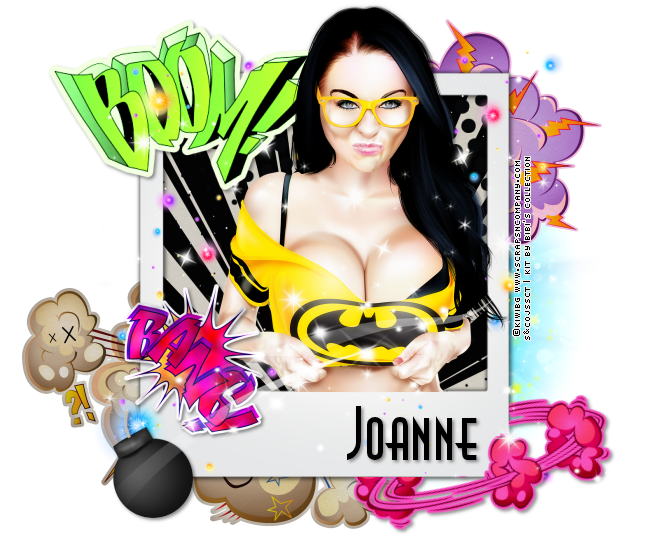
Jen Batgirl ~ by Joanne Salgado


Tutorial written by Joanne Salgado on February 19th, 2016
for those who have a working knowledge of PSP.
Any resemblance to any other tutorial is coincidental.
Do not copy and paste this tutorial anywhere on the net.
If you want to translate please ask first. 

Tube: Jen Bat Girl by KiwiBG - you can purchase here
Kit Comic Girl by Bibi's Collection - you can purchase here
Font: AnnaEF

Don't forget to save often.
At any point if you have doubts check my tag.

1. Open a new image 650x550

2. Open element 'BIBICOMICGIRL ELEMS (28)' copy and paste as new layer. Resize 80%.

3. Open element 'BIBICOMICGIRL ELEMS (94)' copy and paste as new layer. Resize 80%. Move this layer below the frame layer. Arrange it to the bottom right.

4. Open element 'BIBICOMICGIRL ELEMS (19)' copy and paste as new layer. Arrange it to the top right.

5. Open element 'BIBICOMICGIRL ELEMS (21)' copy and paste as new layer. Arrange it to the bottom left.

6. Open element 'BIBICOMICGIRL PAPER (4)' copy and paste as new layer. Resize 30%. Arrange it inside the frame.

7. Open element 'BIBICOMICGIRL ELEMS (34)' copy and paste as new layer. Resize 80%. Arrange inside the frame. Clean the outside parts.

8. Open element 'BIBICOMICGIRL ELEMS (22)' copy and paste as new layer. Resize 70%. Move this layer above the frame layer. Arrange it to the top left.

9. Open element 'BIBICOMICGIRL ELEMS (4)' copy and paste as new layer.

10. Open your tube. Copy and paste as new layer. Resize as needed and arrange it inside the frame. Clean the parts needed.

11. Open element 'BIBICOMICGIRL ELEMS (20)' copy and paste as new layer. Resize 40%. Arrange it to the bottom left.

12. Open element 'BIBICOMICGIRL ELEMS (23)' copy and paste as new layer. Resize 50%. Rotate left 20. Arrange it to the bottom right. Clean as its surrounding the frame.

13. Open element 'BIBICOMICGIRL ELEMS (14)' copy and paste as new layer. Resize 50%. Arrange it to the bottom left.

14. Open element 'BIBICOMICGIRL ELEMS (16)' copy and paste as new layer. Resize 50%. Arrange it to bottom.

15. Open element 'BIBICOMICGIRL ELEMS (7)' copy and paste as new layer. Arrange it to the bottom of the frame. Duplicate. Mirror. Arrange it above the one we just added. Duplicate. Flip. Arrange it above the one we added now. If needed clean sparkles from your tube's face.

16. Add shadow as you prefer.

17. Add copyright. Add name. Save as PNG.

February 7, 2016

Jemma Dots ~ by Joanne Salgado


Tutorial written by Joanne Salgado on February 07th, 2016
for those who have a working knowledge of PSP.
Any resemblance to any other tutorial is coincidental.
Do not copy and paste this tutorial anywhere on the net.
If you want to translate please ask first. 

Tube: Jemma (1) by KiwiBG - you can purchase here
Kit Polkadots by Bibi's Collection - you can purchase here
Font: A.D.MONO

Don't forget to save often.
At any point if you have doubts check my tag.

1. Open a new image 650x550

2. Open element 'BIBIPOLKABLACK ELEM (124)' copy and paste as new layer. Resize 90%. Arrange it to the top left. Duplicate. Mirror/Flip.

3. Open element 'BIBIPOLKABLACK ELEM (84)' copy and paste as new layer. Resize 50%. Arrange it to the right.

4. Open element 'BIBIPOLKABLACK ELEM (67)' copy and paste as new layer.

5. Open paper 'BIBIPOLKA BLACK PAPERS (11)' copy and paste as new layer. Resize 35%. Move this layer below the frame layer. Clean the outside parts.

6. Open paper 'BIBIPOLKA BLACK PAPERS (1)' copy and paste as new layer. Resize 60%. Clean the outside parts. Change blend mode to Screen and opacity to 30.

7. Open element 'BIBIPOLKABLACK ELEM (68)' copy and paste as new layer. Clean the left part, arrange the one left in the top right of the frame.

8. Open element 'BIBIPOLKABLACK ELEM (127)' copy and paste as new layer. Arrange it to bottom.

9. Open element 'BIBIPOLKABLACK ELEM (32)' copy and paste as new layer. Resize 50%. Move this layer above the frame layer. Arrange it to the top right of the frame.

10. Open element 'BIBIPOLKABLACK ELEM (46)' copy and paste as new layer. Mirror. Arrange it to the left. Selection Tool, pick the top right one, select it. Ctrl X (Cut), ctrl L (Paste as new layer). Arrange this one to the left of the flower.

11. Open element 'BIBIPOLKABLACK ELEM (115)' copy and paste as new layer. Resize 55%. Arrange it to top. Duplicate. Flip/Mirror.

12. Open your tube. Copy and paste as new layer. Resize as needed and arrange it to the left.

13. Open element 'BIBIPOLKABLACK ELEM (116)' copy and paste as new layer. Resize 85%. Arrange it to the bottom right. Duplicate. Mirror/Flip.

14. Add shadow as you prefer.

15. Add copyright. Add name. Save as PNG.

February 4, 2016

Yeehaa ~ by Joanne Salgado


Tutorial written by Joanne Salgado on February 04th, 2016
for those who have a working knowledge of PSP.
Any resemblance to any other tutorial is coincidental.
Do not copy and paste this tutorial anywhere on the net.
If you want to translate please ask first. 

Tube: Yeehaa by KiwiBG - you can purchase here
Kit YeeHaa by Blissful Designs - you can purchase here
Mask 'DD_NFM_2015_5' by Dee here
Font: Susanna

Don't forget to save often.
At any point if you have doubts check my tag.

1. Open a new image 650x550

2. Open paper 'BD-P-10' copy and paste as new layer. Resize 65%. Open your mask and apply it.

3. Open your tube. Copy and paste as new layer. Resize as needed and arrange it to the right. When we add the grass, clean the lower part so it wont appear below it.

4. Open element 'BD-E-15' copy and paste as new layer. Arrange it to bottom.

5. Open element 'BD-E-55' copy and paste as new layer. Resize 60%. Arrange it to the left.

6. Open element 'BD-E-8' copy and paste as new layer. Resize 70%. Arrange it to the left.

7. Open element 'BD-E-32' copy and paste as new layer. Resize 70%. Arrange it to the right.

8. Open element 'BD-E-24' copy and paste as new layer. Resize 20%. Arrange it to the bottom left of the fence.

9. Open element 'BD-E-52' copy and paste as new layer. Resize 30%. Arrange it to the right above the fence.

10. Open element 'BD-E-4' copy and paste as new layer. Resize 20%. Arrange it to the middle of the fence.

11. Add shadow as you prefer.

12. Add copyright. Add name. Save as PNG.

January 13, 2016

Ciggy Mad

STRESSED TUTORIAL


Tutorial written by Marcia Salgado on January 12th, 2016
for those who have a working knowledge of PSP.
I'm using PSP9 to create my tuts.
Any resemblance to any other tutorial is coincidental.
Do not copy and paste this tutorial anywhere on the net.
If you want to translate please ask first. 

****************************************
Material:

Tube: "Ciggy Mad" by kiwiBG, you can purchase it here
do not use without the proper #license.
PTU Kit "Ciggy Mad" by FwTags Creations, you can purchase it here
Template: by me, here
Font: Montelago Flare

****************************************

--> Remember to save often and use my tag as reference if necessary. Use a Drop Shadow of your preference on layers. 


1. Open my template, duplicate and close the original.

2. Delete the © layer. 

3. Click on back layer. Open FwTagsCiggyMadELEMENT (18). Resize 70%. Copy and paste as new layer. Move it up and to right.

4. Open FwTagsCiggyMadELEMENT (14). Resize 60%. Copy and paste as new layer. Move it up and to right.

5. Click on top square back layer. Select it. Open paper FwTagsCiggyMadPAPER (1). Copy and paste into selection. Deselect.

6. Click on top square border layer. Apply Noise: 50, Gaussian, Monochrome. 

7. Click on top square layer. Open FwTagsCiggyMadELEMENT (19). Resize 40%. Copy and paste as new layer. Move it up and to left. Place it like in hanging from the blue border of the frame.

8. Click on bottom square back layer. Select it. Open paper FwTagsCiggyMad (1). Copy and paste into selection. Deselect.

9. Click on bottom square border layer. Apply Noise: 50, Gaussian, Monochrome. 

10. Click on bottom sqaure layer. Open FwTagsCiggyMadELEMENT (1). Resize 25%. Copy and paste as new layer. Move it down and to right. 

11. Click on circle back layer. Select it. Open FwTagsCiggyMadPAPER (3). Copy and paste into selection. Save this selection to Alpha Channel. Deselect.

12. Open FwTagsCiggyMadELEMENT (29). Resize 50%. Copy and paste as new layer. Move it down. Position it on circle's bottom. Loand slection from Alpha Channel. Invert selection. Delete. Deselect. 

13. Open FwTagsCiggyMadELEMENT (21). Resize 50%. Move it to left. Duplicate. Mirror. Merge down. Load selection from Alpha Channel. Invert selection. Delete. Deselect.

14. Open your tube. Resize if needed. Copy and paste as new layer. Clean the area that is over the frame's bottom border.

15. Open FwTagsCiggyMadELEMENT (28). Resize 25%. Free Rotate: Left-30. Copy and paste as new layer. Move it down and to left.

16. Click on wordart layer. Add a border using color #3958a8.

17. Click on dashes layer and add a border using color white.

--> Add your copyright info and license#. Add your name and save as PNG.