Showing posts with label Toriya. Show all posts

April 6, 2017

Vera ~ by Joanne Salgado


Tutorial written by Joanne Salgado on April 06th, 2017
for those who have a working knowledge of PSP.
I'm using PSP9 to create my tuts.
Any resemblance to any other tutorial is coincidental.
Do not copy and paste this tutorial anywhere on the net.
If you want to translate please ask first. 

****************************************
Material:

Tube: "Vera 1" by Toriya, you can purchase it here
do not use without the proper #license.
PTU Kit "Rosy Pearls" by Chili Designz, you can purchase it here
Font: AlFresco

****************************************

--> Remember to save often and use my tag as reference if necessary.

1. Open a new image 650x550

2. Open frame 'CHILI_DESIGNZ_RosyPearls_frame5' copy and paste as new layer. Resize 60%.

3. Open element 'CHILI_DESIGNZ_RosyPearls_doily' copy and paste as new layer. Resize 83%. Move this layer below the frame layer.

4. Open element 'CHILI_DESIGNZ_RosyPearls_greenery2' copy and paste as new layer. Arrange it to the top left.

5. Open element 'CHILI_DESIGNZ_RosyPearls_rose3' copy and paste as new layer. Arrange it to the top right.

6. Open element 'CHILI_DESIGNZ_RosyPearls_rose' copy and paste as new layer. Arrange it to the bottom right.

7. Open element 'CHILI_DESIGNZ_RosyPearls_rose2' copy and paste as new layer. Mirror. Arrange it to the top left.

8. Open element 'CHILI_DESIGNZ_RosyPearls_sparkles4' copy and paste as new layer. Arrange it to the top right. Duplicate. Arrange it to the bottom left.

9. Open paper 'CHILI_DESIGNZ_RosyPearls_paper2' copy and paste as new layer. Resize 50%. Arrange it inside the frame and clean outside.

10. Open element 'CHILI_DESIGNZ_RosyPearls_flowers' copy and paste as new layer. Rotate. Move this layer above the frame layer. Arrange it a little to the right.

11. Open element 'CHILI_DESIGNZ_RosyPearls_flower5' copy and paste as new layer. Arrange it a little to the right.

12. Open element 'CHILI_DESIGNZ_RosyPearls_bow2' copy and paste as new layer.

13. Open element 'CHILI_DESIGNZ_RosyPearls_books2' copy and paste as new layer. Resize 40%. Arrange it to the bottom right.

14. Open element 'CHILI_DESIGNZ_RosyPearls_cup' copy and paste as new layer. Resize 30%. Arrange it above books.

15. Open element 'CHILI_DESIGNZ_RosyPearls_box' copy and paste as new layer. Resize 30%. Arrange it to the bottom right.

16. Open element 'CHILI_DESIGNZ_RosyPearls_jewel' copy and paste as new layer.

17. Open element 'CHILI_DESIGNZ_RosyPearls_pearl' copy and paste as new layer. Arrange it to the bottom right.

18. Open element 'CHILI_DESIGNZ_RosyPearls_book' copy and paste as new layer. Resize 40%. Arrange it to the bottom right.

19. Open element 'CHILI_DESIGNZ_RosyPearls_books' copy and paste as new layer. Resize 40%. Arrange it to the bottom right.

20. Open your tube. Copy and paste as new layer. Resize as needed and arrange it to the left.

21. Open element 'CHILI_DESIGNZ_RosyPearls_dragonfly' copy and paste as new layer. Resize 40%. Arrange it to the top right. Duplicate. Mirror. Arrange it to the left.

22. Open element 'CHILI_DESIGNZ_RosyPearls_puppy' copy and paste as new layer. Resize 40%. Arrange it to the bottom left.

23. Add shadow as you prefer.

24. Add copyright. Add name. Save as PNG.

March 17, 2017

Dana ~ by Joanne Salgado


Tutorial written by Joanne Salgado on March 15th, 2017
for those who have a working knowledge of PSP.
I'm using PSP9 to create my tuts.
Any resemblance to any other tutorial is coincidental.
Do not copy and paste this tutorial anywhere on the net.
If you want to translate please ask first. 

****************************************
Material:

Tube: "Dana 3" by Toriya, you can purchase it here
do not use without the proper #license.
PTU Kit "Dana 3" by Tagcatz Designs, you can purchase it here
Font: Catfish line script

****************************************

--> Remember to save often and use my tag as reference if necessary.

1. Open a new image 650x550

2. Open element 'dtc_el42' copy and paste as new layer. Resize 80%.

3. Open paper 'dtc_p7' copy and paste as new layer. Move this layer below the frame layer. Clean outside parts.

4. Open element 'dtc_el18' copy and paste as new layer. Resize 80%. Arrange it to the right.

5. Open element 'dtc_el73' copy and paste as new layer. Resize 40%. Arrange it to bottom.

6. Open element 'dtc_el62' copy and paste as new layer. Resize 90%. Arrange it a little to the left.

7. Open element 'dtc_el39' copy and paste as new layer. Resize 40%. Mirror. Arrange it to the bottom right.

8. Open element 'dtc_el25' copy and paste as new layer. Resize 40%. Arrange it to the bottom right.

9. Open element 'dtc_el64' copy and paste as new layer. Resize 30%. Arrange it to the bottom right.

10. Open element 'dtc_el61' copy and paste as new layer. Resize 50%. Arrange it to the bottom left.

11. Open element 'dtc_el13' copy and paste as new layer. Resize 25%. Arrange it to the bottom left.

12. Open element 'dtc_el37' copy and paste as new layer. Arrange it to the left.

13. Open element 'dtc_el4' copy and paste as new layer. Resize 40%. Arrange it to bottom.

14. Open your tube. Copy and paste as new layer. Resize as needed and arrange it to the left.

15. Add shadow as you prefer.

16. Add copyright. Add name. Save as PNG.

February 25, 2017

Charm ~ by Joanne Salgado


Tutorial written by Joanne Salgado on February 25th, 2017
for those who have a working knowledge of PSP.
I'm using PSP9 to create my tuts.
Any resemblance to any other tutorial is coincidental.
Do not copy and paste this tutorial anywhere on the net.
If you want to translate please ask first. 

****************************************
Material:

Tube: "Dana 4" by Toriya, you can purchase it here
do not use without the proper #license.
PTU Kit "Dana" by Bibi's Collection, you can purchase it here
Font: Afatar

****************************************

--> Remember to save often and use my tag as reference if necessary.


1. Open a new image 650x550

2. Open element 'BIBI-DANA ELEM (63)' copy and paste as new layer. Arrange it to the top left. Duplicate. Mirror/Flip.

3. Open element 'BIBI-DANA ELEM (84)' copy and paste as new layer Resize 30%.

4. Open element 'BIBI-DANA ELEM (33)' copy and paste as new layer. Resize 80%.

5. Open element 'BIBI-DANA ELEM (78)' copy and paste as new layer. Resize 35%. Arrange it to bottom.

6. Open element 'BIBI-DANA ELEM (68)' copy and paste as new layer. Resize 25%. Arrange it to the bottom right.

7. Open your tube. Copy and paste as new layer. Resize as needed and arrange it to the left.

8. Open element 'BIBI-DANA ELEM (91)' copy and paste as new layer. Resize 40%. Arrange it to the right above the frame.

9. Open element 'BIBI-DANA ELEM (43)' copy and paste as new layer. Resize 55%. Mirror. Arrange it to the bottom right.

10. Open element 'BIBI-DANA ELEM (1)' copy and paste as new layer. Resize 10%. Arrange it to the bottom right.

11. Open element 'BIBI-DANA ELEM (25)' copy and paste as new layer. Resize 10%. Arrange it above the C from charm.

12. Open element 'BIBI-DANA ELEM (87)' copy and paste as new layer. Resize 10%.

13. Open element 'BIBI-DANA ELEM (81)' copy and paste as new layer. Resize 10%. Arrange it a little to the top left.

14. Add shadow as you prefer.

15. Add copyright. Add name. Save as PNG.

November 27, 2016

Princess ~ by Joanne Salgado


Tutorial written by Joanne Salgado on November 27th, 2016
for those who have a working knowledge of PSP.
I'm using PSP9 to create my tuts.
Any resemblance to any other tutorial is coincidental.
Do not copy and paste this tutorial anywhere on the net.
If you want to translate please ask first. 

****************************************
Material:

Tube: "Autumn Princess" by Toriya - you can purchase it here
do not use without the proper #license.
PTU Kit "Timeless" by Tagcatz Design - you can purchase it here
Font: Esplanade Script

****************************************

Don't forget to save often.
At any point if you have doubts check my tag.

1. Open a new image 650x650

2. Open element 'time_tc_el56' copy and paste as new layer.

3. Open element 'time_tc_el54' copy and paste as new layer. Move this layer below the frame layer. Arrange it to top. Duplicate. Mirror/Flip.

4. Open element 'time_tc_el29' copy and paste as new layer. Arrange it to the top left. Duplicate. Mirror/Flip.

5. Open element 'time_tc_el40' copy and paste as new layer. Resize 50%. MuRa'S copies encircle with settings below.

6. Open paper 'time_tc_paper7' copy and paste as new layer. Resize 65%. Arrange it inside the frame and clean the outside parts.

7. Open element 'time_tc_el21' copy and paste as new layer. Mirror/Flip. Arrange it to the top right of the frame.

8. Open element 'time_tc_el79' copy and paste as new layer.

9. Open your tube. Copy and paste as new layer. Resize as needed and arrange it inside the frame to the left.

10. Open element 'time_tc_el38' copy and paste as new layer. Resize 30%. Rotate right 25. Arrange it to the bottom left.

11. Open element 'time_tc_el85' copy and paste as new layer. Resize 30%. Mirror. Arrange it to bottom.

12. Open element 'time_tc_el77' copy and paste as new layer. Resize 40%. Arrange it behind the tube to the bottom right.

13. Open element 'time_tc_el76' copy and paste as new layer. Resize 40%. Arrange it behind the butterfly to the left.

14. Open element 'time_tc_el57' copy and paste as new layer. Resize 15%. Arrange it above the cat's head.

15. Open element 'time_tc_el46' copy and paste as new layer. Resize 30%. Arrange it to the top right.

16. Add shadow as you prefer.

17. Add copyright. Add name. Save as PNG.

November 20, 2016

SHOW OFF - My Sweet Mermaid


== NEW PTU S&CO. CT ==
FOR TORIYA AND BIBI'S COLLECTION

Featuring "My Sweet Mermaid" tube by Toriya and
"My Sweet Mermaid" Kit by Bibi's Collection at Scraps N Company - S&Co.

Tube by Toriya - you can purchase here

Kit by Bibi's Collection - you can purchase here


Wishes ~ by Joanne Salgado


Tutorial written by Joanne Salgado on November 20th, 2016
for those who have a working knowledge of PSP.
I'm using PSP9 to create my tuts.
Any resemblance to any other tutorial is coincidental.
Do not copy and paste this tutorial anywhere on the net.
If you want to translate please ask first. 

****************************************
Material:

Tube: "My Sweet Mermaid" by Toriya - you can purchase it here
do not use without the proper #license.
PTU Kit "If Wishes Were Fishes" by Hungry Hill - you can purchase it here
Font: 2Peas Mister Giggles

****************************************

Don't forget to save often.
At any point if you have doubts check my tag.

1. Open a new image 650x550

2. Open element 'frame-1' copy and paste as new layer. Resize 60%.

3. Open element 'flower-2' copy and paste as new layer. Resize 50%. Move this layer below the frame layer. Arrange it to the left. Duplicate. Mirror. Arrange it to the right.

4. Open paper 'paper-4' copy and paste as new layer. Resize 40%. Clean the outside parts.

5. Open element 'greenery-4' copy and paste as new layer. Resize 30%. Arrange it to the right inside the frame.

6. Open element 'pebbles' copy and paste as new layer. Resize 15%. Arrange it to the bottom right inside the frame. Duplicate. Mirror.

7. Open element 'sandcastle' copy and paste as new layer. Resize 30%. Arrange it to the right inside the frame.

8. Open element 'fishie-3' copy and paste as new layer. Resize 10%. Arrange it near the castle.

9. Open element 'fishie-1' copy and paste as new layer. Resize 10%. Arrange it to the top.

10. open element 'fishie-2' copy and paste as new layer. Resize 10%. Arrange it to the bottom right.

11. Open element 'shell-6' copy and paste as new layer. Resize 7%. Arrange it to bottom.

12. Open element 'light-effect' copy and paste as new layer. Resize 10%. Move this layer above the frame layer. Arrange it around the frame duplicating. Ive used 3 from this size. Then resize 70%. Arrange it around again. I used 2 from this size. Then resize again 70%. This last one I used 2 from this size.

13. Open element 'sparkles-2' copy and paste as new layer. Resize 50%.

14. Open element 'waterdrops' copy and paste as new layer. Resize 50%. Arrange around the frame.

15. Open element 'starfish-1' copy and paste as new layer. Resize 15%. Arrange it to the top right.

16. Open element 'starfish-2' copy and paste as new layer. Resize 15%. Arrange it to the top right.

17. Open your tube. Copy and paste as new layer. Resize as needed and arrange it to the left.

18. Add shadow as you prefer.

19. Add copyright. Add name. Save as PNG.


November 14, 2016

SHOW OFF - Sydney


== NEW PTU S&CO. CT ==
FOR TORIYA AND BIBI'S COLLECTION

Featuring "Sydney" tube by Toriya and
"Sydney Holidays" Kit by Bibi's Collection at Scraps N Company - S&Co.

Tube by Toriya - you can purchase here

Kit by Bibi's Collection - you can purchase here


October 24, 2016

Autumn Princess ~ by Joanne Salgado


Tutorial written by Joanne Salgado on October 24th, 2016
for those who have a working knowledge of PSP.
I'm using PSP9 to create my tuts.
Any resemblance to any other tutorial is coincidental.
Do not copy and paste this tutorial anywhere on the net.
If you want to translate please ask first. 

****************************************
Material:

Tube: "Autumn Princess" by Toriya - you can purchase it here
do not use without the proper #license.
PTU Kit "Beauty Autumn" by Design by Joan - you can purchase it here
Font: KazincBarcika

****************************************

Don't forget to save often.
At any point if you have doubts check my tag.

1. Open a new image 650x550

2. Open element 'BEAUTY AUTUMN_DBJ-ELEM (80)' copy and paste as new layer. Resize 55%. Arrange it to the left. Duplicate. Mirror 20 right. Arrange it to the right. Move this layer below the frame layer.

3. Open element 'BEAUTY AUTUMN_DBJ-ELEM (87)' copy and paste as new layer. Resize 50%. Move this layer below both frame layers. Arrange it to top.

4. Open element 'BEAUTY AUTUMN_DBJ-ELEM (74)' copy and paste as new layer. Resize 50%. Arrange it to the top right.

5. Open element 'BEAUTY AUTUMN_DBJ-ELEM (84)' copy and paste as new layer. Resize 50%. Arrange it to the right. Duplicate. Arrange it to the left.

6. Open element 'BEAUTY AUTUMN_DBJ-ELEM (51)' copy and paste as new layer. Resize 50%. Arrange it to the bottom right.

7. Open element 'BEAUTY AUTUMN_DBJ-ELEM (45)' copy and paste as new layer. Resize 50%. Arrange it to the bottom left.

8. Open element 'BEAUTY AUTUMN_DBJ-ELEM (7)' copy and paste as new layer. Resize 50%. Arrange it to the right. Duplicate. Mirror.

9. Open element 'BEAUTY AUTUMN_DBJ-ELEM (40)' copy and paste as new layer. Resize 60%. Arrange it to bottom.

10. Open element 'BEAUTY AUTUMN_DBJ-ELEM (68)' copy and paste as new layer. Resize 50%. Arrange it to the top left.

11. Open paper 'BEAUTY AUTUMN_DBJ-PP (2)' copy and paste as new layer. Resize 50%. Arrange it inside the frame, clean outside it. Paste paper again, rotate 20 right. Arrange it inside the other frame. Clean outside.

12. Open element 'BEAUTY AUTUMN_DBJ-ELEM (64)' copy and paste as new layer. Resize 80%. Move this layer above both frame layers.

13. Open your tube. Copy and paste as new layer. Resize as needed and arrange it between the frames.

14. Open element 'BEAUTY AUTUMN_DBJ-ELEM (66)' copy and paste as new layer. Resize 50%. Arrange it to bottom. (I used this one to cover my legless tube)

15. Open element 'BEAUTY AUTUMN_DBJ-ELEM (43)' copy and paste as new layer. Resize 80%. Arrange it to the left.

16. Open element 'BEAUTY AUTUMN_DBJ-ELEM (60)' copy and paste as new layer. Resize 30%. Mirror. Arrange it to the bottom right.

17. Open element 'BEAUTY AUTUMN_DBJ-ELEM (47)' copy and paste as new layer. Resize 25%. Arrange it to the bottom left.

18. Open element 'BEAUTY AUTUMN_DBJ-ELEM (81)' copy and paste as new layer.

19. Add shadow as you prefer.

20. Add copyright. Add name. Save as PNG.

October 3, 2016

Bella ~ by Joanne Salgado


Tutorial written by Joanne Salgado on October 02th, 2016
for those who have a working knowledge of PSP.
I'm using PSP9 to create my tuts.
Any resemblance to any other tutorial is coincidental.
Do not copy and paste this tutorial anywhere on the net.
If you want to translate please ask first. 

****************************************
Material:

Tube: "Bella 2" by Toriya - you can purchase it here
do not use without the proper #license.
PTU Kit "Sadness" by Bibi's Collection - you can purchase it here
Font: Esplanade Script

****************************************

Don't forget to save often.
At any point if you have doubts check my tag.

1. Open a new image 650x550.

2. Open element 'BIBI-SADNESS ELEM (33)' copy and paste as new layer. Resize 55% Rotate 90 right.

3. Open element 'BIBI-SADNESS ELEM (58)' copy and paste as new layer. Resize 50%. Move this layer below the frame layer. Arrange it to bottom.

4. Open element 'BIBI-SADNESS ELEM (27)' copy and paste as new layer. Resize 50%. Arrange it to the top left.

5. Open element 'BIBI-SADNESS ELEM (71)' copy and paste as new layer. Resize 45%. Arrange it to the top left.

6. Open paper 'BIBI-SADNESS PAPER (1)' copy and paste as new layer. Resize 30%. Arrange it inside the frame and clean the outside parts.

7. Open element 'BIBI-SADNESS ELEM (103)' copy and paste as new layer. Resize 40%. Mirror. Move this layer above the frame layer. Arrange it to the bottom right.

8. Open element ' BIBI-SADNESS ELEM (65)' copy and paste as new layer. Resize 20%. Arrange it to bottom.

9. Open element 'BIBI-SADNESS ELEM (35)' copy and paste as new layer. Resize 20%. Arrange it to the bottom right.

10. Open your tube. Copy and paste as new layer. Resize as needed and arrange it to the right.

11. Open element 'BIBI-SADNESS ELEM (90)' copy and paste as new layer. Resize 20%. Arrange it to bottom.

12. Open element 'BIBI-SADNESS ELEM (130)' copy and paste as new layer. Resize 50%. Mirror. Arrange it to the bottom left.

13. Open element 'BIBI-SADNESS ELEM (120)' copy and paste as new layer. Resize 20%. Mirror. Arrange it to the bottom left.

14. Open element 'BIBI-SADNESS ELEM (121)' copy and paste as new layer. Resize 15%. Arrange it to the bottom left.

15. Add shadow as you prefer.

16. Add copyright. Add name. Save as PNG.

July 11, 2016

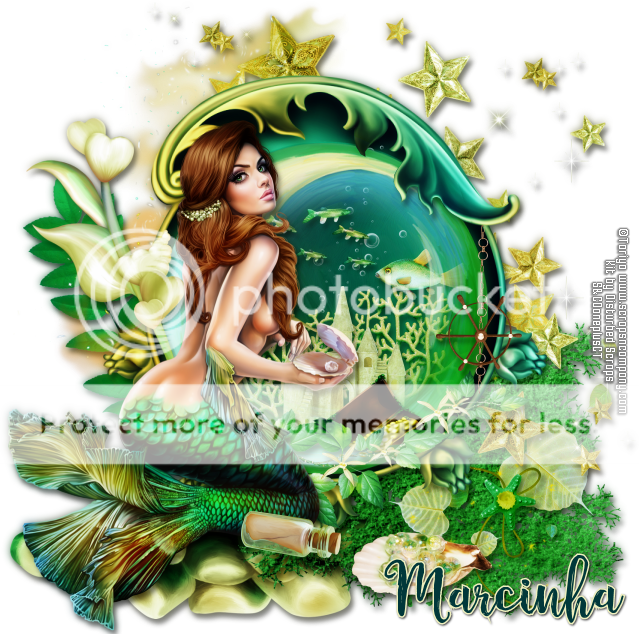
My Sweet Mermaid

MERMAID'S AQUARIUM TUTORIAL


Tutorial written by Marcia Salgado on July 10th, 2016
for those who have a working knowledge of PSP.
I'm using PSP9 to create my tuts.
Any resemblance to any other tutorial is coincidental.
Do not copy and paste this tutorial anywhere on the net.
If you want to translate please ask first. 

****************************************
Material:

Tube: "My Sweet Mermaid" by Toriya, you can purchase it here 
do not use without the proper #license.
PTU Kit "My Sweet Mermaid" by Bibi's Collection, you can purchase it here 
Font: Fairytales Script

****************************************

--> Remember to save often and use my tag as reference if necessary. Use a Drop Shadow of your preference on layers. 


1. Create a new image 650X650.

2. Open BIBI-MY SWEETMERMAID ELEMS (100). Resize 60%. Copy and paste as new layer.

3. Select around the curved points on upper right. After had selected all parts, promote selection to a layer. Rename it TOP and let it invisible.


4. Click on original layer. Open BIBI-MY SWEETMERMAID ELEMS (46). Resize 45%. Flip. Copy and paste as new layer. Move it down and to left. Send this layer  to bottom.

5. Open BIBI-MY SWEETMERMAID ELEMS (52). Resize 40%. Copy and paste as new layer. Move it down and to right.

6. Open BIBI-MY SWEETMERMAID ELEMS (87). Resize 50%. Mirror. Copy and paste as new layer. Place it over the previous element.

7. Open BIBI-MY SWEETMERMAID ELEMS (57). Resize 35%. Copy and paste as new layer. Again place it over the algae. Duplicate.

8. Open BIBI-MY SWEETMERMAID ELEMS (72). Resize 35%. Mirror. Copy and paste as new layer. Place it also over the algae.

9. Open BIBI-MY SWEETMERMAID ELEMS (95). Resize 45%. Mirror. Copy and paste as new layer. Move it a little down and to left.

10. Open BIBI-MY SWEETMERMAID ELEMS (30). Resize 50%. Copy and paste as new layer. Move it up and to right.

11. Open BIBI-MY SWEETMERMAID ELEMS (17). Resize 35%. Copy and paste as new layer. Move it up and to left.

12. Click on first visible layer (should be the second layer).

--> The next elements need to be placed inside the inner circle of the green element.

13. Open BIBI-MY SWEETMERMAID ELEMS (12). Resize 35%. Copy and paste as new layer. Place it a little up and a little to right. Duplicate. Mirror. Place it on right side of previous bubbles, a little mor up and a little more to right.

14. Open BIBI-MY SWEETMERMAID ELEMS (49). Resize 15%. Copy and paste as new layer. Place it on the bottom a little to left. Duplicate. Move it up and to right.

15. Open BIBI-MY SWEETMERMAID ELEMS (128). Resize 20%. Copy and paste as new layer. Place it on bottom and a very little to right.

16. Open BIBI-MY SWEETMERMAID ELEMS (73). Resize 20%. Copy and paste as new layer. Move it a little up.

17. Open BIBI-MY SWEETMERMAID ELEMS (7). Resize 15%. Mirror. Copy and paste as new layer. Move it to right.

18. Open BIBI-MY SWEETMERMAID ELEMS (15). Resize 70%. Copy and paste as new layer.

19. Click on TOP layer and turn it visible.

20. Open BIBI-MY SWEETMERMAID ELEMS (60). Resize 20%. Copy and paste as new layer.Move it down and to right, keep it over the glass at bottom.

21. Open BIBI-MY SWEETMERMAID ELEMS (24). Resize 45%. Copy and paste as new layer. Move it to left.

22. Open BIBI-MY SWEETMERMAID ELEMS (111). Resize 35%. Copy and paste as new layer. Move it down and place it over the glass at bottom.

23. Open BIBI-MY SWEETMERMAID ELEMS (93). Resize 15%. Copy and paste as new layer. Place it over the branch. Duplicate. Move it to another point on the branch. Duplicate. Resize 70%. Move it to another place still over the branch.

24. Open BIBI-MY SWEETMERMAID ELEMS (76). Resize 25%. Copy and paste as new layer. Move it to right. Place like it hanging on the curved part of the base frame.

25. Open BIBI-MY SWEETMERMAID ELEMS (75). Resize 25%. Copy and paste as new layer. Move it down and a little to right.

26. Open your tube. Resize. Copy and paste as new layer. I mirrored mine. Move it to left and place it over the stones. You may want to re-arrange some elements to better suit your tube.

27. Open BIBI-MY SWEETMERMAID ELEMS (16). Resize 20%. Copy and paste as new layer. Place it on the right side of the tube.

28. Use Crop > Merged Opaque to get rid of all extra spaces.


--> Add your copyright info and license#. Add your name and save as PNG.


May 29, 2016

Queen ~ by Joanne Salgado


Tutorial written by Joanne Salgado on May 19th, 2016
for those who have a working knowledge of PSP.
I'm using PSP9 to create my tuts.
Any resemblance to any other tutorial is coincidental.
Do not copy and paste this tutorial anywhere on the net.
If you want to translate please ask first. 

****************************************
Material:

Tube: "Queens" by Toriya - you can purchase it here
do not use without the proper #license.
PTU Kit "Queen" by Kizzed by Kelz - you can purchase it here
Font: Perfumerie Script Old Style

****************************************

Don't forget to save often.
At any point if you have doubts check my tag.

1. Open a new image 650x550

2. Open element 'KBK_Queen (4)' copy and paste as new layer.

3. Open paper 'KBK_Queen (30)' copy and paste as new layer. Arrange it inside the frame and clean the outside parts.

4. Open element 'KBK_Queen (100)' copy and paste as new layer. Mirror. Arrange it to the top right.

5. Open element 'KBK_Queen (9)' copy and paste as new layer. Rotate left 5. Arrange it to the left.

6. Open element 'KBK_Queen (34)' copy and paste as new layer. Resize 50%. Move this layer below the layer from element (9). Arrange it to the right.

7. Open element 'KBK_Queen (62)' copy and paste as new layer. Resize 50%. Mirror. Arrange it to the bottom right.

8. Open element 'KBK_Queen (98)' copy and paste as new layer. Arrange it to the top left. Duplicate. Mirror. Arrange it to the bottom right.

9. Open element 'KBK_Queen (32)' copy and paste as new layer. Resize 50%. Arrange it to the top left.

10. Open element 'KBK_Queen (65)' copy and paste as new layer. Resize 50%. Arrange it to the bottom right.

11. Open element 'KBK_Queen (24)' copy and paste as new layer. Resize 50%. Arrange it to the right.

12. Open element 'KBK_Queen (67)' copy and paste as new layer. Resize 30%. Arrange it to the bottom right.

13. Open element 'KBK_Queen (61)' copy and past as new layer. Resize 50%. Arrange it to the top left. Duplicate. Mirror. Arrange it to the bottom right.

14. Open element 'KBK_Queen (35)' copy and paste as new layer. Resize 50%. Arrange it to the top right.

15. Open element 'KBK_Queen (59)' copy and paste as new layer. Resize 70%. Arrange it to bottom.

16. Open your tube. Copy and paste as new layer. Resize as needed. Move this layer above the layer from element (9). Arrange it above the element and clean the outside parts.

17. Open element 'KBK_Queen (5)' copy and paste as new layer. Resize 50%. Arrange it to the bottom left.

18. Add shadow as you prefer.

19. Add copyright. Add name. Save as PNG.

March 30, 2016

Aurika ~ by Joanne Salgado


Tutorial written by Joanne Salgado on March 30th, 2016
for those who have a working knowledge of PSP.
Any resemblance to any other tutorial is coincidental.
Do not copy and paste this tutorial anywhere on the net.
If you want to translate please ask first. 

Tube: Aurika Pretty by Toriya - you can purchase here
Kit Aurika Pretty by Mysterfeerie Creation - you can purchase here
Font: Andover

Don't forget to save often.
At any point if you have doubts check my tag.

1. Open a new image 650x550

2. Open element '24' copy and paste as new layer. Arrange it to the top left. Duplicate. Mirror. Duplicate. Flip. Duplicate. Mirror.

3. Open element '28' copy and paste as new layer. Resize 50%. Plugins/Mura'S Meister/Copies with settings below: 


4. Open element '55' copy and paste as new layer. Resize 50%. Copies again with the settings below:


5. Open element '31' copy and paste as new layer. Resize 70%. Copies with the settings below:


6. Open element '18' copy and paste as new layer. Resize 30%. Copies with the settings below: 


7. Open element '37' copy and paste as new layer. Resize 30%. Flip. Copies with the settings below:


8. Open paper '08' copy and paste as new layer. Resize 40%. When we add frame, clean the parts that appears outside.

9. Open frame '03' copy and paste as new layer. Resize 70%. If you select paper to clean, don't forget to select the frame layer again to continue.

10. Open your tube. Copy and paste as new layer. Resize as needed and arrange it inside the frame. Clean the parts needed.

11. Open element '05' copy and paste as new layer. Resize 50%. Arrange it to top left.

12. Open element '07' copy and paste as new layer. Resize 50%. Arrange it to bottom right.

13. Open element '12' copy and paste as new layer. Resize 40%. Arrange it to bottom right.

14. Add shadow as you prefer.

15. Add copyright. Add name. Save as PNG.

March 28, 2016

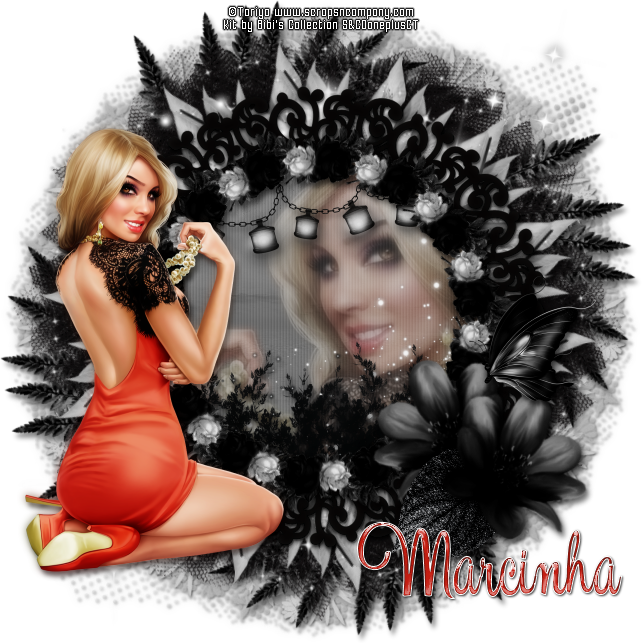
Aurika Lovely

INTO THE NIGHT TUTORIAL


Tutorial written by Marcia Salgado on March 27th, 2016
for those who have a working knowledge of PSP.
I'm using PSP9 to create my tuts.
Any resemblance to any other tutorial is coincidental.
Do not copy and paste this tutorial anywhere on the net.
If you want to translate please ask first. 

****************************************
Material:

Tube: "Aurika Lovely", by Toriya, you can purchase it here 
do not use without the proper #license.
PTU Kit "Aurika" by Bibis Collection, you can purchase it here 
Mask: Dee's mask, DD_NFM_2015_3, here 
Plugin: MuRa's Meister
Font: Esplanade Script PERSONAL USE

****************************************

--> Remember to save often and use my tag as reference if necessary. Use a Drop Shadow of your preference on layers. 


1. Create a new image 650x650.

2. Add a new layer. Fill with #c5c5c5. Apply Dee's mask. Merge group.

3. Open BIBI-AURIKA ELEMS (8). Resize 80%. Copy and paste as new layer.

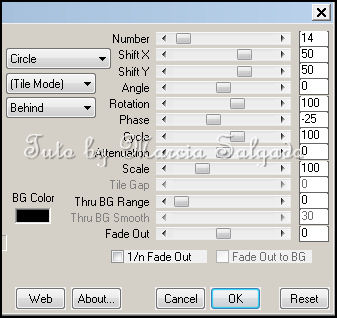
4. Open BIBI-AURIKA ELEMS (63). Copy and paste as new layer. Apply MuRa's Meister > Copies > Encircle as shown below.


5. Open BIBI-AURIKA ELEMS (35). Resize 75%. Copy and paste as new layer. Apply MuRa's Meister > Copies > Encircle with the following settings:


6. Open BIBI-AURIKA ELEMS (13). Copy and paste as new layer. 

7. Open BIBI-AURIKA ELEMS (9). Copy and paste as new layer.

8. Select inside the frame and expand > 16. Add a new layer and move it below the frame layer. open BIBI-AURIKA PAPERS (6). Copy and paste into selection. Keep selected.

9. Add a new layer and fill it with White. Low the layer opacity to 40. Apply Blinds with the follow options marked and invert the selection:


10. Open your tube and resize a little (or use a closeup). Copy and paste as new layer. Place it inside the frame and delete. Blend Mode: Luminance (L). Low the layer opacity to 26. Duplicate. Gaussian Blur: 4. Blend Mode: Soft Light. Increase the layer opacity to 100. Keep selected.

11. Open BIBI-AURIKA ELEMS (66). Resize 50%. Copy and paste as new layer. Place it inside the frame on its bottom right portion. When satisfied with placing hit delete. Keep selected.

12. Open BIBI-AURIKA ELEMS (43). Resize 25%. Copy and paste as new layer. Move it up and keep it inside the frame. Delete. Keep selected.

13. OPen BIBI-AURIKA ELEMS (82). Resize 40%. Copy and paste as new layer. Move it down and keep it inside the frame. Delete. Deselect.

14. Click on first layer (should be the black frame. Open BIBI-AURIKA ELEMS (61). Resize 15%. Copy and paste as new layer. Apply MuRa's Meister > Copies > Encircle with follow settings:


15. Open BIBI-AURIKA ELEMS (36). Resize 70%. Free Rotate: Left-45. Copy and paste as new layer. Move it down and to left. Place it over the frame bottom right border. Duplicate. Mirror. Place it on the bottom right side of the original flower.

16. Open BIBI-AURIKA ELEMS (23). Resize 50%. Move it down and a little to right. Place this leaf layer between the previous flowers layer. (Move it down one layer, then click on first layer to continue).

17. Open BIBI-AURIKA ELEMS (86). Resize 15%. Place it over the flowers.

18. Open your tube and resize it. Copy and paste as new layer. I mirrorred mine and move it to the left.

19. Select all. Clip to canvas. Crop to selection, to clean lost pixels from the closeup layer.


--> Add your copyright info and license#. Add your name and save as PNG.


March 26, 2016

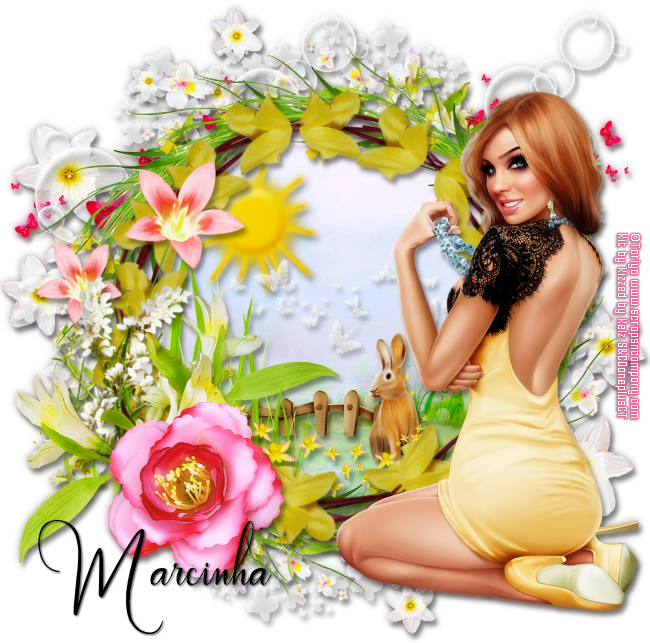
Aurika Babe

EASTER LOVE TUTORIAL


Tutorial written by Marcia Salgado on March 26th, 2016
for those who have a working knowledge of PSP.
I'm using PSP9 to create my tuts.
Any resemblance to any other tutorial is coincidental.
Do not copy and paste this tutorial anywhere on the net.
If you want to translate please ask first. 

****************************************
Material:

Tube: "Aurika Babe" by Toriya, you can purchase it here 
do not use without the proper #license.
PTU Kit "Aurika Babe" by Kizzed by Kelz, you can purchase it here 
Font: wallows

****************************************

--> Remember to save often and use my tag as reference if necessary. Use a Drop Shadow of your preference on layers. 


1. Create a new image 650x650.

2. Open KBK_AurikaBabe (96). Copy and paste as new layer. Rename it FR1.

3. Open KBK_AurikaBabe (39). Resize 80%. Copy and paste as new layer. Adjust it over the previous frame if needed. Duplicate. Fre Rotate: Right-18. Mirror. Erase all steams from this layer that are over the flowers from layer below. When finish, merge down.

4. Click on bottom layer (Raster 1). Open KBK_AurikaBabe (51). Copy and paste as new layer. Move it a little up and to left. Duplicate. Mirror. Move it a little down and to right. Merge down.

5. Open KBK_AurikaBabe (90). Resize 80%. Copy and paste as new layer. Move it down and to right. Duplicate. Mirror. Flip. Merge down.

6. Open KBK_AurikaBabe (126). Resize 60%. Copy and paste as new layer. Move it up and to right. Duplicate and move to left. Merge down.

7. Open KBK_AurikaBabe (84). Resize 80%. Mirror. Copy and paste as new layer. Move it down and to left. Duplicate. Mirror. Flip. Merge down.

8. Click on FR1 layer. Select inside the frame . Expand > 5. Add a new layer and move it below the frame layer. Open KBK_AurikaBabe (11). Copy and paste as new layer. Deselect.

9. Open KBK_AurikaBabe (93). Resize 35%, Move it down and to left. Place it inside the frame over the grass on the background.

10. Open KBK_AurikaBabe (64). Resize 45%. Copy and paste as new layer. Move it up and to left. Keep it inside the frame.

11. Open KBK_AurikaBabe (57). Resize 40%. Copy and paste as new layer. Move it down and to right. Keep it inside the frame.

12. Open KBK_AurikaBabe (61). Resize 50%. Copy and paste as new layer. Move it a little up. Keep it inside the frame.

13. Open KBK_AurikaBabe (74). Resize 50%. Mirror. Copy and paste as new layeMove it down and to left. Keep it inside the frame.

14. Open KBK_AurikaBabe (71). Resize 50%. Copy and paste as new layer. Move it down. Keep it inside the frame.

15. Click on first layer (should be the frame with yellow flowers). Open KBK_AurikaBabe (139). Resize 60%. Copy and paste as new layer. Move it to left and place it over the frames border.

16. Open KBK_AurikaBabe (28). Resize 45%. Mirror. Free Rotate: Left-130. Copy and paste as new layer. Move it to the left and place it over the previous flowers a little down.

17. Open KBK_AurikaBabe (69). Resize 50%. Copy and paste as new layer. Move it down and to left. Place it over the previous flowers, a little down.

18. Open KBK_AurikaBabe (3). Resize 40%. Copy and paste as new layer. Move it down and to left. Place it over the previous flowers, a little down.

19. Open your tube. Resize it. Copy and paste as new layer. Move it to the right.


--> Add your copyright info and license#. Add your name and save as PNG.