Showing posts with label Maryline Cazenave. Show all posts

June 10, 2015

Cluster Pack 3 by Monti's Scraps

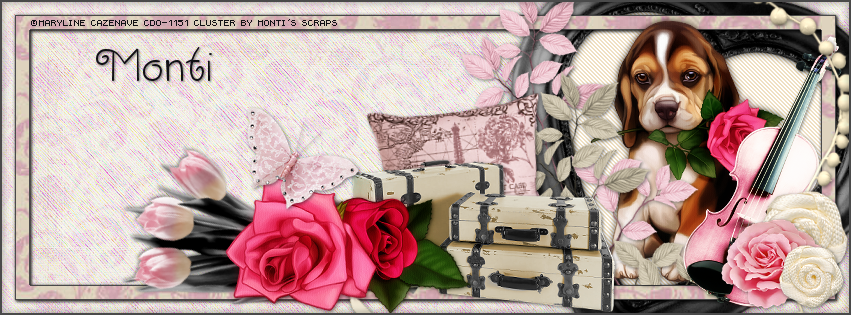
PINK PUPPY TUTORIAL

**Click to see original size**

Tutorial written by Marcia Salgado on June 10th, 2015
for those who have a working knowledge of PSP.
Any resemblance to any other tutorial is coincidental.
Do not copy and paste this tutorial anywhere on the net.
If you want to translate please ask first. 

****************************************
Material:

Tube: "Rose Puppy" by Maryline Cazenave, you can purchase it here
do not use without the proper #license.
PTU Cluster "Cluster Pack 3" by Monti's Scraps,
you can purchase it here
Plugin: Penta.com > Jeans
Font: CK Curly

****************************************

--> Remember to save often and use my tag as reference if necessary. Used the Drop Shadow: 1-1-50-5 in most layers. 

1. Open ScrapMonti_ClusterPack-3-Frame2 and ScrapMonti_ClusterPack-3-Paper. You will get the elements directly from the cluster PSD.

2. Create a new image 851x315. Fill it with the paper. Rename the layer to PAPER.

3. Add a new layer. Rename the layer to MOTION. Select all. Fill it with white. Contract > 15. Delete. Click on PAPER layer. Promote it to a layer. Rename the layer to BORDER. Duplicate. Blend Mode: Multiply. Contract > 15. Delete. Click on MOTION layer. Fill with white. Deselect. Add Noise: Uniform-50. Motion Blur: 318-100. Edge Effects > Enhance More. Repeat Enhance. Blend Mode: Soft Light. Duplicate. Mirror. Flip. Blend Mode: Soft Light. Move BORDER layer over MOTION layer. Add a Drop Shadow.

3. Click on MOTION layer. Copy Frame and paste as new layer. Resize 60%. Free Rotate: Right-20. Move it way right. Click inside the frame. Expand > 4. Add a new layer. Fill it with #f0e0c2. Apply Penta.com > Jeans > Default.

4. Click on BORDER layer. Add a new layer. Select all. Contract > 15. Fill with #111115. Contract > 1. Delete. Contract > 13. Fill with #111115. Contract > 1. Delete. Deselect.

5. Open your tube. Resize if needed. Copy and paste as new layer. Move it to right and place it over the frame. Erase all parts at frame bottom. Add a suitable shadow.

6. Copy Leaves-Pink. Paste as new layer. Resize 70%. Place it over the left side of the frame. Erase the bottom part that is over the large border.

7. Copy Leaves-Cream. Paste as new layer. Resize 70%. Mirror. Place over the left side of the frame a little more down and to right than the pink.

8. Copy Cushion. Paste as new layer. Move it to right. Leave it near the frame left side.

9. Copy Violin. Paste as new layer. Resize 60%. Move it way right and place it over the right side of the frame.

10. Copy Buds-Cream. Paste as new layer. Move it way right.

11. Copy Flower-Cream. Paste as new layer. Resize 70%. Move it way down right. Place it just a little up of right bottom corner. Duplicate. Resize 70%. Mirror, And place it over the corner.

12. Click on the layer of the bigger cream flower. Copy Flower-Pink. Paste as new layer. Resize 70%. Move it over the left side of the bigger cream flower.

13. Click on first layer. Copy Tulips. Paste as new layer. Resize 70%. Free Rotate: Left-55. Move it down left.

14. Copy SuitCases. Paste as new layer. Resize 70%. Move it down a little to right. Place it over the cushion. With my tube I have an extra layer with roses, just resized it and place it between the tulips and the suitcases.

15. Copy Butterfly. Paste as new layer. Resize 70%. Mirror. Place it over the tulips, or if you are using the same tube I am, place it over the roses. Add a border #111115 of 2px


--> Add your copyright info (no URL by Facebook TOU) and license#. Add your name. Save as PNG.

--> Sometimes I had to change my Timeline size to 846x313 because when I add it to Facebook the image has extra pixels and do not fit perfectly. So try this size if the same is happening to you.




February 26, 2015

Cute Helen


== NEW PTU DANCE IN THE RAIN CT TAG ==

Featuring "Cute Helen" Kit by Dance In The Rain at PicsForDesign - PFD

Dance In The Rain's beautiful kit with 121 elements and 25 papers match for the tube by Stan Dudin. This kit will also work with many other tubes, as you can see for my tags.

Dance In The Rain kit can be found at:

-> PicsForDesign - PFD,  here


February 11, 2015

I Heart U


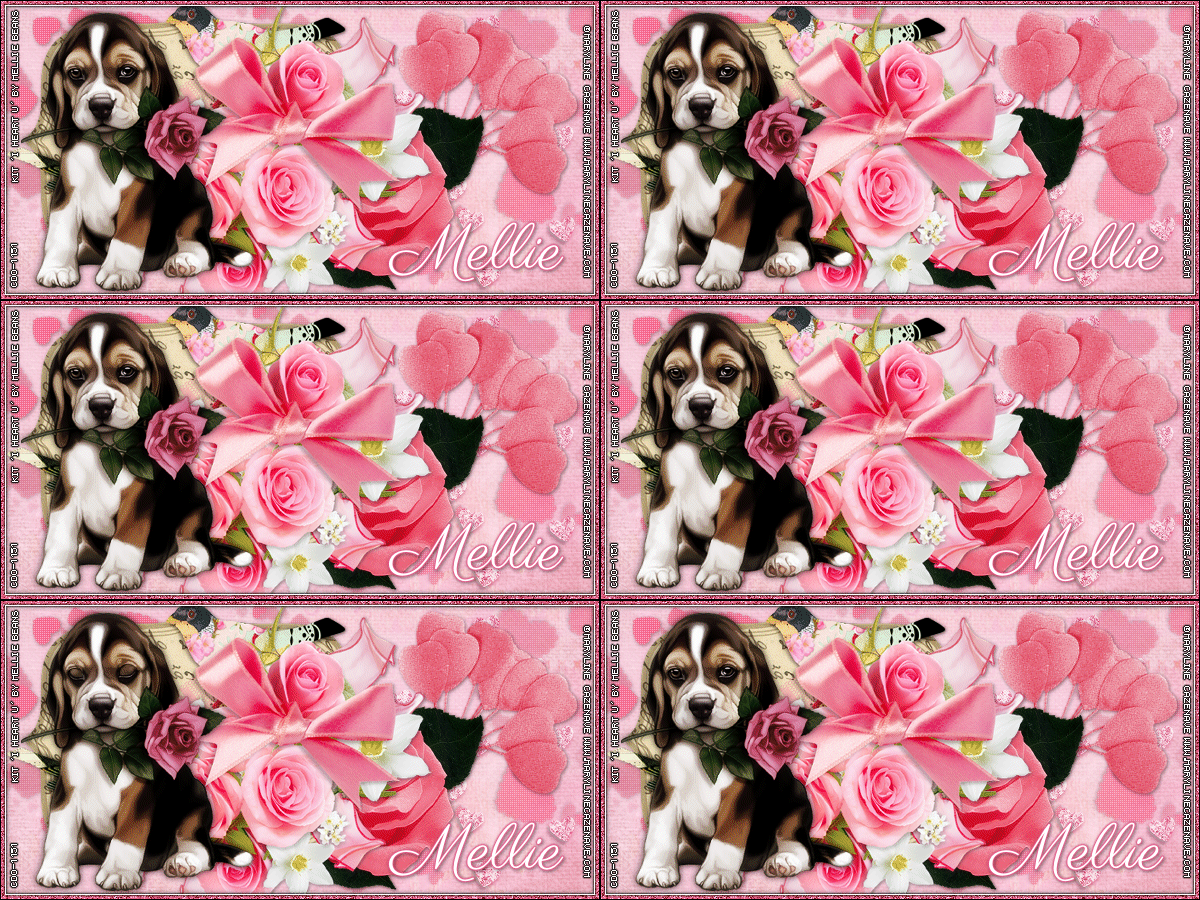
=== NEW CT MELLIE BEANS TAG ==

Featuring "I Heart U" Kit by Mellie Beans at Mystical Scraps Store and Heartbeatz Creationz

Tagger sized Valentines Day Theme kit.
Kit has 15 papers, 36 elements and 4 frames so you can play with it.

Kit can be found in two stores:

-> Mystical Scraps Store here

-> Heartbeatz Creationz here


February 8, 2015

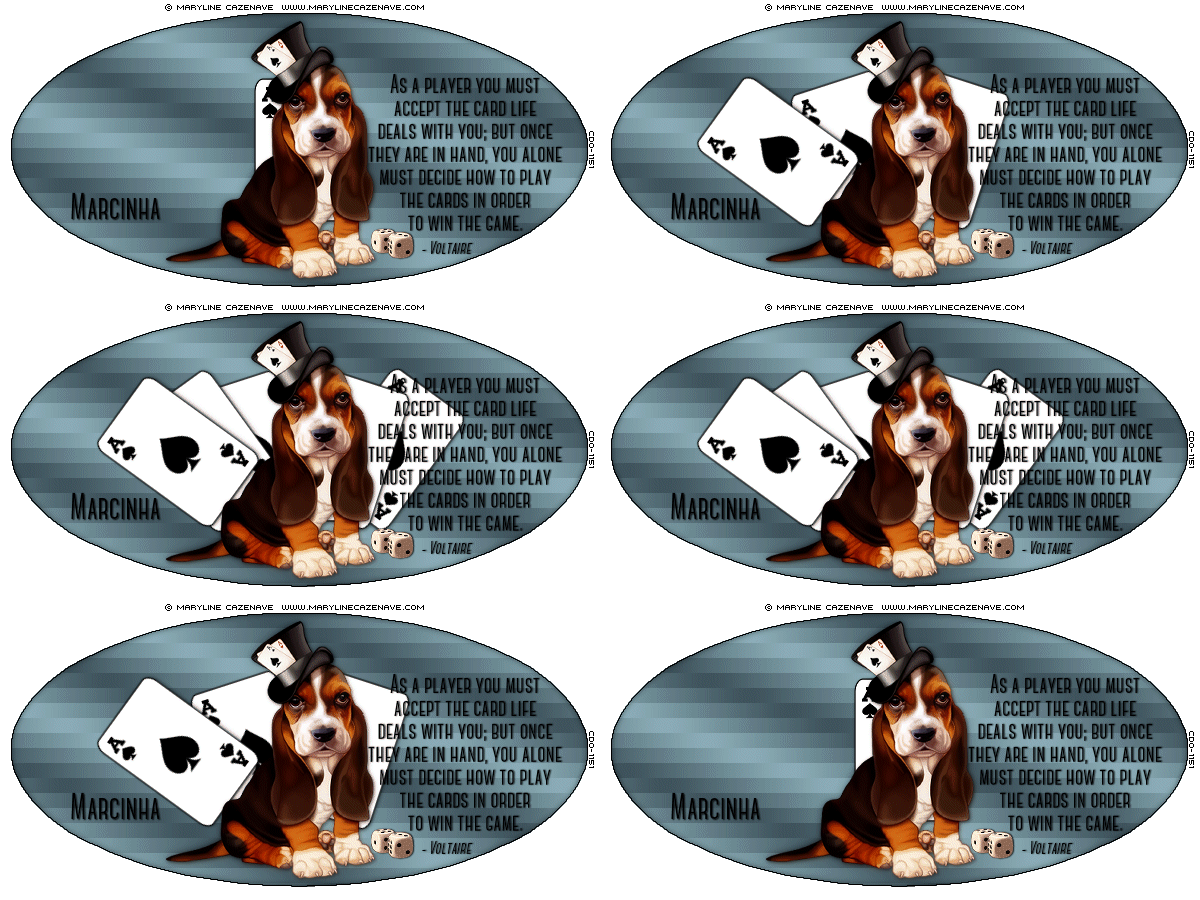
Card Game Tutorial


Tutorial written by Marcia Salgado on June 5th, 2014
for those who have a working knowledge of PSP.
Any resemblance to any other tutorial is coincidental.
Do not copy and paste this tutorial anywhere on the net.
If you want to translate please ask first. 

Copyrighted.com Registered & Protected 
0LKV-QAEO-BC78-SMME

**********************************

Materials:

Tube - Used Maryline Cazenave - you can buy it at CDO
use it with a proper #license
My Cards - here (I made a red and a black ace)
MuRa's Meister Filter
PSP Effects
Font - Used Canter Bold

**********************************

1. Open a new image 600 x 300.

2. Foreground Color > Black and Background Color > Null.

3. Use the Preset Shape Tool
Ellipse - Uncheck Antialias and Line Width: 1.

4. Draw an oval format to use as tag background. 
Objects > Align > Center In Canvas. 
Layers > Convert to Raster Layer.

5. Create a gradient using two colors of your tube
or use two colors derived from the same tone as I did.
Used foreground: #3a4e57 Background: #91b3bd. 
Gradient Settings: Style: Linear - Angle: 20 and Repeats: 7.

6. With the Magic Wand select inside the oval shape. 
Selection > Modify > Expand > 1.

7. Add a new layer and fill it with your gradient. Keep Selected.
Move this layer below your oval shape. 
Effects > Distortion Effects > 
Pixelate: Uncheck Symmetric - Block Width:1 - Block Height: 15. 
Selection Invert. 
Effects > 3D Effects > Drop Shadow: 
V and H: 0 - Opacity: 70 - Blur: 10 - Color: Black.
Selections > Select None.

8. Click on layer with your oval shape. 
Open one of the cards I made (or another image that fits your tag idea), 
copy and paste as new layer, resize it to keep it inside the shape 
(I used a resize of 60%). 
Close the card or the image used. 
Add a shadow to the card, used 
V and H: 1 - Opacity: 50 - Blur: 5 - Color: Black. 
Rename this layer Card. Duplicate this layer 8 times - You'll have 9 card layers.

9. Filter MuRa's Meister > Copies. Use the preset Cards. 
Only change the option number to 1 and ShiftY to 0. Apply. 
Repeat the process on Copy of Card changing Number to 2. 
Repeat on each copy layer changing the Number, last layer will use Number: 8. 
Close all Copy Layers for now.

10. Add your tube. Resize it to keep it inside the shape. 

TIP: If your tube has any part of it on the outside of the shape
click on the shape layer, using the magic wand click outside the frame 
Selection > Modify > Expand > 1.
Click back on tube layer and use the delete key of your keyboard.

I leave mine in the center over the card. Add a shadow to it 
(used the same applied on the card image). 
Add your copyright info, name and quote, if you want it. 
All you add must remain inside the oval shape 
(except for the copyright if you use a pixel font without the antialias option). 
Once you finished to add all you want or need we will start the animation part.

ANIMATION

1. Open Animation Shop (AS).

2. Back to PSP - We will play only with Card Layer and its copies. 
Close all copies - with only Card layer open click on Edit > Copy Merged. 
AS - Edit > Paste > As New Animation.

3. Back to PSP - close Card Layer. Open Copy of Card layer. Edit > Copy Merged. 

AS - Edit > Paste > After Current Frame.

4. Back to PSP - close Copy of Card Layer. Open Copy (2) of Card layer. 
Edit > Copy Merged. AS - Edit > Paste > After Current Frame.

5. Repeat the process until all layers card are copied into Animation Lessons. 

6. Edit > Select All.

7. Edit > Copy.

8. Click on Frame 9 (last frame). Edit > Paste > After Current Frame. 
Animation > Reverse Frames.

9. Click on Frame 1, Animation > Frame Properties > 300. 
Go to Frame 9 - Animation > Frame Properties > 100 
and click on Frame 10 - Edit > Delete.

10. Save as gif (No need to add color to your background - 
the oval shape do not contain any antialias so the gif
won't add extra pixels to it.)