Showing posts with label Pandora Creations. Show all posts

May 16, 2017

SHOW OFF - Claires Daffodils


== NEW PTU TAG S&CO. CT ==
FOR PANDORA CREATIONS AND BIBI'S COLLECTION

Featuring "Claires Daffodils" tube by Pandora Creations and
"Daffodils" Kit by Bibi's Collection at Scraps N Company - S&Co.

Tube by Pandora Creations - you can purchase here

Kit by Bibi's Collection - you can purchase here

April 6, 2017

SHOW OFF - Sarah


== NEW PTU TAG S&CO. CT ==
FOR PANDORA CREATIONS AND DISTURBED SCRAPS

Featuring "Sarah" tube by Pandora Creations and
"Daisies N Butterflies" Kit by Disturbed Scraps at Scraps N Company - S&Co.

Tube by Pandora Creations - you can purchase here

Kit by Disturbed Scraps - you can purchase here


March 17, 2017

SHOW OFF - Butterfly Collab


== NEW PTU TUTORIAL S&CO. CT ==
FOR PANDORA CREATIONS AND DESIGNS BY JOAN

Featuring "Lady Butterfly" tube by Pandora Creations and
"Butterfly" Kit by Designs by Joan at Scraps N Company - S&Co.

Tube by Pandora Creations - you can purchase here

Butterfly Collab - you can purchase here


December 4, 2016

SHOW OFF - Santa Girl


== NEW PTU S&CO. CT ==
FOR PANDORA CREATIONS AND RIENEKE DESIGNS

Featuring "Santa Girl" tube by Pandora Creations and
"Romantic Christmas" Kit by Rieneke Designs at Scraps N Company - S&Co.

Tube by Pandora Creations - you can purchase here

Kit by Rieneke Designs - you can purchase here


Elegance ~ by Joanne Salgado


Tutorial written by Joanne Salgado on December 04th, 2016
for those who have a working knowledge of PSP.
I'm using PSP9 to create my tuts.
Any resemblance to any other tutorial is coincidental.
Do not copy and paste this tutorial anywhere on the net.
If you want to translate please ask first. 

****************************************
Material:

Tube: "Elegance" by Pandora Creations - you can purchase it here
do not use without the proper #license.
PTU Kit "Holiday Elegance" by Tagcatz Design - you can purchase it here
Font: Alex Brush

****************************************

Don't forget to save often.
At any point if you have doubts check my tag.

1. Open a new image 650x550

2. Open element 'hetc_el27' copy and paste as new layer. Resize 80%.

3. Open element 'hetc_el55' copy and paste as new layer. Resize 60%. Flip. Move this layer below the frame layer. Arrange it to the top.

4. Open element 'hetc_el51' copy and paste as new layer. Resize 60%. Arrange it to the left.

5. Open element 'hetc_el63' copy and paste as new layer. Arrange it to top.

6. Open element 'hetc_el72' copy and paste as new layer. Resize 60%. Arrange it to the top left.

7. Open element 'hetc_paper6' copy and paste as new layer. Resize 55%. Clean outside the frame.

8. Open element 'hetc_el28' copy and paste as new layer. Move this layer above the frame layer. 

9. Open element 'hetc_el9' copy and paste as new layer.

10. Open element 'hetc_el32' copy and paste as new layer. Resize 75%. Arrange it to the right.

11. Open element 'hetc_el70' copy and paste as new layer. Resize 25%. Arrange it to the top of the tree.

12. Open element 'hetc_el26' copy and paste as new layer. Resize 30%. Arrange it to the bottom right.

13. Open element 'hetc_el58' copy and paste as new layer. Resize 30%. Arrange it to the bottom right.

14. Open element 'hetc_el75' copy and paste as new layer. Resize 30%. Arrange it to the bottom right.

15. Open your tube. Copy and paste as new layer. Resize as needed and arrange it a little to the right.

16. Add shadow as you prefer.

17. Add copyright. Add name. Save as PNG.


October 18, 2016

SHOW OFF - Sexy Witch


== NEW PTU TAG S&CO. CT ==
FOR PANDORA CREATIONS AND DESIGN BY JOAN

Featuring "Sexy Witch" tube by Pandora Creations and 
Sexy Witch" Kit by Design by Joan at Scraps N Company - S&Co.

Tube+Kit Pack - you can purchase here


Payton ~ by Joanne Salgado


Tutorial written by Joanne Salgado on October 18th, 2016
for those who have a working knowledge of PSP.
I'm using PSP9 to create my tuts.
Any resemblance to any other tutorial is coincidental.
Do not copy and paste this tutorial anywhere on the net.
If you want to translate please ask first. 

****************************************
Material:

Tube: "Payton" by Pandora Creations - you can purchase it here
do not use without the proper #license.
PTU Kit "Payton" by Blissful Designs - you can purchase it here
Font: Lemonade Regular

****************************************

Don't forget to save often.
At any point if you have doubts check my tag.

1. Open a new image 650x550

2. Open element 'BD_PaytonElement (88)' copy and paste as new layer. Resize 70%. Rotate 20 right.

3. Open element 'BD_PaytonElement (68)' copy and paste as new layer. Mirror. Move this layer to bottom.

4. Open element 'BD_PaytonElement (13)' copy and paste as new layer. Resize 50%. Arrange it to the top left. Duplicate. Mirror. Flip.

5. Open element 'BD_PaytonElement (82)' copy and paste as new layer. Resize 50%. Arrange it to the top right.

6. Open element 'BD_PaytonElement (44)' copy and paste as new layer. Resize 50%. Arrange it to the right.

7. Open element 'BD_PaytonElement (50)' copy and paste as new layer. Resize 50%. Arrange it to the bottom right.

8. Open paper 'BD_PaytonPaper (2)' copy and paste as new layer. Resize 50%. Arrange it inside the frame and clean the outside parts.

9. Open element 'BD_PaytonElement (97)' copy and paste as new layer. Resize 50%. Arrange it inside the frame.

10. Open your tube. Copy and paste as new layer. Move this layer above the frame layer. Resize as needed and arrange it inside the frame. Clean the lower part as mine.

11. Open element 'BD_PaytonElement (18)' copy and paste as new layer. Resize 50%. Arrange it to the bottom left.

12. Open element 'BD_PaytonElement (27)' copy and paste as new layer. Resize 20%. Arrange it to the bottom left.

13. Open element 'BD_PaytonElement (3)' copy and paste as new layer. Resize 17%. Arrange it to bottom.

14. Open element 'BD_PaytonElement (49)' copy and paste as new layer. Resize 30%. Mirror. Arrange it to the left.

15. Open element 'BD_PaytonElement (48)' copy and paste as new layer. Resize 50%. Arrange it to the top right of the frame.

16. Open element 'BD_PaytonElement (77)' copy and paste as new layer. Arrange it to the bottom right.

17. Open element 'BD_PaytonElement (101)' copy and paste as new layer. Resize 50%. Mirror. Arrange it to the top right.

18. Add shadow as you prefer.

19. Add copyright. Add name. Save as PNG.

October 8, 2016

Martha ~ by Joanne Salgado


Tutorial written by Joanne Salgado on October 08th, 2016
for those who have a working knowledge of PSP.
I'm using PSP9 to create my tuts.
Any resemblance to any other tutorial is coincidental.
Do not copy and paste this tutorial anywhere on the net.
If you want to translate please ask first. 

****************************************
Material:

Tube: "Martha" by Pandora Creations - you can purchase it here
do not use without the proper #license.
PTU Kit "Cute Panda" by Mariel Designs - you can purchase it here
Font: Lemonade

****************************************

Don't forget to save often.
At any point if you have doubts check my tag.

1. Open a new image 650x550

2. Open frame 'FRAME 4' copy and paste as new layer. Resize 80%.

3. Open element '18-1' copy and paste as new layer. Resize 70%. Mirror. Move this layer below the frame layer. Arrange it to the top left.

4. Open element '61' copy and paste as new layer. Arrange it to bottom.

5. Open paper 'PAPER 1' copy and paste as new layer. Resize 50%. Mirror. Arrange it inside the frame and clean outside.

6. Open element '30' copy and paste as new layer. Resize 70%. Move this layer above the frame layer. Arrange it to the bottom left.

7. Open element '29' copy and paste as new layer. Resize 70%. Arrange it to the right.

8. Open element '12' copy and paste as new layer. Resize 70%. Arrange it to the bottom right.

9. Open element '19-1' copy and paste as new layer. Resize 70%. Arrange it to the bottom right.

10. Open element '20' copy and paste as new layer. Resize 60%. Mirror. Arrange it to bottom.

11. Open your tube. Copy and paste as new layer. Resize as needed and arrange it to the bottom right.

12. Open element '15' copy and paste as new layer. Mirror. Arrange it to the top left.

13. Open element '28' copy and paste as new layer. Resize 15%. Arrange it to the top left.

14. Open element '47' copy and paste as new layer. Mirror. Arrange it to bottom.

15. Add shadow as you prefer.

16. Add copyright. Add name. Save as PNG.

June 25, 2016

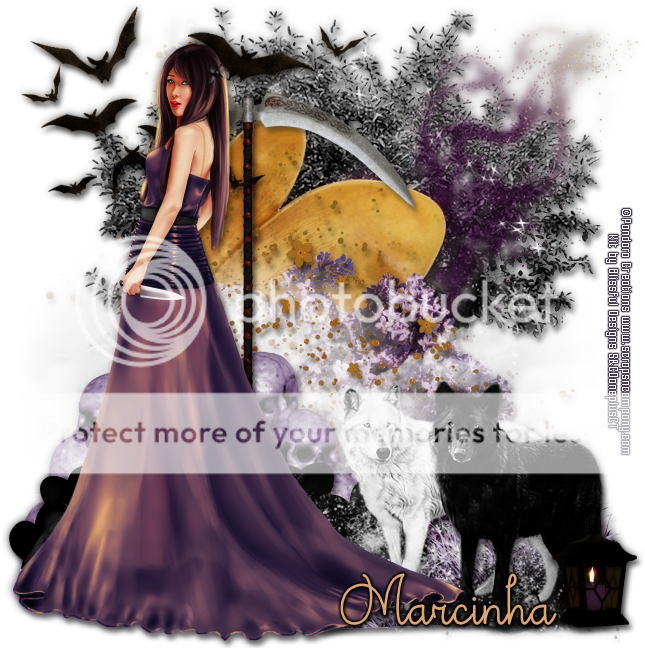
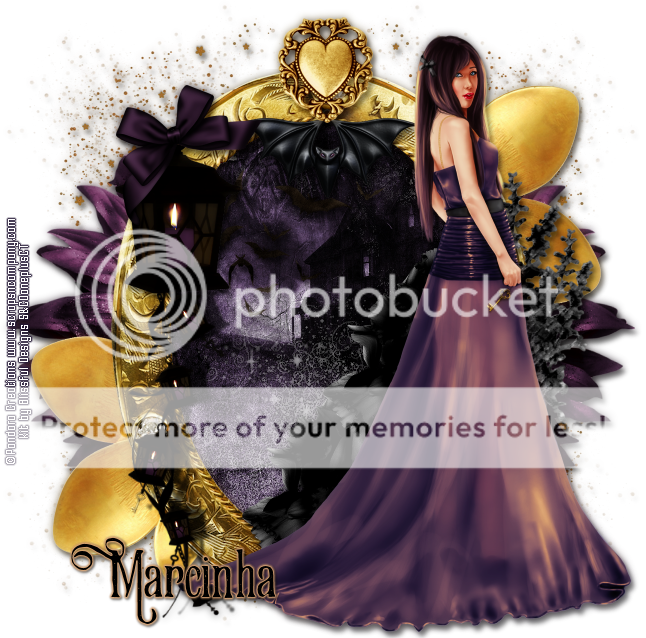
Sophie

DEEP TWILIGHT TUTORIAL


Tutorial written by Marcia Salgado on June 24th, 2016
for those who have a working knowledge of PSP.
I'm using PSP9 to create my tuts.
Any resemblance to any other tutorial is coincidental.
Do not copy and paste this tutorial anywhere on the net.
If you want to translate please ask first. 

****************************************
Material:

Tube: "Sophie" by Pandora Creations, you can purchase it here 
do not use without the proper #license.
PTU Kit "Sophie" by Blissful Designs, you can purchase it here 
Font: Theodista Decally

****************************************

--> Remember to save often and use my tag as reference if necessary. Use a Drop Shadow of your preference on layers. 


1. Create a new image 650x650.

2. Open BD_SophieElement (78). Copy and paste as new layer. Move it very little to right.

3. Open BD_SophieElement (35). Copy and paste as new layer. Move it to right.

4. Open BD_SophieElement (49). Copy and paste as new layer. 

5. Open BD_SophieElement (33). Resize 75%. Mirror. Copy and paste as new layer. 

6. Open BD_SophieElement (27). Resize 80%. Copy and paste as new layer. Move it down.

7. Open BD_SophieElement (64). Copy and paste as new layer. Move it a little down.

8. Open BD_SophieElement (71). Copy and paste as new layer. Move it down.

9. Open BD_SophieElement (32). Copy and paste as new layer. Move it down.

10. Open BD_SophieElement (39). Copy and paste as new layer. 

11. Open BD_SophieElement (61). Mirror. Copy and paste as new layer. Move it down and to left. Duplicate. Mirror. Place it on right side of the first one.

12. Open BD_SophieElement (30). Resize 50%. Copy and paste as new layer. Move it down and a little to left. Mirror. Flip. Place it on left side of the first one. Keep them over the skull pile on bottom.

13. Open BD_SophieElement (8). Copy and paste as new layer. Move it down.

14. Open BD_SophieElement (60). Copy and paste as new layer. Move it a little to left.

15. Open BD_SophieElement (69). Resize 45%. Copy and paste as new layer. Move it down and to right.

16. Open BD_SophieElement (22). Resize 65%. Copy and paste as new layer. Move it up and to left.

17. Open your tube. Resize it. Copy and paste as new layer. Move it to left. You may want to re-arrange the previous elemnts to better fit your tube.

18. Open BD_SophieElement (25). Resize 30%. Copy and paste as new layer. Move it down and way to right.


--> Add your copyright info and license#. Add your name and save as PNG.


Sophie


== NEW PTU SHOWOFF S&CO. CT ==
PANDORA CREATIONS AND BLISSFUL DESIGNS

Featuring "Sophie", a Pandora Creations tube and
 "Sophie", Blissful Designs kit at Scraps N Company - S&Co.

Sophie is a beautiful but darkish themed kit full of awesome elements in purple, gold and black with hints of white. It has 90 Elements and 10 Papers. PTU/PU Only. Made to match the awesome tube *Sophie* By Pandora Creations (Dark and Purple layers). Very versatile and can be used with any other tubes and artists you have.

Tube can be found  at:
-> Scraps N Company - S&Co., here 

Kit can be found  at:
-> Scraps N Company - S&Co., here 


June 12, 2016

Lucky Pink ~ by Joanne Salgado


Tutorial written by Joanne Salgado on June 12th, 2016
for those who have a working knowledge of PSP.
I'm using PSP9 to create my tuts.
Any resemblance to any other tutorial is coincidental.
Do not copy and paste this tutorial anywhere on the net.
If you want to translate please ask first. 

****************************************
Material:

Tube: "Lucky Girl" by Pandora Creations - you can purchase it here
do not use without the proper #license.
PTU Kit "Lucky" by Rieneke Designs - you can purchase it here
Font: Tenebrae

****************************************

Don't forget to save often.
At any point if you have doubts check my tag.

1. Open a new image 650x550

2. Open element 'RD-Lucky-element (35)' copy and paste as new layer. Resize 75%. Rotate left 90. Arrange it a little to the top.

3. Open element 'RD-Lucky-element (20)' copy and paste as new layer. Move this layer below the frame layer.

4. Open element 'RD-Lucky-element (37)' copy and paste as new layer. Resize 50%. Arrange it to the bottom left.

5. Open element 'RD-Lucky-element (22)' copy and paste as new layer. Resize 50%. Arrange it to the top right.

6. Open element 'RD-Lucky-element (18)' copy and paste as new layer. Resize 50%. Arrange it to the left. Duplicate. Mirror. Arrange it a little to the top.

7. Open element 'RD-Lucky-element (48)' copy and paste as new layer. Resize 50%. Arrange it to the bottom right.

8. Open element 'RD-Lucky-element (47)' copy and paste as new layer. Resize 50%. Arrange it to the bottom left.

9. Open paper 'RD-Lucky-paper (1)' copy and paste as new layer. Resize 50%. Arrange it inside the frame and clean the outside parts.

10. Open element 'RD-Lucky-element (42)' copy and paste as new layer. Resize 50%. Arrange it to the top left inside the frame. Change blend mode to luminance.

11. Open element 'RD-Lucky-element (15)' copy and paste as new layer. Resize 40%. Move this layer above the frame layer. Arrange it to the right.

12. Open element 'RD-Lucky-element (43)' copy and paste as new layer. Resize 20%. Arrange it to the left.

13. Open element 'RD-Lucky-element (49)' copy and paste as new layer. Resize 20%. Arrange it to the top right.

14. Open element 'RD-Lucky-element (44)' copy and paste as new layer. Resize 20%. Arrange it to the top.

15. Open element 'RD-Lucky-element (46)' copy and paste as new layer. Resize 30%. Arrange it to the top left.

16. Open element 'RD-Lucky-element (45)' copy and paste as new layer. Resize 20%. Arrange it to the bottom.

17. Open element 'RD-Lucky-element (34)' copy and paste as new layer.

18. Open your tube. Copy and paste as new layer. Resize as needed and arrange it to the right.

19. Open element 'RD-Lucky-element (32)' copy and paste as new layer. Resize 30%. Mirror. Arrange it to the bottom left.

20. Add shadow as you prefer.

21. Add copyright. Add name. Save as PNG.


Lucky Red ~ by Joanne Salgado


Tutorial written by Joanne Salgado on June 12th, 2016
for those who have a working knowledge of PSP.
I'm using PSP9 to create my tuts.
Any resemblance to any other tutorial is coincidental.
Do not copy and paste this tutorial anywhere on the net.
If you want to translate please ask first. 

****************************************
Material:

Tube: "Lucky Girl" by Pandora Creations - you can purchase it here
do not use without the proper #license.
PTU Kit "Lucky" by A Lil Mz Brainstorm - you can purchase it here
Font: AndantinoJF

****************************************

Don't forget to save often.
At any point if you have doubts check my tag.

1. Open a new image 650x550

2. Open paper 'LMB_Lucky_Paper (2)' copy and paste as new layer. Apply mask. Merge group.

3. Open element 'LMB_Lucky_Element (71)' copy and paste as new layer. Arrange it to bottom. I don't really like when it looks all square, so I used Freehand Selection Tool with 2 feather and 2 smoothing and made my way. You just need the floor, clean the rest too.

4. Open element 'LMB_Lucky_Element (47)' copy and paste as new layer. Resize 50%. Arrange it to the top left.

5. Open element 'LMB_Lucky_Element (16)' copy and paste as new layer. Resize 35%. Arrange it to the left.

6. Open element 'LMB_Lucky_Element (29)' copy and paste as new layer. Resize 35%. Arrange it to the left.

7. Open element 'LMB_Lucky_Element (6)' copy and paste as new layer. Resize 60%. Arrange it to the top right.

8. Open paper 'LMB_Lucky_Paper (8)' copy and paste as new layer. Resize 60%. Arrange it inside the window and clean the outside parts.

9. Open element 'LMB_Lucky_Element (37)' copy and paste as new layer. Resize 50%. Arrange it at the bottom right of the window.

10. Open element 'LMB_Lucky_Element (15)' copy and paste as new layer. Resize 70%. Arrange it to the top left of the window.

11. Open element 'LMB_Lucky_Element' copy and paste as new layer. Resize 80%. Arrange it to bottom.

12. Open your tube. Copy and paste as new layer. Resize as needed and arrange it sitting at the couch.

13. Open element 'LMB_Lucky_Element (48)' copy and paste as new layer. Resize 50%. Arrange it to the bottom left.

14. Open element 'LMB_Lucky_Element (46)' copy and paste as new layer. Resize 7%. Arrange it to the bottom left.

15. Open element 'LMB_Lucky_Element (21)' copy and paste as new layer. Resize 10%. Arrange it in your tube's hands. Clean so it looks like its holding it.

16. Open element 'LMB_Lucky_Element (44)' copy and paste as new layer. Resize 8%. Arrange it above the couch.

17. Open element 'LMB_Lucky_Element (100)' copy and paste as new layer. Resize 10%. Arrange it above the couch.

18. Open element 'LMB_Lucky_Element (3)' copy and paste as new layer. Resize 25%. Arrange it to the bottom left.

19. Open element 'LMB_Lucky_Element (4)' copy and paste as new layer. Resize 20%. Arrange it to the bottom left.

20. Open element 'LMB_Lucky_Element (65)' copy and paste as new layer. Resize 25%. Arrange it to the bottom right.

21. Open element 'LMB_Lucky_Element (87)' copy and paste as new layer. Resize 8%. Arrange it to the bottom right.

22. Open element 'LMB_Lucky_Element (56)' copy and paste as new layer. Arrange it a little to the top.

23. Open element 'LMB_Lucky_Element (13)' copy and paste as new layer. Resize 15%. Arrange it above the couch.

24. Open element 'LMB_Lucky_Element (45)' copy and paste as new layer. Resize 7%. Arrange it to the bottom left.

25. Open element 'LMB_Lucky_Element (19)' copy and paste as new layer. Resize 10%. Arrange it to the top left above the window.

26. Add shadow as you prefer.

27. Add copyright. Add name. Save as PNG.

May 4, 2016

Helena ~ by Joanne Salgado


Tutorial written by Joanne Salgado on May 04th, 2016
for those who have a working knowledge of PSP.
Any resemblance to any other tutorial is coincidental.
Do not copy and paste this tutorial anywhere on the net.
If you want to translate please ask first. 

Tube: Helena by Pandora Creations - you can purchase here
Kit Helena by Bibi's Collection - you can purchase here
Font: A.D.MONO

Don't forget to save often.
At any point if you have doubts check my tag.

1. Open a new image 650x550

2. Open element 'BIBI-HELENA ELEMS (81)' copy and paste as new layer. Resize 60%.

3. Open element 'BIBI-HELENA ELEMS (56)' copy and paste as new layer. Resize 70%.

4. Open element 'BIBI-HELENA ELEMS (23)' copy and paste as new layer. Resize 70%. Move this layer below the frame layer. Arrange it to the bottom right and clean the parts inside the frame.

5. Open element 'BIBI-HELENA ELEMS (42)' copy and paste as new layer. Mirror. Arrange it to the top right and clean the parts inside the frame.

6. Open element 'BIBI-HELENA ELEMS (62)' copy and paste as new layer. Arrange it to the top left and clean the parts inside the frame.

7. Open element 'BIBI-HELENA ELEMS (51)' copy and paste as new layer. Resize 70%. Arrange it to bottom inside the frame.

8. Open element 'BIBI-HELENA ELEMS (80)' copy and paste as new layer. Resize 40%. Move this layer above the frame layer. Arrange it to the bottom right.

9. Open element 'BIBI-HELENA ELEMS (16)' copy and paste as new layer. Resize 70%. Arrange it to the left.

10. Open element 'BIBI-HELENA ELEMS (15)' copy and paste as new layer. Resize 50%. Arrange it to the left.

11. Open element 'BIBI-HELENA ELEMS (66)' copy and paste as new layer. Resize 50%. Arrange it to the bottom right.

12. Open element 'BIBI-HELENA ELEMS (65)' copy and paste as new layer. Resize 30%. Arrange it to the top a little to the right.

13. Open your tube. Copy and paste as new layer. Resize as needed and arrange it to the left.

14. Open element 'BIBI-HELENA ELEMS (1)' copy and paste as new layer. Resize 40%. Arrange it to the bottom left.

15. Open element 'BIBI-HELENA ELEMS (85)' copy and paste as new layer. Resize 70%. Arrange it to the right.

16. Open element 'BIBI-HELENA ELEMS (63)' copy and paste as new layer. Resize 40%. Arrange it to the right of your tube.

17. Add shadow as you prefer.

18. Add copyright. Add name. Save as PNG.

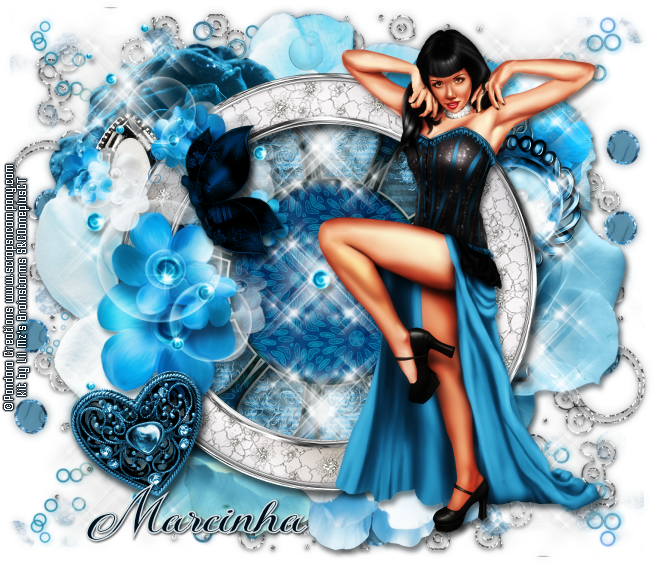
March 13, 2016

Isabel Blue

SEDUCTION IN BLUE TUTORIAL


Tutorial written by Marcia Salgado on March 14th, 2016
for those who have a working knowledge of PSP.
I'm using PSP9 to create my tuts.
Any resemblance to any other tutorial is coincidental.
Do not copy and paste this tutorial anywhere on the net.
If you want to translate please ask first. 

****************************************
Material:

Tube: "Isabel Blue" by Pandora Creations, you can purchase it here 
do not use without the proper #license.
PTU Kit "Isabel Blue" by Lil Mz's Brainstorms, you can purchase it here 
Font: Kazincbarcika Script

****************************************

--> Remember to save often and use my tag as reference if necessary. Use a Drop Shadow of your preference on layers. 

1. Open a new image 650x550

2. Open element 'LMB_IsabelBlue_Element (14)' copy and paste as new layer. Resize 75%. Sharpen.

3. Open element 'LMB_IsabelBlue_Element (35)' copy and paste as new layer. Move this layer below the frame layer. Arrange it to the bottom right. Duplicate. Mirror/Flip.

4. Open element 'LMB_IsabelBlue_Element (40)' copy and paste as new layer. Resize 90%. Arrange it to the right. Duplicate. Mirror/Flip.

5. Open element 'LMB_IsabelBlue_Element (43)' copy and paste as new layer. Arrange it to the left. Duplicate. Flip.

6. Open element 'LMB_IsabelBlue_Element (19)' copy and paste as new layer. Resize 50%. Arrange it to the top.

7. Open element 'LMB_IsabelBlue_Element (23)' copy and paste as new layer. Resize 50%. Arrange it to the top right.

8. Open element 'LMB_IsabelBlue_Element (26)' copy and paste as new layer. Resize 50%. Arrange it to the right.

9. Open element 'LMB_IsabelBlue_Element (45)' copy and paste as new layer. Resize 50%. Arrange it to the right.

10. Open element 'LMB_IsabelBlue_Element (28)' copy and paste as new layer. Resize 50%. Arrange it to the bottom left.

11. Open element 'LMB_IsabelBlue_Element (48)' copy and paste as new layer. Resize 50%. Arrange it to the bottom right.

12. Open element 'LMB_IsabelBlue_Element (17)' copy and paste as new layer. Resize 50%. Arrange it to the top left.

13. Open element 'LMB_IsabelBlue_Element (52)' copy and paste as new layer. Resize 50%. Flip. Arrange it to the left.

14. Open element 'LMB_IsabelBlue_Element (24)' copy and paste as new layer. Resize 50%. Arrange it to the left.

15. Open paper 'LMB_IsabelBlue_Paper (11)' copy and paste as new layer. Resize 40%. Clean the parts outside the frame.

16. Open element 'LMB_IsabelBlue_Element (10)' copy and paste as new layer.

17. Open element 'LMB_IsabelBlue_Element (34)' copy and paste as new layer. Resize 90%. Arrange it to the left. Duplicate. Arrange it to the right. Duplicate. Arrange in the middle and this one clean the parts outside the frame.

18. Open element 'LMB_IsabelBlue_Element (56)' copy and paste as new layer. Resize 80%. Move this layer above the frame layer. Arrange it to the top left.

19. Open element 'LMB_IsabelBlue_Element (89)' copy and paste as new layer. Clean all the other hearts and keep only the center big one. Arrange it to the bottom left.

20. Open element 'LMB_IsabelBlue_Element (65)' copy and paste as new layer. Resize 30%. Arrange it to the top left.

21. Open your tube. Copy and paste as new layer. Resize as needed and arrange it to the right.


--> Add your copyright info and license#. Add your name and save as PNG.

Valeria Purple ~ by Joanne Salgado


Tutorial written by Joanne Salgado on March 13th, 2016
for those who have a working knowledge of PSP.
Any resemblance to any other tutorial is coincidental.
Do not copy and paste this tutorial anywhere on the net.
If you want to translate please ask first. 

Tube: Valeria Purple by Pandora Creations - you can purchase here
Kit I'm So Bad (Baby I Don't Care) by Disturbed Scraps - you can purchase here
Font: Dorayaki

Don't forget to save often.
At any point if you have doubts check my tag.

1. Open a new image 650x550

2. Open element 'DS -ISBB Element (36)' copy and paste as new layer.

3. Open element 'DS -ISBB Element (73)' copy and paste as new layer. Move this layer below the frame layer. Arrange it to the bottom left. Duplicate. Mirror/Flip.

4. Open element 'DS -ISBB Element (72)' copy and paste as new layer. Arrange it to the bottom right.

5. Open element 'DS -ISBB Element (55)' copy and paste as new layer. Arrange it to the top right. Duplicate. Mirror.

6. Open element 'DS -ISBB Element (9)' copy and paste as new layer. Resize 50%. Arrange it to the bottom right.

7. Open element 'DS -ISBB Element (14)' copy and paste as new layer. Arrange it to the top.

8. Open element 'DS -ISBB Element (4)' copy and paste as new layer. Arrange it to the bottom left.

9. Open element 'DS -ISBB Element (15)' copy and paste as new layer. Arrange it to the top left.

10. Open element 'DS -ISBB Element (43)' copy and paste as new layer. Arrange it to the top left.

11. Open element 'DS -ISBB Element (17)' copy and paste as new layer. Arrange it to the top right.

12. Open element 'DS -ISBB Element (56)' copy and paste as new layer. Arrange it to the top right.

13. Open paper 'DS -ISBB Paper 14' copy and paste as new layer. Resize 60%. Arrange inside the frame and clean the outside parts.

14. Open element 'DS -ISBB Element (42)' copy and paste as new layer. Resize 50%. Rotate right 15. Move this layer above the frame layer. Arrange it to the left of the frame.

15. Open element 'DS -ISBB Element (45)' copy and paste as new layer. Resize 35%. Arrange it to the bottom right.

16. Open your tube. Copy and paste as new layer. Resize as needed and arrange it at the middle.

17. Add shadow as you prefer.

18. Add copyright. Add name. Save as PNG.

March 5, 2016

Valeria Blue ~ by Joanne Salgado


Tutorial written by Joanne Salgado on March 05th, 2016
for those who have a working knowledge of PSP.
Any resemblance to any other tutorial is coincidental.
Do not copy and paste this tutorial anywhere on the net.
If you want to translate please ask first. 

Tube: Valeria Blue by Pandora Creations - you can purchase here
Kit Valeria Blue by Bibi's Collection - you can purchase here
Font: AnnaEF

Don't forget to save often.
At any point if you have doubts check my tag.

1. Open a new image 650x550

2. Open element 'BIBI-VALERIA BLUE ELEMS (35)' copy and paste as new layer. Resize 40%. Rotate right 20. Arrange it to the left.

3. Open element 'BIBI-VALERIA BLUE ELEMS (25)' copy and paste as new layer. Resize 45%. Move this layer below the frame layer. Arrange it to the right. Duplicate. Arrange it to the left.

4. Open element 'BIBI-VALERIA BLUE ELEMS (2)' copy and paste as new layer. Resize 50%. Arrange it to the top right. Duplicate. Mirror/Flip.

5. Open element 'BIBI-VALERIA BLUE ELEMS (56)' copy and paste as new layer. Resize 70%. Arrange it to the top right of the frame.

6. Open element 'BIBI-VALERIA BLUE ELEMS (92)' copy and paste as new layer. Resize 70%. Arrange it to the top left of the frame.

7. Open element 'BIBI-VALERIA BLUE ELEMS (81)' copy and paste as new layer. Resize 70%. Arrange it to the right of the frame.

8. Open element 'BIBI-VALERIA BLUE ELEMS (66)' copy and paste as new layer. Resize 70%. Arrange it to the top.

9. Open element 'BIBI-VALERIA BLUE ELEMS (13)' copy and paste as new layer. Resize 50%. Mirror. Arrange it to the left a little to the top.

10. Open element 'BIBI-VALERIA BLUE ELEMS (74)' copy and paste as new layer. Resize 80%. Arrange it to the top left.

11. Open element 'BIBI-VALERIA BLUE ELEMS (77)' copy and paste as new layer. Arrange it inside the frame and clean the outside parts.

12. Open element 'BIBI-VALERIA BLUE ELEMS (80)' copy and paste as new layer. Resize 45%. Rotate left 20. Move this layer above the frame layer. Arrange it to the bottom right of the square frame.

13. Open element 'BIBI-VALERIA BLUE ELEMS (77)' again, copy and paste as new layer. Move this layer below the heart frame layer. Arrange it inside the frame and clean the outside parts.

14. Open element 'BIBI-VALERIA BLUE ELEMS (9)' copy and paste as new layer. Resize 30%. Arrange it to the bottom right of the heart frame.

15. Open element 'BIBI-VALERIA BLUE ELEMS (10)' copy and paste as new layer. Resize 40%. Arrange it to the bottom left of the square frame.

16. Open your tube. Copy and paste as new layer. Resize as needed and arrange it to the right.

17. Open element 'BIBI-VALERIA BLUE ELEMS (19)' copy and paste as new layer. Resize 30%. Mirror. Sharpen. Arrange it to the top left of the square frame.

18. Add shadow as you prefer.

19. Add copyright. Add name. Save as PNG.

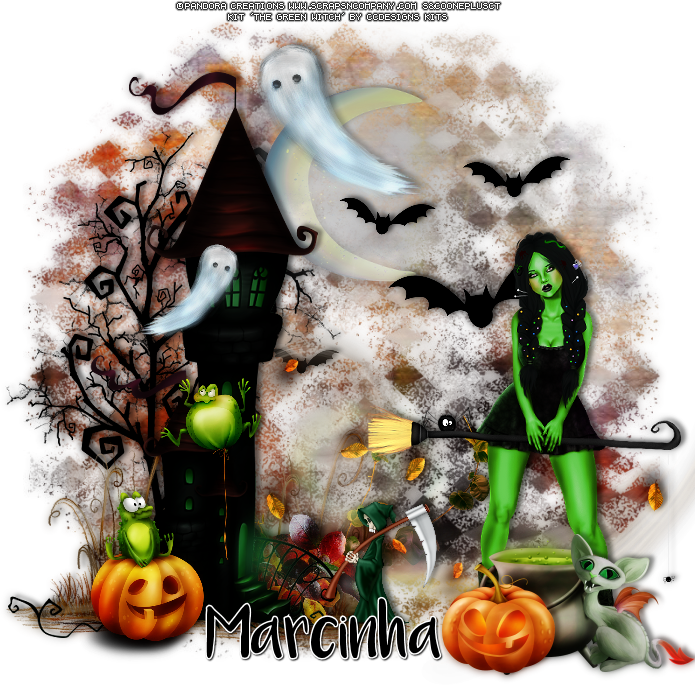
October 26, 2015

Trick or Treat Witch with The Green Witch

GREENISH TUTORIAL


Tutorial written by Marcia Salgado on October 26th, 2015
for those who have a working knowledge of PSP.
Any resemblance to any other tutorial is coincidental.
Do not copy and paste this tutorial anywhere on the net.
If you want to translate please ask first. 

****************************************
Material:

Tube: "Trick or Treat Witch" by Pandora Creations, you can purchase it here
do not use without the proper #license.
PTU Kit "The Green Witch" by CCDesigns Kits, you can purchase it here 
Mask: Dee's Mask, DD_NFM_2015_5, here 
Font: Luna

****************************************

--> Remember to save often and use my tag as reference if necessary. Use a Drop Shadow of your preference on layers. 

1. Create a new image 700x700.

2. Open ccd_tower1. Resize 80%. Mirror. Copy and paste as new layer. Move it to left. 

3. Open ccd_tree2. Resize 75%. Copy and paste as new layer. Move this layer to bottom. Move it to left and place it behind the tower.

4. Open ccd_moon1. Resize 70%. Copy and paste as new layer. Move it up and a little to left. Place it behind the tower roof.

5. Open . Resize 40%. Copy and paste as new layer. Move it up and to right.

6. Open ccd_ground1. Resize 45%. Copy and paste as new layer. Move it down and to left. Place it behind the tower at left bottom. Duplicate. Move it to right. 

7. Open ccd_leaves3. Resize 45%. Mirror. Copy and paste as new layer. Place it behind the tower on its right side.

8. Open ccd_leaves2. Resize 30%. Copy and paste as new layer. Place it behind the tower's stairs.

9. Open ccd_leaves1. Resize 70%. Copy and paste as new layer. Move it down and a little to right.

10. Open ccd_frog2. Resize 40%. Copy and paste as new layer. Move it down and to left.

11. Open ccd_frog3. Resize 30%. Copy and paste as new layer. Move it down and to left. Place it in front of the tower.

12. Open ccd_grimreaper1. Resize 20%. Copy and paste as new layer. Move it down. Place it on right bottom side of the tower.

13. Open ccd_ghost2. Resize 30%. Copy and paste as new layer. Move it up and a little to left. Duplicate. Resize 70%. Mirror. Move it down and more to left.

14. Open your tube, resize if needed. Copy and paste as new layer. Move it down and to right.

15. Open ccd_spider1. Resize 20%. Copy and paste as new layer. I placed mine over the witch broom.

16. Open ccd_caldroms2. Resize 30%. Copy and paste as new layer. Place it in front of the tube.

17. Open ccd_cat1. Resize 30%. Copy and paste as new layer. Move it down and to right.

18. Open ccd_pumpkin1. Resize 25%. Copy and paste as new layer. Move it down and to right. Place on cauldron's left side.

19. Add a new layer. Select all. Open ccd_paper13. Cpoy and paste into selection. Apply Dee's mask. Deselect. Merge group. Send this layer to bottom.

--> Add your copyright info and license#. Add your name and save as PNG.


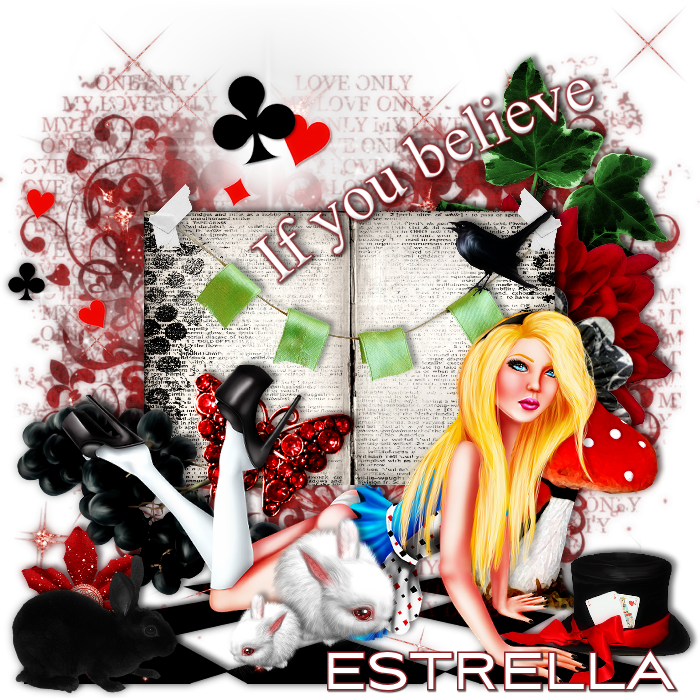
August 6, 2015

Alice with High Heels Alice

HIGH HEELS ALICE TUTORIAL


Tutorial written by Marcia Salgado on August 6th, 2015
for those who have a working knowledge of PSP.
Any resemblance to any other tutorial is coincidental.
Do not copy and paste this tutorial anywhere on the net.
If you want to translate please ask first. 

****************************************
Material:

Tube: "Alice" by Pandora Creations, you can purchase it here
do not use without the proper #license.
PTU Kit "High Heels Alice" by Chili Designs, you can purchase it here 
Mask: Dee's mask, DD_VMask_6, here
Font: Aviano Sans

****************************************

--> Remember to save often and use my tag as reference if necessary. Use a Drop Shadow you like on layers. 

1. Crete a new image 700x700. 

2. Open CHILI_DESIGNZ_HighHeelsAlice_floor. Resize 60%. Copy and paste as new layer. Move it down. Add a new layer. Select all.

3. Open CHILI_DESIGNZ_HighHeelsAlice_paper15. Copy and paste into selection. Deselect. Apply Dee's mask. Merge group. 

4. Open CHILI_DESIGNZ_HighHeelsAlice_sparkles4. Copy and paste as new layer.

5. Open CHILI_DESIGNZ_HighHeelsAlice_deco3. Resize 80%. Copy and paste as new layer. Move it to left top.

6. Open CHILI_DESIGNZ_HighHeelsAlice_greenery. Resize 50%. Copy and paste as new layer. Move it to right.

7. Open CHILI_DESIGNZ_HighHeelsAlice_flower. Resize 70%. Copy and paste as new layer. Move it to right.

8. Open CHILI_DESIGNZ_HighHeelsAlice_flower4. Copy and paste as new layer. Move it to right.

9. Open CHILI_DESIGNZ_HighHeelsAlice_book4. Resize 70%. Copy and paste as new layer. Select outside the book. Invert selection. Add a new layer.

10. Open CHILI_DESIGNZ_HighHeelsAlice_txtoverlay. Copy and paste into selection. Deselect.

11. Open CHILI_DESIGNZ_HighHeelsAlice_banner. Resize 47% Copy and paste as new layer. Move it up.

12. Open CHILI_DESIGNZ_HighHeelsAlice_tape. Resize 20%. Copy and paste as new layer. Move it up right and place it on rope edge. Duplicate. Mirror. Place it over the left rope edge.

13. Open CHILI_DESIGNZ_HighHeelsAlice_bird. Resize 30%. Copy and paste as new layer. Move it to right and up. Place it over one of the green banners.

14. Open CHILI_DESIGNZ_HighHeelsAlice_grapes. Resize 60%. Copy and paste as new layer. Move it down left.

15. Open CHILI_DESIGNZ_HighHeelsAlice_butterfly. Resize 60%. Copy and paste as new layer. Move it down and left.

16. Open CHILI_DESIGNZ_HighHeelsAlice_mushroom. Resize 60%. Copy and paste as new layer. Move it down and right.

17. Open your tube. Resize if needed. Copy and paste as new layer. Move it down. Apply a suitable drop shadow.

18. Open CHILI_DESIGNZ_HighHeelsAlice_rabbit2. Resize 60%. Copy and paste as new layer. Move it down. Duplicate. Resize 60%. Mirror. Move it left and a little down.

19. Open CHILI_DESIGNZ_HighHeelsAlice_hat2. Resize 40%. Mirror. Copy and paste as new layer. Move it down right.

20. Open CHILI_DESIGNZ_HighHeelsAlice_wa. Copy and paste as new layer. Move it up. Add a border with color: #8b1f23. 

21. Open CHILI_DESIGNZ_HighHeelsAlice_flower5. Resize 50%. Copy and paste as new layer. Move it down left. 

22. Open CHILI_DESIGNZ_HighHeelsAlice_rabbit. Resize 50%. Copy and paste as new layer. Move it down left.

--> Resize if wanted. Add your copyright info and license#. Add your name and save as PNG.