Showing posts with label Mariel. Show all posts

May 2, 2017

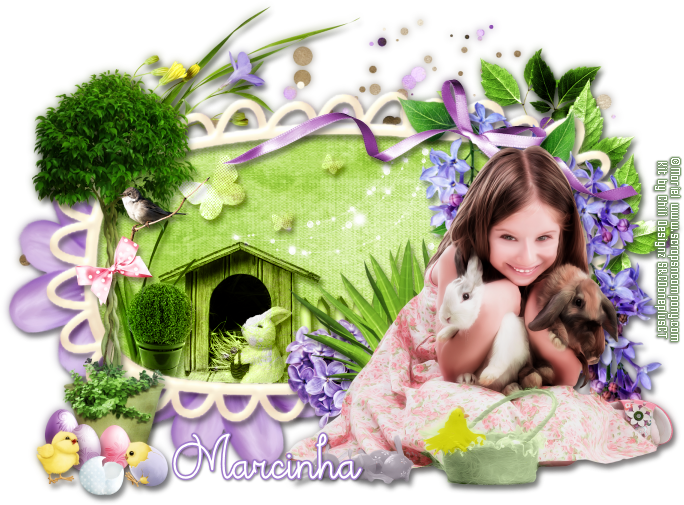
Sweet Bunny ~ by Joanne Salgado


Tutorial written by Joanne Salgado on April 15th, 2017
for those who have a working knowledge of PSP.
I'm using PSP9 to create my tuts.
Any resemblance to any other tutorial is coincidental.
Do not copy and paste this tutorial anywhere on the net.
If you want to translate please ask first. 

****************************************
Material:

Tube: "My Sweet Bunny" by Mariel
do not use without the proper #license.
PTU Kit "My Sweet Bunny" by Chili Designz
 - you can purchase it here
Font: fox in the snow

****************************************

--> Remember to save often and use my tag as reference if necessary.

1. Open a new image 650x550

2. Open frame 'CHILI_DESIGNZ_MySweetBunny_frame5' copy and paste as new layer. Resize 65%.

3. Open paper 'CHILI_DESIGNZ_MySweetBunny_paper5' copy and paste as new layer. Resize 52%. Move this layer below the frame layer and arrange it inside the frame. Clean outside.

4. Open element 'CHILI_DESIGNZ_MySweetBunny_grass4' copy and paste as new layer. Resize 50%. Move this layer above the frame layer. Arrange it to bottom.

5. Open element 'CHILI_DESIGNZ_MySweetBunny_grass2' copy and paste as new layer. Resize 50%. Arrange it to bottom.

6. Open element 'CHILI_DESIGNZ_MySweetBunny_tree' copy and paste as new layer. Resize 50%. Arrange it to bottom left.

7. Open element 'CHILI_DESIGNZ_MySweetBunny_basket' copy and paste as new layer. Resize 40%. Arrange it to the bottom right.

8. Open element 'CHILI_DESIGNZ_MySweetBunny_bunny2' copy and paste as new layer. Resize 40%. Arrange it to the bottom right.

9. Open your tube. Copy and paste as new layer. Resize as needed and arrange it to the bottom center.

10. Open element 'CHILI_DESIGNZ_MySweetBunny_bunny' copy and paste as new layer. Resize 40%. Arrange it to the bottom left.

11. Open element 'CHILI_DESIGNZ_MySweetBunny_butterfly' copy and paste as new layer. Resize 40%. Arrange it to the top a little to the right.

12. Open element 'CHILI_DESIGNZ_MySweetBunny_butterfly2' copy and paste as new layer. Resize 40%. Arrange it to the top right.

13. Open element 'CHILI_DESIGNZ_MySweetBunny_egg6' copy and paste as new layer. Resize 20%. Arrange it to the bottom right.

14. Open element 'CHILI_DESIGNZ_MySweetBunny_egg4' copy and paste as new layer. Resize 20%. Arrange it to the bottom left. Rotate.

15. Open element 'CHILI_DESIGNZ_MySweetBunny_egg3' copy and paste as new layer. Resize 20%. Arrange it to the bottom right. Rotate.

16. Open element 'CHILI_DESIGNZ_MySweetBunny_egg2' copy and paste as new layer. Resize 20%. Arrange it to the bottom left.

17. Open element 'CHILI_DESIGNZ_MySweetBunny_egg' copy and paste as new layer. Resize 20%. Arrange it to the bottom right.

18. Add shadow as you prefer.

19. Add copyright. Add name. Save as PNG.

November 20, 2016

SHOW OFF - Amazon


== NEW PTU TUTORIAL S&CO. CT ==
FOR MARIEL AND A LIL MZ BRAINSTORM

Featuring "Amazon" tube by Mariel and
"Amazon" Kit by A Lil Mz Brainstorm at Scraps N Company - S&Co.

Tube by Mariel - you can purchase here

Kit by A Lil Mz Brainstorm - you can purchase here


July 9, 2016

Store Collab SHADE OF BROWN

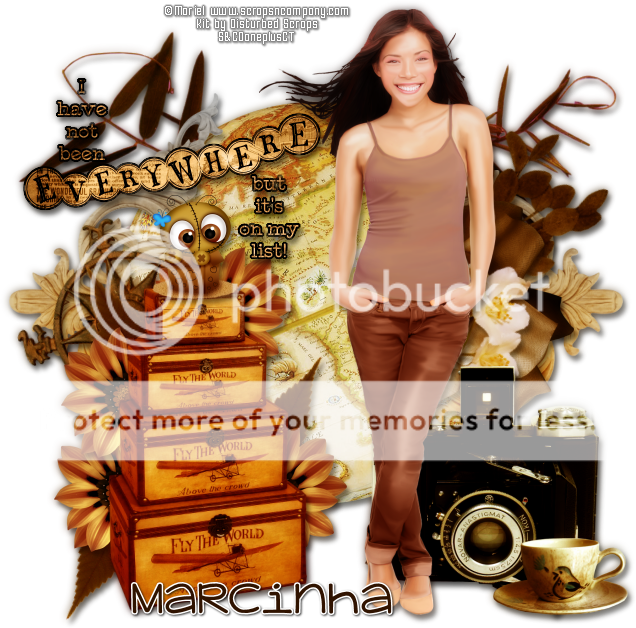
WORLD TRAVELER TUTORIAL


Tutorial written by Marcia Salgado on July 9th, 2016
for those who have a working knowledge of PSP.
I'm using PSP9 to create my tuts.
Any resemblance to any other tutorial is coincidental.
Do not copy and paste this tutorial anywhere on the net.
If you want to translate please ask first. 

****************************************
Material:

Store Collab SHADE OF BROWN - Free Gift with a purchase
Tube used "Shade of Brown" by Mariel and 
PTU Kit used "Past Memories" by Disturbed Scraps
do not use without the proper #license, you can found it here
Commercial Use Element: "Shade Of Brown CU" by CSDesigns,
you can found it here
Wordart: made by me, just click and save.
Font: KG Adipose Unicase

****************************************

--> Remember to save often and use my tag as reference if necessary. Use a Drop Shadow of your preference on layers.


1. Create a new image 650x650.

2. Open DS - PM Element (18). Copy and paste as new layer. Move it up.

3. Open DS - PM Element (44). Copy and paste as new layer.

4. Open DS - PM Element (69). Resize 70%. Free rotate: Right-90. Duplicate. Mirror. Click on original layer. Use Offset as shown below:


5. Click on copy layer and use Offset again, just change to -200. Merge down.

6. Open DS - PM Element (58). Resize 50%. Free Rotate: Left-15. Copy and paste as new layer. Move it to left.

7. Open DS - PM Element (12). Resize 60%. Free Rotate: Right-15. Copy and paste as new layer. Move it a little up and to right.

8. Open DS - PM Element (1). Resize 55%. Mirror. Copy and paste as new layer. Move it to right. Place it over the previous branch a litle down.

9. Open DS - PM Element (17). Resize 55%. Free Rotate: Right-15. Copy and paste as new layer. Place it over the rose, a very little down and to left.

10. Open DS - PM Element (28). Resize 65%. Copy and paste as new layer. Move it down and to left.

11. Open DS - PM Element (3). Resize 35%. Copy and paste as new layer. Send it below the suitcases layer and place it on the side. Duplicate and place around the suitcases.

12. Open DS - PM Element (22). Resize 35%. Free Rotate: Left-35. Copy and paste as new layer. Send this layer below the flower layer. Move it to the left side of the suitcases. Duplicate and use mirror and flip to place some leaves around the flowers.

13. Click on the suitcases layer.Open DS - PM Element (37). Resize 55%. Copy and paste as new layer. Move it down and to right.

14. Open DS - PM Element (26). Resize 360%. Copy and paste as new layer. Move it down and way to right.

15. Open my wordart. Open DS - PM Paper 7. Resize 50%. Fill my wordart with it. To do it, go to Layers and Unlock Transparency (looks like a padlock). Use the Flood Fill Tool. Lock Transparency again. Add a thin black border. Copy and paste as new layer. Move it up and to left.

16. Open your tube. Resize. Copy and paste as new layer. Move it to right. Now you may want to re-arrange some elements to better fit your tube.

17. OPTIONAL - Open CSDesigns- ShadeOfBrown CU. Resize 10%. Copy and paste as new layer. Place it above the suitcases.

18. Use Crop > Merged Opaque to get rid of all extra spaces.


--> Add your copyright info and license#, Add your name and save as PNG.


-----------------------------------------------------------------------------

== SHADE OF BROWN STORE COLLAB ==


**Click to see original size**


== NEW PTU S&CO. CT  TIMELINE SHOW OFF ==
DISTURBED SCRAPS WITH CU BY CSDESIGNS

Featuring "Past Memories", Disturbed Scraps and
 a "Shade of Brown CU" by CSDesigns  at Scraps N Company - S&Co.

The Store Collab and the CU Element are "free gift" with a purchase. 
Gorgeous Collab Collection with awesome products created for you.

Store Collab SHADES OF BROWN can be found  at:
-> Scraps N Company - S&Co., here

Shade of Brown CU by CSDesigns can be found  at:
-> Scraps N Company - S&Co., here 


June 9, 2016

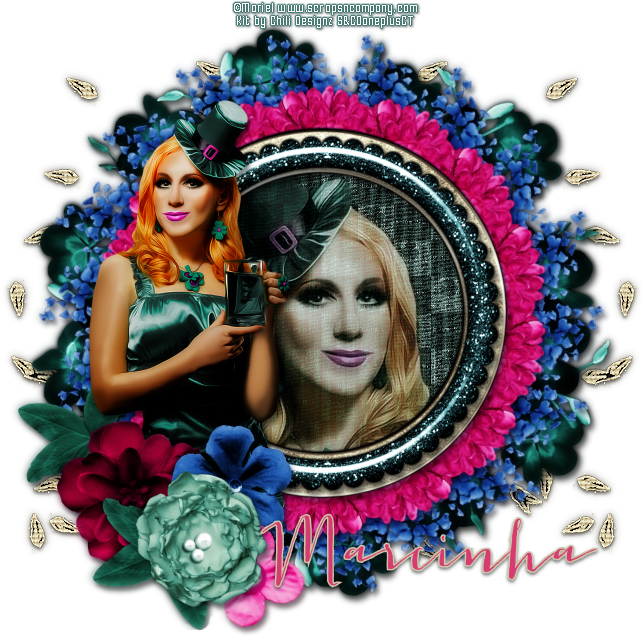
Dark Roses ~ by Joanne Salgado


Tutorial written by Joanne Salgado on June 7th, 2016
for those who have a working knowledge of PSP.
I'm using PSP9 to create my tuts.
Any resemblance to any other tutorial is coincidental.
Do not copy and paste this tutorial anywhere on the net.
If you want to translate please ask first. 

****************************************
Material:

Tube: "Dark Rose" by Mariel
do not use without the proper #license.
PTU Kit "Dark Roses" by Design by Joan
DARK ROSES COLLAB - you can purchase it here
Font: Capella

****************************************

Don't forget to save often.
At any point if you have doubts check my tag.

1. Open a new image 650x550

2. Open element 'DARK ROSES_DBJ-ELEM (12)' copy and paste as new layer. Resize 85%.

3. Open element 'DARK ROSES_DBJ-ELEM (52)' copy and paste as new layer. Resize 45%. Move this layer below the frame layer.

4. Open element 'DARK ROSES_DBJ-ELEM (25)' copy and paste as new layer. Resize 35%. Arrange it to the bottom right.

5. Open element 'DARK ROSES_DBJ-ELEM (16)' copy and paste as new layer. Resize 70%. Arrange it to the top right. Duplicate. Mirror/Flip.

6. Open element 'DARK ROSES_DBJ-ELEM (6)' copy and paste as new layer. Resize 70%. Arrange it to the top left. Clean the parts inside the frame.

7. Open element 'DARK ROSES_DBJ-ELEM (26)' copy and paste as new layer. Resize 70%. Mirror. Move this layer above the frame layer. Arrange it to the right.

8. Open element 'DARK ROSES_DBJ-ELEM (55)' copy and paste as new layer. Resize 45%. Arrange it to the bottom right.

9. Open element 'DARK ROSES_DBJ-ELEM (74)' copy and paste as new layer. Resize 45%. Mirror. Arrange it to the bottom left.

10. Open element 'DARK ROSES_DBJ-ELEM (2)' copy and paste as new layer. Resize 40%. Arrange it to the top left.

11. Open element 'DARK ROSES_DBJ-ELEM (43)' copy and paste as new layer. Resize 30%. Arrange it to bottom.

12. Open element 'DARK ROSES_DBJ-ELEM (32)' copy and paste as new layer. Resize 30%. Arrange it to the bottom right.

13. Open wordart. Select the one you want. I choose the one "Dark Roses". Copy and paste as new layer. Resize 70%. Arrange it to the top left.

14. Open element 'DARK ROSES_DBJ-ELEM (72)' copy and paste as new layer. Resize 40%. Arrange it to the bottom right.

15. Open your tube. Copy and paste as new layer. Resize as needed and arrange it a little to the right.

16. Open element 'DARK ROSES_DBJ-ELEM (56)' copy and paste as new layer. Resize 20%. Arrange it to the bottom left.

17. Open element 'DARK ROSES_DBJ-ELEM (21)' copy and paste as new layer. Resize 20%. Rotate left 20. Arrange it a little to the right.

18. Open element 'DARK ROSES_DBJ-ELEM (33)' copy and paste as new layer. Resize 20%. Arrange it to bottom.

19. Add shadow as you prefer.

20. Add copyright. Add name. Save as PNG.

May 29, 2016

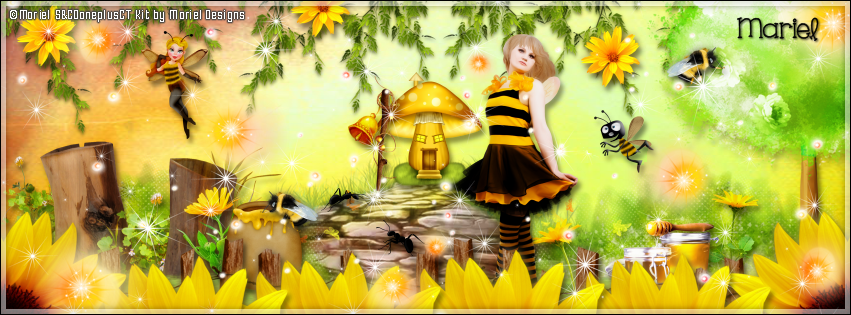
Bee Spring

BUZZING TUTORIAL

**Click to see original size**

Tutorial written by Marcia Salgado on May 29th, 2016
for those who have a working knowledge of PSP.
I'm using PSP9 to create my tuts.
Any resemblance to any other tutorial is coincidental.
Do not copy and paste this tutorial anywhere on the net.
If you want to translate please ask first. 

****************************************
Material:

Tube: "Bee Spring" by Mariel, you can purchase it here 
do not use without the proper #license.
PTU Kit "Bee Spring" by Mariel Designs, you can purchase it here 
Font: KG One Thing

****************************************

--> Remember to save often and use my tag as reference if necessary. Use a Drop Shadow of your preference on layers. 

1. Open a new image 851x315

2. Open paper 'PAPER 7' copy and paste as new layer. Use Raster Deform Tool and stretch the paper so it fills the canvas.

3. Open element '33' copy and paste as new layer. Arrange it to bottom.

4. Open element '81' copy and paste as new layer. Resize 20%. Arrange it at the end of the stone path.

5. Open element '97' copy and paste as new layer. Arrange it to the bottom right. Duplicate. Mirror.

6. Open element '14' copy and paste as new layer. Resize 50%. Arrange it to the bottom left.

7. Open element '109' copy and paste as new layer. Arrange it to the bottom right. Duplicate. Mirror.

8. Open element '48' copy and paste as new layer. Resize 15%. Arrange it to the bottom left.

9. Open element '27' copy and paste as new layer. Resize 15%. Arrange it to the bottom right.

10. Open element '26' copy and paste as new layer. Resize 15%. Arrange it to the left of the one we just added.

11. Open element '105' copy and paste as new layer. Resize 15%. Arrange it to the bottom left.

12. Open element '5' copy and paste as new layer. Resize 20%. Arrange it to the bottom right.

13. Open element '84' copy and paste as new layer. Arrange it to the top right. Duplicate. Mirror.

14. Open your tube. Copy and paste as new layer. Resize as needed and arrange it a little to the right.

15. Open element '119' copy and paste as new layer. Arrange it to the right.

16. Open element '111' copy and paste as new layer. Arrange it to the bottom right. Duplicate. Mirror.

17. Open element '116' copy and paste as new layer. Resize 10%. Arrange it to bottom.

18. Open element '117' copy and paste as new layer. Resize 10%. Arrange it to bottom.

19. Open element '28' copy and paste as new layer. Resize 10%. Arrange it to the top. Duplicate and arrange it around. Do as many as you want. I only used three.

20. Open element '31' copy and paste as new layer. Resize 20%. Arrange it to the top left.

21. Open element '32' copy and paste as new layer. Resize 12%. Arrange it to the right.

22. Open element '62' copy and paste as new layer. Resize 20%. Arrange it to the left of the mushroom.

23. Open element '113' copy and paste as new layer. Resize 10%. Arrange it above the honey pot. Duplicate. Mirror. Arrange it at the tree.

24. Open element '58' copy and paste as new layer. Resize 50%. Arrange it to the bottom right. Duplicate. Mirror. Duplicate. Arrange it to bottom. Duplicate and arrange it until you fill up all bottom part.

25. Open element '98' copy and paste as new layer. Arrange it to the left. Duplicate. Mirror/Flip.

26. Open element '79' copy and paste as new layer. Arrange it to the left. Duplicate. Mirror/Flip.

27. Add a new layer. Select all. Fill with white. Contract 6. Hit delete on your keyboard. Select none. Change opacity to 50.

28. Add a new layer. Select all. Fill with black. Contract 1. Hit delete on your keyboard. Select none.


--> Add your copyright info and license#. Add your name or initials. Save as PNG.

--> Sometimes I had to change my Timeline size to 846x313 because when I add it to Facebook the image has extra pixels and do not fit perfectly. So try this size if the same is happening to you.


--------------------------------------------------------------------

My idea for the FB Profile Picture


May 15, 2016

Darkness ~ by Joanne Salgado


Tutorial written by Joanne Salgado on May 15th, 2016
for those who have a working knowledge of PSP.
I'm using PSP9 to create my tuts.
Any resemblance to any other tutorial is coincidental.
Do not copy and paste this tutorial anywhere on the net.
If you want to translate please ask first. 

****************************************
Material:

Tube: "Darkness" by Mariel
do not use without the proper #license.
PTU Kit "Darkness" by Bibi's Collection
DARKNESS Collab - you can purchase it here
Font: A Gothique Time

****************************************

Don't forget to save often.
At any point if you have doubts check my tag.

1. Open a new image 650x550

2. Open element 'BIBI-DARKNESS COLLAB ELEMS (19)' copy and paste as new layer. Arrange it to the top left. Duplicate. Mirror.

3. Open element 'BIBI-DARKNESS COLLAB ELEMS (14)' copy and paste as new layer. Resize 90%.

4. Open element 'BIBI-DARKNESS COLLAB ELEMS (37)' copy and paste as new layer. Resize 70%. Arrange it to the top left. Duplicate. Mirror. Flip.

5. Open element 'BIBI-DARKNESS COLLAB ELEMS (7)' copy and paste as new layer. Resize 35%. Arrange it to the bottom right.

6. Open element 'BIBI-DARKNESS COLLAB ELEMS (45)' copy and paste as new layer. Resize 50%. Arrange it to the top middle.

7. Open element 'BIBI-DARKNESS COLLAB ELEMS (1)' copy and paste as new layer. Resize 30%. Arrange it to the top right.

8. Open element 'BIBI-DARKNESS COLLAB ELEMS (61)' copy and paste as new layer. Resize 30%. Arrange it to the bottom left.

9. Open element 'BIBI-DARKNESS COLLAB ELEMS (58)' copy and paste as new layer. Resize 40%. Arrange it to the bottom left.

10. Open element 'BIBI-DARKNESS COLLAB ELEMS (46)' copy and paste as new layer. Resize 30%. Arrange it to the bottom left.

11. Open element 'BIBI-DARKNESS COLLAB ELEMS (22)' copy and paste as new layer. Resize 60%. Arrange it to the bottom left.

12. Open element 'BIBI-DARKNESS COLLAB ELEMS (20)' copy and paste as new layer. Resize 40%. Arrange it to the bottom right.

13. Open element 'BIBI-DARKNESS COLLAB ELEMS (56)' copy and paste as new layer. Resize 15%. Arrange it to the right.

14. Open element 'BIBI-DARKNESS COLLAB ELEMS (40)' copy and paste as new layer. Resize 30%. Arrange it to the bottom right.

15. Open element 'BIBI-DARKNESS COLLAB ELEMS (3)' copy and paste as new layer. Resize 30%. Arrange it to the bottom right.

16. Open element 'BIBI-DARKNESS COLLAB ELEMS (49)' copy and paste as new layer. Resize 25%. Mirror. Arrange it above the doll head.

17. Open your tube. Copy and paste as new layer. Resize as needed and arrange it at the middle.

18. Open element 'BIBI-DARKNESS COLLAB ELEMS (47)' copy and paste as new layer. Resize 20%. Arrange it to bottom.

19. Open element 'BIBI-DARKNESS COLLAB ELEMS (28)' copy and paste as new layer. Resize 25%. Arrange it to the top left.

20. Add shadow as you prefer.

21. Add copyright. Add name. Save as PNG.
March 26, 2016

EASTER MORNING COLLAB

INNOCENT HAPPINESS TUTORIAL


Tutorial written by Marcia Salgado on March 26th, 2016
for those who have a working knowledge of PSP.
I'm using PSP9 to create my tuts.
Any resemblance to any other tutorial is coincidental.
Do not copy and paste this tutorial anywhere on the net.
If you want to translate please ask first. 

****************************************
Material:

Tube and Kit belong to a STORE COLLAB PACK 
called EASTER MORNING COLLAB
You can get it free with a purchase or you can buy it directly too.
More info HERE 
Please do not use any tube without the proper credit and license.
Tube used "Easter Morning" by Mariel and
Kit used "Easter Morning" by Chili Designz
Font: Theodista Decally

****************************************

--> Remember to save often and use my tag as reference if necessary. Use a Drop Shadow of your preference on layers. 


1. Create a new image 700x550. All extra spaces will be removed on the end.

2. Open CHILI_DESIGNZ_EasterMorning_frame5. Resize 75%. Copy and paste as new layer. Next elements you need to place around the frame.

3. Click on bottom layer. Open CHILI_DESIGNZ_EasterMorning_deco2. Resize 67%. Flip. Copy and paste as new layer. Move it up.

4. Open CHILI_DESIGNZ_EasterMorning_greenery3. Resize 40%. Mirror. Copy and paste as new layer. Move it to right and place it behind the frame.

5. Open CHILI_DESIGNZ_EasterMorning_deco4. Resize 40%. Copy and paste as new layer. Move it up and to left.

6. Open CHILI_DESIGNZ_EasterMorning_flower3. Resize 55%. Flip. Copy and paste as new layer. Move it down and to left. Duplicate. Free Rotate: Right-90. Move it a little up and more to left. When you satisfied with their places use merge down.

7. Click on frame layer. Select inside it and expand the selection by 5. Add a new layer and move it below the frame layer. Open CHILI_DESIGNZ_EasterMorning_paper5. Copy and paste into selection. Deselect.

8. Open CHILI_DESIGNZ_EasterMorning_sparkle4. Resize 50%. Copy and paste as new layer. Move it to right and keep it inside the frame. Blend Mode: Luminance (L).

9. Open CHILI_DESIGNZ_EasterMorning_butterflies. Resize 30%. Copy and paste as new layer. Move it a little to left and a little up. Keep it inside the frame. Blend Mode: Luminance (L).

10. Open CHILI_DESIGNZ_EasterMorning_house. Resize 30%. Copy and paste as new layer. Move it down and to left. Keep it inside the frame. Blend Mode: Luminance (L).

11. OPen CHILI_DESIGNZ_EasterMorning_fence. Resize 20%. Copy and paste as new layer. Move it down and to right. Place it on right side of the little house. Duplicate ad move it more to right. Merge down. Keep it inside the frame. Blend Mode: Luminance (L).

12. Open CHILI_DESIGNZ_EasterMorning_grass2. Resize 20%. Copy and paste as new layer. Move it down and to left. Keep it inside the frame. Blend Mode: Luminance (L).

13. OPen CHILI_DESIGNZ_EasterMorning_deco7. Resize 20%. Copy and paste as new layer. Move it down and to left. Keep it inside the frame. Blend Mode: Luminance (L).

14. Open CHILI_DESIGNZ_EasterMorning_rabbit. Resize 20%. Mirror. Copy and paste as new layer. Move it down and place it in front of the little house. Keep it inside the frame. Blend Mode: Luminance (L).

15. Click on frame layer. Open CHILI_DESIGNZ_EasterMorning_heart. Resize 40%. Copy and paste as new layer. Move it down and place over the frame bottom border. 

16. Open CHILI_DESIGNZ_EasterMorning_grass. Resize 40%. Copy and paste as new layer. Place it on right side of the purple heart.

17. Open CHILI_DESIGNZ_EasterMorning_flower2. Resize 60%. Mirror. Copy and paste as new layer. Move it to right and place it over the frame border.

18. Open CHILI_DESIGNZ_EasterMorning_ribbon. Resize 50%. Copy and paste as new layer. Move it up and to right. Place it over the frame border and the previous flower bunch.

19. Open CHILI_DESIGNZ_EasterMorning_deco6. Resize 60%. Move it a little down and to left.

20. Open CHILI_DESIGNZ_EasterMorning_bird. Resize 20%. Copy and paste as new layer. Place it on the little tree trunk.

21. Open CHILI_DESIGNZ_EasterMorning_bow2. Resize 20%. Copy and paste as new layer. Place it over the bird brunch and tree junction to hide it.

22. Open CHILI_DESIGNZ_EasterMorning_chicken, CHILI_DESIGNZ_EasterMorning_chicken2, CHILI_DESIGNZ_EasterMorning_egg, CHILI_DESIGNZ_EasterMorning_egg2, CHILI_DESIGNZ_EasterMorning_egg3 and CHILI_DESIGNZ_EasterMorning_egg8. Resize 20%. Copy and paste them all as new layer. Place them around the little tree base.

23. Open your tube. Resize it. Copy and paste as new layer. Move it down and to right. Rearrange all elements to better fit your tube.

24. Crop > Merged opaque and get rid of all extra space.


--> Add your copyright info and license#. Add your name and save as PNG.


March 13, 2016

Clover's and Clovers

LUCKY & SMART TUTORIAL


Tutorial written by Marcia Salgado on March 14th, 2016
for those who have a working knowledge of PSP.
I'm using PSP9 to create my tuts.
Any resemblance to any other tutorial is coincidental.
Do not copy and paste this tutorial anywhere on the net.
If you want to translate please ask first. 

****************************************
Material:

PTU Tube and PTU kit belong to the Clover's Store Collab,
you can receive it as a purchase gift or you can buy it alone.
You can find the Store Collab here 
Portions used: Tube "Clover's" by MarieL and Kit "Clovers"by Chili Designz
Font: Jacques & Gilles

****************************************

--> Remember to save often and use my tag as reference if necessary. Use a Drop Shadow of your preference on layers. 

1. Create a new image 650x650.

2. Open CHILI_DESIGNZ_Clovers_frame4. Resize 60%.

3. Open CHILI_DESIGNZ_Clovers_leaf. Resize 35%. Copy and paste as new layer. Apply MuRa's Meister > Copies > Encircle with the following settings:


Then change the color using Manual Color Correction as shown below (from #63958d to #3464a4):


4. Open CHILI_DESIGNZ_Clovers_flower Resize 35%. Copy and paste as new layer. Use, again, MuRa's Meister > Copies > Encircle, with the settings below:


5. Open CHILI_DESIGNZ_Clovers_frame2, Resize 60%. Copy and paste as new layer.

6. Select inside the frame. Expand > 5. Add a new layer and move it below the frame layer. Open CHILI_DESIGNZ_Clovers_paper. Copy and paste into selection. Invert Selection. Open your tube, resize f needed and place it inside the frame. Delete. Select all. Clip to canvas. Crop to selection.

7. Open CHILI_DESIGNZ_Clovers_frame8. Resize 50%. Copy and paste as new layer.

8. Open your tube, resize it, I mirrored mine. Copy and paste as new layer. Move it to the left.

9. Open CHILI_DESIGNZ_Clovers_flower2. Resize 45%. Copy and paste as new layer. Move it down and to left.

10. Open CHILI_DESIGNZ_Clovers_flower5. Resize 45%. Copy and paste as new layer. Place it on right side of the red flower.

11. Open CHILI_DESIGNZ_Clovers_flower6. Resize 75%. 

12. Open CHILI_DESIGNZ_Clovers_clover9. Resize 50%. Mirror. Flip. Copy and paste as new layer. Move it down and place on right side of previous flower. Duplicate, Flip. Move it up and to left. Arrange this leaves below the tube layer, under her arm. 

13. Click on first layer. Open CHILI_DESIGNZ_Clovers_flower4. Resize 45%. Copy and paste as new layer. Move it down and place it over the leaves and stem.

14. Click on bottom layer (should be Raster 1 layer). Open CHILI_DESIGNZ_Clovers_deco3. Copy and paste as new layer. Move it to left. Duplicate. Mirror. Merge down.


--> Add your copyright info and license#. Add your name and save as PNG.


February 2, 2016

Love Bear ~ by Joanne Salgado


Tutorial written by Joanne Salgado on February 02th, 2016
for those who have a working knowledge of PSP.
Any resemblance to any other tutorial is coincidental.
Do not copy and paste this tutorial anywhere on the net.
If you want to translate please ask first. 

Tube: Love Bear by Mariel - you can purchase here
Kit Love Bear by Whisper in the Wind - you can purchase here
Font: Alex Brush

Don't forget to save often.
At any point if you have doubts check my tag.

1. Open a new image 650x550

2. Open element 'WITWLoveBearFrame2' copy and paste as new layer. Resize 70%.

3. Open element 'WITWLoveBearEl26' copy and paste as new layer. Resize 50%. Move this layer below the frame layer. Arrange it to the top left. Duplicate. Arrange it to the right.

4. Open element 'WITWLoveBearEl64' copy and paste as new layer. Resize 50%. Arrange it to the left. Duplicate. Arrange it to the bottom right. Now clean all the parts of the flowers that appears inside the transparent area of the frame.

5. Open paper 'WITWLoveBearPaper6' copy and paste as new layer. Resize 50%. Clean the parts that appears outside it.

6. Open element 'WITWLoveBearEl102' copy and paste as new layer. Resize 70%. Arrange it to the right. Duplicate. Mirror/Flip.

7. Open element 'WITWLoveBearEl7' copy and paste as new layer. Resize 70%. Arrange it to the top right.

8. Open your tube. Copy and paste as new layer. Resize as you prefer. Arrange it to the left.

9. Open element 'WITWLoveBearEl72' copy and paste as new layer. Resize 25%. Rotate left 25. Arrange it to the right.

10. Open element 'WITWLoveBearEl85' copy and paste as new layer. Resize 25%. Arrange it to the top left of the butterfly.

11. Add shadow as you prefer.

12. Add copyright. Add name. Save as PNG.