Showing posts with label DiHalim. Show all posts

March 17, 2017

Patricio ~ by Joanne Salgado


Tutorial written by Joanne Salgado on March 15th, 2017
for those who have a working knowledge of PSP.
I'm using PSP9 to create my tuts.
Any resemblance to any other tutorial is coincidental.
Do not copy and paste this tutorial anywhere on the net.
If you want to translate please ask first. 

****************************************
Material:

Tube: "Patricio" by Di Halim, you can purchase it here
do not use without the proper #license.
PTU Kit "My Clover" by Bibi's Collection, you can purchase it here
Font: Dope Script

****************************************

--> Remember to save often and use my tag as reference if necessary.

1. Open a new image 650x550

2. Open element 'BIBI-MY CLOVER ELEMS (17)' copy and paste as new layer. Resize 60%.

3. Open element 'BIBI-MY CLOVER ELEMS (4)' copy and paste as new layer. Move this layer below the frame layer. Rotate. Arrange it to the top left.

4. Open paper 'BIBI-MY CLOVERS PAPER (5)' copy and paste as new layer. Resize 50%. Clean the outside parts.

5. Open element 'BIBI-MY CLOVER ELEMS (9)' copy and paste as new layer. Resize 30%. Move this layer above the frame layer. Rotate. Arrange it to the bottom right.

6. Open element 'BIBI-MY CLOVER ELEMS (8)' copy and paste as new layer. Mirror. Arrange it to the right.

7. Open element 'BIBI-MY CLOVER ELEMS (12)' copy and paste as new layer. Resize 40%. Arrange it to the bottom left.

8. Open element 'BIBI-MY CLOVER ELEMS (1)' copy and paste as new layer. Resize 50%. Arrange it to the bottom left.

9. Open element 'BIBI-MY CLOVER ELEMS (2)' copy and paste as new layer. Resize 35%. Arrange it to the bottom right.

10. Open element 'BIBI-MY CLOVER ELEMS (63)' copy and paste as new layer. Resize 50%. Mirror. Arrange it to the bottom left.

11. Open element 'BIBI-MY CLOVER ELEMS (31)' copy and paste as new layer. Resize 50%. Arrange it to the bottom right.

12. Open element 'BIBI-MY CLOVER ELEMS (30)' copy and paste as new layer. Resize 50%. Arrange it to the bottom left.

13. Open element 'BIBI-MY CLOVER ELEMS (32)' copy and paste as new layer. Resize 80%.

14. Open element 'BIBI-MY CLOVER ELEMS (19)' copy and paste as new layer. Resize 30%. Mirror. Arrange it to the right.

15. Open your tube. Copy and paste as new layer. Resize as needed and arrange it the left.

16. Add shadow as you prefer.

17. Add copyright. Add name. Save as PNG.

SHOW OFF - Cupid In Pink


== NEW PTU TAG S&CO. CT ==
FOR DI HALIM AND BIBI'S COLLECTION

Featuring "Cupid in Pink" tube by Di Halim and
"Cupid in Pink" Kit by Bibi's Collection at Scraps N Company - S&Co.

Tube by Di Halim - you can purchase here

Kit by Bibi's Collection - you can purchase here


Cupid in Red ~ by Joanne Salgado


Tutorial written by Joanne Salgado on March 15th, 2017
for those who have a working knowledge of PSP.
I'm using PSP9 to create my tuts.
Any resemblance to any other tutorial is coincidental.
Do not copy and paste this tutorial anywhere on the net.
If you want to translate please ask first. 

****************************************
Material:

Tube: "Cupid In Red" by Di Halim, you can purchase it here
do not use without the proper #license.
PTU Kit "Davina" by Bibi's Collection, you can purchase it here
Font: kg pdx bridgetown

****************************************

--> Remember to save often and use my tag as reference if necessary.

1. Open a new image 650x550

2. Open element 'BIBI-DAVINA ELEM (94)' copy and paste as new layer. Resize 45%. Arrange it to the left.

3. Open element 'BIBI-DAVINA ELEM (108)' copy and paste as new layer. Move this layer below the frame layer. Arrange it to the left.

4. Open element 'BIBI-DAVINA ELEM (113)' copy and paste as new layer. Resize 20%. Arrange it to the top left.

5. Open element 'BIBI-DAVINA PAPER (3)' copy and paste as new layer. Resize 35%. Arrange it inside the frame. Adjust/Hue and Saturation/Colorize both 0. Clean the outside parts.

6. Open element 'BIBI-DAVINA ELEM (15)' copy and paste as new layer. Resize 30%. Move this layer above the frame layer. Arrange it to the bottom left.

7. Open element 'BIBI-DAVINA ELEM (49)' copy and paste as new layer. Resize 40%. Arrange it to bottom.

8. Open element 'BIBI-DAVINA ELEM (4)' copy and paste as new layer. Resize 30%. Arrange it to the bottom right.

9. Open element 'BIBI-DAVINA ELEM (123)' copy and paste as new layer. Resize 80%. Arrange it to the left.

10. Open element 'BIBI-DAVINA ELEM (35)' copy and paste as new layer. Resize 20%. Arrange it to the bottom left.

11. Open your tube. Copy and paste as new layer. Resize as needed and arrange it to the right.

12. Open element 'BIBI-DAVINA ELEM (5)' copy and paste as new layer. Resize 30%. Mirror. Arrange it to the bottom right.

13. Open element 'BIBI-DAVINA ELEM (20)' copy and paste as new layer. Resize 10%. Arrange it to the top left.

14. Open element 'BIBI-DAVINA ELEM (63)' copy and paste as new layer. Resize 30%. Arrange it a little to the left.

15. Open element 'BIBI-DAVINA ELEM (70)' copy and paste as new layer. Resize 10%. Arrange it to the right.

16. Open element 'BIBI-DAVINA ELEM (96)' copy and paste as new layer. Resize 80%. Arrrange it to bottom.

17. Open element 'BIBI-DAVINA ELEM (122)' copy and paste as new layer.

18. Add shadow as you prefer.

19. Add copyright. Add name. Save as PNG.

November 14, 2016

SHOW OFF - Love Sucks


== NEW PTU S&CO. CT ==
FOR DI HALIM AND BIBI'S COLLECTION

Featuring "Love Sucks" tube by Di Halim and
"Love Sucks" Kit by Bibi's Collection at Scraps N Company - S&Co.

Tube by Di Halim - you can purchase here

Kit by Bibi's Collection - you can purchase here


November 10, 2016

Morti ~ by Joanne Salgado


Tutorial written by Joanne Salgado on November 10th, 2016
for those who have a working knowledge of PSP.
I'm using PSP9 to create my tuts.
Any resemblance to any other tutorial is coincidental.
Do not copy and paste this tutorial anywhere on the net.
If you want to translate please ask first. 

****************************************
Material:

Tube: "Morti Black" by Di Halim - you can purchase it here
do not use without the proper #license.
PTU Kit "Addams" by Bibi's Collection - you can purchase it here
Font: Andover

****************************************

Don't forget to save often.
At any point if you have doubts check my tag.

1. Open a new image 650x550

2. Open element 'BIBI-ADDAMS ELEMS (13)' copy and paste as new layer. Resize 50%. Arrange it to the right.

3. Open element 'BIBI-ADDAMS ELEMS (33)' copy and paste as new layer. Resize 50%. Move this layer below the frame layer. Arrange it to the top right.

4. Open element 'BIBI-ADDAMS ELEMS (73)' copy and paste as new layer. Resize 50%. Mirror. Arrange it to the bottom right. Duplicate. Mirror/Flip.

5. Open element 'BIBI-ADDAMS ELEMS (32)' copy and paste as new layer. Resize 50%. Arrange it to the top left.

6. Open element 'BIBI-ADDAMS PAPERS (6)' copy and paste as new layer. Resize 20%. Mirror. Arrange inside the top frame, clean outside.

7. Open element 'BIBI-ADDAMS ELEMS (119)' copy and paste as new layer. Resize 50%. Arrange inside the middle frame and clean outside.

8. Open element 'BIBI-ADDAMS PAPERS (9)' copy and paste as new layer. Resize 20%. Arrange inside the bottom frame and clean outside.

9. Open element 'BIBI-ADDAMS ELEMS (131)' copy and paste as new layer. Resize 50%. Arrange inside the middle frame, to the top right. Clean outside.

10. Open element 'BIBI-ADDAMS ELEMS (1)' copy and paste as new layer. Resize 50%. Arrange inside the top frame to the left. Clean outside.

11. Open element 'BIBI-ADDAMS ELEMS (53)' copy and paste as new layer. Resize 50%. Arrange inside the middle frame to the bottom left. Clean outside.

12. Open element 'BIBI-ADDAMS ELEMS (102)' copy and paste as new layer. Resize 40%. Arrange it to the bottom left.

13. Open your tube. Copy and paste as new layer. Resize as needed and arrange it to the left.

14. Open element 'BIBI-ADDAMS ELEMS (2)' separate both spiders. Resize both 20%. Falling one to top center and the other one bottom right.

15. Open element 'BIBI-ADDAMS ELEMS (144)' copy and paste as new layer. Resize 80%. Arrange it to bottom. Hue and Saturation both 0. Duplicate. Mirror/Flip.

16. Add shadow as you prefer.

17. Add copyright. Add name. Save as PNG.

Morti 6 ~ by Joanne Salgado


Tutorial written by Joanne Salgado on November 10th, 2016
for those who have a working knowledge of PSP.
I'm using PSP9 to create my tuts.
Any resemblance to any other tutorial is coincidental.
Do not copy and paste this tutorial anywhere on the net.
If you want to translate please ask first. 

****************************************
Material:

Tube: "Morti 6" by Di Halim - you can purchase it here
do not use without the proper #license.
PTU Kit "Morti 6" by Rieneke Designs - you can purchase it here
Font: Dorayaki

****************************************

Don't forget to save often.
At any point if you have doubts check my tag.

1. Open a new image 650x550

2. Open element 'RD-Morti6-element (30)' copy and paste as new layer. Resize 40%. Use MuRa'S with settings below.

3. Open element 'RD-Morti6-element (12)' copy and paste as new layer. Resize 40%. Use MuRa'S with settings below.

4. Open paper 'RD-Morti6-paper (7)' copyt and paste as new layer. Resize 45%.

5. Open element 'RD-Morti6-element (25)' copy and paste as new layer. Resize 65%. Clean the parts of the paper outside the frame.

6. Open element 'RD-Morti6-element (27)' copy and paste as new layer. Resize 50%. Arrange it to the top right.

7. Open element 'RD-Morti6-element (17)' copy and paste as new layer.

8. Open element 'RD-Morti6-element (28)' copy and paste as new layer. Resize 50%. Arrange it to the top right.

9. Open your tube. Copy and paste as new layer. Resize as needed and arrange it inside the frame.

10. Open element 'RD-Morti6-element (29)' copy and paste as new layer. Resize 30%. Arrange it to the bottom of the frame.

11. Open element 'RD-Morti6-element (39)' copy and paste as new layer. Resize 30%. Arrange it to the bottom right of the frame.

12. Open element 'RD-Morti6-element (11)' copy and paste as new layer. Resize 40%. Arrange it to the bottom right of the frame.

13. Add shadow as you prefer.

14. Add copyright. Add name. Save as PNG.

November 2, 2016

Lovely Angel ~ by Joanne Salgado


Tutorial written by Joanne Salgado on November 02th, 2016
for those who have a working knowledge of PSP.
I'm using PSP9 to create my tuts.
Any resemblance to any other tutorial is coincidental.
Do not copy and paste this tutorial anywhere on the net.
If you want to translate please ask first. 

****************************************
Material:

Tube: "Lovely Angel" by Di Halim - you can purchase it here
do not use without the proper #license.
PTU Kit "Lovely Angel" by Bibi's Collection - you can purchase it here
Font: Lemonade

****************************************

Don't forget to save often.
At any point if you have doubts check my tag.

1. Open a new image 650x550

2. Open element 'BIBILOVELYANGEL ELEMS (83)' copy and paste as new layer.

3. Open element 'BIBILOVELYANGEL ELEMS (53)' copy and paste as new layer. Resize 50%. Move this layer below the frame layer. Arrange it to the top right. Duplicate. Mirror/Flip.

4. Open element 'BIBILOVELYANGEL ELEMS (39)' copy and paste as new layer. Resize 80%. Arrange it to the top left. Duplicate. Mirror/Flip.

5. Open element 'BIBILOVELYANGEL ELEMS (65)' copy and paste as new layer. Resize 50%. Mirror.

6. Open element 'BIBILOVELYANGEL ELEMS (54)' copy and paste as new layer. Arrange it to top. Duplicate. Mirror/Flip.

7. Open paper 'BIBILOVELYANGEL PAPERS (9)' copy and paste as new layer. Resize 50%. Arrange it inside the frame and clean the outside parts.

8. Open element 'BIBILOVELYANGEL ELEMS (10)' copy and paste as new layer. Resize 50%. Arrange it to bottom left.

9. Open element 'BIBILOVELYANGEL ELEMS (80)' copy and paste as new layer. Arrange it to top.

10. Open element 'BIBILOVELYANGEL ELEMS (52)' copy and paste as new layer. Resize 40%. Arrange it to bottom.

11. Open element 'BIBILOVELYANGEL ELEMS (34)' copy and paste as new layer. Resize 60%. Arrange it to bottom right.

12. Open element 'BIBILOVELYANGEL ELEMS (79)' copy and paste as new layer. Resize 50%. Arrange it to bottom left.

13. Open element 'BIBILOVELYANGEL ELEMS (41)' copy and paste as new layer. Resize 40%.

14. Open your tube. Copy and paste as new layer. Resize as needed and arrange it to bottom right.

15. Open element 'BIBILOVELYANGEL ELEMS (1)' copy and paste as new layer. Resize 50%. Mirror. Arrange it to bottom.

16. Open element 'BIBILOVELYANGEL ELEMS (8)' copy and paste as new layer. Resize 30%. Mirror. Arrange it to top left.

17. Open element 'BIBILOVELYANGEL ELEMS (38)' copy and paste as new layer. Resize 30%. Arrange above your tube's head.

18. Open element 'BIBILOVELYANGEL ELEMS (30)' copy and paste as new layer. Resize 80%. Mirror. Arrange it to bottom left.

19. Add shadow as you prefer.

20. Add copyright. Add name. Save as PNG.

Morti 5 ~ by Joanne Salgado


Tutorial written by Joanne Salgado on November 02th, 2016
for those who have a working knowledge of PSP.
I'm using PSP9 to create my tuts.
Any resemblance to any other tutorial is coincidental.
Do not copy and paste this tutorial anywhere on the net.
If you want to translate please ask first. 

****************************************
Material:

Tube: "Morti 5" by Di Halim - you can purchase it here
do not use without the proper #license.
PTU Kit "Morti 5" by Blissful Designs - you can purchase it here
Font: Forque

****************************************

Don't forget to save often.
At any point if you have doubts check my tag.

1. Open a new image 650x550

2. Open element 'BD_Morti5Element (27)' copy and paste as new layer. Resize 80%.

3. Open element 'BD_Morti5Element (54)' copy and paste as new layer. Move this layer below the frame layer. Arrange it to bottom.

4. Open element 'BD_Morti5Element (40)' copy and paste as new layer. Resize 80%. Arrange it to the top right. Duplicate. Mirror.

5. Open element 'BD_Morti5Element (8)' copy and paste as new layer. Resize 90%.

6. Open element 'BD_Morti5Element (21)' copy and paste as new layer. Resize 90%. Duplicate. Mirror.

7. Open element 'BD_Morti5Element (26)' copy and paste as new layer. Resize 50%.

8. Open your tube. Copy and paste as new layer. Resize as needed. Move this layer above the frame layer. Arrange it inside the frame and clean the parts needed.

9. Open element 'BD_Morti5Element (55)' copy and paste as new layer. Arrange it to bottom.

10. Open element 'BD_Morti5Element (44)' copy and paste as new layer. Resize 15%. Arrange it to the bottom left.

11. Open element 'BD_Morti5Element (43)' copy and paste as new layer. Resize 15%. Arrange it to the bottom left.

12. Open element 'BD_Morti5Element (50)' copy and paste as new layer. Resize 15%. Arrange it to bottom.

13. Open element 'BD_Morti5Element (33)' copy and paste as new layer. Resize 15%. Mirror. Arrange it to the bottom left.

14. Open element 'BD_Morti5Element (18)' copy and paste as new layer. Resize 60%. Arrange it to the bottom right.

15. Open element 'BD_Morti5Element (56)' copy and paste as new layer. Resize 20%. Arrange it to the bottom right.

16. Open element 'BD_Morti5Element (37)' copy and paste as new layer. Resize 18%. Arrange it to the bottom right.

17. Open element 'BD_Morti5Element (62)' copy and paste as new layer.

18. Add shadow as you prefer.

19. Add copyright. Add name. Save as PNG.

October 26, 2016

Night of Frights ~ by Joanne Salgado


Tutorial written by Joanne Salgado on October 26th, 2016
for those who have a working knowledge of PSP.
I'm using PSP9 to create my tuts.
Any resemblance to any other tutorial is coincidental.
Do not copy and paste this tutorial anywhere on the net.
If you want to translate please ask first. 

****************************************
Material:

Tube: "Witch Hat" by Di Halim - you can purchase it here
do not use without the proper #license.
PTU Kit "Witch Hat" by Bibi's Collection - you can purchase it here
Font: BachelorScript

****************************************

Don't forget to save often.
At any point if you have doubts check my tag.

1. Open a new image 650x550

2. Open element 'BIBI-WITCH HAT ELEMS (107)' copy and paste as new layer. Resize 70%. Mirror.

3. Open element 'BIBI-WITCH HAT ELEMS (100)' copy and paste as new layer. Resize 50%. Rotate 15 left. Arrange it to the top left.

4. Open element 'BIBI-WITCH HAT ELEMS (97)' copy and paste as new layer. Resize 20%. Arrange it to the top left.

5. Open element 'BIBI-WITCH HAT ELEMS (74)' copy and paste as new layer. Resize 20%. Arrange it to the top right of the wordart.

6. Open element 'BIBI-WITCH HAT ELEMS (75)' copy and paste as new layer. Resize 15%. Arrange it to the bottom left of the wordart.

7. Open element 'BIBI-WITCH HAT ELEMS (76)' copy and paste as new layer. Resize 40%. Rotate right 20. Arrange it at the middle.

8. Open element 'BIBI-WITCH HAT ELEMS (15)' copy and paste as new layer. Resize 45%. Mirror.

9. Open element 'BIBI-WITCH HAT ELEMS (17)' copy and paste as new layer. Resize 40%. Arrange it to bottom.

10. Open element 'BIBI-WITCH HAT ELEMS (41)' copy and paste as new layer. Resize 20%. Mirror. Arrange it to the bottom left.

11. Open element 'BIBI-WITCH HAT ELEMS (43)' copy and paste as new layer. Resize 18%. Arrange it to the bottom left.

12. Open element 'BIBI-WITCH HAT ELEMS (6)' copy and paste as new layer. Resize 60%. Arrange it to bottom.

13. Open your tube. Copy and paste as new layer. Resize as needed and arrange it to the right.

14. Open element 'BIBI-WITCH HAT ELEMS (37)' copy and paste as new layer. Resize 20%. Arrange it to bottom.

15. Add shadow as you prefer.

16. Add copyright. Add name. Save as PNG.

June 17, 2016

Dolls

ON STAGE TUTORIAL


Tutorial written by Marcia Salgado on June 15th, 2016
for those who have a working knowledge of PSP.
I'm using PSP9 to create my tuts.
Any resemblance to any other tutorial is coincidental.
Do not copy and paste this tutorial anywhere on the net.
If you want to translate please ask first. 

****************************************
Material:

Tube: "Dolls" by Di-Halim, you can purchase it here
do not use without the proper #license.
PTU Kit "Dolls" by Bibi's Collection, you can purchase it here 
Font: Montelago Flare

****************************************

--> Remember to save often and use my tag as reference if necessary. Use a Drop Shadow of your preference on layers. 


1. Open a new image 700x650.

2. Open element 'BIBI-DOLLS ELEMS (167)' copy and paste as new layer. Resize 55%. Manual Color Correction source #262626 target #000000.

3. Open element 'BIBI-DOLLS ELEMS (15)' copy and paste as new layer. Resize 30%. Move this layer below the frame layer. Arrange it to the top left.

4. Open element 'BIBI-DOLLS ELEMS (16)' copy and paste as new layer. Resize 30%. Arrange it to the top left.

5. Open paper 'BIBI-DOLLS PAPERS (10)' copy and paste as new layer. Resize 40%. Arrange it inside the left of the frame, clean the outside parts.

6. Open paper 'BIBI-DOLLS PAPERS (9)' copy and paste as new layer. Resize 40%. Arrange it inside the right of the frame. Clean the outside parts.

7. Open paper 'BIBI-DOLLS PAPERS (8)' copy and paste as new layer. Resize 40%. Arrange it inside the middle of the frame. Clean the outside parts.

8. Open element 'BIBI-DOLLS ELEMS (36)' copy and paste as new layer. Resize 40%. Arrange it to the bottom left. Duplicate. Mirror. Manual Color Correction source #043079 target #c10e23.

9. Open element 'BIBI-DOLLS ELEMS (70)' copy and paste as new layer. Resize 20%. Arrange it to the bottom right inside the frame.

10. Open element 'BIBI-DOLLS ELEMS (96)' copy and paste as new layer. Resize 20%. Arrange it to the bottom right inside the frame to the left.

11. Open element 'BIBI-DOLLS ELEMS (153)' copy and paste as new layer. Resize 12%. Arrange it to the bottom right inside the frame.

12. Open element 'BIBI-DOLLS ELEMS (71)' copy and paste as new layer. Resize 25%. Arrange it to the bottom left inside the frame.

13. Open element 'BIBI-DOLLS ELEMS (63)' copy and paste as new layer. Resize 12%. Mirror. Arrange it to the bottom left inside the frame.

14. Open element 'BIBI-DOLLS ELEMS (60)' copy and paste as new layer. Resize 30%. Arrange it to the bottom left to the top inside the frame. Duplicate. Mirror.

15. Open element 'BIBI-DOLLS ELEMS (159)' copy and paste as new layer. Resize 15%. Arrange it to the bottom left to the right inside the frame.

16. Open element BIBI-DOLLS ELEMS (155)' copy and paste as new layer. Resize 10%. Arrange it to the bottom left inside the frame.

17. Open element 'BIBI-DOLLS ELEMS (29)' copy and paste as new layer. Resize 22%. Arrange it to the bottom right to the left inside the frame.

18. Open element 'BIBI-DOLLS ELEMS (59)' copy and paste as new layer. Resize 20%. Arrange it to the bottom inside the frame.

19. Open element 'BIBI-DOLLS ELEMS (56)' copy and paste as new layer. Resize 20%. Arrange it to the bottom inside the frame.

20. Open element 'BIBI-DOLLS ELEMS (168)' copy and paste as new layer. Resize 10%. Arrange it to the bottom inside the frame.

21. Open element 'BIBI-DOLLS ELEMS (169)' copy and paste as new layer. Resize 10%. Mirror. Arrange it to the bottom inside the frame.

22. Open element 'BIBI-DOLLS ELEMS (20)' copy and paste as new layer. Resize 30%. Move this layer above the frame layer. Arrange it to the left between the frames.

23. Open element 'BIBI-DOLLS ELEMS (11)' copy and paste as new layer. Resize 55%. Clean so you end up with just the top part of it and arrange it above the frame.

24. Open element 'BIBI-DOLLS ELEMS (158)' copy and paste as new layer. Resize 20%. Arrange it to the bottom left.

25. Open element 'BIBI-DOLLS ELEMS (154)' copy and paste as new layer. Resize 12%. Arrange it to the top right.

26. Open element 'BIBI-DOLLS ELEMS (150)' copy and paste as new layer. Resize 25%. Arrange it to the top left.

27. Open element 'BIBI-DOLLS ELEMS (149)' copy and paste as new layer. Resize 25%. Arrange it to the bottom left.

28. Open element 'BIBI-DOLLS ELEMS (73)' copy and paste as new layer. Resize 35%. Arrange it to the top left.

29. Open your tube. Copy and paste as new layer. Resize as needed and arrange it to the top right.

30. open element 'BIBI-DOLLS ELEMS (115)' copy and paste as new layer. Resize 60%. Arrange it to bottom.


--> Add your copyright info and license#. Add your name and save as PNG.


Popet with Dolls

WITH FRIENDS TUTORIAL


Tutorial written by Marcia Salgado on June 15th, 2016
for those who have a working knowledge of PSP.
I'm using PSP9 to create my tuts.
Any resemblance to any other tutorial is coincidental.
Do not copy and paste this tutorial anywhere on the net.
If you want to translate please ask first. 

****************************************
Material:

Tube: "Popet" by Di-Halim, you can purchase it here 
do not use without the proper #license.
PTU Kit "Dolls" by Bibi's Collection, you can purchase it here 
Font: Anna Nicole NF

****************************************

--> Remember to save often and use my tag as reference if necessary. Use a Drop Shadow of your preference on layers. 


1. Open a new image 700x600

2. Open element 'BIBI-DOLLS ELEMS (62)' copy and paste as new layer. Arrange it to the right. Duplicate. Mirror. Flip.

3. Open element 'BIBI-DOLLS ELEMS (56)' copy and paste as new layer. Resize 55%.

4. Open element 'BIBI-DOLLS ELEMS (102)' copy and paste as new layer. Resize 50%. Arrange it to the top right. Duplicate. Mirror. Flip. Arrange it to the top left.

5. Open element 'BIBI-DOLLS ELEMS (153)' copy and paste as new layer. Resize 15%. Arrange it to the bottom left of the stage.

6. Open element 'BIBI-DOLLS ELEMS (155)' copy and paste as new layer. Resize 20%. Arrange it to the bottom right of the stage.

7. Open element 'BIBI-DOLLS ELEMS (17)' copy and paste as new layer. Resize 10%. Arrange it above the monocycle.

8. Open element 'BIBI-DOLLS ELEMS (97)' copy and paste as new layer. Resize 40%. Arrange it to the top left.

9. Open element 'BIBI-DOLLS ELEMS (168)' copy and paste as new layer. Resize 25%. Arrange it to the bottom left.

10. Open element 'BIBI-DOLLS ELEMS (169)' copy and paste as new layer. Resize 25%. Mirror. Arrange it to the bottom right.

11. Open element 'BIBI-DOLLS ELEMS (1)' copy and paste as new layer. Resize 12%. Arrange it to the bottom right.

12. Open element 'BIBI-DOLLS ELEMS (136)' copy and paste as new layer. Resize 50%. Arrange it to the top right.

13. Open element 'BIBI-DOLLS ELEMS (111)' copy and paste as new layer. Resize 30%. Arrange it to the top right.

14. Open element 'BIBI-DOLLS ELEMS (86)' copy and paste as new layer. Resize 30%. Arrange it to the top right between the two flowers.

15. Open element 'BIBI-DOLLS ELEMS (150)' copy and paste as new layer. Resize 15%. Arrange it to the bottom left.

16. Open element 'BIBI-DOLLS ELEMS (149)' copy and paste as new layer. Resize 15%. Arrange it to the bottom right.

17. Open element 'BIBI-DOLLS ELEMS (152)' copy and paste as new layer. Resize 15%. Arrange it to the bottom left.

18. Open element 'BIBI-DOLLS ELEMS (84)' copy and paste as new layer. Resize 30%. Arrange it a little to the right.

19. Open your tube. Copy and paste as new layer. Resize as needed and arrange it at the middle.


--> Add your copyright info and license#. Add your name and save as PNG.


Royal Blood ~ by Joanne Salgado


Tutorial written by Joanne Salgado on June 17th, 2016
for those who have a working knowledge of PSP.
I'm using PSP9 to create my tuts.
Any resemblance to any other tutorial is coincidental.
Do not copy and paste this tutorial anywhere on the net.
If you want to translate please ask first. 

****************************************
Material:

Tube: "Royal Blood" by Di Halim - you can purchase it here
do not use without the proper #license.
PTU Kit "Vampy Collab" by Design by Joan and Bibi's Collection - you can purchase it here
Font: A Gothique Time

****************************************

Don't forget to save often.
At any point if you have doubts check my tag.

1. Open a new image 700x600.

2. Open element 'ELEMDBJ14' copy and paste as new layer.

3. Open element 'ELEMDBJ47' copy and paste as new layer. Move this layer below the frame layer. Arrange it to the top right.

4. Open paper 'Paper 8' copy and paste as new layer. Resize 60%. Mirror. Arrange it inside the frame and clean the outside parts.

5. Open element 'ELEMDBJ102' copy and paste as new layer. Resize 55%. Arrange it to the bottom left inside the frame. Change opacity to 50. Clean the outside parts.

6. Open element 'ELEMDBJ92' copy and paste as new layer. Resize 50%. Arrange it to the top right inside the frame. Clean the outside parts.

7. Open element 'ELEMDBJ82' copy and paste as new layer. Resize 50%. Move this layer above the frame layer. Arrange it to the bottom right.

8. Open element 'ELEMDBJ91' copy and paste as new layer. Resize 20%. Arrange it to bottom.

9. Open element 'ELEMDBJ71' copy and paste as new layer. Arrange it to top.

10. Open element 'ELEMDBJ27' copy and paste as new layer. Resize 30%. Mirror. Arrange it to bottom.

11. Open element 'ELEMDBJ-4' copy and paste as new layer. Resize 50%. Arrange it to the top right.

12. Open element 'ELEMDBJ50' copy and paste as new layer. Resize 45%. Arrange it to the bottom left.

13. Open element 'ELEMDBJ26' copy and paste as new layer. Resize 20%. Arrange it to the bottom right.

14. Open your tube. Copy and paste as new layer. Resize as needed and arrange it to the left.

15. Open element 'ELEMDBJ73' copy and paste as new layer. Resize 30%. Arrange it to the bottom a little to the left.

16. Add shadow as you prefer.

17. Add copyright. Add name. Save as PNG.


April 29, 2016

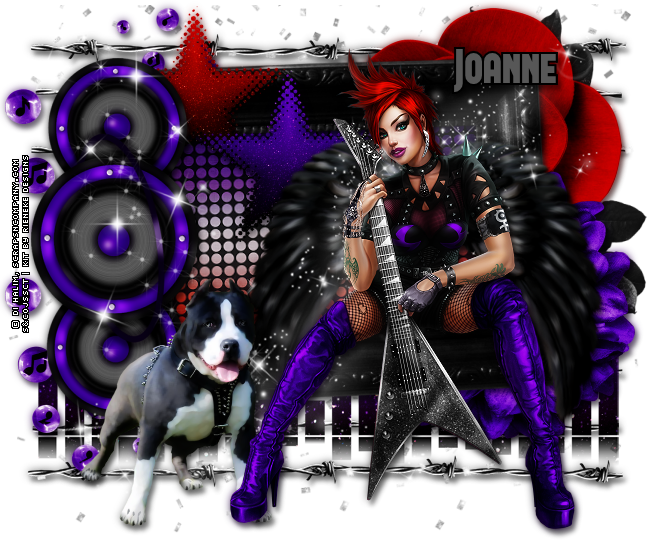
Punk Song ~ by Joanne Salgado


Tutorial written by Joanne Salgado on April 29th, 2016
for those who have a working knowledge of PSP.
Any resemblance to any other tutorial is coincidental.
Do not copy and paste this tutorial anywhere on the net.
If you want to translate please ask first. 

Tube: Punk Song by Di Halim - you can purchase here
Kit Punk Song by Rieneke Designs - you can purchase here
Font: FORQUE

Don't forget to save often.
At any point if you have doubts check my tag.

1. Open a new image 650x550

2. Open element 'RD-PunkSong-element (51)' copy and paste as new layer. Resize 80%. Arrange it a little to the top.

3. Open element 'RD-PunkSong-element (29)' copy and paste as new layer. Move this layer below the frame layer. Arrange it to the bottom. Duplicate. Arrange it to the top.

4. Open element 'RD-PunkSong-element (20)' copy and paste as new layer. Resize 90%. Arrange it to the left. Duplicate. Arrange it to the right.

5. Open element 'RD-PunkSong-element (37)' copy and paste as new layer. Arrange it to bottom.

6. Open element 'RD-PunkSong-element (53)' copy and paste as new layer. Resize 70%. Mirror. Arrange it to the top right.

7. Open element 'RD-PunkSong-element (55)' copy and paste as new layer. Resize 50%. Arrange it to the top right.

8. Open element 'RD-PunkSong-element (54)' copy and paste as new layer. Resize 50%. Arrange it to the bottom right.

9. Open element 'RD-PunkSong-element (30)' copy and paste as new layer. Resize 50%. Arrange it to the top left. Duplicate. Arrange it to the bottom left.

10. Open paper 'RD-PunkSong-paper (1)' copy and paste as new layer. Resize 40%. Rotate left 2. Arrange it inside the frame and clean the outside parts.

11. Open element 'RD-PunkSong-element (27)' copy and paste as new layer. Resize 30%. Move this layer above the frame layer. Arrange it to the top left.

12. Open element 'RD-PunkSong-element (28)' copy and paste as new layer. Resize 30%. Arrange it to the bottom right of the red star.

13. Open element 'RD-PunkSong-element (40)' copy and paste as new layer. Resize 60%. Rotate left 90. Arrange it to the left above the frame.

14. Open element 'RD-PunkSong-element (36)' copy and paste as new layer. Resize 60%. Arrange it to the right. We'll add the tube there, so you may need to arrange this wings again so it looks at your tube's back.

15. Open element 'RD-PunkSong-element (42)' copy and paste as new layer.

16. Open element 'RD-PunkSong-element (58)' copy and paste as new layer. Resize 80%. Arrange it to the left.

17. Open element 'RD-PunkSong-element (57)' copy and paste as new layer. Resize 45%. Arrange it to the bottom left.

18. Open your tube. Copy and paste as new layer. Resize as needed and arrange it to the right sitting on the frame.

19. Add shadow as you prefer.

20. Add copyright. Add name. Save as PNG.

Punk Rock ~ by Joanne Salgado


Tutorial written by Joanne Salgado on April 29th, 2016
for those who have a working knowledge of PSP.
Any resemblance to any other tutorial is coincidental.
Do not copy and paste this tutorial anywhere on the net.
If you want to translate please ask first. 

Tube: Punk Rock by Di Halim - you can purchase here
Kit Punk Babe by Bibi's Collection - you can purchase here
Font: AnnaEF

Don't forget to save often.
At any point if you have doubts check my tag.

1. Open a new image 650x600.

2. Open element 'BIBI-PUNK ROCK ELEMS (8)' copy and paste as new layer. Resize 23%.

3. Open element 'BIBI-PUNK ROCK ELEMS (2)' copy and paste as new layer. Resize 40%. Move this layer below the frame layer. Arrange it to the bottom right. Duplicate. Mirror. Duplicate. Arrange it to the top right. Duplicate. Mirror.

4. Open element 'BIBI-PUNK ROCK ELEMS (21)' copy and paste as new layer. Resize 65%.

5. Open element 'BIBI-PUNK ROCK ELEMS (86)' copy and paste as new layer. Resize 50%. Arrange it to the bottom left.

6. Open paper 'BIBI-PUNK ROCK PAPERS (1)' copy and paste as new layer. Resize 30%. Clean the parts outside the frame.

7. Open element 'BIBI-PUNK ROCK ELEMS (79)' copy and paste as new layer. Resize 65%.

8. Open element 'BIBI-PUNK ROCK ELEMS (47)' copy and paste as new layer. Resize 65%.

9. Open element 'BIBI-PUNK ROCK ELEMS (36)' copy and paste as new layer. Resize 70%. Arrange it a little to bottom. Not to much, we will add the tube and its must look like its on your tube's back. If needed arrange it again later.

10. Open your tube. Copy and paste as new layer. Resize as needed and arrange it inside the frame. Clean the parts needed so it looks like your tube is coming out of the frame.

11. Open element 'BIBI-PUNK ROCK ELEMS (81)' copy and paste as new layer. Resize 60%. Arrange it to bottom.

12. Open element 'BIBI-PUNK ROCK ELEMS (102)' copy and paste as new layer. Resize 40%. Arrange it to the bottom right.

13. Open element 'BIBI-PUNK ROCK ELEMS (22)' copy and paste as new layer. Resize 40%. Arrange it to the bottom right above the frame.

14. Open element 'BIBI-PUNK ROCK ELEMS (1)' copy and paste as new layer. Resize 20%. Arrange it to the bottom right.

15. Add shadow as you prefer.

16. Add copyright. Add name. Save as PNG.

Punk Babe ~ by Joanne Salgado


Tutorial written by Joanne Salgado on April 29th, 2016
for those who have a working knowledge of PSP.
Any resemblance to any other tutorial is coincidental.
Do not copy and paste this tutorial anywhere on the net.
If you want to translate please ask first. 

Tube: Punk Babe by Di Halim - you can purchase here
Kit Punk Babe by Chili Designz - you can purchase here
Font: White Pine

Don't forget to save often.
At any point if you have doubts check my tag.

1. Open a new image 650x550

2. Open frame 'CHILI_DESIGNZ_PunkBabe_frame5' copy and paste as new layer. Resize 70%.

3. Open element 'CHILI_DESIGNZ_PunkBabe_sparkles4' copy and paste as new layer. Move this layer below the frame layer. Arrange it to bottom left. Duplicate. Mirror. Duplicate. Flip. Duplicate. Mirror.

4. Open element 'CHILI_DESIGNZ_PunkBabe_bokeh' copy and paste as new layer. Arrange it to the top left. Duplicate. Mirror/Flip.

5. Open element 'CHILI_DESIGNZ_PunkBabe_bubbles' copy and paste as new layer. Arrange it to the top right. Duplicate. Mirror/Flip.

6. Open element 'CHILI_DESIGNZ_PunkBabe_deco5' copy and paste as new layer.

7. Open element 'CHILI_DESIGNZ_PunkBabe_nodes2' copy and paste as new layer.

8. Open element 'CHILI_DESIGNZ_PunkBabe_sparkles2' copy and paste as new layer.

9. Open paper 'CHILI_DESIGNZ_PunkBabe_paperr13' copy and paste as new layer. Resize 45%. Arrange it inside the frame and clean the outside parts.

10. Open element 'CHILI_DESIGNZ_PunkBabe_tulle' copy and paste as new layer. Resize 70%.

11. Open element 'CHILI_DESIGNZ_PunkBabe_skyline' copy and paste as new layer. Resize 55%. Arrange it to the bottom inside the frame and clean the outside parts.

12. Open element 'CHILI_DESIGNZ_PunkBabe_speaker3' copy and paste as new layer. Resize 70%. Move this layer above the frame layer. Arrange it to the bottom right. Duplicate. Mirror.

13. Open element 'CHILI_DESIGNZ_PunkBabe_speaker2' copy and paste as new layer. Resize 50%. Arrange it to the right above the blue speaker. Duplicate. Mirror.

14. Open element 'CHILI_DESIGNZ_PunkBabe_string' copy and paste as new layer. Resize 50%. Arrange it to the top left of the frame.

15. Open element 'CHILI_DESIGNZ_PunkBabe_speaker' copy and paste as new layer. Resize 55%. Arrange it to bottom.

16. Open element 'CHILI_DESIGNZ_PunkBabe_badge' copy and paste as new layer. Arrange it to the top right above the frame.

17. Open element 'CHILI_DESIGNZ_PunkBabe_sparkles3' copy and paste as new layer. Resize 90%.

18. Open your tube. Copy and paste as new layer. Resize as needed and arrange it sitting on the speaker box.

19. Add shadow as you prefer.

20. Add copyright. Add name. Save as PNG.