Showing posts with label Cuddly Rigor Mortis. Show all posts

May 17, 2016

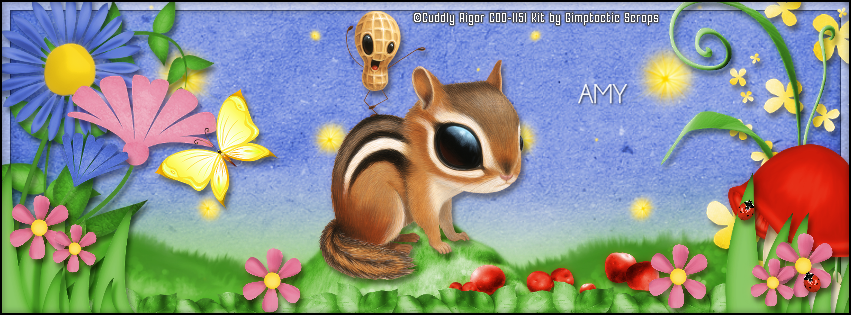
IB-CuddlyRigorMortis-May-2016-BT

BLOOMING TUTORIAL

**Click to see original size**

Tutorial written by Marcia Salgado on May 17th, 2016
for those who have a working knowledge of PSP.
I'm using PSP9 to create my tuts.
Any resemblance to any other tutorial is coincidental.
Do not copy and paste this tutorial anywhere on the net.
If you want to translate please ask first. 

****************************************
Material:

Tube: "Individual Tube 70-1" by Cuddly Rigor Mortis, you can purchase it here,
do not use without the proper #license.
PTU Kit "IB-CuddlyRigorMortis-May-2016-BT" by Gimptastic Scraps,
you can purchase it here 
Mask: by me, just click and save

Font: Champagne & Limousines 

****************************************

--> Remember to save often and use my tag as reference if necessary. Use a drop shadow of your preference on layers.

1. Create a new image 851x315.

2. Open GS-CRM_May2016BT_paper6. Copy and paste as new layer.

3. Open GS-CRM_May2016BT_paper1. Copy and paste as new layer. Apply my mask and merge group. The mask will show where you have to add the ground elements.

4. Open GS-CRM_May2016BT_ele10. Resize 50%. Copy and paste as new layer. Move it a little to left. Duplicate. Mirror. Merge down.

5. Add a new layer. Select all and fill it with White. Contract > 8. Delete. Fill it with black. Contract > 1. Delete. Deselect. Low the layer opacity to 50.

6. Open GS-CRM_May2016BT_ele2. Copy and paste as new layer. Move it down and to left. Duplicate. Mirror. Move a little more to right. Merge down.

7. Open GS-CRM_May2016BT_ele14. Resize 65%. Copy and paste as new layer. Move it down.

8. Open GS-CRM_May2016BT_ele3. Resize 50%. Copy and paste as new layer. Move down and to right.

9. Open GS-CRM_May2016BT_ele16. Resize 45%. Copy and paste as new layer. Move it down. Duplicate and move it to right. Duplicate again and move it to left. Create a line at the bottom. Merge all 3 layers together.

10. Open GS-CRM_May2016BT_ele18. Resize 75%. Copy and paste as ne layer. Move it way to left.

11. Open GS-CRM_May2016BT_ele17. Mirror. Copy and paste as ne layer. Move it a little up and way to left.

12. Open GS-CRM_May2016BT_ele4. Resize 60%. Mirror. Copy and paste as new layer. Move it a little down and to left.

13. Open GS-CRM_May2016BT_ele21. Resize 50%. Copy and paste as new layer. Move it down and to left.

14. Open GS-CRM_May2016BT_ele19. Resize 70%. Copy and paste as new layer. Move it way to right.

15. Open GS-CRM_May2016BT_ele1. Resize 50%. Copy and paste as new layer. Move it up and to left. Place near the flowers.

16. OPen GS-CRM_May2016BT_ele5. Resize 70%. Copy and paste as new layer. Move it way to right.

17. Open GS-CRM_May2016BT_ele22. Resize 60%. Mirror. Copy and paste as new layer. Move it down and way to right.

18. Open GS-CRM_May2016BT_ele7. Resize 45%. Copy and paste as new layer. Move it down and way to right. Duplicate and move it way to left. Merge down.

19. Open GS-CRM_May2016BT_ele9. Resize 20%. Copy and paste as new layer. Place it at the bottom. Duplicate and spread the little flower over the grass, you can resize it and do the same with the smaller version. Keep it simple, do not use too many.

20. Open GS-CRM_May2016BT_ele20. Resize 20%. Copy and paste as new layer. Move it down and to right. Place it over the grass. Duplicate. Mirror and move it a little higher than the first one. Merge down.

21. Open your tube. Resize. Copy and paste as new layer. Move it slightly up. 

22. Add a new layer. Select all. Fill it with black. Contract > 2. Delete. Deselect.


--> Add your copyright info and license#. Add your name or initials. Save as PNG.

--> Sometimes I had to change my Timeline size to 846x313 because when I add it to Facebook the image has extra pixels and do not fit perfectly. So try this size if the same is happening to you.


---------------------------------------------------------

My example for FB Picture Profile:


October 3, 2015

IB-KenMorton-31-2 - Show Off CT


**Click to see original size**


== NEW CT MONTI'S SCRAPS PTU TIMELINE ==

Featuring "IB-KenMorton-31-2" Kit by MONTI'S SCRAPS at Creative Design Outlet - CDO

Monti's kit has 5 papers, 20 elements, 2 frames and 1 wordart so you can play with it.

Kit can be found at:

-> Creative Design Outlet - CDO, here


May 17, 2015

Mad Scientist ~ by Joanne Salgado


Tutorial written by Joanne Salgado on May 17th, 2015
for those who have a working knowledge of PSP.
Any resemblance to any other tutorial is coincidental.
Do not copy and paste this tutorial anywhere on the net.
If you want to translate please ask first. 

Tube: Cuddly Rigor Mortis Tube 16-3 by Cuddly Rigor Mortis - you can purchase here
Kit ScrapMonti_IB-CuddlyRigorMortis-18-1 by Monti's Scraps - you can purchase here
Font: AR CHRISTY

Don't forget to save often.
At any point if you have doubts check my tag

1. Open a new image 851x315.

2. Open paper 'ScrapMonti_IB-CuddlyRigorMortis-18-1-Paper7' copy and paste as new layer. Use Raster Deform Tool and stretch the paper to fill the canvas.

3. Open paper 'ScrapMonti_IB-CuddlyRigorMortis-18-1-Paper5' copy and paste as new layer.

4. Open paper 'ScrapMonti_IB-CuddlyRigorMortis-18-1-Paper6' copy and paste as new layer. Resize 90%.

5. Open element 'ScrapMonti_IB-CuddlyRigorMortis-18-1-Element12' copy and paste as new layer. Resize 30%. Arrange it to the bottom left.

6. Open element 'ScrapMonti_IB-CuddlyRigorMortis-18-1-Element9' copy and paste as new layer. Resize 30%. Arrange it to the top left.

7. Open element 'ScrapMonti_IB-CuddlyRigorMortis-18-1-Element7' copy and paste as new layer. Resize 20%. Arrange it to the top left.

8. Open element 'ScrapMonti_IB-CuddlyRigorMortis-18-1-Element3' copy and paste as new layer. Resize 30%. Arrange it to the bottom right.

9. Open element 'ScrapMonti_IB-CuddlyRigorMortis-18-1-Element2' copy and paste as new layer. Resize 25%. Arrange it to bottom.

10. Open element 'ScrapMonti_IB-CuddlyRigorMortis-18-1-Element21' copy and paste as new layer. Resize 20%. Arrange it to bottom.

11. Open element 'ScrapMonti_IB-CuddlyRigorMortis-18-1-Element24' copy and paste as new layer. Resize 30%. Arrange it to bottom left.

12. Open element 'ScrapMonti_IB-CuddlyRigorMortis-18-1-Element20' copy and paste as new layer. Resize 20%. Arrange it to bottom left.

13. Open element 'ScrapMonti_IB-CuddlyRigorMortis-18-1-Element10' copy and paste as new layer. Resize 30%. Arrange it to the top.

14. Open element 'ScrapMonti_IB-CuddlyRigorMortis-18-1-WordArt' copy and paste as new layer. Resize 50%. Arrange it to center left.

15. Open your tube. Copy and paste as new layer. Resize as you prefer and arrange it to the right.

16. Add a new layer. Fill with black. Contract 3. Fill with white, add noise uniform-100. Contract 1. Fill with black. Contract 1. Hit delete on your keyboard.

17. Add shadow. I used: 1-1-65-2 black.

18. Add copyright.

19. Add name. I used: AR CHRISTY / size: 36

Save as PNG

February 19, 2015

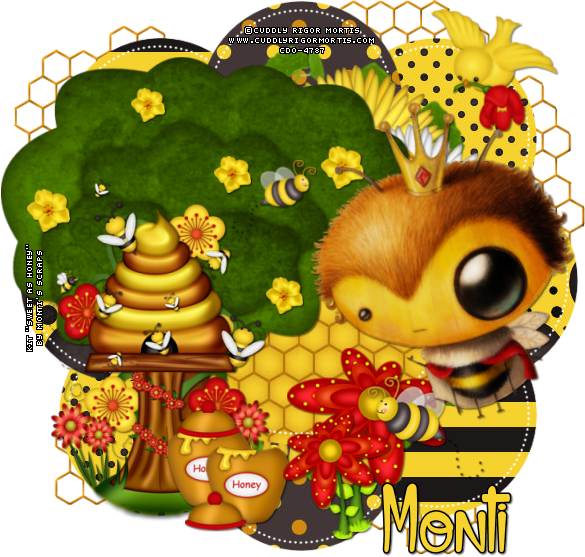
Sweet As Honey - SHOW OFF


=== NEW CT MONTI'S SCRAPS TUTORIAL ===

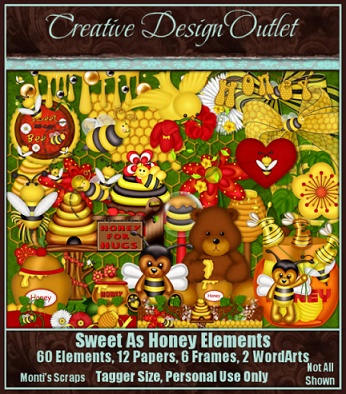
Featuring "Sweet As Honey" Kit by Monti's Scraps at Creative Design Outlet - CDO

Kit with a fantastic Bee theme. 
It has 12 papers, 60 elements, 6 frames and 2 wordart so you can play with it.

Kit can be found at:

-> Creative Design Outlet - CDO, here


Honey Bee ~ by Joanne Salgado


Tutorial written by Joanne Salgado on February 18th, 2015
Any resemblance to any other tutorial is coincidental.
Do not copy and paste this tutorial anywhere on the net.
If you want to translate please ask first. 

Tube: Cuddly Rigor Mortis - you can purchase here
Kit Sweet As Honey Garden by Monti's Scraps - you can purchase here
Material by me here
Font: Alice and the Wicked Monster

Filters used:
AP [Lines] - Lines - SilverLining

Don't forget to save often.

1. Open the template. Duplicate, close original. Delete info layer.

2. Open paper 8, copy and paste as new layer. Layer/Arrange/Move Down.

3. Open paper 2, copy and paste as new layer.

4. Open paper 14, copy and paste as new layer. Change blend mode to Soft Light.

5. Open your tube. Copy and paste as new layer. Arrange it to be inside the far left rec. Duplicate and arrange to the next left rec. Layers/Merge/Merge Down. Duplicate. Image/Mirror. Layers/Merge/Merge Down.

6. Select the REC layer, with the magic wand select inside all four rec. Select the layer below (should be your tubes). Selections/Modify/Expand 1. Selections/Invert. Hit delete on your keyboard. Selections/Select None.

7. Open paper 1. Copy and paste as new layer (it will be above your tubes), resize 80%. Change blend mode to screen.

8. Duplicate your tubes layer, move it above the paper we just added. Change the blend mode to Soft Light. Effects/AP [Lines]/Lines-SilverLining using: backslash and chenge the three colors to 255 (white).

9. Open element 18. Copy and paste as new layer. Resize with 25%. Arrange it to the left showing on both sides of the rec layer. Duplicate and arrange it on the next. You can repeat step 5 or continue with the duplicate and arrange. You can clean the parts you don't like with the eraser tool.

10. Select the REC layer, with the magic wand select inside all four rec. Select the layer below (should be the element 18 we just added). Selections/Modify/Expand 1.Hit delete on your keyboard. Selections/Select None. Change the opacity to 70.

11. Open element 16. Copy and paste as new layer. Resize with 10%. Arrange to the left and the bottom of the rec. Duplicate and add the same to all the rec (see my tag) and clean like step 10.

12. Open element 20. Copy and paste as new layer. Resize with 30%. Image/Mirror. Arrange it to the far left of the frame (see my tag). Move this layer above the REC layer.

13. Open element 10. Copy and paste as new layer. Resize with 27%. Arrange it above the leafs on the left.

14. Open element 9. Copy and paste as new layer. Resize with 20%. Arrange it above the flower, but a little below (see my tag).

15. Open element 60. Copy and paste as new layer. Arrange it to the upper part of the frame. Just one side showing (see my tag).

16. Open element 46. Copy and paste as new layer. Resize with 14%. Arrange it to the right above the leafs. 

17. Open element 45. Copy and paste as new layer. Resize with 11%. Arrange it to the left above the leafs. 

18. Open element 1. Copy and paste as new layer. Resize with 20%. Arrange it to the left as it is flying to the flower we added.

19. Open element 30. Copy and paste as new layer. Resize with 15%. Arrange it to the bottom left as it is coming from below. Image/Rotate/Free rotate 35 left.

20. Open element 48. Copy and paste as new layer. Resize with 25%. Arrange it as the path of the bee we just added. (see my tag).

21. Open your tube. Copy and paste as new layer. Resize as you like and arrange it in the middle of the frame.

22. Now lets clean. Select the FRAME layer. With the magic wand select inside it. Selections/Modify/Expand 1. Selections/Invert. Now from the bottom to the top select the layers and hit delete on your keyboard. (just not the last one with the green paper, this one has to stay).

Add shadow as you like. I used 1-1-65-2 black.
Add the copyright, your name and save.

For animation.

1. Select the FRAME layer. Duplicate it two times. You should have a total of three. Select the REC layer. Duplicate it two times. You should have a total of three.

2. Select the first of the FRAME layer. Adjust/Add-remove noise/Add noise - uniform 50 monochrome checked.

3. Add the same noise to all layers and REC layers too.

4. I added a drop shadow to the REC layers (the same as above) and the FRAME layers too (change the 1 to 0 on both). You don't have to add if you don't want to.

5. Now hide all duplicated layers. Edit/Copy Merged. Go to the animation shop and paste it as new animation.

6. Back to PSP. Hide the layer FRAME and REC. Open the first duplicated for both. Edit/Copy Merged. Go to the animation shop and paste after current.

7. Back to PSP. Hide the duplicated layers. Open the second duplicated for both FRAME and REC. Edit/Copy Merged. Go to the animation shop and paste after current.

Save as gif

Sweet As Honey


=== NEW CT MONTI'S SCRAPS TUTORIAL ===

Featuring "Sweet As Honey" Kit by Monti's Scraps at Creative Design Outlet - CDO

Kit with a fantastic Bee theme. 
It has 12 papers, 60 elements, 6 frames and 2 wordart so you can play with it.

Kit can be found at:

-> Creative Design Outlet - CDO, here