Showing posts with label S&Co. Store Collab. Show all posts

December 5, 2016

S&Co 3RD ANNIVERSARY COLLAB 2


== NEW PTU TAG S&CO. CT - STORE COLLAB ==
== 3RD ANNIVERSARY COLLAB 2  ==

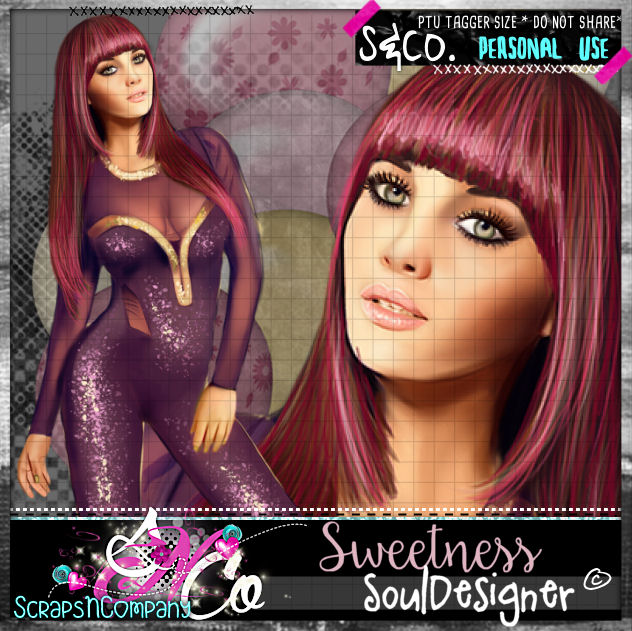
SOULDESIGNER AND BLISSFUL DESIGNS

Featuring "Sweetness", a SoulDesigner tube and
 "Romantic Sweet", Blissful Designs kit at Scraps N Company - S&Co.


Add this STORE COLLAB to your cart and get it as a free gift with a purchase. 
The kit used has 8 papers and 58 elements so you can play with it. 
Very versatile and can be used with any other tubes and artists you have.

3RD ANNIVERSARY STORE COLLAB 2 can be found  at:
-> Scraps N Company - S&Co., here 


November 14, 2016

SHOW OFF - Turkey Time


== NEW PTU S&CO. CT ==
FOR LIL MZ'S BRAINSTORMS AND KIZZED BY KELZ

Featuring "Sloane" tube by Lil Mz's Brainstorms and
"Turkey Time" Kit by Kizzed by Kelz at Scraps N Company - S&Co.

TURKEY TIME STORE COLLAB - you can purchase here


August 11, 2016

Vitoriana ~ by Joanne Salgado


Tutorial written by Joanne Salgado on August 11th, 2016
for those who have a working knowledge of PSP.
I'm using PSP9 to create my tuts.
Any resemblance to any other tutorial is coincidental.
Do not copy and paste this tutorial anywhere on the net.
If you want to translate please ask first. 

****************************************
Material:

Tube: "Victoriana" by The Hunter - you can purchase it here
do not use without the proper #license.
PTU Kit "Victorian Collab 1" by  - you can purchase it here
Font: Alex Brush

****************************************

Don't forget to save often.
At any point if you have doubts check my tag.

1. Open a new image 650x650

2. Open element '17' copy and paste as new layer. Resize 35%. Plugins/MuRa's/Copies with settings bellow.

3. Open element '20' copy and paste as new layer. Resize 30%. Same plugin and settings as before.

4. Open element '76' copy and paste as new layer.

5. Open element '40' copy and paste as new layer. Resize 20%. Same plugin and settings as before. Rename this layer frame.

6. Open paper 'PAPER 8' copy and paste as new layer. Move this layer below the frame layer. Clean the outside parts.

7. Open your tube closeup. Arrange it inside the frame, clean the outside parts. Duplicate. Original: Hue and Saturation both 0, change opacity to 42. Copy: Change blend mode to soft light.

8. Open element '58' copy and paste as new layer. Resize 60%. Arrange it to the left inside the frame, clean any parts that appears outside the frame.

9. Open element '25' copy and paste as new layer. Resize 40%. Flip. Move this layer above the frame layer. Arrange it to the left.

10. Open element '99' copy and paste as new layer. Resize 40%. Arrange it to the bottom left.

11. Open element '47' copy and paste as new layer. Resize 70%. Arrange it to the bottom.

12. Open element '36' copy and paste as new layer. Resize 50%. Mirror. Arrange it to bottom.

13. Open element '59' copy and paste as new layer. Resize 60%. Mirror. Arrange it to the bottom right.

14. Open element '62' copy and paste as new layer. Resize 35%. Mirror. Arrange it to the bottom left.

15. Open your tube. Copy and paste as new layer. Resize as needed and arrange it to the bottom right.

16. Open element '42' copy and paste as new layer. Resize 30%. Arrange it to the bottom right.

17. Add shadow as you prefer.

18. Add copyright. Add name. Save as PNG.

July 9, 2016

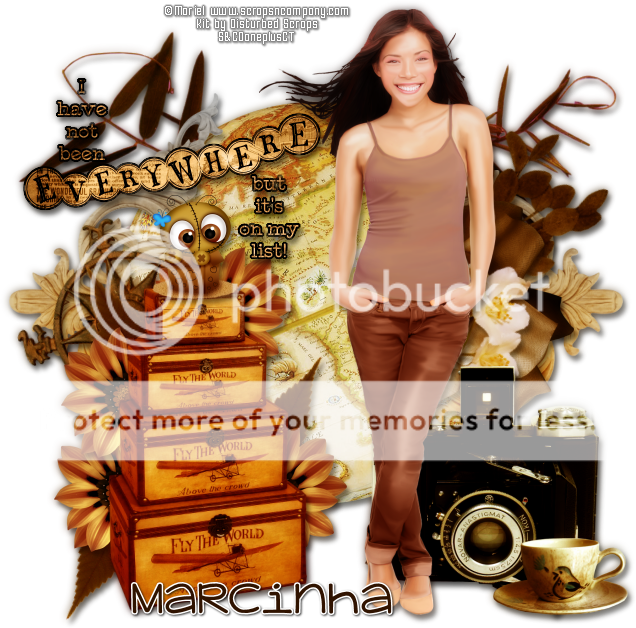
Store Collab SHADE OF BROWN

WORLD TRAVELER TUTORIAL


Tutorial written by Marcia Salgado on July 9th, 2016
for those who have a working knowledge of PSP.
I'm using PSP9 to create my tuts.
Any resemblance to any other tutorial is coincidental.
Do not copy and paste this tutorial anywhere on the net.
If you want to translate please ask first. 

****************************************
Material:

Store Collab SHADE OF BROWN - Free Gift with a purchase
Tube used "Shade of Brown" by Mariel and 
PTU Kit used "Past Memories" by Disturbed Scraps
do not use without the proper #license, you can found it here
Commercial Use Element: "Shade Of Brown CU" by CSDesigns,
you can found it here
Wordart: made by me, just click and save.
Font: KG Adipose Unicase

****************************************

--> Remember to save often and use my tag as reference if necessary. Use a Drop Shadow of your preference on layers.


1. Create a new image 650x650.

2. Open DS - PM Element (18). Copy and paste as new layer. Move it up.

3. Open DS - PM Element (44). Copy and paste as new layer.

4. Open DS - PM Element (69). Resize 70%. Free rotate: Right-90. Duplicate. Mirror. Click on original layer. Use Offset as shown below:


5. Click on copy layer and use Offset again, just change to -200. Merge down.

6. Open DS - PM Element (58). Resize 50%. Free Rotate: Left-15. Copy and paste as new layer. Move it to left.

7. Open DS - PM Element (12). Resize 60%. Free Rotate: Right-15. Copy and paste as new layer. Move it a little up and to right.

8. Open DS - PM Element (1). Resize 55%. Mirror. Copy and paste as new layer. Move it to right. Place it over the previous branch a litle down.

9. Open DS - PM Element (17). Resize 55%. Free Rotate: Right-15. Copy and paste as new layer. Place it over the rose, a very little down and to left.

10. Open DS - PM Element (28). Resize 65%. Copy and paste as new layer. Move it down and to left.

11. Open DS - PM Element (3). Resize 35%. Copy and paste as new layer. Send it below the suitcases layer and place it on the side. Duplicate and place around the suitcases.

12. Open DS - PM Element (22). Resize 35%. Free Rotate: Left-35. Copy and paste as new layer. Send this layer below the flower layer. Move it to the left side of the suitcases. Duplicate and use mirror and flip to place some leaves around the flowers.

13. Click on the suitcases layer.Open DS - PM Element (37). Resize 55%. Copy and paste as new layer. Move it down and to right.

14. Open DS - PM Element (26). Resize 360%. Copy and paste as new layer. Move it down and way to right.

15. Open my wordart. Open DS - PM Paper 7. Resize 50%. Fill my wordart with it. To do it, go to Layers and Unlock Transparency (looks like a padlock). Use the Flood Fill Tool. Lock Transparency again. Add a thin black border. Copy and paste as new layer. Move it up and to left.

16. Open your tube. Resize. Copy and paste as new layer. Move it to right. Now you may want to re-arrange some elements to better fit your tube.

17. OPTIONAL - Open CSDesigns- ShadeOfBrown CU. Resize 10%. Copy and paste as new layer. Place it above the suitcases.

18. Use Crop > Merged Opaque to get rid of all extra spaces.


--> Add your copyright info and license#, Add your name and save as PNG.


-----------------------------------------------------------------------------

== SHADE OF BROWN STORE COLLAB ==


**Click to see original size**


== NEW PTU S&CO. CT  TIMELINE SHOW OFF ==
DISTURBED SCRAPS WITH CU BY CSDESIGNS

Featuring "Past Memories", Disturbed Scraps and
 a "Shade of Brown CU" by CSDesigns  at Scraps N Company - S&Co.

The Store Collab and the CU Element are "free gift" with a purchase. 
Gorgeous Collab Collection with awesome products created for you.

Store Collab SHADES OF BROWN can be found  at:
-> Scraps N Company - S&Co., here

Shade of Brown CU by CSDesigns can be found  at:
-> Scraps N Company - S&Co., here 


June 18, 2016

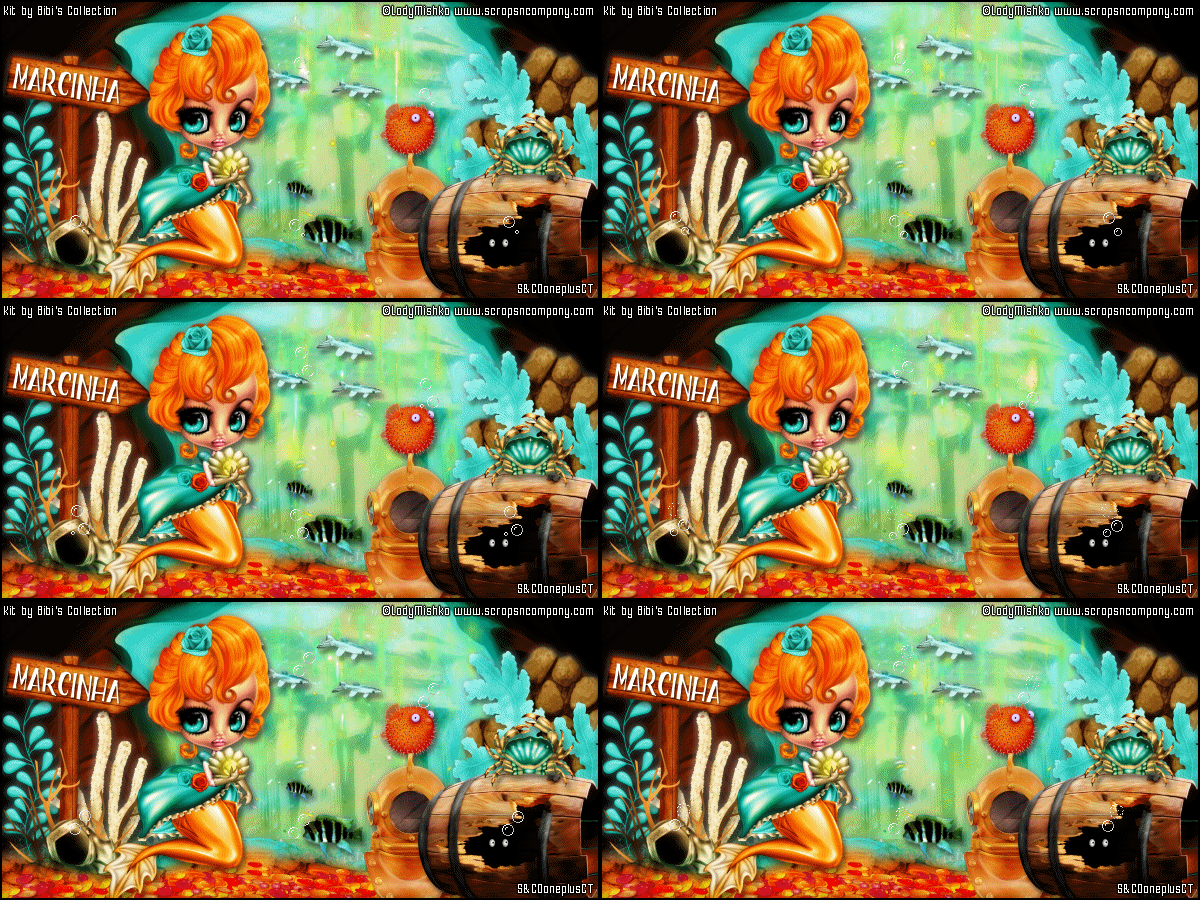
Sea Queen with Under The Sea

SEA LIGHTS TUTORIAL


Tutorial written by Marcia Salgado on June 18th, 2016
for those who have a working knowledge of PSP.
I'm using PSP9 to create my tuts.
Any resemblance to any other tutorial is coincidental.
Do not copy and paste this tutorial anywhere on the net.
If you want to translate please ask first. 

****************************************
Material:

Tube: "Sea Queen" by Lady Mishka, you can purchase it here 
do not use without the proper #license.
PTU Kit "Under The Sea" by Bibi's Collection, you can purchase it here 
Animation: "Aurora" by Sphisticat Simone, HERE 
and any little bubbles animation (OPCIONAL)
Font: Boller Typeface

****************************************

--> Remember to save often and use my tag as reference if necessary. Use a Drop Shadow of your preference on layers.


1. Create a new image 600x300.

2. Open BIBI-UNDER THE SEA PAPERS (3), Resize 51%. Copy and paste as new layer. Move it down.

3. Open BIBI-UNDER THE SEA  ELEMS (11). Resize 45%. Copy and paste as new layer. Move it a very little to right and a very little up. Blend Mode: Soft Light. You see some parts overlapping the paper on back. Clean it.

4. Open BIBI-UNDER THE SEA  ELEMS (78). Resize 45%. Copy and paste as new layer. Move it a little down.

5. Merge visible layers. Rename it BACK.

6. Open BIBI-UNDER THE SEA  ELEMS (33). Resize 66%. Copy and paste as new layer. Move it down showing only the top border. not too close to the edge.

7. Open BIBI-UNDER THE SEA  ELEMS (80). Resize 50%. Flip. Copy and paste as new layer. Move it down, a little more than previous element and to left. Duplicate amd move it to right.

8. Open BIBI-UNDER THE SEA  ELEMS (57). Resize 50%. Copy and paste as new layer. Duplicate it twice. Spread the elements at the bottom creating a line.

9. Open BIBI-UNDER THE SEA  ELEMS (48). Resize 30%. Copy and paste as new layer. Move it to right and a little up.

10. Open BIBI-UNDER THE SEA  ELEMS (67). Resize 25%. Copy and paste as new layer. Place it in front of the previous rock wall.

11. Open BIBI-UNDER THE SEA  ELEMS (69). Resize 15%. Copy and paste as new layer. Move it way to left.

12. Open BIBI-UNDER THE SEA  ELEMS (8). Resize 20%. Copy and paste as new layer. Place it on right side of the previous element.

13. Open BIBI-UNDER THE SEA  ELEMS (22). Resize 40%. Copy and paste as new layer. Place it between the foliage and the white coral.

14. Open BIBI-UNDER THE SEA  ELEMS (19). Resize 35%. Copy and paste as new layer. Place it in front of the wood plaque at bottom.

15. Open BIBI-UNDER THE SEA  ELEMS (12). Resize 20%. Copy and paste as new layer. Place it over the cave opening at bottom.

16. Open BIBI-UNDER THE SEA  ELEMS (65). Resize 10%. Copy and paste as new layer. Place it on right side above the first fishes.

17. Open BIBI-UNDER THE SEA  ELEMS (73). Resize 30%. Copy and paste as new layer. lace it over the cave opening at top.

18. Open BIBI-UNDER THE SEA  ELEMS (66). Resize 20%. Copy and paste as new layer. Move it down and a little to right.

19. Open BIBI-UNDER THE SEA  ELEMS (68). Resize 30%. Copy and paste as new layer. Move it down and way to right.

20. Open BIBI-UNDER THE SEA  ELEMS (3). Resize 30%. Mirror. Copy and paste as new layer. Place it over the wood plaque at bottom.

21. Open BIBI-UNDER THE SEA  ELEMS (85). Resize 10%. Copy and paste as new layer.

22. Open your tube. Resize. Copy and paste as new layer. Move it to left.

23. Add a new layer and select all. Fill with black. Contract > 2. Delete.

24. Add your copyright info and license#. Add your name, if you do not want add the animation just save it as PNG.

25. Turn BACK layer invisible. Merge visible layer and rename it TOP. Copy merged.


ANIMATING:


1. AS -> Paste as new animation. Activate Propagate Paste.

2. PSP -> Turn TOP layer invisible and BACK layer visible. Copy merged.

3. AS -> Paste as new animation and duplicate it until you get 13 frames. Select all. Open Simone's animation. Select all. Resize 75%. Flip. Copy.

4. Activate your BACK and Paste into selected frames. Place it on top at center.

5. Activate your TOP. Copy. Click on BACK. Paste into selected frames.

6. (OPCIONAL) - Open your bubbles gif and select all frames. Copy and paste as many times you want and wherever you wish.

7. Change the Frame Properties to 18. Save as GIF.


June 7, 2016

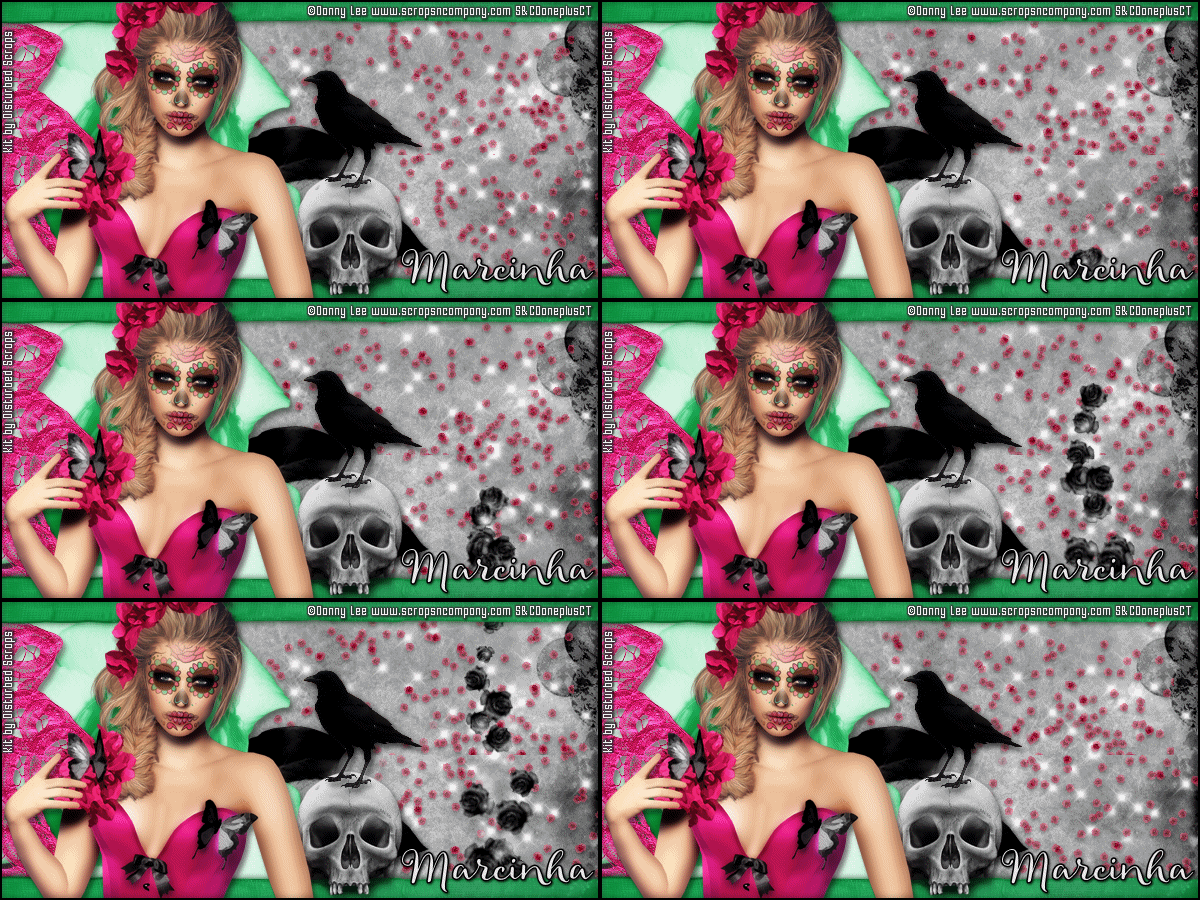
STORE COLLAB DARK ROSES

PINKELETON 3 PIECES TUTORIAL

Tutorial written by Marcia Salgado on June 7th, 2016
for those who have a working knowledge of PSP.
I'm using PSP9 to create my tuts.
Any resemblance to any other tutorial is coincidental.
Do not copy and paste this tutorial anywhere on the net.
If you want to translate please ask first. 

****************************************
Material:

PTU Tube, Animation and Kit from STORE COLLAB DARK ROSES.
Tube used "Dark Roses" by Danny Lee
Kit Used "Skull N Roses" and Animation "DS - Animation Pack 12" by Disturbed Scraps.
do not use without the proper #license.
free with a purchase, you cand find it HERE 
Mask: Melissaz Creations mask, MC_Mask19, HERE 
Font: Allegretto Script

****************************************

--> Remember to save often and use my tag as reference if necessary. Use a Drop Shadow of your preference on layers. 

BIG TAG


1. Create a new image 650x650.

2. Add a new layer. Select all. Open DS - SNR Papers 12. Copy and paste into selection. Deselect. Apply Melissa's mask. Merge group.

3. Open DS - SNR Element (75). Copy and paste as new layer. Move it up.

4. Open DS - SNR Element (7). Resize 70%. Copy and paste as new layer. Move it down and to right.

5. Open DS - SNR Element (1). Resize 60%. Copy and paste as new layer. Move it down and to right. Place it over the previous leaves, a little up.

6. Open DS - SNR Element (6). Free Rotate: Right-30. Copy and paste as new layer.Move it down and to left. Keep it far from the border.

7. Open DS - SNR Element (71). Resize 75%. Copy and paste as new layer. Move it a little to right. The rose below must be showing a little on the left.

8. Select inside the frame. Expand > 10. Add a new layer and move it below the frame layer. Open DS - SNR Papers 10. Copy and paste into selection. Keep selected.

9. Add a new layer. Open DS - SNR Papers 13. Copy and paste into selection. Keep selected. Blend Mode: Overlay.

10. Add a new layer. Open DS - SNR Element (14). Copy and paste into selection. Deselect.

11. Click on first layer. Open DS - SNR Element (11). Copy and paste as new layer. Move it up and to left. Place it over the frame top border.

12. Open DS - SNR Element (3). Resize 55%. Flip. Copy and paste as new layer. Move it down and to left. Leave it over the frame border.

13. Open DS - SNR Element (57). Resize 50%. Free Rotate: Left-90. Copy and paste as new layer. Move it down and to left. 

14. Open DS - SNR Element (13). Resize 55%. Copy and paste as new layer. Move it down and to left. Place it over the left side of the previous element.

15. Open DS - SNR Element (66). Resize 65%. Copy and paste as new layer. Move it down and to left.

16. Open DS - SNR Element (33). Resize 45%. Free Rotate: Left-30. Copy and paste as new layer. Move it down and to left.

17. Open DS - SNR Element (43). Copy and paste as new layer. Place it over the right side, at the bottom, of the stone heart used before.

18. Open DS - SNR Element (44). Resize 60%. Mirror. Copy and paste as new layer. Move it up and to right.

19. Open DS - SNR Element (54). Resize 55%. Copy and paste as new layer. Move it up and to right. Place it over the chain of the previous element.

20. Open your tube. Resize. Copy and paste as new layer. Move it to left.


--> Add your copyright info and license#. Add your name and save as PNG.


FORUM STYLE TAG


1. Create a new image 600x300

2. Open DS - SNR Papers 10. Resize 80%. Copy and paste as new layer. Adjust in a position you like.

3. Open DS - SNR Element (75). Copy and paste as new layer. Duplicate. Mirror. 

4. Turn Raster 1 (the bottom layer) invisible and merge visible. Rename it BACK.

5. Open DS - SNR Element (7). Resize 75%. Copy and paste as new layer. Move it to left.

6. Open DS - SNR Element (13). Copy and paste as new layer. Move it way to left.

7. Open DS - SNR Element (57). Resize 45%. Free Rotate: Left-90. Copy and paste s new layer. Move it way to left. Showing only the right border (the hearts).

8. Open DS - SNR Element (59). Copy and paste as new layer. Move it way up. Showing only half of the element. Duplicate. Flip. Merge down.

9. Open DS - SNR Element (43). Copy and paste as new layer. Move it down and a little to right.

10. Open DS - SNR Element (62). Resize 30%. Mirror. Copy and paste as new layer. Place it on top of the skull.

11. Open your tube. Copy and paste as new layer. Move it to left.

12. Add a new layer. Select all. Fill it with Black. Contract > 2. Delete.

13. Add your copyright info and license#. Add your name. 

TIP -> If you do not want to add animation to your tag just save it as PNG now.

14. Turn BACK layer invisible. Merge all visible layers. Rename it TOP. Turn Raster 1 (bottom layer) visible. 

ANIMATING

1. PSP -> With TOP and Raster 1 layers visible. Copy Merged.

2. AS -> Paste as new animation. Reserve. Leave Propagate Paste active.

3. PSP -> Turn TOP layer invisible and BACK layer visible. Copy Merged.

4. AS -> Paste as new animation. Duplicate it to have 24 frames in total. Select all. Reserve.

5. AS -> Open 12-2 by Disturbed Scraps. Select all. Resize 40%. Copy and paste into selected frames. Place it on right and down. Do it again but place it up and a little to left.

6. AS -> Open 12-1 by Disturbed Scraps. Select all. Copy and paste into selected frames. Place it on left. A little far from the edge.

7. AS -> Activate the TOP and copy and paste into selected frames. Save as GIF.


AVATAR


1. Create a new image 150x150.

2. Add a new layer. Select all. Open DS - SNR Papers 10. Copy and paste into selection.

3. Open DS - SNR Element (1). Resize 30%. Mirror. Copy and paste as new layer. Move it down and to left.

4. Open DS - SNR Element (6). Resize 25%. Mirror. Copy and paste as new layer. Move ir very little up and a little to right.

5. Duplicate. Mirror. Free Rotate: Left-45. Mirror again. Move it down. 

6. Open DS - SNR Element (43). Resize 70%. Copy and paste as new layer. Move it down and to right.

7. Add a new layer. Select all. Fill it with Black. Contract > 2. Delete.

8. Add your copyright info. If you decided to add the tube do not forgot your license#. Add your initial and save as PNG.


May 15, 2016

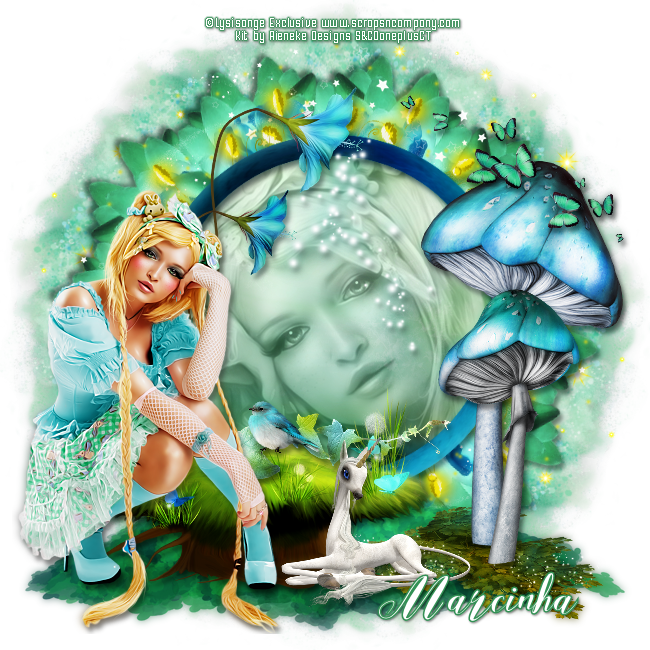
STORE COLLAB FAIRY TALE

MAGIC MAIDEN 3 PIECE TUTORIAL

Tutorial written by Marcia Salgado on May 15th, 2016
for those who have a working knowledge of PSP.
I'm using PSP9 to create my tuts.
Any resemblance to any other tutorial is coincidental.
Do not copy and paste this tutorial anywhere on the net.
If you want to translate please ask first. 

****************************************
Material:

PTU Tube, Animation and Kit from STORE COLLAB FAIRY TALE.
Tube used "Collab Fairy Tale" by Lysisange
Kit used "Fairy Tale Collab" by Rieneke Designs, and
Animation used " Animation Pack 11" by Disturbed Scraps.
free with a purchase, you cand find it here 
Plugin: MuRa's Meister
Font: Zilvia Script

****************************************

--> Remember to save often and use my tag as reference if necessary. Use a Drop Shadow of your preference on layers. 

TAG


1. Create a new image 650x650.

2. Open RD-FairytaleCollab-element (40). Select the tree stem and delete. Deselect. Copy and paste as new layer. Apply MuRa's Meister > Copies > Encircle as shown below:


3. Open RD-FairytaleCollab-element (34). Copy and paste as new layer. Move it to left and a little down. Duplicate. Mirror. Flip. Merge down.

4. Open RD-FairytaleCollab-element (26). Resize 35%. Free Rotate: Left-10. Duplicate. Mirror. Move it to right but keep the flowers overlaping. Merge down. Copy and paste as new layer.

5. Open RD-FairytaleCollab-element (36). Resize 50%. Copy and paste as new layer. Merge down. Apply MuRa's Meister > Copies > Encircle with settings below:


6. Open RD-FairytaleCollab-element (23). Resize 80%. Copy and paste as new layer. Move it up and to right. Duplicate. Mirror. Flip. Merge down.

7. Open RD-FairytaleCollab-element (8). Resize 50%. Copy and paste as new layer. Apply MuRa's Meister > Copies > Encircle with same settings above.

8. Open RD-FairytaleCollab-paper (1). Use Custom selection like I show here:


9. Copy and paste as new image. Canvas size with following settings:


10. Apply Distort Effects > Polar Coordinates with settings I show here:


11. Resize 85%. Copy and paste as new layer.

12. Select inside the frame you created. Expand > 5. Add a new layer and move it below the frame layer. Open RD-FairytaleCollab-paper (4). Copy and paste into selection.

13. Open RD-FairytaleCollab-element (12). Resize 60%. Copy and paste as new layer. Move it up and to left. Leave it over the frame border. Use the upper part of the flower to cover the frame joint on top.

14. Open RD-FairytaleCollab-element (1). Copy and paste as new layer. Move it down.

15. Open RD-FairytaleCollab-element (13). Resize 50%. Copy and paste as new layer. Move it down and to right.

16. Open RD-FairytaleCollab-element (21). Resize 70%. Copy and paste as new layer. Move it down and to right.

17. Open RD-FairytaleCollab-element (20). Resize 50%. Copy and paste as new layer. Move it down and to right. Place it over the first mushroom a little down.

18. Open RD-FairytaleCollab-element (11). Resize 40%. Copy and paste as new layer. Move it up and to right.

19. Open RD-FairytaleCollab-element (5). Resize 65%. Copy and paste as new layer. Move it down and to left.

20. Open RD-FairytaleCollab-element (24). Resize 40%. Copy and paste as new layer. Place it above the tree trunk on its right side.

21. Open RD-FairytaleCollab-element (32). Resize 40%. Copy and paste as new layer. Move it down and leave it on trunk right side.

22. Open RD-FairytaleCollab-element (39). Resize 15%. Copy and paste as new layer. Place it over the foliage you added before.

23. Open your tube. Resize. Mirror. copy and paste as new layer. Move it to left.

24. Use Crop > Merged Opaque to get rid of all extra space.


--> Add your copyright info and license#. Add your name and save as PNG.


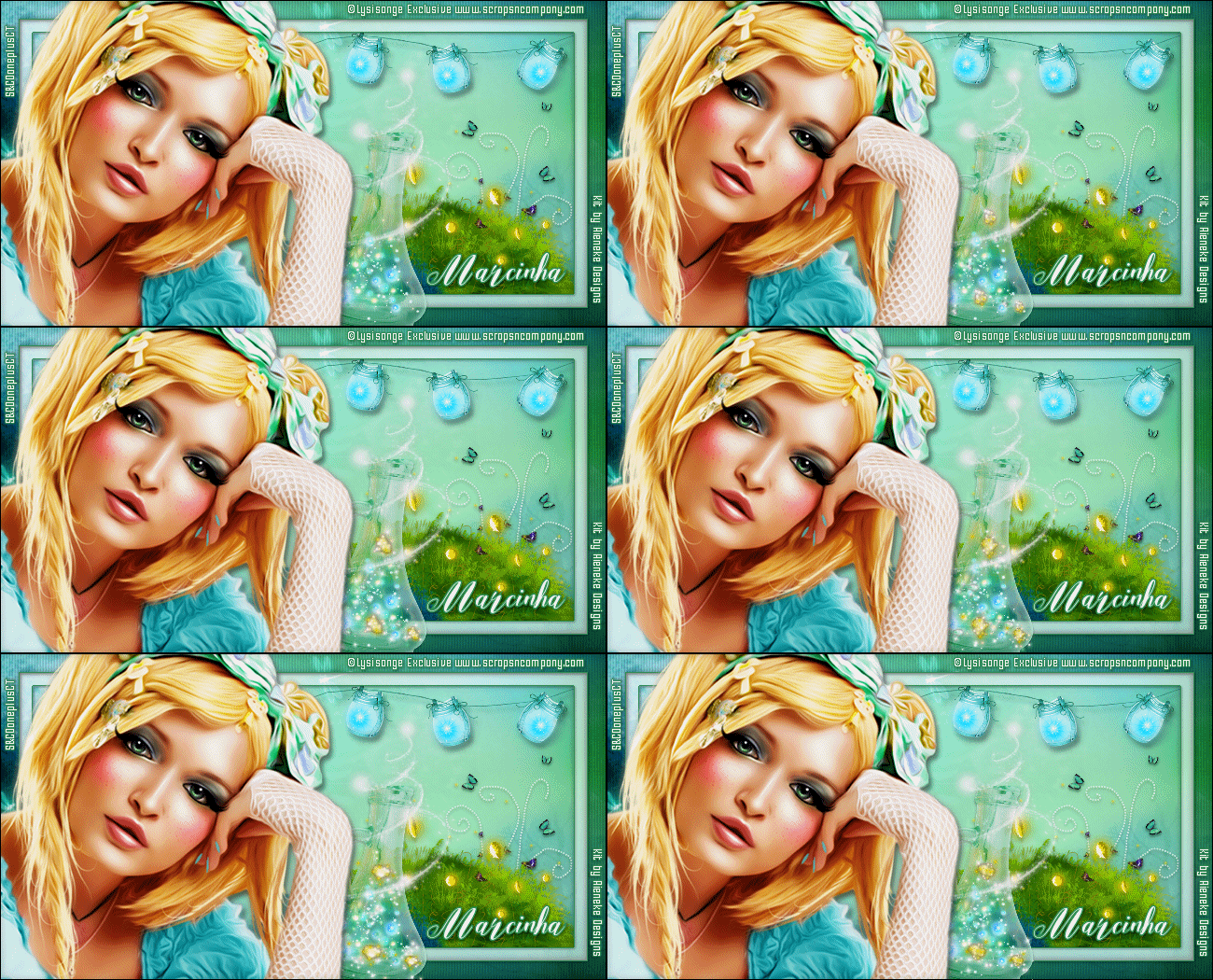
FORUM STYLE TAG (WITH ANIMATION)


1. Create a new image 650x350.

2. Open RD-FairytaleCollab-paper (3). Resize 75%. Move it down until you're satisfied with the background.

3. Select all. Clip to canvas. Crop to selection.

4. Select all. Contract > 20. Invert selection. Promote selection to layer. Blend Mode: Multiply. Blinds as shown below:


5. Add a new layer. Select all. Contract > 20. Fill it with white. Contract > 15. Delete. Low the layer opacity to 50.

6. Open RD-FairytaleCollab-element (10). Resize 40%. Move it down and to right. Place this layer below the white border layer. Do not let it touch on white border.

7. Open RD-FairytaleCollab-element (9). Resize 75%. Copy and paste as new layer. Move it down and to right. To get a clean border. After use the drop shadow use select all. Contract > 35. Invert selection and delete. Deselect.

8. Open RD-FairytaleCollab-element (8). Resize 40%. Copy and paste as new layer. Move it down and to right.

9. Open RD-FairytaleCollab-element (33). Resize 50%. Copy and paste as new layer. Move it up and to right. Place it as is hanging from white border. Duplicate and move it to left. Join them by the string. Merge down.

10. Click on white border layer. Should be the first one. Select the white border. Add a new layer. Fill the selection with color #339155. Contract > 1. Delete. 

11. pen your tube. Copy and paste as new layer. Move it to left. We will use it to help in the next element placement. 

12. Open RD-FairytaleCollab-element (29). Resize 40%. Copy and paste as new layer. Move it down and to right. Send it below the tube layer. Place it next the tube. Trn the tube layer invisible. After add all drop shadows merge all visible layers. Rename it BACK.

13. Turn the tube visible again. Click on BACK layer. Open RD-FairytaleCollab-element (19). Resize 40%. Free Rotate: Right-13. Copy and paste as new layer. Place it over the bottle.

14. Click on your tube layer. Select all. Add a nre layer and fill it with black. Contract > 1. Delete. Add your copyright info and license#. Add your name.

15. Turn BACK layer invisible. Merge all visible layers. Rename it TOP. Turn all layers visible.


--> ANIMATION

1. PSP -> Click on BACK layer. Copy.

2. AS -> Paste as new animation. Duplicate it until you get 21 frames. Click on first layer. Select all. Activate the Propagate Paste.

3. AS -> Open 11-1 by Disturbed Scraps. Select all. Resize 30%. Copy.

4. AS -> Activate the tag background. Paste into selected frames. Place it inside the bottle. Repeat the process two times more.

5. AS -> Open 11-4 by Disturbed Scraps. Select all. Resize 40%. Copy.

6. AS -> Activate the tag background. Paste into selected frames. Place it inside the bottle. Repeat the process three or four times more.

7. PSP -> Click on TOP layer. Copy.

8. AS -> Paste as new animation. Copy. Activate the tag background. Paste into selected frames. Save as GIF.


AVATAR


1. Create a nre image 150x150.

2. Open RD-FairytaleCollab-paper (3). Resize 432%. Copy and paste as new layer. Move it down and to right until you're satisfied with the background.

3. Select all. Clip to canvas. Crop to selection.

4. Select all. Contract > 8. Invert selection. Promote selection to layer. Blend Mode: Multiply. Blinds as shown below:


5. Open RD-FairytaleCollab-element (1). Resize 25%. Copy and paste as new layer. Move it down.

6. Open RD-FairytaleCollab-element (12). Resize 25%. Mirror. Copy and paste as new layer. Move it a little to left.

7. Open RD-FairytaleCollab-element (22). Resize 15%. Copy and paste as new layer. Move it down and to left.

8. Open your tube. Resize. Copy and paste as new layer. Move it down and to right.
Add a new layer. Select all. Fill with black. Contract > 1. Delete.


--> Add your copyright info and license#. Add your initials and save as PNG.


May 4, 2016

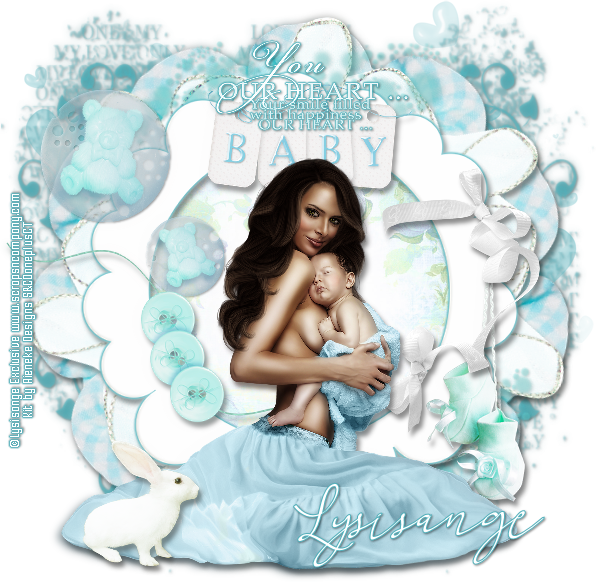
My Sweet Baby, My Sweet Alex

BABY BOY TUTORIAL


Tutorial written by Marcia Salgado on May 4th, 2016
for those who have a working knowledge of PSP.
I'm using PSP9 to create my tuts.
Any resemblance to any other tutorial is coincidental.
Do not copy and paste this tutorial anywhere on the net.
If you want to translate please ask first. 

****************************************
Material:

Tube used "My Sweet Baby" by Lysisange
do not use without the proper #license.
PTU Kit used "My Sweet Alex" by Rieneke Designs, 
you can purchase the STORE COLLAB - MY SWEET ALEX here 
Mask: Dee's Mask, DD_VMask_6, here 
Plugin: MuRa's Meister and Eye Candy 6
Font: Khanza Script

****************************************

--> Remember to save often and use my tag as reference if necessary. Use a Drop Shadow of your preference on layers. 


1. Create a new image 600x600.

2. Add a new layer. Fill with #51b1bc. Apply Dee's mask. Merge group.

3. Open RD-MySweetAlex-element (24). Change the color from white to #51b1bc. (See the Manual Color Correctio9n Tutorial HERE). Copy and paste as new layer. Move it to left. Duplicate. Mirror. Move it a little down and to right.

4. Open RD-MySweetAlex-element (27). Resize 70%. Copy and paste as new layer. Apply MuRa's Meister > Copies > Encircle with settings below:


5. Open RD-MySweetAlex-element (4). Resize 55%. Copy and paste as new layer. Apply MuRa's Meister > Copies > Encircle with settings below:


6. Open RD-MySweetAlex-element (7). Resize 70%. Copy and paste as new layer, Move it down and to right. Duplicate. Mirror. Flip. Merge down.

7. Open RD-MySweetAlex-element (14). Resize 85%. Copy and paste as new layer. Add a border with color #51b1bc using Eye Candy 6 > Gradient Glow as shown below:


8. Select inside the frame. Expand > 5. Add a new layer and move it below the frame layer. Open RD-MySweetAlex-paper4. Copy and paste ainto selection.

9. Click on first layer (should be the frame). Open RD-MySweetAlex-element (6). Resize 40%. Copy and paste as new layer. Move it up.

10. Open RD-MySweetAlex-element (1). Resize 40%. Mirror. Copy and paste as new layer. Move it up and to left.

11. Open RD-MySweetAlex-element (2). Resize 65%. Copy and paste as new layer. Move it down and to left.  

12. Open RD-MySweetAlex-element (39). Resize 65%. Copy and paste as new layer. Move it to left. Place it as it is hanging from the frame.

13. Open RD-MySweetAlex-element (21). Resize 50%. Free Rotate: Right-90. Copy and paste as new layer. Place it over the previous element. 

14. Open your tube and resize it. Copy and paste as new layer. Move it down.

15. Open RD-MySweetAlex-element (15). Resize 35%. Mirror. Copy and paste as new layer. Move it down and to left.

16. Open RD-MySweetAlex-element (23). Resize 40%. Add the same border using Eye Candy > Gradient Glow, you did before. Copy and paste as new layer. Move it up.

17. Using Crop > Merged Opaque remove all extra space.


--> Add your copyright and license#. Add your name and save as PNG.   


May 3, 2016

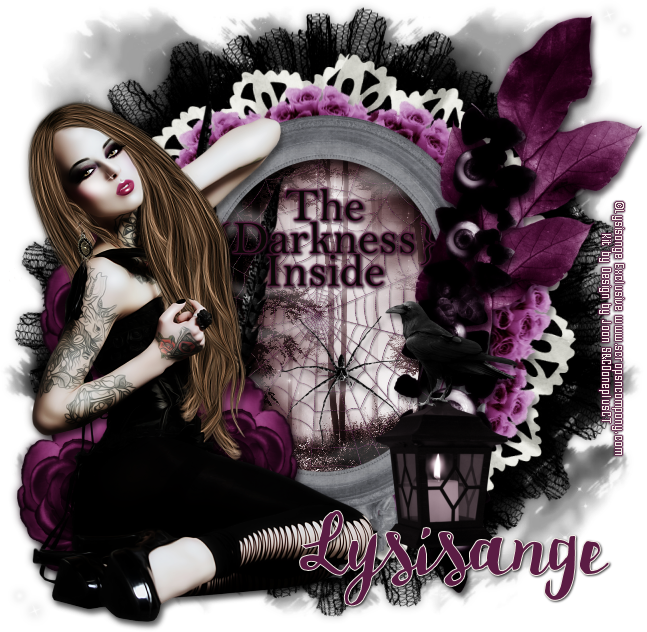
STORE COLLAB - DARKNESS

DARK SEDUCTION TUTORIAL


Tutorial written by Marcia Salgado on May 3rd, 2016
for those who have a working knowledge of PSP.
I'm using PSP9 to create my tuts.
Any resemblance to any other tutorial is coincidental.
Do not copy and paste this tutorial anywhere on the net.
If you want to translate please ask first. 

****************************************
Material:

Tube and kit from a STORRE COLLAB - DARKNESS
Add this product to your cart and get it 
as a free gift with a purchase HERE 
Do not use without the proper #license.
Tube used "Darness" by Lysisange and 
Kit used "Darkness" by Design by Joan
Plugin: MuRa's Meister
Font: HMS Gilbert Brush

****************************************

--> Remember to save often and use my tag as reference if necessary. Use a Drop Shadow of your preference on layers. 

1. Create a new image 650x650.

2. Open DARKNESS_DBJ-ELEM (53). Resize 55%. Copy and paste as new layer. Move it to right. Duplicate. Mirror. Merge down.

3. Open DARKNESS_DBJ-ELEM (57). Resize 75%. Copy and paste as new layer. Move it up and to right. Duplicate. Mirror. Flip. Merge down.

4. Open DARKNESS_DBJ-ELEM (48). Resize 50%. Copy and paste as new layer. Apply MuRa's Meister > Copies > Encircle as shown below:


5. Open DARKNESS_DBJ-ELEM (33). Resize 70%. Copy and paste as new layer.

6. Open DARKNESS_DBJ-ELEM (10). Resize 30%. Copy and paste as new layer. Apply MuRa's Meister > Copies > Encircle as shown below:


7. Open DARKNESS_DBJ-ELEM (21). Resize 55%. Copy and paste as new layer. Move it a little down. Adjust the grey frame over the white frame to center both together.

8. Select inside the frame. Expand > 5. Add a new layer. Open DARKNESS_DBJ-PP (4). Copy and paste into selection. Keep selected.

9. Add a new layer. Open DARKNESS_DBJ-ELEM (11). Copy and paste into selection. Keep selected.

10. Add a new layer. Open DARKNESS_DBJ-ELEM (2). Copy and paste into selection. Deselect.

11. Open DARKNESS_DBJ-ELEM (39). Resize 30%. Copy and paste as new layer. Place it over the web,

12. Open DARKNESS_DBJ-ELEM (47). Resize 60%. Copy and paste as new layer. Move it to left.

13. Open DARKNESS_DBJ-ELEM (32). Resize 35%. Mirror. Copy and paste as new layer. Move it down and to left. Place it over the fottom frame border. Duplicate. Mirror. Move it further to left and a little down. Duplicate it again. Move it a little up and a little to right. Merge the three flowers layers together.

14. Open DARKNESS_DBJ-ELEM (34). Resize 60%. Copy and paste as new layer. Move it to right.

15. Open DARKNESS_DBJ-ELEM (60). Resize 60%. Mirror. Copy and paste as new layer. Place it over the pink leaves you added before.

16. Open DARKNESS_DBJ-ELEM (14). Resize 45%. Copy and paste as new layer. Move it down and to right.

17. Open DARKNESS_DBJ-ELEM (68). Resize 25%. Copy and paste as new layer. Move it down and to right and place it over the lamp.

18. Open DARKNESS_DBJ-ELEM (63). Resize 45%. Copy and paste as new layer. Move it up and place it inside the upper part of the frame. Add a thin border using color #5b1c44.

19. Open tour tube and resize it. Copy and paste as new layer. Move it to left.


--> Add your copyright info and license#. Add your name and save it as PNG.