Showing posts with label Mariel Design. Show all posts

October 26, 2016

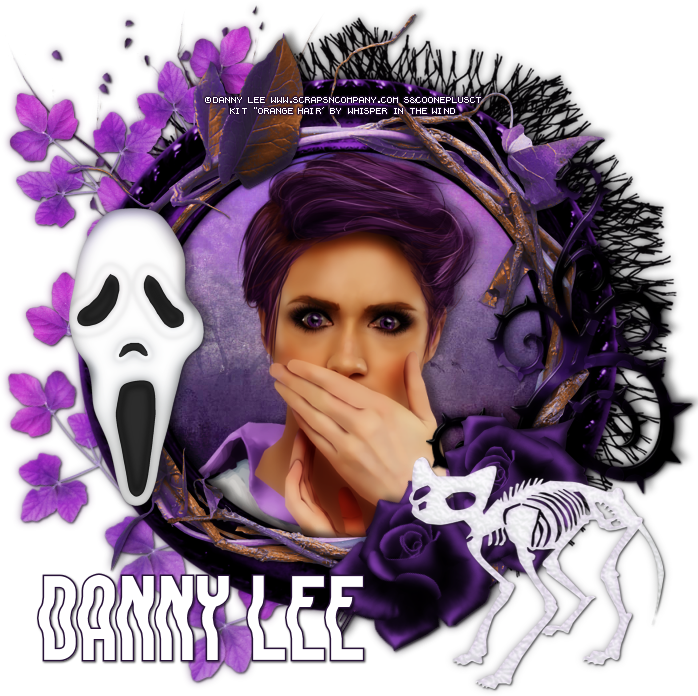
Pirate Bandit

PIRATE'S COVE TUTORIAL


Tutorial written by Marcia Salgado on October 21th, 2016
for those who have a working knowledge of PSP.
I'm using PSP9 to create my tuts.
Any resemblance to any other tutorial is coincidental.
Do not copy and paste this tutorial anywhere on the net.
If you want to translate please ask first. 

****************************************
Material:

Tube: "Pirate Bandit" by Danny Lee, you can purchase it here 
do not use without the proper #license.
PTU Kit "Pirate Bandit" by Mariel Designs, you can purchase it here 
Mask: 565InsatiableDreams
Plugin: MuRa's Meister and Eye Candy 6
Font: Pirata One

****************************************

--> Remember to save often and use my tag as reference if necessary. Use a Drop Shadow of your preference on layers. 

1. Create a new image 650x650.

2. Add anew layer. Select all. Open PAPER 1. Copy and paste into selection. Deselect. Apply the mask. Merge group.

3. Open 'element' 20. Copy and paste as new layer. Move it way down and to right.

4. Open 'element' 103. Resize 40%. Copy and paste as new layer. Move it up and to right.

5. Open 'element' 22. Mirror. Copy and paste as new layer. Move it down.

6. Open 'element' 64. Resize 15%.  Copy and paste as new layer. Apply MuRa's Meister > Copies > Encircle with settings bellow:


7. Open FRAME 2. Resize 65%. Copy and paste as new layer. Apply a white border using Eye Candy 6 > Gradient Glow, settings bellow, twice.


8. Select inside the frame. Expand > 7. Open PAPER 3. Copy and paste into selection. Deselect. Next elements are used inside the frame.

9. Open 'element' 43. Resize 60%. Copy and paste as new layer.

10. Open 'element' 105. Resize 35%. Copy and paste as new layer. Move it to left.

11. Open 'element' 46. Resize 48%. Copy and paste as new layer. move it a little down.

12. Open 'element' 52. Resize 25%. Copy and paste as new layer. Move it to left.

13. Open 'element' 18. Resize 25%. Copy and paste as new layer. Move it to right.

14. Open 'element' 67. Resize 20%. Copy and paste as new layer. Move it a little down.

15. Open 'element' 45. Resize 25%. Copy and paste as new layer. Move it down. Place in front the treasure chest.

16. Open 'element' 60. Resize 20%. Mirror. Copy and paste as new layer. Place it on the right side inside the frame.

17. Click on frame layer. Open 'element' 53. Resize 50%. Copy and paste as new layer. Move it way to left.

18. Open 'element' 59. Resize 40%. Copy and paste as new layer. Move it down and to left. Place it in front of the door.

19. Open 'element' 32. Resize 30%. Copy and paste as new layer. Move it down and to left.

20. Open 'element' 36. Resize 40%. Copy and paste as new layer. Move it down and to left. Place on the log's right side, a little up.

21. Open 'element' 79. Resize 85%. Copy and paste as new layer. Move it to left and a little down.

22. Open 'element' 101. Resize 20%. Copy and paste as new layer. Move it down and a little to left. Place at the bottom of the previous plant.

23. Open 'element' 27. Resize 50%. Copy and paste as new layer. Move it down and to right.

24. Open 'element' 28. Resize 40%. Copy and paste as new layer. Move it down and to right. In front of the first foliage.

25. Open 'element' 90. Resize 20%. Copy and paste as new layer. Move it down and to right.

26. Open 'element' 104. Resize 25%. Copy and paste as new layer. Place it above he pink skull.

27. Open your tube. Resize. Copy and paste as new layer. Move it to left.


--> Add your copyright info and license#. Add your name and save as PNG.


October 19, 2016

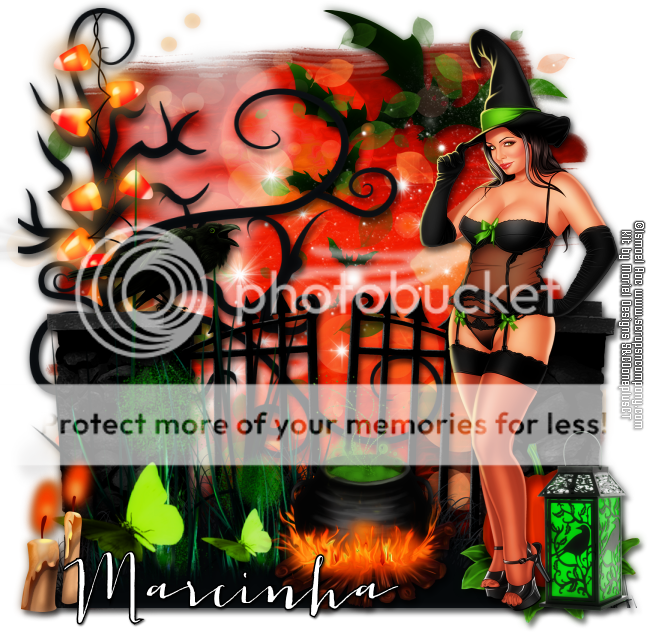
Trick or Treat

DARE YOU TO TRICK ME TUTORIAL


Tutorial written by Marcia Salgado on October 19th, 2016
for those who have a working knowledge of PSP.
I'm using PSP9 to create my tuts.
Any resemblance to any other tutorial is coincidental.
Do not copy and paste this tutorial anywhere on the net.
If you want to translate please ask first. 

****************************************
Material:

Tube: "Trick or Treat HD SL" by Ismael Rac, you can purchase it here 
do not use without the proper #license.
PTU Kit "Trick or Treat" by Mariel Designs, you can purchase it here 
Font: Jacques & Gilles

****************************************

--> Remember to save often and use my tag as reference if necessary. Use a Drop Shadow of your preference on layers. 


1. Open 'element' 1-1. Copy and paste as new layer.

2. Open 'element' 7. Resize 50%. Copy and paste as new layer. Move it up and to right.

3. Open 'element' 99-1. Copy and paste as new layer. Move it a little to left.

4. Open 'element' 62-1. Copy and paste as new layer. Move it a little up.

5. Open 'element' 100. Copy and paste as new layer. Move it a little up.

6. Open 'element' 64. Copy and paste as new layer. Move it a little to left.

7. Open 'element' 63. Copy and paste as new layer. Move it to left.

8. Open 'element' 4. Resize 75%. Mirror. Copy and paste as new layer. Move it up and to left.

9. Open 'element' 53-1. Copy and paste as new layer. Place it over the black tree.

10. Open 'element' 58. Copy and paste as new layer. Move it down.

11. Open 'element' 5. Copy and paste as new layer. Move it way down.

12. Open 'element' 42. Resize 75%. Copy and paste as new layer. Move it down and to left.

13. Open 'element' 25-1. Resize 30%. Copy and paste as new layer. Move it down and to right.

14. Open 'element' 59. Resize 30 Mirror. Copy and paste as new layer. Move it to left and place it above the gate's wall.

15. Open 'element' 76. Resize 30%. Copy and paste as new layer. Move it way down and way to right.

16. Open 'element' 86-1. Resize 30%. Copy and paste as new layer. Move it way down and way to left.

17. Open 'element' 20-1. Resize 40%. Copy and paste as new layer. Move it down and place it in front of the gate.

18. Open your tube. Resize. Move it to right. You may want to re-arrange some elements now.

19. Use Crop > Merged Opaque to get rid of all extra spaces.


--> Add your copyright info and license#. Add your name and save as PNG.


October 8, 2016

Martha ~ by Joanne Salgado


Tutorial written by Joanne Salgado on October 08th, 2016
for those who have a working knowledge of PSP.
I'm using PSP9 to create my tuts.
Any resemblance to any other tutorial is coincidental.
Do not copy and paste this tutorial anywhere on the net.
If you want to translate please ask first. 

****************************************
Material:

Tube: "Martha" by Pandora Creations - you can purchase it here
do not use without the proper #license.
PTU Kit "Cute Panda" by Mariel Designs - you can purchase it here
Font: Lemonade

****************************************

Don't forget to save often.
At any point if you have doubts check my tag.

1. Open a new image 650x550

2. Open frame 'FRAME 4' copy and paste as new layer. Resize 80%.

3. Open element '18-1' copy and paste as new layer. Resize 70%. Mirror. Move this layer below the frame layer. Arrange it to the top left.

4. Open element '61' copy and paste as new layer. Arrange it to bottom.

5. Open paper 'PAPER 1' copy and paste as new layer. Resize 50%. Mirror. Arrange it inside the frame and clean outside.

6. Open element '30' copy and paste as new layer. Resize 70%. Move this layer above the frame layer. Arrange it to the bottom left.

7. Open element '29' copy and paste as new layer. Resize 70%. Arrange it to the right.

8. Open element '12' copy and paste as new layer. Resize 70%. Arrange it to the bottom right.

9. Open element '19-1' copy and paste as new layer. Resize 70%. Arrange it to the bottom right.

10. Open element '20' copy and paste as new layer. Resize 60%. Mirror. Arrange it to bottom.

11. Open your tube. Copy and paste as new layer. Resize as needed and arrange it to the bottom right.

12. Open element '15' copy and paste as new layer. Mirror. Arrange it to the top left.

13. Open element '28' copy and paste as new layer. Resize 15%. Arrange it to the top left.

14. Open element '47' copy and paste as new layer. Mirror. Arrange it to bottom.

15. Add shadow as you prefer.

16. Add copyright. Add name. Save as PNG.

August 11, 2016

Vitoriana ~ by Joanne Salgado


Tutorial written by Joanne Salgado on August 11th, 2016
for those who have a working knowledge of PSP.
I'm using PSP9 to create my tuts.
Any resemblance to any other tutorial is coincidental.
Do not copy and paste this tutorial anywhere on the net.
If you want to translate please ask first. 

****************************************
Material:

Tube: "Victoriana" by The Hunter - you can purchase it here
do not use without the proper #license.
PTU Kit "Victorian Collab 1" by  - you can purchase it here
Font: Alex Brush

****************************************

Don't forget to save often.
At any point if you have doubts check my tag.

1. Open a new image 650x650

2. Open element '17' copy and paste as new layer. Resize 35%. Plugins/MuRa's/Copies with settings bellow.

3. Open element '20' copy and paste as new layer. Resize 30%. Same plugin and settings as before.

4. Open element '76' copy and paste as new layer.

5. Open element '40' copy and paste as new layer. Resize 20%. Same plugin and settings as before. Rename this layer frame.

6. Open paper 'PAPER 8' copy and paste as new layer. Move this layer below the frame layer. Clean the outside parts.

7. Open your tube closeup. Arrange it inside the frame, clean the outside parts. Duplicate. Original: Hue and Saturation both 0, change opacity to 42. Copy: Change blend mode to soft light.

8. Open element '58' copy and paste as new layer. Resize 60%. Arrange it to the left inside the frame, clean any parts that appears outside the frame.

9. Open element '25' copy and paste as new layer. Resize 40%. Flip. Move this layer above the frame layer. Arrange it to the left.

10. Open element '99' copy and paste as new layer. Resize 40%. Arrange it to the bottom left.

11. Open element '47' copy and paste as new layer. Resize 70%. Arrange it to the bottom.

12. Open element '36' copy and paste as new layer. Resize 50%. Mirror. Arrange it to bottom.

13. Open element '59' copy and paste as new layer. Resize 60%. Mirror. Arrange it to the bottom right.

14. Open element '62' copy and paste as new layer. Resize 35%. Mirror. Arrange it to the bottom left.

15. Open your tube. Copy and paste as new layer. Resize as needed and arrange it to the bottom right.

16. Open element '42' copy and paste as new layer. Resize 30%. Arrange it to the bottom right.

17. Add shadow as you prefer.

18. Add copyright. Add name. Save as PNG.

June 23, 2016

Happy Mermaid ~ by Joanne Salgado


Tutorial written by Joanne Salgado on June 23th, 2016
for those who have a working knowledge of PSP.
I'm using PSP9 to create my tuts.
Any resemblance to any other tutorial is coincidental.
Do not copy and paste this tutorial anywhere on the net.
If you want to translate please ask first. 

****************************************
Material:

Tube: "Happy Mermaid" by Angelica Sellers - you can purchase it here
do not use without the proper #license.
PTU Kit "Under the Sea" by Mariel Designs
UNDER THE SEA STORE COLLAB - you can purchase it here
Font: Dorayaki

****************************************

Don't forget to save often.
At any point if you have doubts check my tag.

1. Open a new image 650x550

2. Open frame 'FRAME 1' copy and paste as new layer. Resize 70%.

3. Open paper 'PAPER 3' copy and paste as new layer. Resize 55%. Move this layer below the frame layer. Clean the outside parts.

4. Open element '62' copy and paste as new layer. Arrange it inside the frame and clean the outside parts.

5. Open element '61' copy and paste as new layer. Arrange it inside the frame to the bottom and clean the outside parts.

6. Open element '52' copy and paste as new layer. Arrange it inside the frame to the bottom and clean the outside parts.

7. Open element '26' copy and paste as new layer. Resize 30%. Arrange it to the bottom left inside the frame and clean the outside parts.

8. Open element '12' copy and paste as new layer. Resize 30%. Move this layer above the frame layer. Arrange it to the bottom left.

9. Open element '57' copy and paste as new layer. Resize 50%. Arrange it to the bottom right.

10. Open element '17' copy and paste as new layer. Resize 15%. Arrange it to the bottom right.

11. Open element '34' copy and paste as new layer. Resize 20%. Arrange it to the bottom left.

12. Open element '14' copy and paste as new layer. Resize 70%. Arrange it a little to the right.

13. Open element '10' copy and paste as new layer. Resize 15%. Mirror. Arrange it to the bottom left.

14. Open element '67' copy and paste as new layer.

15. Open element '58' copy and paste as new layer. Resize 50%. Rotate right 90. Arrange it to the top. Change opacity to 80.

16. Open your tube. Copy and paste as new layer. Resize as needed and arrange it sitting on the rocks.

17. Add shadow as you prefer.

18. Add copyright. Add name. Save as PNG.

May 29, 2016

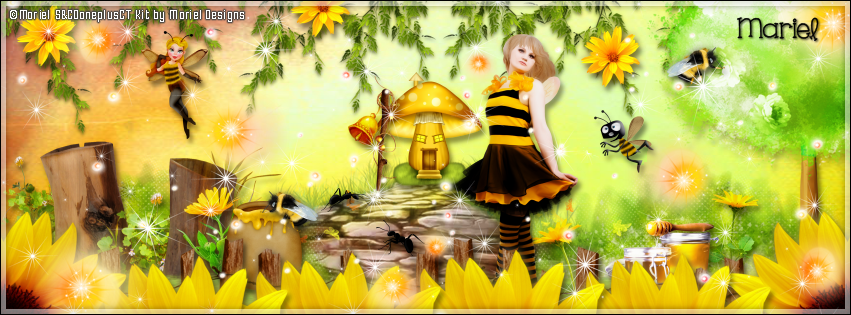
Bee Spring

BUZZING TUTORIAL

**Click to see original size**

Tutorial written by Marcia Salgado on May 29th, 2016
for those who have a working knowledge of PSP.
I'm using PSP9 to create my tuts.
Any resemblance to any other tutorial is coincidental.
Do not copy and paste this tutorial anywhere on the net.
If you want to translate please ask first. 

****************************************
Material:

Tube: "Bee Spring" by Mariel, you can purchase it here 
do not use without the proper #license.
PTU Kit "Bee Spring" by Mariel Designs, you can purchase it here 
Font: KG One Thing

****************************************

--> Remember to save often and use my tag as reference if necessary. Use a Drop Shadow of your preference on layers. 

1. Open a new image 851x315

2. Open paper 'PAPER 7' copy and paste as new layer. Use Raster Deform Tool and stretch the paper so it fills the canvas.

3. Open element '33' copy and paste as new layer. Arrange it to bottom.

4. Open element '81' copy and paste as new layer. Resize 20%. Arrange it at the end of the stone path.

5. Open element '97' copy and paste as new layer. Arrange it to the bottom right. Duplicate. Mirror.

6. Open element '14' copy and paste as new layer. Resize 50%. Arrange it to the bottom left.

7. Open element '109' copy and paste as new layer. Arrange it to the bottom right. Duplicate. Mirror.

8. Open element '48' copy and paste as new layer. Resize 15%. Arrange it to the bottom left.

9. Open element '27' copy and paste as new layer. Resize 15%. Arrange it to the bottom right.

10. Open element '26' copy and paste as new layer. Resize 15%. Arrange it to the left of the one we just added.

11. Open element '105' copy and paste as new layer. Resize 15%. Arrange it to the bottom left.

12. Open element '5' copy and paste as new layer. Resize 20%. Arrange it to the bottom right.

13. Open element '84' copy and paste as new layer. Arrange it to the top right. Duplicate. Mirror.

14. Open your tube. Copy and paste as new layer. Resize as needed and arrange it a little to the right.

15. Open element '119' copy and paste as new layer. Arrange it to the right.

16. Open element '111' copy and paste as new layer. Arrange it to the bottom right. Duplicate. Mirror.

17. Open element '116' copy and paste as new layer. Resize 10%. Arrange it to bottom.

18. Open element '117' copy and paste as new layer. Resize 10%. Arrange it to bottom.

19. Open element '28' copy and paste as new layer. Resize 10%. Arrange it to the top. Duplicate and arrange it around. Do as many as you want. I only used three.

20. Open element '31' copy and paste as new layer. Resize 20%. Arrange it to the top left.

21. Open element '32' copy and paste as new layer. Resize 12%. Arrange it to the right.

22. Open element '62' copy and paste as new layer. Resize 20%. Arrange it to the left of the mushroom.

23. Open element '113' copy and paste as new layer. Resize 10%. Arrange it above the honey pot. Duplicate. Mirror. Arrange it at the tree.

24. Open element '58' copy and paste as new layer. Resize 50%. Arrange it to the bottom right. Duplicate. Mirror. Duplicate. Arrange it to bottom. Duplicate and arrange it until you fill up all bottom part.

25. Open element '98' copy and paste as new layer. Arrange it to the left. Duplicate. Mirror/Flip.

26. Open element '79' copy and paste as new layer. Arrange it to the left. Duplicate. Mirror/Flip.

27. Add a new layer. Select all. Fill with white. Contract 6. Hit delete on your keyboard. Select none. Change opacity to 50.

28. Add a new layer. Select all. Fill with black. Contract 1. Hit delete on your keyboard. Select none.


--> Add your copyright info and license#. Add your name or initials. Save as PNG.

--> Sometimes I had to change my Timeline size to 846x313 because when I add it to Facebook the image has extra pixels and do not fit perfectly. So try this size if the same is happening to you.


--------------------------------------------------------------------

My idea for the FB Profile Picture


February 21, 2016

Cupido Ruby with Cupido kit

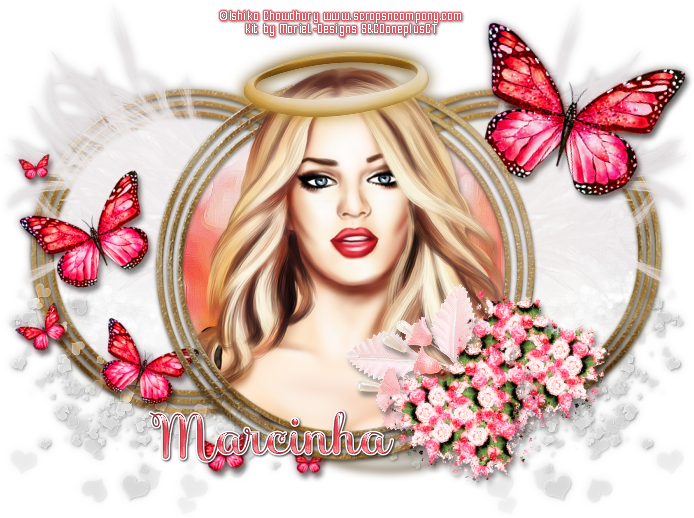
LOVE QUEEN TUTORIAL


Tutorial written by Marcia Salgado on February 21th, 2016
for those who have a working knowledge of PSP.
I'm using PSP9 to create my tuts.
Any resemblance to any other tutorial is coincidental.
Do not copy and paste this tutorial anywhere on the net.
If you want to translate please ask first. 

****************************************
Material:

Tube: "Cupido Ruby" by Ishika Chowdhury
You can add this tube to your cart to get it as a free gift 
or you can purchase it here 
do not use without the proper #license.
PTU Kit "Cupido" by MarieL Design, this kit belongs to the gorgeous
and romantic Cupid Collab wich has awesome products inside, tubes,
alphas and more kits among them and as the tube you can add this
product to your cart to get it as a free gift or you can purchase it here 
Font: SaboresScript-Bold

****************************************

--> Remember to save often and use my tag as reference if necessary. Use a Drop Shadow of your preference on layers. 

1. Create a new image 700x550.

2. Open FRAME 3. Resize 75%. Copy and paste as new layer. Duplicate. Turn bigger frame invisible now, we'll work on copy now. Resize 85%. Select inside the frame. Expand > 3. Add a new layer and move it below the frame. Open PAPER 5. Select all. Contract > 30. Copy. Paste into selection. Deselect. Add a drop shadow on the frame layer. Merge visible. Move it to left and a little up. Duplcate. Mirror. Merge down. Move this layer to bottom. 

3. Open 'element' 48. Resize 60%. Copy and paste sa new layer. Move it down and way to left. Duplicate. Mirror. Merge down. Move this layer to bottom. 

4. Click on double frame layer. Open 'element' 55. Resize 65%. Copy and paste as new layer. Move it to left and up. Duplicate. Mirror. Merge down.

5. Open 'element' 37. Resize 70%. Copy and paste as new layer. Move to left.

6. Open 'element' 38. Resize 40%. Free Rotate: Right-15. Copy and paste as new layer. Move it to right and up.

7. Turn the bigger frame layer visible again and select inside the frame. Add a new layer. Expand > 3. Move this layer below the frame layer. Open PAPER 4. Copy and paste into selection. Invert selection. Open your tube. Resize if needed. Copy and paste as new layer. Place it inside the frame. Duplicate and turn the copy invisible. Click on tube original layer and delete. Deselect. Turn the copy visible and move it above the frame layer. Select the top of the head, see below, invert the selection and delete. Deselect.


8. Open 'element' 44. Resize 45%. Copy and paste as new layer. Place it on the tube's head.

9. Open 'element' 27. Resize 40%. Mirror. Copy and paste as new layer. Place it over the big frame right bottom corner. 

10. Open 'element' 26. Resize 40%. Mirror. Copy and paste as new layer. Place it over the big frame right bottom corner over the previous leaves. Merge down. Erase the bottom part of the stem.

11. Open 'element' 14. Resize 25%. Free Rotate: Right-15. Copy and paste as new layer. Place it over the big frame bottom right border, over the previous flower stem.


--> Add your copyright info and license#. Add your name and save as PNG.


October 25, 2015

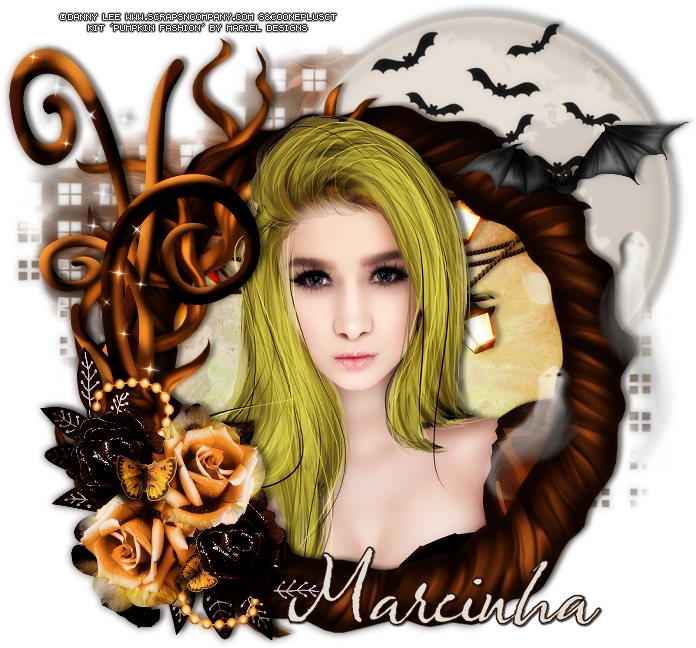
Pumpkin Fashion

PUMPKIN TUTORIAL


Tutorial written by Marcia Salgado on October 25th, 2015
for those who have a working knowledge of PSP.
Any resemblance to any other tutorial is coincidental.
Do not copy and paste this tutorial anywhere on the net.
If you want to translate please ask first. 

****************************************
Material:

Tube: "Pumpkin Fashion" by Danny Lee, you can purchase it here
do not use without the proper #license.
PTU Kit "Pumpkin Fashion" by Mariel Designs, you can purchase it here
Mask: Dee's Mask, DD_AssortedMask_3, here
Font: Olicana Rought

****************************************

--> Remember to save often and use my tag as reference if necessary. Use a Drop Shadow of your preference on layers. 

1. Create a new image 700x700. Open 'element' 94. Copy and paste as new layer. Move it up and to right. After copy and paste the frame fix the position, if needed, show only the moon behind the frame on right top.

2. Open FRAME 5. Copy and paste as new layer. Select inside the frame.Expand > 5.  Add a new layer. Move it below the frame. Open PAPER 3. Copy and paste into selection.

3. Click on frame layer. Open your tube close up. Resize if needed. Copy and paste as new layer. Select and delete all parts outside the frame. Do not need to be careful and leave some parts over the frame border. Select all. Clip to canvas. Crop to selection. Duplicate the tube layer and move the copy below the frame layer. Click on first layer and erase anything over the frame border. No need to be careful because the copy will cover any mistake.

4. Open 'element' 57. Resize 65%. Copy and paste as new layer. Place it over the back on top.

5. Open 'element' 88. Resize 60%. Copy and paste as new layer. Move it up and to left.

6. Open 'element' 27. Resize 50%. Copy and paste as new layer. Move it down and to left.

7. Open 'element' 54. Resize 50%. Copy and paste as new layer. Move it up and to right.

8. Open 'element' 4. Resize 40%. Copy and paste as new layer. Move it up and to right. Place it over the moon.

9. Apply the chosen shadow on layers and remove the extra space. Add a new layer. Select all. Move it to bottom. Open PAPER 7. Copy and paste into selection. Apply Dee's mask. Merge group.

--> Add your copyright info and license#. Add your name and save as PNG.


July 10, 2015

Fear

SCARY TUTORIAL


Tutorial written by Marcia Salgado on July 10th, 2015
for those who have a working knowledge of PSP.
Any resemblance to any other tutorial is coincidental.
Do not copy and paste this tutorial anywhere on the net.
If you want to translate please ask first. 

****************************************
Material:

Tube: "Fear" by Danny Lee, you can purchase it here 
do not use without the proper #license.
PTU Kit "Fear" by MaryeL-Design, you can purchase it here  
Font: LIQUIDO Fluid

****************************************

--> Remember to save often and use my tag as reference if necessary. Used the Drop Shadow: 1-1-50-5 in most layers. 

1. Create a new image 700x700.

2. Open 'element' 69. Copy and paste as new layer. Move a little up and right.

3. Open 'element' 6. Free Rotate: Left-5. Copy and paste as new layer. Move it up and left.

4. Open 'element' 35. Resize 60%. Copy and paste as new layer. Move it up and left. Duplicate. Mirror. Free Rotate: Left-20. Move it down and left. Erase any unwanted stem.

5. Open Frame 5. Resize 90%. Copy and paste as new layer. Select inside the frame. Expand > 5. Add a new layer. Move it under frame layer. Open Paper 4. Copy and paste into selection. Add a new layer. Open Paper 3. Copy and paste into selection. Keep selected. Blend Mode: Overlay. 

6. Open your tube close up. Resize if needed. Copya and paste as new layer. Place it inside the frmae. Invert selection. Delete. Select all. Selections > Clip to canvas. Image > Crop to selection. Add a suitable shadow.

7. Click on first layer, should be the frame. Open Frames 2. Copy and paste as new layer. If necessary move it a little to place it over the first frame.

8. Open 'element' 13. Resize 60%. Copy and paste as new layer. Move it down and right.

9. Open 'element' 47. Resize 30%. Copy and paste as new layer. Move it down and right. Duplicate. Free Rotate: Right-30. Move it a little down and left.

10. Open 'element' 51. Resize 50%. Mirror. Copy and paste as new layer. Move it down and right.

11. Open 'element' 21. Resize 50%. Copy and paste as new layer. Move it to left.


--> Resize if wanted. Add your copyright info and license#. Add your name and save as PNG.


July 4, 2015

Rainbow ~ by Joanne Salgado


Tutorial written by Joanne Salgado on July 04th, 2015
for those who have a working knowledge of PSP.
Any resemblance to any other tutorial is coincidental.
Do not copy and paste this tutorial anywhere on the net.
If you want to translate please ask first. 

Tube: Rainbow by Carpe Diem - you can purchase here
Kit Rainbow by Mariel Designs - you can purchase here
Font: PonytailScriptSSK

Don't forget to save often.
At any point if you have doubts check my tag.

1. Open a new image 700x700

2. Open element '65' copy and paste as new layer. Arrange it to bottom.

3. Open element '95' copy and paste as new layer. Resize 70%. Arrange it to the top left.

4. Open element '63' copy and paste as new layer. Arrange it to the right.

5. Open element '44' copy and paste as new layer. Resize 50%. Arrange it to the bottom left.

6. Open element '72-1' copy and paste as new layer. Resize 20%. Free Rotate left-10. Arrange it above the tree.

7. Open element '72' copy and paste as new layer. Resize 20%. Free Rotate right-10. Arrange it above the tree.

8. Open element '81' copy and paste as new layer. Resize 50%. Arrange it to the bottom left.

9. Open element '101' copy and paste as new layer. Resize 30%. Arrange it to the bottom right of the bench.

10. Open element '49' copy and paste as new layer. Resize 50%. Arrange it to the bottom right.

11. Open your tube. Copy and paste as new layer and arrange it to the left.

12. Now we will create the background image into the small canvas. You may arrange it as you want, I've changed my tube place and added the rainbow. You'll work with resize at 10%, 15% and 20%.

13. Open element '53' copy and paste as new layer. Resize 25%. Arrange it to the bottom right.

14. Open element '46' copy and paste as new layer. Resize 25%. Arrange it to the bottom right of the small canvas.

15. Add shadow. I used: 1-1-65-2 #404040

16. Add copyright.

17. Add name. I used: PonytailScriptSSK / size: 36

Save as PNG

April 5, 2015

Bimbo ~ by Joanne Salgado


Tutorial written by Joanne Salgado on April 05th, 2015
for those who have a working knowledge of PSP.
Any resemblance to any other tutorial is coincidental.
Do not copy and paste this tutorial anywhere on the net.
If you want to translate please ask first. 

Tube: Bunny Bombshells by Graphfreaks - you can purchase here 
Kit Easter Basket by Marie Designs - you can purchase here 
Font: BPscript

Don't forget to save often.
At any point if you have doubts check my tag.

1. Open a new image 500x500.

2. Open element '94' copy and paste as new layer. Resize 60%. Arrange it to the top right of the canvas.

3. Open element '93' copy and paste as new layer. Resize 60%. Mirror. Arrange it to the top left of the canvas.

4. Open element '57' copy and paste as new layer. Resize 70%. Arrange it to the right. It will be at the end of the bridge.

5. Open element '77' copy and paste as new layer. Resize 15%. Free Rotate left-25.

6. Open element '91' copy and paste as new layer. Resize 80%. Arrange it to the bottom.

7. Open element '66' copy and paste as new layer. Resize 25%. Mirror. Arrange it to the bottom right of the bridge.

8. Open your tube. Copy and paste as new layer. Resize as you prefer and arrange it to the left.

9. Add shadow as you prefer. I used 1-1-65-2 black.

10. Add copyright.

11. Add name. I used: BPscript / size: 48

Save as PNG

April 2, 2015

White Spring

WHITE SPRING TUTORIAL


Tutorial written by Marcia Salgado on April 2nd, 2015
for those who have a working knowledge of PSP.
Any resemblance to any other tutorial is coincidental.
Do not copy and paste this tutorial anywhere on the net.
If you want to translate please ask first. 

****************************************
Material:

Tube: Andy Cooper, you can purchase it at S&Co., here
do not use without the proper #license.
PTU Kit "White Spring" by Mariel Designs,
you can purchase it at S&Co., here
Template: my template, mar2015_template07, here
made it using shapes and fonts
Font: Please write me a song

****************************************

--> Remember to save often and use my tag as reference if necessary. Used the Drop Shadow: 1-1-50-5 in most layers. 

1. Open my template. Duplicate and close the original. Delete © layer. Click on bg layer. Open element 72. Resize 50%. Copy and paste as new layer. Move it to bottom right corner. Duplicate. Mirror. Flip. Move it to behind upper left side of circle. Merge down. Open element 34. Resize 40%. Copy and paste as new layer. Move it to top right corner.

2. Click on circle layer. Select it. Open paper 8. Copy and paste as new layer. Position it as you like. Invert Selection. Delete.  Keep selected. Duplicate and change Blend Mode to Multiply. Expand > 9. Open your tube close up. Paste as new layer. Position it and delete. Deselect. Select all. Selections > Clip to canvas. Image > Crop to selection. Change Blend Mode to Luminance (Legacy) and low the opacity to 28. Duplicate. Blur Gaussian Blur: 4. Change Blend Mode to Soft Light. Layer opacity: 100.

3. Click on dashed frame layer. Open element 9. Resize 41%. Copy and paste as new layer. Move it down right and place it over the circle bottom. Click on rectangle bg layer. Open paper 10. Resize 41%. Copy and paste as new layer. Move it way left and arrange it bellow the left rectangle frame. Click on rectangle photo layer and merge down. 

4. Click on sun layer. Select it and add a new layer. Open Paper 2. Copy and paste into selection. Add a ehite border of 2px. Delete sun layer.

5. Clique on square bg layer. Open paper 9. Resize 51%. Copy and paste as new layer. Move it bellow middle square frame. Click on square photo layer and merge down. Open element 86. Resize 40%. Copy and paste as new layer. Move it over top right middle frame. Duplicate. Resize 70%. Mirror. Move it over the top left middle frame.

6. Open element 44. Resize 50%. Copy and paste as new layer. Move it bottom left. Place over middle image. Open element 45. Resize 20%. Copy and paste as new layer. Move it over the right side of the bench. 

7. Click on no matter... WH layer. Open element 28. Resize 70%. Copy and paste as new layer. Move it far left. Open element 105. Resize 50%. Copy and paste as new layer. Move it left down. Open element 30. Resize 50%. Copy and paste as new layer.Move it far left down, place it on tall grass right side. 

8. Open element 22. Resize 20%. Copy and paste as new layer. Move it to bottom left corner. Open element 81. Resize 10%. Copy and paste as new layer. Place it in front of paper flower. Duplicate. Mirror. Move it a liitl up, place it on a corner of the tree vase and arrange this layer bellow the paper flower layer.

9. Click on eiffel layer. Open your yube, resize if needed. Copy and paste as new layer. Move it to left in front of the little tree. Open element 57. Resize 22%. Copy and paste as new layer. Move it to right and place it over the eiffel tower top.

--> Resize if wanted. Add your copyright info and license#. Add your name and save as PNG.