Showing posts with label Andy Cooper. Show all posts

May 21, 2017

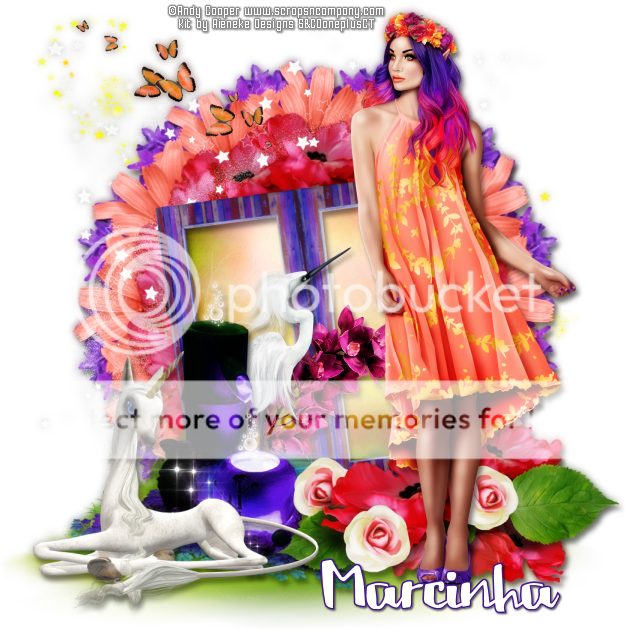
Beauty ~ by Joanne Salgado


Tutorial written by Joanne Salgado on May 15th, 2017
for those who have a working knowledge of PSP.
I'm using PSP9 to create my tuts.
Any resemblance to any other tutorial is coincidental.
Do not copy and paste this tutorial anywhere on the net.
If you want to translate please ask first. 

****************************************
Material:

Tube: "Beauty Bunny" by Andy Cooper, you can purchase it here
do not use without the proper #license.
PTU Kit "Beauty Bunny" by Rieneke Designs, you can purchase it here
Font: 2Peas Mister Giggles

****************************************

--> Remember to save often and use my tag as reference if necessary.

1. Open a new image 650x550

2. Open element 'RD-BeautyBunny-element (31)' copy and paste as new layer.

3. Open element 'RD-BeautyBunny-element (20)' copy and paste as new layer. Resize 60%. Move this layer below the frame layer. Arrange it to the bottom right.

4. Open element 'RD-BeautyBunny-element (39)' copy and paste as new layer. Resize 50%. Arrange it to the top left.

5. Open paper 'RD-BeautyBunny-paper (6)' copy and paste as new layer. Resize 60%. Arrange it inside the frame and clean outside.

6. Open element 'RD-BeautyBunny-element (48)' copy and paste as new layer.

7. Open your tube's close up. Arrange it inside the frame and clean outside.

8. Open element 'RD-BeautyBunny-element (43)' copy and paste as new layer. Move this layer above the frame layer. Arrange it to bottom.

9. Open element 'RD-BeautyBunny-element (42)' copy and paste as new layer. Resize 50%. Arrange it to the bottom left.

10. Open element 'RD-BeautyBunny-element (44)' copy and paste as new layer. Resize 20%. Arrange it to the bottom right.

11. Open element 'RD-BeautyBunny-element (45)' copy and paste as new layer. Resize 20%. Arrange it to the bottom right.

12. Open element 'RD-BeautyBunny-element (49)' copy and paste as new layer. Resize 20%. Arrange it to the right a little to top.

13. Open element 'RD-BeautyBunny-element (50)' copy and paste as new layer. Resize 60%. Arrange it to the top left.

14. Add shadow as you prefer.

15. Add copyright. Add name. Save as PNG.

December 22, 2016

Square Invernal tube with Autumn Crisp kit


== NEW PTU TAG S&CO. CT ==
ANDY COOPER AND DISTURBED SCRAPS

Featuring "Square Invernal", an Andy Cooper tube and
 "Autumn Crisp", Disturbed Scraps kit at Scraps N Company - S&Co.


The kit has 14 papers and 77 elements so you can play with it. 
Very versatile and can be used with any other tubes and artists you have.

Tube can be found  at:
-> Scraps N Company - S&Co., here 

Kit can be found  at:
-> Scraps N Company - S&Co., here 


November 20, 2016

Poncho ~ by Joanne Salgado


Tutorial written by Joanne Salgado on November 20th, 2016
for those who have a working knowledge of PSP.
I'm using PSP9 to create my tuts.
Any resemblance to any other tutorial is coincidental.
Do not copy and paste this tutorial anywhere on the net.
If you want to translate please ask first. 

****************************************
Material:

Tube: "Poncho Fall" by Andy Cooper - you can purchase it here
do not use without the proper #license.
PTU Kit "Poncho Fall" by Chachaz Creationz - you can purchase it here
Font: Claudia

****************************************

Don't forget to save often.
At any point if you have doubts check my tag.

1. Open a new image 650x550

2. Open element 'Element10' copy and paste as new layer. Resize 60%. Arrange it to the top right.

3. Open element 'Element9' copy and paste as new layer. Resize 60%. Arrange it to the top left.

4. Open element 'Element83' copy and paste as new layer. Resize 60%. Arrange it to top.

5. Open element 'Element91' copy and paste as new layer. Arrange it to the bottom left. Duplicate. Mirror.

6. Open element 'Element90' copy and paste as new layer. Arrange it to bottom.

7. Open element 'Element68' copy and paste as new layer.

8. Open element 'Element37' copy and paste as new layer. Reisze 25%. Arrange it to the bottom left.

9. Open element 'Element93' copy and paste as new layer. Resize 50%. Arrange it to the bottom right.

10. Open element 'Element25' copy and paste as new layer. Resize 30%. Mirror. Arrange it to the bottom left.

11. Open your tube. Copy and paste as new layer. Resize as needed and arrange it a little to the right.

12. Open element 'Element73' copy and paste as new layer. Resize 30%. Arrange it to the bottom right of the tube.

13. Open element 'Element88' copy and paste as new layer. Resize 20%. Mirror. Arrange it to the top left of the fence.

14. Open element 'Element48' copy and paste as new layer. Resize 18%. Arrange it to the top right of the pumpkin cart.

15. Open element 'Element6' copy and paste as new layer.

16. Add shadow as you prefer.

17. Add copyright. Add name. Save as PNG.

Sweet Cold ~ by Joanne Salgado


Tutorial written by Joanne Salgado on November 20th, 2016
for those who have a working knowledge of PSP.
I'm using PSP9 to create my tuts.
Any resemblance to any other tutorial is coincidental.
Do not copy and paste this tutorial anywhere on the net.
If you want to translate please ask first. 

****************************************
Material:

Tube: "Sweet Cold" by Andy Cooper - you can purchase it here
do not use without the proper #license.
PTU Kit "Sweet Cold" by Tagcatz Design - you can purchase it here
Font: Capella

****************************************

Don't forget to save often.
At any point if you have doubts check my tag.

1. Open a new image 650x550

2. Open element 'sc_tc_el12' copy and paste as new layer. Resize 80%.

3. Open element 'sc_tc_el28' copy and paste as new layer. Resize 90%. Move this layer below the frame layer.

4. Open paper 'sc_tc_paper4' copy and paste as new layer. Resize 50%.

5. Open element 'sc_tc_el73' copy and paste as new layer. Resize 50%. Arrange it to the top right. Clean parts outside the frame.

6. Open element 'sc_tc_el83' copy and paste as new layer. Resize 60%.

7. Open element 'sc_tc_el11' copy and paste as new layer. Resize 60%. Arrange it to the left inside the frame.

8. Open element 'sc_tc_el38' copy and paste as new layer. Resize 25%. Move this layer above the frame layer. Arrange it to the right above the frame.

9. Open element 'sc_tc_el35' copy and paste as new layer. Resize 25%. Arrange it to the right above the frame.

10. Open element 'sc_tc_el54' copy and paste as new layer. Resize 25%. Mirror. Arrange it to the top right.

11. Open element 'sc_tc_el85' copy and paste as new layer. Resize 60%. Arrange it to the bottom left.

12. Open element 'sc_tc_el17' copy and paste as new layer. Resize 50%. Arrange it to the bottom left.

13. Open element 'sc_tc_el1' copy and paste as new layer. Resize 35%. Mirror. Arrange it to the bottom right.

14. Open your tube. Copy and paste as new layer. Resize as needed and arrange it to the left.

15. Open element 'sc_tc_el27' copy and paste as new layer. Resize 50%. Arrange it to the bottom left.

16. Add shadow as you prefer.

17. Add copyright. Add name. Save as PNG.

SHOW OFF - Green Skull


== NEW PTU TUTORIAL S&CO. CT ==
FOR ANDY COOPER AND TAGCATZ DESIGN

Featuring "Green Skull" tube by Andy Cooper and
"Green Skull" Kit by Tagcatz Design at Scraps N Company - S&Co.

Tube by Andy Cooper - you can purchase here

Kit by Tagcatz Design - you can purchase here


October 30, 2016

Month Pink

DEEP ROSE TUTORIAL


Tutorial written by Marcia Salgado on October 26th, 2016
for those who have a working knowledge of PSP.
I'm using PSP9 to create my tuts.
Any resemblance to any other tutorial is coincidental.
Do not copy and paste this tutorial anywhere on the net.
If you want to translate please ask first. 

****************************************
Material:

Tube: "Month Pink" by Andy Cooper, you can purchase it here 
do not use without the proper #license.
PTU Kit "Month Pink" by Lil Mz's Brainstorms, you can purchase it here 
Font: KG One Thing

****************************************

--> Remember to save often and use my tag as reference if necessary. Use a Drop Shadow of your preference on layers. 


1. Create a new image 650x650.

2. Open LMB_MonthPink_Element (100). Copy and paste as new layer. Move it up.

3. Open LMB_MonthPink_Element (14). Resize 75%. Copy and paste as new layer. Move it down and to right.

4. Open LMB_MonthPink_Element (68). Free Rotate: Left-30. Copy and paste as new layer. Move it down and to right.

5. Open LMB_MonthPink_Element (31). Resize 30%. Free Rotate: Left-25. Copy and paste as new layer. Move it up.

6. Open LMB_MonthPink_Element (6). Copy and paste as new layer. Move it down.

7. Open LMB_MonthPink_Element (73). Copy and paste as new layer. Move it to right.

8. Open LMB_MonthPink_Element (36). Resize 65%. Copy and paste as new layer. Move it down and to left.

9. Open LMB_MonthPink_Element (67). Resize 50%. Free Rotate: Left-90. Copy and paste as new layer. Move it a little up and to left.

10. Open LMB_MonthPink_Element (34). Resize 50%. Copy and paste as new layer. Place it over the previous roses.

11. Open LMB_MonthPink_Element (16). Free Rotate: Right-20. Copy and paste as new layer. Move it to right.

12. Select inside the frame. Expand > 5. Add a new layer and move it below the frame layer.

13. Open LMB_MonthPink_Paper (5). Copy and paste into selection. Deselect.

14. Click on frame layer. Open LMB_MonthPink_Element (15). Resize 50%. Copy and paste as new layer. Place it over the golden frame a little to right.

15. Open your tube. Resize. Copy and paste as new layer. Move it to left and a little down.

16. Use Crop > Merged Opaque to get rid of all extra spaces.


--> Add your copyright info and license#. Add your name and save as PNG.


October 26, 2016

Black Bride ~ by Joanne Salgado


Tutorial written by Joanne Salgado on October 26th, 2016
for those who have a working knowledge of PSP.
I'm using PSP9 to create my tuts.
Any resemblance to any other tutorial is coincidental.
Do not copy and paste this tutorial anywhere on the net.
If you want to translate please ask first. 

****************************************
Material:

Tube: "Black Dress Bride" by Andy Cooper - you can purchase it here
do not use without the proper #license.
PTU Kit "Black Dress Bride" by Rieneke Designs - you can purchase it here
Font: Theodista Decally

****************************************

Don't forget to save often.
At any point if you have doubts check my tag.

1. Open a new image 700x500

2. Open element 'RD-BlackDressBride-element (44)' copy and paste as new layer. Resize 70%.

3. Open paper 'RD-BlackDressBride-paper (3)' copy and paste as new layer. Resize 35%. Move this layer below the frame layer. Arrange it inside the frame and clean outside parts.

4. Open element 'RD-BlackDressBride-element (45)' copy and paste as new layer. Resize 60%. Arrange it inside the frame and clean the outside parts.

5. Open element 'RD-BlackDressBride-element (36)' copy and paste as new layer. Resize 50%. Mirror. Move this layer above the frame layer. Arrange it to the bottom left.

6. Open element 'RD-BlackDressBride-element (3)' copy and paste as new layer. Resize 70%. Arrange it to the bottom right.

7. Open element 'RD-BlackDressBride-element (4)' copy and paste as new layer. Resize 20%. Arrange it to the right.

8. Open element 'RD-BlackDressBride-element (1)' copy and paste as new layer. Resize 40%. Arrange it to the bottom right.

9. Open element 'RD-BlackDressBride-element (29)' copy and paste as new layer. Resize 30%. Arrange it to the bottom left.

10. Open element 'RD-BlackDressBride-element (30)' copy and paste as new layer. Resize 20%. Mirror. Arrange it to the left.

11. Open element 'RD-BlackDressBride-element (18)' copy and paste as new layer. Resize 12%. Mirror. Arrange it to the bottom left.

12. Open element 'RD-BlackDressBride-element (20)' copy and paste as new layer. Resize 12%. Arrange it to the bottom left.

13. Open element 'RD-BlackDressBride-element (12)' copy and paste as new layer. Resize 10%. Arrange it to the bottom right.

14. Open element 'RD-BlackDressBride-element (11)' copy and paste as new layer. Resize 10%. Arrange it to the right.

15. Open element 'RD-BlackDressBride-element (10)' copy and paste as new layer. Resize 10%. Arrange it to the top right.

16. Open your tube. Copy and paste as new layer. Resize as needed and arrange it to the right.

17. Open element 'RD-BlackDressBride-element (14)' copy and paste as new layer. Resize 75%. Arrange it to the left.

18. Add shadow as you prefer.

19. Add copyright. Add name. Save as PNG.

October 14, 2016

Autumn Nena

NEW LIFE ON AIR TUTORIAL


Tutorial written by Marcia Salgado on October 12th, 2016
for those who have a working knowledge of PSP.
I'm using PSP9 to create my tuts.
Any resemblance to any other tutorial is coincidental.
Do not copy and paste this tutorial anywhere on the net.
If you want to translate please ask first. 

****************************************
Material:

Tube: "Autumn Nena" by Andy Cooper, you can purchase it here 
do not use without the proper #license.
PTU Kit "Autumn Nena" by Bibi's Collection, you can purchase it here 
Font: Lovely Melissa

****************************************

--> Remember to save often and use my tag as reference if necessary. Use a Drop Shadow of your preference on layers. 

1. Open BIBI-AUTUMN NENA ELEM (80). Resize 55%. Copy and paste as new layer.

2. Open BIBI-AUTUMN NENA ELEM (82). Resize 75%. Copy and paste as new layer. Move it up and to left.

3. Open BIBI-AUTUMN NENA ELEM (43). Resize 80%. Copy and paste as new layer. Move it  little to right.

4. Open BIBI-AUTUMN NENA ELEM (49). Resize 50%. Copy and paste as new layer. Move it a little bit to right.

5. Open BIBI-AUTUMN NENA ELEM (61). Resize 30%. Copy and paste as new layer. Place it over the bottom part of the green flower. Duplicate. Mirror. Move it to the right side of the first one a little down.

6. Open BIBI-AUTUMN NENA ELEM (69). Resize 55%. Copy and paste as new layer. Move it to right and down. Duplicate. Flip.

7. Open BIBI-AUTUMN NENA ELEM (68). Resize 35%. Copy and paste as new layer. Move it down and a little to right. Duplicate it twice. Place the copes over the first one moving each one a little bit more to right.

8. Open BIBI-AUTUMN NENA ELEM (41). Resize 50%. Copy and paste as new layer. Move it down and to left.

9. Open BIBI-AUTUMN NENA ELEM (52). Resize 35%. Copy and paste as new layer. Move it down and to right. Place it over the stair's bottom left corner. 

10. Open BIBI-AUTUMN NENA ELEM (62). Resize 25%. Copy and paste as new layer. Place it in front of the green pumpkins.

11. Open your tube. Resize. Place her sitted on the stairs.

12. Open BIBI-AUTUMN NENA ELEM (64). Resize 60%. Copy and paste as new layer. Move it to left and a little down.

13. Open BIBI-AUTUMN NENA ELEM (16). Resize 30%. Copy and paste as new layer. Move it down and to left.

14. Open BIBI-AUTUMN NENA ELEM (88). Resize 15%. Copy and paste as new layer. Place the bird near the tube.

15. Open BIBI-AUTUMN NENA ELEM (37). Resize 50%. Mirror. Copy and paste as new layer. Move it down and to left.

16. Open BIBI-AUTUMN NENA ELEM (35). Resize 30%. Copy and paste as new layer. Move it down and to left.

17. Open BIBI-AUTUMN NENA ELEM (81). Resize 40%. Copy and paste as new layer. Place it at the bottom on the left to cover rhe plant's stem.

18. I interlaced some parts of the tubes with some elements to look the leg and the arm are over some plants.

19. Use Crop > Merged Opaque to get rid of all extra spaces.


--> Add your copyright info and license#. Add your name and  save as PNG.


October 12, 2016

Scarf ~ by Joanne Salgado


Tutorial written by Joanne Salgado on October 12th, 2016
for those who have a working knowledge of PSP.
I'm using PSP9 to create my tuts.
Any resemblance to any other tutorial is coincidental.
Do not copy and paste this tutorial anywhere on the net.
If you want to translate please ask first. 

****************************************
Material:

Tube: "Hooded Scarf" by Andy Cooper - you can purchase it here
do not use without the proper #license.
PTU Kit "Hooded Scarf" by Blissful Designs - you can purchase it here
Font: FORQUE

****************************************

Don't forget to save often.
At any point if you have doubts check my tag.

1. Open a new image 650x550

2. Open element 'BD_HoodedScarfElement (83)' copy and paste as new layer. Resize 80%.

3. Open element 'BD_HoodedScarfElement (89)' copy and paste as new layer. Resize 80%. Move this layer below the frame layer. Arrange it to the top left.

4. Open element 'BD_HoodedScarfElement (19)' copy and paste as new layer. Resize 70%. Arrange it to the top left.

5. Open element 'BD_HoodedScarfElement (32)' copy and paste as new layer. Arrange it to bottom.

6. Open paper 'BD_HoodedScarfPaper (7)' copy and paste as new layer. Resize 45%. Arrange it inside the frame and clean the outside parts.

7. Open element 'BD_HoodedScarfElement (73)' copy and paste as new layer. Resize 30%. Move this layer above the frame layer. Arrange it to the bottom left.

8. Open element 'BD_HoodedScarfElement (8)' copy and paste as new layer. Resize 30%. Arrange it to the bottom left.

9. Open element 'BD_HoodedScarfElement (43)' copy and paste as new layer. Resize 25%. Mirror. Arrange it to the bottom left.

10. Open element 'BD_HoodedScarfElement (27)' copy and paste as new layer. Resize 22%. Arrange it to the bottom left.

11. Open element 'BD_HoodedScarfElement (65)' copy and paste as new layer.

12. Open element 'BD_HoodedScarfElement (9)' copy and paste as new layer. Resize 80%. Arrange it to the right.

13. Open element 'BD_HoodedScarfElement (62)' copy and paste as new layer. Resize 30%. Arrange it to the bottom right.

14. Open your tube. Copy and paste as new layer. Resize as needed and arrange it to the right.

15. Open element 'BD_HoodedScarfElement (21)' copy and paste as new layer. Arrange it to the bottom right.

16. Open element 'BD_HoodedScarfElement (16)' copy and paste as new layer. Resize 90%.

17. Open element 'BD_HoodedScarfElement (11)' copy and paste as new layer. Resize 50%. Arrange it to the bottom right.

18. Add shadow as you prefer.

19. Add copyright. Add name. Save as PNG.

August 1, 2016

Fairy Orange Purple ~ by Joanne Salgado


Tutorial written by Joanne Salgado on August 1th, 2016
for those who have a working knowledge of PSP.
I'm using PSP9 to create my tuts.
Any resemblance to any other tutorial is coincidental.
Do not copy and paste this tutorial anywhere on the net.
If you want to translate please ask first. 

****************************************
Material:

Tube: "Fairy Orange Purple" by Andy Cooper - you can purchase it here
do not use without the proper #license.
PTU Kit "Fairy Orange Purple" by Lizquis Scraps - you can purchase it here
Font: Lemonade_Regular

****************************************

Don't forget to save often.
At any point if you have doubts check my tag.

1. Open a new image 650x550

2. Open element 'LS_FairyOrangePurple_light1' copy and paste as new layer. Arrange it to the right.

3. Open element 'LS_FairyOrangePurple_decor1' copy and paste as new layer. Arrange it to the left.

4. Open element 'LS_FairyOrangePurple_paper2' copy and paste as new layer. We will add the frame now, clean the outside parts so the paper is only inside the frame.

5. Open element 'LS_FairyOrangePurple_flower1' copy and paste as new layer. Resize 50%. Plugins/MuRa's/Copies with settings below: (dont forget to the clean the outside paper).


6. Open element 'LS_FairyOrangePurple_fence' copy and paste as new layer. Arrange it to bottom.

7. Open element 'LS_FairyOrangePurple_flowers1' copy and paste as new layer. Resize 50%. Arrange it to the top left of the fence.

8. Open element 'LS_FairyOrangePurple_grass' copy and paste as new layer. Arrange it to the bottom right. Duplicate. Arrange it to the bottom left.

9. Open element 'LS_FairyOrangePurple_tree1' copy and paste as new layer. Resize 75%. Arrange it to the bottom right.

10. Open you tube. Copy and paste as new layer. Resize as needed and arrange it a little to the right.

11. Open element 'LS_FairyOrangePurple_mushroom1' copy and paste as new layer. Resize 20%. Arrange it to the bottom right.

12. Open element 'LS_FairyOrangePurple_gecko' copy and paste as new layer. Resize 20%. Arrange it to the right above the fence.

13. Open element 'LS_FairyOrangePurple_gnome' copy and paste as new layer. Resize 35%. Arrange it to the bottom left.

14. Open element 'LS_FairyOrangePurple_bird2' copy and paste as new layer. Resize 15%. Arrange it above your tube's hand.

15. Open element 'LS_FairyOrangePurple_fairy sparkle' copy and paste as new layer. Arrange it a little to the left.

16. Open element 'LS_FairyOrangePurple_sparkles1' copy and paste as new layer.

17. Add shadow as you prefer.

18. Add copyright. Add name. Save as PNG.

July 4, 2016

Fairy Orange Purple with Fairy Beautiful

WHIMSY WORLD TUTORIAL


Tutorial written by Marcia Salgado on July 4th, 2016
for those who have a working knowledge of PSP.
I'm using PSP9 to create my tuts.
Any resemblance to any other tutorial is coincidental.
Do not copy and paste this tutorial anywhere on the net.
If you want to translate please ask first. 

****************************************
Material:

Tube: "Fairy Orange Purple" by Andy Cooper, you can purchase it here 
do not use without the proper #license.
PTU Kit "Fairy Beautiful" by Rieneke Designs, you can purchase it here 
Plugin: MuRa's Meister.
Font: HelloListie

****************************************

--> Remember to save often and use my tag as reference if necessary. Use a Drop Shadow of your preference on layers. 


1. Create a new image 650x650.

2. Open RD-FairyBeautiful-element (13). Copy and paste as new layer. Move it up.

3. Open RD-FairyBeautiful-element (16). Resize 45%. Copy and paste as new layer. Apply MuRa's Meister> Copies > Encircle as shown below:


4. Open RD-FairyBeautiful-element (27). Resize 30%. Copy and paste as new layer. Apply the same MuRa's Meister > Copies > Encircle used before.

5. Open RD-FairyBeautiful-element (22). Resize 35%. Copy and paste as new layer. Apply MuRa's Meister> Copies > Encircle as shown below:


6. Open RD-FairyBeautiful-element (33). Mirror. Copy and paste as new layer. Mine I moved it very little to left.

7. Open RD-FairyBeautiful-element (43). Resize 75%. Copy and paste as new layer. Move it down.

8. Select inside both frames. Add a new layer and move it below the frame layer. Expand > 5. Open RD-FairyBeautiful-paper (2). Copy and paste into selection. Deselect.

9. Click on frame layer. Open RD-FairyBeautiful-element (44). Copy and paste as new layer. Move it down.

10. Open RD-FairyBeautiful-element (14). Resize 50%. Mirror. Copy and paste as new layer. Move it down and to left.

11. Open RD-FairyBeautiful-element (48). Resize 50%. Copy and paste as new layer. Move it down, place it over the frame's bottom border.

12. Open RD-FairyBeautiful-element (36). Resize 65%. Copy and paste as new layer. Move it down and to left.

13. Open RD-FairyBeautiful-element (23). Resize 70%. Copy and paste as new layer. Move it down and to right.

14. Open your tube. Resize. I mirrored mine. Copy and paste as new layer. Move it to right.

15. Open RD-FairyBeautiful-element (29). Resize 60%. Copy and paste as new layer. Move it down and to left.

16. Open RD-FairyBeautiful-element (19). Resize 35%. Copy and paste as new layer. Move it up and to left.

17. Use Crop > Merged Opaque to get rid of all extra space.


--> Add your copyright info and license#. Add your name and save as PNG.


June 29, 2016

Afrobeach with Jamaican Beach

IN THE BEACH TUTORIAL

**Click to see original size**

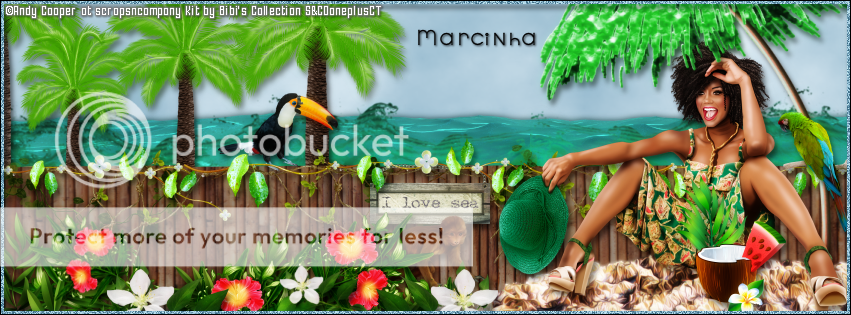
Tutorial written by Marcia Salgado on June 25th, 2016
for those who have a working knowledge of PSP.
I'm using PSP9 to create my tuts.
Any resemblance to any other tutorial is coincidental.
Do not copy and paste this tutorial anywhere on the net.
If you want to translate please ask first. 

****************************************
Material:

Tube: "Afrobeach" by Andy Cooper, you can purchase it here 
do not use without the proper #license.
PTU Kit "Jamaican Beach" by Lil Mz's Brainstorms, you can purchase it here 
Plugin: MuRa's Meister
Font: SNF Metro

****************************************

--> Remember to save often and use my tag as reference if necessary. Use a Drop Shadow of your preference on layers. 


1. Create a new image 851x315.

2. Add anew layer. Use MuRa's Meister > Cloud with colors #76d7d9 and white as foreground and background colors.


3. Open LMB_JamaicanBeach_Element (105). Copy and paste as new layer. Move it way to left. Duplicate. Mirror. Fix the position moving the copy to right. Merge down.

4. Open LMB_JamaicanBeach_Element (106). Copy and paste as new layer. Move it way to left. Duplicate. Mirror. Fix the position moving the copy to right. Merge down.

5. Open LMB_JamaicanBeach_Element (46). Copy and paste as new layer. Move it a little up and to left.

6. Open LMB_JamaicanBeach_Element (35). Resize 50%. Copy and paste as new layer. Apply MuRa's Meister as shown below. Move it down.


7. Open LMB_JamaicanBeach_Element (24). Resize 20%. Copy and paste as new layer. Place it on the fence.

8. Open LMB_JamaicanBeach_Element (17). Resize 40%. Copy and paste as new layer. Duplicate and place it on the fence on 2 different places. Merge these 2 layers together.

9. Open LMB_JamaicanBeach_Element (18). Resize 40%. Copy and paste as new layer. Duplicate it twice and place it over the fence. Merge these 3 layers together.

10. Open LMB_JamaicanBeach_Element (75). Resize 20%. Copy and paste as new layer. Place it on the fence at the middle.

11. Open LMB_JamaicanBeach_Element (39). Resize 20%. Mirror. Copy and paste as new layer. Place it below the plaque.

12. Open LMB_JamaicanBeach_Element (8). Resize 40%. Copy and paste as new layer. Duplicate it twice. Place it on the fence. Merge these 3 layers together.

13. Open LMB_JamaicanBeach_Element (9). Resize 25%. Copy and paste as new layer. Duplicate and place it on the fence. Try to alternate this one with the previous element.

14. Open LMB_JamaicanBeach_Element (89). Resize 75%. Copy and paste as new layer. Move it way to the right. Duplicate and turn the copy invisible. Click on original layer to continue.

15. Open LMB_JamaicanBeach_Element (43). Resize 30%. Mirror. Copy and paste as new layer.

16. Open LMB_JamaicanBeach_Element. Copy and paste as new layer.

17. Open your tube. Resize. Copy and paste as new layer. Move it way to right.

18. Turn the copy visible again. Select the part that is over the tube head. Invert selection. Delete.

19. Open LMB_JamaicanBeach_Element (44). Resize 25%. Mirror. Copy and paste as new layer.

20. Open LMB_JamaicanBeach_Element (42). Resize 50%. Copy and paste as new layer.

21. Open LMB_JamaicanBeach_Element (29). Resize 25%. Copy and paste as new layer.

22. Open LMB_JamaicanBeach_Element (59). Resize 25%. Copy and paste as new layer.

23. Open LMB_JamaicanBeach_Element (27). Resize 20%. Copy and paste as new layer.

24. Add a new layer. Select all. Fill it with #76d7d9. Contract > 5. Delete. Deselect. Add noise > Uniform - 60 - Monochrome.

25. Add a new layer. Select all. Fill with black. Contract > 1. Delete. Deselect.


--> Add your copyright info (no URL by Facebook TOU) and license#. 
Add your name or initials. Save as PNG.

--> Sometimes I had to change my Timeline size to 846x313 because when I add it to Facebook the image has extra pixels and do not fit perfectly. So try this size if the same is happening to you.


------------------------------------------------------------------------

Here the Picture Profile I made for this Timeline.


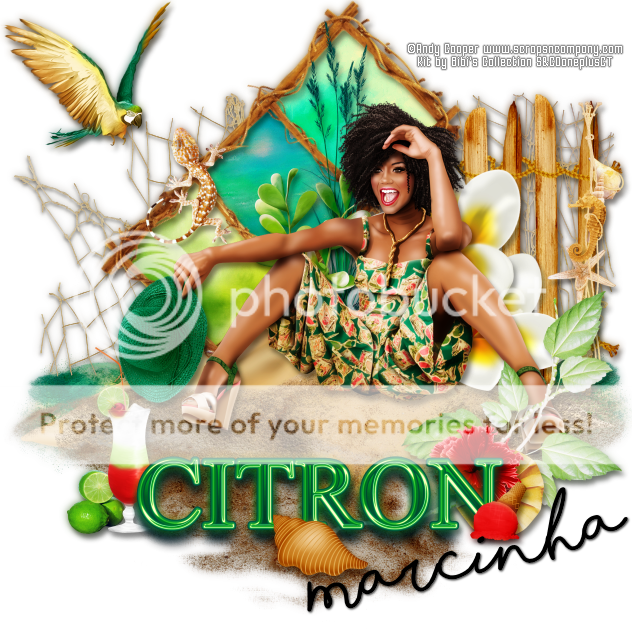
Afrobeach

HAPPY IN THE SUN TUTORIAL


Tutorial written by Marcia Salgado on June 25th, 2016
for those who have a working knowledge of PSP.
I'm using PSP9 to create my tuts.
Any resemblance to any other tutorial is coincidental.
Do not copy and paste this tutorial anywhere on the net.
If you want to translate please ask first. 

****************************************
Material:

Tube: "Afrobeach" by Andy Cooper, you can purchase it here 
do not use without the proper #license.
PTU Kit "Afrobeach" by Bibi's Collection, you can purchase it here 
Font: Shorelines Script Bold

****************************************

--> Remember to save often and use my tag as reference if necessary. Use a Drop Shadow of your preference on layers. 


1. Create a new image 650x650.

2. Open BIBI-AFROBEACH ELEM (88). Resize 40%. Copy and paste as new layer. Move it very little down.

3. Open BIBI-AFROBEACH ELEM (32). Copy and paste as new layer. Move it a little up.

4. Open BIBI-AFROBEACH ELEM (20). Resize 50%. Copy and paste as new layer. Move it up and to right.

5. Open BIBI-AFROBEACH ELEM (19). Resize 30%. Copy and paste as new layer. Place it hanging on the fence.

6. Open BIBI-AFROBEACH ELEM (37). Resize 48%. Copy and paste as new layer. Move it down, lower than the water.

7. Open BIBI-AFROBEACH ELEM (43). Copy and paste as new layer. Place it over the sand.

8. Open BIBI-AFROBEACH ELEM (34). Resize 45%. Free Rotate: Left-45. Copy and paste as new layer. Place it on the left side of the fence. 

9. Select inside the first frame. Expand > 5. Add a new layer and rename it BACK. Move this layer below the frame layer. Open BIBI-AFROBEACH PAPERS (3). Copy and paste into selection. Deselect. 

10. Click on frame layer. Select inside the second frame. Expand > 5. Click on BACK layer. Open BIBI-AFROBEACH PAPERS (2). Copy and paste into selection. Deselect.

11. Click on frame layer. Select inside the third frame. Expand > 5. Click on BACK layer. Open BIBI-AFROBEACH PAPERS (1). Copy and paste into selection. Deselect.

12. Open BIBI-AFROBEACH ELEM (90). Resize 35%. Copy and paste as new layer. Place it over the frame.

13. Open BIBI-AFROBEACH ELEM (93). Resize 40%. Copy and paste as new layer. Place it on the left side of the fence and in front of the frame.

14. Open BIBI-AFROBEACH ELEM (66). Resize 20%. Copy and paste as new layer. Place it on left side of first plant.

15. Open BIBI-AFROBEACH ELEM (22). Resize 40%. Copy and paste as new layer. Place it at bottom on left side of the fence. 

16. Open BIBI-AFROBEACH ELEM (21). Resize 40%. Copy and paste as new layer. Place it a little more to left and a little more up than the first flower.

17. Open your tube. Resize. Copy and paste as new layer. Place it on the right side on top of the sand.

18. Open BIBI-AFROBEACH ELEM (15). Resize 30%. Copy and paste as new layer. Move it up and to left.

19. Open BIBI-AFROBEACH ELEM (62). Resize 35%. Copy and paste as new layer. Move it down. 

20. Open BIBI-AFROBEACH ELEM (54). Resize 10%. Copy and paste as new layer. Move it down and to left. Move it below the wordart layer. Place it on the left side near the letter C.

21. Open BIBI-AFROBEACH ELEM (56). Resize 10%. Copy and paste as new layer. Place it on left side of the drink, move it below the drink layer. 

22. Open BIBI-AFROBEACH ELEM (100). Resize 40%. Copy and paste as new layer. Move it down and to right. Place it below the wordart on right side.

23. Open BIBI-AFROBEACH ELEM (27). Resize 20%. Copy and paste as new layer. Place it near letter N on the right side.

24. Open BIBI-AFROBEACH ELEM (91). Resize 20%. Copy and paste as new layer. Place it below the N letter.

25. Click on wordart layer. Open BIBI-AFROBEACH ELEM (14). Resize 25%. Copy and paste as new layer. Move it down and place it near letter R.

26. Open BIBI-AFROBEACH ELEM (17). Resize 15%. Mirror. Copy and paste as new layer. Place it over the end of letter N.


--> Add your copyright info and license #. Add your name and save as PNG.


June 25, 2016

Blue Butterfly ~ by Joanne Salgado


Tutorial written by Joanne Salgado on June 25th, 2016
for those who have a working knowledge of PSP.
I'm using PSP9 to create my tuts.
Any resemblance to any other tutorial is coincidental.
Do not copy and paste this tutorial anywhere on the net.
If you want to translate please ask first. 

****************************************
Material:

Tube: "Butterfly in Hair" by Andy Cooper - you can purchase it here
do not use without the proper #license.
PTU Kit "Butterfly in Hair" by Tammy's Welt - you can purchase it here
Font: Theodista Decally

****************************************

Don't forget to save often.
At any point if you have doubts check my tag.

1. Open a new image 650x550

2. Open element 'butterfly in hair (64)' copy and paste as new layer. Resize 70%.

3. Open element 'butterfly in hair (53)' copy and paste as new layer. Resize 50%. Move this layer below the frame layer. Arrange it a little to bottom. Duplicate. Mirror.

4. Open element 'butterfly in hair (48)' copy and paste as new layer. Resize 50%. Arrange it to the top left.

5. Open paper 'paper 7' copy and paste as new layer. Resize 45%. Clean the parts outside the frame.

6. Open element 'butterfly in hair (78)' copy and paste as new layer. Move this layer above the frame layer.

7. Open element 'butterfly in hair (77)' copy and paste as new layer. Resize 80%.

8. Open your tube. Copy and paste as new layer. Resize as needed and arrange it inside the frame. Clean the parts not needed.

9. Open element 'butterfly in hair (57)' copy and paste as new layer. Resize 30%. Arrange it to the top left.

10. Open element 'butterfly in hair (59)' copy and paste as new layer. Resize 50%. Arrange it to the top left.

11. Open element 'butterfly in hair (30)' copy and paste as new layer. Resize 50%. Arrange it to the right.

12. Open element 'butterfly in hair (44)' copy and paste as new layer. Resize 50%. Arrange it to the right.

13. Open element 'butterfly in hair (55)' copy and paste as new layer. Resize 50%. Mirror. Arrange it to the right.

14. Open element 'butterfly in hair (35)' copy and paste as new layer. Mirror. Clean the stem and arrange it to the bottom right.

15. Open element 'butterfly in hair (36)' copy and paste as new layer. Mirror. Arrange it to the bottom right.

16. Open element 'butterfly in hair (41)' copy and paste as new layer. Resize 30%. Arrange it to the bottom left.

17. Open element 'butterfly in hair (24)' copy and paste as new layer. Resize 30%. Arrange it to the bottom right.

18. Open element 'butterfly in hair (76)' copy and paste as new layer. Resize 50%. Arrange it to the left.

19. Add shadow as you prefer.

20. Add copyright. Add name. Save as PNG.

June 13, 2016

Fairy Red Dress ~ by Joanne Salgado


Tutorial written by Joanne Salgado on June 13th, 2016
for those who have a working knowledge of PSP.
I'm using PSP9 to create my tuts.
Any resemblance to any other tutorial is coincidental.
Do not copy and paste this tutorial anywhere on the net.
If you want to translate please ask first. 

****************************************
Material:

Tube: "Fairy Dress Red" by Andy Cooper - you can purchase it here
do not use without the proper #license.
PTU Kit "Red Fairy" by Bibi's Collection - you can purchase it here
Font: Lemonade

****************************************

Don't forget to save often.
At any point if you have doubts check my tag.

1. Open a new image 650x550

2. Open element 'BIBI-RED FAIRY ELEMS (83)' copy and paste as new layer. Resize 50%.

3. Open element 'BIBI-RED FAIRY ELEMS (26)' copy and paste as new layer. Resize 60%. Manual Color Correction: source #c89f38 target #318202

4. Open element 'BIBI-RED FAIRY ELEMS (15)' copy and paste as new layer. Resize 40%. Arrange it to the left.

5. Open element 'BIBI-RED FAIRY ELEMS (3)' copy and paste as new layer. Resize 30%. Arrange it to the bottom left.

6. Open element 'BIBI-RED FAIRY ELEMS (20)' copy and paste as new layer. Resize 20%. Arrange it to the bottom right.

7. Open element 'BIBI-RED FAIRY ELEMS (46)' copy and paste as new layer. Resize 7%. Arrange it to the bottom left.

8. Open element 'BIBI-RED FAIRY ELEMS (57)' copy and paste as new layer. Resize 15%. Arrange it to the bottom right.

9. Open element 'BIBI-RED FAIRY ELEMS (69)' copy and paste as new layer. Resize 15%. Arrange it to the bottom left.

10. Open element 'BIBI-RED FAIRY ELEMS (16)' copy and paste as new layer. Resize 50%. Arrange it to the bottom left.

11. Open element 'BIBI-RED FAIRY ELEMS (22)' copy and paste as new layer. Resize 15%. Arrange it to the bottom right.

12. Open element 'BIBI-RED FAIRY ELEMS (13)' copy and paste as new layer. Resize 20%. Arrange it to the bottom left.

13. Open element 'BIBI-RED FAIRY ELEMS (67)' copy and paste as new layer. Resize 80%.

14. Open element 'BIBI-RED FAIRY ELEMS (71)' copy and paste as new layer. Resize 12%. Arrange it to bottom.

15. Open your tube. Copy and paste as new layer. Resize as needed and arrange it a little to the right.

16. Open element 'BIBI-RED FAIRY ELEMS (72)' copy and paste as new layer. Resize 20%. Arrange it in your tube's hand. Clean so it looks like its holding it.

17. Add shadow as you prefer.

18. Add copyright. Add name. Save as PNG.