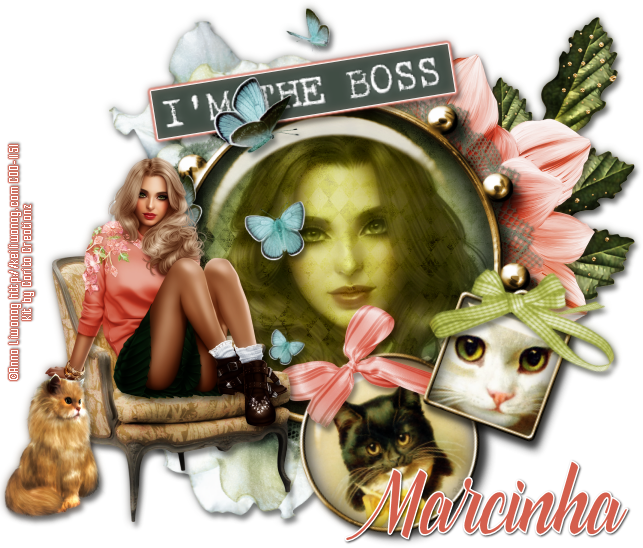
Showing posts with label Carita Creationz. Show all posts

June 24, 2016

Charming Dots

VINTAGE PHOTOGRAPHER TUTORIAL
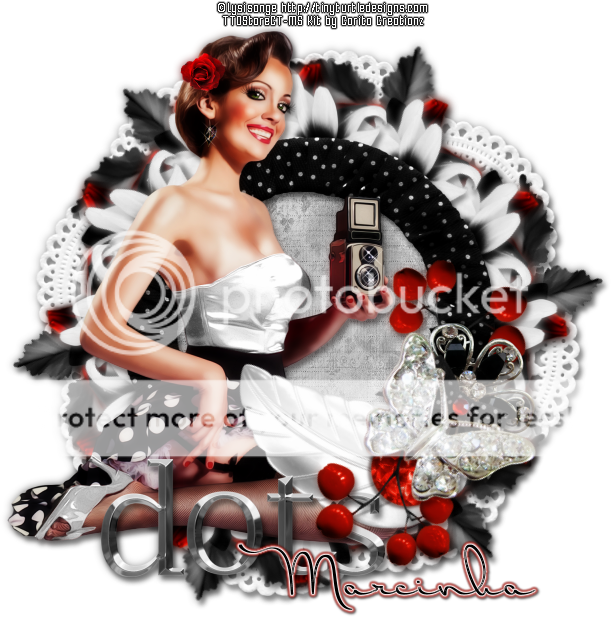

Tutorial written by Marcia Salgado on June 20th, 2016
for those who have a working knowledge of PSP.
Any resemblance to any other tutorial is coincidental.
Do not copy and paste this tutorial anywhere on the net.
If you want to translate please ask first. 

****************************************
Material:

Tube: "Isaure" by Lysisange, you can purchase it here 
do not use without the proper #license.
PTU Kit "Charming Dots" by Carita Creationz, you can purchase it here  
Font: Dr Carbfred

****************************************

--> Remember to save often and use my tag as reference if necessary. Use a Drop Shadow of your choice. 


1. Create a new image 650x650.

2. Open 'element' 6. Resize 80%. Copy and paste as new layer.

3. Open 'element' 27. Resize 40%. Mirror. Free Rotate: Right-25. Copy and paste as new layer. Move it a little up and to right. Place it showing only the tip of the leaves. Duplicate. Mirror. Flip. Merge down. Duplicate. Free Rotate: Right-60. Duplicate the copy and apply the same free rotate. Merge all leaves layers together.

5. Open 'element' 12. Resize 45%. Copy and paste as new layer. Free Rotate: Left-45. Add some shadow. Apply MuRa's Meister > Copies > Encircle - Default.

6. Open 'element' 12a. Resize 40%. Copy and paste as new layer. Add  some shadow. Apply MuRa's Meister > Copies > Encircle - Default.

7. Open 'element' 19. Resize 40%. Copy and paste as new layer. Add some shadow. Apply MuRa's Meister > Copies > Encircle - Default.

8. Open 'element' 4. Resize 55%. Copy and paste as new layer.

9. Select inside the frame. Expand > 8. Add a new layer and move it below the frame layer. Open 'paper' pp2. Copy and paste into selection.

10. Click on frame layer. Open your tube. Resize. Copy and paste as new layer. Move it to left a little.

11. Open 'element' 25. Resize 41%. Free Rotate: Right-35. Copy and paste as new layer. Move it down and to right.

12. Open 'element' 8. Resize 40%. Copy and paste as new layer. Move it down and to left.

13. Open 'element' 9. Resize 36%. Free Rotate: Left-60. Copy and paste as new layer. Move it to right. Duplicate. Mirror. Flip. Place it below the fist one.

14. Open 'element' 16. Resize 40%. Copy and paste as new layer. Place it over the joint point of the previous element.

15. Open 'element' 1. Resize 31%. Free Rotate: Right-30. Copy and paste as new layer. Place it over the metal flower.

16. Open 'element' 13. Resize 50%. Free Rotate: Right-45. Copy and paste as new layer. Move it a little down and to right.

17. Use Crop > Merged Opaque to get rid of all extra space.


--> Add your copyright info and license#. Add your name and save as PNG.


June 10, 2016

Under Arrest

YOU'RE MINE TUTORIAL


Tutorial written by Marcia Salgado on June 10th, 2016
for those who have a working knowledge of PSP.
Any resemblance to any other tutorial is coincidental.
Do not copy and paste this tutorial anywhere on the net.
If you want to translate please ask first. 

****************************************
Material:

Tube: "Bonnie" by Elias Chatzoudis, you can purchase it here 
do not use without the proper #license.
PTU Kit "Under Arrest" by Carita Creationz, you can purchase it here  
Mask: Dee's mask, DD_PatrioticMask_2. HERE 
Font: Madina Script

****************************************

--> Remember to save often and use my tag as reference if necessary. Use a Drop Shadow of your choice. 


1. Create a new image 650x650.

2. Add a new layer. Select all. Open 'paper" pp6. Copy and paste into selection. Deselect. Apply Dee's mask. Merge group.

3. Open 'element' 26. Copy and paste as new layer.

4. Open 'element' 17. Resize 75%. Copy and paste as new layer.

5. Open 'element' 29.  Copy and paste as new layer. Move it up and to right. Move this below the frame layer.

6. Open 'element' 6. Copy and paste as new layer.

7. Click on frame layer and select it inside. Expand > 10. Add a new layer and move it below the frame layer. Open 'paper' pp9. Copy and paste into selection. Invert selection.

8. Open 'element' 3. Copy and paste as new layer. Delete. Deselect. Blend Mode: Luminance (L).

9. Click on frame layer. Open 'element' 18. Resize 40%. Free Rotate: Left-10. Copy and paste as new layer.

10. Open 'element' 20. Resize 50%. Copy and paste as new layer. Move it to right. Duplicate. Resize 70%. Move it a little up and a little to left.

11. Open 'element' 15. Resize 70%. Copy and paste as new layer. Move it up and a little to right.

12. Open 'element' 2. Resize 60%. Mirror. Copy and paste as new layer. Move it to right and a very little up.

13. Open 'element' 12. Resize 60%. Free Rotate: Left-10. Copy and paste as new layer. Move it to right.

14. Open 'element' 11. Resize 60%. Free Rotate: Right-20. Copy and paste as new layer. Move it down and to right.

15. Open 'element' 24. Resize 60%. Mirror. Copy and paste as new layer. Move it down and to left.

16. Open your tube. Resize if needed. Copy and paste as new layer. Move it to left.

17. Use Crop > Merged Opaque to get rid of all extra spaces.


--> Add your copyright info and license#. Add your name and save as PNG.
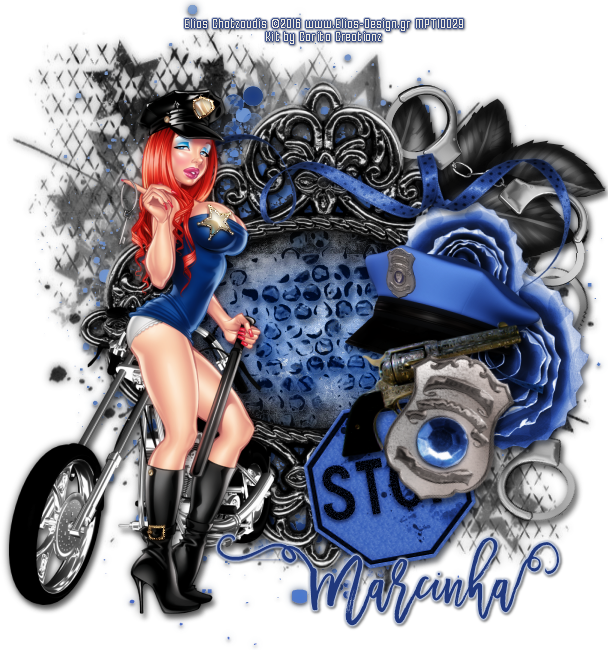


------------------------------------------------------


Below the same tag where I added some simple animations (noise and underwater).


-------------------------------------------------------

Same FREE SNAGS I made for you, just click and save


May 12, 2016

You & Me

INTENSE TUTORIAL


Tutorial written by Marcia Salgado on May 12th, 2016
for those who have a working knowledge of PSP.
Any resemblance to any other tutorial is coincidental.
Do not copy and paste this tutorial anywhere on the net.
If you want to translate please ask first. 

****************************************
Material:

Tube: "The Sun" by Alehandra Vanhek (Exclusive), you can purchase it here 
do not use without the proper #license.
PTU Kit "You & Me" by Carita Creationz, you can purchase it here  
Mask: Dee's mask, DD_StarMask_4, here 
Plugin: MuRa's Meister
Font: Sourdough

****************************************

--> Remember to save often and use my tag as reference if necessary. Use a Drop Shadow of your choice. 


1. Create a new image 650x650.

2. Open 'element' 16. Copy and paste as new layer. Apply MuRa's Meister > Copies > Encircle as shown below:


3. Open 'element' 18. Copy and paste as new layer.

4. Open 'element' 4. Resize 55%. Flip. Copy and paste as new layer. Apply MuRa's Meister > Copies > Encircle with the settings below:


5. Select inside the frame created. Add a new layer. Expand > 5. Open 'paper' pp10. Copy and paste into selection. Keep selected.

6. Open 'paper' pp5. Copy and paste into selection. Invert selection. Blend Mode: Overlay.

7. Open yourtube close up. Resize a little if needed. Copy and paste as new layer. Place it inside the frame. Delete. Deselect. Low the layer opacity to 50. Select all. Clip to canvas. Crop to selection.Turn Layer 1 (it's the empty bottom layer) invisible  and merge all visible layer. Move the cluster creates to left but pay attention on borders. Turn bottom layer visible again and click on it.

8. Add a new layer. Select all. Open 'paper' pp2. Copy and paste into selection. Apply Dee's mask. Merge group. Move it to right.

9. Open 'element' 29. Resize 75%. Copy and paste as new layer. Move it down and to left (a little far from border but still showing under the cluster frame). Duplicate. Mirror. Flip. Merge down.

10. Click on first layer. Open your tube. Resize. Copy and paste as new layer. Move it to right. I mirrored mine.

11. Open 'element' 1. Resize 35%. Copy and paste as new layer. Move it down and to left.

12. Open 'element' 2. Resize 25%. Free Rotate: Right-120. Copy and paste as new layer. Place it over the previous leaf.

13. Open 'element' 13. Resize 25%. Free Rotate: Right-28. Copy and paste as new layer. Move it down and a little to left.

14. Open 'element' 22. Resize 55%. Free Rotate: Left-25. Copy and paste as new layer. Move it down and to left.


--> Add your copyright info and license#. Add your name and save as PNG.


-------------------------------------------------------------------------

Some FREE SNAGS I made for you, 
just click and save


May 3, 2016

Aphrodite's Garden

MY MUSE TUTORIAL


Tutorial written by Marcia Salgado on May 1st, 2016
for those who have a working knowledge of PSP.
Any resemblance to any other tutorial is coincidental.
Do not copy and paste this tutorial anywhere on the net.
If you want to translate please ask first. 

****************************************
Material:

Tube: "Aphrodite" by Zlata_M (Exclusive Tube), you can purchase it here 
do not use without the proper #license.
PTU Kit "Aphrodite's Garden" by Carita Creationz, you can purchase it here 
Mask: Dee's mask, DD_NGM1_2015_1, here 
Plugin: MuRa's Meister
Material: Silver Sparkle, just click and save.
Font: Monday

****************************************

--> Remember to save often and use my tag as reference if necessary. Use a Drop Shadow of your choice. 


1. Create a new image 650x650.

2. Open 'element' 22. Resize 70%. Copy and paste as new layer. Use MuRa's Meister > Copies > Encircle with the settings below:


3. Add a new layer. Select all. Open pp9. Copy and paste into selection. Apply Dee's mask. Merge group.

4. Open opc_silversparkle. Resize 50%. Copy and paste as new layer. Place it over the tree border. Duplicate it until cover all border.

5. Open 'element' 10. Resize 60%. Copy and paste as new layer. Use MuRa's Meister > Copies > Encircle with the settings below:


6. Open 'element' 3. Resize 75%, Copy and paste as new layer.

7. Select inside the frame. Expand > 4. Add a new layer and move it below the frame layer. Open 'paper' pp8. Copy and paste into selection. Add a new layer. Open 'paper' pp5. Copy and paste into selection. Deselect. Blend Mode: Color (L).

8. Click on first layer. Open pp6. Custom selection as shown below:


9. Copy and paste as new image. Canvas size with the follow settings:


10. Apply Polar Coordinates as shown below:


11. Resize 80%. Copy and paste as new layer on your tag.

12. Open 'element' 21. Resize 60%. Copy and paste as new layer. Move it down and to right. Place it over the frame border. Duplicate. Resize 60%. Free Rotate: Left-25. And place it a little up and a little more to right.

13. Open 'element' 11. Resize 70%. Copy and paste as new layer. Move it a little to right and place it over the frame border.

14. Open 'element' 28. Resize 40%. Copy and paste as new layer. Move it down and to left. 

15, Open 'element' 15. Resize 30%. Mirror. Copy and paste as new layer. Move it up and left. Place it over the column but move the layer below the column layer. Hide the bust base behind the column.

16. Click on first layer. Open your tube and resize it. Place it around the middle of the tag and frame. You may want rearrange some elements to better fit your tube.

17. Open 'element' 23. Resize 60%. Mirror. Copy and paste as new layer. Move it down and a little to left,

18. Open 'element' 27. Resize 50%, Free Rotate: Right-55,  Copy and paste as new layer. Move it down and to left.

19. Open 'element' 12. Resize 35%. Copy and paste as new layer. Move it down and a little to left. Place it over the harp's bottom right side Duplicate. Resize 60%. Move it a little to left and a little more down.


--> Add yout copyright info and license#. Add your name and save as PNG.


----------------------------------------------------------

Some FREE SNAGS I made for you, just click and save.


March 25, 2016

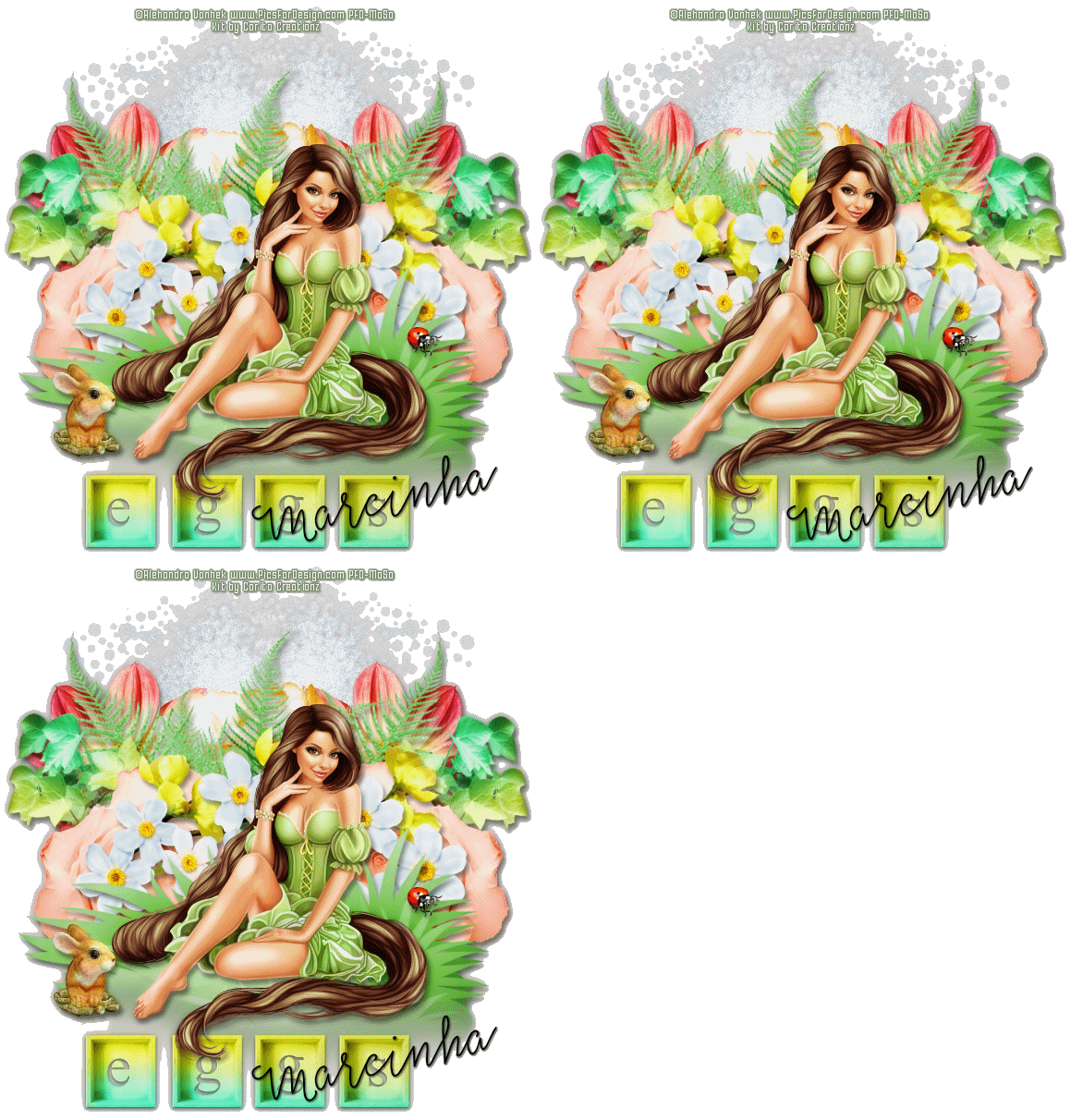
Springtastic

EGGSTASTIC TUTORIAL


Tutorial written by Marcia Salgado on March 25th, 2016
for those who have a working knowledge of PSP.
Any resemblance to any other tutorial is coincidental.
Do not copy and paste this tutorial anywhere on the net.
If you want to translate please ask first. 

****************************************
Material:

Tube: "Rapunzel" by Alehandra Vanhek, you can purchase it here 
do not use without the proper #license.
PTU Kit "Springtastic" by Carita Creationz, you can purchase it here  
Font: Salt and Spices Mono Regular

****************************************

--> Remember to save often and use my tag as reference if necessary. Use a Drop Shadow of your choice. 

1. Create a new image 650x650.

2. Open 'element' 11. Resize 85%. Copy and paste as new layer. Move it down.

3. Open 'element' 42. Copy and paste as new layer. Move it up.

4. Open 'element' 27. Resize 50%. Copy and paste as new layer. Move it up and to left. Duplicate and mirror. Merge down.

5. Open 'element' 32. Resize 70%. Copy and paste as new layer. Move it a little up. Place between the previous flowers.

6. Open 'element' 36. Resize 85%. Copy and paste as new layer. Move it to left. Place it over the pink flower. Duplicate. Mirror. Duplicate the original element again. Flip and place it between the first two plants.

7. Open 'element' 21. Resize 65%. Copy and paste as new layer. Move it up and to left. Duplicate. Mirror. Merge down.

8. Open 'element' 35. Copy and paste as new layer. Move it to right. Duplicate and mirror. Merge down.

9. Open 'element' 4. Resize 60%. Copy and paste as new layer. Move it a little up.

10. Open 'element' 29. Copy and paste as new layer. If need move it a little down to show the yellow flower behind it.

11. Select inside the center of the flowers. Promote selection to a layer. Duplicate it twice. Add on each layer Noise: Gaussian-35-Monochrome. Rename the layer 1, 2 and 3. Leave layers 2 and 3 invisible for now. 

12. Click on first layer (should be the grass layer). Open 'element' 1. Resize 50%. Copy and paste as new layer. Move it way down.

13. Open your tube. Resize if needed. Copy and paste as new layer. Place it over the grass element.

14. Open 'element' 14. Resize 20%. Copy and paste as new layer. Move it down and to left. 

15. Open 'element' 30. Resize 30%. Copy and paste as new layer. Place it over the grass on right side.

16. Using Crop > Merged opaque remove all extra space from your tag.

17. Add your copyright info and license#. Add your name. If you do not want to add the noise animation you can save it as PNG now.


ANIMATION

1. PSP -> Copy merged.

2. AS -> Paste as new animation.

3. PSP -> Turn layer 1 invisible and layer 2 visible. Copy merged.

4. AS -> Paste after current frame.

5. PSP ->  Turn layer 2 invisible and layer 3 visible. Copy merged.

4. AS -> Paste after current frame.

5. Add a white background and save as GIF


March 22, 2016

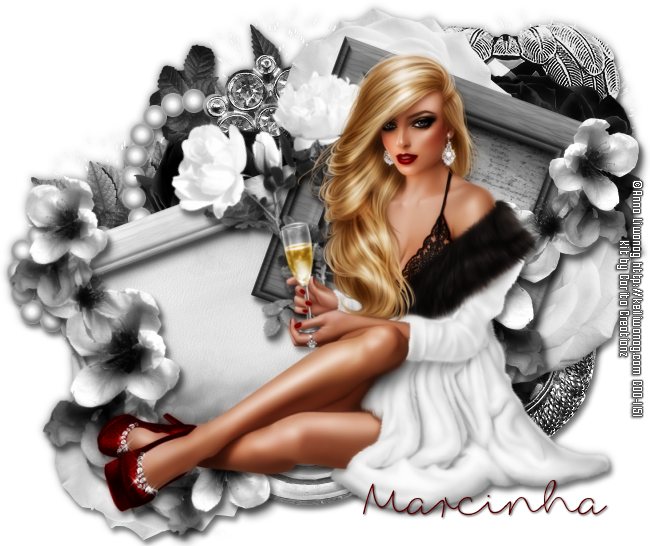
Antique Silver

CLASSIC TUTORIAL


Tutorial written by Marcia Salgado on March 20th, 2016
for those who have a working knowledge of PSP.
Any resemblance to any other tutorial is coincidental.
Do not copy and paste this tutorial anywhere on the net.
If you want to translate please ask first. 

****************************************
Material:

Tube: "Individual Tube 84-1" by Anna Liwanag, you can purchase it here 
do not use without the proper #license.
PTU Kit "Antique Silver" by Carita Creationz, you can purchase it here 
Font: fox in the snow

****************************************

--> Remember to save often and use my tag as reference if necessary. Use a Drop Shadow of your choice.

1. Open a new image 650x550

2. Open element 'el16' copy and paste as new layer. Resize 50%. Rotate left 20. Arrange it to the bottom left.

3. Open element 'el16a' copy and paste as new layer. Resize 50%. Rotate right 20. Arrange it to the top right.

4. Open element 'el11' copy and paste as new layer. Move this layer below both frame layers. Arrange it to the top between the frames. Duplicate. Arrange it to the top left of the white frame. Duplicate. Mirror. Arrange it to the top right of the grey frame. Clean the bottom parts.

5. Open element 'el19' copy and paste as new layer. Arrange it to the bottom right of the grey frame.

6. Open element 'el21' copy and paste as new layer. Flip. Arrange it to the top left of the white frame.

7. Open element 'el1' copy and paste as new layer. Arrange it to the top of the grey frame.

8. Open element 'el5' copy and paste as new layer. Flip. Arrange it to the bottom right of the white frame.

9. Open element 'el27' copy and paste as new layer. Arrange it to the top left of the white frame.

10. Open element 'el26' copy and paste as new layer. Arrange it to the top between the frames.

11. Open element 'el28' copy and paste as new layer. Arrange it to the top between the frames a little to the left. Duplicate. Arrange it to the top right of the grey frame. Duplicate. Arrange it to the bottom between the frames.

12. Open element 'el12' copy and paste as new layer. Arrange it to the top left of the grey frame. Duplicate. Arrange it to the right of the grey frame. Duplicate. Arrange it to the bottom left of the white frame.

13. Open paper 'pp6' copy and paste as new layer. Resize 30%. Rotate left 20. Arrange it inside the white frame.

14. Open paper 'pp2' copy and paste as new layer. Resize 30%. Rotate right 20. Arrange it inside the grey frame.

15. Open element 'el9' copy and paste as new layer. Move this layer above both frames layer. Arrange it to the right of the grey frame. Duplicate. Mirror. Rotate right 20. Arrange it to the left of the white frame.

16. Open element 'el8' copy and paste as new layer. Resize 70%. Rotate left 20. Arrange it between the frames.

17. Open your tube. Copy and paste as new layer. Resize as needed and arrange it at the center a little to bottom.


--> Add your copyright info and license#. Add your name and save as PNG.


---------------------------------------------------------------------------


Here are some SNAG TAGS I made for you,
please do not change them in any aspect:
(Just click and save)


March 9, 2016

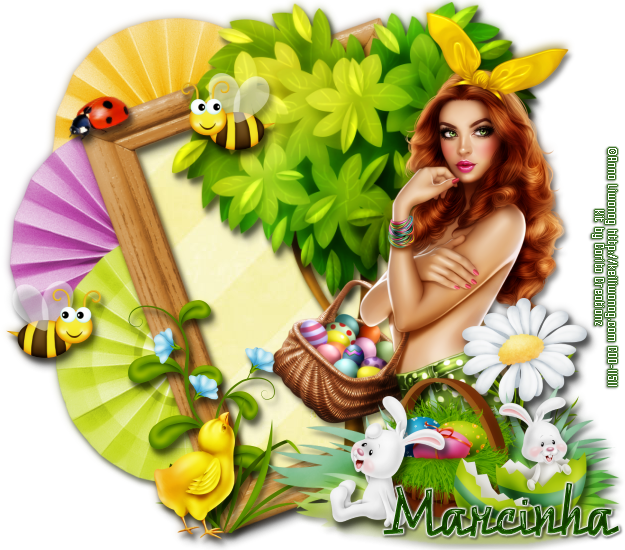
Eggs-ellent

EGGS-TRAVAGANZA TUTORIAL


Tutorial written by Marcia Salgado on March 9th, 2016
for those who have a working knowledge of PSP.
Any resemblance to any other tutorial is coincidental.
Do not copy and paste this tutorial anywhere on the net.
If you want to translate please ask first. 

****************************************
Material:

Tube: "Individual Tube 75-3" by Anna Liwanag, you can purchase it here 
do not use without the proper #license.
PTU Kit "Eggs-ellent" by Carita Creationz, you can purchase it here 
Font: RazomScriptRegular (Raisin des Sables on snags)

****************************************

--> Remember to save often and use my tag as reference if necessary. Use a Drop Shadow of your choice. 

1. Open a new image 650x550

2. Open frame 'fr6' copy and paste as new layer. Resize 60%. Rotate left 20.

3. Open element '36' copy and paste as new layer. Resize 60%. Move this layer below the frame layer. Arrange it to the top left.

4. Open element '36a' copy and paste as new layer. Resize 60%. Arrange it to the left below the yellow one.

5. Open element '37' copy and paste as new layer. Resize 60%. Arrange it to the left below the purple one.

6. Open paper 'pp7' copy and paste as new layer. Clean the parts that appears outside the frame.

7. Open element '44' copy and paste as new layer. Resize 30%. Rotate left 20. Arrange it to the top left of the frame.

8. Open element '6' copy and paste as new layer. Resize 50%. Mirror. Arrange it to the bottom left of the frame.

9. Open element '15' copy and paste as new layer. Resize 30%. Arrange it to the bottom left of the frame in front of the flower we added there.

10. Open element '46' copy and paste as new layer. Resize 30%. Arrange it to the bottom left of the frame.

11. Open element '52' copy and paste as new layer. Resize 90%. Arrange it to the right of the frame.

12. Open your tube. Copy and paste as new layer. Resize as needed and arrange it to the right.

13. Open element '13' copy and paste as new layer. Resize 40%. Arrange it to the bottom right to the right of your tube.

14. Open element '49' copy and paste as new layer. Arrange it to the bottom right.

15. Open element '1' copy and paste as new layer. Resize 40%. Arrange it to the bottom right above the grass.

16. Open element '9' copy and paste as new layer. Resize 30%. Arrange it to the bottom right to the left of the basket.

17. Open element '42' copy and paste as new layer. Resize 50%. Arrange it to the top a little above the tree. Duplicate. Mirror. Arrange it to the left a little above the green circle.

18. Open element '14' copy and paste as new layer. Resize 30%. Arrange it to the bottom right to the right of the basket.


--> Add your copyright info and license#. Add your name and save as PNG.


------------------------------------------------------------

Made some FREE SNAGS for you, just click and save.


February 22, 2016

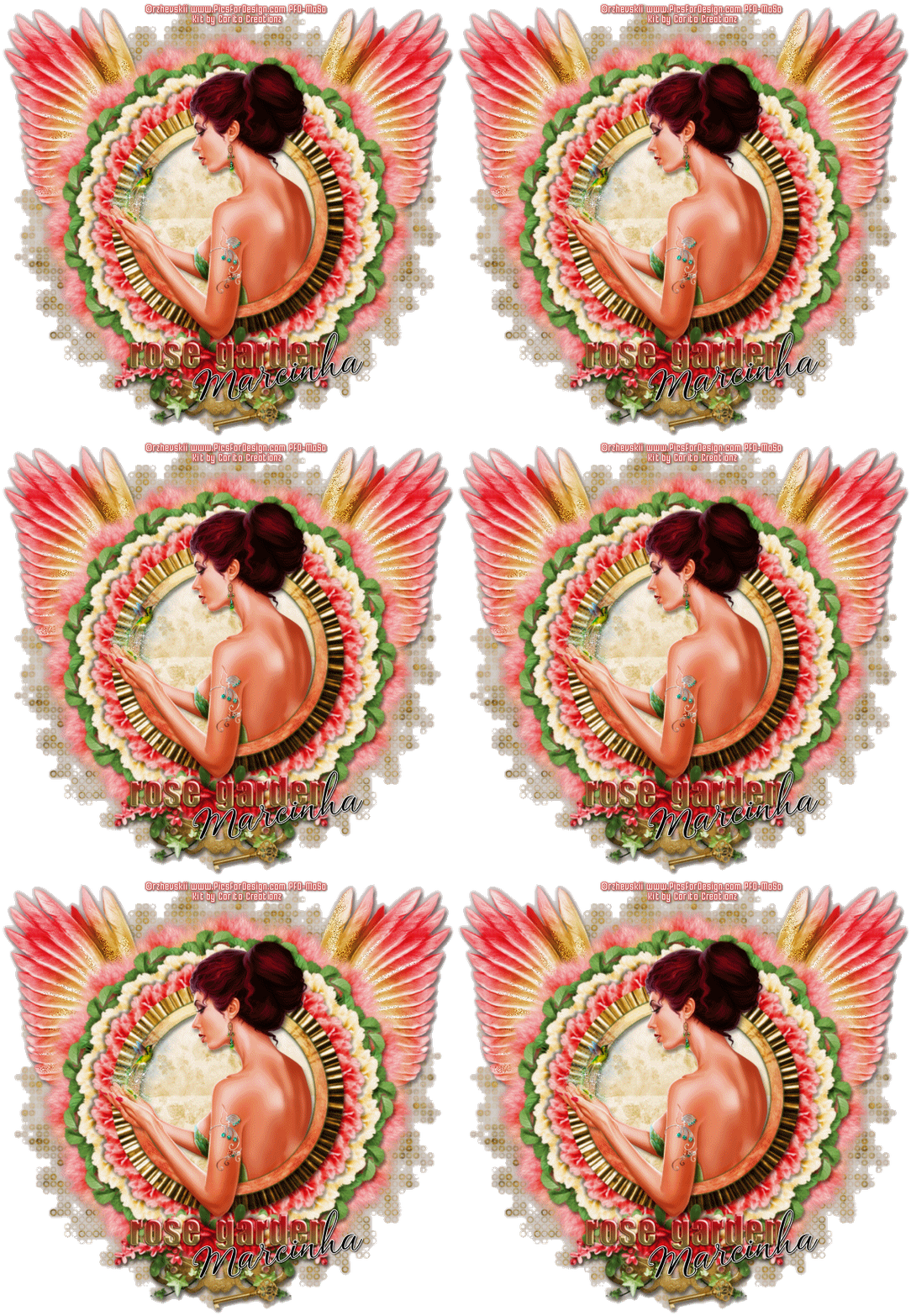
Rose Garden - FTU Cluster


== NEW CT CARITA CREATIONZ FTU CLUSTER ==

Featuring "Rose Garden" Kit by CARITA CREATIONZ at Dees'Sign Depot Store

This kit is a unique beauty. The colors are soft and complement each other perfectly, creating a romantic lightness full of magic and enchantment.
Tagger sized kit for personal use. It has 44 elements, 6 frames and 10 papers.

Kit can be found exclusively at:

-> Dees'Sign Depot Store, here

Don't forget to visit her blog:


Click below to get the zip file:


Rose Garden


== NEW CT CARITA CREATIONZ PTU TAG AND FREE SNAGS ==

Featuring "Rose Garden" Kit by CARITA CREATIONZ at Dees'Sign Depot Store

This kit is a unique beauty. The colors are soft and complement each other perfectly, creating a romantic lightness full of magic and enchantment.

Tagger sized kit for personal use. It has 44 elements, 6 frames and 10 papers.

Kit can be found exclusively at:

-> Dees'Sign Depot Store, here 

Don't forget to visit her blog:


------------------------------------

Some FREE SNAGS I made for you:


February 20, 2016

Purrr-fect Kittie

THE BOSS TUTORIAL


Tutorial written by Marcia Salgado on February 20th, 2016
for those who have a working knowledge of PSP.
Any resemblance to any other tutorial is coincidental.
Do not copy and paste this tutorial anywhere on the net.
If you want to translate please ask first. 

****************************************
Material:

Tube: "Individual Tube 86-3" by Anna Liwanag, you can purchase it here 
do not use without the proper #license.
PTU Kit "Purrr-fect Kittie" by Carita Creationz, you can purchase it here 
Font:  catfish script

****************************************

--> Remember to save often and use my tag as reference if necessary. Use a Drop Shadow of your choice. 


1. Create a new image 700x550. 

2. Open the frame f1. Resize 65%. Copy and paste as new layer.

3. Click on the bottom layer. Open 'element' 21. Resize 75%. Copy and paste as new layer. Move it to left. Duplicate it twice and made a semicircle on left side of the frame. Merge all layer with the same element.

4. Open 'element'4. Copy and paste as new layer. Move it to right and a little up.

5. Open 'element' 5. Copy and paste as new layer. Mopve it up and to right. Place it over the previous leaves.

6. Open 'element' 30. Resize 75%. Copy and paste as new layer.You may need to adjust it a little to be perfectly behind the frame.

7. Create a selection with the Lasso Tool around the frame. Like that:


8. Add a new layer. Open 'paper' pp5. Copy and paste into selection. Invert selection.

9. Open your tube close up. Copy and paste as new layer. Place it inside the frame and delete. Blend Mode: Luminance (Legacy). Low the opacity to 62. Duplicate. Gaussian Blur: 4. Blend Mode: Soft Light. Increase the layer opacity to 100.

10. Click on first layer (frame layer). Open 'element' 2. Resize 55%. Free Rotate: Left-20. Copy and paste as new layer. Move it down and a little to left.

11. Open 'element' 43. Resize 35%. Copy and paste as new layer. Place it over the cat picture on top. 

12. Open 'element' 1. Resize 45. Free Rotate: Right-20. Copy and paste as new layer. Move it down and to right. Place it over the big frame border.

13. Open 'element' 8. Resize 35%. Free Rotate: Right-20. Copy and paste as new layer. Place it over the previous cat picture on top.

14. Open 'element' 35. Resize 50%. Free Rotate: Left-8. Copy and paste as new layer. Place it over the big frame on top. Add a white border and then a border using the color: #d45f4d. 

15. Open 'element' 14. Resize 75%. Copy and paste as new layer. Move it to left.

16. Open 'element' 19. Resize 50%. Mirror. Copy and paste as new layer. Move it down and to left.

17. Open your tube (I'm using a sitted tube), resize it and copy and paste as new layer. Place it on the armchair.

18. Open 'element' 34. Resize 25%. Copy and paste as new layer. Move it down and way to left.

19. Use Crop > Merged Opaque and crop the extra space of the tag.


--> Add your copyright and license#. Add your name and save as PNG.


---------------------------------------------------------------------

Some FREE SNAGS for you:


February 15, 2016

The Black Pearl

AHOY MATE! TUTORIAL


Tutorial written by Marcia Salgado on February 15th, 2016
for those who have a working knowledge of PSP.
Any resemblance to any other tutorial is coincidental.
Do not copy and paste this tutorial anywhere on the net.
If you want to translate please ask first. 

****************************************
Material:

Tube: "My Treasure" an PFD Exclusive Tube by OrkusArt, you can purchase it here 
do not use without the proper #license.
PTU Kit "The Black Pearl" by Carita Creationz, you can purchase it here  
Font: TradeWind

****************************************

--> Remember to save often and use my tag as reference if necessary. Use a Drop Shadow of your choice. 

1. Create a new image 700x700.

2. Open 'element' 50. Resize 85%. Copy and paste as new layer. Move it way right. Duplicate. Mirror (Newer PSP versions may need to move it way left). Merge down.

3. Open 'element' 11. Copy and paste as new layer. Free Rotate: Right-15.

4. Open 'element' 19. Resize 75%. Copy and paste as new layer. Move it way down.

5. Open 'element' 14. Resize 30%. Copy and paste as new layer. Move it down and to right. Place it on ocean somewhere on right side of the map.

6. Open 'element' 1. Resize 75%. Copy and paste as new layer. Place it in the middle of the map.

7. Open 'element' 37. Copy and paste as new layer. Move it to left. Duplicate and move it down and a little to right.

8. Open 'element' 22. Copy and paste as new layer. Move it down and a little to left.

9. Open 'element' 5. Resize 85%. Copy and paste as new layer. Move it down and to left.

10. Open 'element' 12. Resize 65%. Copy and paste as new layer. Move it way down.

11. Open 'element' 13. Resize 50%. Copy and paste as new layer. Move it down and a little to right. Place it over the gold coins on right side.

12. Open 'element' 8. Resize 45%. Copy and paste as new layer. Move it down and way to right.

13. Open 'element' 15. Resize 65%. Copy and paste as new layer. Move it up and a little to right.

14. Open 'element' 18. Resize 30%. Copy and paste as new layer. Place it over the map border on the right side.

15. Open your tube and resize if needed. Mine is a seated pirate woman so I mirrored it and placed over the chest.


--> Add your copyright info and license#. Add your name and save as PNG.


--------------------------------------------------------------------

Some Extras I made for you