Showing posts with label Elias Chatzoudis. Show all posts

June 10, 2016

Under Arrest

YOU'RE MINE TUTORIAL
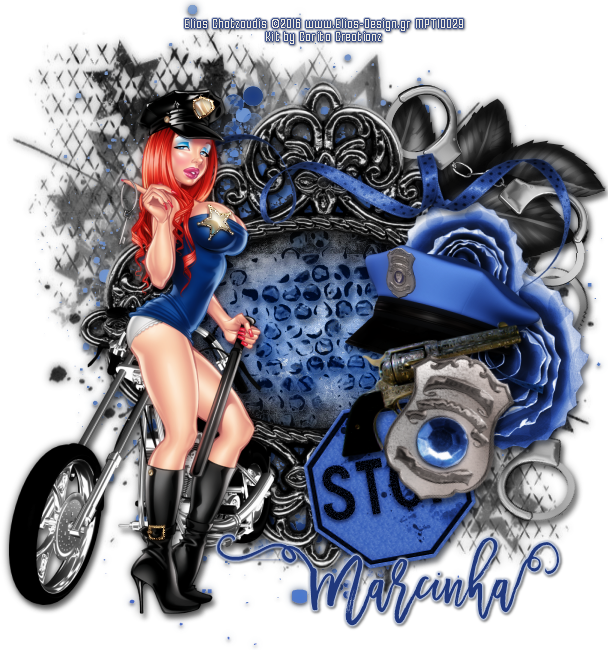


Tutorial written by Marcia Salgado on June 10th, 2016
for those who have a working knowledge of PSP.
Any resemblance to any other tutorial is coincidental.
Do not copy and paste this tutorial anywhere on the net.
If you want to translate please ask first. 

****************************************
Material:

Tube: "Bonnie" by Elias Chatzoudis, you can purchase it here 
do not use without the proper #license.
PTU Kit "Under Arrest" by Carita Creationz, you can purchase it here  
Mask: Dee's mask, DD_PatrioticMask_2. HERE 
Font: Madina Script

****************************************

--> Remember to save often and use my tag as reference if necessary. Use a Drop Shadow of your choice. 


1. Create a new image 650x650.

2. Add a new layer. Select all. Open 'paper" pp6. Copy and paste into selection. Deselect. Apply Dee's mask. Merge group.

3. Open 'element' 26. Copy and paste as new layer.

4. Open 'element' 17. Resize 75%. Copy and paste as new layer.

5. Open 'element' 29.  Copy and paste as new layer. Move it up and to right. Move this below the frame layer.

6. Open 'element' 6. Copy and paste as new layer.

7. Click on frame layer and select it inside. Expand > 10. Add a new layer and move it below the frame layer. Open 'paper' pp9. Copy and paste into selection. Invert selection.

8. Open 'element' 3. Copy and paste as new layer. Delete. Deselect. Blend Mode: Luminance (L).

9. Click on frame layer. Open 'element' 18. Resize 40%. Free Rotate: Left-10. Copy and paste as new layer.

10. Open 'element' 20. Resize 50%. Copy and paste as new layer. Move it to right. Duplicate. Resize 70%. Move it a little up and a little to left.

11. Open 'element' 15. Resize 70%. Copy and paste as new layer. Move it up and a little to right.

12. Open 'element' 2. Resize 60%. Mirror. Copy and paste as new layer. Move it to right and a very little up.

13. Open 'element' 12. Resize 60%. Free Rotate: Left-10. Copy and paste as new layer. Move it to right.

14. Open 'element' 11. Resize 60%. Free Rotate: Right-20. Copy and paste as new layer. Move it down and to right.

15. Open 'element' 24. Resize 60%. Mirror. Copy and paste as new layer. Move it down and to left.

16. Open your tube. Resize if needed. Copy and paste as new layer. Move it to left.

17. Use Crop > Merged Opaque to get rid of all extra spaces.


--> Add your copyright info and license#. Add your name and save as PNG.


------------------------------------------------------


Below the same tag where I added some simple animations (noise and underwater).


-------------------------------------------------------

Same FREE SNAGS I made for you, just click and save


February 10, 2016

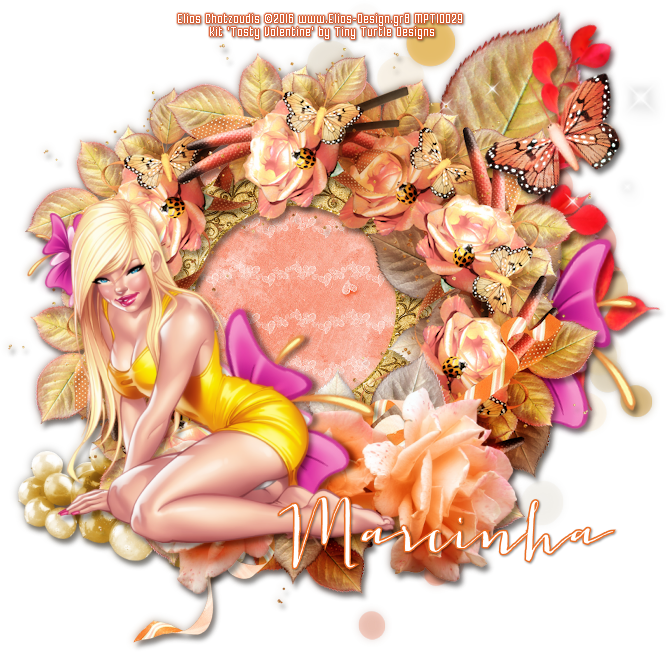
Tasty Valentine


== NEW PTU TAGS TINY TURTLE DESIGNS CT ==


Featuring "Tasty Valentine" Tiny Turtle Design kit at TinyTurtleDesign Store.

Tiny Turtle Design kit has 37 papers and 131 elements so you can play with it. 

Tiny Turtle Design kit can be found  at:

-> TinyTurtleDesign Store, here


------------------------------------------------------------------

Tubes used with this kit:
Elias Chatzoudis -> Celestine

Keith Garvey -> Mellow


June 24, 2015

Mermaid's Dream

SUNSHINE TUTORIAL


Tutorial written by Marcia Salgado on June 22th, 2015
for those who have a working knowledge of PSP.
Any resemblance to any other tutorial is coincidental.
Do not copy and paste this tutorial anywhere on the net.
If you want to translate please ask first. 

****************************************
Material:

Tube: "Sirena" by Elias Chatzoudis, you can purchase it here
do not use without the proper #license.
The license used is from former MPT tube company.
PTU Kit "Mermaid's Dream" by  Dezignz By Vi, you can purchase it at:
Smiley Creations Shop here
Mask: dmsk0670 made by Diana Todd - she is no longer online - here
Font: Miss Lankfort

****************************************

--> Remember to save often and use my tag as reference if necessary. Used the Drop Shadow: 1-1-50-5 in most layers -> apply only after finished all tag. 

--> The elements placements are chosen to be used with my tube, if you are using a different one you may want to arrange them to better fit yours.

1. Create a new image of 700x700. Open "element' 46. Mirror. Copy and paste as new layer. Move it to right up.

2. Add a new layer select all. Open "element' 21. Copy and paste into selection. Deselect. Open "element' 10. Copy and paste as new layer. Move it down. Merge down. Apply mask dmsk0670. Merge group.

3. Open "element' 37. Resize  40%. Free Rotate: Right-90. Copy and paste as new layer. Move it to top left corner.

4. Open Frame1. Resize 60%. Copy and paste as new layer. Move it a little up. Select inside the frame. Open Paper1. Copy and paste into selection. Deselect. Move this layer below the frame layer.

5. Click on frame layer (should be the first layer). Open "element' 42. Resize  30%. Copy and paste as new layer. Move it down.

6. Open "element' 14. Resize  40%. Copy and paste as new layer. Move it down and a little to left.

7. Open "element' 2. Resize  50%. Copy and paste as new layer. Move it down right.

8. Open "element' 6. Resize  40%. Copy and paste as new layer. Move it down and left.

9. Open "element' 39. Resize  60%. Copy and paste as new layer. Move it down right.

10. Open "element' 5. Resize  30%. Copy and paste as new layer. Move it down right and place it on the big rock base. Duplicate and move it a little to left. Merge down.

11. Open "element' 1. Resize  40%. Copy and paste as new layer. Move it down left.

12. Open "element' 26. Resize  30%. Copy and paste as new layer. Move it to left and place it on column top.

13. Open "element' 7. Resize  30%. Copy and paste as new layer. Move it to down left and place over column base on its right side.

14. Open "element' 41. Resize  20%. Copy and paste as new layer. Place it on big rock top at left.

15. Open "element' 30. Resize  30%. Free Rotate: Left-90. Copy and paste as new layer. Move it to bottom left. Open "element' 28. Resize  30%. Copy and paste as new layer. Place it on right side of previous shell. Open "element' 32. Resize  30%. Copy and paste as new layer. Place it on right side of previous shell. 

16. Open "element' 36. Resize  20%. Copy and paste as new layer. Move it to bottom a little to the left.

17. Open your tube. Resize if needed. Copy and paste as new layer. Place it over the big rock.

18. Open "element' 4. Resize  40%. Copy and paste as new layer. Move it down. Place it in front of the big rock base on its left side.

19. Open "element' 3. Resize  40%. Mirror. Copy and paste as new layer. Move it to bottom right. Place it in front of the big rock base on its right side.

20. Open "element' 27. Resize  30%. Copy and paste as new layer. Move it bottom left. Open "element' 29. Resize  40%. Copy and paste as new layer. Place it on right side of previous shell.


--> Resize if needed. Add your copyright info and #license. Add your name. Save as PNG.


June 18, 2015

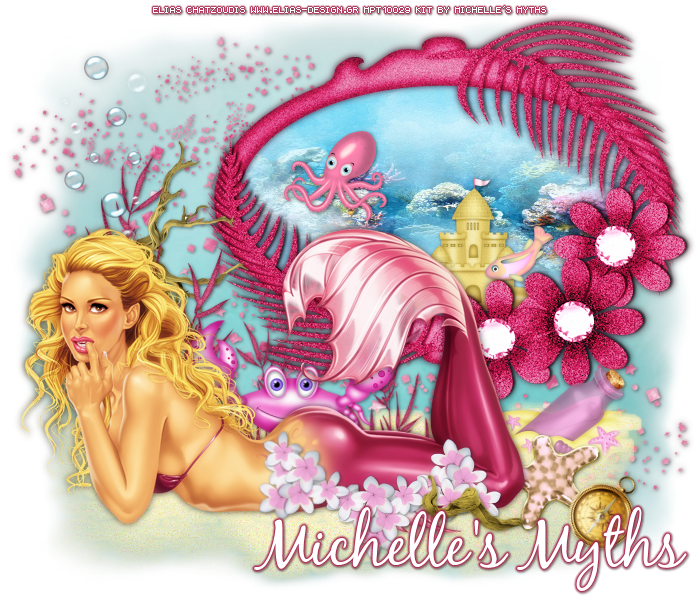
Pink Beach Party

PINK SEA TUTORIAL


Tutorial written by Marcia Salgado on June 18th, 2015
for those who have a working knowledge of PSP.
Any resemblance to any other tutorial is coincidental.
Do not copy and paste this tutorial anywhere on the net.
If you want to translate please ask first. 

****************************************
Material:

Tube: "Helena Mermaid" by Elias Chatzoudis, you can purchase it here
do not use without the proper #license.
the license used is from former MPT tube company
PTU Kit "Pink Beach Party" by Michelle's Myths,
you can purchase it Smiley Creations Shop or PFD 
Mask: dmsk0670 made by Diana Todd - she is no longer online - here
Font: BlackJack 

****************************************

--> Remember to save often and use my tag as reference if necessary. Used the Drop Shadow: 1-1-50-5 16 or 1-1-65-2 #404040 in most layers.

1. Create a new image 700x600. Open PinkBeachParty_MM_Paper (10). Copy and paste as new layer. Apply Diana's mask. Merge group.

2. Open PinkBeachParty_MM_Element (101). Copy and paste as new layer. Move it to top left corner. Duplicate. Mirror. Flip. Merge down.

3. Open PinkBeachParty_MM_Element (78). Move it down. Apply Diana's mask again. Merge group.

4. Open PinkBeachParty_MM_Element (24). Copy and paste as new layer. Move it upper right. 

5. Create an oval selection using Freehand Selection. Add a new layer and move it below the frame layer. Open PinkBeachParty_MM_Paper (7). Copy and paste into selection. Deselect.

6. Open PinkBeachParty_MM_Element (46). Resize 30%. Copy and paste as new layer. Move it to right bottom inside the frame.

7. Open PinkBeachParty_MM_Element (33). Resize 20%. Copy and paste as new layer. Move it to bottom right inside the frame and place it over the castle, on its right middle part.

8. Open PinkBeachParty_MM_Element (49). Resize 20%. Copy and paste as new layer. Move it to left inside the frame.

9. Click on first layer (should be the frame layer). Open PinkBeachParty_MM_Element (23). Resize 50%. Copy and paste as new layer. Move it to left. Duplicate and move it a little to right and down. Repeat and merge these three layers together. 

10. Open PinkBeachParty_MM_Element (9). Resize 50%. Copy and paste as new layer. Move it to left. Place it over the first pink branch (first from left).

11. Open PinkBeachParty_MM_Element (42). Resize 60%. Copy and paste as new layer. Move it a bit to left and down.

12. Open PinkBeachParty_MM_Element (85). Resize 60%. Copy and paste as new layer. Move it way left.

13. Open PinkBeachParty_MM_Element (43). Resize 30%. Copy and paste as new layer. Move it to right and down.

14. Open PinkBeachParty_MM_Element (30). Resize 40%. Copy and paste as new layer. Move it to right and down.

15. Open PinkBeachParty_MM_Element (4). Resize 20%. Copy and paste as new layer. Move it to right and down.

16. Open your tube. Resize it if needed. Copy and paste as new layer. Move it down. Add a suitable shadow.

17. Open PinkBeachParty_MM_Element (68). Resize 50%. Copy and paste as new layer. Move it down and place it in front of your tube. Duplicate it twice and using mirror and flip arrange them in a line. Merge this three layer together.

18. Open PinkBeachParty_MM_Element (13). Resize 30%. Copy and paste as new layer. Move it down and place it in front of the flowers. Rearrange all elements to fit better your tube.

--> Resize it if wanted. Add your copyright info and license#. Add your name and save as PNG.


April 8, 2015

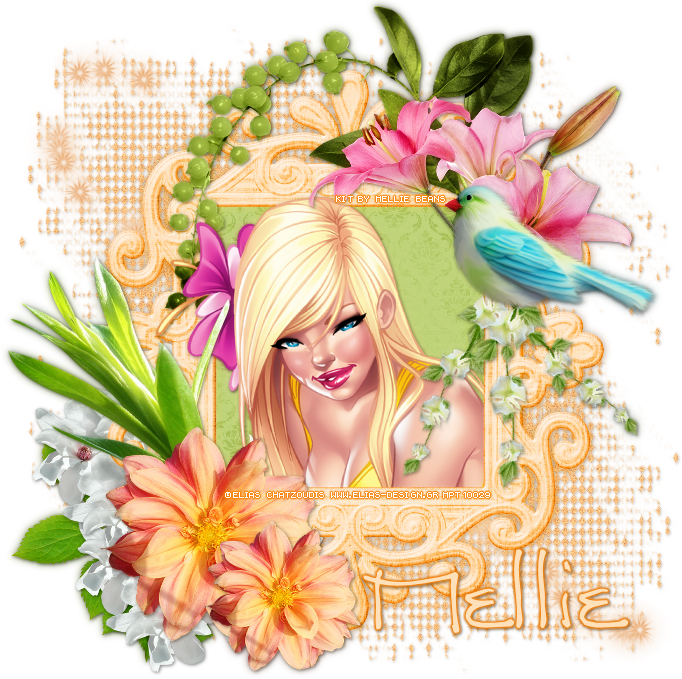
Garden Party - Show Off


== NEW CT MELLIE BEANS PTU TAGS ==

Featuring "Garden Party" by Mellie Beans at Mystical Scraps Store
and Heartbeatz Creationz.

Meet me in the garden, for a party.This tagger sized kit is huge, with 102 elements and 15 papers so you can play with it.
The colors are beautiful and you can create different styles of tags.

Kit can be found in two stores:

-> Mystical Scraps Store, here

-> Heartbeatz Creationz, here

Visit her blog:


February 20, 2015

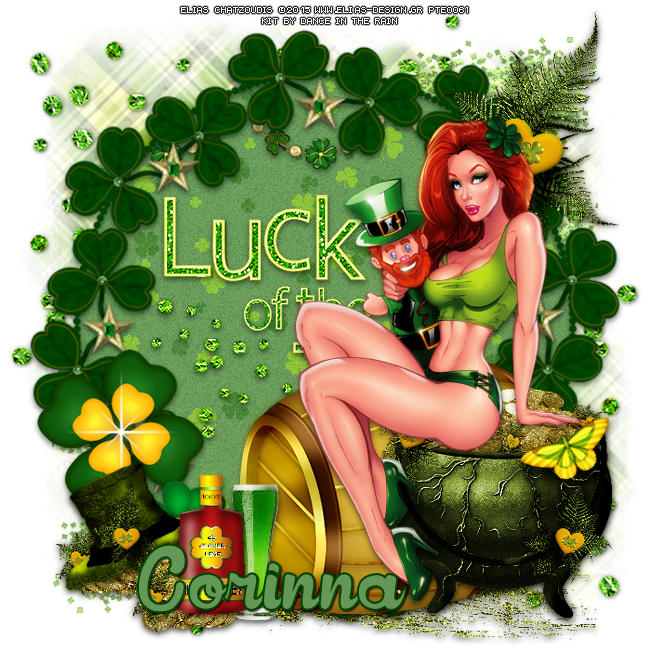
My Lucky Charm - Show Off


== NEW CT DANCE IN THE RAIN TAG ==

Featuring "My Lucky Charm" Kit by Dancing In The Rain at Smiley Creation Shop and Pics For Design - PFD

PTU PU Only Tagger Sized Kit with a St. Patrick's Day Theme.
It has 26 Papers and 150 Elements so you can play with it.

Kit can be found in two stores:

-> Smiley Creation Shop, here

-> PicsForDesign, here


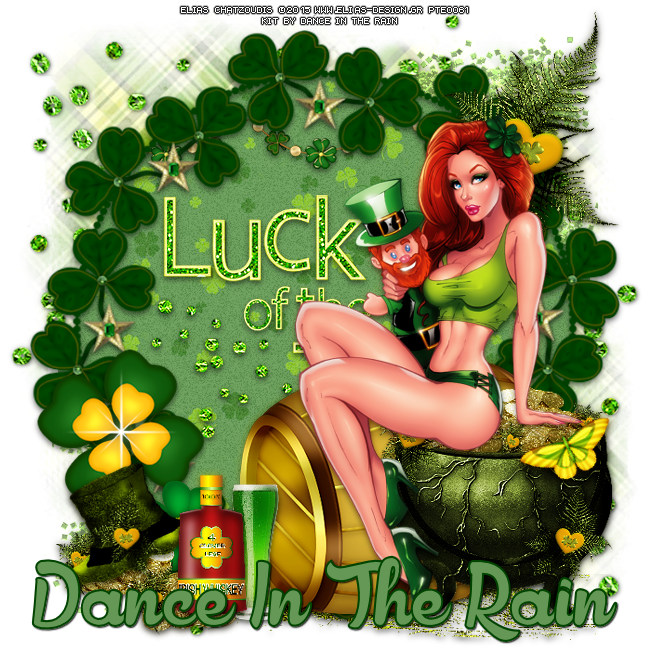
My Lucky Charm


MY LUCKY CHARM


Tutorial written by Marcia Salgado on January 21th, 2015
for those who have a working knowledge of PSP.
Any resemblance to any other tutorial is coincidental.
Do not copy and paste this tutorial anywhere on the net.
If you want to translate please ask first. 

Copyrighted.com Registered & Protected 
ZIVZ-SW6I-IECD-GTX0


****************************************
Material:

Tube: Elias Chatzoudis, you can purchase it here now.
do not use without the proper #license.
I'm using my PTE license.
PTU Kit 'My Lucky Charm' by Dance In The Rain, you can purchase it  here or here
Font: Rookies Showtimes

****************************************

1. Open a new image 700x700. Open paper 6. Copy and paste as new layer. Select all. Slections > Clip to canvas. Image > Crop to selection. Apply Dee's mask. Merge group.

2. Open Frame 11. Copy and paste as new layer. With the magic wand click outside the frame. Expand the selection by 5px. Selections > Invert. Add a new layer. Open the paper 2. Go to your material palette and change the foreground color to pattern, look for the paper we open now and use the settings: Angle= 0 Scale= 50. Fill the selection with the paper. Keep selected. Add a new layer fill with white, add Noise: Uniform - 45 - Monochrome. Change the Blend Mode to Soft Light. Click on frame layer and add  a drop shadow: H=3 V=0 Opacity=50 Blur=8 Color=Black.

3. Click on first layer. Open Glitter. Copy and paste as new layer. Image > Mirror. Move it to show it a little over the frame at the right side. Duplicate. Flip and Mirror. If your PSP version doesn't do it for you. Move it to the left bottom to show it a little over the frame too. Merge down. Low the opacity to 60%. Move the glitter below paper layer.

4. Open Glitters (the little stones). Copy and paste as new layer. Move it to the  left and up. Duplicate. Flip and Mirror. Merge down. Drop Shadow: H-V=1 Opacity=50 Blur=5 Color=Black.

5. Open Ground. Copy and paste as new layer. Move it to the bottom of the image. Drop Shadow: H=3 V=0 Opacity=50 Blur=8 Color=Black.

6. Click on the frame layer. Open Wordart 2. Resize 80%. Copy and paste as new layer. Move it below frame layer. Same drop shadow.

7. Open Chain 2. Copy and paste as new layer. Move it to the top of the frame. Place it to show the clover at the center just below the frame star. See my tag as reference. Erase all partes out of the center of the frame. Same drop shadow.

8. Click on frame layer. Open Clover 4. Copy and paste as new layer and move it to left side of the frame. Same drop shadow.

9. OPen Clover Bunch. Resize 50%. Copy and paste as new layer. Move it to the bottom, over the frame. Same drop shadow.

10. Open Barrel. Copy and paste as new layer. Move it to the right side of the frame. Same drop shadow. 

11. Open Leaf. Resize 35%. Copy and paste as new layer. Move it to the right side of the frame, almost on top. Drop Shadow: H-V=1 Opacity=50 Blur=5 Color=Black.

12. Open Pot Of Gold 3. Resize 45%. Copy and paste as new layer. Move it to the right side of image. Right in fron of Barrel. Drop Shadow: H=3 V=0 Opacity=50 Blur=8 Color=Black.

13. Open your tube, resize if needed and place it where you want it. Add a suitable drop shadow.

14. Open Butterfly. Resize 20%. Copy and paste as new layer. Move it over the Pot of Gold on its right side. Free Rotate: Left-25. Drop Shadow: H=3 V=0 Opacity=50 Blur=8 Color=Black.

15. Open Coins 2. Resize 35%. Copy and paste as new layer. Place it on the bottom at the left side of the image. Same drop shadow.

16. Open Hat 2. Resize 30%. Copy and paste as new layer. Move it over the Pot of Gold on its right side. Free Rotate: Left-25. Same drop shadow.

17. Open Beer 3. Resize 40%. Copy and paste as new layer. Move it to the bottom of the image, to the side of the Barrel. Same drop shadow.

18. Open Whisky Bottle 3. Resize 20%. Copy and paste as new layer. Move it to the bottom of the image, a liitle in front of the glass of beer. Same drop shadow. You can resize the tag if you want to. I resized mine to 650x650 all layers marked.

---> Add your copyright and name. Save as PNG.


February 14, 2015

'I Heart U' Like Crazy


=== NEW CT MELLIE BEANS TAG ==

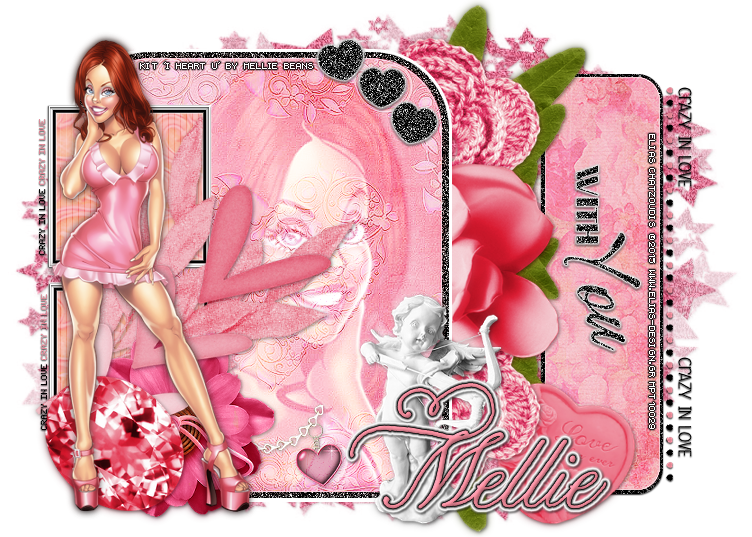
Featuring "I Heart U" Kit by Mellie Beans at Mystical Scraps Store and Heartbeatz Creationz.

Tagger sized Valentines Day Theme kit.
Kit has 15 papers, 36 elements and 4 frames so you can play with it.

Kit can be found in two stores:

-> Mystical Scraps Store here

-> Heartbeatz Creationz here