Showing posts with label Dezignz by Vi. Show all posts

June 24, 2015

Mermaid's Dream

SUNSHINE TUTORIAL


Tutorial written by Marcia Salgado on June 22th, 2015
for those who have a working knowledge of PSP.
Any resemblance to any other tutorial is coincidental.
Do not copy and paste this tutorial anywhere on the net.
If you want to translate please ask first. 

****************************************
Material:

Tube: "Sirena" by Elias Chatzoudis, you can purchase it here
do not use without the proper #license.
The license used is from former MPT tube company.
PTU Kit "Mermaid's Dream" by  Dezignz By Vi, you can purchase it at:
Smiley Creations Shop here
Mask: dmsk0670 made by Diana Todd - she is no longer online - here
Font: Miss Lankfort

****************************************

--> Remember to save often and use my tag as reference if necessary. Used the Drop Shadow: 1-1-50-5 in most layers -> apply only after finished all tag. 

--> The elements placements are chosen to be used with my tube, if you are using a different one you may want to arrange them to better fit yours.

1. Create a new image of 700x700. Open "element' 46. Mirror. Copy and paste as new layer. Move it to right up.

2. Add a new layer select all. Open "element' 21. Copy and paste into selection. Deselect. Open "element' 10. Copy and paste as new layer. Move it down. Merge down. Apply mask dmsk0670. Merge group.

3. Open "element' 37. Resize  40%. Free Rotate: Right-90. Copy and paste as new layer. Move it to top left corner.

4. Open Frame1. Resize 60%. Copy and paste as new layer. Move it a little up. Select inside the frame. Open Paper1. Copy and paste into selection. Deselect. Move this layer below the frame layer.

5. Click on frame layer (should be the first layer). Open "element' 42. Resize  30%. Copy and paste as new layer. Move it down.

6. Open "element' 14. Resize  40%. Copy and paste as new layer. Move it down and a little to left.

7. Open "element' 2. Resize  50%. Copy and paste as new layer. Move it down right.

8. Open "element' 6. Resize  40%. Copy and paste as new layer. Move it down and left.

9. Open "element' 39. Resize  60%. Copy and paste as new layer. Move it down right.

10. Open "element' 5. Resize  30%. Copy and paste as new layer. Move it down right and place it on the big rock base. Duplicate and move it a little to left. Merge down.

11. Open "element' 1. Resize  40%. Copy and paste as new layer. Move it down left.

12. Open "element' 26. Resize  30%. Copy and paste as new layer. Move it to left and place it on column top.

13. Open "element' 7. Resize  30%. Copy and paste as new layer. Move it to down left and place over column base on its right side.

14. Open "element' 41. Resize  20%. Copy and paste as new layer. Place it on big rock top at left.

15. Open "element' 30. Resize  30%. Free Rotate: Left-90. Copy and paste as new layer. Move it to bottom left. Open "element' 28. Resize  30%. Copy and paste as new layer. Place it on right side of previous shell. Open "element' 32. Resize  30%. Copy and paste as new layer. Place it on right side of previous shell. 

16. Open "element' 36. Resize  20%. Copy and paste as new layer. Move it to bottom a little to the left.

17. Open your tube. Resize if needed. Copy and paste as new layer. Place it over the big rock.

18. Open "element' 4. Resize  40%. Copy and paste as new layer. Move it down. Place it in front of the big rock base on its left side.

19. Open "element' 3. Resize  40%. Mirror. Copy and paste as new layer. Move it to bottom right. Place it in front of the big rock base on its right side.

20. Open "element' 27. Resize  30%. Copy and paste as new layer. Move it bottom left. Open "element' 29. Resize  40%. Copy and paste as new layer. Place it on right side of previous shell.


--> Resize if needed. Add your copyright info and #license. Add your name. Save as PNG.


June 10, 2015

Dreamin ~ by Joanne Salgado


Tutorial written by Joanne Salgado on June 10th, 2015
for those who have a working knowledge of PSP.
Any resemblance to any other tutorial is coincidental.
Do not copy and paste this tutorial anywhere on the net.
If you want to translate please ask first. 

Tube: Bella by Verymany - you can purchase here
Kit FairyTale Dreamin' by Dezignz by Vi - you can purchase here and here
Font: Poor Richard

Don't forget to save often.
At any point if you have doubts check my tag.

1. Open a new image 700x600.

2. Open frame 'Frame2' copy and paste as new layer. Resize 70%.

3. Open element '48' copy and paste as new layer. Resize 60%. Arrange it to bottom.

4. Open element '21' copy and paste as new layer. Resize 50%. Mirror. Arrange it to the bottom right. Duplicate. Mirror. Arrange it a little to the right.

5. Open element '14' copy and paste as new layer. Resize 50%. Arrange it to the bottom right.

6. Open element '26' copy and paste as new layer. Resize 30%. Arrange it to the bottom.

7. Open element '39' copy and paste as new layer. Resize 30%. Arrange it to the bottom left.

8. Open element '53' copy and paste as new layer. Resize 30%. Arrange it to the bottom right.

9. Open your tube. Copy and paste as new layer. Resize as you prefer and arrange it to the bottom.

10. Open element '15' copy and paste as new layer. Resize 30%. Mirror. Arrange it to the bottom right.

11. Open element '95' copy and paste as new layer. Resize 70%. Arrange it to the right.

12. Open element '41' copy and paste as new layer. Resize 30%. Arrange it to the bottom right.

13. Add shadow. I used: 1-1-65-2 black.

14. Add copyright.

15. Add name. I used: Poor Richard / size: 48

Save as PNG

May 27, 2015

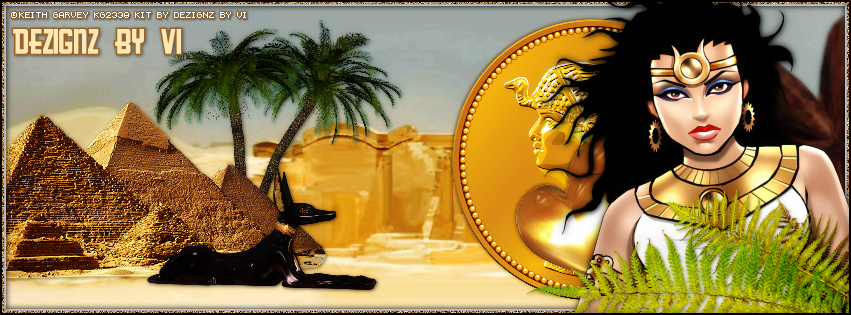
My Egyptian Princess

EGYPT TUTORIAL

**Click to see original size**

Tutorial written by Marcia Salgado on May 27th, 2015
for those who have a working knowledge of PSP.
Any resemblance to any other tutorial is coincidental.
Do not copy and paste this tutorial anywhere on the net.
If you want to translate please ask first. 

****************************************
Material:

Tube: "Isis Toon" by Keith Garvey, you can purchase it here
PTU Kit "My Egyptian Princess" by  Dezignz By Vi,
you can purchase it at: PicsForDesign here
Font: GreasySpoonMenu

****************************************

--> Remember to save often and use my work as reference if necessary. Used the Drop Shadow: 1-1-50-5 in most layers.

1. Create a new image 851x315. Add a new layer. Select all. Open Paper10. Custom Selection: Left-0, Top-150, Right-800, Bottom-500. Copy and paste into selection.

2. Open element 12. Resize 70%. Mirror. Copy and paste as new layer. Move it down left.

3. Open element 4. Resize 30%. Copy and paste as new layer. Arrange it below pyramid layer and move it to left.

4. Open element 3, Resize 30%. Mirror. Copy and paste as new layer. Place it in front of first tree.

5. Click on first layer. Open element 25. Resize 40%. Copy and paste as new layer. Move it down left. Place it in front of the pyramid.

6. Open element 59. Resize 50%. Copy and paste as new layer. Move it to right.

7. Open element 38. Resize 40%. Mirror. Copy and paste asnew layer. Move it to right and place it in front of golden coin.

8. Open element 39. Copy and paste as new layer. Move it way to right.

9. Add a new layer and select all. Fill with white. Contract > 6. Delete. Deselect.

10. Add a new layer. Select all. Fill with #C38742. Contract > 4. Delete. Deselect. Noise: Gaussian-100-Monochrome.

11. Open your tube. Resize if needed. Copy and paste as new layer. Move it to right. Add a suitable shadow.

12. Open element 48. Copy and paste as new layer. Move it to bottom down right corner and place it in front of your tube.

13. Add a new layer. Select all. Fill with black. Contract > 2. Delete. Deselect. 

--> Add your copyright info (no URL by Facebook TOU) and license#. 
Add your name. Save as PNG.

--> Sometimes I had to change my Timeline size to 846x313 because when I add it to Facebook the image has extra pixels and do not fit perfectly. So try this size if the same is happening to you