Showing posts with label Keith Garvey. Show all posts

May 6, 2016

Bad Bitch

IN THE MOOD TUTORIAL
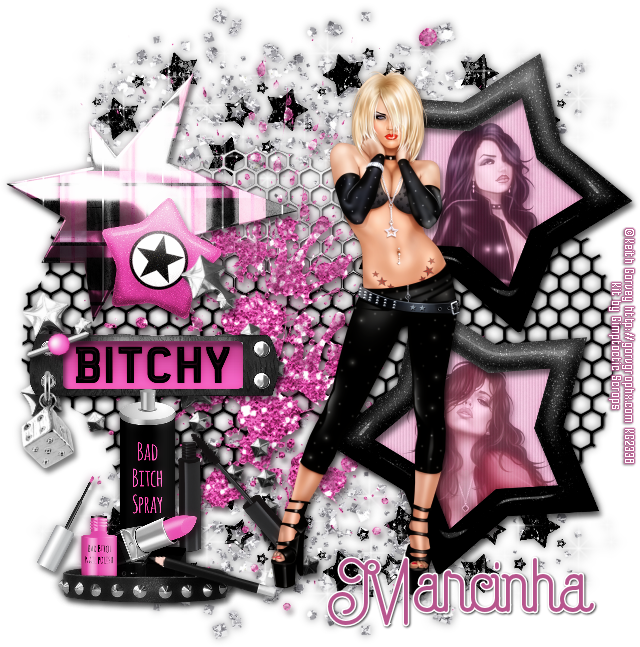


Tutorial written by Marcia Salgado on May 6th, 2016
for those who have a working knowledge of PSP.
I'm using PSP9 to create my tuts.
Any resemblance to any other tutorial is coincidental.
Do not copy and paste this tutorial anywhere on the net.
If you want to translate please ask first. 

****************************************
Material:

Tube: "Star 2" by Keith Garvey, you can purchase it here,
do not use without the proper #license.
I'm using 3 tubes from Keith Garvey, you can use only one if you prefer,
the other tubes used are called Latexxx and Ooh La La
PTU Kit "Bad Bitch" by Gimptastic Scraps,
you can purchase it here
Font: Capella 

****************************************

--> Remember to save often and use my tag as reference if necessary. Use a drop shadow of your preference on layers.


1. Create a mew image 650x650.

2. Open GS-Bad_Bitch_ele43. Copy and paste as new layer. Move it up. Duplicate. Flip. Merge down.

3. Open GS-Bad_Bitch_ele23. Copy and paste as new layer.

4. Open GS-Bad_Bitch_ele5. Copy and paste as new layer. Move it a little to left.

5. Open GS-Bad_Bitch_ele25. Resize 70%. Copy and paste as new layer. Move it up and to left.

6. Open GS-Bad_Bitch_ele40. Resize 60%. Copy and paste as new layer. Move it up and to left.

7. Open GS-Bad_Bitch_frame3. Resize 50%. Copy and paste as new layer. Move it up and to right. Duplicate. Mirror. Move it down and place it under the first one. Merge down.

8. Select inside the frames. Expand > 5. Add a new layer and move it under the frame layer. Open GS-Bad_Bitch_paper7. Copy and paste into selection. Keep selected. Add a new layer. Fill with white and low the opacity to 52. Blinds using the settings below, invert the selection.


9. I'm using 3 tubes from Keith Garvey, chose 2 of them and place them inside the frames. Blend Mode: Luminance (L) and low the layer opacity to 52. Dulicate. Gaussian Blur: 4. Blend Mode: Soft Light and increase the layer opacity to 100.

10. Click on first layer. Open GS-Bad_Bitch_ele32. Copy and paste as new layer. Move it down and to left.

11. Open GS-Bad_Bitch_ele8. Resize 50%. Copy and paste as new layer. Move it to left. Duplicate. Turn the copy invisibe for now. Click on original layer.

12. Open GS-Bad_Bitch_ele13. Resize 50%. Copy and paste as new layer. Place it over the previous element over the middle. Select all. Float. Defloat. Contract > 1. Turn visible the copy you reserved before. Delete. Deselect.

13. Open GS-Bad_Bitch_ele17. Resize 40%. Copy and paste as new layer. Place it hanging from rhe bottom eyelet of the previous layer.

14. Open GS-Bad_Bitch_ele7. Resize 30%. Free Rotate: Left-20. Copy and paste as new layer. Place it over the upper eyelet.

15. Open GS-Bad_Bitch_ele11. Resize 50%. Copy and paste as new layer. Move it down and to left. Duplicate and turn copy invisible. Click back on original layer.

16. Open GS-Bad_Bitch_ele49. Resize 40%. Copy and paste as new layer. Move it down and to left. Place it over the previous collar.

17. Open GS-Bad_Bitch_ele34. Resize 40%. Copy and paste as new layer. Place it near the previous element.

18. Open GS-Bad_Bitch_ele39. Resize 30%. Copy and paste as new layer. Place it near the spray can.

19. Open GS-Bad_Bitch_ele53. Resize 30%. Copy and paste as new layer. Place it near the lipstick.

20. Turn the collar copy visible again and clean the parts that are over the previous elements to look as they are inside of it.

21. Open GS-Bad_Bitch_ele48. Resize 40%. Free Rotate: Right-75. Copy and paste as new layer. Move it down and to left. Place it over the collar on its right side as if the pencil is leaning on collar element.


--> Resize it if wanted. Add your copyright info and license#. Add your name and save as PNG.


-------------------------------------------------


This is an animation I created


February 15, 2016

IB-EdwardReed-48-2

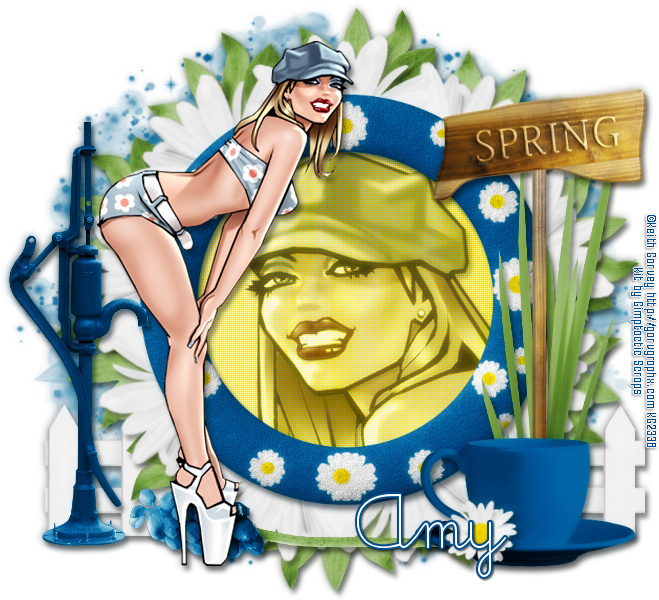
DAISY DAY TUTORIAL


Tutorial written by Marcia Salgado on February 15th, 2016
for those who have a working knowledge of PSP.
I'm using PSP9 to create my tuts.
Any resemblance to any other tutorial is coincidental.
Do not copy and paste this tutorial anywhere on the net.
If you want to translate please ask first. 

****************************************
Material:

Tube: "Shady" by Keith Garvey, you can purchase it here,
do not use without the proper #license.
PTU Kit "IB-EdwardReed-48-2" by Gimptastic Scraps,
you can purchase it here 
Mask: Squirrely Mask, SquirrelyMask60, here 
Plugin: MuRa's Meister
Font: SNF So Sweet

****************************************

--> Remember to save often and use my tag as reference if necessary. Use a drop shadow of your preference on layers.

1. Create a new image 700x700. We will crop the extra space later.

2. Open GS-Reed_48-2_ele5. Copy and paste as new layer. Move it down.

3. Open GS-Reed_48-2_ele21. Copy and paste as new layer. apply MuRa's Meister > Copies > Encircle, with the following settings:


4. Open GS-Reed_48-2_ele14. Resize 75%. Copy and paste as new layer. Use MuRa's Meister > Copies > Encircle with settings below:


5. Open GS-Reed_48-2_frame1. Resize 75%. Copy and paste as new layer. 

6. Select inside the frame. Expand > 5. Add a new layer. Move this layer below frame layer. Open GS-Reed_48-2_paper4. Copy and paste into selection. Keep selected.

7. Invert selection. Open your tube close up. I mirrored mine. Copy and paste as new layer. Place it inside the frame. Delete. Deselect. Blend Mode: Luminance (Legacy). Low the opacity to 50. Duplicate: Gaussian Blur: 4. Blend Mode: Soft Light. Increase the layer opacity to 100.

8. Open GS-Reed_48-2_ele3. Copy and paste as new layer. Place it on the right side of the frame.

9. OPen GS-Reed_48-2_ele8. Copy and paste as new layer. Place it on the left side of the frame.

10. Open GS-Reed_48-2_ele10. Copy and paste as new layer. Place it over the tall grass on the right side of the frame.

11. Open GS-Reed_48-2_ele15. Copy and paste as new layer. Move it way down and a little to right.

12. Open GS-Reed_48-2_ele17. Resize 70%. Copy and paste as new layer. Move it down and to right. Place it over the tall grass and spring plaque at the bottom.

13. Apply shadow on all layers you wanted and then Use Crop > Merged Opaque to get rid of all extra space.

14. Click on bottom layer (layer 1). Add a new layer. Select all. Open GS-Reed_48-2_paper1. Copy and paste into selection. Apply Squirrely mask. Merge group. Stretch the mask a little bit on all sides. 


--> Resize it if wanted. Add your copyright info and license#. Add your name and save as PNG.


February 10, 2016

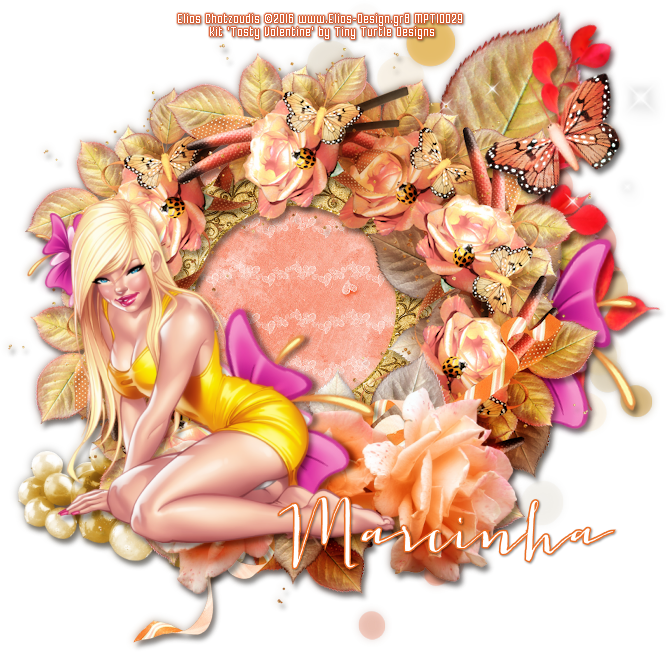
Tasty Valentine


== NEW PTU TAGS TINY TURTLE DESIGNS CT ==


Featuring "Tasty Valentine" Tiny Turtle Design kit at TinyTurtleDesign Store.

Tiny Turtle Design kit has 37 papers and 131 elements so you can play with it. 

Tiny Turtle Design kit can be found  at:

-> TinyTurtleDesign Store, here


------------------------------------------------------------------

Tubes used with this kit:
Elias Chatzoudis -> Celestine

Keith Garvey -> Mellow


June 19, 2015

CDO Summer Collab 2015 - Hungry Hill


== NEW CT HUNGRY HILL ==
SUMMER COLLAB 2015 PTU TAG

The CDO Scrap Designers have made a beautiful Summer collab kit 
to giveaway to you this month!!

In total there are 190 elements, 16 frames, 11 word arts and 51 papers!

This fantastic kit will be a great addition to your graphics folder!
So open up your PSP and start making some gorgeous tags now!! 
Don't miss out, as they go away forever at 10pm PST 30th June 2015.

Read more about how to get the CDO Summer Collab kit


June 1, 2015

ClusterPack-3 by Hungry Hill


== NEW CT HUNGRY HILL PTU TIMELINE ==

Featuring "ClusterPack-3" Layered Cluster by HUNGRY HILL
at Creative Design Outlet - CDO

Cluster can be found exclusively at:

-> Creative Design Outlet - CDO, here

Don't forget to visit her blog:


May 27, 2015

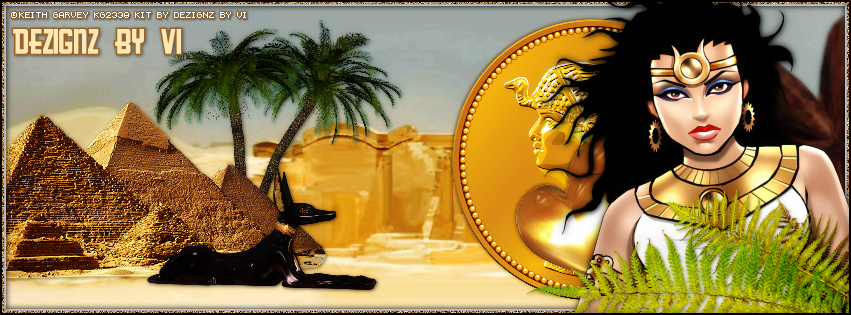
My Egyptian Princess

EGYPT TUTORIAL

**Click to see original size**

Tutorial written by Marcia Salgado on May 27th, 2015
for those who have a working knowledge of PSP.
Any resemblance to any other tutorial is coincidental.
Do not copy and paste this tutorial anywhere on the net.
If you want to translate please ask first. 

****************************************
Material:

Tube: "Isis Toon" by Keith Garvey, you can purchase it here
PTU Kit "My Egyptian Princess" by  Dezignz By Vi,
you can purchase it at: PicsForDesign here
Font: GreasySpoonMenu

****************************************

--> Remember to save often and use my work as reference if necessary. Used the Drop Shadow: 1-1-50-5 in most layers.

1. Create a new image 851x315. Add a new layer. Select all. Open Paper10. Custom Selection: Left-0, Top-150, Right-800, Bottom-500. Copy and paste into selection.

2. Open element 12. Resize 70%. Mirror. Copy and paste as new layer. Move it down left.

3. Open element 4. Resize 30%. Copy and paste as new layer. Arrange it below pyramid layer and move it to left.

4. Open element 3, Resize 30%. Mirror. Copy and paste as new layer. Place it in front of first tree.

5. Click on first layer. Open element 25. Resize 40%. Copy and paste as new layer. Move it down left. Place it in front of the pyramid.

6. Open element 59. Resize 50%. Copy and paste as new layer. Move it to right.

7. Open element 38. Resize 40%. Mirror. Copy and paste asnew layer. Move it to right and place it in front of golden coin.

8. Open element 39. Copy and paste as new layer. Move it way to right.

9. Add a new layer and select all. Fill with white. Contract > 6. Delete. Deselect.

10. Add a new layer. Select all. Fill with #C38742. Contract > 4. Delete. Deselect. Noise: Gaussian-100-Monochrome.

11. Open your tube. Resize if needed. Copy and paste as new layer. Move it to right. Add a suitable shadow.

12. Open element 48. Copy and paste as new layer. Move it to bottom down right corner and place it in front of your tube.

13. Add a new layer. Select all. Fill with black. Contract > 2. Delete. Deselect. 

--> Add your copyright info (no URL by Facebook TOU) and license#. 
Add your name. Save as PNG.

--> Sometimes I had to change my Timeline size to 846x313 because when I add it to Facebook the image has extra pixels and do not fit perfectly. So try this size if the same is happening to you


May 22, 2015

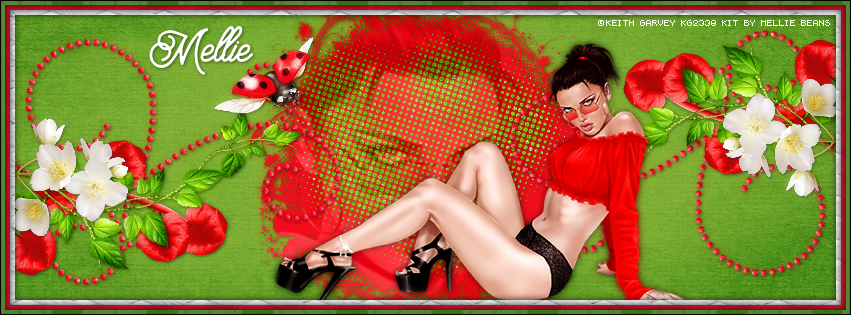
Strawberry Bliss

ALL RED TUTORIAL

**Click to see original size**

Tutorial written by Marcia Salgado on May 22th, 2015
for those who have a working knowledge of PSP.
Any resemblance to any other tutorial is coincidental.
Do not copy and paste this tutorial anywhere on the net.
If you want to translate please ask first. 

****************************************
Material:

Tube: "Braz" by Keith Garvey,you can purchase it here
do not use without the proper #license.
PTU Kit "Strawberry Bliss" by Mellie Beans, you can purchase it at:
Mystical Scraps Store, here and Heartbeatz Creationz, here
Font: Brayden Script

****************************************

--> Remember to save often and use my tag as reference if necessary. Used the Drop Shadow: 1-1-50-5.

1. Create a new image 851x315. Add a new layer. Select all. Open green grunged paper. Copy and paste into selection. 

2. Open mask. Resize 50%. Copy and paste as a new layer. 

3. Open scattered dots. Resize 40%. Copy and paste as new layer.

4. Open your tube close up. Copy and paste as new layer. Erase the parts that are outside the mask element. Blend Mode: Luminance (Legacy). Low layer opacity to 34.

5. Open flourish. Copy and paste as new layer. Move it way left showing only a bit more than a half part of the element. Move a little down. Duplicate. Mirror. Flip. Merge down.

6. Open red vine. Resize 40%. Copy and paste as new layer. Move it way left. Place it over flourish element. Duplicate. Mirror. Flip. Merge down.

7. Open vine. Resize 50%. Free Rotate: Right-90. Move it way left. Place it over red vine. Duplicate. Mirror. Flip. Merge down.

8. Open flower 03. Resize 30%. Free Rotate: Left-90. Move it way right. Place it over vine. Duplicate. Mirror. Left. Merge down.

9. Open ladybug. Resize 45%. Copy and paste as new layer. Move it up left. Place it over upper left mask border.

10. Open your tube. Resize if needed. Copy and paste as new layer. Move it down left. Add a suitable shadow.

11. Add a new layer. Select all. Open white lattice paper. Copy and paste into selection. Contract > 15. Delete.

12. Add a new layer. Select all. Open red plaid. Copy and paste into selection. Contract > 10. Delete.

13. Add a new layer. Select all. Open green stripes. Copy and paste into selection. Contract > 5. Delete.

14. Add a new layer. Fill it with black. Select all. Contract > 1. Delete.

--> Add your copyright info (no URL by Facebook TOU) and license#. Add your name. Save as PNG.

--> Sometimes I had to change my Timeline size to 846x313 because when I add it to Facebook the image has extra pixels and do not fit perfectly. So try this size if the same is happening to you.

March 15, 2015

Have An Eggsellent Easter ~ by Joanne Salgado


Tutorial written by Joanne Salgado on February 18th, 2015
for those who have a working knowledge of PSP.
Any resemblance to any other tutorial is coincidental.
Do not copy and paste this tutorial anywhere on the net.
If you want to translate please ask first. 

Tube: Keith Garvey - you can purchase here 
Kit Have An Eggsellent Easter by ChocUKDesigns - you can purchase here , here and here
Font: KG Two is Better Than One

Don't forget to save often.
At any point if you have doubts check my tag.

1. Open a new image 600x600.

2. Open frame '12' copy and paste as new layer. Resize 70%.

3. Open paper ' 10'copy and paste as new layer. Move this layer bellow the frame layer. Select the frame layer, with magic wand select inside it. Expand 3. Invert Selection. Select the paper layer, hit delete on your keyboard. Selection None.

4. Open element '64' copy and paste as new layer. Resize 60%. Mirror. Arrange it to the left of the frame. Move this layer bellow the paper layer.

5. Open element '65' copy and paste as new layer. Resize 60%. Arrange it to the bottom right of the frame.

6. Open element '54' copy and paste as new layer. Resize 30%. Move this layer above the frame layer. Arrange it to the top right of the frame.

7. Open element '51' copy and paste as new layer. Resize 20%. Arrange it to the top right above the purple flower.

8. Open element '52' copy and paste as new layer. Resize 10%. Arrange it to the top right above the blue flower.

9. Open your tube, copy and paste as new layer. Resize as you prefer and arrange it at the center of the frame. If needed use the eraser tool to clean tha parts that show outside the frame, but we will add other elements, so don't worry much.

10. Open element '96' copy and paste as new layer. Resize 50%. Mirror. Arrange it to the left of the frame.

11. Open element '100' copy and paste as new layer. Resize 50%. Mirror. Arrange it to the bottom of the frame. Move a little to the right.

12. Open element '52' copy and paste as new layer. Resize 30%. Arrange it to the left. The basket will cover a part of it so don't worry.

13. Open element '92' copy and paste as new layer. Resize 50%. Arrange it to the bottom left of th frame.

14. Open element '32' copy and paste as new layer. Resize 30%. Free Rotate left-35. Arrange it to the bottom to the right of the basket.

15. Open element '53' copy and paste as new layer. Resize 20%. Free Rotate right-35. Arrange it to the bottom of the basket.

16. Open element '34' copy and paste as new layer. Resize 15%. Arrange it to the handle of the basket (to the right).

17. Add shadow as you like. I used 1-1-65-2 black.

18. Add copyright.

19. Add name. I used: KG Two is Better Than One / size: 60

Save as PNG.

March 10, 2015

In Spring Comes Easter - Show Off


== NEW MELLIE BEANS PTU TAG ==

Featuring "In Spring Comes Easter" by Mellie Beans at Mystical Scraps Store and Heartbeatz Creationz.

In Spring Comes Easter besides the Easter Theme, would be perfect also with other themes such as Spring, Outdoors and Gardening!
It has 12 papers, 63 elements and 9 frames so you can play with it.
The colors are beautiful and you can create different styles of tags.

Kit can be found in two stores:

-> Mystical Scraps Store, here

-> Heartbeatz Creationz, here

Visit her blog:

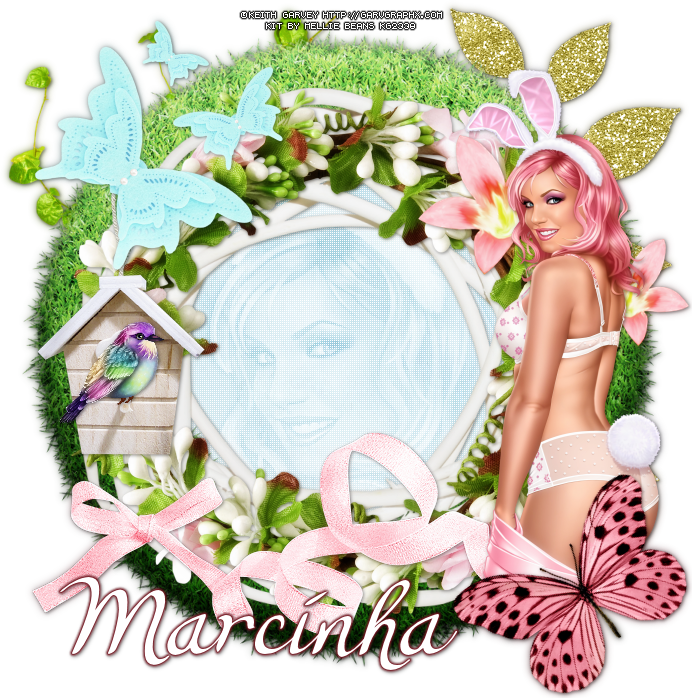
In Spring Comes Easter

SPRING EASTER TUTORIAL


Tutorial written by Marcia Salgado on March 10th, 2015
for those who have a working knowledge of PSP.
Any resemblance to any other tutorial is coincidental.
Do not copy and paste this tutorial anywhere on the net.
If you want to translate please ask first. 

****************************************
Material:

Tube: Keith Garvey, you can purchase it here,
do not use without the proper #license.
PTU Kit "In Spring Comes Easter" by Mellie Beans,
you can purchase it here or here
Plugin: Penta.com > Jeans
Font: Lorelei Script

****************************************

--> Remember to save often and use my tag as reference if necessary. Used the Drop Shadow: 1-1-50-5 in most layers. 

1. Create a new image 700x700. Open grass frame. Resize 80%. Copy and paste as new layer. Select inside the frame. Expand 5. Add a new layer and move it below the frame layer. Open paper 09. Copy and paste into selection. Keep Selected. Copy the close up of the tube and paste as new layer. Invert selection. Delete. Deselect. Hue and Saturation > 0,0. Blend mode: Overlay. Opacity: 66. Click on paper layer and apply Penta.com > Color Dot. Open glitter leaves. Copy and paste as new layer. ove below all layer and move it to upper right. Open vine. Mirror. Flip. Copy and paste as new layer and move it to upper left.

2. Click on top layer. Open wreath. Copy and paste as new layer. Open floral wreath.  Copy and paste as new layer. Open flowers 1. Resize 80%. Mirror. Copy and paste as new layer. Move it over right side of the frame. Open ribbon bow. Copy and paste as new layer. Move to bottom. Open birdhouse. Resize 60%. Copy and paste as new layer. Move it to left of the frame. Open bird 3. Resize 30%. Copy and paste as new layer. Move it to front of birdhouse. 

3. Open butterflies. Mirror. Copy and paste as new layer. Move it over the top of the birdhouse. Open your tube. Resize if needed. Copy and paste as new layer. Move to right side. Open butterfly. Resize 45%. Free Rotate > Left-45. Copy and paste as new layer. Move it over the tube.

--> Resize if wanted. Add copyright info and proper #license. Add your name, I use Lorelei Script, size: 65. Save as PNG.


March 6, 2015

In Spring Comes Easter ~ by Joanne Salgado


Tutorial written by Joanne Salgado on February 18th, 2015
Any resemblance to any other tutorial is coincidental.
Do not copy and paste this tutorial anywhere on the net.
If you want to translate please ask first. 

Tube: Keith Garvey - you can purchase here 
Kit In Spring Comes Easter by Mellie Beans - you can purchase here and here
Mask 363 by Vix here 
Font: Canter Bold

Don't forget to save often.

1. Open a new image 600x600.

2. Open element 'scalloped frame'. copy and paste as new layer. Resize 25%. Duplicate. On the duplicated layer Image/Rotate/Free Rotate (right/25). Move this layer bellow the original. Resize 95% the duplicated layer.

3. Open element 'stamp 1' copy and paste as new layer. Resize 18%. Move this layer bellow the frames.

4. Open paper 'paper 04' copy and paste as new layer. Resize 16%. Select the copy layer, with the magic wand select inside the frame. Selections/Modify/Expand 3. Selections/Invert, select the paper layer, hit delete on the keyboard. Selections/Select None.

5. Open paper 'paper 12' copy and paste as new layer. Resize 16%. Select the frame layer, with the magic wand select inside the frame. Selections/Modify/Expand 3. Selections/Invert  select the paper layer, hit delete on the keyboard. Selections/Select None. Move this layer above the duplicated frame.

6. Open element 'dogwood' copy and paste as new layer. Resize 15%. Arrange it to the right upper corner of the frame. With the eraser tool clean the parts that got out of the frame.

7. Open element 'grass border' copy and paste as new layer. Resize 15%. Arrange it to the bottom of the frame. With the eraser tool clean the parts that got out of the frame.

8. Open element 'tree' copy and paste as new layer. Resize 10%. Arrange it to the left. Move the layer above the original frame.

9. Open element 'butterflies' copy and paste as new layer. Resize 30%. Arrange it to the right upper corner of the frame.

10. Open element 'bow' copy and paste as new layer. Resize 15%. Image/Rotate/Free Rotate (right/25). Arrange it to the right bottom of the frame.

11. Open element 'daffodils' copy and paste as new layer. Resize 15%. Arrange it to the right bottom of the frame above the blue bow.

12. Open element 'ribbon bow' copy and paste as new layer. Resize 10%. Arrange it to the left bottom of the frame.

13. Open element 'butterfly' copy and paste as new layer. Resize 10%. Image/Rotate/Free Rotate (right/25). Arrange it to the left bottom of the frame above the pink bow.

14. Open your tube. Resize as you like and arrange it to the right just above the corner of the duplicated frame.

15. Open paper 'paper 05' copy and paste as new layer. Resize 16%. Layers/Arrange/Send to bottom. Open your mask - I used 'Vix_Mask363'. Layers/New Mask Layer/From image (select the mask/source luminance/invert mask data unchecked). Layers/Merge/Merge Group.

16. Add shadow as you like. I used 1-1-65-2 black.

17. Add your copyright.

18. Add your name. I used Canter Bold/size: 48

Save.


March 2, 2015

Mary, Mary


== NEW PTU HUNGRY HILL CT TAG ==

Featuring "Mary, Mary" Kit by Hungry Hill at Creative Design Outlet - CDO.

Hungry Hill's beautiful kit with 63 elements, 12 papers, 5 frames and 2 wordart for you to play with.

Hungry Hill kit can be found at:

-> Creative Design Outlet - CDO, here


March 1, 2015

Damask Rose ~ by Joanne Salgado


Tutorial written by Joanne Salgado on February 18th, 2015
Any resemblance to any other tutorial is coincidental.
Do not copy and paste this tutorial anywhere on the net.
If you want to translate please ask first. 

Tube: Keith Garvey - you can purchase here 
Kit Damask Rose by Felice Original - you can purchase here 
Template by Allison here 
Font: MA Sexy

Plugins:
AP[Lines] - SilverLining

Don't forget to save often.

1. Open template. Duplicate. Close original. Delete layers 10, 9, 8 and 1.

2. Open paper 'FO_damask'. Copy and paste as new image. Move the layer above the 'background layer'. Resize 70%. Rename BG. Delete background layer.

3. Select the stripes layer. Adjust/Color Balance/Manual Color Correction - Source #ff4040 and target #cc7e7a. Adjust/Add-Remove Noise/Add Noise (uniform/50/monochrome checked). Change blend mode to screen.

4. Open element 'FO_flower-thingy-brown' copy and paste as new layer. Resize 20%. Arrange it to the upper left (if you have any doubts please check my tag)

5. Open element 'FO_ribboncurl-pink' copy and paste as new layer. Resize 50%. Image/Mirror. Image/Flip. Arrange it to the upper left. Add shadow 1-1-65-2 black.

6. Open element 'FO_flower-thingy' copy and paste as new layer. Resize 10%. Arrange to the left showing the upper part of brown flower.

7. Open element 'FO_flower-thingy-brown' again. copy and paste as new layer. Resize 10%. Arrange to the left a little bellow the pink flower.

8. Open element 'FO_wire-heart' copy and paste as new layer. Resize 20%. Image/Rotate/Free Rotate (right/15). Arrange it to the right.

9. Open element 'FO_ribboncurl-brown' copy and paste as new layer. Resize 50%. Image/Mirror. Arrange it to the right.

10. Select the layer "copy of raster 7" Adjust/Color Balance/Manual Color Correction - Source #808080 and target #ffffff. Adjust/Add-Remove Noise/Add Noise (uniform/50/monochrome checked). Add shadow 1-1-65-2 black.

11. Open paper 'FO_vintage-grunge'. With the flood fill change it to pattern. Select the paper - angle 0 scale 50. Colorize layer "raster 3". Effects/Texture Effects/Weave (1/5/1/white/white/fill gaps checked).

12. Select the layer "raster 7" and repeat step 10.

13. Select the layer "copy of raster 3" and repeat step 11.

14. Open element 'FO_rose-bouqet' copy and paste as new layer. Resize 30%. Arrange it to the left above the shape. Image/Mirror. Add shadow 1-1-65-2 black on both layers.

15. Open paper 'FO_stripe' With the flood fill change it to pattern. Select the paper - angle 0 scale 50. Colorize layer "raster 2". Duplicate. On duplicated layer change the blend mode to screen.

16. Open element 'FO_butterfly2' copy and paste as new layer. Resize 25%. Image/Rotate/Free Rotate (left-15). Arrange it to the right at the corner of the shape. Add shadow 1-1-65-2 black.

17. Select layer "raster 5". Adjust/Color Balance/Manual Color Correction - Source #c00000 and target #ffffff. Add same shadow as before.

18. Select layer "raster 6". Adjust/Color Balance/Manual Color Correction - Source #c00000 and target #ffffff. Add same shadow as before.

19. Open your tube. I used Keith Garvey. Arrange it in the middle of the template as you prefer. Add same shadow as before.

20. Open element 'FO_cluster' copy and paste as new layer. Arrange it down so it only shows the upper part of it. (see my tag).

21. Open element 'FO_butterfly' copy and paste as new layer. Resize 15%. Image/Rotate/Free Rotate (right-20).

22. Select "border" layer. Adjust/Color Balance/Manual Color Correction - Source #c00000 and target #cc7e7a. Effects/Plugins/AP [Lines]/Lines - SilverLining (breaks/change the three color to 255).

23. With the magic wand tool select inside the border. Add a new layer. Flood fill with white. Selections/Modify/Contract-2 hit delete on your keyboard. Selections/Select None. Adjust/Add-Remove Noise/Add Noise (uniform/50/monochrome checked). Add same border as before.

Add your copyright.
Add your name - I used 'MA Sexy' 48 with border #cc7e7a and shadow 1-1-65-2 #cc7e7a.

Save.

February 28, 2015

Steampunk Beauty


== NEW PTU DANCE IN THE RAIN CT TAG ==

Featuring "Steampunk Beauty" Kit by Dance In The Rain at Smiley Creation Shop.

Dance In The Rain's beautiful kit with 177 elements and 30 papers for you to play with.

Dance In The Rain kit can be found at:

-> Smiley Creation Shop, here


February 23, 2015

Erin Go Braugh ~ By Joanne Salgado


Tutorial written by Joanne Salgado on February 18th, 2015
Any resemblance to any other tutorial is coincidental.
Do not copy and paste this tutorial anywhere on the net.
If you want to translate please ask first. 

Tube: Keith Garvey - you can purchase here
Kit Erin Go Braugh by Mellie Beans - you can purchase here
Material by me here
Font: KG Two is Better Than One

Don't forget to save often.

1. Open the template. Duplicate. Close the original. Delete the INFO layer.

2. Open paper 6, copy and paste as new layer. Layers/Arrange/Send to Bottom.

3. Open paper 2, copy and paste as new layer. Rename this layer as LINESBG Duplicate (hide this one for now). Select the LINES layer. With magic wand select inside the four spaces between the deco (see my tag). Selections/Modify/Expand 1. Selections/Invert. Select the layer with the paper 2 again. Duplicate. Hit delete on your keyboard. Selections/Select None.

4. Open the duplicated layer. Rename it "border". Select the INSIDE FRAME layer. With magic wand select inside of the frame. Selections/Modify/Expand 1. Select the BORDER layer and hit delete on your keyboard. We will clean the rest later.

5. Open paper 7, copy and paste as new layer. Move this layer bellow the BORDER layer. Select the LINESBG layer. Selections/Select all. Selections/Float. Selections/Defloat. Selections/Invert. Select the layer we just added. Hit delete your on keyboard. Selections/Select None. Change the blend mode to Soft Light and the opacity to 70. Effects/Edge Effects/Enhance.

6. Open "clover scatter" element. Copy and paste as new layer. Resize with 55%. Arrange it to the left. Duplicate. Image/Mirror. Layers/Merge/Merge Down. Change the blend mode to Luminance (L) and opacity to 50. Move this layer above the BORDER layer.

7. Open "wordart 2" element. Copy and paste as new layer. Change the blend mode to Luminance (L).

8. Open "horseshoe" element. Copy and paste as new layer. Resize with 25%. Arrange it to the left of the frame. (see my tag). Move this layer above the DECO layer.

9. Open "pot o gold" element. Copy and paste as new layer. Resize with 35%. Arrange it to the left. It will be a little above the horseshoe element. (see my tag).

10. Open "lucky cluster 2" element. Copy and paste as new layer. Resize with 35%. Arrange it to the left. It will be a little above the pot o gold element. (see my tag).

11. Open your yube. Copy and paste as new layer. Resize as you like. Arrange it to the right. Move this layer above the INSIDE FRAME layer. Rename this layer TUBE.

12. Open the "lucky cluster 3" element. Copy and paste as new layer. Resize with 40%. Move this layer below the INSIDE FRAME layer and arrange it behind the tube so just a little part shows. (see my tag). Change opacity to 74.

13. Open "green beer" element. Copy and paste as new layer. Resize with 20%. Image/Mirror. Arrange it behind the tube, but with a good part showing. (see my tag).

14. Open "beads" element. Copy and paste as new layer. Resize with 25%. Arrange to the top of the frame as its hanging from the frame. (see my tag). Move this layer above the TUBE layer.

15. Open "balloons" element. Copy and paste as new layer. Resize with 40%. Arrange it to the far right. It will be a little over your tube.

16. Now is time to start cleaning. Select the FRAME layer. With the magic wand select inside. Selections/Invert. Select the bottom layers (should be your papers) and hit delete on your keyboard. Select your TUBE layer and hit delete. Selections/Select None.

17. Now select INSIDE FRAME layer. With magic wand select inside. Selections/Modify/Expand 1. Selections/Invert. Now you'll select your other layers and hit delete on your keyboard. Just don't clean the layer with horseshoe element and with beads element. Keep selected.

18. Select your horseshoe element layer and with the eraser tool clean just the bottom part of it. Selections/Select None. Select the INSIDE FRAME layer and clean with the eraser tool just above the hat.

19. I changed the frames,lines and deco to white. Just select each layer and Adjust/Color Balance/Manual Color Correction. Change the source to black and the target to white. You can keep it black if you prefer.

You can add shadow now. I used 1-1-65-2 black.
Add the copyright and your name. 
Save it.

For animation.

1. Select the BORDER layer. Duplicate two times (you should have a total of three). Select the second duplicate and Ajust/Add-remove noise/Add Noise uniform/40/monochrome checked. Hide the layer. Select the first duplicate and repeat noise. Hide layer. Select the original layer and repeat noise.

2. Edit/Copy Merged. Go to animation shop and paste it as new animation. Back to PSP hide the border layer and open the first duplicate. Edit/Copy Merged. Go to animation and paste after current. Back to PSP hide the duplicate and open the second duplicate. Edit/Copy Merged. Go to animation and paste after current.

Save as gif.