Showing posts with label Hungry Hill. Show all posts

November 30, 2016

Hunni Bear

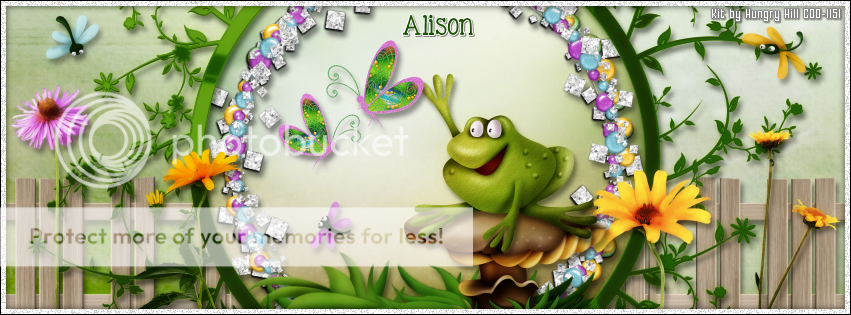
HONEY BEAR TUTORIAL

**Click to see original size**

Tutorial written by Marcia Salgado on November 30th, 2016
for those who have a working knowledge of PSP.
I'm using PSP9 to create my tuts.
Any resemblance to any other tutorial is coincidental.
Do not copy and paste this tutorial anywhere on the net.
If you want to translate please ask first. 

****************************************
Material:

PTU Kit "Hunni Bear" by Hungry Hill,
you can purchase it here 
Plugin: MuRa's Meister > Cloud
Font: Cherry Swash 

****************************************

--> Remember to save often and use my tag as reference if necessary. Use a drop shadow of your preference on layers.

1. Create a new image 851x315.

2. Add new layer and fill with #c0c0c0.

3. Add a new layer and use MuRa's Meister > Cloud with #3790c8 as foreground color and white as background colors with following settings:


4. Open bush. Resize 30%. Copy and paste as new layer.Move it down and midway to left. Duplicate and wove it to right.

5. Open flower-bush. Resize 30%. Copy and paste as new layer. Move it down and place on left side of the previous plant. Duplicate and do the same on right side.

6. Open curvy-branch. Resize 70%. Copy and paste as new layer.

7. Select inside the frames. Add a new layer. Expand > 5. Move this layer below frame layer. Open paper 2. Copy and paste into selection. Deselect.

8. Open flower-4. Resize 30%. Copy and paste as new layer. Move it way down.

9. Open bear-1. Resize 50%. Copy and paste as new layer. Place it inside the middle frame. Erase all unwanted parts. 

10. Open bear-2. Resize 45%. Copy and paste as new layer. Place it inside the right frame. Erase all unwanted parts. Duplicate. Mirror. Resize 85%. Place it inside the left frame.

11. Select all. Clip to canvas. Crop to selection.

12. Click on frame layer. Open vine-circle. Resize 50%. Copy and paste as new layer. Move it way to left. Show only half circle. Duplicate. Mirror.

13. Select left frame. Open paper 1. Select pattern on foreground. Size 50%. Fill only left side frame. Deselect. Duplicate. Mirror.

14. Open flower-1. Resize 30%. Copy and paste as new layer. Place inside the left big frame. Duplicate. Mirror.

14. Click on first layer. Open bumblybee-1. Resize 30%. Copy and paste as new layer. Move it a little to left.

15. Open bumblybee-2. Resize 30%. Copy and paste as new layer. Move it to right.

16. Open WordArt. Resize 85%. Copy and paste as new layer. Add border using color #3d2a22. Move it down and to right.

17. Open flutterby. Resize 15%. Free Rotate: Left-25. Copy and paste as new layer. Move it up and to right. Duplicate. Mirror. Place over the triple frame on left. Duplicate. Resize 85%. Free Rotate: Right-25. Move it up and to left.

18. Add new layer. Fill with black. Contract > 2. Delete. Deselect.


-> Add your copyright info (no URL by Facebook TOU) and license#. 
Add your name or initials. Save as PNG.

--> Sometimes I had to change my Timeline size to 846x313 because when I add it to Facebook the image has extra pixels and do not fit perfectly. So try this size if the same is happening to you.


****************************************

A Picture Profile example made by me:


November 20, 2016

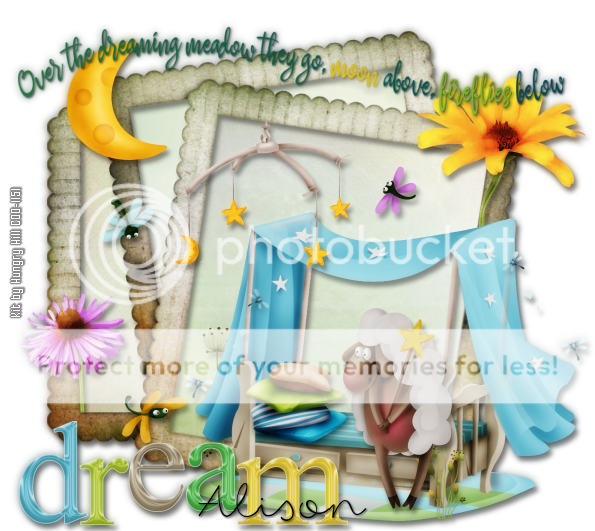
The Dreaming Meadow


**Click to see original size**

== NEW CT HUNGRY HILL PTU SHOWOFF ==

Featuring "The Dreaming Meadow" Kit by HUNGRY HILL at Creative Design Outlet - CDO


It has 6 papers, 32 elements, 3 frames and 2 wordart so you can play with it.

Kit can be found exclusively at:

-> Creative Design Outlet - CDO, here

Don't forget to visit her blog:


Wishes ~ by Joanne Salgado


Tutorial written by Joanne Salgado on November 20th, 2016
for those who have a working knowledge of PSP.
I'm using PSP9 to create my tuts.
Any resemblance to any other tutorial is coincidental.
Do not copy and paste this tutorial anywhere on the net.
If you want to translate please ask first. 

****************************************
Material:

Tube: "My Sweet Mermaid" by Toriya - you can purchase it here
do not use without the proper #license.
PTU Kit "If Wishes Were Fishes" by Hungry Hill - you can purchase it here
Font: 2Peas Mister Giggles

****************************************

Don't forget to save often.
At any point if you have doubts check my tag.

1. Open a new image 650x550

2. Open element 'frame-1' copy and paste as new layer. Resize 60%.

3. Open element 'flower-2' copy and paste as new layer. Resize 50%. Move this layer below the frame layer. Arrange it to the left. Duplicate. Mirror. Arrange it to the right.

4. Open paper 'paper-4' copy and paste as new layer. Resize 40%. Clean the outside parts.

5. Open element 'greenery-4' copy and paste as new layer. Resize 30%. Arrange it to the right inside the frame.

6. Open element 'pebbles' copy and paste as new layer. Resize 15%. Arrange it to the bottom right inside the frame. Duplicate. Mirror.

7. Open element 'sandcastle' copy and paste as new layer. Resize 30%. Arrange it to the right inside the frame.

8. Open element 'fishie-3' copy and paste as new layer. Resize 10%. Arrange it near the castle.

9. Open element 'fishie-1' copy and paste as new layer. Resize 10%. Arrange it to the top.

10. open element 'fishie-2' copy and paste as new layer. Resize 10%. Arrange it to the bottom right.

11. Open element 'shell-6' copy and paste as new layer. Resize 7%. Arrange it to bottom.

12. Open element 'light-effect' copy and paste as new layer. Resize 10%. Move this layer above the frame layer. Arrange it around the frame duplicating. Ive used 3 from this size. Then resize 70%. Arrange it around again. I used 2 from this size. Then resize again 70%. This last one I used 2 from this size.

13. Open element 'sparkles-2' copy and paste as new layer. Resize 50%.

14. Open element 'waterdrops' copy and paste as new layer. Resize 50%. Arrange around the frame.

15. Open element 'starfish-1' copy and paste as new layer. Resize 15%. Arrange it to the top right.

16. Open element 'starfish-2' copy and paste as new layer. Resize 15%. Arrange it to the top right.

17. Open your tube. Copy and paste as new layer. Resize as needed and arrange it to the left.

18. Add shadow as you prefer.

19. Add copyright. Add name. Save as PNG.


October 31, 2016

Hunni Bear ~ by Joanne Salgado


Tutorial written by Joanne Salgado on October 31th, 2016
for those who have a working knowledge of PSP.
I'm using PSP9 to create my tuts.
Any resemblance to any other tutorial is coincidental.
Do not copy and paste this tutorial anywhere on the net.
If you want to translate please ask first. 

****************************************
Material:

PTU Kit "Hunni Bear" by Hungry Hill - you can purchase it here
Font: Whisper

****************************************

Don't forget to save often.
At any point if you have doubts check my tag.

1. Open a new image 650x550

2. Open element 'frame-4' copy and paste as new layer. Resize 70%.

3. Open paper 'paper 5' copy and paste as new layer. Resize 50%. Move this layer below the frame layer. Arrange it inside the frame and clean the outside parts.

4. Open element 'flower-bush' copy and paste as new layer. Resize 20%. Move this layer above the frame layer. Arrange it to bottom at the middle.

5. Open element 'tree' copy and paste as new layer. Resize 60%. Arrange it to the left.

6. Open element 'flower-3' copy and paste as new layer. Resize 20%. Mirror. Arrange it to the bottom left.

7. Open element 'bear-1' copy and paste as new layer. Resize 40%. Arrange it to the bottom right.

8. Open element 'apple-2' copy and paste as new layer. Resize 7%. Rotate 90 right. Arrange it to the bottom right.

9. Open element 'apple' copy and paste as new layer. Resize 7%. Arrange it to the bottom right.

10. Open element 'bumblybee-1' copy and paste as new layer. Resize 15%. Arrange it to the left.

11. Open element 'bumblybee-2' copy and paste as new layer. Resize 15%. Arrange it to the top above the tree.

12. Open element 'flutterby' copy and paste as new layer. Resize 15%. Rotate 20 right. Arrange it to the top right.

13. Open element 'footbridge' copy and paste as new layer. Resize 35%. Arrange it to the bottom left.

14. Open element 'hunnipot' copy and paste as new layer. Resize 15%. Arrange it to bottom.

15. Open element 'stones' copy and paste as new layer. Resize 15%. Arrange it to the bottom left.

16. Open element 'WordArt' copy and paste as new layer. Resize 80%. Arrange it to top.

17. Add shadow as you prefer.

18. Add copyright. Add name. Save as PNG.


October 24, 2016

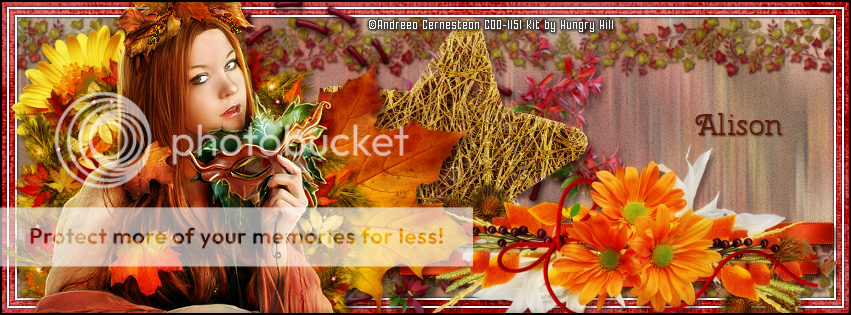
Blaze kit with Andreea Cernestean Tube 2-1

HARVEST TIME TUTORIAL

**Click to see original size**

Tutorial written by Marcia Salgado on October 20th, 2016
for those who have a working knowledge of PSP.
I'm using PSP9 to create my tuts.
Any resemblance to any other tutorial is coincidental.
Do not copy and paste this tutorial anywhere on the net.
If you want to translate please ask first. 

****************************************
Material:

Tube: "Individual Tube 2-1" by Andreea Cernestean, you can purchase it here,
do not use without the proper #license.
PTU Kit "Blaze" by Hungry Hill,
you can purchase it here 
Plugin: MuRa's Meister
Font: Cherry Swash 

****************************************

--> Remember to save often and use my tag as reference if necessary. Use a drop shadow of your preference on layers.


1. Open paper-7. Stretch on both sides to fit the background. 

2. Add a new layer. Select all. Contract > 7. Fill it with White. Contract > 2. Delete.

3. Open your tube. Copy and paste as new layer. Apply MuRa's Meister > Copies > WallPaper (Rotate) > Default. Enhance More. Motion Blur with settings below:


4. Select all. Clip to Canvas. Crop to selection. 

5. Select all. Contract > 15. Invert selection. Delete. Invert selection. Add a new layer. Fill with White. Keep selected. Low the layer opacity to 32. Add Noise: Uniform - Monochrome - 45. Add a new layer. Fill with White. Contract > 2. Delete. Deselect.

6. Click on White/noise background. Open vine_border. Resize 70%. Copy and paste as new layer. Move it way to left and place it inside the white background on top. Duplicate. Mirror. Move it to right to create a border. Create a joint as perfect as you can. Merge down. Select all. Clip to canvas. Contract > 15. Invert selection. Delete. Deselect. Duplicate. Flip. Merge down.

7. Open heart-stitches. Resize 65%. Copy and paste as new layer. Move it midway to left.

8. Open chrysanthemum. Resize 30%. Copy and paste as new layer. Move it up and to left.

9. Open twine-star. Resize 50%. Copy and paste as new layer. Move it very little to right.

10. Open turning-leaves. Resize 65%. Fre Rotate: Right-45. Copy and paste as new layer. Move it a little up and a little to right.

11. OPen cluster_1. Resize 40%. Copy and pasteas new layer. Move it way down and to right.

12. Open leaf-4. Resize 50%. Copy and paste as new layer. Move it down and a little to left.

13. Open wreath. Resize 50%. Copy and paste as new layer. Move it down and to left.

14. Open your tube. Resize. Copy and paste as new layer. I mirrored mine. Move it to left. After your tube placement you may want to re-arrange some previous elements to better fit your tube.

15. Add a new layer. Select all. Fill with Black. Contract > 2. Delete. Deselect.


-> Add your copyright info (no URL by Facebook TOU) and license#. 
Add your name or initials. Save as PNG.

--> Sometimes I had to change my Timeline size to 846x313 because when I add it to Facebook the image has extra pixels and do not fit perfectly. So try this size if the same is happening to you.

-------------------------------------

My idea for the Picture Profile


October 7, 2016

Lilac and Linen

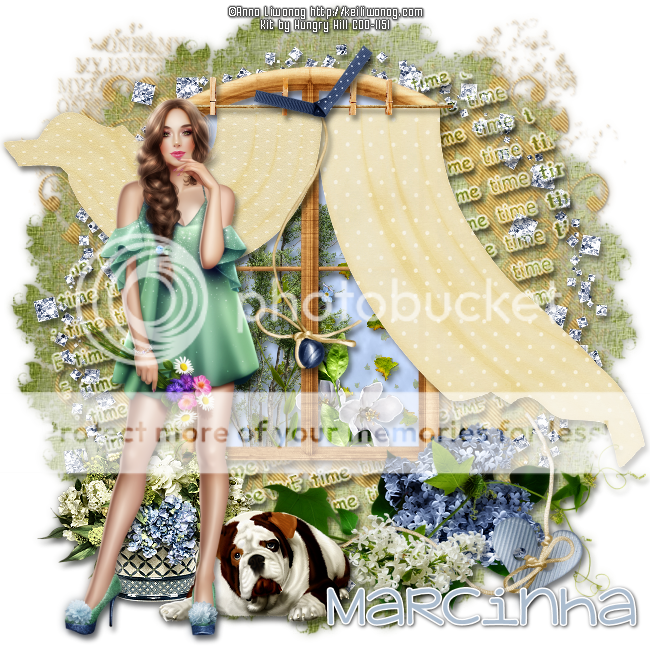
FRESH AIR TUTORIAL


Tutorial written by Marcia Salgado on October 7th, 2016
for those who have a working knowledge of PSP.
I'm using PSP9 to create my tuts.
Any resemblance to any other tutorial is coincidental.
Do not copy and paste this tutorial anywhere on the net.
If you want to translate please ask first. 

****************************************
Material:

Tube: "Individual Tube 73-1" by Anna Liwanag, you can purchase it here,
do not use without the proper #license.
PTU Kit "Lilac and Linen" by Hungry Hill,
you can purchase it here 
Mask: Dee's mask, DD_VMask_6 HERE and DD_NFM_2015_1 HERE (it's missing and already sent a message to Dee about it, until it is fixed you can click and save below)

Plugin: MuRa's Meister and Penta.com
Font: KG Adipose Unicase 

****************************************

--> Remember to save often and use my tag as reference if necessary. Use a drop shadow of your preference on layers. 


1. Add a new layer. Select all. Open paper-12. Copy and paste into selection. Deselect. Appply the mask DD_NFM_2015_1. Merge group.

2. Add a new layer. Select all. Open paper-8. Copy and paste into selection. Deselect. Appply the mask DD_VMask_6. Merge group.

3. Open glitter-circle. Copy and paste as new layer.

4. Open WA-4. Resize 85%. Free Rotate: Left-15. Copy and paste as new layer. Move it a little up. Blend Mode: Hard Light.

5. Open window. Resize 50%. Copy and paste as new layer. Move it a little up and a very little to left.

6. Select inside the window. Use the Lasso selection to select over the external border only. See below:


7. Add a new layer and move it below the window layer. Open paper-10. Copy and paste into selection. Keep selected.

8. Add a new layer. Use as foreground color: #dedbdc and background color: white. Apply MuRa's Meister > Cloud as shown below. Blend Mode Luminance (L). Low the layer opacity to 66.
 Invert selection. The next elements will be placed inside the window.


9. Open leaf-scatter. Resize 35%. Copy and paste as new layer. Move it to left and down. (You can use the directional arrows to move the element if needed). Delete. Keep selected.

10. Open greenery. Resize 55%. Copy and paste as new layer. Move it to left and a little down. Delete. Keep selected.

11. Open forget-me-nots. Resize 40%. Move it down and a little to left. Copy and paste as new layer. Delete. keep selected.

12. Open stem-2. Resize 30%. Copy and paste as new layer. Move it down and to right. Delete. Deselected. Now on the scenary inside de window is ready.

13. Click on window layer. Open curtain-2. Resize 45%. Mirror. Copy and paste as new layer. Move it up and place on right side of the window.

14. Open curtain-1. Resize 40%. Mirror. Copy and paste as new layer. Move it up and place over the left side of the window.

15. Open clothesline. Resize 35%. Copy and paste as new layer. Move it up and place it over the curtains as it is holding them.

16. Open ball-string. Resize 45%. Copy and paste as new layer. Move it up and place it between the curtains.

17. Open dotty-bow-2. Resize 20%. Copy and paste as new layer. Move it up and place on the top end of the ball-string.

18. Open lilac. Resize 55%. Mirror. Flip. Copy and paste as new layer. Move it down and to right.

19. Open vine. Resize 65%. Copy and paste as new layer. Move it down and to right.

20. Open heart-string. Resize 50%. Mirror. Copy and paste as new layer. Move it down and to right.

21. Open lilac-2. Resize 50%. Mirror. Copy and paste as new layer. Move itdown and a little to right.

22. Open bouquet. Resize 35%. Copy and paste as new layer. Move it down and to left.

23. Open Arabella. Resize 25%. Copy and paste as new layer. Move it down and a little to left.

24. Open your tube and copy and paste as new layer. Move it to left.

25. Use Crop > Merged Opaque to get rid of any extra space,


--> Resize it if wanted. Add your copyright info and license#. Add your name and save as PNG.


September 18, 2016

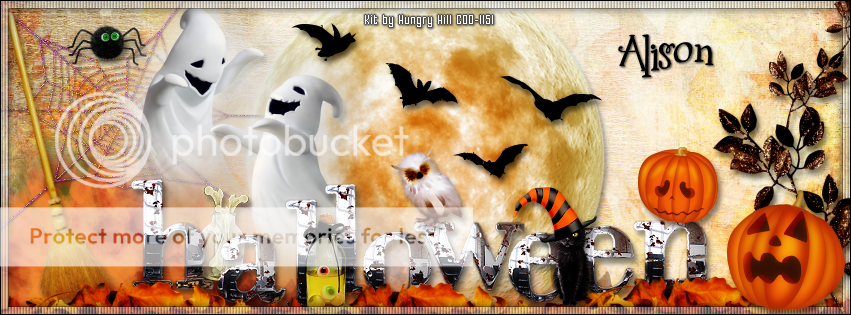
CDO 2016 HALLOWEEN STORE COLLAB

HAPPY SPOOK! TUTORIAL

**Click to see original size**

Tutorial written by Marcia Salgado on September 18th, 2016
for those who have a working knowledge of PSP.
I'm using PSP9 to create my tuts.
Any resemblance to any other tutorial is coincidental.
Do not copy and paste this tutorial anywhere on the net.
If you want to translate please ask first. 

****************************************
Material:

CDO 2016 HALLOWEEN STORE COLLAB
PTU Kit "Halloween Collab Kit - 2016" by Hungry Hill,
you can found the STORE COLLAB here 
Don't miss out, as it goes away forever at 10pm PST 30th September 2016.
Font: Vampyr Bats (Dingbat Font) and  2Peas Mister Giggles

****************************************

--> Remember to save often and use my tag as reference if necessary. Use a drop shadow of your preference on layers.

1. Create a new image 851x315.

2. Open paper-3. Copy and paste as new layer.

3. Open moon. Resize 45%. Copy and paste as new layer.

4. Open leaf-mist. Copy and paste as new layer. Move it way down and to left.

5. Open web. Resize 35%. Copy and paste as new layer. Move it up and way to left.

6. Open broom. Resize 40%. Free Rotate: Left-15. Copy and paste as new layer. Move it way to left.

7. Open spider. Resize 10%. Mirror. Copy and paste as new layer. Move it up and place it over the web.

8. Open ghostie-1. Resize 40%. Copy and paste as new layer. Move it up and to left. Place it on the left side of the web.

9. Open ghostie-2. Resize 40%. Copy and paste as new layer. Move it a little down and move to left. Place it on left side of first ghost.

10. Open bone-jar. Resize 15%. Copy and paste as new layer. Move it down and place between the ghosts.

11. Open WordArt. Resize 75%. Copy and paste as new layer. Move it down.

12. Open dry-leaves. Resize 40%. Copy and paste as new layer. Move it way left and way down. Duplicate it twice and create a bottom line with it. Merge the 3 layers together.

13. Open eyeballs. Resize 13%. Copy and paste as new layer. Move it down and place it between the two "L" letters of the wordart.

14. Open kitty. Resize 15%. Copy and paste as new layer. Move it down and place it between the two "E" letter of the wordart.

15. Select all. Add a new layer. Fill it with white. Contract > 8. Delete. Keep selected. Fill with black. Contract > 1. Delete. Deselect. Low the layer opacity to 50. Use blinds as shown below:


15. Open branch-2. Resize 45%. Free Rotate: Left-90. Copy and paste asnew layer and move it way to right.

16. Open jack-o-lantern-1. Resize 15%. Mirror. Copy and paste as new layer. Move it down and way to right.

17. Open jack-o-lantern-2. Resize 10%. Copy and paste as new layer. Place it over the "N" letter of the wordart.

18. Open owl. Resize 10%. Copy and place as new layer. Place it over the "W" letter of the wordart on left.

19. Use the following letters of the dingbat font "d" (size 28), "E" (size 36), "c" (size 36) and "r" (size 30) and place them over the moon.

20. Select all. Add a new layer. Fill with black. Contract > 1. Delete. Deselect.


--> Add your copyright info (no URL by Facebook TOU) and license#. 
Add your name or initials. Save as PNG.

--> Sometimes I had to change my Timeline size to 846x313 because when I add it to Facebook the image has extra pixels and do not fit perfectly. So try this size if the same is happening to you.


July 31, 2016

Bee Hoppin ~ by Joanne Salgado


Tutorial written by Joanne Salgado on July 31th, 2016
for those who have a working knowledge of PSP.
I'm using PSP9 to create my tuts.
Any resemblance to any other tutorial is coincidental.
Do not copy and paste this tutorial anywhere on the net.
If you want to translate please ask first. 

****************************************
Material:

Tube: "Tube 2-3" by Anna Liwanag - you can purchase it here
do not use without the proper #license.
PTU Kit "IB-AnnaLiwanag-2-3" by Hungry Hill - you can purchase it here
Font: Bauhaus

****************************************

Don't forget to save often.
At any point if you have doubts check my tag.

1. Open a new image 650x550

2. Open element 'bee-1', select the dotted area, copy and paste as new layer. Arrange it to the top left. Duplicate. Mirror/Flip.

3. Open element 'greenery-2' copy and paste as new layer. Resize 50%. Arrange it to the top left. Duplicate. Mirror/Flip.

4. Open element 'flower-1' copy and paste as new layer. Resize 70%.

5. Open element 'stringbit-1' copy and paste as new layer. Resize 70%. Arrange it to bottom.

6. Open paper 'paper-6' copy and paste as new layer. Resize 50%. (When we add the frame, clean the parts outside it.)

7. Open paper 'paper-5' copy and paste as new layer. Resize 50%. Change blend mode to screen.

8. Open element 'frame-2' copy and paste as new layer. Resize 50%. Don't forget to clean the papers.

9. Open you tube. Copy and paste as new layer. Arrange it inside the frame and clean the outside parts you wont need.

10. Open element 'flower-4' copy and paste as new layer. Resize 20%. Arrange it to the bottom right.

11. Open element 'flower-2' copy and paste as new layer. Resize 15%. Arrange it to the top left.

12. Open element 'bee-2' copy and paste as new layer. Resize 10%. Arrange it to the bottom left.

13. Open element 'bee-1' copy and paste as new layer. Resize 10%. Arrange it to the bottom right. Duplicate. Mirror. Arrange it to the top left.

14. Open wordart 'WordArt' copy and paste as new layer. Resize 50%. Arrange it to the bottom left.

15. Add shadow as you prefer.

16. Add copyright. Add name. Save as PNG.


July 12, 2016

ScrapHH - Sheena Pike Package 12


== NEW CT HUNGRY HILL PTU SHOW OFF ==
BUNDLE KIT WITH THE FANTASTIC ART BY SHEENA PIKE

Featuring "ScrapHH_SheenaPike-Package-12"
Bundle Kit by HUNGRY HILL at Creative Design Outlet - CDO

There are 3 tubes included in your Scrap Kit. The scrap kit may only be used on that artists art work as some of the elements contain that artists artwork on them. Please follow CDO's TOU's for your tubes. It has 12 papers, 60 elements, 5 frames and 3 wordart so you can play with it.

Kit can be found exclusively at:

-> Creative Design Outlet - CDO, here

Don't forget to visit her blog:

Hungry Hill


June 14, 2016

XZC ~ by Joanne Salgado


Tutorial written by Joanne Salgado on June 14th, 2016
for those who have a working knowledge of PSP.
I'm using PSP9 to create my tuts.
Any resemblance to any other tutorial is coincidental.
Do not copy and paste this tutorial anywhere on the net.
If you want to translate please ask first. 

****************************************
Material:

Tube: "Tube 83-1" by Anna Liwanag - you can purchase it here
do not use without the proper #license.
PTU Kit "Xten Zively Cute" by Hungry Hill - you can purchase it here
Font: Canter Bold

****************************************

Don't forget to save often.
At any point if you have doubts check my tag.

1. Open a new image 650x550

2. Open element 'doilie' copy and paste as new layer. Resize 70%.

3. Open element 'pearl-circle' copy and paste as new layer. Resize 60%.

4. Open frame 'frame-2' copy and paste as new layer. Resize 55%.

5. Open element 'luggage' copy and paste as new layer. Resize 25%. Arrange it to the bottom right.

6. Open element 'ribbon-2' copy and paste as new layer. Resize 30%. Arrange it to the top left inside the frame.

7. Open your tube. Copy and paste as new layer. Resize as needed and arrange it to the right.

8. Open element 'flutterby' copy and paste as new layer. Resize 20%. Arrange it to the left.

9. Open element 'paper-flutterby' copy and paste as new layer. Resize 15%. Arrange it to the left.

10. Open element 'lamp' copy and paste as new layer. Resize 25%. Arrange it to the bottom right.

11. Open element 'flower' copy and paste as new layer. Resize 15%. Arrange it to the top left inside the frame above the ribbon we added.

12. Add shadow as you prefer.

13. Add copyright. Add name. Save as PNG.


June 11, 2016

Color With Love

INSIDE A DREAM TUTORIAL


Tutorial written by Marcia Salgado on June 11th, 2016
for those who have a working knowledge of PSP.
I'm using PSP9 to create my tuts.
Any resemblance to any other tutorial is coincidental.
Do not copy and paste this tutorial anywhere on the net.
If you want to translate please ask first. 

****************************************
Material:

Tube: "Individual Tube 87-2" by Anna Liwanag, you can purchase it here,
do not use without the proper #license.
PTU Kit "Color With Love" by Hungry Hill,
you can purchase it here 
Plugin: Penta.com
Font: MitreSquare 

****************************************

--> Remember to save often and use my tag as reference if necessary. Use a drop shadow of your preference on layers.


1. Create a new image 650x650. 

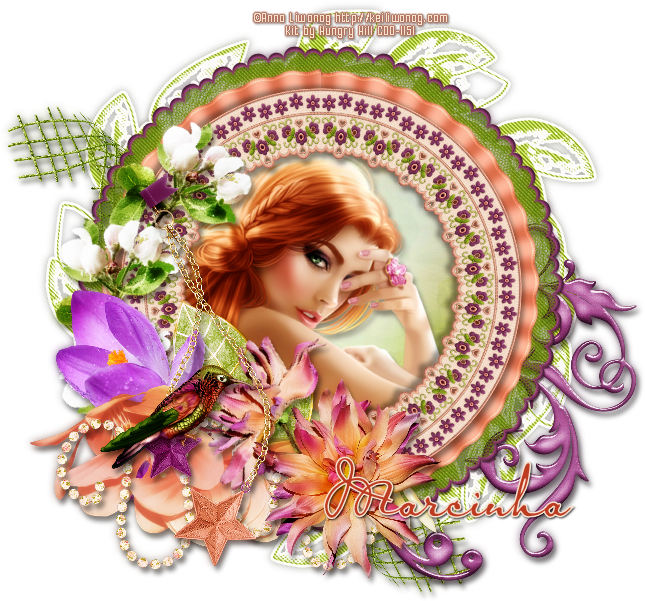
2. Open wreath. Resize 70%. Copy and paste as new layer. Apply Penta.com > Jeans with Default settings.

3. Open mesh-1. Resize 35%. Copy and paste as new layer. Move it up and to left. Duplicate. Mirror. Flip. Move it a little to left.

4. Open flourish-1. Resize 45%. Copy and paste as new layer. Move it down and to right.

5. Open frame-2. Resize 60%. Copy and paste as new layer.

6. Select inside the frame. Expand > 10. Add a new layer and move it below the frame layer. Open paper-2. Copy and paste into selection. Copy and paste as new layer. Invert selection.

7. Open your tube close up. Resize if needed. I mirrored mine. Copy and paste as new layer. Place it inside the frame. Delete. Deselect.

8. Click on frame layer. Open frame-1. Resize 50%. Copy and paste as new layer.

9. Open stem-2. Resize 25%. Copy and paste as new layer. Move it down and a little to left.

10. Open branch. Resize 35%. Mirror. Flip. Free Rotate: Right-55. Copy and paste as new layer. Move it to left and a little up.

11. Open flora-10. Resize 30%. Mirror. Copy and paste as new layer. Move it a little down and to left.

12. Open stem.png 50%. Copy and paste as new layer. Move it down and a little to left.

13. Open beads-1. Resize 45%. Copy and paste as new layer. Move it down and to left.

14. Open flora-1. Resize 25%. Free Rotate: Left-40. Copy and paste as new layer. Move it down and a very little to left.

15. Open flora-2. Resize 25%. Copy and paste as new layer. Move it down and a very little to right.

16. Open star-dangle. Resize 45%. Copy and paste as new layer. Move it very little down and to left.

17. Open pin-1. Resize 17%. Mirror. Copy and paste as new layer. Place it over the star chain at top.

18. Open hummingbird. Resize 20%. Mirror. Copy and paste as new layer. Place it over the purple star.

19. Use Crop > Merged Opaque to get rid of all extra space.


--> Resize it if wanted. Add your copyright info and license#. Add your name and save as PNG.


May 29, 2016

She Whispers

HOPE TUTORIAL

**Click to see original size**

Tutorial written by Marcia Salgado on May 29th, 2016
for those who have a working knowledge of PSP.
I'm using PSP9 to create my tuts.
Any resemblance to any other tutorial is coincidental.
Do not copy and paste this tutorial anywhere on the net.
If you want to translate please ask first. 

****************************************
Material:

PTU Kit "She Whispers" by Hungry Hill,
you can purchase it here 
Wordart: by me, just click and save:
Font: KG Somebody That I Used to Know 

****************************************

--> Remember to save often and use my tag as reference if necessary. Use a drop shadow of your preference on layers.

1. Create a new image 851x315.

2. Open paper-4. Copy and paste as new layer.

3. Open gauze-3. Resize 75%. Copy and paste as new layer. Move it to right. Blend Mode: Overlay.

4. Open beads. Resize 65%. Copy and paste as new layer. Move it down and to right.

5. Open tiny-bling-3. Copy and paste as new layer. Move it very little to right.

6. Open wreath. Resize 50%. Copy and paste as new layer. Move it way to left. Showing only half of the wreath.

7. Open glitter. Resize 50%. Free Roatate: Right-90. Copy and paste as new layer. Move  it way to left.

8. Open light-effect. Resize 60%. Copy and paste as new layer. Move it to left. Duplicate. Mirror. Flip. Merge down.

9. Open greenery-2. Resize 45%. Copy and paste as new layer. Move it down.

10. Open rose-3. Resize 25%. Copy and paste as new layer. Move it down and a little to left.

11. Open lantern. Resize 39%. Copy and paste as new layer. Move it a little to left.

12. Open ribbon-1. Resize 40%. Copy and paste as new layer. Place it over the lantern on top.

13. Open flower-mist. Resize 50%. Mirror. Copy and paste as new layer. Move it half way to the left.

14. Open doodle-2. Resize 40%. Mirror. Copy and paste as new layer. Mo9ve it way to left.

15. Open doodle-1. Resize 40%. Mirror. Copy and paste as new layer. Move it way to right.

16. Open dove. Resize 30%. Mirror. Copy and paste as new layer. Move it very little up and a little to right.

17. Open my wordart. Copy and apste as new layer and place it on right.


--> Add your copyright info and license#. Add your name or initials. Save as PNG.

--> Sometimes I had to change my Timeline size to 846x313 because when I add it to Facebook the image has extra pixels and do not fit perfectly. So try this size if the same is happening to you.


------------------------------------------------------------

My idea for the FB Profile Picture


May 18, 2016

Down Home

BLOSSOM TUTORIAL


Tutorial written by Marcia Salgado on May 18th, 2016
for those who have a working knowledge of PSP.
I'm using PSP9 to create my tuts.
Any resemblance to any other tutorial is coincidental.
Do not copy and paste this tutorial anywhere on the net.
If you want to translate please ask first. 

****************************************
Material:

Tube: "Individual Tube 76-3" by Anna Liwanag, you can purchase it here,
do not use without the proper #license.
PTU Kit "Down Home" by Hungry Hill,
you can purchase it here 
Plugin: Eye Candy 6 and MuRa's Meister
Font: Southern Aire Personal Use Only 

****************************************

--> Remember to save often and use my tag as reference if necessary. Use a drop shadow of your preference on layers.

1. Create a new image 650x650.

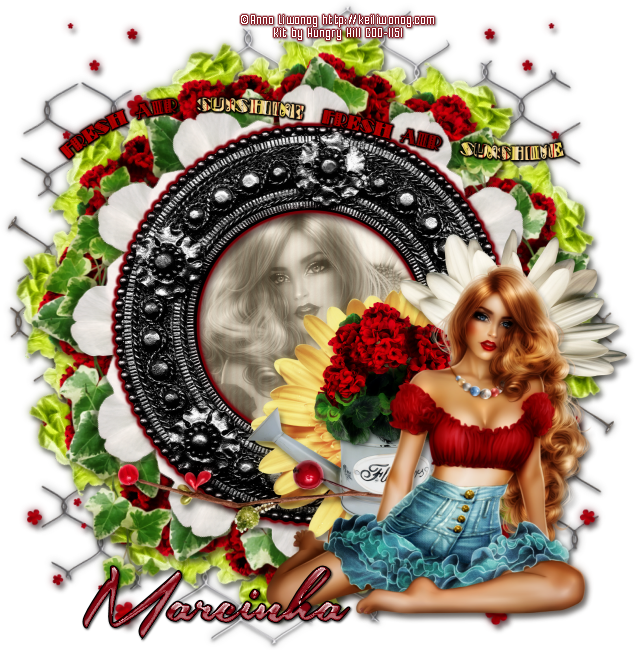
2. Open chickenwire. Resize 75%. Copy and paste as new layer. Move it up. Duplicate. Mirror. Flip. Merge down.

3. Open flower-fall. Resize 75%. Copy and paste as new layer. Move it to left. Keep it over the wire border. Duplicate. Mirror. Merge down.

4. Open veggie-2. Resize 40%. Copy and paste as new layer. Apply MuRa's Meister > Copies > Encircle as I show below:


5. Open pitcher-1. Resize 30%. Copy and paste as new layer. Apply MuRa's Meister > Copies > Encircle with the same settings used before.

6. Open ivy-3. Resize 70%. Copy and paste as new layer.

7. Open flower-1. Resize 20%. Apply MuRa's Meister > Copies > Encircle with the same settings used before.

8. open frame-2. Resize 50%. Copy and paste as new layer.

9. Select inside the frame. Expand > 5. Add a new layer and move it below the frame layer. Open paper-6. Copy and paste into selection. Invert selection.

10. Open your tube close up. Resize if needed. I mirrored mine. Copy and paste as new layer. Place it inside the frame. Delete. Select all. Clip to canvas. Crop to selection. Colorize: 0-0. Low the layer opacity to 54.

11. Click on frame layer. Apply Eye Candy 6 > Gradient Glow using the color #81040f aborder with the settings below, twice (the effect is different when you apply the filter twice with this settings, but if you prefer just change from 1 to 2 on the first option):


12. Open flower-2. Resize 35%. Copy and paste as new layer. Move it down and to right. Place it over the bottom quarter of the frame.

13. Open daisy-2. Resize 30%. Copy and paste as new layer. Move it to right and a little down. Place it over the frame's border.

14. Open pitcher-1. Resize 30%. Copy and paste as new layer. Move it down and to right. Place it over the yellow flower.

15. Open berry-deco-3. Resize 35%. Copy and paste as new layer. Move it down and to left.

16. Open your tube. Resize. Copy and paste as new layer. Move it down and to right.

17. Open WA-2. Resize 65%. Apply Eye Candy > Gradient Glow using color Black with the same settings before, but only once this time. Copy and paste as new layer.

18. Use Crop > Merged Opaque and get rid of all extra spaces.


--> Resize it if wanted. Add your copyright info and license#. Add your name and save as PNG.


April 30, 2016

SHOW OFF - Tea Garden


== NEW PTU HUNGRY HILL CT TAG ==

Featuring 'Tube 149-3' by Jasmine Becket-Griffith and
"Tea Garden" Kit by Hungry Hill at Creative Design Outlet - CDO.


Hungry Hill's beautiful kit with 60 elements, 12 papers, 4 frames and 2 wordart for you to play with.

Hungry Hill kit can be found HERE

Jasmine Becket-Griffith tube can be found HERE