Showing posts with label Gimpstastic Scraps. Show all posts

November 20, 2016

Be Afraid ~ by Joanne Salgado


Tutorial written by Joanne Salgado on November 15th, 2016
for those who have a working knowledge of PSP.
I'm using PSP9 to create my tuts.
Any resemblance to any other tutorial is coincidental.
Do not copy and paste this tutorial anywhere on the net.
If you want to translate please ask first. 

****************************************
Material:

PTU Kit "Angela Diegel October 2016" by Gimptastic Scraps - you can purchase it here
Font: Alex Brush

****************************************

Don't forget to save often.
At any point if you have doubts check my tag.

1. Open element 'GS-Diegel_Oct2016BT_frame1' copy and paste as new layer. Resize 80%.

2. Open element 'GS-Diegel_Oct2016BT_ele10' copy and paste as new layer. Move this layer below the frame layer. Mirror. Arrange it to the top right.

3. Open element 'GS-Diegel_Oct2016BT_ele20' copy and paste as new layer. Arrange it to the left.

4. Open paper 'GS-Diegel_Oct2016BT_paper6' copy and paste as new layer. Resize 50%. Clean parts outside the frame.

5. Open element 'GS-Diegel_Oct2016BT_ele19' copy and paste as new layer. Move this layer above the frame layer.

6. Open element 'GS-Diegel_Oct2016BT_ele18' copy and paste as new layer. Resize 70%. Rotate left 20. Arrange it a little to the right.

7. Open element 'GS-Diegel_Oct2016BT_wordart' copy and paste as new layer. Arrange it to the top.

8. Open element 'GS-Diegel_Oct2016BT_ele11' copy and paste as new layer. Resize 50%. Mirror. Arrange it to the top left.

9. Open element 'GS-Diegel_Oct2016BT_ele6' copy and paste as new layer. Resize 50%. Arrange it to the bottom right.

10. Open element 'GS-Diegel_Oct2016BT_ele21' copy and paste as new layer. Resize 50%. Arrange it to the bottom left.

11. Open element 'GS-Diegel_Oct2016BT_ele1' copy and paste as new layer. Resize 50%. Arrange it to the bottom right.

12. Open element 'GS-Diegel_Oct2016BT_ele5' copy and paste as new layer. Resize 30%. Arrange it to bottom.

13. Open element 'GS-Diegel_Oct2016BT_ele12' copy and paste as new layer. Resize 50%. Rotate right 20. Arrange it to the right.

14. Open element 'GS-Diegel_Oct2016BT_ele2' copy and paste as new layer. Resize 40%. Arrange it above the pumpkin.

15. Open element 'GS-Diegel_Oct2016BT_ele3' copy and paste as new layer. Resize 30%. Mirror. Arrange it to the bottom right.

16. Open element 'GS-Diegel_Oct2016BT_ele7' copy and paste as new layer. Resize 50%. Arrange it to the bottom left.

17. Add shadow as you prefer.

18. Add copyright. Add name. Save as PNG.

October 31, 2016

Kiss Of Death ~ by Joanne Salgado


Tutorial written by Joanne Salgado on October 31th, 2016
for those who have a working knowledge of PSP.
I'm using PSP9 to create my tuts.
Any resemblance to any other tutorial is coincidental.
Do not copy and paste this tutorial anywhere on the net.
If you want to translate please ask first. 

****************************************
Material:

Tube: "Ines" by Alehandra Vanhek - you can purchase it here
do not use without the proper #license.
PTU Kit "Kiss Of Death" by Gimptastic Scraps - you can purchase it here
Font: Whisper

****************************************

Don't forget to save often.
At any point if you have doubts check my tag.

1. Open a new image 650x550

2. Open element 'GS-KOD_frame3' copy and paste as new layer. Resize 80%.

3. Open element 'GS-KOD_ele27' copy and paste as new layer. Move this layer below the frame layer. Arrange it to the top right.

4. Open element 'GS-KOD_ele38' copy and paste as new layer. Arrange it to the right.

5. Open element 'GS-KOD_ele49' copy and paste as new layer. Resize 50%. Arrange it to the bottom right.

6. Open paper 'GS-KOD_paper4' copy and paste as new layer. Resize 50%. Arrange it inside the frame and clean the outside parts.

7. Open element 'GS-KOD_ele41' copy and paste as new layer. Resize 50%. Move this layer above the frame layer. Arrange it to the top left.

8. Open element 'GS-KOD_ele1' copy and paste as new layer. Resize 50%. Mirror. Arrange it to the bottom right.

9. Open element 'GS-KOD_ele33' copy and paste as new layer. Arrange it to the bottom left.

10. Open element 'GS-KOD_ele28' copy and paste as new layer. Resize 50%. Rotate 90 right. Arrange it to the bottom left.

11. Open element 'GS-KOD_ele18' copy and paste as new layer. Resize 40%. Arrange it to the bottom right.

12. Open element 'GS-KOD_ele30' copy and paste as new layer. Resize 50%. Mirror. Arrange it to the bottom right.

13. Open element 'GS-KOD_ele36' copy and paste as new layer. Resize 50%. Arrange it to the bottom left.

14. Open element 'GS-KOD_ele21' copy and paste as new layer. Resize 60%. Mirror. Arrange it to the right.

15. Open element 'GS-KOD_ele14' copy and paste as new layer. Resize 50%. Rotate 20 left. Arrange it to the bottom left.

16. Open your tube. Copy and paste as new layer. Resize as needed and arrange it to bottom.

17. Open element 'GS-KOD_ele50' copy and paste as new layer. Resize 23%. Arrange it to the bottom right.

18. Open element 'GS-KOD_wordart' copy and paste as new layer. Resize 80%. Arrange it to the bottom left.

19. Add shadow as you prefer.

20. Add copyright. Add name. Save as PNG.

September 20, 2016

IB-AlenaLazareva-July-2016 with the Bonus Tube

BEAUTY POTION TUTORIAL


Tutorial written by Marcia Salgado on September 20th, 2016
for those who have a working knowledge of PSP.
I'm using PSP9 to create my tuts.
Any resemblance to any other tutorial is coincidental.
Do not copy and paste this tutorial anywhere on the net.
If you want to translate please ask first. 

****************************************
Material:

Tube: "Bonus July - 2016" by Alena Lazareva, was only available during July 2016,
do not use without the proper #license.
PTU Kit "IB-AlenaLazareva-July-2016-bt" by Gimptastic Scraps,
you can purchase it here 
Plugin: Penta.com and MuRa's Meister
Font:  Canela Bark Bold PERSONAL USE

****************************************

--> Remember to save often and use my tag as reference if necessary. Use a drop shadow of your preference on layers.

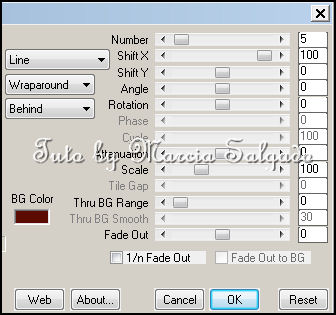
1. Open GS-Lazareva_July2016BT_ele4. Resize 55%. Copy and paste as new layer. Apply MuRa's Meister > Copies > Encircle as shown below:


2. Open GS-Lazareva_July2016BT_ele5. Resize 35%. Copy and paste as new layer. Apply MuRa's Meister > Copies > Encircle as shown below:


3. Open GS-Lazareva_July2016BT_ele8. Resize 50%. Copy and paste as new layer. Apply MuRa's Meister > Copies > Encircle as shown below:


4. Open GS-Lazareva_July2016BT_ele6. Resize 50%. Copy and paste as new layer. Apply MuRa's Meister > Copies > Encircle as shown below:


5. Open GS-Lazareva_July2016BT_frame1. Resize 85%. Copy and paste as new layer.

6. Select inside the frame > Expand 2 . Open GS-Lazareva_July2016BT_paper2. Copy and paste into selection. Use Penta.com > Jeans > Default. Add new layer. Fill with color #b69ab1. Blend Mode: Screen. Low layer opacity to 64. Deselect.

7. Open your tube. Resize. Copy and paste as new layer. Move it to left. I mirrored mine. Position it as you wish. Duplicate and turn the copy invisible. Click on original tube layer. Click on layer below the tube and select outside the circle. Expand > 2. Click on tube layer and click delete.

8. Click on frame layer. Select outside the frame. Expand selection > 2. Invert Selection.  Open GS-Lazareva_July2016BT_paper1. Copy and paste into selection. Enhance. Add new layer. Fill with color #cb984f. Blend Mode: Color (L). Contract selection on both layers > 26. Delete. Deselect.

9. Click on frame layer. Open GS-Lazareva_July2016BT_ele3. Resize 65%. Mirror. Copy and paste as new layer. Move it to right.

10. Open GS-Lazareva_July2016BT_ele1. Resize 75%. Copy and paste as new layer. Move it down and to right.

11. Open GS-Lazareva_July2016BT_ele5. Resize 65%. Copy and paste as new layer. Move it down and to right.

12. Open GS-Lazareva_July2016BT_ele9. Resize 45%. Free Rotate: Left-30. Copy and paste as new layer. Place it over the blue rose at the bottom. Duplicate. Mirror. Flip. Place it above the first leaves and a little more to right.

13. Open GS-Lazareva_July2016BT_ele2. Resize 65%. Copy and paste as new layer. Move it down and to right.

14. Turn the copy of the tube layer visible and erase all parts of the waist showing at the bottom.


--> Resize it if wanted. Add your copyright info and license#. Add your name and save as PNG.


July 31, 2016

Amour De Paris ~ by Joanne Salgado


Tutorial written by Joanne Salgado on July 31th, 2016
for those who have a working knowledge of PSP.
I'm using PSP9 to create my tuts.
Any resemblance to any other tutorial is coincidental.
Do not copy and paste this tutorial anywhere on the net.
If you want to translate please ask first. 

****************************************
Material:

Tube: "Tube 26-1" by Enamorte - you can purchase it here
do not use without the proper #license.
PTU Kit "Amour De Paris" by Gimptastic Scraps - you can purchase it here
Font: Alex Brush

****************************************

Don't forget to save often.
At any point if you have doubts check my tag.

1. Open a new image 650x650

2. Open GS-Amour_De_Paris_ele51. Copy and paste as new layer. Resize 70%. Use Manual color Correction as I show below. Copy and paste as new layer. Move it up and to left. Duplicate. Mirror. Flip.


3. Open GS-Amour_De_Paris_ele45. Copy and paste as new layer. Apply MuRa's Meister > Copies > Encircle with settings below:

4. Add a thin black border using Eye Candy > Gradient Glow with settings below:


5. Open GS-Amour_De_Paris_frame1. Copy and paste as new layer.

6. Open GS-Amour_De_Paris_frame4. Copy and paste as new layer. Resize 80%

7. Select inside the frame. Expand > 10. Add a new layer and move it below the frame layer. Open paper GS-Amour_De_Paris_paper1. Copy and paste into selection. Keep Selection

8. Add a new layer. Open GS-Amour_De_Paris_paper8. Copy and paste as new layer. Blend Mode: Hard Light. Layer Opacity to 60.

9. Invert selection. Open your tube close up. Copy and paste as new layer. Place it inside the frame. Delete. Select all. Clip to canvas. Crop to selection. Colorize: 0-0. Blendo Mode: Luminance (L). Layer Opacity to 50. Select none.

10. Open GS-Amour_De_Paris_ele22. Copy and paste as new layer. Resize 65%. Move this layer above the frame. Arrange it to the left.

11. Open GS-Amour_De_Paris_ele34. Copy and paste as new layer. Resize 65%. Arrange it to the bottom left.

12. Open GS-Amour_De_Paris_ele19. Copy and paste as new layer. Resize 50%. Arrange it to the top left.

13. Open GS-Amour_De_Paris_ele49. Copy and paste as new layer. Arrange it to the bottom left.

14. Open GS-Amour_De_Paris_ele37. Copy and paste as new layer. Resize 40%. Arrange it to the bottom left.

15. Open your tube. Copy and paste as new layer. Resize as needed and arrange it to the right.

16. Add shadow as you prefer.

17. Add copyright. Add name. Save as PNG.
July 7, 2016

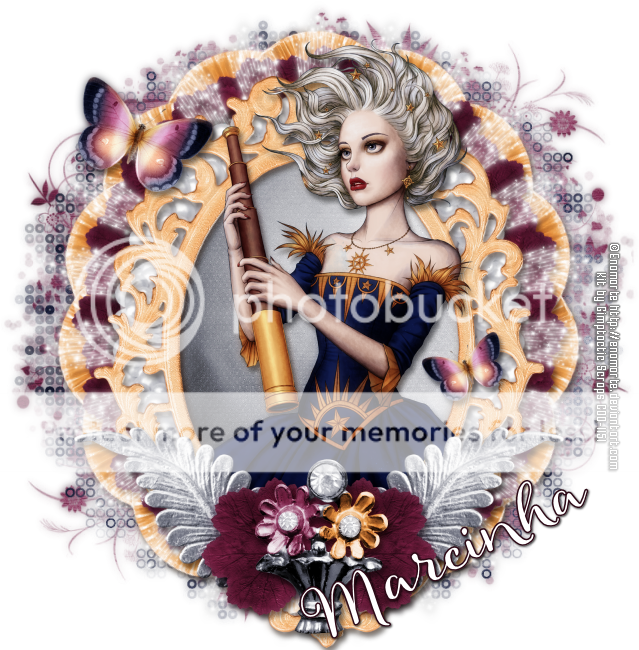
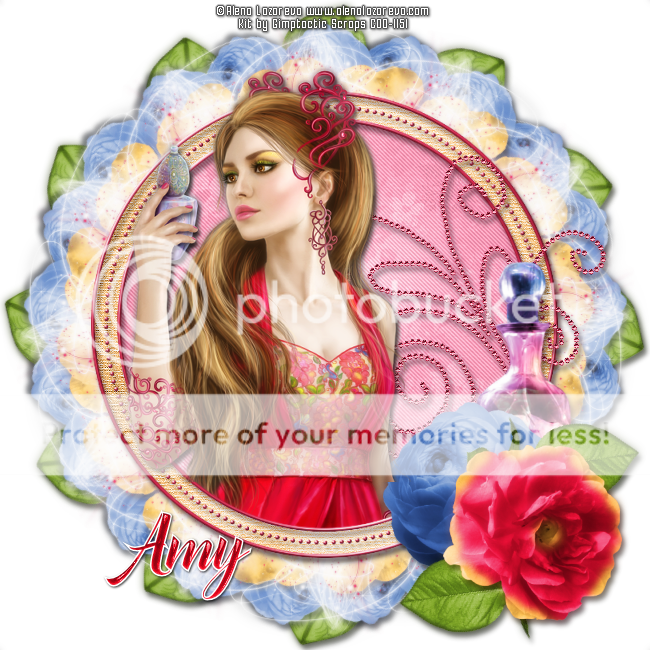
Enjoy Life

LOOKING TO THE STARS TUTORIAL


Tutorial written by Marcia Salgado on July 7th, 2016
for those who have a working knowledge of PSP.
I'm using PSP9 to create my tuts.
Any resemblance to any other tutorial is coincidental.
Do not copy and paste this tutorial anywhere on the net.
If you want to translate please ask first. 

****************************************
Material:

Tube: "Individual Tube 57-3" by Enamorte, you can purchase it here,
do not use without the proper #license.
PTU Kit "Enjoy Life" by Gimptastic Scraps,
you can purchase it here
Mask: Dee's mask DD_GeoMask_3 HERE  and DD_NFM_2015_2 HERE 
Font: Allegretto Script 

****************************************

--> Remember to save often and use my tag as reference if necessary. Use a drop shadow of your preference on layers.


1. Create a new image 650x650.

2. Add a new layer. Select all. Open GS-EnjoyLife_paper1. Copy and paste into selection. Deselect. Apply Dee's mask DD_NFM_2015_2. Merge group.

3. Add a new layer. Select all. Open GS-EnjoyLife_paper3. Copy and paste into selection. Deselect. Apply Dee's mask DD_GeoMask_3. Merge group.

4. Open GS-EnjoyLife_ele35. Resize 60%. Copy and paste as new layer. Use MuRa's Meister > Copies > Encircle with settings below:


5. Open GS-EnjoyLife_ele28. Resize 50%. Copy and paste as new layer. Use MuRa's Meister > Copies > Encircle with settings below:


6. Open GS-EnjoyLife_ele20. Resize 50%. Flip. Copy and paste as new layer. Use MuRa's Meister > Copies > Encircle with settings below:


7. Open GS-EnjoyLife_ele26. Resize 30%. Copy and paste as new layer. Use MuRa's Meister > Copies > Encircle with settings below:


8. On same layer, adjust the position using Offset as shown below:


9. Open GS-EnjoyLife_frame2. Flip. Copy and paste as new layer. Adjust the position using Offset with settings below:


10. Select inside the frame. Expand > 10. Add a new layer and move it below the frame layer. Open GS-EnjoyLife_paper5. Copy and paste into selection. Deselect.

11. Open your tube. Resize if needed. Copy and paste as new layer. Select and delete all part is out the frame at the bottom. No need to be very careful because we will cover it with elements next.

12. Open GS-EnjoyLife_ele31. Resize 70. Copy and paste as new layer. Move it down and a little to right. Place it over the frame border. Duplicate. Mirror. Merge down.

13. Open GS-EnjoyLife_ele28. Resize 50%. Copy and paste as new layer. Move it down and very little to left. Place it over the previous element at bottom. Duplicate. Mirror. Merge down.

14. Open GS-EnjoyLife_ele19. Resize 50%. Move it down and place it between the two leaves.

15. Open GS-EnjoyLife_ele1. Resize 60%. Copy and paste as new layer. Move it up and to left. Keep it over the cluster. Duplicate. Resize 60%. Mirror. Move it down and to right. Keep it over the frame, more to inside.

16. Use Crop > Merged Opaque to get rid of all extra spaces.


--> Resize it if wanted. Add your copyright info and license#. Add your name and save as PNG.


June 30, 2016

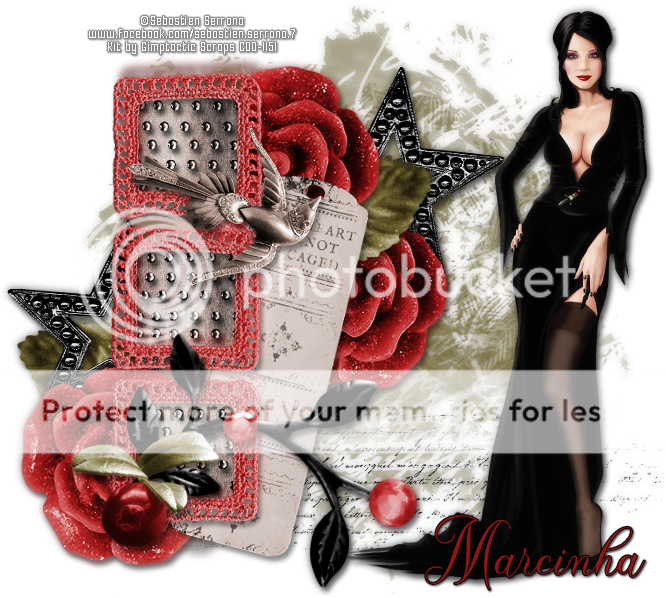
Breathless

SEDUCTION TUTORIAL


Tutorial written by Marcia Salgado on June 30th, 2016
for those who have a working knowledge of PSP.
I'm using PSP9 to create my tuts.
Any resemblance to any other tutorial is coincidental.
Do not copy and paste this tutorial anywhere on the net.
If you want to translate please ask first. 

****************************************
Material:

Tube: "Individual Tube 7-2" by Sebastien Serrano, you can purchase it here,
do not use without the proper #license.
PTU Kit "Breathless" by Gimptastic Scraps,
you can purchase it here 
Font:  The Paragraph Script

****************************************

--> Remember to save often and use my tag as reference if necessary. Use a drop shadow of your preference on layers.


1. Create a new image 700x600.

2. Open GS-Breathless_Ele30. Copy and paste as new layer.

3. Open GS-Breathless_Ele43. Copy and paste as new layer. Move it down.

4. Open GS-Breathless_Ele15. Copy and paste as new layer. Move it up.

5. Open GS-Breathless_Ele26. Copy and paste as new layer. Move it very little up.

6. Open GS-Breathless_Ele47. Resize 65%. Copy and paste as new layer. Place it over the star. Duplicate. Mirror. Move it down and to left.

7. Open GS-Breathless_Ele15. Copy and paste as new layer. Place it over the leaf on the left.

8. Open GS-Breathless_Ele26. Copy and paste as new layer. Move it up and a little to left.

9. Open GS-Breathless_Ele44. Resize 75%. Free Rotate: Right-15. Copy and paste as new layer. Move it down and a little to left.

10. Open GS-Breathless_Frame2. Resize 75%. Copy and paste as new layer. Move it to left. Now you can re-arrange the previous elements around your frame.

11. Click on frame layer, if it isn't selected. Select inside the frames. Add a new layer and move it below the frame layer. Expand > 5. Open GS-Breathless_Paper9. Copy and paste into selection. Invert selection.

12. Open GS-Breathless_Ele11. Resize 75%. Free Rotate: Right-90. Copy and paste as new layer. Place it inside the frames. Delete. Deselect. Blend Mode: Hard Light.

13. Click on frame layer. Open GS-Breathless_Ele52. Resize 65%. Mirror. Copy and paste as new layer. Move it down and to left.

14. Open GS-Breathless_Ele41. Resize 65%. Mirror. Copy and paste as new layer. Move it up and to left.

15. Open your tube. Resize if needed. Copy and paste as new layer. Move it to right.

16. Open GS-Breathless_Ele19. Resize 65%. Copy and paste as new layer. Move it down and to left.

17. Use Crop > Merged Opaque to get rid of all extra space.


--> Resize it if wanted. Add your copyright info and license#. Add your name and save as PNG.

June 17, 2016

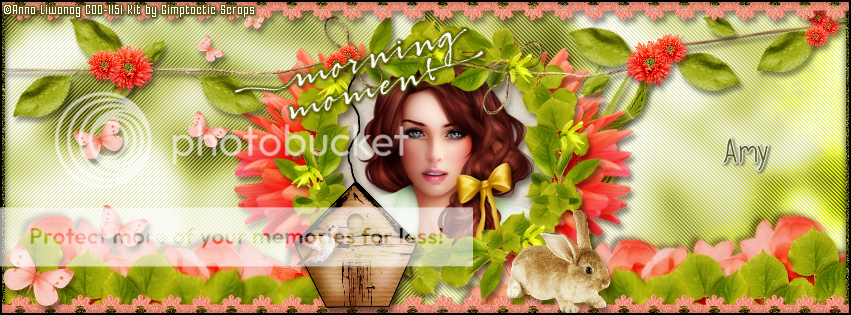
Morning Moment

NATURAL LIFE TUTORIAL

**Click to see original size**

Tutorial written by Marcia Salgado on June 14th, 2016
for those who have a working knowledge of PSP.
I'm using PSP9 to create my tuts.
Any resemblance to any other tutorial is coincidental.
Do not copy and paste this tutorial anywhere on the net.
If you want to translate please ask first. 

****************************************
Material:

Tube: "Individual Tube 70-2" by Anna Liwanag, you can purchase it here,
do not use without the proper #license.
PTU Kit "Morning Moment" by Gimptastic Scraps,
you can purchase it here 
Plugin: MuRa's Meister, Penta.com and Eye Candy 6
Font: AppleJaxPro 

****************************************

--> Remember to save often and use my tag as reference if necessary. Use a drop shadow of your preference on layers.


1. Create a new image 851x315.

2. Open GS-MorningMoment_paper4. Copy and paste as new layer. Move the paper to chose the area you want to show.

3. Open your tube. Copy and paste as new lyer. Apply MuRa's Meister > Copies > Wall Paper (rotate) with default settings. Use Penta.com > Jeans also with default settings. Custom Selection: Top-0, Right-425, Bottom-315 and Left-0. Mirror. Deselect. Blend Mode: Luminance (or chose other).

4. Open GS-MorningMoment_ele28. Copy and paste as new layer. Select  tiny part of the stem at the right side, as I show below. Promote selection to layer. Using Deform Tool stretch it all the way to right. If needed fix the placement. Do the same on left side. Merge this 3 layers together.


5. Open GS-MorningMoment_ele18. Resize 65%. Copy and paste as new layer.With Deform Tool (or Pick in PSP new versions) rotate the element to right. Move it below the frme layer and to right.

6. Open GS-MorningMoment_ele21. Resize 55%. Copy and paste as new layer. Rotate it to right with same way you did before. Place it over the previous grass.

7. Open GS-MorningMoment_ele24. Resize 55%. Copy and paste as new layer. Move it down. Duplicate and using Mirror, rotate, flip create a line at the bottom. Merge all roses layer after the line is done.

8. Open GS-MorningMoment_ele15. Resize 35%. Flip. Copy and paste as new layer. Do the same you did with the roses with the leaves. Create a line at bottom.

9. Open GS-MorningMoment_ele30. Copy and paste as new layer. Move it to left a liitle. Duplicate. Mirror, may need to move it a little more to right.

10. Click on frame layer and select it inside (use freehand selection and not the magic wand). Add a new layer and move it below the frame layer. Open GS-MorningMoment_paper6. Copy and paste into selection. Invert selection.

11. Open your tube. Resize if needed. Copy and paste as new layer. Place it inside the frame. Delete. Select all. Clip to canvas. Crop to selection.

12. Click on frame layer again. Open GS-MorningMoment_ele32. Resize 25%. Copy and paste as new layer. Use the Deform Tool (Pick on PSP newer versions) to rotate it a little to left or eight. Place it on frame stem. Duplicate. Use Mirror or Flip and Deform Tool again to add some leaves to the stem.

13. Open GS-MorningMoment_ele30. Resize 20%. Copy and paste as new layer. Do the same with the flowers and use her on some places over the stem.

14. Add a new layer. Select all and fill it with #505503. Contract > 5. Delete. Deselect. Use Noise 55 - Random - Monochrome.

15. Open GS-MorningMoment_ele37. Copy and paste as new layer. Move it way up. Duplicate. Flip. Merge down.

16. Open GS-MorningMoment_ele2. Resize 35%. Copy and paste as new layer. Move it down and to left. Place on the right side of the frame.

17. Open GS-MorningMoment_ele23. Resize 50%. Copy and paste as new layer. Move it a little down and to left. Place it over the frame border.

18. Open GS-MorningMoment_wordart. Resize 50%. Copy and paste as new layer. Rotate it to left and place it over the framer on left at the top. Using Eye Candy 6 > Gradient Glow and color #505503 add a thin border to the wordart. 

19. Open GS-MorningMoment_ele40. Resize 65%. Mirror. Copy and paste as new layer. Move it to left.

20. Open GS-MorningMoment_ele34. Resize 20%. Mirror. Copy and paste as new layer. Move it down. Place it near the birdhouse door.


--> Add your copyright info (no URL by Facebook TOU) and license#. Add your name. Save as PNG.

--> Sometimes I had to change my Timeline size to 846x313 because when I add it to Facebook the image has extra pixels and do not fit perfectly. So try this size if the same is happening to you. 


-------------------------------------------------------------

My idea for the FB Picture Profile


May 20, 2016

Buzz Buzz ~ by Joanne Salgado


Tutorial written by Joanne Salgado on May 20th, 2016
for those who have a working knowledge of PSP.
I'm using PSP9 to create my tuts.
Any resemblance to any other tutorial is coincidental.
Do not copy and paste this tutorial anywhere on the net.
If you want to translate please ask first. 

****************************************
Material:

PTU Kit "Cuddly Rigor Mortis-April-2016-bt" by Gimptastic Scraps - you can purchase it here
Font: A.D.MONO

****************************************

Don't forget to save often.
At any point if you have doubts check my tag.

1. Open a new image 851x315

2. Open paper 'GS-CRM_April2016BT_paper2' copy and paste as new layer.

3. Open paper 'GS-CRM_April2016BT_paper6' copy and paste as new layer. Change blend to soft light.

4. Open element 'GS-CRM_April2016BT_ele3' copy and paste as new layer. Resize 50%. Arrange it to bottom.

5. Open element 'GS-CRM_April2016BT_ele8' copy and paste as new layer. Move this layer below the beehive layer and arrange it to the right. Duplicate. Mirror.

6. Open element 'GS-CRM_April2016BT_ele19' copy and paste as new layer. Arrange it to bottom.

7. Open element 'GS-CRM_April2016BT_ele6' copy and paste as new layer. Arrange it to the top a little to the right.

8. Open element 'GS-CRM_April2016BT_ele2' copy and paste as new layer. Arrange it to the top a little to the left.

9. Open element 'GS-CRM_April2016BT_ele15' copy and paste as new layer. Arrange it to the bottom right. Duplicate. Mirror.

10. Open element 'GS-CRM_April2016BT_ele6' copy and paste as new layer. Arrange it to the top left. Duplicate. Arrange it behind the beehive a little to the right. Duplicate. Arrange it to the right.

11. Open element 'GS-CRM_April2016BT_ele4' copy and paste as new layer. Resize 50%. Arrange it behind the beehive a little to the left.

12. Open element 'GS-CRM_April2016BT_ele13' copy and paste as new layer. Resize 50%. Arrange it to the left of the black honey cup.

13. Open element 'GS-CRM_April2016BT_ele12' copy and paste as new layer. Resize 50%. Arrange it above the black honey cup.

14. Open element 'GS-CRM_April2016BT_ele20' copy and paste as new layer. Move this layer above the beehive. Arrange it to bottom left.

15. Open element 'GS-CRM_April2016BT_ele1' copy and paste as new layer. Resize 40%. Mirror. Arrange it to the right at the end of the bee trail.

16. Open element 'GS-CRM_April2016BT_wordart2'. Using the Freehand selection tool select the bees around the letter that are available to select without having to clean it all up and copy and paste it as new layer and arrange it around the canvas. Put as many as you want, I used 4. There are just two around this wordart to freely select, just mirror, flip ir around to change the ways they're going.

17. Open element 'GS-CRM_April2016BT_ele9' copy and paste as new layer. Arrange it at the center.

18. Open element 'GS-CRM_April2016BT_frame1' copy and paste as new layer. Use the border to create your own border. Arrange it to the left and the duplicate and arrange it to the right. See mine.

19. Add a new layer. Select all. Fill with black. Contract 1. Add noise uniform/50/monochrome checked. Contract 2. Hit delete on your keyboard. Select none.

20. Add shadow as you prefer.

21. Add copyright. Add name. Save as PNG.


May 17, 2016

IB-CuddlyRigorMortis-May-2016-BT

BLOOMING TUTORIAL

**Click to see original size**

Tutorial written by Marcia Salgado on May 17th, 2016
for those who have a working knowledge of PSP.
I'm using PSP9 to create my tuts.
Any resemblance to any other tutorial is coincidental.
Do not copy and paste this tutorial anywhere on the net.
If you want to translate please ask first. 

****************************************
Material:

Tube: "Individual Tube 70-1" by Cuddly Rigor Mortis, you can purchase it here,
do not use without the proper #license.
PTU Kit "IB-CuddlyRigorMortis-May-2016-BT" by Gimptastic Scraps,
you can purchase it here 
Mask: by me, just click and save

Font: Champagne & Limousines 

****************************************

--> Remember to save often and use my tag as reference if necessary. Use a drop shadow of your preference on layers.

1. Create a new image 851x315.

2. Open GS-CRM_May2016BT_paper6. Copy and paste as new layer.

3. Open GS-CRM_May2016BT_paper1. Copy and paste as new layer. Apply my mask and merge group. The mask will show where you have to add the ground elements.

4. Open GS-CRM_May2016BT_ele10. Resize 50%. Copy and paste as new layer. Move it a little to left. Duplicate. Mirror. Merge down.

5. Add a new layer. Select all and fill it with White. Contract > 8. Delete. Fill it with black. Contract > 1. Delete. Deselect. Low the layer opacity to 50.

6. Open GS-CRM_May2016BT_ele2. Copy and paste as new layer. Move it down and to left. Duplicate. Mirror. Move a little more to right. Merge down.

7. Open GS-CRM_May2016BT_ele14. Resize 65%. Copy and paste as new layer. Move it down.

8. Open GS-CRM_May2016BT_ele3. Resize 50%. Copy and paste as new layer. Move down and to right.

9. Open GS-CRM_May2016BT_ele16. Resize 45%. Copy and paste as new layer. Move it down. Duplicate and move it to right. Duplicate again and move it to left. Create a line at the bottom. Merge all 3 layers together.

10. Open GS-CRM_May2016BT_ele18. Resize 75%. Copy and paste as ne layer. Move it way to left.

11. Open GS-CRM_May2016BT_ele17. Mirror. Copy and paste as ne layer. Move it a little up and way to left.

12. Open GS-CRM_May2016BT_ele4. Resize 60%. Mirror. Copy and paste as new layer. Move it a little down and to left.

13. Open GS-CRM_May2016BT_ele21. Resize 50%. Copy and paste as new layer. Move it down and to left.

14. Open GS-CRM_May2016BT_ele19. Resize 70%. Copy and paste as new layer. Move it way to right.

15. Open GS-CRM_May2016BT_ele1. Resize 50%. Copy and paste as new layer. Move it up and to left. Place near the flowers.

16. OPen GS-CRM_May2016BT_ele5. Resize 70%. Copy and paste as new layer. Move it way to right.

17. Open GS-CRM_May2016BT_ele22. Resize 60%. Mirror. Copy and paste as new layer. Move it down and way to right.

18. Open GS-CRM_May2016BT_ele7. Resize 45%. Copy and paste as new layer. Move it down and way to right. Duplicate and move it way to left. Merge down.

19. Open GS-CRM_May2016BT_ele9. Resize 20%. Copy and paste as new layer. Place it at the bottom. Duplicate and spread the little flower over the grass, you can resize it and do the same with the smaller version. Keep it simple, do not use too many.

20. Open GS-CRM_May2016BT_ele20. Resize 20%. Copy and paste as new layer. Move it down and to right. Place it over the grass. Duplicate. Mirror and move it a little higher than the first one. Merge down.

21. Open your tube. Resize. Copy and paste as new layer. Move it slightly up. 

22. Add a new layer. Select all. Fill it with black. Contract > 2. Delete. Deselect.


--> Add your copyright info and license#. Add your name or initials. Save as PNG.
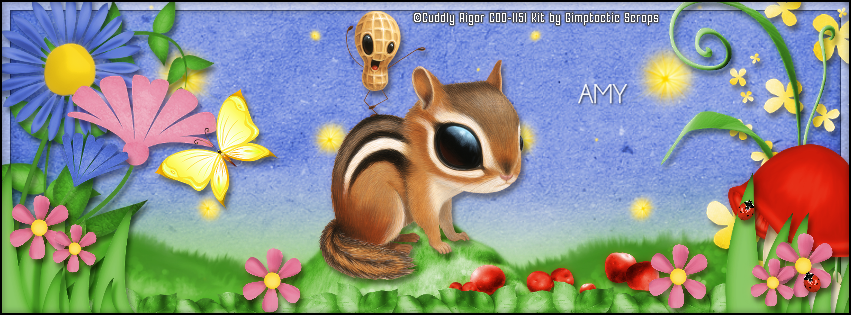
--> Sometimes I had to change my Timeline size to 846x313 because when I add it to Facebook the image has extra pixels and do not fit perfectly. So try this size if the same is happening to you.


---------------------------------------------------------

My example for FB Picture Profile:


May 11, 2016

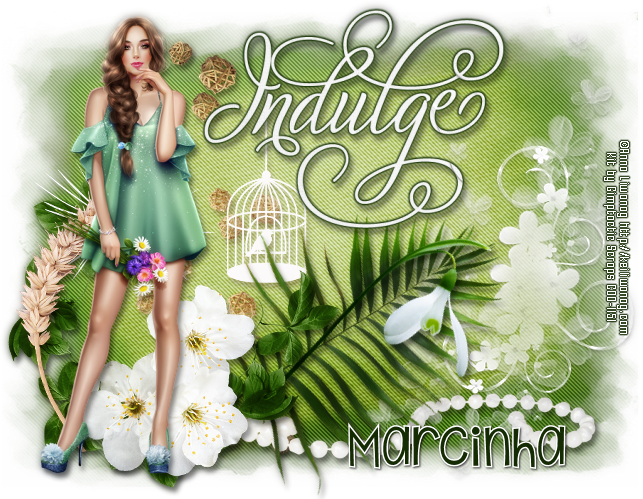
Indulge

RELAX TUTORIAL


Tutorial written by Marcia Salgado on May 11th, 2016
for those who have a working knowledge of PSP.
I'm using PSP9 to create my tuts.
Any resemblance to any other tutorial is coincidental.
Do not copy and paste this tutorial anywhere on the net.
If you want to translate please ask first. 

****************************************
Material:

Tube: "Individual Tube 73-1" by Anna Liwanag, you can purchase it here,
do not use without the proper #license.
PTU Kit "Indulge-mini" by Gimptastic Scraps,
you can purchase it here 
Mask: InsatiableDreams (Cat) Mask, 565InsatiableDreams, here (Collection Mask 14)
Plugin: Eye Candy 6 and Penta.com
Font: KG Shake it Off 

****************************************

--> Remember to save often and use my tag as reference if necessary. Use a drop shadow of your preference on layers.

1. Create a new image 670x500.

2. Add a new layer. Select all. Open GS-Indulge_paper3. Copy and paste into selection. Deselect. Apply Cat's mask. Merge group. Use Penta.com > Jeans. Resize 95%.


3. Open GS-Indulge_ele39. Resize 75%. Free Rotate: Right-90. Copy and paste as new layer. Move it to left.

4. Open GS-Indulge_ele33. Resize 50%. Copy and paste as new layer. Move it a little up and a little to left.

5. Open GS-Indulge_ele7. Copy and paste as new layer. Move it down and a little to right.

6. Add a new layer. Select all. Open GS-Indulge_paper2. Copy and paste into selection. Deselect. Apply Cat's mask. Merge group. Resize 80%. Fre Rotate: Left-10. Blend Mode: Soft Light.

7. Open GS-Indulge_ele37. Resize 90%. Mirror. Copy and paste s new layer. Move it down and to right.

8. Open GS-Indulge_ele10. Resize 70%. Free Rotate: Right-60. Copy and paste as new layer. Move it down.

9. Open GS-Indulge_ele18. Resize 65%. Mirror. Free Rotate: Right-30. Copy and paste as new layer. Move it down and place it over the previous foliage.

10. Open GS-Indulge_ele2. Resize 70%. Copy and paste as new layer. Move it down and to left.

11. Open GS-Indulge_ele40. Resize 70%. Copy and paste as new layer. Move it down and to left.

12. Open GS-Indulge_ele45. Resize 70%. Mirror. Copy and paste as new layer. Move it down and move to left.

13. Open GS-Indulge_wordart1. Copy and paste as new layer. Move it up and a little to left. Place the letter "I" over the birdcage hanging cord. Add a border with color #142b03 using Eye Candy 6 > Gradient Glow with settings below:


14. Open GS-Indulge_ele8. Resize 60%. Copy and paste as new layer. Move it down and to left.

15. Open your tube. Resize it if needed. Copy and paste as new layer. Move it to left.

16 Use Crop > Merged Opaque and get rid of all extra space.


--> Resize it if wanted. Add your copyright info and license#. Add your name and save as PNG.


May 6, 2016

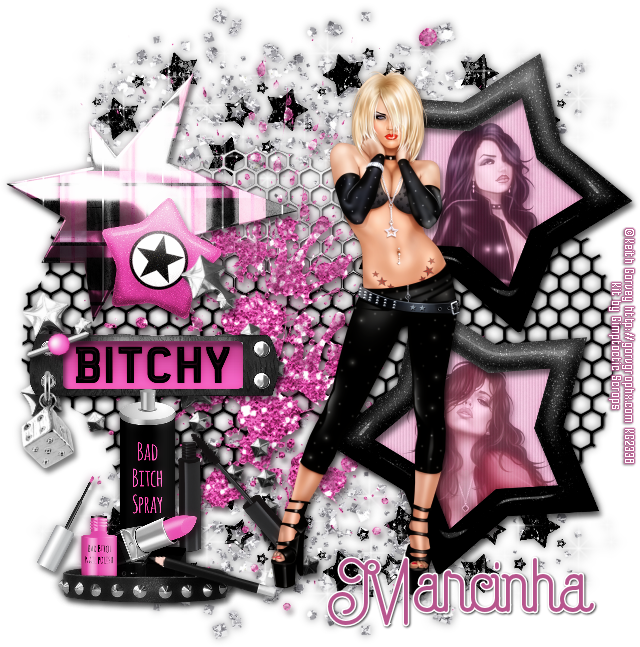
Bad Bitch

IN THE MOOD TUTORIAL


Tutorial written by Marcia Salgado on May 6th, 2016
for those who have a working knowledge of PSP.
I'm using PSP9 to create my tuts.
Any resemblance to any other tutorial is coincidental.
Do not copy and paste this tutorial anywhere on the net.
If you want to translate please ask first. 

****************************************
Material:

Tube: "Star 2" by Keith Garvey, you can purchase it here,
do not use without the proper #license.
I'm using 3 tubes from Keith Garvey, you can use only one if you prefer,
the other tubes used are called Latexxx and Ooh La La
PTU Kit "Bad Bitch" by Gimptastic Scraps,
you can purchase it here
Font: Capella 

****************************************

--> Remember to save often and use my tag as reference if necessary. Use a drop shadow of your preference on layers.


1. Create a mew image 650x650.

2. Open GS-Bad_Bitch_ele43. Copy and paste as new layer. Move it up. Duplicate. Flip. Merge down.

3. Open GS-Bad_Bitch_ele23. Copy and paste as new layer.

4. Open GS-Bad_Bitch_ele5. Copy and paste as new layer. Move it a little to left.

5. Open GS-Bad_Bitch_ele25. Resize 70%. Copy and paste as new layer. Move it up and to left.

6. Open GS-Bad_Bitch_ele40. Resize 60%. Copy and paste as new layer. Move it up and to left.

7. Open GS-Bad_Bitch_frame3. Resize 50%. Copy and paste as new layer. Move it up and to right. Duplicate. Mirror. Move it down and place it under the first one. Merge down.

8. Select inside the frames. Expand > 5. Add a new layer and move it under the frame layer. Open GS-Bad_Bitch_paper7. Copy and paste into selection. Keep selected. Add a new layer. Fill with white and low the opacity to 52. Blinds using the settings below, invert the selection.


9. I'm using 3 tubes from Keith Garvey, chose 2 of them and place them inside the frames. Blend Mode: Luminance (L) and low the layer opacity to 52. Dulicate. Gaussian Blur: 4. Blend Mode: Soft Light and increase the layer opacity to 100.

10. Click on first layer. Open GS-Bad_Bitch_ele32. Copy and paste as new layer. Move it down and to left.

11. Open GS-Bad_Bitch_ele8. Resize 50%. Copy and paste as new layer. Move it to left. Duplicate. Turn the copy invisibe for now. Click on original layer.

12. Open GS-Bad_Bitch_ele13. Resize 50%. Copy and paste as new layer. Place it over the previous element over the middle. Select all. Float. Defloat. Contract > 1. Turn visible the copy you reserved before. Delete. Deselect.

13. Open GS-Bad_Bitch_ele17. Resize 40%. Copy and paste as new layer. Place it hanging from rhe bottom eyelet of the previous layer.

14. Open GS-Bad_Bitch_ele7. Resize 30%. Free Rotate: Left-20. Copy and paste as new layer. Place it over the upper eyelet.

15. Open GS-Bad_Bitch_ele11. Resize 50%. Copy and paste as new layer. Move it down and to left. Duplicate and turn copy invisible. Click back on original layer.

16. Open GS-Bad_Bitch_ele49. Resize 40%. Copy and paste as new layer. Move it down and to left. Place it over the previous collar.

17. Open GS-Bad_Bitch_ele34. Resize 40%. Copy and paste as new layer. Place it near the previous element.

18. Open GS-Bad_Bitch_ele39. Resize 30%. Copy and paste as new layer. Place it near the spray can.

19. Open GS-Bad_Bitch_ele53. Resize 30%. Copy and paste as new layer. Place it near the lipstick.

20. Turn the collar copy visible again and clean the parts that are over the previous elements to look as they are inside of it.

21. Open GS-Bad_Bitch_ele48. Resize 40%. Free Rotate: Right-75. Copy and paste as new layer. Move it down and to left. Place it over the collar on its right side as if the pencil is leaning on collar element.


--> Resize it if wanted. Add your copyright info and license#. Add your name and save as PNG.


-------------------------------------------------


This is an animation I created


April 29, 2016

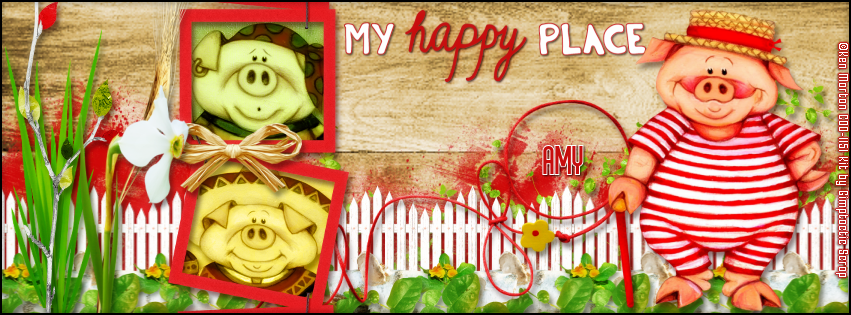
My Happy Place

MR. PIG TUTORIAL

**Click to see original size**

Tutorial written by Marcia Salgado on April 29th, 2016
for those who have a working knowledge of PSP.
I'm using PSP9 to create my tuts.
Any resemblance to any other tutorial is coincidental.
Do not copy and paste this tutorial anywhere on the net.
If you want to translate please ask first. 

****************************************
Material:

Tubes: "Package 54" by Ken Morton, you can purchase them here,
do not use without the proper #license.
PTU Kit "My Happy Place" by Gimptastic Scraps,
you can purchase it here 
Plugin: MuRa's Meister.
Font: Bronco Regular 

****************************************

--> Remember to save often and use my tag as reference if necessary. Use a drop shadow of your preference on layers. I used here 3 tubes from a Package but you can use only one.

1. Create a new image 851x315.

2. Open GS-My_Happy_Place_paper4. Copy and paste as new layer. Move it a little until you like it.

3. Open GS-My_Happy_Place_ele39. Resize 65%. Copy and paste as new layer. Move it down and duplicate it moving it a little up or a little down until you cover the back.

4. Open GS-My_Happy_Place_ele53. Resize 35%. Copy and paste as new layer. Move it down and duplicate it, move it up, use mirror, rotate it a little and cover  the red element a little.

5. Open GS-My_Happy_Place_ele41. Resize 50%. Copy and paste as new layer. Use MuRa's Meister > Copies > Line with settings below and move it down. Now you may want to re-arrange the previous elements to look better behind the fence.


6. Open GS-My_Happy_Place_ele37. Resize 45%. Copy and paste as new layer. Use MuRa's Meister > Copies > Line with settings below and move it down.


7. Open GS-My_Happy_Place_ele34. Resize 45%. Copy and paste as new layer. Use MuRa's Meister > Copies > Line with settings below and move it down.


8. Open GS-My_Happy_Place_ele50. Resize 65%. Copy and paste as new layer. Move it down and a little to right. 

9. Open GS-My_Happy_Place_ele28. Resize 70%. Copy and paste as new layer. Move it way to left. Duplicate and move it a little bit to right. Merge down.

10. Open GS-My_Happy_Place_ele7. Copy and paste as new layer. Move it way left. Place it in front of the grass.

11. Open GS-My_Happy_Place_wordart1. Resize 50%. Copy and paste as new layer. Move it up and a little to right.

12. Open GS-My_Happy_Place_frame2. Copy and paste as new layer. Adjust it to show only 2 frames. 

13. Select inside the upper frame. Expand > 5. Add a new layer and move it below the frame layer. Open GS-My_Happy_Place_paper10. Copy and paste into selection. Invert selection. Open one of your selected tubes. Resize it. Copy and paste as new layer. Place it inside the frame. Delete. Deselect. Select all. Clip to canvas. Crop to selection. Apply a Blend Mode of your preference.

14. Select inside the lower frame. Expand > 5. Add a new layer and move it below the frame layer. Open GS-My_Happy_Place_paper6. Copy and paste into selection. Invert selection. Open one of your selected tubes. Resize it. Copy and paste as new layer. Place it inside the frame. Delete. Deselect. Select all. Clip to canvas. Crop to selection. Apply a Blend Mode of your preference.

15. Open GS-My_Happy_Place_ele43. Resize 55%. Copy and paste as new layer. Place it over the frame at middle.

16. Open GS-My_Happy_Place_ele60. Copy and paste as new layer. Move it to left. Place it on left side of the frame.

17. Open GS-My_Happy_Place_ele54. Resize 70%. Copy and paste as new layer. Move it to left. Place it over the previous element.

18. Open your tube and resize it. Copy and paste as new layer. Move it to right.

19. Add a new layer. Select all. Fill it with Black. Contract > 2. Delete.


--> Add your copyright info and license#. Add your name or initials. Save as PNG.

--> Sometimes I had to change my Timeline size to 846x313 because when I add it to Facebook the image has extra pixels and do not fit perfectly. So try this size if the same is happening to you.

---------------------------------------

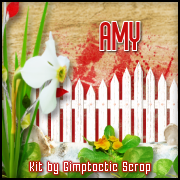
Idea for the Profile Picture