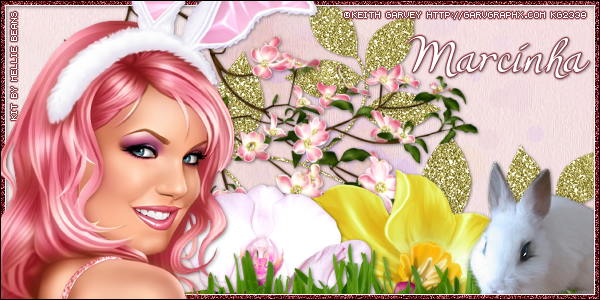
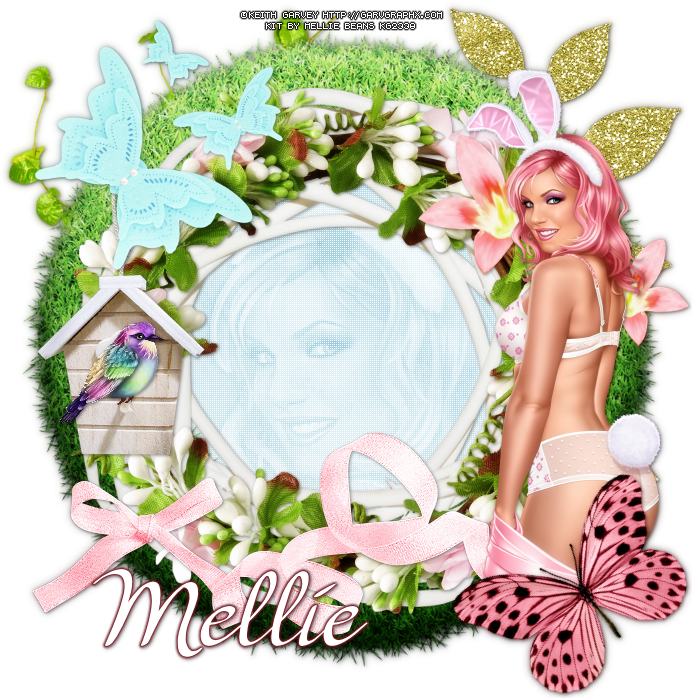
Showing posts with label Mellie Beans. Show all posts

October 3, 2015

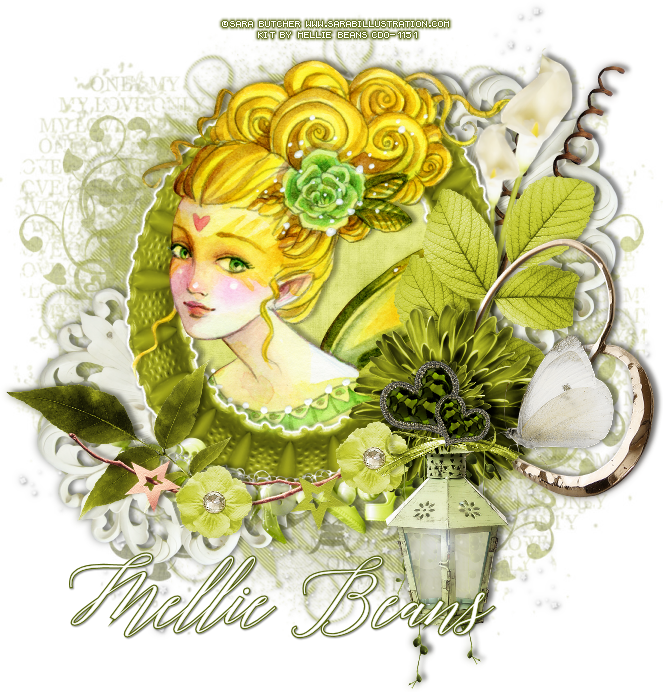
IB-SheenaPike-3-1 - Show Off CT


== NEW CT MELLIE BEANS PTU TAG ==

Featuring "IB-SheenaPike-3-1" by Mellie Beans at CDO - Creative Design Outlet.

To see the my Show Off Tag, visit my blog, including a tag with animation, here:


Mellie Bean's kit has 20 elements, 3 frames, 1 wordart and 6 papers so you can play with it. 
The tube that inspired this scrap kit can be purchased HERE
*This scrap kit may be used with any artists work. Please follow CDO's TOU's for your tubes.*

Kit can be found at:

-> CDO - Creative Design Outlet, here

Visit her blog:


October 2, 2015

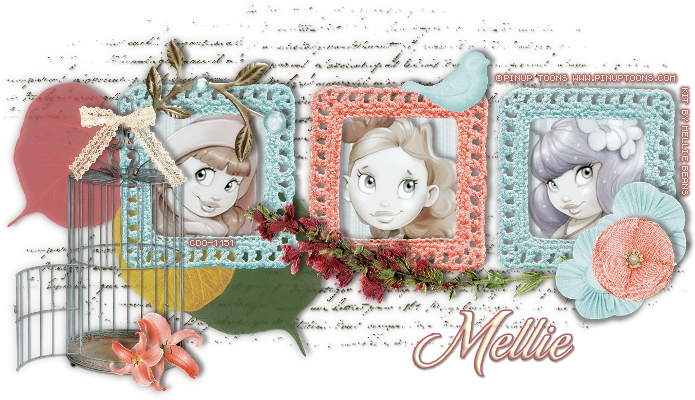
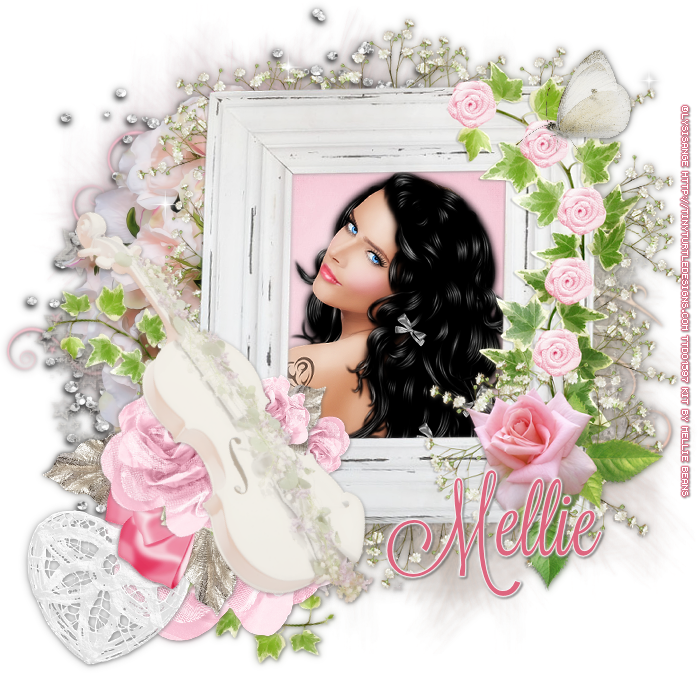
IB-PinUpToons-223-2 - CT Show Off


== NEW CT MELLIE BEANS PTU TAG ==

Featuring "IB-PinUpToons-223-2" by Mellie Beans at CDO - Creative Design Outlet.

Mellie Bean's kit has 20 elements, 3 frames, 1 wordart and 6 papers. The colors are romantic and soft. The style is a little vintage so you can create awesome tags with it.
It is inspired by the PinUp Toons tube 223-2, and you can find it here
*This scrap kit may be used with any artists work. Please follow CDO's TOU's for your tubes.*

Kit can be found at:

-> CDO - Creative Design Outlet, here

Visit her blog:


September 26, 2015

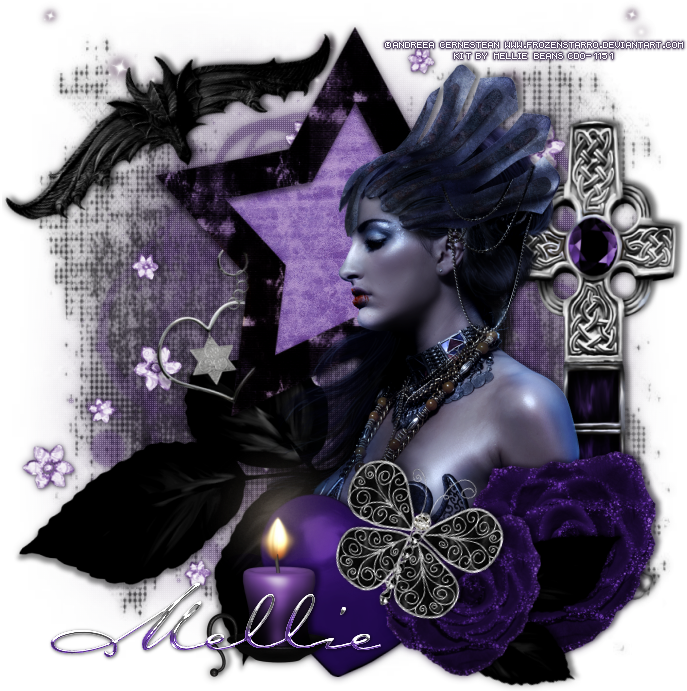
ScrapMB_IB-PinUpToons-224-1 - Mellie Beans CT Tag


== NEW CT MELLIE BEANS PTU TAG ==

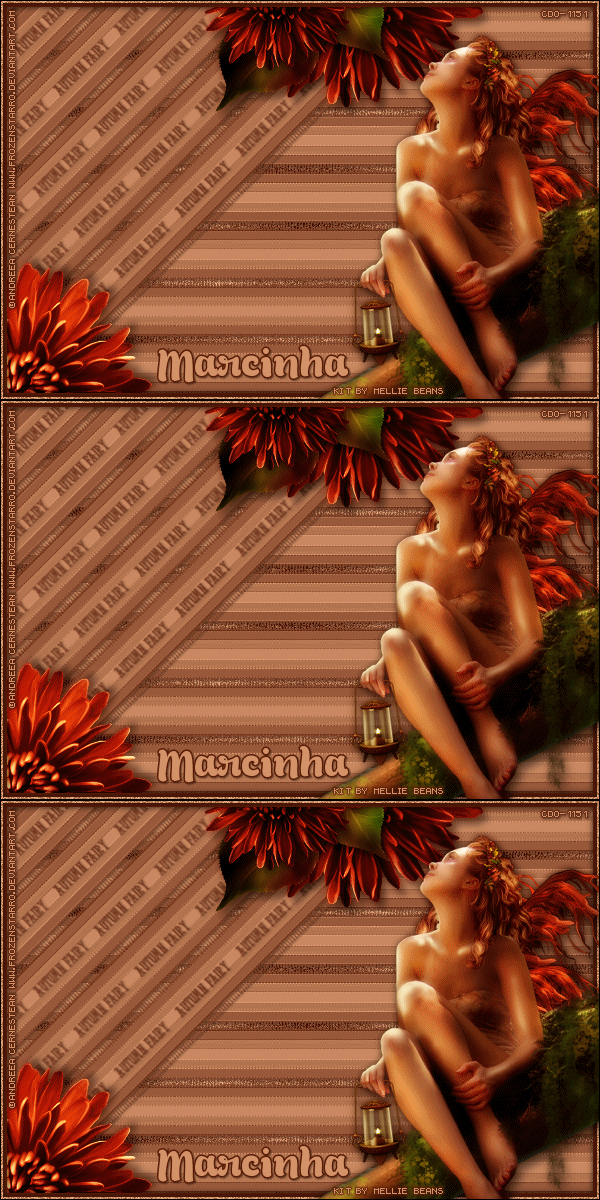
Featuring "ScrapMB_IB-PinUpToons-224-1" by Mellie Beans at CDO - Creative Design Outlet.

Mellie Bean's kit has 20 elements. 2 frames, 1 wordart and 6 papers so you can play with it. 
The colors are beautiful and you can create different styles of tags.

Kit can be found at:

-> CDO - Creative Design Outlet, here

Visit her blog:


September 15, 2015

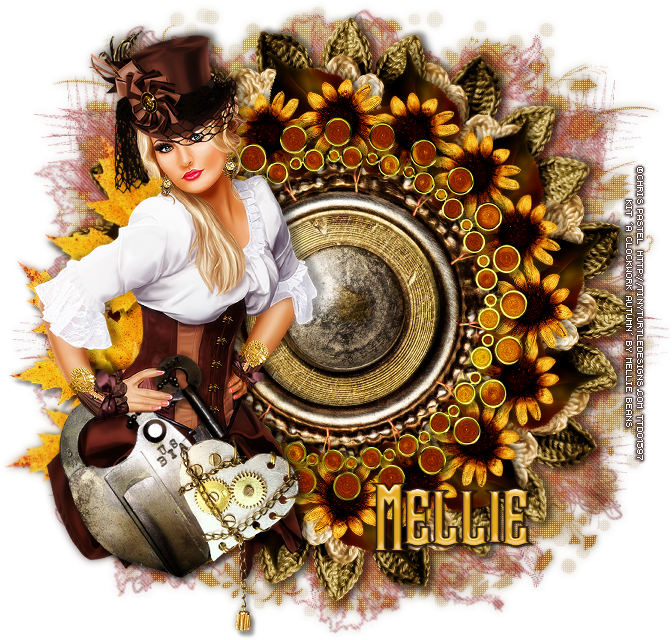
A Clock Work Autumn


I made this tag for an Auction at BAS - Bag-A-Snag Forum
and it only can have two copies, one with my name and one with the auction winner's name.


== NEW CT MELLIE BEANS PTU TAGS ==

Featuring "A Clock Work Autumn" by Mellie Beans
at Mystical Scraps Store and Heartbeatz Creationz.

This Steampunk themed Autumn kit is a must have for every Steampunk lover! 
Mellie Bean's kit has 92 elements, 4 wordarts and 10 papers so you can play with it. The colors are beautiful and you can create different styles of tags.

Kit can be found at:

-> Mystical Scraps Store, here

-> Heartbeatz Creationz, here

Visit her blog:


June 25, 2015

I Do - Show Off


**Click to see original size**


== NEW CT MELLIE BEANS PTU TAGS ==

Featuring "I Do" by Mellie Beans 
at Mystical Scraps Store and Heartbeatz Creationz.

Mellie Bean's kit has 50 elements and 10 papers so you can play with it. The colors are beautiful and you can create different styles of tags.

Kit can be found at:

-> Mystical Scraps Store, here

-> Heartbeatz Creationz, here

Visit her blog:


June 21, 2015

Graduation ~ by Joanne Salgado


Tutorial written by Joanne Salgado on June 13th, 2015
for those who have a working knowledge of PSP.
Any resemblance to any other tutorial is coincidental.
Do not copy and paste this tutorial anywhere on the net.
If you want to translate please ask first. 

Tube: EMOlution 4 by Verymany - you can purchase here
Kit Graduation 2015 by Mellie Beans - you can purchase here and here
Font: Sheila

Don't forget to save often.
At any point if you have doubts check my tag.

1. Open a new image 700x600.

2. Open element 'black frame' copy and paste as new layer. Resize 70%.

3. Open element 'paper flower 2' copy and paste as new layer. Resize 70%. Move this below the frame layer and arrange it to the top.

4. Open element 'paper flower 3' copy and paste as new layer. Resize 70%. Arrange it to the left.

5. Open element 'paper flower 1' copy and paste as new layer. Resize 70%. Arrange it to the top left corner.

6. Open element 'black button' copy and paste as new layer. Resize 70%. Arrange it to the bottom right corner.

7. Open element 'paper 4' copy and paste as new layer. Resize 50%.

8. Open your tube. Copy and paste as new layer. Move this above the frame layer. Resize as you prefer and arrange it to the right. Clean the lower parts that appears outside the frame.

9. Open element 'flourish 1' copy and paste as new layer. Resize 70%. Arrange it to bottom.

10. Open element 'satin bow' copy and paste as new layer. Arrange it to the left.

11. Open element 'diploma' copy and paste as new layer. Resize 40%. Free Rotate left-40. Arrange it to bottom.

12. Open element 'stars' copy and paste as new layer. Resize 70%. Arrange it to the top left.

13. Add shadow. I used: 1-1-65-2 black.

14. Add copyright.

15. Add name. I used: Sheila / size: 40

Save as PNG

June 9, 2015

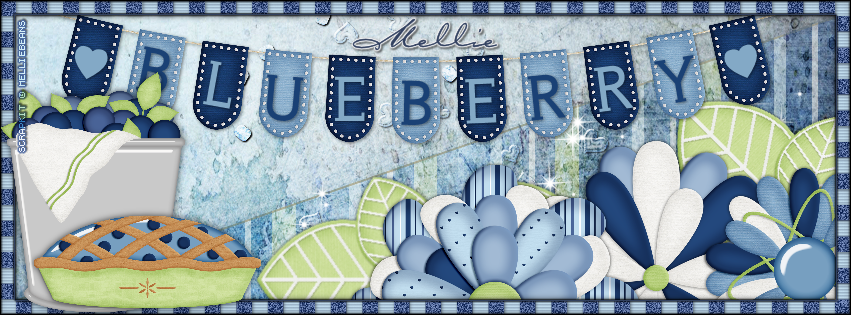
Sweet Blueberry - Full Size

ALL BLUE TUTORIAL

**Click to see original size**

Tutorial written by Marcia Salgado on June 9th, 2015
for those who have a working knowledge of PSP.
Any resemblance to any other tutorial is coincidental.
Do not copy and paste this tutorial anywhere on the net.
If you want to translate please ask first. 

****************************************
Material:

PTU Kit "Sweet Blueberry" FS by Mellie Beansyou can purchase it at: 
 Mystical Scraps Store - TAGGER SIZE
Heartbeatz Creationz - TAGGER SIZE
My Memories - DESIGNER PACK PAPERS and DESIGNER PACK ELEMENTS
Wordart: by me, mar2015_blueberrywordart, just click and save:
Font: Carpenter Script

****************************************

--> Remember to save often and use my tag as reference if necessary. Used the Drop Shadow: 1-1-50-5. If you use the Tagger Size Kit the resize percentage is not applicable.

1. Create a new image 851x315. Add a new layer. Select all. Open 'paper' Blue Grunge. Copy and paste into selection. Deselect.

2. Add a new layer. With the Freehand Selection Tool > Point to Point. Create a selection from left bottom corner to top right corner and down. Open 'paper' green striped. Copy and paste into selection. Keep selected. Blend Mode: Soft Light. Add a new layer. Fill it with #324160. Contract > 2. Delete. Deselect. Blend Mode: Exclusion.

3. Open 'element' Bead Heart Scatter. Resize 30%. Copy and paste as new layer. Move it up and right. Drop Ahadow: 1-1-85-2-Black. Blend Mode: Hard Light.

4. Open 'element' sparkles. Resize 80%. Free Rotate: Right-90. Copy and paste as new layer. Move it to bottom right. Place it over the striped paper. Blend Mode: Hard Light.

5. Open 'element' Leaf. Resize 20%. Free Rotate: Left-45. Copy and paste as new layer. Move it way bottom right. Duplicate. Free Rotate: Left-45. Move it bottom left. Merge down.

6. Open 'element' Flower 1. Resize 20%. Copy and paste as new layer. Move it to bottom right. Stop before the corner.

7. Open 'element' Flower 2. Resize 20%. Copy and paste as new layer. Move it to bottom right. Place it over left side of previous flower.

8. Open 'element' Flower 3. Resize 20%. Copy and paste as new layer. Move it way to bottom corner right.  

9. Open 'element' Banner. Resize 22%. Copy and paste as new layer. Move it to top. Open my wordart mar2015_blueberrywordart, copy and paste as new layer and place it over the banner.

10. Add new layer. Select all. Contract selection > 15. Invert selection. Open 'paper' checks. Resize 50%. Use it as patter on your foreground with Angle:0 Size:21. Deselect. Select one dark blue square. Selections > Modify > Select Color Range > Tolerance-20, Softness-20, Add color range marked and Reference color: #455b8c. That will select all dark blue squares. Add Noise: Uniform-50-Monochrome. Drop Shadow: 1-1-50-5-Black. Invert the selection. Blinds > Width-3, Opacity-25, Color-#455b8c and only Horizontal marked. Deselect.

11. Open 'element' Pail. Resize 12%. Copy and paste as new layer. Move it way to left.

12. Open 'element' Pie. Resize 12%. Copy and paste as new layer. Move it to left. Place it in front of Pail, at its right side.

--> Add your copyright info (no URL by Facebook TOU) and license#. Add your name. Save as PNG.

--> Sometimes I had to change my Timeline size to 846x313 because when I add it to Facebook the image has extra pixels and do not fit perfectly. So try this size if the same is happening to you.


May 22, 2015

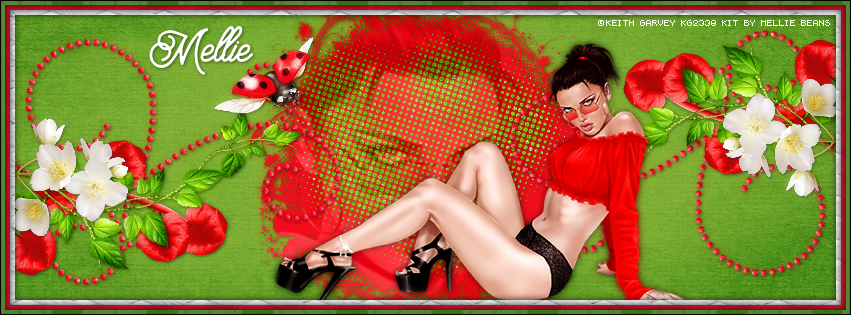
Strawberry Bliss

ALL RED TUTORIAL

**Click to see original size**

Tutorial written by Marcia Salgado on May 22th, 2015
for those who have a working knowledge of PSP.
Any resemblance to any other tutorial is coincidental.
Do not copy and paste this tutorial anywhere on the net.
If you want to translate please ask first. 

****************************************
Material:

Tube: "Braz" by Keith Garvey,you can purchase it here
do not use without the proper #license.
PTU Kit "Strawberry Bliss" by Mellie Beans, you can purchase it at:
Mystical Scraps Store, here and Heartbeatz Creationz, here
Font: Brayden Script

****************************************

--> Remember to save often and use my tag as reference if necessary. Used the Drop Shadow: 1-1-50-5.

1. Create a new image 851x315. Add a new layer. Select all. Open green grunged paper. Copy and paste into selection. 

2. Open mask. Resize 50%. Copy and paste as a new layer. 

3. Open scattered dots. Resize 40%. Copy and paste as new layer.

4. Open your tube close up. Copy and paste as new layer. Erase the parts that are outside the mask element. Blend Mode: Luminance (Legacy). Low layer opacity to 34.

5. Open flourish. Copy and paste as new layer. Move it way left showing only a bit more than a half part of the element. Move a little down. Duplicate. Mirror. Flip. Merge down.

6. Open red vine. Resize 40%. Copy and paste as new layer. Move it way left. Place it over flourish element. Duplicate. Mirror. Flip. Merge down.

7. Open vine. Resize 50%. Free Rotate: Right-90. Move it way left. Place it over red vine. Duplicate. Mirror. Flip. Merge down.

8. Open flower 03. Resize 30%. Free Rotate: Left-90. Move it way right. Place it over vine. Duplicate. Mirror. Left. Merge down.

9. Open ladybug. Resize 45%. Copy and paste as new layer. Move it up left. Place it over upper left mask border.

10. Open your tube. Resize if needed. Copy and paste as new layer. Move it down left. Add a suitable shadow.

11. Add a new layer. Select all. Open white lattice paper. Copy and paste into selection. Contract > 15. Delete.

12. Add a new layer. Select all. Open red plaid. Copy and paste into selection. Contract > 10. Delete.

13. Add a new layer. Select all. Open green stripes. Copy and paste into selection. Contract > 5. Delete.

14. Add a new layer. Fill it with black. Select all. Contract > 1. Delete.

--> Add your copyright info (no URL by Facebook TOU) and license#. Add your name. Save as PNG.

--> Sometimes I had to change my Timeline size to 846x313 because when I add it to Facebook the image has extra pixels and do not fit perfectly. So try this size if the same is happening to you.

May 17, 2015

Reverie ~ by Joanne Salgado


Tutorial written by Joanne Salgado on May 17th, 2015
for those who have a working knowledge of PSP.
Any resemblance to any other tutorial is coincidental.
Do not copy and paste this tutorial anywhere on the net.
If you want to translate please ask first. 

Tube: Exclusive by PFD - you can purchase here
Kit Reverie by Mellie Beans - you can purchase here and here
Font: AR BERKLEY

Don't forget to save often.
At any point if you have doubts check my tag.

1. Open a new image 600x500

2. Open element 'e31' copy and paste as new layer. Resize 70%.

3. Open element 'e07' copy and paste as new layer. Resize 60%. Move this layer below the frame layer. Arrange it to the top left.

4. Open element 'e36' copy and paste as new layer. Resize 60%. Arrange it to the top. Duplicate. Arrange it to the left.

5. Open paper 'pp12' copy and paste as new layer. Resize 50%. Clean the parts that appears outside the frame.

6. Open element 'e06' copy and paste as new layer. Resize 45% Mirror. Flip. Arrange it to the top corner left.

7. Open element 'e13' copy and paste as new layer. Resize 70%. Move this layer above the frame layer. Arrange it to the right.

8. Open element 'e16' copy and paste as new layer. Mirror. Flip. Arrange it to the top left.

9. Open element 'e46' copy and paste as new layer. Resize 70%. Mirror. Arrange it to bottom.

10. Open your tube. Copy and paste as new layer. Resize as you prefer and arrange it inside the frame. Clean the parts that appears outside the frame so it looks like the tube is coming from inside it.

11. Add shadow. I used: 1-1-65-2 black.

12. Add copyright.

13. Add name. I used: AR BERKLEY / size: 48

Save as PNG

May 13, 2015

Mother

PURPLE TUTORIAL


Tutorial written by Marcia Salgado on May 5th, 2015
for those who have a working knowledge of PSP.
Any resemblance to any other tutorial is coincidental.
Do not copy and paste this tutorial anywhere on the net.
If you want to translate please ask first. 

****************************************
Material:

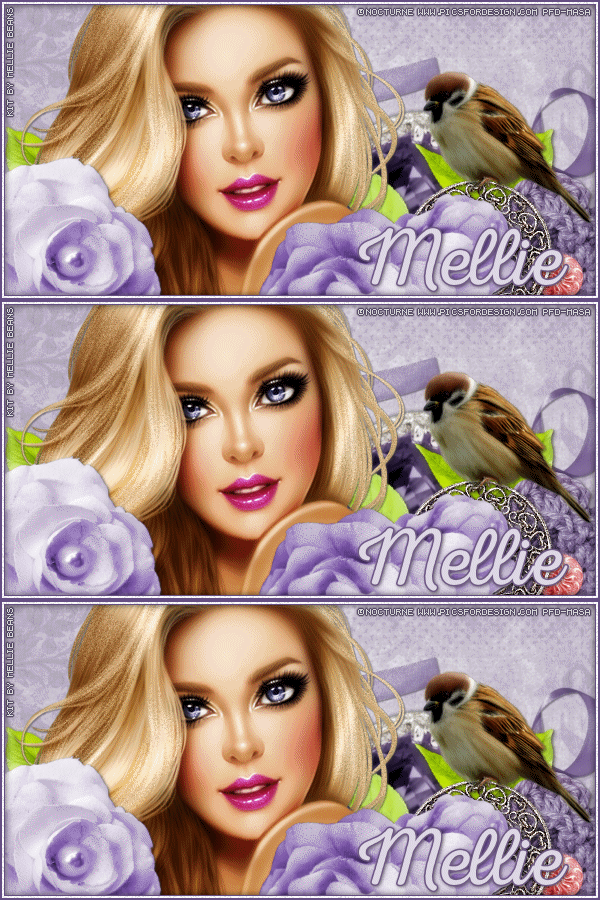
Tube: "Clover" Nocturne, you can purchase it here
do not use without the proper #license.
PTU Kit "Mother" by Mellie Beans, you can purchase it at: 
Font: Nexa Rust Script L0

****************************************

--> Remember to save often and use my tag as reference if necessary. Used the Drop Shadow: 1-1-50-5 or 1-1-65-2 #404040 in most layers.


1. Open a new image 600x300

2. Open paper 'purple edgy' copy and paste as new layer. 

3. Open element 'satin ribbon' copy and paste as new layer. Resize 60%. Arrange it to the right.

4. Open element 'ring' copy and paste as new layer. Free Rotate left-30. Arrange it to the right.

5. Open element 'leaves 3' copy and paste as new layer. Resize 60%. Arrange it to the right. Duplicate. Mirror.

6. Open element 'crochet flower' copy and paste as new layer. Arrange it to the bottom right.

7. Open element 'ornate button' copy and paste as new layer. Resize 60%. Arrange it to the bottom right.

8. Open element 'bird' copy and paste as new layer. Resize 40%. Mirror. Arrange it to the top of the ornate button.

9. Open your tube. Copy and paste as new layer. Resize as you prefer and arrange it to the left.

10. Open element 'purple flower' copy and paste as new layer. Resize 60%. Arrange it to the bottom left. Duplicate. Mirror, flip. Arrange it to the center.

--> Add your copyright info and license#. Add your name and save as PNG.

****************************************

Adding a little of Noise in some few places can add a touch of elegance.

Here's my try:


April 8, 2015

Garden Party - Show Off


== NEW CT MELLIE BEANS PTU TAGS ==

Featuring "Garden Party" by Mellie Beans at Mystical Scraps Store
and Heartbeatz Creationz.

Meet me in the garden, for a party.This tagger sized kit is huge, with 102 elements and 15 papers so you can play with it.
The colors are beautiful and you can create different styles of tags.

Kit can be found in two stores:

-> Mystical Scraps Store, here

-> Heartbeatz Creationz, here

Visit her blog:


March 27, 2015

Summer's Last Song

SUMMER'S LAST SONG TUTORIAL


Tutorial written by Marcia Salgado on March 27th, 2015
for those who have a working knowledge of PSP.
Any resemblance to any other tutorial is coincidental.
Do not copy and paste this tutorial anywhere on the net.
If you want to translate please ask first. 

****************************************
Material:

Tube: Anna Liwanag, you can purchase it at CDO, here
do not use without the proper #license.
PTU Kit "Summer's Last Song" by Mellie Beans,
you can purchase it at Mystical Scraps, here
or at Heartbeatz Creationz, here
Mask: Dee's Mask, DD_PatrioticMask_3.jpg, here
Font: Crushed

****************************************

--> Remember to save often and use my tag as reference if necessary. Used the Drop Shadow: 1-1-50-5 in most layers. 

1. Open element e02. Resize 50%. Copy and paste as new image. Canvas size 1200x82 - Center. Duplicate twice. First copy. Offset: H=-400 V=0. Second copy. Offset: H=400 V=0. Merge all visible. Canvas size 1200x1200 - Center. Distortion Effects > Polar Coordinates: Rectangle to Polar - Transparent. Resize the frame 85%. With Deform Tool (or Pick) give an oval shape to the round frame. Reserve.  

2. Create a new image 700x700. Select All. Open paper pp02. Mirror. Flip. Copy. Paste into selection. Apply Dee's mask. Copy the reserved frame. Paste as new layer. Move it far bottom right. Open element e34. Resize 70%. Copy and paste as new layer. Move it upper left. Open element e25. Resize 98%. Copy and paste as new layer. Open element e38. Resize 80%. Copy and paste as new layer. Move it far left.

3. Click on frame layer. Select inside frame. Add new layer. Open paper pp10. Copy. Paste into selection. Move this layer below the frame layer. Keep selected. Copy the close up of your tube and paste as new layer. Invert selection. Delete. Deselect.

4. Click on frame layer. Duplicate twice. On first copy use: Blur > Gaussian Blur: 4 and change Blend Mode to Multiply. On second copy use the same Blur but change the Blend Mode to Soft Light. Click on original frame layer. Add a Drop Shadow: 1-1-85-2-#163548.

5. Click on first layer. Open element e03. Resize 40%. Mirror. Copy and paste as new layer. Move it fat bottom right, in front of the frame. Open element e12. Resize 40%. Place it in front of the flower. Open element e01. Resize 30%. Copy and paste as new layer. Move it bottom middle. Duplicate. Resize 67%. Move it a little to left. 

6. Open element e11. Resize 30%. Copy and paste as new layer. Move it to bottom, in front of previous elements. Open element e28. Resize 40%. Move it up and place it on top left side of the frame.

--> Resize is needed. Add your copyright and license#. Add your name and save as PNG.


March 11, 2015

Lucky Day ~ by Joanne Salgado


Tutorial written by Joanne Salgado on February 18th, 2015
for those who have a working knowledge of PSP.
Any resemblance to any other tutorial is coincidental.
Do not copy and paste this tutorial anywhere on the net.
If you want to translate please ask first. 

Tube: Lily by Lightartist_XXX - you can purchase here 
Kit Lucky Day by Mellie Beans - you can purchase here and here
Font: KG Love Somebody

Pugins:
penta.com/Jeans

Don't forget to save often.
At any point if you have doubts check my tag.

1. Open the template. Duplicate. Close Original. Delete layers: font info, raster 5, pinch glass, pinch gradient, pinch backing, pinch white, proof, green lines, black squares, yellow rectangle, yellow half circle,green right, light green right, green left, light green left, raster 1.

2. Open element 'SparkleGround' copy and paste as new layer. Arrange it to the bottom left. Layers/Arrange/Send to bottom. Duplicate. Mirror.

3. Open element 'Scatter' copy and paste as new layer. Arrange it to the top right of the frame (just a part will appear).

4. Select layer 'ORANGE OVAL'. Manual Color Correction with source: #e28f00 and target: #0d5614. Effects/Texture Effects/Weave with 1-5-1-black-black-fill gaps checked.

5. Open paper 'paper 5' with flood fill (match mode: RGB Value) change to pattern (scale:60) colorize layers: left green circle and right green circle. Plugins/penta.com/jeans with amount: 62 and border width: 4 (on both we colorized).

6. Open paper 'paper 9' with flood fill (match mode: RGB Value) change to pattern (scale:60) colorize layers: left light green circle and right light green circle.

7. Open paper 'paper 1' with flood fill (match mode: RGB Value) change to pattern (scale:60) colorize layer orange shamrock.

8. Select layer 'green center square'. Manual Color Correction with source: #51642a and target: #0d5614. Add Noise: uniform/40/monochrome checked.

9. Open paper 'paper 12' with flood fill (match mode: RGB Value) change to pattern (scale:60) colorize layer gradient center square.

10. Open element 'Grasses 2' copy and paste as new layer. Resize 80%. Arrange it to the left of the center square.

11. Open element 'PotO'Gold' copy and paste as new layer. Resize 60%. Arrange it to the left.

12. Open element 'Shoe' copy and paste as new layer. Resize 40%. Arrange it to the bottom left of the pot of gold.

13. Open element 'Grasses' copy and paste as new layer. Resize 60%. Arrange it to the bottom right.

14. Open element 'Butterfly' copy and paste as new layer. Resize 50%. Mirror. Arrange it to the right.

15. Open element 'Shrooms' copy and paste as new layer. Resize 30%. Arrange it to the bottom right near the grasses we added.

16. Open your tube. Resize as you like. Arrange it to the empty middle.

17. Add shadow as you like. I used: 1-1-65-2 black.

18. Add copyright.

19. Add name. I used: KG Love Somebody / size: 60.

Save as PNG.

March 10, 2015

In Spring Comes Easter - Show Off


== NEW MELLIE BEANS PTU TAG ==

Featuring "In Spring Comes Easter" by Mellie Beans at Mystical Scraps Store and Heartbeatz Creationz.

In Spring Comes Easter besides the Easter Theme, would be perfect also with other themes such as Spring, Outdoors and Gardening!
It has 12 papers, 63 elements and 9 frames so you can play with it.
The colors are beautiful and you can create different styles of tags.

Kit can be found in two stores:

-> Mystical Scraps Store, here

-> Heartbeatz Creationz, here

Visit her blog:

In Spring Comes Easter

SPRING EASTER TUTORIAL


Tutorial written by Marcia Salgado on March 10th, 2015
for those who have a working knowledge of PSP.
Any resemblance to any other tutorial is coincidental.
Do not copy and paste this tutorial anywhere on the net.
If you want to translate please ask first. 

****************************************
Material:

Tube: Keith Garvey, you can purchase it here,
do not use without the proper #license.
PTU Kit "In Spring Comes Easter" by Mellie Beans,
you can purchase it here or here
Plugin: Penta.com > Jeans
Font: Lorelei Script

****************************************

--> Remember to save often and use my tag as reference if necessary. Used the Drop Shadow: 1-1-50-5 in most layers. 

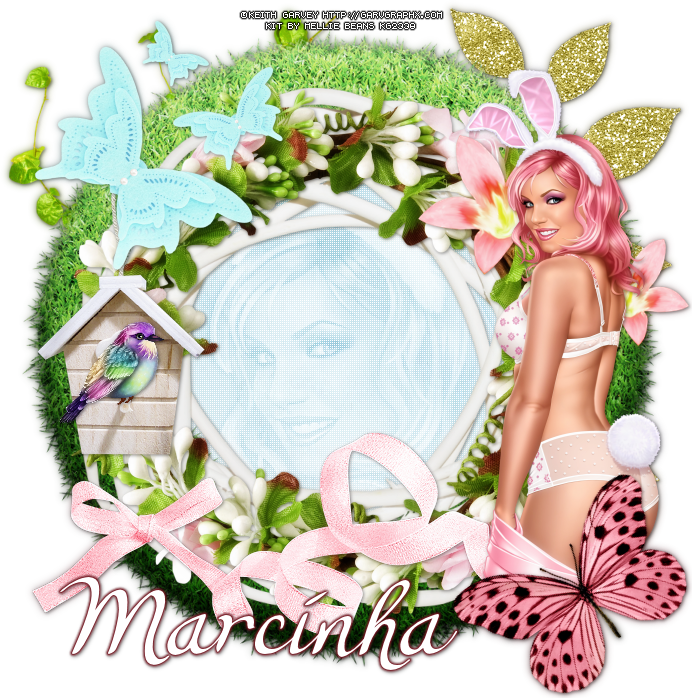
1. Create a new image 700x700. Open grass frame. Resize 80%. Copy and paste as new layer. Select inside the frame. Expand 5. Add a new layer and move it below the frame layer. Open paper 09. Copy and paste into selection. Keep Selected. Copy the close up of the tube and paste as new layer. Invert selection. Delete. Deselect. Hue and Saturation > 0,0. Blend mode: Overlay. Opacity: 66. Click on paper layer and apply Penta.com > Color Dot. Open glitter leaves. Copy and paste as new layer. ove below all layer and move it to upper right. Open vine. Mirror. Flip. Copy and paste as new layer and move it to upper left.

2. Click on top layer. Open wreath. Copy and paste as new layer. Open floral wreath.  Copy and paste as new layer. Open flowers 1. Resize 80%. Mirror. Copy and paste as new layer. Move it over right side of the frame. Open ribbon bow. Copy and paste as new layer. Move to bottom. Open birdhouse. Resize 60%. Copy and paste as new layer. Move it to left of the frame. Open bird 3. Resize 30%. Copy and paste as new layer. Move it to front of birdhouse. 

3. Open butterflies. Mirror. Copy and paste as new layer. Move it over the top of the birdhouse. Open your tube. Resize if needed. Copy and paste as new layer. Move to right side. Open butterfly. Resize 45%. Free Rotate > Left-45. Copy and paste as new layer. Move it over the tube.

--> Resize if wanted. Add copyright info and proper #license. Add your name, I use Lorelei Script, size: 65. Save as PNG.


March 6, 2015

In Spring Comes Easter ~ by Joanne Salgado


Tutorial written by Joanne Salgado on February 18th, 2015
Any resemblance to any other tutorial is coincidental.
Do not copy and paste this tutorial anywhere on the net.
If you want to translate please ask first. 

Tube: Keith Garvey - you can purchase here 
Kit In Spring Comes Easter by Mellie Beans - you can purchase here and here
Mask 363 by Vix here 
Font: Canter Bold

Don't forget to save often.

1. Open a new image 600x600.

2. Open element 'scalloped frame'. copy and paste as new layer. Resize 25%. Duplicate. On the duplicated layer Image/Rotate/Free Rotate (right/25). Move this layer bellow the original. Resize 95% the duplicated layer.

3. Open element 'stamp 1' copy and paste as new layer. Resize 18%. Move this layer bellow the frames.

4. Open paper 'paper 04' copy and paste as new layer. Resize 16%. Select the copy layer, with the magic wand select inside the frame. Selections/Modify/Expand 3. Selections/Invert, select the paper layer, hit delete on the keyboard. Selections/Select None.

5. Open paper 'paper 12' copy and paste as new layer. Resize 16%. Select the frame layer, with the magic wand select inside the frame. Selections/Modify/Expand 3. Selections/Invert  select the paper layer, hit delete on the keyboard. Selections/Select None. Move this layer above the duplicated frame.

6. Open element 'dogwood' copy and paste as new layer. Resize 15%. Arrange it to the right upper corner of the frame. With the eraser tool clean the parts that got out of the frame.

7. Open element 'grass border' copy and paste as new layer. Resize 15%. Arrange it to the bottom of the frame. With the eraser tool clean the parts that got out of the frame.

8. Open element 'tree' copy and paste as new layer. Resize 10%. Arrange it to the left. Move the layer above the original frame.

9. Open element 'butterflies' copy and paste as new layer. Resize 30%. Arrange it to the right upper corner of the frame.

10. Open element 'bow' copy and paste as new layer. Resize 15%. Image/Rotate/Free Rotate (right/25). Arrange it to the right bottom of the frame.

11. Open element 'daffodils' copy and paste as new layer. Resize 15%. Arrange it to the right bottom of the frame above the blue bow.

12. Open element 'ribbon bow' copy and paste as new layer. Resize 10%. Arrange it to the left bottom of the frame.

13. Open element 'butterfly' copy and paste as new layer. Resize 10%. Image/Rotate/Free Rotate (right/25). Arrange it to the left bottom of the frame above the pink bow.

14. Open your tube. Resize as you like and arrange it to the right just above the corner of the duplicated frame.

15. Open paper 'paper 05' copy and paste as new layer. Resize 16%. Layers/Arrange/Send to bottom. Open your mask - I used 'Vix_Mask363'. Layers/New Mask Layer/From image (select the mask/source luminance/invert mask data unchecked). Layers/Merge/Merge Group.

16. Add shadow as you like. I used 1-1-65-2 black.

17. Add your copyright.

18. Add your name. I used Canter Bold/size: 48

Save.