Showing posts with label Lysisange. Show all posts

May 28, 2017

Dark Side ~ by Joanne Salgado


Tutorial written by Joanne Salgado on May 28th, 2017
for those who have a working knowledge of PSP.
I'm using PSP9 to create my tuts.
Any resemblance to any other tutorial is coincidental.
Do not copy and paste this tutorial anywhere on the net.
If you want to translate please ask first. 

****************************************
Material:

Tube: "Dark Side" by Lysisange
do not use without the proper #license.
PTU Kit "Dark Side" by Designs by Joan
DARK SIDE COLLAB 1 & 2 you can purchase it here and here
Font: Valentina JF

****************************************

--> Remember to save often and use my tag as reference if necessary.

1. Open a new image 650x550

2. Open element 'DARK SIDE_DBJ-ELEM (1)' copy and paste as new layer. Resize 75%.

3. Open element 'DARK SIDE_DBJ-ELEM (22)' copy and paste as new layer. Resize 50%. Move this layer below the frame layer. Arrange it to the top right. Duplicate. Mirror/Flip.

4. Open element 'DARK SIDE_DBJ-ELEM (2)' copy and paste as new layer. Resize 50%. Arrange it to the top right. Duplicate/Mirror. Arrange it to the bottom left.

5. Open element 'DARK SIDE_DBJ-ELEM (72)' copy and paste as new layer. Resize 85%.

6. Open element 'DARK SIDE_DBJ-ELEM (87)' copy and paste as new layer. Resize 35%. Arrange it to bottom.

7. Open paper 'DARK SIDE_DBJ-PP (4)' copy and paste as new layer. Resize 50%. Clean outside the frame.

8. Open element 'DARK SIDE_DBJ-ELEM (83)' copy and paste as new layer. Resize 50%. Mirror. Arrange it to the top left.

9. Open element 'DARK SIDE_DBJ-ELEM (77)' copy and paste as new layer. Resize 30%. Arrange it to the left.

10. Open element 'DARK SIDE_DBJ-ELEM (28)' copy and paste as new layer. Resize 30%. Rotate. Arrange it to the top left.

11. Open element 'DARK SIDE_DBJ-ELEM (54)' copy and paste as new layer. Mirror.

12. Open your tube. Copy and paste as new layer. Resize as needed and arrange it to the right.

13. Add shadow as you prefer.

14. Add copyright. Add name. Save as PNG.

April 6, 2017

Parisienne ~ by Joanne Salgado


Tutorial written by Joanne Salgado on April 06th, 2017
for those who have a working knowledge of PSP.
I'm using PSP9 to create my tuts.
Any resemblance to any other tutorial is coincidental.
Do not copy and paste this tutorial anywhere on the net.
If you want to translate please ask first. 

****************************************
Material:

Tube: "Parisienne 1" by Lysisange, you can purchase it here
do not use without the proper #license.
PTU Kit "Parisienne" by A Lil Mz Brainstorm, you can purchase it here
Font: featherly

****************************************

--> Remember to save often and use my tag as reference if necessary.

1. Open a new image 650x550

2. Open element 'LMB_Parisienne_Element (57)' copy and paste as new layer. Resize 70%.

3. Open element 'LMB_Parisienne_Element (68)' copy and paste as new layer. Resize 50%. Move this layer below the frame layer. Arrange it to the bottom right. Duplicate. Mirror.

4. Open element 'LMB_Parisienne_Element (67)' copy and paste as new layer. Arrange it to top.

5. Open paper 'LMB_Parisienne_Paper (5)' copy and paste as new layer. Resize 30%.

6. Open your tube. Copy and paste as new layer. Resize as needed and arrange it inside the frame. Clean outside parts.

7. Open element 'LMB_Parisienne_Element (70)' copy and paste as new layer. Move this layer above the frame layer. I've clean some sparkles that were on top of my tube.

8. Open element 'LMB_Parisienne_Element (82)' copy and paste as new layer. Resize 30%. Arrange it to the bottom right.

9. Open element 'LMB_Parisienne_Element (25)' copy and paste as new layer. Resize 25%. Arrange it to the bottom right.

10. Open element 'LMB_Parisienne_Element (84)' copy and paste as new layer. Resize 15%. Arrange it to the bottom right.

11. Open element 'LMB_Parisienne_Element (95)' copy and paste as new layer. Resize 50%. Arrange it to the top left.

12. Open element 'LMB_Parisienne_Element (103)' copy and paste as new layer. Resize 50%. Arrange it to the bottom right.

13. Open element 'LMB_Parisienne_Element (63)' copy and paste as new layer. Resize 50%. Rotate. Arrange it to the bottom right.

14. Add shadow as you prefer.

15. Add copyright. Add name. Save as PNG.

March 17, 2017

Parisienne ~ by Joanne Salgado


Tutorial written by Joanne Salgado on March 15th, 2017
for those who have a working knowledge of PSP.
I'm using PSP9 to create my tuts.
Any resemblance to any other tutorial is coincidental.
Do not copy and paste this tutorial anywhere on the net.
If you want to translate please ask first. 

****************************************
Material:

Tube: "Parisienne 2" by Lysisange, you can purchase it here
do not use without the proper #license.
PTU Kit "A Little Piece of Happiness" by Rieneke Designs, you can purchase it here
Font: A&S Snapper Script

****************************************

--> Remember to save often and use my tag as reference if necessary.

1. Open a new image 650x550

2. Open element 'RD-ALPOH-element (66)' copy and paste a new layer.

3. Open element 'RD-ALPOH-element (59)' copy and paste as new layer. Arrange it to the right. Move this layer below the frame layer.

4. Open element 'RD-ALPOH-element (57)' copy and paste as new layer. Arrange it to the left.

5. Open element 'RD-ALPOH-element (40)' copy and paste as new layer. Arrange it to the top right. Duplicate. Arrange it to the bottom left.

6. Open element 'RD-ALPOH-element (46)' copy and paste as new layer.

7. For the background inside the frame I used the tube's background to fit with it. But you can use paper 01 or 08 if you do not use the same tube.

8. Open element 'RD-ALPOH-element (60)' copy and paste as new layer. Move this layer above the frame layer. Arrange it to top.

9. Open element 'RD-ALPOH-element (14)' copy and paste as new layer. Resize 60%. Arrange it to the top right.

10. Open your tube. Copy and paste as new layer. Resize as needed and arrange it to the bottom right.

11. Open element 'RD-ALPOH-element (31)' copy and paste as new layer. Mirror.

12. Open element 'RD-ALPOH-element (70)' copy and paste as new layer. Resize 30%. Arrange it to the bottom left.

13. Open element 'RD-ALPOH-element (11)' copy and paste as new layer. Resize 25%. Rotate 90. Arrange it to the bottom left.

14. Open element 'RD-ALPOH-element (26)' copy and paste as new layer. Resize 20%. Arrange it to the bottom left.

15. Add shadow as you prefer.

16. Add copyright. Add name. Save as PNG.

December 22, 2016

Xmas Candy tube with Mishel 2 kit

SWEET XMAS TUTORIAL


Tutorial written by Marcia Salgado on December 12th, 2016
for those who have a working knowledge of PSP.
I'm using PSP9 to create my tuts.
Any resemblance to any other tutorial is coincidental.
Do not copy and paste this tutorial anywhere on the net.
If you want to translate please ask first. 

****************************************
Material:

Tube: "Xmas Candy" by Lysisange, you can purchase it here 
do not use without the proper #license.
PTU Kit "Mishel 2" by Rieneke Designs, you can purchase it here 
Plugin: MuRa's Meister
Font: Novelia

****************************************

--> Remember to save often and use my tag as reference if necessary. Use a Drop Shadow of your preference on layers. 


1. Create a new image 650x650.

2. Open RD-Mishel2-element (17). Resize 30%. Copy and paste as new layer. Apply MuRa's Meister > Copies > Encircle with settings below:


3. Open RD-Mishel2-element (48). Resize 45%. Copy and paste as new layer. Move it up and to right. Duplicate. Mirror. Flip. Move this layers below the frame layer.

4. Open RD-Mishel2-element (3). Resize 45%. Copy and paste as new layer. Move it down and to right. Duplicate. Mirror. Flip.

5. Open RD-Mishel2-element (41). Resize 50%. Copy and paste as new layer. Move it up and to left. Duplicate and move it a little up and a little to right. Merge down. Duplicate. Mirror. Flip.

6. Open RD-Mishel2-element (49). Copy and paste as new layer. Move it way down. Duplicate. Flip.

7. Open RD-Mishel2-element (13). Resize 50%. Copy and paste as new layer. Move it up and to right. Duplicate. Mirror. Flip.

8. Click on frame layer (should be the first one).

9. Open RD-Mishel2-element (27). Resize 30%. Copy and paste as new layer. Apply MuRa's Meister > Copies > Encircle with settings below:


10. Open RD-Mishel2-element (47). Resize 75%. Copy and paste as new layer.

11. Open RD-Mishel2-element (12). Resize 50%. Copy and paste as new layer.

12. Select inside the golden frame. Expand > 5. Add a new layer and move it below the frame layer. 

13. Open RD-Mishel-paper (4). Copy and paste into selection. Deselect.

14. Click on golden frame layer. Open RD-Mishel2-element (8). Resize 50%. Copy and paste as new layer. Move it down and to left. Keep it over the frames border. Duplicate. Mirror.

15. Open RD-Mishel2-element (33). Resize 50%. Copy and paste as new layer. Move it a little up.

16. Open RD-Mishel2-element (45). Resize 65%. Copy and paste as new layer.

17. Open RD-Mishel2-element (31). Resize 50%. Copy and paste as new layer. Move it a little down and cover the bottom part of xas tree and the middle of the golden branches.

18. Open your tube. Resize. I mirrored mine. Copy abd paste as new layer. Move it to right. You may want to re-arrange some elements to better fit your tube.

19. Use Crop > Merged Opaque to get rid of all extra spaces.


--> Add your copyright info and license#. Add your name and save as PNG.


November 26, 2016

Xmas Girly


== NEW PTU TAG S&CO. CT ==
LYSISANGE AND LIL MZ'S BRAINSTORMS

Featuring "Xmas Girly", a Lysisange tube and
 "Xmas Girly", Lil Mz's Brainstorm kit at Scraps N Company - S&Co.


Exclusively at Scraps N Company, Lil Mz's Brainstorm introduces Xmas Girly
This personal use scrapkit contains 103 elements and 15 coordinating papers. 
This kit is a match to the LysIsange tube, Xmas Girly but can be used for any of your designs. 
Very versatile and can be used with any other tubes and artists you have.

Tube can be found  at:
-> Scraps N Company - S&Co., here 

Kit can be found  at:
-> Scraps N Company - S&Co., here 


Winter Glamour


== NEW PTU TAG S&CO. CT ==
LYSISANGE AND LIL MZ'S BRAINSTORM

Featuring "Winter Glamour", a Lysisange tube and
 "Winter Glamour", Lil Mz's Brainstorm kit at Scraps N Company - S&Co.

Exclusively at Scraps N Company, Lil Mz's Brainstorm introduces Winter Glamour
This personal use scrapkit contains 115 elements and 15 coordinating papers. 
This kit is a match to the LysIsange tube, Winter Glamour but can be used for any of your designs. Very versatile and can be used with any other tubes and artists you have.

Tube can be found  at:
-> Scraps N Company - S&Co., here 

Kit can be found  at:
-> Scraps N Company - S&Co., here 


November 21, 2016

Turkey Time


== NEW PTU SHOWOFF S&CO. CT ==
= STORE COLLAB TURKEY TIME =
USING LYSISANGE AND STARRY NIGHT DESIGNS

Featuring Store Collab - using "Turkey Time", a Lysisange tube and
 "Turkey Time", Starry Night Designs kit at Scraps N Company - S&Co.


Gorgeous Collab with Fall-Turkey theme
Beautiful tubes, poser, cu and kits for your thanksgiving, projects and tags. 
We hope you like it. The kit used has 6 papers and 82 elements so you can play with it. 
Very versatile and can be used with any other tubes and artists you have.

Tube can be found  at:
-> Scraps N Company - S&Co., here 

Collab Kit - Add this product to your cart and get it as a free gift:
-> Scraps N Company - S&Co., here


November 10, 2016

Winter Love ~ by Joanne Salgado


Tutorial written by Joanne Salgado on November 10th, 2016
for those who have a working knowledge of PSP.
I'm using PSP9 to create my tuts.
Any resemblance to any other tutorial is coincidental.
Do not copy and paste this tutorial anywhere on the net.
If you want to translate please ask first. 

****************************************
Material:

Tube: "Winter Love" by Lysisange - you can purchase it here
do not use without the proper #license.
PTU Kit "Winter Love" by Design by Joan - you can purchase it here
Font: Capella

****************************************

Don't forget to save often.
At any point if you have doubts check my tag.

1. Open a new image 650x550

2. Open element 'WINTER LOVE_DBJ-ELEM (43)' copy and paste as new layer. Resize 70%. Manual Color Correction target #bccdac source #9ee0d3. Arrange it to the top right. Duplicate. Mirror. Flip.

3. Open element 'WINTER LOVE_DBJ-ELEM (27)' copy and paste as new layer. Resize 70%.

4. Open element 'WINTER LOVE_DBJ-ELEM (23)' copy and paste as new layer. Resize 50%. Move this layer below the frame layer. Arrange it to the top right.

5. Open element 'WINTER LOVE_DBJ-ELEM (35)' copy and paste as new layer. Resize 50%. Arrange it to the bottom left.

6. Open element 'WINTER LOVE_DBJ-ELEM (31)' copy and paste as new layer. Resize 50%. Arrange it to the bottom left.

7. Open element 'WINTER LOVE_DBJ-ELEM (19)' copy and paste as new layer. Resize 50%. Arrange it to the bottom left.

8. Open element 'WINTER LOVE_DBJ-ELEM (33)' copy and paste as new layer. Resize 50%. Arrange it to the top right.

9. Open element 'WINTER LOVE_DBJ-ELEM (93)' copy and paste as new layer. Resize 50%. Arrange it to the top right.

10. Open element 'WINTER LOVE_DBJ-PP (1)' copy and paste as new layer. Resize 44%.

11. Open element 'WINTER LOVE_DBJ-ELEM (32)' copy and paste as new layer. Resize 62%. Arrange it to the left. Duplicate. Arrange it to the right.

12. Open your tube. Copy and paste as new layer. Resize as needed and arrange it inside the frame. Clean so it looks like your tube is coming from inside the frame.

13. Open element 'WINTER LOVE_DBJ-ELEM (38)' copy and paste as new layer. Resize 50%. Move this layer above the frame layer. Arrange it to the bottom right.

14. Open element 'WINTER LOVE_DBJ-ELEM (75)' copy and paste as new layer.

15. Add shadow as you prefer.

16. Add copyright. Add name. Save as PNG.

October 3, 2016

Tropical ~ by Joanne Salgado


Tutorial written by Joanne Salgado on October 02th, 2016
for those who have a working knowledge of PSP.
I'm using PSP9 to create my tuts.
Any resemblance to any other tutorial is coincidental.
Do not copy and paste this tutorial anywhere on the net.
If you want to translate please ask first. 

****************************************
Material:

Tube: "Tropical Breeze" by Lysisange - you can purchase it here
do not use without the proper #license.
PTU Kit "Tropical Paradise" by Rieneke Designs - you can purchase it here
Font: Andover

****************************************

Don't forget to save often.
At any point if you have doubts check my tag.

1. Open a new image 650x550

2. Open element 'RD-TropicalParadise-element (73)' copy and paste as new layer. Resize 80%. Arrange it to bottom.

3. Open element 'RD-TropicalParadise-element (28)' copy and paste as new layer. Resize 40%. Move this layer behind the frame layer and arrange it to top.

4. Open element 'RD-TropicalParadise-element (47)' copy and paste as new layer. Resize 40%. Rotate left 20. Arrange it to the top left.

5. Open element 'RD-TropicalParadise-element (8)' copy and paste as new layer. Resize 50%. Mirror. Arrange it to the top left of the frame.

6. Open element 'RD-TropicalParadise-element (16)' copy and paste as new layer. Resize 50%. Arrange it to the top right.

7. Open paper 'RD-TropicalParadise-paper (9)' copy and paste as new layer. Resize 60%. Arrange it inside the frame and clean the outside parts.

8. Open element 'RD-TropicalParadise-element (30)' copy and paste as new layer. Resize 40%. Move this layer above the frame layer. Arrange it to the top left of the frame.

9. Open element 'RD-TropicalParadise-element (18)' copy and paste as new layer. Resize 15%. Arrange it to the top right.

10. Open element 'RD-TropicalParadise-element (67)' copy and paste as new layer. Resize 20%. Arrange it to the top right.

11. Open element 'RD-TropicalParadise-element (4)' copy and paste as new layer. Resize 40%. Arrange it to the top right of the frame.

12. Open your tube. Copy and paste as new layer. Resize as needed and arrange it inside the frame. Clean the outside parts needed.

13. Open element 'RD-TropicalParadise-element (72)' copy and paste as new layer. Arrange it to bottom.

14. Open element 'RD-TropicalParadise-element (40)' copy and paste as new layer. Resize 30%. Mirror. Arrange it to the top right.

15. Open element 'RD-TropicalParadise-element (14)' copy and paste as new layer. Resize 20%. Arrange it to the bottom left.

16. Open element 'RD-TropicalParadise-element (25)' copy and paste as new layer. Resize 30%. Arrange it to the bottom right.

17. Open element 'RD-TropicalParadise-element (75)' copy and paste as new layer. Resize 80%. Arrange it to the bottom left.

18. Add shadow as you prefer.

19. Add copyright. Add name. Save as PNG.

September 18, 2016

S&Co. AUTUMN STORE COLLAB

BLESS THE EARTH TUTORIAL


Tutorial written by Marcia Salgado on September 18th, 2016
for those who have a working knowledge of PSP.
I'm using PSP9 to create my tuts.
Any resemblance to any other tutorial is coincidental.
Do not copy and paste this tutorial anywhere on the net.
If you want to translate please ask first. 

****************************************
Material:

AUTUMN STORE COLLAB
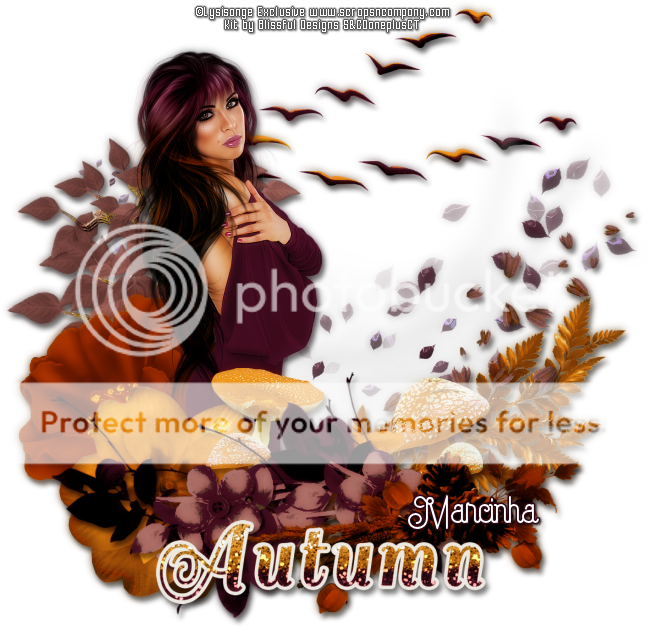
Tube: "Autumn Romantic" by Lysisange
do not use without the proper #license.
PTU Kit I chose "Autumn is Here" by Blissful Designs
The STORE COLLAB is a gift with purchase, can be found here 
Font: Capella

****************************************

--> Remember to save often and use my tag as reference if necessary. Use a Drop Shadow of your preference on layers. 


1. Open BD_AutumnIsHereElement (2). Resize 60%. Copy and paste as new layer. Move it up and a little to right.

2. Open BD_AutumnIsHereElement (39). Copy and paste as new layer. Move it a little down and a little to right.

3. Open BD_AutumnIsHereElement (26). Resize 75%. Copy and paste as new layer. Move it down and to right.

4. Open BD_AutumnIsHereElement (42). Mirror. Copy and paste as new layer. Move it a little down and a little to right.

5. Open BD_AutumnIsHereElement (18). Resize 75%. Mirror. Copy and paste as new layer. Move it a little down and a little to right.

6. Open BD_AutumnIsHereElement (36). Resize 65%. Mirror. Copy and paste as new layer. Move it to left.

7. Open BD_AutumnIsHereElement (5). Resize 40%. Copy and paste as new layer. Move it down and to left.

8. Open your tube. Resize. Copy and paste as new layer. Move it to left. You may want to re-arrange the elements below the tube layer.

9. Open BD_AutumnIsHereElement (20). Resize 40%. Copy and paste as new layer. Move it down and to left.

10. Open BD_AutumnIsHereElement (22). Resize 50%. Copy and paste as new layer. Move it down and to right.

11. Open BD_AutumnIsHereElement (12). Resize 75%. Copy and paste as new layer. Move it down and to left.

12. Open BD_AutumnIsHereElement (13). Resize 65%. Mirror. Copy and paste as new layer. Move it down and to right.

13. Open BD_AutumnIsHereElement (11). Resize 55%. Copy and paste as new layer. Move it down.

14. Use Crop > Merged Opaque to get rid of all extra space.


--> Add your copyright info and license#. Add your name and save as PNG.


September 17, 2016

Far West

PINUP COWGIRL TUTORIAL


Tutorial written by Marcia Salgado on September 9th, 2016
for those who have a working knowledge of PSP.
I'm using PSP9 to create my tuts.
Any resemblance to any other tutorial is coincidental.
Do not copy and paste this tutorial anywhere on the net.
If you want to translate please ask first. 

****************************************
Material:

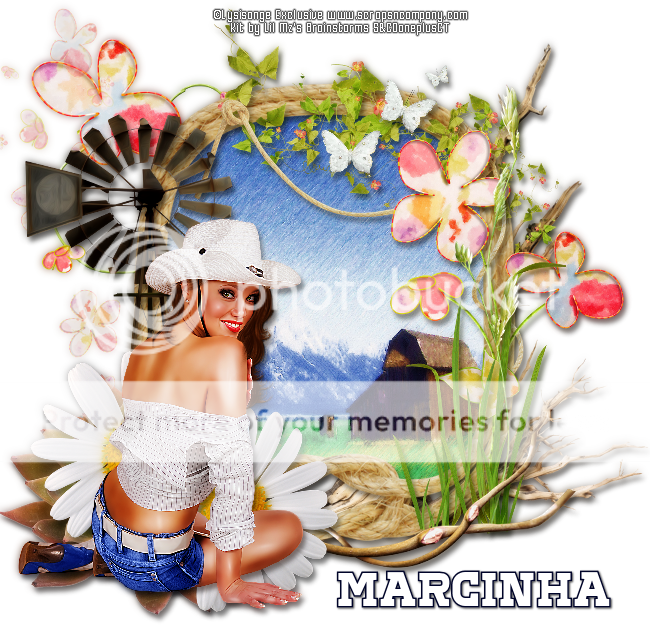
Tube: "Far West" by Lysisange, you can purchase it here 
do not use without the proper #license.
PTU Kit "Far West" by Lil Mzs Brainstorms, you can purchase it here 
Font: Corduroy

****************************************

--> Remember to save often and use my tag as reference if necessary. Use a Drop Shadow of your preference on layers. 


1. Open LMB_FarWest_Element (68). Resize 80%. Copy and paste as new layer.

2. Open LMB_FarWest_Element (72). Mirror. Copy and paste as new layer. Move it way to right. Send this layer below the frame layer.

3. Open LMB_FarWest_Element (39). Resize 45%. Copy and paste as new layer. Move down and to left.

4. Open LMB_FarWest_Element (90). Resize 80%. Copy and paste as new layer. <ove up and to left.

5. Click on frame layer. Select inside. Open LMB_FarWest_Paper (16).  Copy and paste into selection. Deselect.

6. Click on frame layer again. Open LMB_FarWest_Element (95). Resize 60%. Copy and paste as new layer. Move it up and a little to right.

7. Open LMB_FarWest_Element (69). Resize 55%. Copy and paste as new layer. Move it up and hang it on the frame.

8. Open LMB_FarWest_Element (74). Resize 60%. Copy and paste as new layer. Move it to left.

9. Open LMB_FarWest_Element (89). Resize 60%. Copy and paste as new layer. Move it to right.

10. Open LMB_FarWest_Element (34). Resize 45%. Copy and paste as new layer. Move it down and to left.

11. Open LMB_FarWest_Element (35). Resize 75%. Copy and paste as new layer. Move it to left.

12. Open LMB_FarWest_Element (32). Resize 25%. Mirror. Copy and paste as new layer. Move it up and to right.

13. Open LMB_FarWest_Element (45). Resize 75%. Copy and paste as new layer. Move it down and a littlt to right.

14. Open LMB_FarWest_Element (41). Resize 35%. Copy and paste as new layer. Move it down and to left. Duplicate and move it a little more down and to right.

15. Open your tube. Resize it. Copy and paste as new layer. I mirrored mine. Move it to left and place it over the daisies.

16. Use Crop < Merged Opaque to get rid of all extra space.


--> Add your copyright info and license#. Add your name and save as PNG.


June 24, 2016

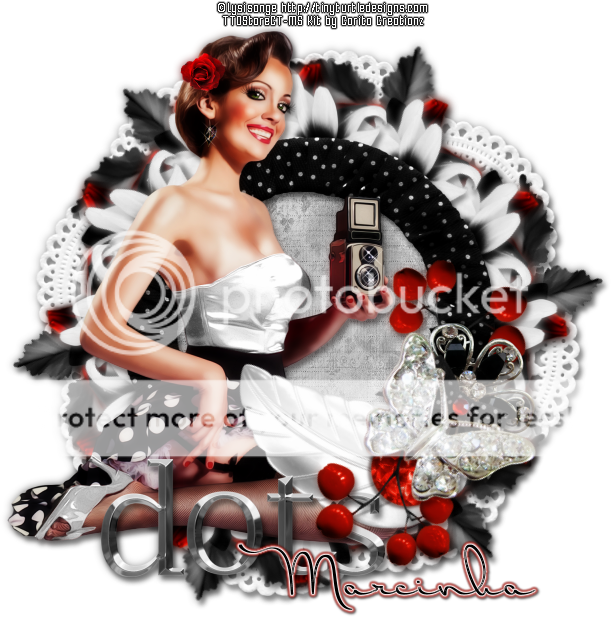
Charming Dots

VINTAGE PHOTOGRAPHER TUTORIAL


Tutorial written by Marcia Salgado on June 20th, 2016
for those who have a working knowledge of PSP.
Any resemblance to any other tutorial is coincidental.
Do not copy and paste this tutorial anywhere on the net.
If you want to translate please ask first. 

****************************************
Material:

Tube: "Isaure" by Lysisange, you can purchase it here 
do not use without the proper #license.
PTU Kit "Charming Dots" by Carita Creationz, you can purchase it here  
Font: Dr Carbfred

****************************************

--> Remember to save often and use my tag as reference if necessary. Use a Drop Shadow of your choice. 


1. Create a new image 650x650.

2. Open 'element' 6. Resize 80%. Copy and paste as new layer.

3. Open 'element' 27. Resize 40%. Mirror. Free Rotate: Right-25. Copy and paste as new layer. Move it a little up and to right. Place it showing only the tip of the leaves. Duplicate. Mirror. Flip. Merge down. Duplicate. Free Rotate: Right-60. Duplicate the copy and apply the same free rotate. Merge all leaves layers together.

5. Open 'element' 12. Resize 45%. Copy and paste as new layer. Free Rotate: Left-45. Add some shadow. Apply MuRa's Meister > Copies > Encircle - Default.

6. Open 'element' 12a. Resize 40%. Copy and paste as new layer. Add  some shadow. Apply MuRa's Meister > Copies > Encircle - Default.

7. Open 'element' 19. Resize 40%. Copy and paste as new layer. Add some shadow. Apply MuRa's Meister > Copies > Encircle - Default.

8. Open 'element' 4. Resize 55%. Copy and paste as new layer.

9. Select inside the frame. Expand > 8. Add a new layer and move it below the frame layer. Open 'paper' pp2. Copy and paste into selection.

10. Click on frame layer. Open your tube. Resize. Copy and paste as new layer. Move it to left a little.

11. Open 'element' 25. Resize 41%. Free Rotate: Right-35. Copy and paste as new layer. Move it down and to right.

12. Open 'element' 8. Resize 40%. Copy and paste as new layer. Move it down and to left.

13. Open 'element' 9. Resize 36%. Free Rotate: Left-60. Copy and paste as new layer. Move it to right. Duplicate. Mirror. Flip. Place it below the fist one.

14. Open 'element' 16. Resize 40%. Copy and paste as new layer. Place it over the joint point of the previous element.

15. Open 'element' 1. Resize 31%. Free Rotate: Right-30. Copy and paste as new layer. Place it over the metal flower.

16. Open 'element' 13. Resize 50%. Free Rotate: Right-45. Copy and paste as new layer. Move it a little down and to right.

17. Use Crop > Merged Opaque to get rid of all extra space.


--> Add your copyright info and license#. Add your name and save as PNG.


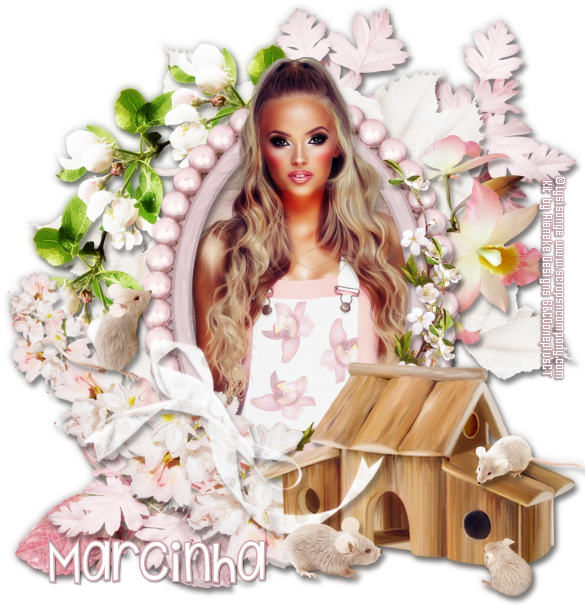
May 19, 2016

Orchidee

MOUSELOVE TUTORIAL


Tutorial written by Marcia Salgado on May 19th, 2016
for those who have a working knowledge of PSP.
I'm using PSP9 to create my tuts.
Any resemblance to any other tutorial is coincidental.
Do not copy and paste this tutorial anywhere on the net.
If you want to translate please ask first. 

****************************************
Material:

Tube: "Orchidee" by Lysisange, you can purchase it here 
do not use without the proper #license.
PTU Kit "Orchidee" by Rieneke Designs, you can purchase it here 
Font: KG Shake it Off

****************************************

--> Remember to save often and use my tag as reference if necessary. Use a Drop Shadow of your preference on layers.

1. Create a new image 650x650.

2. Open RD-Orchidee-element (5). Resize 80%. Copy and paste as new layer.

3. Select inside the frame. Expand > 5. Add anew layer and move it below the frame layer. Open RD-Orchidee-paper (2). Copy and paste into selection. Add a new layer. Open RD-Orchidee-paper (3). Copy and paste into selection. Enhance. Blend Mode: Multiply. Invert selection.

4. Click on frame layer. Open your tube, Resize if needed. Copy and paste as new layer. Place it inside the frame. Erase the parts outide the frame on both sides and at the bottom. Select all. Clip to canvas. Crop to selection.

5. Open RD-Orchidee-element (15). Resize 45%. Copy and paste as new layer. Move it down and to left. Send this layer to bottom.

6. Open RD-Orchidee-element (47). Resize 65%. Copy and paste as new layer. Move it up and to right.

7. Open RD-Orchidee-element (46). Resize 55%. Copy and paste as new layer. Move it down and to left.

8. Open RD-Orchidee-element (49). Copy and paste as new layer. Place it behind the frame.

9. Open RD-Orchidee-element (22). Resize 40%. Free Rotate: Left-90. Copy and paste as new layer. Move it to right.

10. Open RD-Orchidee-element (35). Resize 55%. Mirror. Copy and paste as new layer. Move it up and to left.

11. Click on frame layer. Open RD-Orchidee-element (50). Resize 55%. Copy and paste as new layer. Move it down and to right.

12. Click on tube layer. Open RD-Orchidee-element (16). Resize 70%. Copy and paste as new layer. Move it down and to left.

13. Open RD-Orchidee-element (20). Resize 60%. Copy and paste as new layer. Move it down and to right.

14. Open RD-Orchidee-element (26). Resize 50%. Free Rotate: Right-45. Copy and paste as new layer. Move it down and to left. Place over the frame border.

15. Open RD-Orchidee-element (10). Resize 30%. Copy and paste as new layer. Move it down and to right.

16. Open RD-Orchidee-element (19). Resize 25%. Mirror. Copy and paste as new layer. Move it to left. Place it over the ribbon.

17. Open RD-Orchidee-element (33). Resize 25%. Copy and paste as new layer. Move it down and to right. Place it over the woodhouse.

18. Open RD-Orchidee-element (14). Resize 15%. Copy and paste as new layer. Move it down and to right.

19. Use Crop > Merged Opaque to get rid of all extra spaces.


--> Add your copyright info and license#. Add your name and save as PNG.


Harmony ~ by Joanne Salgado


Tutorial written by Joanne Salgado on May 19th, 2016
for those who have a working knowledge of PSP.
I'm using PSP9 to create my tuts.
Any resemblance to any other tutorial is coincidental.
Do not copy and paste this tutorial anywhere on the net.
If you want to translate please ask first. 

****************************************
Material:

Tube: "Harmony" by Lysisange - you can purchase it here
do not use without the proper #license.
PTU Kit "Harmony" by Rieneke Designs - you can purchase it here
Mask 'DD_NFM_2015_5' by Dee here
Font: Dorayaki

****************************************

Don't forget to save often.
At any point if you have doubts check my tag.

1. Open a new image 650x550

2. Open paper 'RD-Harmony-paper (5)' copy and paste as new layer. Apply your mask and merge group.

3. Open element 'RD-Harmony-element (35)' copy and paste as new layer. Arrange it to the top left.

4. Open element 'RD-Harmony-element (52)' copy and paste as new layer. Arrange it to the bottom right.

5. Open element 'RD-Harmony-element (46)' copy and paste as new layer. Arrange it to the bottom left. Duplicate. Mirror.

6. Open element 'RD-Harmony-element (29)' copy and paste as new layer. Resize 50%. Arrange it to the bottom right.

7. Open element 'RD-Harmony-element (24)' copy and paste as new layer. Resize 60%. Mirror. Arrange it to the bottom left.

8. Open element 'RD-Harmony-element (34)' copy and paste as new layer. Arrange it to bottom.

9. Open element 'RD-Harmony-element (55)' copy and paste as new layer. Resize 70%. Arrange it to the bottom right.

10. Open element 'RD-Harmony-element (57)' copy and paste as new layer. Resize 20%. Arrange it to the bottom right of the rock.

11. Open element 'RD-Harmony-element (44)' copy and paste as new layer. Resize 20%. Arrange it to the top left of the rock.

12. Open element 'RD-Harmony-element (37)' copy and paste as new layer. Resize 40%. Arrange it to the bottom right.

13. Open element 'RD-Harmony-element (25)' copy and paste as new layer. Resize 20%. Arrange it to the bottom right.

14. Open element 'RD-Harmony-element (53)' copy and paste as new layer. Resize 60%. Arrange it to bottom.

15. Open element 'RD-Harmony-element (4)' copy and paste as new layer. Resize 30%. Arrange it to bottom.

16. Open element 'RD-Harmony-element (39)' copy and paste as new layer. Resize 20%. Arrange it above the rock.

17. Open element 'RD-Harmony-element (12)' copy and paste as new layer. Resize 20%. Arrange it above the rock.

18. Open element 'RD-Harmony-element (54)' copy and paste as new layer. Resize 30%. Arrange it to the bottom left.

19. Open element 'RD-Harmony-element (38)' copy and paste as new layer. Resize 20%. Arrange it to the bottom a little to the right. It will appear at the left of your tube. If needed arrange it again later.

20. Open element 'RD-Harmony-element (6)' copy and paste as new layer. Resize 20%. Arrange it above the wagon.

21. Open your tube. Copy and paste as new layer. Resize as needed and arrange it to the bottom right.

22. Open element 'RD-Harmony-element (19)' copy and paste as new layer. Resize 20%. Arrange it to the bottom left of your tube.

23. Add shadow as you prefer.

24. Add copyright. Add name. Save as PNG.

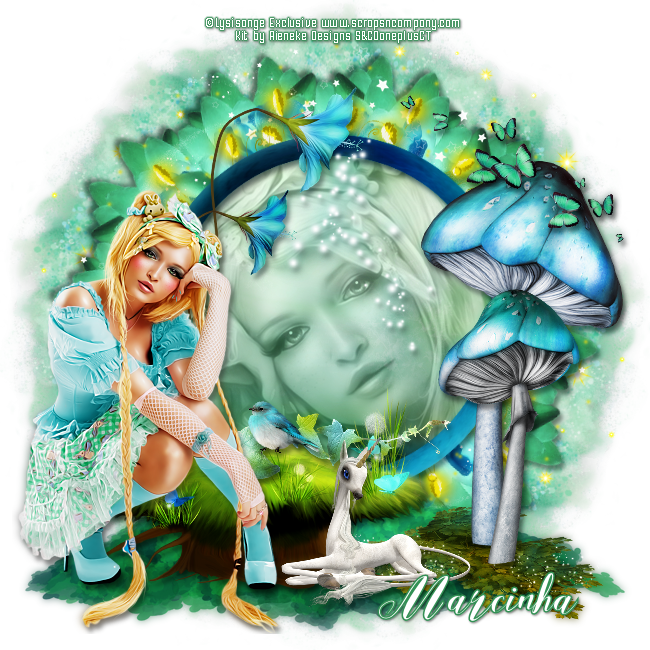
May 15, 2016

STORE COLLAB FAIRY TALE

MAGIC MAIDEN 3 PIECE TUTORIAL

Tutorial written by Marcia Salgado on May 15th, 2016
for those who have a working knowledge of PSP.
I'm using PSP9 to create my tuts.
Any resemblance to any other tutorial is coincidental.
Do not copy and paste this tutorial anywhere on the net.
If you want to translate please ask first. 

****************************************
Material:

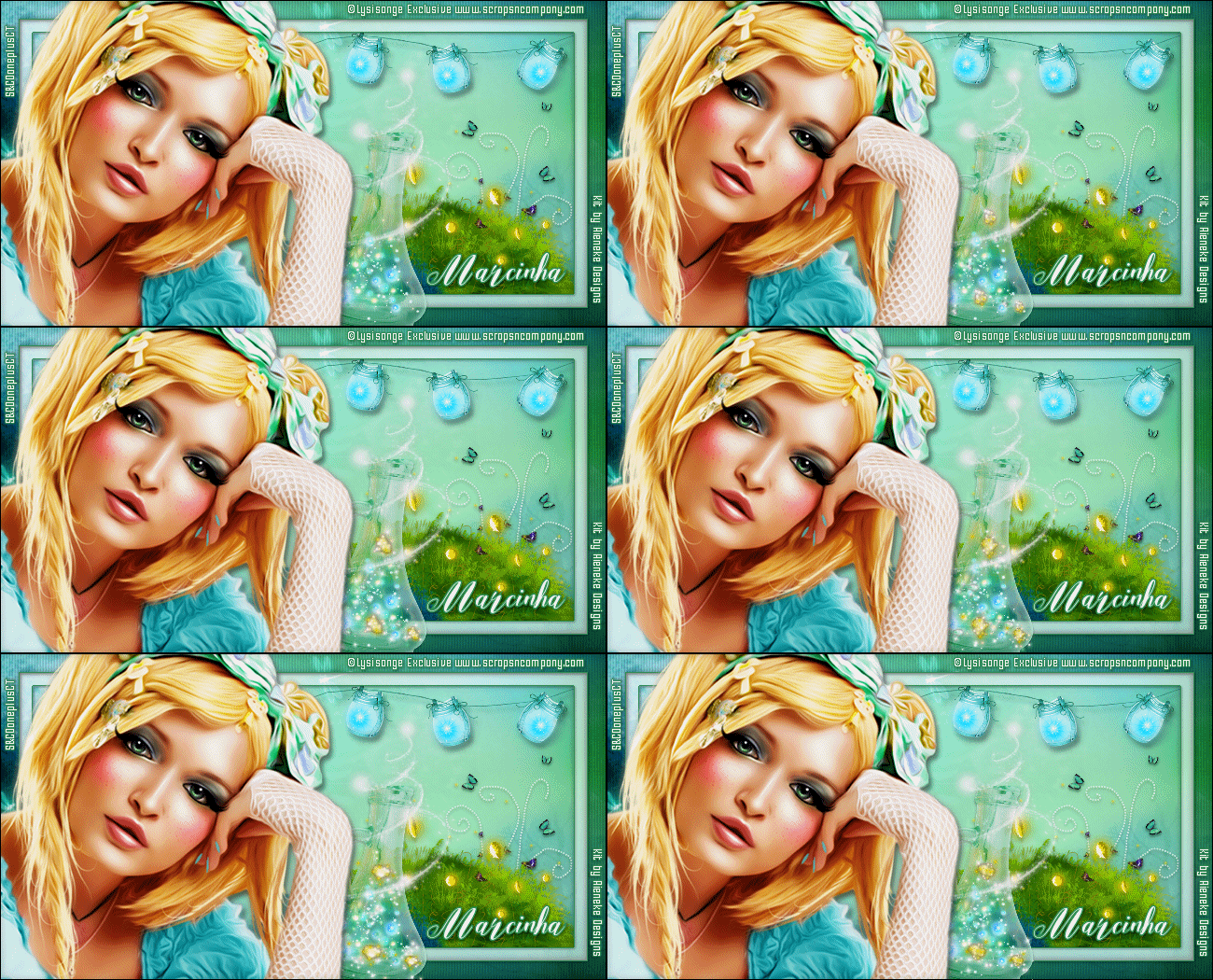
PTU Tube, Animation and Kit from STORE COLLAB FAIRY TALE.
Tube used "Collab Fairy Tale" by Lysisange
Kit used "Fairy Tale Collab" by Rieneke Designs, and
Animation used " Animation Pack 11" by Disturbed Scraps.
free with a purchase, you cand find it here 
Plugin: MuRa's Meister
Font: Zilvia Script

****************************************

--> Remember to save often and use my tag as reference if necessary. Use a Drop Shadow of your preference on layers. 

TAG


1. Create a new image 650x650.

2. Open RD-FairytaleCollab-element (40). Select the tree stem and delete. Deselect. Copy and paste as new layer. Apply MuRa's Meister > Copies > Encircle as shown below:


3. Open RD-FairytaleCollab-element (34). Copy and paste as new layer. Move it to left and a little down. Duplicate. Mirror. Flip. Merge down.

4. Open RD-FairytaleCollab-element (26). Resize 35%. Free Rotate: Left-10. Duplicate. Mirror. Move it to right but keep the flowers overlaping. Merge down. Copy and paste as new layer.

5. Open RD-FairytaleCollab-element (36). Resize 50%. Copy and paste as new layer. Merge down. Apply MuRa's Meister > Copies > Encircle with settings below:


6. Open RD-FairytaleCollab-element (23). Resize 80%. Copy and paste as new layer. Move it up and to right. Duplicate. Mirror. Flip. Merge down.

7. Open RD-FairytaleCollab-element (8). Resize 50%. Copy and paste as new layer. Apply MuRa's Meister > Copies > Encircle with same settings above.

8. Open RD-FairytaleCollab-paper (1). Use Custom selection like I show here:


9. Copy and paste as new image. Canvas size with following settings:


10. Apply Distort Effects > Polar Coordinates with settings I show here:


11. Resize 85%. Copy and paste as new layer.

12. Select inside the frame you created. Expand > 5. Add a new layer and move it below the frame layer. Open RD-FairytaleCollab-paper (4). Copy and paste into selection.

13. Open RD-FairytaleCollab-element (12). Resize 60%. Copy and paste as new layer. Move it up and to left. Leave it over the frame border. Use the upper part of the flower to cover the frame joint on top.

14. Open RD-FairytaleCollab-element (1). Copy and paste as new layer. Move it down.

15. Open RD-FairytaleCollab-element (13). Resize 50%. Copy and paste as new layer. Move it down and to right.

16. Open RD-FairytaleCollab-element (21). Resize 70%. Copy and paste as new layer. Move it down and to right.

17. Open RD-FairytaleCollab-element (20). Resize 50%. Copy and paste as new layer. Move it down and to right. Place it over the first mushroom a little down.

18. Open RD-FairytaleCollab-element (11). Resize 40%. Copy and paste as new layer. Move it up and to right.

19. Open RD-FairytaleCollab-element (5). Resize 65%. Copy and paste as new layer. Move it down and to left.

20. Open RD-FairytaleCollab-element (24). Resize 40%. Copy and paste as new layer. Place it above the tree trunk on its right side.

21. Open RD-FairytaleCollab-element (32). Resize 40%. Copy and paste as new layer. Move it down and leave it on trunk right side.

22. Open RD-FairytaleCollab-element (39). Resize 15%. Copy and paste as new layer. Place it over the foliage you added before.

23. Open your tube. Resize. Mirror. copy and paste as new layer. Move it to left.

24. Use Crop > Merged Opaque to get rid of all extra space.


--> Add your copyright info and license#. Add your name and save as PNG.


FORUM STYLE TAG (WITH ANIMATION)


1. Create a new image 650x350.

2. Open RD-FairytaleCollab-paper (3). Resize 75%. Move it down until you're satisfied with the background.

3. Select all. Clip to canvas. Crop to selection.

4. Select all. Contract > 20. Invert selection. Promote selection to layer. Blend Mode: Multiply. Blinds as shown below:


5. Add a new layer. Select all. Contract > 20. Fill it with white. Contract > 15. Delete. Low the layer opacity to 50.

6. Open RD-FairytaleCollab-element (10). Resize 40%. Move it down and to right. Place this layer below the white border layer. Do not let it touch on white border.

7. Open RD-FairytaleCollab-element (9). Resize 75%. Copy and paste as new layer. Move it down and to right. To get a clean border. After use the drop shadow use select all. Contract > 35. Invert selection and delete. Deselect.

8. Open RD-FairytaleCollab-element (8). Resize 40%. Copy and paste as new layer. Move it down and to right.

9. Open RD-FairytaleCollab-element (33). Resize 50%. Copy and paste as new layer. Move it up and to right. Place it as is hanging from white border. Duplicate and move it to left. Join them by the string. Merge down.

10. Click on white border layer. Should be the first one. Select the white border. Add a new layer. Fill the selection with color #339155. Contract > 1. Delete. 

11. pen your tube. Copy and paste as new layer. Move it to left. We will use it to help in the next element placement. 

12. Open RD-FairytaleCollab-element (29). Resize 40%. Copy and paste as new layer. Move it down and to right. Send it below the tube layer. Place it next the tube. Trn the tube layer invisible. After add all drop shadows merge all visible layers. Rename it BACK.

13. Turn the tube visible again. Click on BACK layer. Open RD-FairytaleCollab-element (19). Resize 40%. Free Rotate: Right-13. Copy and paste as new layer. Place it over the bottle.

14. Click on your tube layer. Select all. Add a nre layer and fill it with black. Contract > 1. Delete. Add your copyright info and license#. Add your name.

15. Turn BACK layer invisible. Merge all visible layers. Rename it TOP. Turn all layers visible.


--> ANIMATION

1. PSP -> Click on BACK layer. Copy.

2. AS -> Paste as new animation. Duplicate it until you get 21 frames. Click on first layer. Select all. Activate the Propagate Paste.

3. AS -> Open 11-1 by Disturbed Scraps. Select all. Resize 30%. Copy.

4. AS -> Activate the tag background. Paste into selected frames. Place it inside the bottle. Repeat the process two times more.

5. AS -> Open 11-4 by Disturbed Scraps. Select all. Resize 40%. Copy.

6. AS -> Activate the tag background. Paste into selected frames. Place it inside the bottle. Repeat the process three or four times more.

7. PSP -> Click on TOP layer. Copy.

8. AS -> Paste as new animation. Copy. Activate the tag background. Paste into selected frames. Save as GIF.


AVATAR


1. Create a nre image 150x150.

2. Open RD-FairytaleCollab-paper (3). Resize 432%. Copy and paste as new layer. Move it down and to right until you're satisfied with the background.

3. Select all. Clip to canvas. Crop to selection.

4. Select all. Contract > 8. Invert selection. Promote selection to layer. Blend Mode: Multiply. Blinds as shown below:


5. Open RD-FairytaleCollab-element (1). Resize 25%. Copy and paste as new layer. Move it down.

6. Open RD-FairytaleCollab-element (12). Resize 25%. Mirror. Copy and paste as new layer. Move it a little to left.

7. Open RD-FairytaleCollab-element (22). Resize 15%. Copy and paste as new layer. Move it down and to left.

8. Open your tube. Resize. Copy and paste as new layer. Move it down and to right.
Add a new layer. Select all. Fill with black. Contract > 1. Delete.


--> Add your copyright info and license#. Add your initials and save as PNG.