Showing posts with label Rieneke Designs. Show all posts

May 31, 2017

Marion ~ by Joanne Salgado


Tutorial written by Joanne Salgado on May 31th, 2017
for those who have a working knowledge of PSP.
I'm using PSP9 to create my tuts.
Any resemblance to any other tutorial is coincidental.
Do not copy and paste this tutorial anywhere on the net.
If you want to translate please ask first. 

****************************************
Material:

Tube: "Marion 3" by Oky Draft, you can purchase it here
do not use without the proper #license.
PTU Kit "Marion 3" by Rieneke Designs, you can purchase it here
Font: ScriptaGothic

****************************************

--> Remember to save often and use my tag as reference if necessary.

1. Open a new image 650x550

2. Open element 'RD-Marion3-element (46)' copy and paste as new layer. Resize 80%.

3. Open element 'RD-Marion3-element (47)' copy and paste as new layer. Resize 70%. Move this layer below the frame layer. Arrange it to the top left.

4. Open element 'RD-Marion3-element (20)' copy and paste as new layer. Resize 70%. Arrange it to bottom.

5. Open paper 'RD-Marion3-paper (2)' copy and paste as new layer. Resize 40%. Arrange it inside the frame and clean outside it.

6. Open element 'RD-Marion3-element (27)' copy and paste as new layer. Resize 90%. Move this layer above the frame layer.

7. Open element 'RD-Marion3-element (35)' copy and paste as new layer. Resize 70%. Arrange it to the top right of the frame.

8. Open element 'RD-Marion3-element (12)' copy and paste as new layer. Resize 90%.

9. Open element 'RD-Marion3-element (48)' copy and paste as new layer. Resize 70%. Arrange it to bottom.

10. Open element 'RD-Marion3-element (29)' copy and paste as new layer. Resize 30%. Arrange it to the top right.

11. Open element 'RD-Marion3-element (15)' copy and paste as new layer. Resize 30%. Arrange it to the bottom left.

12. Open element 'RD-Marion3-element (41)' copy and paste as new layer. Resize 40%. Arrange it to the bottom right.

13. Open element 'RD-Marion3-element (23)' copy and paste as new layer. Resize 30%. Arrange it to the bottom left.

14. Open your tube. Copy and paste as new layer. Resize as needed and arrange it a little to the right.

15. Open element 'RD-Marion3-element (38)' copy and paste as new layer. Resize 20%. Mirror. Arrange it to the bottom left.

16. Open element 'RD-Marion3-element (17)' copy and paste as new layer. Resize 15%. Arrange it to the bottom right.

17. Open element 'RD-Marion3-element (30)' copy and paste as new layer. Resize 15%. Arrange it to the bottom right.

18. Add shadow as you prefer.

19. Add copyright. Add name. Save as PNG.

May 21, 2017

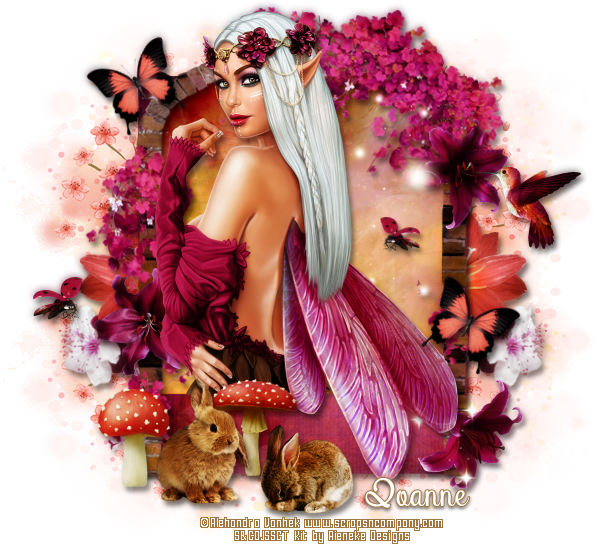
Fairy Queen ~ by Joanne Salgado


Tutorial written by Joanne Salgado on May 15th, 2017
for those who have a working knowledge of PSP.
I'm using PSP9 to create my tuts.
Any resemblance to any other tutorial is coincidental.
Do not copy and paste this tutorial anywhere on the net.
If you want to translate please ask first. 

****************************************
Material:

Tube: "Fleur 4" by Alehandra Vanhek, you can purchase it here
do not use without the proper #license.
PTU Kit "Fleur 4" by Rieneke Designs, you can purchase it here
Font: Atlantis Heart

****************************************

--> Remember to save often and use my tag as reference if necessary.

1. Open a new image 650x550

2. Open element 'RD-Fleur4-element (49)' copy and paste as new layer. Resize 80%.

3. Open element 'RD-Fleur4-element (10)' copy and paste as new layer. Move this layer below the frame layer. Arrange it to the top. Duplicate. Flip.

4. Open element 'RD-Fleur4-element (29)' copy and paste as new layer. Arrange it to the right. Clean all, leave just the little flower showing (like mine). Duplicate, mirror.

5. Open element 'RD-Fleur4-element (21)' copy and paste as new layer. Resize 30%. Arrange it to the right. Duplicate. Mirror.

6. Open paper 'RD-Fleur4-paper (1)' copy and paste as new layer. Resize 50%. Arrange it inside the frame. Don't clean yet.

7. Open element 'RD-Fleur4-element (19)' copy and paste as new layer. Move this layer above the frame layer. Arrange it around the frame, clean the lower parts. Now clean the top part of the frame that appears inside the arch and clean the paper that appears outside it.

8. Open element 'RD-Fleur4-element (31)' copy and paste as new layer. Resize 20%. Mirror. Arrange it to the top right.

9. Open element 'RD-Fleur4-element (15)' copy and paste as new layer. Resize 20%. Arrange it to the top right.

10. Open element 'RD-Fleur4-element (26)' copy and paste as new layer. Resize 20%. Arrange it to the bottom left.

11. Open element 'RD-Fleur4-element (25)' copy and paste as new layer. Resize 20%. Mirror. Arrange it to the bottom right.

12. Open element 'RD-Fleur4-element (7)' copy and paste as new layer. Resize 90%. Mirror.

13. Open your tube. Copy and paste as new layer. Resize as needed and arrange it inside the frame to the left.

14. Open element 'RD-Fleur4-element (39)' copy and paste as new layer. Resize 20%. Arrange it to the bottom left.

15. Open element 'RD-Fleur4-element (36)' copy and paste as new layer. Resize 20%. Arrange it to the bottom left.

16. Open element 'RD-Fleur4-element (42)' copy and paste as new layer. Resize 30%. Arrange it to the bottom left.

17. Open element 'RD-Fleur4-element (44)' copy and paste as new layer. Resize 20%. Arrange it to the bottom a little to the left.

18. Open element 'RD-Fleur4-element (9)' copy and paste as new layer. Resize 15%. Arrange it to the left. Duplicate. Resize 80%. Mirror. Arrange it to the right.

19. Open element 'RD-Fleur4-element (20)' copy and paste as new layer. Resize 15%. Rotate. Arrange it to the top left. Duplicate. Arrange it to the bottom right.

20. Add shadow as you prefer.

21. Add copyright. Add name. Save as PNG.

Beauty ~ by Joanne Salgado


Tutorial written by Joanne Salgado on May 15th, 2017
for those who have a working knowledge of PSP.
I'm using PSP9 to create my tuts.
Any resemblance to any other tutorial is coincidental.
Do not copy and paste this tutorial anywhere on the net.
If you want to translate please ask first. 

****************************************
Material:

Tube: "Beauty Bunny" by Andy Cooper, you can purchase it here
do not use without the proper #license.
PTU Kit "Beauty Bunny" by Rieneke Designs, you can purchase it here
Font: 2Peas Mister Giggles

****************************************

--> Remember to save often and use my tag as reference if necessary.

1. Open a new image 650x550

2. Open element 'RD-BeautyBunny-element (31)' copy and paste as new layer.

3. Open element 'RD-BeautyBunny-element (20)' copy and paste as new layer. Resize 60%. Move this layer below the frame layer. Arrange it to the bottom right.

4. Open element 'RD-BeautyBunny-element (39)' copy and paste as new layer. Resize 50%. Arrange it to the top left.

5. Open paper 'RD-BeautyBunny-paper (6)' copy and paste as new layer. Resize 60%. Arrange it inside the frame and clean outside.

6. Open element 'RD-BeautyBunny-element (48)' copy and paste as new layer.

7. Open your tube's close up. Arrange it inside the frame and clean outside.

8. Open element 'RD-BeautyBunny-element (43)' copy and paste as new layer. Move this layer above the frame layer. Arrange it to bottom.

9. Open element 'RD-BeautyBunny-element (42)' copy and paste as new layer. Resize 50%. Arrange it to the bottom left.

10. Open element 'RD-BeautyBunny-element (44)' copy and paste as new layer. Resize 20%. Arrange it to the bottom right.

11. Open element 'RD-BeautyBunny-element (45)' copy and paste as new layer. Resize 20%. Arrange it to the bottom right.

12. Open element 'RD-BeautyBunny-element (49)' copy and paste as new layer. Resize 20%. Arrange it to the right a little to top.

13. Open element 'RD-BeautyBunny-element (50)' copy and paste as new layer. Resize 60%. Arrange it to the top left.

14. Add shadow as you prefer.

15. Add copyright. Add name. Save as PNG.

Aprietame ~ by Joanne Salgado


Tutorial written by Joanne Salgado on May 15th, 2017
for those who have a working knowledge of PSP.
I'm using PSP9 to create my tuts.
Any resemblance to any other tutorial is coincidental.
Do not copy and paste this tutorial anywhere on the net.
If you want to translate please ask first. 

****************************************
Material:

Tube: "Aprietame" by The Hunter, you can purchase it here
do not use without the proper #license.
PTU Kit "Aprietame" by Rieneke Designs, you can purchase it here
Font: AnneBoleynSH

****************************************

--> Remember to save often and use my tag as reference if necessary.

1. Open a new image 650x550

2. Open element 'RD-Aprietame-element (33)' copy and paste as new layer.

3. Open element 'RD-Aprietame-element (5)' copy and paste as new layer. Resize 90%. Move this layer below frame layer. Arrange it to bottom.

4. Open paper 'RD-Aprietame-paper (9)' copoy and paste as new layer. Resize 55%. Arrange it inside the frame and clean outside it.

5. Open element 'RD-Aprietame-element (37)' copy and paste as new layer. Arrange it to the left inside the frame and clean outside it.

6. Open your tube close up. Copy and paste as new layer. Arrange it to the right inside the frame. Clean outside it. Change blend mode to Luminance (L) and opacity to 60.

7. Open element 'RD-Aprietame-element (14)' copy and paste as new layer. Move this layer above the frame layer. Arrange it to top.

8. Open element 'RD-Aprietame-element (21)' copy and paste as new layer. Resize 50%. Arrange it to the bottom left.

9. Open element 'RD-Aprietame-element (9)' copy and paste as new layer. Resize 30%. Arrange it to the bottom left.

10. Open element 'RD-Aprietame-element (32)' copy and paste as new layer. Resize 30%. Arrange it to the bottom left.

11. Open element 'RD-Aprietame-element (39)' copy and paste as new layer. Resize 50%. Arrange it to the bottom right.

12. Open element 'RD-Aprietame-element (47)' copy and paste as new layer. Resize 50%. Arrange it to the top right.

13. Open element 'RD-Aprietame-element (9)' copy and paste as new layer. Resize 30%. Mirror. Arrange it to the top right.

14. Open element 'RD-Aprietame-element (45)' copy and paste as new layer. Resize 30%. Arrange it to the top right.

15. Open element 'RD-Aprietame-element (24)' copy and paste as new layer. Resize 10%. Arrange it to the bottom right.

16. Open element 'RD-Aprietame-element (25)' copy and paste as new layer. Resize 10%. Mirror. Arrange it to the bottom right.

17. Open element 'RD-Aprietame-element (40)' copy and paste as new layer. Resize 20%. Arrange it to the bottom right.

18. Open your tube. Copy and paste as new layer. Resize as needed and arrange it to the left.

19. Add shadow as you prefer.

20. Add copyright. Add name. Save as PNG.

Adriana ~ by Joanne Salgado


Tutorial written by Joanne Salgado on May 15th, 2017
for those who have a working knowledge of PSP.
I'm using PSP9 to create my tuts.
Any resemblance to any other tutorial is coincidental.
Do not copy and paste this tutorial anywhere on the net.
If you want to translate please ask first. 

****************************************
Material:

Tube: "Adriana 5" by Oky Draft, you can purchase it here
do not use without the proper #license.
PTU Kit "Adriana 5" by Rieneke Designs, you can purchase it here
Font: A Gothique Time

****************************************

--> Remember to save often and use my tag as reference if necessary.

1. Open a new image 650x550

2. Open element 'RD-Adriana5-element (17)' copy and paste as new layer. Resize 80%. Arrange it a little to the left. Rename this layer FRAME 1.

3. Open element 'RD-Adriana5-element (41)' copy and paste as new layer. Resize 60%. Arrange it a little to the bottom right. Rename this layer FRAME 2.

4. Open element 'RD-Adriana5-element (25)' copy and paste as new layer. Resize 80%. Move this layer below both frames. Arrange it to bottom.

5. Open element 'RD-Adriana5-element (1)' copy and paste as new layer. Resize 70%. Arrange it to the top left.

6. Open element 'RD-Adriana5-element (22)' copy and paste as new layer. Resize 50%. Arrange it to the top left.

7. Open element 'RD-Adriana5-element (13)' copy and paste as new layer. Resize 80%. Arrange it to top a little to the left.

8. Open element 'RD-Adriana5-element (20)' copy and paste as new layer. Resize 50%. Mirror. Arrange it to the left.

9. Open paper 'RD-Adriana5-paper (4)' copy and paste as new layer. Resize 45%. Arrange it inside FRAME 1 and clean outside it.

10. Open element 'RD-Adriana5-element (49)' copy and paste as new layer. Resize 50%. Move this layer above FRAME 1 and arrange it to the left.

11. Open element 'RD-Adriana5-element (45)' copy and paste as new layer. Resize 50%. Arrange it to the bottom left.

12. Open element 'RD-Adriana5-element (18)' copy and paste as new layer. Resize 50%. Arrange it to the top of FRAME 2.

13. Open element 'RD-Adriana5-element (14)' copy and paste as new layer. Resize 50%. Arrange it to the top right of FRAME 2.

14. Open element 'RD-Adriana5-element (4)' copy and paste as new layer. Resize 50%. Arrange it to the right of FRAME 2.

15. Open paper 'RD-Adriana5-paper (2)' copy and paste as new layer. Resize 30%. Arrange it inside FRAME 2 and clean outside it.

16. Open element 'RD-Adriana5-element (42)' copy and paste as new layer. Resize 20%. Move this layer above FRAME 2. Arrange it to the top of FRAME 2.

17. Open your tube. Copy and paste as new layer. Resize as needed and arrange it to bottom between the frames.

18. Open element 'RD-Adriana5-element (6)' copy and paste as new layer. Resize 30%. Arrange it to bottom right.

19. Open element 'RD-Adriana5-element (27)' copy and paste as new layer. Resize 10%. Arrange it to bottom right. Duplicate. Arrange it to bottom left.

20. Add shadow as you prefer.

21. Add copyright. Add name. Save as PNG.

May 2, 2017

Julia ~ by Joanne Salgado


Tutorial written by Joanne Salgado on April 15th, 2017
for those who have a working knowledge of PSP.
I'm using PSP9 to create my tuts.
Any resemblance to any other tutorial is coincidental.
Do not copy and paste this tutorial anywhere on the net.
If you want to translate please ask first. 

****************************************
Material:

Tube: "Julia 5" by Julia Fox, you can purchase it here
do not use without the proper #license.
PTU Kit "Julia 5" by Rieneke Designs, you can purchase it here
Font: AppleJaxDotsPro

****************************************

--> Remember to save often and use my tag as reference if necessary.

1. Open a new image 650x550

2. Open element 'RD-Julia5-element (4)' copy and paste as new layer.

3. Open element 'RD-Julia5-element (14)' copy and paste as new layer. Move this layer below the frame layer. Arrange it to the right.

4. Open element 'RD-Julia5-element (40)' copy and paste as new layer. Resize 50%. Arrange it to the bottom left.

5. Open element 'RD-Julia5-element (11)' copy and paste as new layer. Resize 50%. Arrange it to the top right.

6. Open element 'RD-Julia5-element (7)' copy and paste as new layer. Resize 50%. Arrange it to the top left.

7. Open element 'RD-Julia5-element (18)' copy and paste as new layer. Resize 90%. Arrange it to the left.

8. Open element 'RD-Julia5-element (43)' copy and paste as new layer. Resize 80%. Arrange it to bottom.

9. Open paper 'RD-Julia5-paper (8)' copy and paste as new layer. Resize 45%. Clean outside.

10. Open element 'RD-Julia5-element (29)' copy and paste as new layer. Move this layer above the frame layer. Arrange it to bottom.

11. Open element 'RD-Julia5-element (30)' copy and paste as new layer. Resize 70%. Arrange it a little to the left.

12. Open element 'RD-Julia5-element (5)' copy and paste as new layer. Resize 50%. Arrange it to the bottom left.

13. Open element 'RD-Julia5-element (1)' copy and paste as new layer. Resize 50%. Arrange it to the bottom right.

14. Open element 'RD-Julia5-element (27)' copy and paste as new layer.

15. Open your tube. Copy and paste as new layer. Resize as needed and arrange it to the left.

16. Open element 'RD-Julia5-element (6)' copy and paste as new layer. Resize 30%. Arrange it to the top right.

17. Open element 'RD-Julia5-element (25)' copy and paste as new layer. Resize 25%. Arrange it to the bottom right.

18. Add shadow as you prefer.

19. Add copyright. Add name. Save as PNG.
April 6, 2017

Dream Sparkle Shine ~ by Joanne Salgado


Tutorial written by Joanne Salgado on April 06th, 2017
for those who have a working knowledge of PSP.
I'm using PSP9 to create my tuts.
Any resemblance to any other tutorial is coincidental.
Do not copy and paste this tutorial anywhere on the net.
If you want to translate please ask first. 

****************************************
Material:

Tube: "Hat and High Heels" by Danny Lee, you can purchase it here
do not use without the proper #license.
PTU Kit "Hat and High Heels" by Rieneke Designs, you can purchase it here
Font: Wacky Action BTN

****************************************

--> Remember to save often and use my tag as reference if necessary.

1. Open a new image 650x550

2. Open element 'RD-HatandHighHeels-element (17)' copy and paste as new layer. Resize 75%.

3. Open element 'RD-HatandHighHeels-element (48)' copy and paste as new layer. Move this layer below the frame layer.

4. Open element 'RD-HatandHighHeels-element (39)' copy and paste as new layer. Resize 50%. Arrange it to the bottom right.

5. Open element 'RD-HatandHighHeels-element (28)' copy and paste as new layer. Resize 50%. Arrange it to the top right.

6. Open element 'RD-HatandHighHeels-element (35)' copy and paste as new layer. Resize 50%. Mirror. Arrange it to the top left.

7. Open element 'RD-HatandHighHeels-element (18)' copy and paste as new layer. Resize 50%. Mirror. Flip. Arrange it to the bottom left.

8. Open element 'RD-HatandHighHeels-element (30)' copy and paste as new layer. Resize 50%. Arrange it to the right.

9. Open element 'RD-HatandHighHeels-element (5)' copy and paste as new layer. Resize 50%. Mirror. Arrange it to the left.

10. Open element 'RD-HatandHighHeels-element (12)' copy and paste as new layer. Resize 50%. Arrange it to the bottom left.

11. Open element 'RD-HatandHighHeels-element (9)' copy and paste as new layer. Resize 50%. Arrange it to the top left.

12. Open paper 'RD-HatandHigh Heels-paper (5)' copy and paste as new layer. Resize 55%. Arrange it inside the frame and clean outside it.

13. Open your close up tube. Copy and paste as new layer. Arrange it inside the frame. Change blend mode to Luminance(L) and opacity to 38. 

14. Open wordart I created, create one for you or just don't use it. Copy and paste as new layer. Arrange it inside the frame and change blend mode to overlay and opacity to 60.


15. Open element 'RD-HatandHighHeels-element (23)' copy and paste as new layer. Move this layer above the frame layer.

16. Open element 'RD-HatandHighHeels-element (38)' copy and paste as new layer. Resize 35%. Arrange it to the bottom left.

17. Open element 'RD-HatandHighHeels-element (37)' copy and paste as new layer. Resize 8%. Arrange it above the cat's head.

18. Open element 'RD-HatandHighHeels-element (29)' copy and paste as new layer. Resize 15%. Arrange it to the bottom left. Duplicate. Mirror. Arrange it to the top left.

19. Open element 'RD-HatandHighHeels-element (19)' copy and paste as new layer. Resize 80%. Arrange it to the right.

20. Open your tube. Copy and paste as new layer. Resize as needed and arrange it to the right.

21. Add shadow as you prefer.

22. Add copyright. Add name. Save as PNG.


Mermaid ~ by Joanne Salgado


Tutorial written by Joanne Salgado on April 06th, 2017
for those who have a working knowledge of PSP.
I'm using PSP9 to create my tuts.
Any resemblance to any other tutorial is coincidental.
Do not copy and paste this tutorial anywhere on the net.
If you want to translate please ask first. 

****************************************
Material:

Tube: "Sexy Mermaid" by The Hunter, you can purchase it here
do not use without the proper #license.
PTU Kit "Magical Ocean" by Rieneke Designs, you can purchase it here
Font: Anemone

****************************************

--> Remember to save often and use my tag as reference if necessary.

1. Open a new image 650x550

2. Open element 'RD-MagicalOcean-element (90)' copy and paste as new layer. Arrange it to the bottom left. Duplicate. Mirror.

3. Open element 'RD-MagicalOcean-element (83)' copy and paste as new layer.

4. Open element 'RD-MagicalOcean-element (75)' copy and paste as new layer. Arrange it to bottom.

5. Open element 'RD-MagicalOcean-element (77)' copy and paste as new layer. Resize 50%. Arrange it to the bottom right. Duplicate. Mirror.

6. Open element 'RD-MagicalOcean-element (18)' copy and paste as new layer. Resize 70%. Arrange it to the bottom left.

7. Open element 'RD-MagicalOcean-element (86)' copy and paste as new layer. Resize 70%. Arrange it to the right.

8. Open element 'RD-MagicalOcean-element (63)' copy and paste as new layer. Resize 50%. Arrange it to the bottom left. Duplicate. Mirror.

9. Open element 'RD-MagicalOcean-element (11)' copy and paste as new layer.

10. Open element 'RD-MagicalOcean-element (24)' copy and paste as new layer. Resize 50%. Arrange it to the top left.

11. Open element 'RD-MagicalOcean-element (99)' copy and paste as new layer. Resize 30%. Arrange it to the bottom right.

12. Open your tube. Copy and paste as new layer. Resize as needed and arrange it to the bottom left.

13. Open element 'RD-MagicalOcean-element (55)' copy and paste as new layer. Resize 20%. Arrange it to the bottom right.

14. Open element 'RD-MagicalOcean-element (67)' copy and paste as new layer. Resize 20%. Arrange it to the top left.

15. Open element 'RD-MagicalOcean-element (97)' copy and paste as new layer. Resize 15%. Arrange it to the bottom left.

16. Add shadow as you prefer.

17. Add copyright. Add name. Save as PNG.

March 17, 2017

Parisienne ~ by Joanne Salgado


Tutorial written by Joanne Salgado on March 15th, 2017
for those who have a working knowledge of PSP.
I'm using PSP9 to create my tuts.
Any resemblance to any other tutorial is coincidental.
Do not copy and paste this tutorial anywhere on the net.
If you want to translate please ask first. 

****************************************
Material:

Tube: "Parisienne 2" by Lysisange, you can purchase it here
do not use without the proper #license.
PTU Kit "A Little Piece of Happiness" by Rieneke Designs, you can purchase it here
Font: A&S Snapper Script

****************************************

--> Remember to save often and use my tag as reference if necessary.

1. Open a new image 650x550

2. Open element 'RD-ALPOH-element (66)' copy and paste a new layer.

3. Open element 'RD-ALPOH-element (59)' copy and paste as new layer. Arrange it to the right. Move this layer below the frame layer.

4. Open element 'RD-ALPOH-element (57)' copy and paste as new layer. Arrange it to the left.

5. Open element 'RD-ALPOH-element (40)' copy and paste as new layer. Arrange it to the top right. Duplicate. Arrange it to the bottom left.

6. Open element 'RD-ALPOH-element (46)' copy and paste as new layer.

7. For the background inside the frame I used the tube's background to fit with it. But you can use paper 01 or 08 if you do not use the same tube.

8. Open element 'RD-ALPOH-element (60)' copy and paste as new layer. Move this layer above the frame layer. Arrange it to top.

9. Open element 'RD-ALPOH-element (14)' copy and paste as new layer. Resize 60%. Arrange it to the top right.

10. Open your tube. Copy and paste as new layer. Resize as needed and arrange it to the bottom right.

11. Open element 'RD-ALPOH-element (31)' copy and paste as new layer. Mirror.

12. Open element 'RD-ALPOH-element (70)' copy and paste as new layer. Resize 30%. Arrange it to the bottom left.

13. Open element 'RD-ALPOH-element (11)' copy and paste as new layer. Resize 25%. Rotate 90. Arrange it to the bottom left.

14. Open element 'RD-ALPOH-element (26)' copy and paste as new layer. Resize 20%. Arrange it to the bottom left.

15. Add shadow as you prefer.

16. Add copyright. Add name. Save as PNG.

Pretty Cat ~ by Joanne Salgado


Tutorial written by Joanne Salgado on March 15th, 2017
for those who have a working knowledge of PSP.
I'm using PSP9 to create my tuts.
Any resemblance to any other tutorial is coincidental.
Do not copy and paste this tutorial anywhere on the net.
If you want to translate please ask first. 

****************************************
Material:

Tube: "Pretty Cat" by Danny Lee, you can purchase it here
do not use without the proper #license.
PTU Kit "Cute Alice 6" by Rieneke Designs, you can purchase it here
Font: fox in the snow

****************************************

--> Remember to save often and use my tag as reference if necessary.

1. Open a new image 650x550

2. Open element 'RD-CuteAlice6-element (41)' copy and paste as new layer. Arrange it to top.

3. Open element 'RD-CuteAlice6-element (65)' copy and paste as new layer. Clean the branch.

4. Open paper 'RD-CuteAlice6-paper (8)' copy and paste as new layer. Resize 50%. Clean outside the frame when we add it.

5. Open element 'RD-CuteAlice6-element (59)' copy and paste as new layer.

6. Open element 'RD-CuteAlice6-element (60)' copy and paste as new layer. Resize 65%.

7. Open element 'RD-CuteAlice6-element (22)' copy and paste as new layer. Resize 90%.

8. Open element 'RD-CuteAlice6-element (25)' copy and paste as new layer. Mirror.

9. Open your tube. Copy and paste as new layer. Resize as needed and arrange it inside the frame.

10. Open element 'RD-CuteAlice6-element (56)' copy and paste as new layer. Arrange it to bottom.

11. Open element 'RD-CuteAlice6-element (57)' copy and paste as new layer. Resize 70%. Arrange it to the right.

12. Open element 'RD-CuteAlice6-element (6)' copy and paste as new layer. Resize 40%. Arrange it to the bottom left.

13. Open element 'RD-CuteAlice6-element (54)' copy and paste as new layer. Resize 30%. Arrange it to the bottom left.

14. Open element 'RD-CuteAlice6-element (35)' copy and paste as new layer. Resize 40%. Arrange it to the bottom right.

15. Add shadow as you prefer.

16. Add copyright. Add name. Save as PNG.

Pinup Gothic ~ by Joanne Salgado


Tutorial written by Joanne Salgado on March 15th, 2017
for those who have a working knowledge of PSP.
I'm using PSP9 to create my tuts.
Any resemblance to any other tutorial is coincidental.
Do not copy and paste this tutorial anywhere on the net.
If you want to translate please ask first. 

****************************************
Material:

Tube: "Pinup Gothic" by Danny Lee, you can purchase it here
do not use without the proper #license.
PTU Kit "Pinup Gothic" by Rieneke Designs, you can purchase it here
Font: Matthew Jason

****************************************

--> Remember to save often and use my tag as reference if necessary.

1. Open a new image 650x550

2. Open element 'RD-PinupGothic-element (24)' copy and paste as new layer. Resize 70%. Mirror. Arrange it to the top right.

3. Open element 'RD-PinupGothic-element (7)' copy and paste as new layer. Resize 70%. Arrange it a little to the top left.

4. Open element 'RD-PinupGothic-element (1)' copy and paste as new layer. Resize 70%. Arrange it a little to bottom.

5. Open element 'RD-PinupGothic-element (2)' copy and paste as new layer. Resize 70%. Mirror. Arrange it to the top left. Duplicate. Mirror. Arrange it to the bottom right. Clean the lower part.

6. Open element 'RD-PinupGothic-element (30)' copy and paste as new layer. Resize 80%. Arrange it to bottom.

7. Open element 'RD-PinupGothic-element (29)' copy and paste as new layer. Resize 90%.

8. Open element 'RD-PinupGothic-element (47)' copy and paste as new layer. Resize 70%. Mirror. Arrange it to the bottom left.

9. Open element 'RD-PinupGothic-element (33)' copy and paste as new layer. Resize 15%. Arrange it to the bottom left above the car.

10. Open your tube. Copy and paste as new layer. Resize as needed and arrange it to the right.

11. Open element 'RD-PinupGothic-element (21)' copy and paste as new layer. Resize 35%. Arrange it above the car.

12. Open element 'RD-PinupGothic-element (16)' copy and paste as new layer. Resize 35%. Arrange it to the bottom left.

13. Open element 'RD-PinupGothic-element (38)' copy and paste as new layer. Resize 30%. Arrange it to the bottom right.

14. Open element 'RD-PinupGothic-element (11)' copy and paste as new layer. Resize 20%. Arrange it to the bottom left.

15. Add shadow as you prefer.

16. Add copyright. Add name. Save as PNG.

March 3, 2017

Summer ~ by Joanne Salgado


Tutorial written by Joanne Salgado on March 03th, 2017
for those who have a working knowledge of PSP.
I'm using PSP9 to create my tuts.
Any resemblance to any other tutorial is coincidental.
Do not copy and paste this tutorial anywhere on the net.
If you want to translate please ask first. 

****************************************
Material:

Tube: "Pinup Girl Z 1" by KiwiBG, you can purchase it here
do not use without the proper #license.
PTU Kit "Beach Life" by Rieneke Designs, you can purchase it here
Font: The Wild Things Script

****************************************

--> Remember to save often and use my tag as reference if necessary.

1. Open a new image 851x315

2. Open paper 'RD-BeachLife-paper (1)' copy and paste as new layer. Stretch it up so it fit the canvas. Arrange it so the bottom part appears.

3. Open element 'RD-BeachLife-element (2)' copy and paste as new layer. Arrange it to the bottom right. Duplicate. Mirror.

4. Open element 'RD-BeachLife-element (74)' copy and paste as new layer. Resize 50%. Arrange it to the left.

5. Open element 'RD-BeachLife-element (80)' copy and paste as new layer. Arrange it to the left. Duplicate. Mirror.

6. Open element 'RD-BeachLife-element (94)' copy and paste as new layer. Resize 70%. Arrange it to the right.

7. Open element 'RD-BeachLife-element (53)' copy and paste as new layer. Resize 60%. Arrange it to the left.

8. Open element 'RD-BeachLife-element (72)' copy and paste as new layer. Resize 20%. Arrange it to the bottom right.

9. Open element 'RD-BeachLife-element (99)' copy and paste as new layer. Arrange it to the bottom right.

10. Open element 'RD-BeachLife-element (112)' copy and paste as new layer. Arrange it to the left.

11. Open element 'RD-BeachLife-element (37)' copy and paste as new layer. Resize 30%. Arrange it to the top left.

12. Open element 'RD-BeachLife-element (67)' copy and paste as new layer. Resize 30%. Arrange it to the bottom right.

13. Open element 'RD-BeachLife-element (98)' copy and paste as new layer. Resize 50%. Arrange it to top. Duplicate. Arrange it to the top right.

14. Open element 'RD-BeachLife-element (58)' copy and paste as new layer. Resize 30%. Arrange it to the bottom right.

15. Open element 'RD-BeachLife-element (100)' copy and paste as new layer. Resize 50%. Arrange it to the bottom left. Duplicate. Arrange it near.

16. Open element 'RD-BeachLife-element (81)' copy and paste as new layer. Arrange it to the bottom left.

17. Open your tube. Copy and paste as new layer. Resize as needed and arrange it to the right.

18. Add new layer. Select all. Fill with black. Contract 1. Fill with white. Add noise 45. Contract 3. Hit delete. Selection none.

19. Add shadow as you prefer.

20. Add copyright. Add name. Save as PNG.

Red Alice ~ by Joanne Salgado


Tutorial written by Joanne Salgado on March 03th, 2017
for those who have a working knowledge of PSP.
I'm using PSP9 to create my tuts.
Any resemblance to any other tutorial is coincidental.
Do not copy and paste this tutorial anywhere on the net.
If you want to translate please ask first. 

****************************************
Material:

Tube: "Sexy Alice 6" by Oky Draft, you can purchase it here
do not use without the proper #license.
PTU Kit "Sexy Alice 7" by Rieneke Designs, you can purchase it here
Font: JustinRoad

****************************************

--> Remember to save often and use my tag as reference if necessary.

1. Open a new image 650x550

2. Open paper 'RD-SexyAlice7-paper (1)' copy and paste as new layer. Clean the outside parts when we add the frame.

3. Open element 'RD-SexyAlice7-element (23)' copy and paste as new layer. Resize 90%. Arrange it to bottom.

4. Open element 'RD-SexyAlice7-element (37)' copy and paste as new layer. Resize 80%.

5. Open element 'RD-SexyAlice7-element (8)' copy and paste as new layer. Resize 90%. Arrange it to the right.

6. Open element 'RD-SexyAlice7-element (49)' copy and paste as new layer. Resize 50%. Arrange it to the top left inside the frame. Clean the top part that appears outside the frame.

7. Open element 'RD-SexyAlice7-element (48)' copy and paste as new layer. Arrange it a little to the top.

8. Open element 'RD-SexyAlice7-element (47)' copy and paste as new layer. Arrange it a little to the bottom right.

9. Open element 'RD-SexyAlice7-element (54)' copy and paste as new layer. Rotate left 45. Resize 50%. Arrange it to the top left of the frame.

10. Open element 'RD-SexyAlice7-element (24)' copy and paste as new layer. Resize 55%. Arrange it to the bottom right.

11. Open element 'RD-SexyAlice7-element (46)' copy and paste as new layer. Resize 55%. Arrange it to bottom.

12. Open your tube. Copy and paste as new layer. Resize as needed and arrange it to the right.

13. Open element 'RD-SexyAlice7-element (29)' copy and paste as new layer. Resize 40%. Arrange it to the bottom left.

14. Open element 'RD-SexyAlice7-element (10)' copy and paste as new layer. Resize 20%. Arrange it to the bottom left.

15. Open element 'RD-SexyAlice7-element (9)' copy and paste as new layer. Resize 20%. Arrange it to the bottom left.

16. Open element 'RD-SexyAlice7-element (19)' copy and paste as new layer. Resize 20%. Arrange it to the bottom left.

17. Open element 'RD-SexyAlice7-element (41)' copy and paste as new layer. Resize 25%. Arrange it to the bottom right.

18. Open element 'RD-SexyAlice7-element (17)' copy and paste as new layer. Resize 20%. Arrange it to the bottom right.

19. Add shadow as you prefer.

20. Add copyright. Add name. Save as PNG.