Showing posts with label Blissful Designs. Show all posts

December 5, 2016

S&Co 3RD ANNIVERSARY COLLAB 2


== NEW PTU TAG S&CO. CT - STORE COLLAB ==
== 3RD ANNIVERSARY COLLAB 2  ==

SOULDESIGNER AND BLISSFUL DESIGNS

Featuring "Sweetness", a SoulDesigner tube and
 "Romantic Sweet", Blissful Designs kit at Scraps N Company - S&Co.


Add this STORE COLLAB to your cart and get it as a free gift with a purchase. 
The kit used has 8 papers and 58 elements so you can play with it. 
Very versatile and can be used with any other tubes and artists you have.

3RD ANNIVERSARY STORE COLLAB 2 can be found  at:
-> Scraps N Company - S&Co., here 


November 20, 2016

SHOW OFF - Full Hot


== NEW PTU S&CO. CT ==
FOR DANNY LEE AND BLISSFUL DESIGNS

Featuring "Full Hot" tube by Danny Lee and
"Full Hot" Kit by Blissful Designs at Scraps N Company - S&Co.

Tube by Danny Lee - you can purchase here

Kit by Blissful Designs - you can purchase here


November 2, 2016

Morti 5 ~ by Joanne Salgado


Tutorial written by Joanne Salgado on November 02th, 2016
for those who have a working knowledge of PSP.
I'm using PSP9 to create my tuts.
Any resemblance to any other tutorial is coincidental.
Do not copy and paste this tutorial anywhere on the net.
If you want to translate please ask first. 

****************************************
Material:

Tube: "Morti 5" by Di Halim - you can purchase it here
do not use without the proper #license.
PTU Kit "Morti 5" by Blissful Designs - you can purchase it here
Font: Forque

****************************************

Don't forget to save often.
At any point if you have doubts check my tag.

1. Open a new image 650x550

2. Open element 'BD_Morti5Element (27)' copy and paste as new layer. Resize 80%.

3. Open element 'BD_Morti5Element (54)' copy and paste as new layer. Move this layer below the frame layer. Arrange it to bottom.

4. Open element 'BD_Morti5Element (40)' copy and paste as new layer. Resize 80%. Arrange it to the top right. Duplicate. Mirror.

5. Open element 'BD_Morti5Element (8)' copy and paste as new layer. Resize 90%.

6. Open element 'BD_Morti5Element (21)' copy and paste as new layer. Resize 90%. Duplicate. Mirror.

7. Open element 'BD_Morti5Element (26)' copy and paste as new layer. Resize 50%.

8. Open your tube. Copy and paste as new layer. Resize as needed. Move this layer above the frame layer. Arrange it inside the frame and clean the parts needed.

9. Open element 'BD_Morti5Element (55)' copy and paste as new layer. Arrange it to bottom.

10. Open element 'BD_Morti5Element (44)' copy and paste as new layer. Resize 15%. Arrange it to the bottom left.

11. Open element 'BD_Morti5Element (43)' copy and paste as new layer. Resize 15%. Arrange it to the bottom left.

12. Open element 'BD_Morti5Element (50)' copy and paste as new layer. Resize 15%. Arrange it to bottom.

13. Open element 'BD_Morti5Element (33)' copy and paste as new layer. Resize 15%. Mirror. Arrange it to the bottom left.

14. Open element 'BD_Morti5Element (18)' copy and paste as new layer. Resize 60%. Arrange it to the bottom right.

15. Open element 'BD_Morti5Element (56)' copy and paste as new layer. Resize 20%. Arrange it to the bottom right.

16. Open element 'BD_Morti5Element (37)' copy and paste as new layer. Resize 18%. Arrange it to the bottom right.

17. Open element 'BD_Morti5Element (62)' copy and paste as new layer.

18. Add shadow as you prefer.

19. Add copyright. Add name. Save as PNG.

October 18, 2016

Payton ~ by Joanne Salgado


Tutorial written by Joanne Salgado on October 18th, 2016
for those who have a working knowledge of PSP.
I'm using PSP9 to create my tuts.
Any resemblance to any other tutorial is coincidental.
Do not copy and paste this tutorial anywhere on the net.
If you want to translate please ask first. 

****************************************
Material:

Tube: "Payton" by Pandora Creations - you can purchase it here
do not use without the proper #license.
PTU Kit "Payton" by Blissful Designs - you can purchase it here
Font: Lemonade Regular

****************************************

Don't forget to save often.
At any point if you have doubts check my tag.

1. Open a new image 650x550

2. Open element 'BD_PaytonElement (88)' copy and paste as new layer. Resize 70%. Rotate 20 right.

3. Open element 'BD_PaytonElement (68)' copy and paste as new layer. Mirror. Move this layer to bottom.

4. Open element 'BD_PaytonElement (13)' copy and paste as new layer. Resize 50%. Arrange it to the top left. Duplicate. Mirror. Flip.

5. Open element 'BD_PaytonElement (82)' copy and paste as new layer. Resize 50%. Arrange it to the top right.

6. Open element 'BD_PaytonElement (44)' copy and paste as new layer. Resize 50%. Arrange it to the right.

7. Open element 'BD_PaytonElement (50)' copy and paste as new layer. Resize 50%. Arrange it to the bottom right.

8. Open paper 'BD_PaytonPaper (2)' copy and paste as new layer. Resize 50%. Arrange it inside the frame and clean the outside parts.

9. Open element 'BD_PaytonElement (97)' copy and paste as new layer. Resize 50%. Arrange it inside the frame.

10. Open your tube. Copy and paste as new layer. Move this layer above the frame layer. Resize as needed and arrange it inside the frame. Clean the lower part as mine.

11. Open element 'BD_PaytonElement (18)' copy and paste as new layer. Resize 50%. Arrange it to the bottom left.

12. Open element 'BD_PaytonElement (27)' copy and paste as new layer. Resize 20%. Arrange it to the bottom left.

13. Open element 'BD_PaytonElement (3)' copy and paste as new layer. Resize 17%. Arrange it to bottom.

14. Open element 'BD_PaytonElement (49)' copy and paste as new layer. Resize 30%. Mirror. Arrange it to the left.

15. Open element 'BD_PaytonElement (48)' copy and paste as new layer. Resize 50%. Arrange it to the top right of the frame.

16. Open element 'BD_PaytonElement (77)' copy and paste as new layer. Arrange it to the bottom right.

17. Open element 'BD_PaytonElement (101)' copy and paste as new layer. Resize 50%. Mirror. Arrange it to the top right.

18. Add shadow as you prefer.

19. Add copyright. Add name. Save as PNG.

October 12, 2016

Scarf ~ by Joanne Salgado


Tutorial written by Joanne Salgado on October 12th, 2016
for those who have a working knowledge of PSP.
I'm using PSP9 to create my tuts.
Any resemblance to any other tutorial is coincidental.
Do not copy and paste this tutorial anywhere on the net.
If you want to translate please ask first. 

****************************************
Material:

Tube: "Hooded Scarf" by Andy Cooper - you can purchase it here
do not use without the proper #license.
PTU Kit "Hooded Scarf" by Blissful Designs - you can purchase it here
Font: FORQUE

****************************************

Don't forget to save often.
At any point if you have doubts check my tag.

1. Open a new image 650x550

2. Open element 'BD_HoodedScarfElement (83)' copy and paste as new layer. Resize 80%.

3. Open element 'BD_HoodedScarfElement (89)' copy and paste as new layer. Resize 80%. Move this layer below the frame layer. Arrange it to the top left.

4. Open element 'BD_HoodedScarfElement (19)' copy and paste as new layer. Resize 70%. Arrange it to the top left.

5. Open element 'BD_HoodedScarfElement (32)' copy and paste as new layer. Arrange it to bottom.

6. Open paper 'BD_HoodedScarfPaper (7)' copy and paste as new layer. Resize 45%. Arrange it inside the frame and clean the outside parts.

7. Open element 'BD_HoodedScarfElement (73)' copy and paste as new layer. Resize 30%. Move this layer above the frame layer. Arrange it to the bottom left.

8. Open element 'BD_HoodedScarfElement (8)' copy and paste as new layer. Resize 30%. Arrange it to the bottom left.

9. Open element 'BD_HoodedScarfElement (43)' copy and paste as new layer. Resize 25%. Mirror. Arrange it to the bottom left.

10. Open element 'BD_HoodedScarfElement (27)' copy and paste as new layer. Resize 22%. Arrange it to the bottom left.

11. Open element 'BD_HoodedScarfElement (65)' copy and paste as new layer.

12. Open element 'BD_HoodedScarfElement (9)' copy and paste as new layer. Resize 80%. Arrange it to the right.

13. Open element 'BD_HoodedScarfElement (62)' copy and paste as new layer. Resize 30%. Arrange it to the bottom right.

14. Open your tube. Copy and paste as new layer. Resize as needed and arrange it to the right.

15. Open element 'BD_HoodedScarfElement (21)' copy and paste as new layer. Arrange it to the bottom right.

16. Open element 'BD_HoodedScarfElement (16)' copy and paste as new layer. Resize 90%.

17. Open element 'BD_HoodedScarfElement (11)' copy and paste as new layer. Resize 50%. Arrange it to the bottom right.

18. Add shadow as you prefer.

19. Add copyright. Add name. Save as PNG.

September 20, 2016

Autumn Lady ~ by Joanne Salgado


Tutorial written by Joanne Salgado on September 20th, 2016
for those who have a working knowledge of PSP.
I'm using PSP9 to create my tuts.
Any resemblance to any other tutorial is coincidental.
Do not copy and paste this tutorial anywhere on the net.
If you want to translate please ask first. 

****************************************
Material:

Tube: "Autumn Lady" by Fiodorova Maria - you can purchase it here
do not use without the proper #license.
PTU Kit "Autumn Lady" by Blissful Designs - you can purchase it here
Font: Andover

****************************************

Don't forget to save often.
At any point if you have doubts check my tag.

1. Open a new image 650x550

2. Open element 'BD_AutumnElement (37)' copy and paste as new layer. Resize 70%. Arrange it a little to the right.

3. Open element 'BD_AutumnElement (99)' copy and paste as new layer. Resize 50%. Move this layer below the frame layer. Arrange it to the bottom right. Duplicate. Mirror. Arrange it to the top.

4. Open element 'BD_AutumnElement (63)' copy and paste as new layer. Mirror. Arrange it to the top left.

5. Open element 'BD_AutumnElement (92)' copy and paste as new layer. Resize 50%. Arrange it to the left.

6. Open element 'BD_AutumnElement (75)' copy and paste as new layer. Resize 50%. Arrange it to the left.

7. Open element 'BD_AutumnElement (74)' copy and paste as new layer. Resize 50%. Arrange it to the left.

8. Open element 'BD_AutumnElement (4)' copy and paste as new layer. Resize 40%. Arrange it to the right.

9. Open element 'BD_AutumnElement (3)' copy and paste as new layer. Resize 40%. Arrange it to the right.

10. Open paper 'BD_AutumnPaper (8)' copy and paste as n ew layer. Resize 40%. Arrange it inside the frame and clean the outside parts.

11. Open element 'BD_AutumnElement (30)' copy and paste as new layer. Arrange it to bottom. Clean the fence that appears.

12. Open element 'BD_AutumnElement (43)' copy and paste as new layer.

13. Open element 'BD_AutumnElement (48)' copy and paste as new layer.

14. Open element 'BD_AutumnElement (76)' copy and paste as new layer. Resize 70%. Arrange it to the top.

15. Open your tube. Copy and paste as new layer. Resize as needed and arrange it inside the frame. Clean the outside parts.

16. Open element 'BD_AutumnElement (5)' copy and paste as new layer. Resize 40%. Mirror. Arrange it to the bottom.

17. Open element 'BD_AutumnElement (38)' copy and paste as new layer. Resize 50%. Arrange it to the bottom right.

18. Open element 'BD_AutumnElement (31)' copy and paste as new layer. Resize 20%. Arrange it to the left.

19. Add shadow as you prefer.

20. Add copyright. Add name. Save as PNG.

September 18, 2016

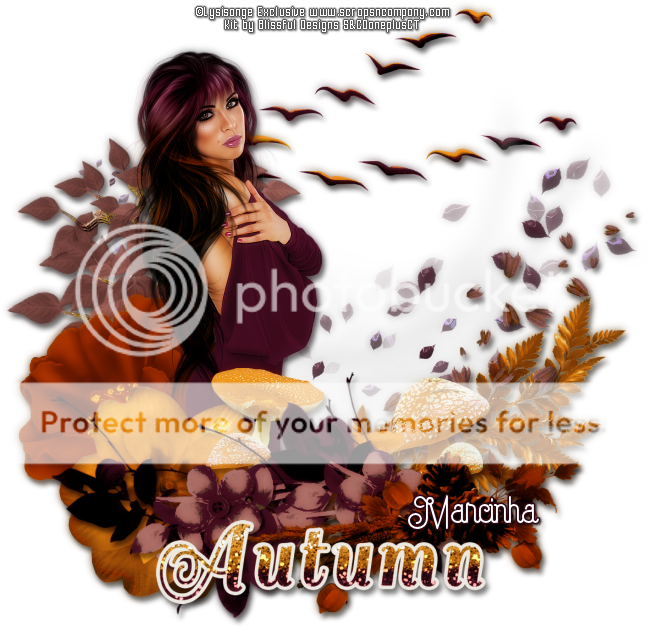
S&Co. AUTUMN STORE COLLAB

BLESS THE EARTH TUTORIAL


Tutorial written by Marcia Salgado on September 18th, 2016
for those who have a working knowledge of PSP.
I'm using PSP9 to create my tuts.
Any resemblance to any other tutorial is coincidental.
Do not copy and paste this tutorial anywhere on the net.
If you want to translate please ask first. 

****************************************
Material:

AUTUMN STORE COLLAB
Tube: "Autumn Romantic" by Lysisange
do not use without the proper #license.
PTU Kit I chose "Autumn is Here" by Blissful Designs
The STORE COLLAB is a gift with purchase, can be found here 
Font: Capella

****************************************

--> Remember to save often and use my tag as reference if necessary. Use a Drop Shadow of your preference on layers. 


1. Open BD_AutumnIsHereElement (2). Resize 60%. Copy and paste as new layer. Move it up and a little to right.

2. Open BD_AutumnIsHereElement (39). Copy and paste as new layer. Move it a little down and a little to right.

3. Open BD_AutumnIsHereElement (26). Resize 75%. Copy and paste as new layer. Move it down and to right.

4. Open BD_AutumnIsHereElement (42). Mirror. Copy and paste as new layer. Move it a little down and a little to right.

5. Open BD_AutumnIsHereElement (18). Resize 75%. Mirror. Copy and paste as new layer. Move it a little down and a little to right.

6. Open BD_AutumnIsHereElement (36). Resize 65%. Mirror. Copy and paste as new layer. Move it to left.

7. Open BD_AutumnIsHereElement (5). Resize 40%. Copy and paste as new layer. Move it down and to left.

8. Open your tube. Resize. Copy and paste as new layer. Move it to left. You may want to re-arrange the elements below the tube layer.

9. Open BD_AutumnIsHereElement (20). Resize 40%. Copy and paste as new layer. Move it down and to left.

10. Open BD_AutumnIsHereElement (22). Resize 50%. Copy and paste as new layer. Move it down and to right.

11. Open BD_AutumnIsHereElement (12). Resize 75%. Copy and paste as new layer. Move it down and to left.

12. Open BD_AutumnIsHereElement (13). Resize 65%. Mirror. Copy and paste as new layer. Move it down and to right.

13. Open BD_AutumnIsHereElement (11). Resize 55%. Copy and paste as new layer. Move it down.

14. Use Crop > Merged Opaque to get rid of all extra space.


--> Add your copyright info and license#. Add your name and save as PNG.


September 16, 2016

Gothic Red ~ by Joanne Salgado


Tutorial written by Joanne Salgado on September 16th, 2016
for those who have a working knowledge of PSP.
I'm using PSP9 to create my tuts.
Any resemblance to any other tutorial is coincidental.
Do not copy and paste this tutorial anywhere on the net.
If you want to translate please ask first. 

****************************************
Material:

Tube: "Gothic Beauty Red" by LadyMishka - you can purchase it here
do not use without the proper #license.
PTU Kit "Gothic Beauty Red" by Blissful Designs - you can purchase it here
Font: A Gothique Time

****************************************

Don't forget to save often.
At any point if you have doubts check my tag.

1. Open a new image 650x550

2. Using preset shape, rounded rectangle, width 3, anti-alias and vector checked. Create a frame with black border.

3. Open element 'BD_GothicBeautyRedElement (43)' copy and paste as new layer. Resize 50%. Move this layer below the frame layer. Arrange it to the top left. Duplicate. Mirror, flip. Duplicate. Arrange it to the top left a little to the top right of the last one. Duplicate. Mirror, flip.

4. Open element 'BD_GothicBeautyRedElement (11)' copy and paste as new layer. Arrange it to the top of the frame, duplicate. Mirror, flip.

5. Open paper 'BD_GothicBeautyRedPaper (3)' copy and paste as new layer. Resize 75%. Arrange it inside the frame and clean the outside parts.

6. Open element 'BD_GothicBeautyRedElement (14)' copy and paste as new layer. Resize 50%. Arrange it to the left inside the frame.

7. Open element 'BD_GothicBeautyRedElement (63)' copy and paste as new layer. Flip. Arrange it to the bottom inside the frame and clean the outside parts.

8. Open element 'BD_GothicBeautyRedElement (63)' again, copy and paste as new layer. Resize 40%. Mirror. Arrange it to the bottom left.

9. Open element 'BD_GothicBeautyRedElement (60)' copy and paste as new layer. Resize 30%. Arrange it to bottom.

10. Open element 'BD_GothicBeautyRedElement (47)' copy and paste as new layer. Resize 40%. Arrange it to the bottom right.

11. Open element 'BD_GothicBeautyRedElement (61)' copy and paste as new layer. Resize 20%. Arrange it to the bottom right.

12. Open element 'BD_GothicBeautyRedElement (40)' copy and paste as new layer. Resize 20%. Arrange it to the bottom left.

13. Open element 'BD_GothicBeautyRedElement (46)' copy and paste as new layer. Resize 8%. Arrange it to the bottom left.

14. Open your tube. Copy and paste as new layer. Resize as needed. Move this layer above the frame layer. Arrange your tube to the left.

15. Open element 'BD_GothicBeautyRedElement (1)' copy and paste as new layer. Resize 25%. Arrange it to the bottom left.

16. Open element 'BD_GothicBeautyRedElement (48)' copy and paste as new layer. Resize 35%. Arrange it to the top right of the frame.

17. Open element 'BD_GothicBeautyRedElement (16)' copy and paste as new layer. Resize 20%. Arrange it to the bottom left.

18. Open element 'BD_GothicBeautyRedElement (50)' copy and paste as new layer. Resize 20%. Rotate 90 right. Arrange it to the bottom left.

19. Add shadow as you prefer.

20. Add copyright. Add name. Save as PNG.

Zoe ~ by Joanne Salgado


Tutorial written by Joanne Salgado on September 16th, 2016
for those who have a working knowledge of PSP.
I'm using PSP9 to create my tuts.
Any resemblance to any other tutorial is coincidental.
Do not copy and paste this tutorial anywhere on the net.
If you want to translate please ask first. 

****************************************
Material:

Tube: "Zoe" by Ishika Chowdhury - you can purchase it here
do not use without the proper #license.
PTU Kit "Zoe's Summer" by Blissful Designs - you can purchase it here
Font: Dorayaki

****************************************

Don't forget to save often.
At any point if you have doubts check my tag.

1. Open a new image 851x315

2. Open paper 'BD_ZoesSummerPaper (4)' copy and paste as new layer. Stretch it so it fits the canvas.

3. Open element 'BD_ZoesSummerElement (48)' copy and paste as new layer. Resize 20%. Arrange it to the bottom right.

4. Open element 'BD_ZoesSummerElement (2)' copy and paste as new layer. Resize 15%. Arrange it to the left.

5. Open element 'BD_ZoesSummerElement (78)' copy and paste as new layer. Resize 80%. Arrange it to the right.

6. Open element 'BD_ZoesSummerElement (38)' copy and paste as new layer. Resize 70%. Arrange it to the left.

7. Open element 'BD_ZoesSummerElement (77)' copy and paste as new layer. Resize 30%. Arrange it to the right.

8. Open element 'BD_ZoesSummerElement (73)' copy and paste as new layer. Resize 30%. Arrange it to the left.

9. Open element 'BD_ZoesSummerElement (55)' copy and paste as new layer. Resize 40%. Arrange it to the left.

10. Open element 'BD_ZoesSummerElement (79)' copy and paste as new layer. Resize 80%. Arrange it to the left.

11. Open element 'BD_ZoesSummerElement (83)' copy and paste as new layer. Resize 30%. Arrange it to the right.

12. Open element 'BD_ZoesSummerElement (53)' copy and paste as new layer. Resize 30%. Arrange it to the left.

13. Open element 'BD_ZoesSummerElement (59)' copy and paste as new layer. Resize 20%. Arrange it to the left.

14. Open element 'BD_ZoesSummerElement (34)' copy and paste as new layer. Resize 30%. Arrange it to the left.

15. Open element 'BD_ZoesSummerElement (60)' copy and paste as new layer. Resize 15%. Arrange it to the right

16. Open element 'BD_ZoesSummerElement (44)' copy and paste as new layer.

17. Open element 'BD_ZoesSummerElement (50)' copy and paste as new layer.

18. Open your tube. Copy and paste as new layer. Resize as needed.

19. Add new layer. Fill with white. Select all. Add noise. Contract 3. Fill with #32936a contract 2. Hit delete on your keyboard. Select none.

20. Add shadow as you prefer.

21. Add copyright. Add name. Save as PNG.

August 7, 2016

Corrupt Police ~ by Joanne Salgado


Tutorial written by Joanne Salgado on August 7th, 2016
for those who have a working knowledge of PSP.
I'm using PSP9 to create my tuts.
Any resemblance to any other tutorial is coincidental.
Do not copy and paste this tutorial anywhere on the net.
If you want to translate please ask first. 

****************************************
Material:

Tube: "Corrupt Police" by Danny Lee - you can purchase it here
do not use without the proper #license.
PTU Kit "Corrupt Police" by Blissful Designs - you can purchase it here
Font: Impact

****************************************

Don't forget to save often.
At any point if you have doubts check my tag.

1. Open a new image 650x550

2. Open element 'BD_CorruptPoliceElement (33)' copy and paste as new layer. Arrange it to top. Duplicate. Arrange it to bottom.

3. Open element 'BD_CorruptPoliceElement (39)' copy and paste as new layer.

4. Open element 'BD_CorruptPolicePaper (5)' copy and paste as new layer. Resize 60%. Move this layer below the frame layer and clean the outside parts.

5. Open element 'BD_CorruptPoliceElement (41)' copy and paste as new layer. Resize 35%. Arrange it to the bottom right inside the frame.

6. Open element 'BD_CorruptPoliceElement (13)' copy and paste as new layer. Resize 20%. Arrange it to the bottom left inside the frame.

7. Open element 'BD_CorruptPoliceElement (20)' copy and paste as new layer. Move this layer above the frame layer. Rotate 20 left. Resize 80%. Arrange it to the top.

8. Open element 'BD_CorruptPoliceElement (48)' copy and paste as new layer. Resize 20%. Arrange it to the top right.

9. Open element 'BD_CorruptPoliceElement (3)' copy and paste as new layer. Resize 20%. Arrange it to the top left.

10. Open element 'BD_CorruptPoliceElement (49)' copy and paste as new layer. Resize 20%. Arrange it to the top left.

11. Open your tube. Copy and paste as new layer. Resize as needed and arrange it a little to the left.

12. Open element 'BD_CorruptPoliceElement (55)' copy and paste as new layer. Resize 30%. Mirror. Arrange it to the bottom left.

13. Add shadow as you prefer.

14. Add copyright. Add name. Save as PNG.
July 9, 2016

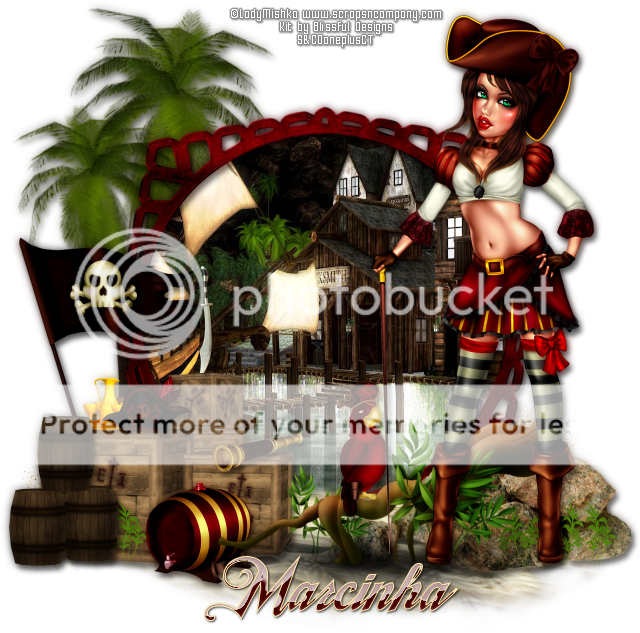
Pirate Molly

ARRRRRRR TUTORIAL


Tutorial written by Marcia Salgado on July 9th, 2016
for those who have a working knowledge of PSP.
I'm using PSP9 to create my tuts.
Any resemblance to any other tutorial is coincidental.
Do not copy and paste this tutorial anywhere on the net.
If you want to translate please ask first. 

****************************************
Material:

Tube: "Pirate Molly" by LadyMishka, you can purchase it here 
do not use without the proper #license.
PTU Kit "Pirate Molly" by Blissful Designs, you can purchase it here 
Font: TradeWind

****************************************

--> Remember to save often and use my tag as reference if necessary. Use a Drop Shadow of your preference on layers. 

1. Create a new image 650x650.

2. Open BD_PirateMollyElement (27). Resize 70%. Copy and paste as new layer. 

3. Open BD_PirateMollyElement (11). Resize 80%. Mirror. Copy and paste as new layer. Move it a little up and to left. Send it beloew frame layer. Duplicate. Resize 80%. Mirror. Place it in front of previous tree.

4. Open BD_PirateMollyElement (43). Copy and paste as new layer. Place it over the tree at bottom.

5. Click on frame layer. Select inside it. Expand > 8. Add a new layer and send it below frame layer. Open BD_PirateMollyPaper (2). Copy and paste into selection. Deselect.

6. Click on frame layer. Open BD_PirateMollyElement (22). Mirror. Copy and paste as new layer. Move it down.

7. Open BD_PirateMollyElement (18). Resize 35%. Copy and paste as new layer. Move it to left.

8. Open BD_PirateMollyElement (31). Resize 60%. Copy and paste as new layer. Move it down and to left. Keep it over the frame border.

9. Open BD_PirateMollyElement (33). Resize 20%. Copy and paste as new layer. Place it above the left box a little to left.

10. Open BD_PirateMollyElement (14). Resize 20%. Copy and paste as new layer. Place it over the middle box, move it a little down and erase the tip of the blade to look like it is spiked on the box.

11. Open BD_PirateMollyElement (17). Resize 15%. Copy and paste as new layer. Place it over the left box a little to right.

12. Open BD_PirateMollyElement (52). Resize 15%. Copy and paste as new layer. Place it above the right box.

13. Open BD_PirateMollyElement (72). Resize 20%. Copy and paste as new layer. Move it down and to left. between the left and the right boxes.

14. Open BD_PirateMollyElement (42). Resize 50%. Move it down and to the right.

15. Open BD_PirateMollyElement (23). Resize 20%. Copy and paste as new layer. Move it down and to right. Place it in front of the stones at bottom. Duplicate. Place it in front of the box on the left at bottom.

16. Open BD_PirateMollyElement (10). Resize 25%. Copy and paste as new layer. Move it down and way to left.

17. Open BD_PirateMollyElement (49). Resize 70%. Copy and paste as new layer. Move it down and to right.

18. Open BD_PirateMollyElement (65). Resize 25%. Copy and paste as new layer. Place it over the brach on the left side.

19. Open your tube. Resize. Copy and paste as new layer. Move it to right.

20. Use Crop > Mrged Opaque to get rid of all extra spaces.


--> Add your copyright info and license#. Add your name and save as PNG.


June 25, 2016

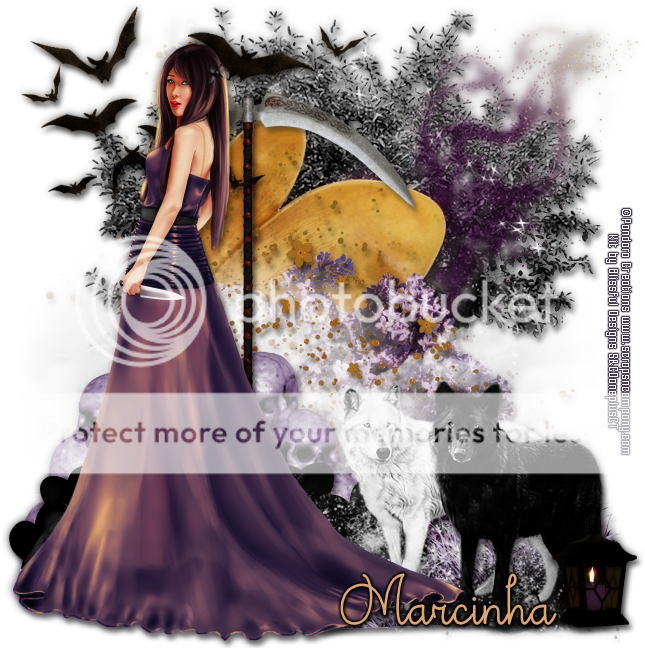
Sophie

DEEP TWILIGHT TUTORIAL


Tutorial written by Marcia Salgado on June 24th, 2016
for those who have a working knowledge of PSP.
I'm using PSP9 to create my tuts.
Any resemblance to any other tutorial is coincidental.
Do not copy and paste this tutorial anywhere on the net.
If you want to translate please ask first. 

****************************************
Material:

Tube: "Sophie" by Pandora Creations, you can purchase it here 
do not use without the proper #license.
PTU Kit "Sophie" by Blissful Designs, you can purchase it here 
Font: Theodista Decally

****************************************

--> Remember to save often and use my tag as reference if necessary. Use a Drop Shadow of your preference on layers. 


1. Create a new image 650x650.

2. Open BD_SophieElement (78). Copy and paste as new layer. Move it very little to right.

3. Open BD_SophieElement (35). Copy and paste as new layer. Move it to right.

4. Open BD_SophieElement (49). Copy and paste as new layer. 

5. Open BD_SophieElement (33). Resize 75%. Mirror. Copy and paste as new layer. 

6. Open BD_SophieElement (27). Resize 80%. Copy and paste as new layer. Move it down.

7. Open BD_SophieElement (64). Copy and paste as new layer. Move it a little down.

8. Open BD_SophieElement (71). Copy and paste as new layer. Move it down.

9. Open BD_SophieElement (32). Copy and paste as new layer. Move it down.

10. Open BD_SophieElement (39). Copy and paste as new layer. 

11. Open BD_SophieElement (61). Mirror. Copy and paste as new layer. Move it down and to left. Duplicate. Mirror. Place it on right side of the first one.

12. Open BD_SophieElement (30). Resize 50%. Copy and paste as new layer. Move it down and a little to left. Mirror. Flip. Place it on left side of the first one. Keep them over the skull pile on bottom.

13. Open BD_SophieElement (8). Copy and paste as new layer. Move it down.

14. Open BD_SophieElement (60). Copy and paste as new layer. Move it a little to left.

15. Open BD_SophieElement (69). Resize 45%. Copy and paste as new layer. Move it down and to right.

16. Open BD_SophieElement (22). Resize 65%. Copy and paste as new layer. Move it up and to left.

17. Open your tube. Resize it. Copy and paste as new layer. Move it to left. You may want to re-arrange the previous elemnts to better fit your tube.

18. Open BD_SophieElement (25). Resize 30%. Copy and paste as new layer. Move it down and way to right.


--> Add your copyright info and license#. Add your name and save as PNG.


Sophie


== NEW PTU SHOWOFF S&CO. CT ==
PANDORA CREATIONS AND BLISSFUL DESIGNS

Featuring "Sophie", a Pandora Creations tube and
 "Sophie", Blissful Designs kit at Scraps N Company - S&Co.

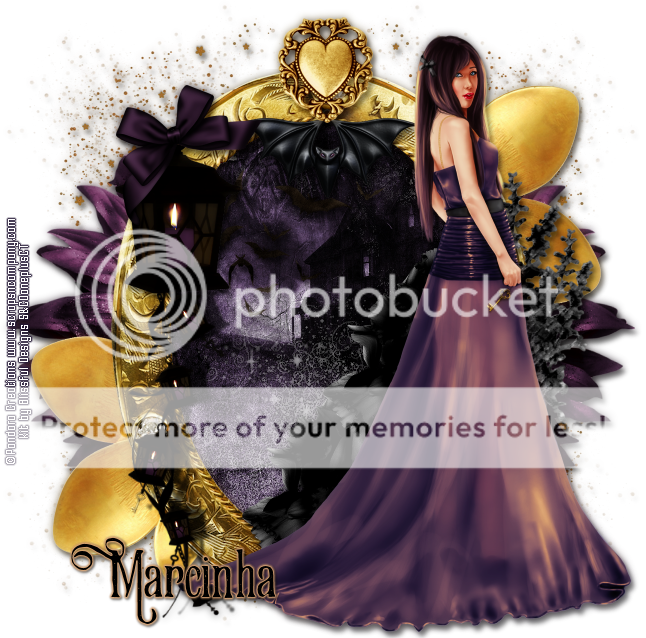
Sophie is a beautiful but darkish themed kit full of awesome elements in purple, gold and black with hints of white. It has 90 Elements and 10 Papers. PTU/PU Only. Made to match the awesome tube *Sophie* By Pandora Creations (Dark and Purple layers). Very versatile and can be used with any other tubes and artists you have.

Tube can be found  at:
-> Scraps N Company - S&Co., here 

Kit can be found  at:
-> Scraps N Company - S&Co., here 


May 13, 2016

Wings Denim

ANGELICAL BLUE TUTORIAL


Tutorial written by Marcia Salgado on May 13th, 2016
for those who have a working knowledge of PSP.
I'm using PSP9 to create my tuts.
Any resemblance to any other tutorial is coincidental.
Do not copy and paste this tutorial anywhere on the net.
If you want to translate please ask first. 

****************************************
Material:

Tube: "Wings Denim" by Andy Cooper, you can purchase it here 
do not use without the proper #license.
PTU Kit "Wings Denim" by Blissful Designs, you can purchase it here 
Font: featherly

****************************************

--> Remember to save often and use my tag as reference if necessary. Use a Drop Shadow of your preference on layers. 


1. Create a new image 650x650.

2. Open BD_WingsDenimElement (39). Copy and paste as new layer. Move it up.

3. Open BD_WingsDenimElement (76). Resize 75%. Copy and paste as new layer. Move it up and to left.

4. Open BD_WingsDenimElement (16). Resize 60%. Copy and paste as new layer. Move it to left.

5. Open BD_WingsDenimElement (51). Resize 75%. Mirror. Copy and paste as new layer. Move it a little down and to left.

6. Open BD_WingsDenimElement (84). Copy and paste as new layer. Move it down and to left.

7. Open BD_WingsDenimElement (15). Resize 65%. Mirror. Move it down and a little to left.

8. Open BD_WingsDenimElement (83). Resize 65%. Copy and paste as new layer. Move it down and to right.

9. Open BD_WingsDenimElement (54). Resize 60%. Mirror. Move it a little up.

10. Open BD_WingsDenimElement (5). Resize 65%. CopĂ˝ and paste as new layer. Move it a little to right.

11. Open BD_WingsDenimElement (70). Copy and paste as new layer. Move it way down and to left.

12. Open BD_WingsDenimElement (18). Resize 50%. Free Rotate: Right-90. Mirror. Copy and paste as new layer. Move it up and way to right.

13. Open BD_WingsDenimElement (38). Resize 70%. Free Rotate: Left-90. Copy and paste as new layer. Move it a little down and way to right.

14. Open BD_WingsDenimElement (65). Copy and paste as new layer. Move it to right. Rename this layer to FRAME.

15. Only Select inside the frame in the middle. Expand > 8. Add a new layer and move it below the frame layer. Rename the layer to BACK. Open BD_WingsDenimPaper (4). Copy and paste into selection. Keep selected.

16. Invert selection. Open your tube and resize it if needed. Copy and paste as new layer. Place it inside the frame. Delete. Select all. Clip to canvas. Crop to selection. Colorize: 0-0. Blend Mode: Hard Light. Rename this layer to COVER.

17. Click on FRAME layer. Select inside the first and third frames. Expand > 8. Click on BACK layer. Open BD_WingsDenimPaper (2). Copy and paste into selection. Deselect.

18. Click on COVER layer. Duplicate. Mirror. Place it inside the first frame. Duplicate and place it inside the third frame.

19. Click on FRAME layer. Open BD_WingsDenimElement (26). Resize 55%. Move it down and to right. Place it on left side of the frame at bottom.

20. Open your tube. Resize it. Copy and paste as new layer. Move it to right.

21. Use Crop > Merged Opaque to get rid of all extra spaces.


--> Add your copyright info and license#. Add your name and save as PNG.


April 18, 2016

The Beauty ~ by Joanne Salgado


Tutorial written by Joanne Salgado on April 13th, 2016
for those who have a working knowledge of PSP.
Any resemblance to any other tutorial is coincidental.
Do not copy and paste this tutorial anywhere on the net.
If you want to translate please ask first. 

Tube: The Beauty by Danny Lee - you can purchase here
Kit The Beauty by Blissful Designs - you can purchase here
Font: Theodista Decally

Don't forget to save often.
At any point if you have doubts check my tag.

1. Open a new image 650x550

2. Open element 'BD_TheBeautyElement (20)' copy and paste as new layer. Resize 90%. Arrange it to left.

3. Open element 'BD_TheBeautyElement (72)' copy and paste as new layer. Resize 50%. Move this layer below the arch layer. Arrange it to left.

4. Open element 'BD_TheBeautyElement (15)' copy and paste as new layer. Resize 50%. Arrange it to top left.

5. Open element 'BD_TheBeautyElement (62)' copy and paste as new layer. Resize 80%. Arrange it to right.

6. Open paper 'BD_ThebeautyPaper (9)' copy and paste as new layer. Arrange it inside the arch and clean the outside parts.

7. Open element 'BD_TheBeautyElement (63)' copy and paste as new layer. Arrange it a little to bottom.

8. Open element 'BD_TheBeautyElement (16)' copy and paste as new layer. 

9. Open element 'BD_TheBeautyElement (18)' copy and paste as new layer. Resize 50%. Mirror. Move this layer above the arch layer. Arrange it to top right of the arch.

10. Open element 'BD_TheBeautyElement (21)' copy and paste as new layer. Resize 50%. Arrange it to the left and clean the parts needed so it looks like its hanging from the arch.

11. Open element 'BD_TheBeautyElement (43)' copy and paste as new layer. Arrange it to bottom.

12. Open your tube. Copy and paste as new layer. Resize as needed and arrange it in the middle.

13. Open element 'BD_TheBeautyElement (45)' copy and paste as new layer. Resize 45%. Arrange it to bottom left. Duplicate. Mirror.

14. Open element 'BD_TheBeautyElement (44)' copy and paste as new layer. Arrange it to bottom.

15. Add shadow as you prefer.

16. Add copyright. Add name. Save as PNG.

March 26, 2016

Bunny 5

CUTE EASTER TUTORIAL


Tutorial written by Marcia Salgado on March 26th, 2016
for those who have a working knowledge of PSP.
I'm using PSP9 to create my tuts.
Any resemblance to any other tutorial is coincidental.
Do not copy and paste this tutorial anywhere on the net.
If you want to translate please ask first. 

****************************************
Material:

Tube: "Bunny 5", by LadyMishka Commission, you can purchase it here 
do not use without the proper #license.
PTU Kit "Bunny 5", by Blissful Designs, you can purchase it here 
Mask: Mask by Dee, DD_NFM_2015_4, here 
Font: Sunlight 

****************************************

--> Remember to save often and use my tag as reference if necessary. Use a Drop Shadow of your preference on layers. 


1. Create a new image 650x550

2. Open element 'BD_BunnyElement (8)' copy and paste as new layer. Arrange it to bottom.

3. Open element 'BD_BunnyElement (33)' copy and paste as new layer. Move this layer below the bridge layer. Arrange it to bottom.

4. Open element 'BD_BunnyElement (44)' copy and paste as new layer. Resize 30%. Arrange it to the bottom left behind the bridge a little above the grass we added there. (don't worry we'll add more elements there).

5. Open element 'BD_BunnyElement (63)' copy and paste as new layer. Resize 30%. Arrange it to the bottom left with the one we just added, a little more to the left of it.

6. Open element 'BD_BunnyElement (36)' copy and paste as new layer. Resize 50%. Arrange it to the bottom left in front of the flowers a little below it.

7. Open element 'BD_BunnyElement (1)' copy and paste as new layer. Resize 25%. Arrange it to the bottom left in front of the rocks there.

8. Open element 'BD_BunnyElement (35)' copy and paste as new layer. Resize 80%. Arrange it to the bottom right.

9. Open element 'BD_BunnyElement (71)' copy and paste as new layer. Resize 80%. Arrange it to the right.

10. Open your tube. Copy and paste as new layer. Resize as needed. Arrange it above the bridge. Clean the parts needed.

11. Open element 'BD_BunnyElement (30)' copy and paste as new layer. Resize 35%. Mirror. Move this layer above the bridge layer. Arrange it to bottom near the middle of the bridge.

12. open element 'BD_BunnyElement (69)' copy and paste as new layer. Resize 30%. Arrange it to bottom right.

13. Open element 'BD_BunnyElement (77)' copy and paste as new layer. Resize 30%. Arrange it to bottom left.

14. Open element 'BD_BunnyElement (5)' copy and paste as new layer. Resize 30%. Arrange it to botom right.

15. Open element BD_BunnyElement (16)' copy and paste as new layer. Resize 12%. Arrange it in front of the eggs at bottom left.

16. Open element 'BD_BunnyElement (49)' copy and paste as new layer. Resize 25%. Arrange it to bottom left.

17. Open element 'BD_BunnyElement (12)' copy and paste as new layer. Resize 20%. Arrange it near the basket (to the right).

18. Open element 'BD_BunnyElement (70)' copy and paste as new layer. Resize 40%. Arrange it to bottom right.

19. Open element 'BD_BunnyElement (32)' copy and paste as new layer. Resize 90%.


--> Add your copyright info and license#. Add your name and save as PNG.