Showing posts with label Lil Mz's Brainstorms Kits. Show all posts

November 20, 2016

SHOW OFF - Amazon


== NEW PTU TUTORIAL S&CO. CT ==
FOR MARIEL AND A LIL MZ BRAINSTORM

Featuring "Amazon" tube by Mariel and
"Amazon" Kit by A Lil Mz Brainstorm at Scraps N Company - S&Co.

Tube by Mariel - you can purchase here

Kit by A Lil Mz Brainstorm - you can purchase here


October 30, 2016

Month Pink

DEEP ROSE TUTORIAL


Tutorial written by Marcia Salgado on October 26th, 2016
for those who have a working knowledge of PSP.
I'm using PSP9 to create my tuts.
Any resemblance to any other tutorial is coincidental.
Do not copy and paste this tutorial anywhere on the net.
If you want to translate please ask first. 

****************************************
Material:

Tube: "Month Pink" by Andy Cooper, you can purchase it here 
do not use without the proper #license.
PTU Kit "Month Pink" by Lil Mz's Brainstorms, you can purchase it here 
Font: KG One Thing

****************************************

--> Remember to save often and use my tag as reference if necessary. Use a Drop Shadow of your preference on layers. 


1. Create a new image 650x650.

2. Open LMB_MonthPink_Element (100). Copy and paste as new layer. Move it up.

3. Open LMB_MonthPink_Element (14). Resize 75%. Copy and paste as new layer. Move it down and to right.

4. Open LMB_MonthPink_Element (68). Free Rotate: Left-30. Copy and paste as new layer. Move it down and to right.

5. Open LMB_MonthPink_Element (31). Resize 30%. Free Rotate: Left-25. Copy and paste as new layer. Move it up.

6. Open LMB_MonthPink_Element (6). Copy and paste as new layer. Move it down.

7. Open LMB_MonthPink_Element (73). Copy and paste as new layer. Move it to right.

8. Open LMB_MonthPink_Element (36). Resize 65%. Copy and paste as new layer. Move it down and to left.

9. Open LMB_MonthPink_Element (67). Resize 50%. Free Rotate: Left-90. Copy and paste as new layer. Move it a little up and to left.

10. Open LMB_MonthPink_Element (34). Resize 50%. Copy and paste as new layer. Place it over the previous roses.

11. Open LMB_MonthPink_Element (16). Free Rotate: Right-20. Copy and paste as new layer. Move it to right.

12. Select inside the frame. Expand > 5. Add a new layer and move it below the frame layer.

13. Open LMB_MonthPink_Paper (5). Copy and paste into selection. Deselect.

14. Click on frame layer. Open LMB_MonthPink_Element (15). Resize 50%. Copy and paste as new layer. Place it over the golden frame a little to right.

15. Open your tube. Resize. Copy and paste as new layer. Move it to left and a little down.

16. Use Crop > Merged Opaque to get rid of all extra spaces.


--> Add your copyright info and license#. Add your name and save as PNG.


September 17, 2016

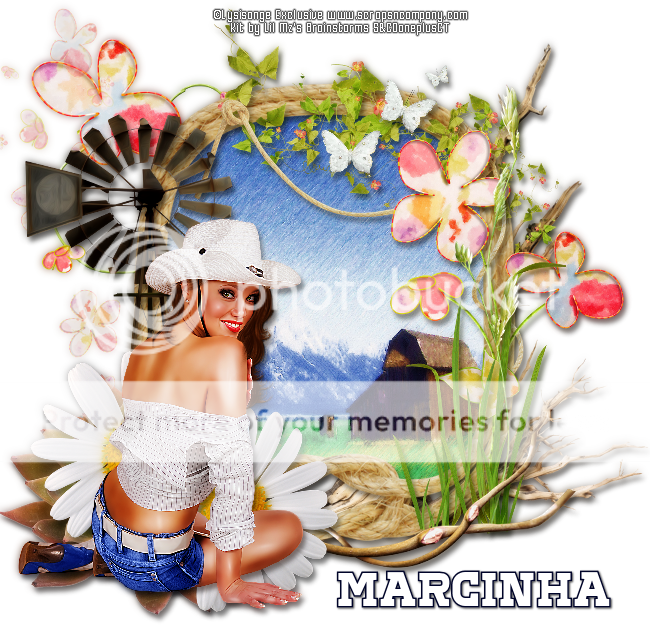
Far West

PINUP COWGIRL TUTORIAL


Tutorial written by Marcia Salgado on September 9th, 2016
for those who have a working knowledge of PSP.
I'm using PSP9 to create my tuts.
Any resemblance to any other tutorial is coincidental.
Do not copy and paste this tutorial anywhere on the net.
If you want to translate please ask first. 

****************************************
Material:

Tube: "Far West" by Lysisange, you can purchase it here 
do not use without the proper #license.
PTU Kit "Far West" by Lil Mzs Brainstorms, you can purchase it here 
Font: Corduroy

****************************************

--> Remember to save often and use my tag as reference if necessary. Use a Drop Shadow of your preference on layers. 


1. Open LMB_FarWest_Element (68). Resize 80%. Copy and paste as new layer.

2. Open LMB_FarWest_Element (72). Mirror. Copy and paste as new layer. Move it way to right. Send this layer below the frame layer.

3. Open LMB_FarWest_Element (39). Resize 45%. Copy and paste as new layer. Move down and to left.

4. Open LMB_FarWest_Element (90). Resize 80%. Copy and paste as new layer. <ove up and to left.

5. Click on frame layer. Select inside. Open LMB_FarWest_Paper (16).  Copy and paste into selection. Deselect.

6. Click on frame layer again. Open LMB_FarWest_Element (95). Resize 60%. Copy and paste as new layer. Move it up and a little to right.

7. Open LMB_FarWest_Element (69). Resize 55%. Copy and paste as new layer. Move it up and hang it on the frame.

8. Open LMB_FarWest_Element (74). Resize 60%. Copy and paste as new layer. Move it to left.

9. Open LMB_FarWest_Element (89). Resize 60%. Copy and paste as new layer. Move it to right.

10. Open LMB_FarWest_Element (34). Resize 45%. Copy and paste as new layer. Move it down and to left.

11. Open LMB_FarWest_Element (35). Resize 75%. Copy and paste as new layer. Move it to left.

12. Open LMB_FarWest_Element (32). Resize 25%. Mirror. Copy and paste as new layer. Move it up and to right.

13. Open LMB_FarWest_Element (45). Resize 75%. Copy and paste as new layer. Move it down and a littlt to right.

14. Open LMB_FarWest_Element (41). Resize 35%. Copy and paste as new layer. Move it down and to left. Duplicate and move it a little more down and to right.

15. Open your tube. Resize it. Copy and paste as new layer. I mirrored mine. Move it to left and place it over the daisies.

16. Use Crop < Merged Opaque to get rid of all extra space.


--> Add your copyright info and license#. Add your name and save as PNG.


June 29, 2016

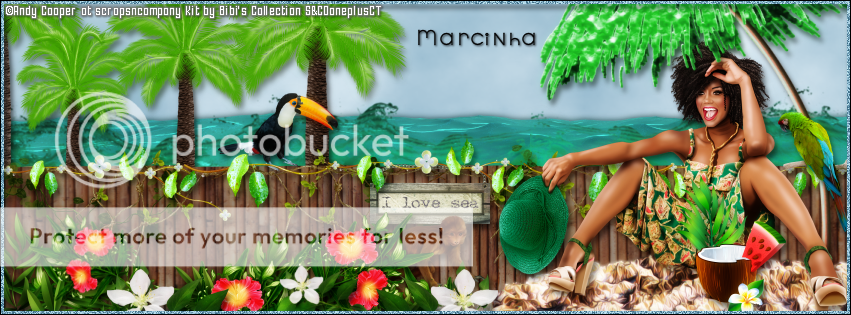
Afrobeach with Jamaican Beach

IN THE BEACH TUTORIAL

**Click to see original size**

Tutorial written by Marcia Salgado on June 25th, 2016
for those who have a working knowledge of PSP.
I'm using PSP9 to create my tuts.
Any resemblance to any other tutorial is coincidental.
Do not copy and paste this tutorial anywhere on the net.
If you want to translate please ask first. 

****************************************
Material:

Tube: "Afrobeach" by Andy Cooper, you can purchase it here 
do not use without the proper #license.
PTU Kit "Jamaican Beach" by Lil Mz's Brainstorms, you can purchase it here 
Plugin: MuRa's Meister
Font: SNF Metro

****************************************

--> Remember to save often and use my tag as reference if necessary. Use a Drop Shadow of your preference on layers. 


1. Create a new image 851x315.

2. Add anew layer. Use MuRa's Meister > Cloud with colors #76d7d9 and white as foreground and background colors.


3. Open LMB_JamaicanBeach_Element (105). Copy and paste as new layer. Move it way to left. Duplicate. Mirror. Fix the position moving the copy to right. Merge down.

4. Open LMB_JamaicanBeach_Element (106). Copy and paste as new layer. Move it way to left. Duplicate. Mirror. Fix the position moving the copy to right. Merge down.

5. Open LMB_JamaicanBeach_Element (46). Copy and paste as new layer. Move it a little up and to left.

6. Open LMB_JamaicanBeach_Element (35). Resize 50%. Copy and paste as new layer. Apply MuRa's Meister as shown below. Move it down.


7. Open LMB_JamaicanBeach_Element (24). Resize 20%. Copy and paste as new layer. Place it on the fence.

8. Open LMB_JamaicanBeach_Element (17). Resize 40%. Copy and paste as new layer. Duplicate and place it on the fence on 2 different places. Merge these 2 layers together.

9. Open LMB_JamaicanBeach_Element (18). Resize 40%. Copy and paste as new layer. Duplicate it twice and place it over the fence. Merge these 3 layers together.

10. Open LMB_JamaicanBeach_Element (75). Resize 20%. Copy and paste as new layer. Place it on the fence at the middle.

11. Open LMB_JamaicanBeach_Element (39). Resize 20%. Mirror. Copy and paste as new layer. Place it below the plaque.

12. Open LMB_JamaicanBeach_Element (8). Resize 40%. Copy and paste as new layer. Duplicate it twice. Place it on the fence. Merge these 3 layers together.

13. Open LMB_JamaicanBeach_Element (9). Resize 25%. Copy and paste as new layer. Duplicate and place it on the fence. Try to alternate this one with the previous element.

14. Open LMB_JamaicanBeach_Element (89). Resize 75%. Copy and paste as new layer. Move it way to the right. Duplicate and turn the copy invisible. Click on original layer to continue.

15. Open LMB_JamaicanBeach_Element (43). Resize 30%. Mirror. Copy and paste as new layer.

16. Open LMB_JamaicanBeach_Element. Copy and paste as new layer.

17. Open your tube. Resize. Copy and paste as new layer. Move it way to right.

18. Turn the copy visible again. Select the part that is over the tube head. Invert selection. Delete.

19. Open LMB_JamaicanBeach_Element (44). Resize 25%. Mirror. Copy and paste as new layer.

20. Open LMB_JamaicanBeach_Element (42). Resize 50%. Copy and paste as new layer.

21. Open LMB_JamaicanBeach_Element (29). Resize 25%. Copy and paste as new layer.

22. Open LMB_JamaicanBeach_Element (59). Resize 25%. Copy and paste as new layer.

23. Open LMB_JamaicanBeach_Element (27). Resize 20%. Copy and paste as new layer.

24. Add a new layer. Select all. Fill it with #76d7d9. Contract > 5. Delete. Deselect. Add noise > Uniform - 60 - Monochrome.

25. Add a new layer. Select all. Fill with black. Contract > 1. Delete. Deselect.


--> Add your copyright info (no URL by Facebook TOU) and license#. 
Add your name or initials. Save as PNG.

--> Sometimes I had to change my Timeline size to 846x313 because when I add it to Facebook the image has extra pixels and do not fit perfectly. So try this size if the same is happening to you.


------------------------------------------------------------------------

Here the Picture Profile I made for this Timeline.


June 12, 2016

Lucky Red ~ by Joanne Salgado


Tutorial written by Joanne Salgado on June 12th, 2016
for those who have a working knowledge of PSP.
I'm using PSP9 to create my tuts.
Any resemblance to any other tutorial is coincidental.
Do not copy and paste this tutorial anywhere on the net.
If you want to translate please ask first. 

****************************************
Material:

Tube: "Lucky Girl" by Pandora Creations - you can purchase it here
do not use without the proper #license.
PTU Kit "Lucky" by A Lil Mz Brainstorm - you can purchase it here
Font: AndantinoJF

****************************************

Don't forget to save often.
At any point if you have doubts check my tag.

1. Open a new image 650x550

2. Open paper 'LMB_Lucky_Paper (2)' copy and paste as new layer. Apply mask. Merge group.

3. Open element 'LMB_Lucky_Element (71)' copy and paste as new layer. Arrange it to bottom. I don't really like when it looks all square, so I used Freehand Selection Tool with 2 feather and 2 smoothing and made my way. You just need the floor, clean the rest too.

4. Open element 'LMB_Lucky_Element (47)' copy and paste as new layer. Resize 50%. Arrange it to the top left.

5. Open element 'LMB_Lucky_Element (16)' copy and paste as new layer. Resize 35%. Arrange it to the left.

6. Open element 'LMB_Lucky_Element (29)' copy and paste as new layer. Resize 35%. Arrange it to the left.

7. Open element 'LMB_Lucky_Element (6)' copy and paste as new layer. Resize 60%. Arrange it to the top right.

8. Open paper 'LMB_Lucky_Paper (8)' copy and paste as new layer. Resize 60%. Arrange it inside the window and clean the outside parts.

9. Open element 'LMB_Lucky_Element (37)' copy and paste as new layer. Resize 50%. Arrange it at the bottom right of the window.

10. Open element 'LMB_Lucky_Element (15)' copy and paste as new layer. Resize 70%. Arrange it to the top left of the window.

11. Open element 'LMB_Lucky_Element' copy and paste as new layer. Resize 80%. Arrange it to bottom.

12. Open your tube. Copy and paste as new layer. Resize as needed and arrange it sitting at the couch.

13. Open element 'LMB_Lucky_Element (48)' copy and paste as new layer. Resize 50%. Arrange it to the bottom left.

14. Open element 'LMB_Lucky_Element (46)' copy and paste as new layer. Resize 7%. Arrange it to the bottom left.

15. Open element 'LMB_Lucky_Element (21)' copy and paste as new layer. Resize 10%. Arrange it in your tube's hands. Clean so it looks like its holding it.

16. Open element 'LMB_Lucky_Element (44)' copy and paste as new layer. Resize 8%. Arrange it above the couch.

17. Open element 'LMB_Lucky_Element (100)' copy and paste as new layer. Resize 10%. Arrange it above the couch.

18. Open element 'LMB_Lucky_Element (3)' copy and paste as new layer. Resize 25%. Arrange it to the bottom left.

19. Open element 'LMB_Lucky_Element (4)' copy and paste as new layer. Resize 20%. Arrange it to the bottom left.

20. Open element 'LMB_Lucky_Element (65)' copy and paste as new layer. Resize 25%. Arrange it to the bottom right.

21. Open element 'LMB_Lucky_Element (87)' copy and paste as new layer. Resize 8%. Arrange it to the bottom right.

22. Open element 'LMB_Lucky_Element (56)' copy and paste as new layer. Arrange it a little to the top.

23. Open element 'LMB_Lucky_Element (13)' copy and paste as new layer. Resize 15%. Arrange it above the couch.

24. Open element 'LMB_Lucky_Element (45)' copy and paste as new layer. Resize 7%. Arrange it to the bottom left.

25. Open element 'LMB_Lucky_Element (19)' copy and paste as new layer. Resize 10%. Arrange it to the top left above the window.

26. Add shadow as you prefer.

27. Add copyright. Add name. Save as PNG.

May 1, 2016

Heaven ~ by Joanne Salgado


Tutorial written by Joanne Salgado on May 1th, 2016
for those who have a working knowledge of PSP.
Any resemblance to any other tutorial is coincidental.
Do not copy and paste this tutorial anywhere on the net.
If you want to translate please ask first. 

Tube: Heaven by Lil Mz's Brainstorms
Kit Heaven by Bibi's Collection
HEAVEN STORE COLLAB - you can purchase here
Font: Capella

Don't forget to save often.
At any point if you have doubts check my tag.

1. Open a new image 650x550

2. Open element 'BIBI-HEAVEN ELEMS (96)' copy and paste as new layer. Resize 55%. Arrange it to the top left.

3. Open element 'BIBI-HEAVEN ELEMS (52)' copy and paste as new layer. Resize 40%. Arrange it to the bottom right.

4. Open element 'BIBI-HEAVEN ELEMS (74)' copy and paste as new layer. Arrange it to the top right. Duplicate. Mirror. Arrange it to the bottom left.

5. Open element 'BIBI-HEAVEN ELEMS (93)' copy and paste as new layer. Resize 45%. Rotate left 15. Arrange it to the bottom left.

6. Open element 'BIBI-HEAVEN ELEMS (89)' copy and paste as new layer. Resize 60%. Move this layer below the frame layer. Arrange it to the right.

7. Open element 'BIBI-HEAVEN ELEMS (69)' copy and paste as new layer. Arrange it to the bottom left.

8. Open element 'BIBI-HEAVEN ELEMS (80)' copy and paste as new layer. Resize 50%. Arrange it to the right.

9. Open element 'BIBI-HEAVEN ELEMS (39)' copy and paste as new layer. Resize 50%. Arrange it to the bottom right.

10. Open element 'BIBI-HEAVEN ELEMS (82)' copy and paste as new layer. Resize 30%. Mirror. Arrange it to the top right.

11. Open element 'BIBI-HEAVEN ELEMS (98)' copy and paste as new layer. Resize 55%. Arrange it to the bottom left inside the frame. Don't worry about the parts that appears outside. Its supposed too.

12. Open element 'BIBI-HEAVEN PAPER (5)' copy and paste as new layer. Resize 25%. Rotate left 15. Arrange it inside the frame. Change blend mode to multiply. Opacity to 30.

13. Open element 'BIBI-HEAVEN ELEMS (25)' copy and paste as new layer.

14. Open element 'BIBI-HEAVEN ELEMS (28)' copy and paste as new layer. Arrange it to the right. Move this layer above the frame layer.

15. Open element 'BIBI-HEAVEN ELEMS (29)' copy and paste as new layer. Resize 35%. Arrange it above the frame.

16. Open element 'BIBI-HEAVEN ELEMS (21)' copy and paste as new layer. Resize 70%. Arrange it to the top left.

17. Open element 'BIBI-HEAVEN ELEMS (32)' copy and paste as new layer. Resize 50%. Arrange it to the top left.

18. Open element 'BIBI-HEAVEN ELEMS (49)' copy and paste as new layer. Resize 50%. Arrange it to the bottom left.

19. Open element 'BIBI-HEAVEN ELEMS (38)' copy and paste as new layer. Resize 50%. Arrange it to the bottom left.

20. Open element 'BIBI-HEAVEN ELEMS (67)' copy and paste as new layer. Resize 30%. Arrange it to the bottom left.

21. Open your tube. Copy and paste as new layer. Resize as needed and arrange it a little to the right.

22. Open element 'BIBI-HEAVEN ELEMS (54)' copy and paste as new layer. Resize 55%. Arrange it to the bottom left.

23. Open element 'BIBI-HEAVEN ELEMS (10)' copy and paste as new layer. Arrange it a little to the left.

24. Open element 'BIBI-HEAVEN ELEMS (47)' copy and paste as new layer. Resize 50%. Arrange it to the bottom.

25. Open element 'BIBI-HEAVEN ELEMS (91)' copy and paste as new layer. Resize 50%. Arrange it to the top left.

26. Open element 'BIBI-HEAVEN ELEMS (55)' copy and paste as new layer. Resize 55%. Arrange it to the bottom.

27. Add shadow as you prefer.

28. Add copyright. Add name. Save as PNG.

April 18, 2016

Country Girl ~ by Joanne Salgado


Tutorial written by Joanne Salgado on April 09th, 2016
for those who have a working knowledge of PSP.
Any resemblance to any other tutorial is coincidental.
Do not copy and paste this tutorial anywhere on the net.
If you want to translate please ask first. 

Tube: Country Girl by Lysisange - you can purchase here
Kit Country Girl by A Lil Mz Brainstorm - you can purchase here
Font: White Pine

Don't forget to save often.
At any point if you have doubts check my tag.

1. Open a new image 650x550

2. Open element 'LMB_CountryGirl_Element (76)' copy and paste as new layer.

3. Open element 'LMB_CountryGirl_Element (64)' copy and paste as new layer. Resize 80%. Arrange it to top right.

4. Open element 'LMB_CountryGirl_Element (98)' copy and paste as new layer. Arrange it to bottom.

5. Open element 'LMB_CountryGirl_Element (104)' copy and paste as new layer. Arrange it to bottom.

6. Open element 'LMB_CountryGirl_Element (103)' and using the freehand selection tool select some flowers, copy and paste as new layer. Arrange it on the tree.

7. Open your tube. Copy and paste as new layer. Resize as needed and arrange it sitting above the wall.

8. Open element 'LMB_CountryGirl_Element (46)' copy and paste as new layer. Resize 50%. Arrange it to bottom left.

9. Open element 'LMB_CountryGirl_Element (33)' copy and paste as new layer. Resize 40%. Arrange it to bottom.

10. Open element 'LMB_CountryGirl_Element (31)' copy and paste as new layer. Resize 50%. Arrange it to bottom left.

11. Open element 'LMB_CountryGirl_Element (43)' copy and paste as new layer. Resize 15%. Arrange it to bottom left.

12. Open element 'LMB_CountryGirl_Element (55)' copy and paste as new layer. Resize 15%. Arrange it above the wagon wheel.

13. Open element 'LMB_CountryGirl_Element (78)' copy and paste as new layer. Resize 30%. Arrange it to bottom.

14. Open element 'LMB_CountryGirl_Element (39)' copy and paste as new layer. Resize 50%. Arrange it to bottom right.

15. Open element 'LMB_CountryGirl_Element (60)' copy and paste as new layer. Resize 25%. Arrange it to bottom left.

16. Open element 'LMB_CountryGirl_Element (37)' copy and paste as new layer. Resize 30%. Arrange it to bottom right.

17. Open element 'LMB_CountryGirl_Element (91)' copy and paste as new layer. Resize 25%. Arrange it to bottom right above the sack.

18. Open element 'LMB_CountryGirl_Element (26)' copy and paste as new layer. Resize 30%. Arrange it to bottom a little to the right.

19. Open element 'LMB_CountryGirl_Element (36)' copy and paste as new layer. Resize 30%. Arrange it to bottom right.

20. Open element 'LMB_CountryGirl_Element (27)' copy and paste as new layer. Resize 25%. Arrange it to bottom right.

21. Add shadow as you prefer.

22. Add copyright. Add name. Save as PNG.

April 5, 2016

Marion ~ by Joanne Salgado


Tutorial written by Joanne Salgado on April 05th, 2016
for those who have a working knowledge of PSP.
Any resemblance to any other tutorial is coincidental.
Do not copy and paste this tutorial anywhere on the net.
If you want to translate please ask first. 

Tube: Marion by Chris Pastel - you can purchase here
Kit Marion by A Lil Mz Brainstorm - you can purchase here
Font: Esplanade Script

Don't forget to save often.
At any point if you have doubts check my tag.

1. Open a new image 650x550

2. Open element 'LMB_Marion_Element (56)' copy and paste as new layer.

3. Open element 'LMB_Marion_Element (78)' copy and paste as new layer. Resize 50%. Move this layer below the frame layer. Arrange it to top right. Duplicate. Mirror/Flip.

4. Open element 'LMB_Marion_Element (30)' copy and paste as new layer.

5. Open element 'LMB_Marion_Element (60)' copy and paste as new layer. Arrange it to top.

6. Open element 'LMB_Marion_Element (61)' copy and paste as new layer. Arrange it to top right.

7. Open element 'LMB_Marion_Element (39)' copy and paste as new layer. Resize 50%. Arrange it to bottom.

8. Open element 'LMB_Marion_Element (64)' copy and paste as new layer. Resize 50%. Arrange it to bottom left.

9. Open element 'LMB_Marion_Element (58)' copy and paste as new layer. Resize 50%. Arrange it to top left.

10. Open element 'LMB_Marion_Element (10)' copy and paste as new layer. Resize 80%.

11. Open element 'LMB_Marion_Element (11)' copy and paste as new layer. Resize 90%.

12. Open element 'LMB_Marion_Element (84)' copy and paste as new layer. Arrange it to bottom.

13. Open paper 'LMB_Marion_Paper' copy and paste as new layer. Resize 65%. Arrange inside the frame and clean the outside parts.

14. Open element 'LMB_Marion_Element (38)' copy and paste as new layer.

15. Open element 'LMB_Marion_Element (17)' copy and paste as new layer. Move this layer above the frame layer. Arrange it to the top of the frame.

16. Open element 'LMB_Marion_Element (70)' copy and paste as new layer. Resize 40%. Arrange it to top left.

17. Open element 'LMB_Marion_Element (14)' copy and paste as new layer. Arrange it to top by the middle.

18. Open your tube. Copy and paste as new layer. Resize as needed and arrange it to bottom right.

19. Open element 'LMB_Marion_Element (74)' copy and paste as new layer. Arrange it to bottom.

20. Open element 'LMB_Marion_Element (31)' copy and paste as new layer. Resize 30%. Mirror. Arrange it to bottom.

21. Add shadow as you prefer.

22. Add copyright. Add name. Save as PNG.

March 30, 2016

Bunny 3 ~ by Joanne Salgado


Tutorial written by Joanne Salgado on March 30th, 2016
for those who have a working knowledge of PSP.
Any resemblance to any other tutorial is coincidental.
Do not copy and paste this tutorial anywhere on the net.
If you want to translate please ask first. 

Tube: Bunny 3 by LadyMishka - you can purchase here
Kit Bunny 3 by A Lil Mz Brainstorm - you can purchase here
Font: Claudia

Don't forget to save often.
At any point if you have doubts check my tag.

1. Open a new image 650x550

2. Open element 'LMB_Bunny3 (31)' copy and paste as new layer. Resize 80%.

3. Open element 'LMB_Bunny3 (4)' copy and paste as new layer. Move this layer below the frame layer. Arrange it to the top left.

4. Open element 'LMB_Bunny3 (65)' copy and paste as new layer. Arrange it to the top. Duplicate. Mirror/Flip.

5. Open element 'LMB_Bunny3 (91)' copy and paste as new layer. Resize 50%. Arrange it to the bottom left. Duplicate. Mirror/Flip.

6. Open element 'LMB_Bunny3 (28)' copy and paste as new layer. Resize 50%. Arrange it to the top left. Duplicate. Mirror/Flip.

7. Open element 'LMB_Bunny3 (66)' copy and paste as new layer.

8. Open paper 'LMB_Bunny3_Paper (12)' copy and paste as new layer. Resize 37%. Arrange it inside the frame and clean the outside parts.

9. Open element 'LMB_Bunny3 (81)' copy and paste as new layer. Resize 50%. Arrange it to the top left inside the frame.

10. Open element 'LMB_Bunny3 (101)' copy and paste as new layer. Arrange it to bottom inside the frame and clean the outside parts.

11. Open element 'LMB_Bunny3 (76)' copy and paste as new layer. Arrange it to bottom inside the frame and clean the outside parts.

12. Open element 'LMB_Bunny3 (23)' copy and paste as new layer. Arrange it to bottom.

13. Open element 'LMB_Bunny3 (100)' copy and paste as new layer. Clean outside the frame.

14. Open element 'LMB_Bunny3 (25)' copy and paste as new layer. Move this layer above the frame layer. Arrange it to top.

15. Open element 'LMB_Bunny3 (106)' copy and paste as new layer. Resize 30%. Arrange it to the top left.

16. Open your tube. Copy and paste as new layer. Resize as needed. Arrange it to the right.

17. Open element 'LMB_Bunny3 (75)' copy and paste as new layer. Resize 25%. Arrange it to right.

18. Open element 'LMB_Bunny3 (73)' copy and paste as new layer. Resize 30%. Arrange it to bottom left of the frame.

19. Open element 'LMB_Bunny3 (38)' copy and paste as new layer. Resize 95%.

20. Add shadow as you prefer.

21. Add copyright. Add name. Save as PNG.

March 24, 2016

Polka Rabbit ~ by Joanne Salgado


Tutorial written by Joanne Salgado on March 23th, 2016
for those who have a working knowledge of PSP.
Any resemblance to any other tutorial is coincidental.
Do not copy and paste this tutorial anywhere on the net.
If you want to translate please ask first. 

Tube: Polka Rabbit by Andy Cooper - you can purchase here
Kit Polka Rabbit by A Lil Mz Brainstorm - you can purchase here
Font: A.D.MONO

Don't forget to save often.
At any point if you have doubts check my tag.

1. Open a new image 650x550

2. Open element 'LMB_PolkaRabbit_Element (58)' copy and paste as new layer. Resize 80%.

3. Open element 'LMB_PolkaRabbit_Element (60)' copy and paste as new layer. Move this layer below the frame layer. Arrnge it to the bottom right.

4. Open element 'LMB_PolkaRabbit_Element (43)' copy and paste as new layer. Arrange it to the bottom left.

5. Open element 'LMB_PolkaRabbit_Element (40)' copy and paste as new layer. Mirror. Arrange it to the bottom right.

6. Open element 'LMB_PolkaRabbit_Element (20)' copy and paste as new layer. Arrange it to the top right. Clean the lower part that appears outside the frame.

7. Open paper 'LMB_PolkaRabbit_Paper' copy and paste as new layer. Resize 50%. Arrange it inside the frame and clean the outside parts.

8. Open paper 'LMB_PolkaRabbit_Paper (2)' copy and paste as new layer. Resize 50%. Arrange it inside the frame and clean the outside parts. Change blend mode to Luminance (L). Change opacity to 30.

9. Open element 'LMB_PolkaRabbit_Element (53)' copy and paste as new layer. Rotate left 11. Arrange it to the bottom inside the frame. Clean the outside parts.

10. Open element 'LMB_PolkaRabbit_Element (81)' copy and paste as new layer. Resize 30%. Move this layer below the fence layer. Arrange it to the bottom left inside the frame, appear a little above the fence.

11. Open element 'LMB_PolkaRabbit_Element (75)' copy and paste as new layer. Resize 30%. Arrange it by the right side of the one we just added.

12. Open element 'LMB_PolkaRabbit_Element (71)' copy and paste as new layer. Resize 30%. Arrange it by the right side of the last one.

13. Open element 'LMB_PolkaRabbit_Element (74)' copy and paste as new layer. Resize 30%. Mirror. Arrange by the right side of the last one.

14. Open element 'LMB_PolkaRabbit_Element (73)' copy and paste as new layer. Resize 30%. Mirror. Arrange by the right side of the last one (should be at the bottom right inside the frame - the last one).

15. Open element 'LMB_PolkaRabbit_Element (42)' copy and paste as new layer. Arrange it to the bottom inside the frame, below the top of the fence. Clean the outside parts.

16. Open element 'LMB_PolkaRabbit_Element (5)' copy and paste as new layer. Rotate left 11. Move this layer above the frame layer. Arrange it to the bottom of the frame and clean what appears outside the frame.

17. Open element 'LMB_PolkaRabbit_Element (41)' copy and paste as new layer. Resize 50%. Arrange it to the top right above the frame.

18. Open element 'LMB_PolkaRabbit_Element (83)' copy and paste as new layer. Resize 15%. Arrange it to the left above the fence.

19. Open element 'LMB_PolkaRabbit_Element (50)' copy and paste as new layer. Resize 15%. Arrange it to the top above the frame.

20. Open element 'LMB_PolkaRabbit_Element (79)' copy and paste as new layer. Resize 50%. Arrange it to the top left above the frame.

21. Open element 'LMB_PolkaRabbit_Element (64)' copy and paste as new layer. Resize 50%. Mirror. Arrange it to the top right above the frame.

22. Open element 'LMB_PolkaRabbit_Element (80)' copy and paste as new layer. Resize 50%. Arrange it to the bottom right above the frame.

23. Open element 'LMB_PolkaRabbit_Element (92)' copy and paste as new layer. Resize 30%. Arrange it to the bottom left of the frame (by the side)

24. Open element 'LMB_PolkaRabbit_Element (69)' copy and paste as new layer. Resize 50%. Arrange it to the bottom left (will be at the bottom left corner of the frame).

25. Open your tube. Copy and paste as new layer. Resize as needed and arrange it a little to the right.

26. Open element 'LMB_PolkaRabbit_Element (91)' copy and paste as new layer. Resize 20%. Mirror. Arrange it to the bottom right of the frame. (will be at the corner).

27. Open element 'LMB_PolkaRabbit_Element (46)' copy and paste as new layer. Resize 25%. Arrange it to the bottom left in front of the egg we added.

28. Open element 'LMB_PolkaRabbit_Element (4)' copy and paste as new layer. Resize 10%. Mirror. Arrange it behind the pink bunny we added at the bottom left of the frame. (to the left of the bunny).

29. Open element 'LMB_PolkaRabbit_Element (87)' copy and paste as new layer. Resize 10%. Arrange it to the bottom right of the frame behind the bunny there (to the right of the bunny).

30. Open element 'LMB_PolkaRabbit_Element (96)' copy and paste as new layer. Resize 10%. Arrange it to the bottom left behing the sheep (to the right of the sheep).

31. Open element 'LMB_PolkaRabbit_Element (97)' copy and paste as new layer. Resize 10%. Arrange it to the bottom left behing the sheep (to the left of the sheep).

32. Open element 'LMB_PolkaRabbit_Element (2)' copy and paste as new layer. Resize 10%. Arrange it to the bottom right behind the bunny (to the left of the bunny).

33. Add shadow as you prefer.

34. Add copyright. Add name. Save as PNG.

March 13, 2016

Isabel Blue

SEDUCTION IN BLUE TUTORIAL


Tutorial written by Marcia Salgado on March 14th, 2016
for those who have a working knowledge of PSP.
I'm using PSP9 to create my tuts.
Any resemblance to any other tutorial is coincidental.
Do not copy and paste this tutorial anywhere on the net.
If you want to translate please ask first. 

****************************************
Material:

Tube: "Isabel Blue" by Pandora Creations, you can purchase it here 
do not use without the proper #license.
PTU Kit "Isabel Blue" by Lil Mz's Brainstorms, you can purchase it here 
Font: Kazincbarcika Script

****************************************

--> Remember to save often and use my tag as reference if necessary. Use a Drop Shadow of your preference on layers. 

1. Open a new image 650x550

2. Open element 'LMB_IsabelBlue_Element (14)' copy and paste as new layer. Resize 75%. Sharpen.

3. Open element 'LMB_IsabelBlue_Element (35)' copy and paste as new layer. Move this layer below the frame layer. Arrange it to the bottom right. Duplicate. Mirror/Flip.

4. Open element 'LMB_IsabelBlue_Element (40)' copy and paste as new layer. Resize 90%. Arrange it to the right. Duplicate. Mirror/Flip.

5. Open element 'LMB_IsabelBlue_Element (43)' copy and paste as new layer. Arrange it to the left. Duplicate. Flip.

6. Open element 'LMB_IsabelBlue_Element (19)' copy and paste as new layer. Resize 50%. Arrange it to the top.

7. Open element 'LMB_IsabelBlue_Element (23)' copy and paste as new layer. Resize 50%. Arrange it to the top right.

8. Open element 'LMB_IsabelBlue_Element (26)' copy and paste as new layer. Resize 50%. Arrange it to the right.

9. Open element 'LMB_IsabelBlue_Element (45)' copy and paste as new layer. Resize 50%. Arrange it to the right.

10. Open element 'LMB_IsabelBlue_Element (28)' copy and paste as new layer. Resize 50%. Arrange it to the bottom left.

11. Open element 'LMB_IsabelBlue_Element (48)' copy and paste as new layer. Resize 50%. Arrange it to the bottom right.

12. Open element 'LMB_IsabelBlue_Element (17)' copy and paste as new layer. Resize 50%. Arrange it to the top left.

13. Open element 'LMB_IsabelBlue_Element (52)' copy and paste as new layer. Resize 50%. Flip. Arrange it to the left.

14. Open element 'LMB_IsabelBlue_Element (24)' copy and paste as new layer. Resize 50%. Arrange it to the left.

15. Open paper 'LMB_IsabelBlue_Paper (11)' copy and paste as new layer. Resize 40%. Clean the parts outside the frame.

16. Open element 'LMB_IsabelBlue_Element (10)' copy and paste as new layer.

17. Open element 'LMB_IsabelBlue_Element (34)' copy and paste as new layer. Resize 90%. Arrange it to the left. Duplicate. Arrange it to the right. Duplicate. Arrange in the middle and this one clean the parts outside the frame.

18. Open element 'LMB_IsabelBlue_Element (56)' copy and paste as new layer. Resize 80%. Move this layer above the frame layer. Arrange it to the top left.

19. Open element 'LMB_IsabelBlue_Element (89)' copy and paste as new layer. Clean all the other hearts and keep only the center big one. Arrange it to the bottom left.

20. Open element 'LMB_IsabelBlue_Element (65)' copy and paste as new layer. Resize 30%. Arrange it to the top left.

21. Open your tube. Copy and paste as new layer. Resize as needed and arrange it to the right.


--> Add your copyright info and license#. Add your name and save as PNG.

Sadie ~ by Joanne Salgado


Tutorial written by Joanne Salgado on March 13th, 2016
for those who have a working knowledge of PSP.
Any resemblance to any other tutorial is coincidental.
Do not copy and paste this tutorial anywhere on the net.
If you want to translate please ask first. 

Tube: Sadie by Kelly Lynn
Kit Day at the Beach by A Lil Mz Brainstorm
Pretty Colors Collab - you can purchase here
Font: A.D.MONO

Don't forget to save often.
At any point if you have doubts check my tag.

1. Open a new image 650x550

2. Open element 'LMB_SNCFREECOLLAB_Element (3)' copy and paste as new layer.

3. Open element 'LMB_SNCFREECOLLAB_Element' copy and paste as new layer. Resize 80%. Mirror. Move this layer below the frame layer. Arrange it to the top left.

4. Open element 'LMB_SNCFREECOLLAB_Element (33)' copy and paste as new layer. Resize 50%. Mirror. Arrange it to the top left.

5. Open paper 'LMB_SNC_FreeCollab_Paper' copy and paste as new layer. Resize 50%. Arrange inside the frame and clean the parts outside.

6. Open element 'LMB_SNCFREECOLLAB_Element (22)' copy and paste as new layer. Arrange inside the frame and clen the outside parts.

7. Open element 'LMB_SNCFREECOLLAB_Element (24)' copy and paste as new layer. Arrange it to the bottom of the frame and clean the outside parts.

8. Open element 'LMB_SNCFREECOLLAB_Element (10)' copy and paste as new layer. Resize 40%. Arrange it to the bottom right inside the frame and clean the outside parts.

9. Open element 'LMB_SNCFREECOLLAB_Element (25)' copy and paste as new layer. Resize 40%. Arrange it to the bottom right inside the frame and clean the outside parts.

10. Open element 'LMB_SNCFREECOLLAB_Element (19)' copy and paste as new layer. Resize 30%. Arrange it to the bottom left inside the frame and clean the outside parts.

11. Open element 'LMB_SNCFREECOLLAB_Element (14)' copy and paste as new layer. Arrange it to the left and clean the outside parts.

12. Open element 'LMB_SNCFREECOLLAB_Element (26)' copy and paste as new layer. Arrange it to the left inside the frame and clean the outside parts.

13. Open element 'LMB_SNCFREECOLLAB_Element (37)' copy and paste as new layer. Resize 30%. Move this layer above the frame layer. Arrange it to the bottom right.

14. Open element 'LMB_SNCFREECOLLAB_Element (36)' copy and paste as new layer. Resize 30%. Mirror. Arrange it to the bottom right.

15. Open element 'LMB_SNCFREECOLLAB_Element (20)' copy and paste as new layer. Resize 50%. Rotate right 15. Arrange it to the top right of the frame.

16. Open element 'LMB_SNCFREECOLLAB_Element (30)' copy and paste as new layer. Resize 25%. Arrange it to the bottom right.

17. Open element 'LMB_SNCFREECOLLAB_Element (29)' copy and paste as new layer. Resize 25%. Arrange it to the bottom left of the frame.

18. Open your tube. Copy and paste as new layer. Resize as needed and arrange it a little to the left.

19. Add shadow as you prefer.

20. Add copyright. Add name. Save as PNG.

March 11, 2016

Patrick Dress

LUCKY ONE TUTORIAL


Tutorial written by Marcia Salgado on March 11th, 2016
for those who have a working knowledge of PSP.
I'm using PSP9 to create my tuts.
Any resemblance to any other tutorial is coincidental.
Do not copy and paste this tutorial anywhere on the net.
If you want to translate please ask first. 

****************************************
Material:

Tube: "Patrick Dress" by Andy Cooper, you can purchase it here 
do not use without the proper #license.
PTU Kit "Patrick Dress PU" by Lil Mz's Brainstorms, you can purchase it here 
Font: Egregio Script_demo

****************************************

--> Remember to save often and use my tag as reference if necessary. Use a Drop Shadow of your preference on layers. 

1. Open a new image 650x550

2. Open element 'LMB_PatrickDress_Element (88)' copy and paste as new layer.

3. Open element 'LMB_PatrickDress_Element (85)' copy and paste as new layer. Move this layer below the frame layer. Arrange it to bottom.

4. Open element 'LMB_PatrickDress_Element (56)' copy and paste as new layer. Arrange it to top.

5. Open element 'LMB_PatrickDress_Element (2)' copy and paste as new layer. Resize 50%. Arrange it to the top left.

6. Open element 'LMB_PatrickDress_Element (5)' copy and paste as new layer. Resize 50%. Arrange it to the top right.

7. Open element 'LMB_PatrickDress_Element (105)' copy and paste as new layer. Resize 70%. Rotate right 90. Arrange it to the right. Duplicate. Flip. Duplicate. Mirror. Duplicate. Flip.

8. Open paper 'LMB_PatrickDress_Paper (15)' copy and paste as new layer. Resize 45%. Arrange it inside the frame and clean the outside parts.

9. Open element 'LMB_PatrickDress_Element (31)' copy and paste as new layer. Arrange it to the top inside the frame. Clean the outside parts.

10. At this point, go back to every layer we added and clean inside the open windows so nothing appears there. (see mine for exemple).

11. Open element 'LMB_PatrickDress_Element (28)' copy and paste as new layer. Resize 20%. Rotate right 20. Arrange it to the right.

12. Open element 'LMB_PatrickDress_Element (33)' copy and paste as new layer. Resize 30%. Arrange it to the right above the horseshoe.

13. Open element 'LMB_PatrickDress_Element (30)' copy and paste as new layer. Resize 20%. Arrange it to the right to the left of the clover.

14. Open element 'LMB_PatrickDress_Element (110)' copy and paste as new layer. Resize 30%. Arrange it to the right as its standing on the window. It will be in front of the elements we added there.

15. Open element 'LMB_PatrickDress_Element (24)' copy and paste as new layer. Resize 25%. Rotate right 20. Arrange it to the top right of the window.

16. Open element 'LMB_PatrickDress_Element (15)' copy and paste as new layer. Resize 80%. Arrange it to the left. Duplicate. Mirror.

17. Open element 'LMB_PatrickDress_Element (16)' copy and paste as new layer.

18. Open your tube. Copy and paste as new layer. Resize as needed and arrange it as its sitting on the window.

19. Open element 'LMB_PatrickDress_Element (9)' copy and paste as new layer. Resize 20%. Rotate left 20. Arrange it to the bottom right.

20. Open element 'LMB_PatrickDress_Element (39)' copy and paste as new layer. Resize 50%. Move this layer below the small branch we added earlier. Arrange as you like. You can see mine for reference.

21. Open element 'LMB_PatrickDress_Element' copy and paste as new layer. Resize 20%. Mirror. Arrange it in front of the tube's left hand.


--> Add your copyright info and license#. Add your name and save as PNG.

March 6, 2016

Cute Cyberpunk ~ by Joanne Salgado


Tutorial written by Joanne Salgado on March 06th, 2016
for those who have a working knowledge of PSP.
Any resemblance to any other tutorial is coincidental.
Do not copy and paste this tutorial anywhere on the net.
If you want to translate please ask first. 

Tube: Cute Cyberpunk by Danny Lee - you can purchase here
Kit Cyberpunk by Lil Mz's Brainstorms - you can purchase here
Font: Andover

Don't forget to save often.
At any point if you have doubts check my tag.


1. Open a new image 650x550

2. Open element 'LMB_CyberPunk_Element (8)' copy and paste as new layer. Resize 80%.

3. Open element 'LMB_CyberPunk_Element (25)' copy and paste as new layer. Move this layer below the frame layer. Arrange it to the right. Duplicate. Rotate 90 left. Arrange it to bottom.

4. Open element 'LMB_CyberPunk_Element (35)' copy and paste as new layer. Resize 40%. Arrange it to the bottom right.

5. Open element 'LMB_CyberPunk_Element (42)' copy and paste as new layer. Resize 90%. Mirror. Arrange it to the right.

6. Open element 'LMB_CyberPunk_Element (24)' copy and paste as new layer. Resize 90%. Arrange it to the top left.

7. Open element 'LMB_CyberPunk_Element (53)' copy and paste as new layer. Arrange it to bottom.

8. Open element 'LMB_CyberPunk_Element (103)' copy and paste as new layer. Arrange it to the right. Duplicate. Mirror/Flip.

9. Open element 'LMB_CyberPunk_Element (30)' copy and paste as new layer. Resize 40%. Arrange it to the top left. Duplicate. Mirror/Flip.

10. Open element 'LMB_CyberPunk_Element (3)' copy and paste as new layer. Resize 40%. Arrange it to the top right. Duplicate. Mirror/Flip.

11. Open element 'LMB_CyberPunk_Element (4)' copy and paste as new layer. Resize 40% Arrange it to the top left. Duplicate. Arrange it to the right below the red circle we added.

12. Open element 'LMB_CyberPunk_Element (19)' copy and paste as new layer. Resize 40%. Arrange it to the bottom left. Duplicate. Arrange it to the top right above the red circle we added.

13. Open paper 'LMB_CyberPunk_Paper (15)' copy and paste as new layer. Resize 40%. Arrange it inside the frame and clean the outside parts.

14. Open your tube. Copy and paste as new layer. Resize as needed. Arrange it inside the frame, clean the lower part of the tube so it looks like its coming from inside the frame.

15. Add shadow as you prefer.

16. Add copyright. Add name. Save as PNG.