Showing posts with label Chris Pastel. Show all posts

September 20, 2016

Donia Catrina ~ by Joanne Salgado


Tutorial written by Joanne Salgado on September 20th, 2016
for those who have a working knowledge of PSP.
I'm using PSP9 to create my tuts.
Any resemblance to any other tutorial is coincidental.
Do not copy and paste this tutorial anywhere on the net.
If you want to translate please ask first. 

****************************************
Material:

Tube: "Donia Catrina" by Chris Pastel - you can purchase it here
do not use without the proper #license.
PTU Kit "Donia Catrina" by Rieneke Designs - you can purchase it here
Font: Tenebrae

****************************************

Don't forget to save often.
At any point if you have doubts check my tag.

1. Open a new image 650x550

2. Open element 'RD-DoniaCatrina-element (30)' copy and paste as new layer. Arrange it to bottom.

3. Open element 'RD-DoniaCatrina-element (34)' copy and paste as new layer. Resize 50%. Mirror. Arrange it to the top left.

4. Open paper 'RD-DoniaCatrina-paper (2)' copy and paste as new layer. Resize 50%. We will add frame now, arrange it inside the frame and clean the outside parts.

5. Open element 'RD-DoniaCatrina-element (28)' copy and paste as new layer. Resize 80%. Arrange it a little to the top.

6. Open element 'RD-DoniaCatrina-element (4)' copy and paste as new layer. Resize 60%. Arrange it to the top right.

7. Open your tube. Copy and paste as new layer. Resize as needed and arrange it to the left.

8. Open element 'RD-DoniaCatrina-element (49)' copy and paste as new layer. Resize 50%. Arrange it to the bottom right.

9. Open element 'RD-DoniaCatrina-element (3)' copy and paste as new layer. Resize 40%. Arrange it to the bottom right.

10. Open element 'RD-DoniaCatrina-element (13)' copy and paste as new layer. Resize 20%. Arrange it to the bottom right.

11. Open element 'RD-DoniaCatrina-element (10)' copy and paste as new layer. Resize 30%. Mirror. Arrange it to the bottom left.

12. Open element 'RD-DoniaCatrina-element (46)' copy and paste as new layer. Resize 15%. Rotate left 15. Arrange it to the bottom right.

13. Open element 'RD-DoniaCatrina-element (12)' copy and paste as new layer. Resize 50%. Mirror. Arrange it to the top right. Duplicate. Flip.

14. Add shadow as you prefer.

15. Add copyright. Add name. Save as PNG.

April 18, 2016

Spring Music ~ by Joanne Salgado


Tutorial written by Joanne Salgado on April 10th, 2016
for those who have a working knowledge of PSP.
Any resemblance to any other tutorial is coincidental.
Do not copy and paste this tutorial anywhere on the net.
If you want to translate please ask first. 

Tube: Spring Music 3 by Chris Pastel - you can purchase here
Kit Spring Music 3 by Rieneke Designs - you can purchase here
Font: Lemonade

Don't forget to save often.
At any point if you have doubts check my tag.

1. Open a new image 650x550

2. Open element 'RD-SpringMusic3-element (4)' copy and paste as new layer. Resize 80%.

3. Open paper 'RD-SpringMusic3-paper (6)' copy and paste as new layer. Resize 40%. Move this layer below the frame layer.

4. Open your tube. Copy and paste as new layer. Resize as needed and arrange it inside the frame. Move this layer above the frame layer. Clean the parts needed so it looks like the tube is inside the frame.

5. Open element 'RD-SpringMusic3-element (14)' copy and paste as new layer. Resize 50%. Arrange it to the left.

6. Open element 'RD-SpringMusic3-element (23)' copy and paste as new layer. Resize 70%. Arrange it to top left.

7. Open element 'RD-SpringMusic3-element (19)' copy and paste as new layer. Resize 30%. Arrange it to left a little to bottom.

8. Open element 'RD-SpringMusic3-element (1)' copy and paste as new layer. Resize 50%. Arrange it to top right.

9. Open element 'RD-SpringMusic3-element (11)' copy and paste as new layer. Resize 30%. Arrange it to bottom left.

10. Open element 'RD-SpringMusic3-element (18)' copy and paste as new layer. Resize 30%. Arrange it to bottom left.

11. Open element 'RD-SpringMusic3-element (17)' copy and paste as new layer. Resize 50%. Mirror. Arrange it to bottom right.

12. Open element 'RD-SpringMusic3-element (5)' copy and paste as new layer. Resize 50%. Arrange it to bottom right.

13. Open element 'RD-SpringMusic3-element (12)' copy and paste as new layer. Resize 50%. Arrange it to bottom right.

14. Open element 'RD-SpringMusic3-element (31)' copy and paste as new layer. Resize 30%. Arrange it to bottom left.

15. Open element 'RD-SpringMusic3-element (45)' copy and paste as new layer. Resize 50%. Arrange it to top left.

16. Open element 'RD-SpringMusic3-element (35)' copy and paste as new layer. Resize 50%. Arrange it to bottom a little to the left.

17. Open element 'RD-SpringMusic3-element (29)' copy and paste as new layer. Resize 30%. Arrange it to bottom.

18. Open element 'RD-SpringMusic3-element (37)' copy and paste as new layer. Resize 25%. Arrange it to bottom.

19. Open element 'RD-SpringMusic3-element (46)' copy and paste as new layer. Arrange it to the left.

20. Add shadow as you prefer.

21. Add copyright. Add name. Save as PNG.

April 5, 2016

Marion ~ by Joanne Salgado


Tutorial written by Joanne Salgado on April 05th, 2016
for those who have a working knowledge of PSP.
Any resemblance to any other tutorial is coincidental.
Do not copy and paste this tutorial anywhere on the net.
If you want to translate please ask first. 

Tube: Marion by Chris Pastel - you can purchase here
Kit Marion by A Lil Mz Brainstorm - you can purchase here
Font: Esplanade Script

Don't forget to save often.
At any point if you have doubts check my tag.

1. Open a new image 650x550

2. Open element 'LMB_Marion_Element (56)' copy and paste as new layer.

3. Open element 'LMB_Marion_Element (78)' copy and paste as new layer. Resize 50%. Move this layer below the frame layer. Arrange it to top right. Duplicate. Mirror/Flip.

4. Open element 'LMB_Marion_Element (30)' copy and paste as new layer.

5. Open element 'LMB_Marion_Element (60)' copy and paste as new layer. Arrange it to top.

6. Open element 'LMB_Marion_Element (61)' copy and paste as new layer. Arrange it to top right.

7. Open element 'LMB_Marion_Element (39)' copy and paste as new layer. Resize 50%. Arrange it to bottom.

8. Open element 'LMB_Marion_Element (64)' copy and paste as new layer. Resize 50%. Arrange it to bottom left.

9. Open element 'LMB_Marion_Element (58)' copy and paste as new layer. Resize 50%. Arrange it to top left.

10. Open element 'LMB_Marion_Element (10)' copy and paste as new layer. Resize 80%.

11. Open element 'LMB_Marion_Element (11)' copy and paste as new layer. Resize 90%.

12. Open element 'LMB_Marion_Element (84)' copy and paste as new layer. Arrange it to bottom.

13. Open paper 'LMB_Marion_Paper' copy and paste as new layer. Resize 65%. Arrange inside the frame and clean the outside parts.

14. Open element 'LMB_Marion_Element (38)' copy and paste as new layer.

15. Open element 'LMB_Marion_Element (17)' copy and paste as new layer. Move this layer above the frame layer. Arrange it to the top of the frame.

16. Open element 'LMB_Marion_Element (70)' copy and paste as new layer. Resize 40%. Arrange it to top left.

17. Open element 'LMB_Marion_Element (14)' copy and paste as new layer. Arrange it to top by the middle.

18. Open your tube. Copy and paste as new layer. Resize as needed and arrange it to bottom right.

19. Open element 'LMB_Marion_Element (74)' copy and paste as new layer. Arrange it to bottom.

20. Open element 'LMB_Marion_Element (31)' copy and paste as new layer. Resize 30%. Mirror. Arrange it to bottom.

21. Add shadow as you prefer.

22. Add copyright. Add name. Save as PNG.

March 20, 2016

Melissa ~ by Joanne Salgado


Tutorial written by Joanne Salgado on March 21th, 2016
for those who have a working knowledge of PSP.
Any resemblance to any other tutorial is coincidental.
Do not copy and paste this tutorial anywhere on the net.
If you want to translate please ask first. 

Tube: Melissa by Chris Pastel - you can purchase here
Kit Luv Bunny by Scrappin with lil ole me - you can purchase here
Font: A.D.MONO

Don't forget to save often.
At any point if you have doubts check my tag.


1. Open a new image 700x600

2. Open element 'cm_el97' copy and paste as new layer. Resize 80%.

3. Open element 'cm_el4' copy and paste as new layer. Move this layer below the frame layer. Arrange it to the bottom right. Duplicate. Mirror. Duplicate. Flip. Duplicate. Mirror.

4. Open element 'cm_el33' copy and paste as new layer. Arrange it to the bottom left. Duplicate. Mirror. Duplicate. Flip. Duplicate. Mirror.

5. Open element 'cm_el48' copy and paste as new layer. Resize 70%. Arrange it to the bottom right. Duplicate. Mirror. Duplicate. Flip. Duplicate. Mirror.

6. Open element 'cm_el47' copy and paste as new layer. Resize 70%. Arrange it to the top left.

7. Open element 'cm_el55' copy and paste as new layer. Resize 70%. Arrange it to the bottom left.

8. Open element 'cm_el99' copy and paste as new layer. Resize 70%. Arrange it to the bottom right.

9. Open element 'cm_el56' copy and paste as new layer. Resize 70%. Arrange it to bottom.

10. Open element 'cm_el34' copy and paste as new layer. Resize 70%. Arrange it to the left.

11. Open element 'cm_el42' copy and paste as new layer. Resize 70%. Arrange it to the top right.

12. Open paper 'cm_p12' copy and paste as new layer. Resize 45%. Arrange it inside the frame and clean the outside parts.

13. Open your tube. Copy and paste as new layer. Move this layer above the frame layer. Resize as needed and arrange it as its coming from inside the frame.

14. Open element 'cm_el23' copy and paste as new layer. Resize 40%. Arrange it to the bottom right above the frame.

15. Open element 'cm_el17' copy and paste as new layer. Resize 50%. Arrange it to the bottom left.

16. Open element 'cm_el18' copy and paste as new layer. Resize 35%. Arrange it to the top right of the frame.

17. Open element 'CM_EL6' copy and paste as new layer. Resize 50%. Arrange it to the bottom right.

18. Open element 'cm_el89' copy and paste as new layer. Resize 30%. Arrange it to the bottom right, a little to the left of the bunny we added.

19. Open element 'cm_el22' copy and paste as new layer. Flip. Arrange it to the bottom left. Duplicate. Mirror/Flip. If needed clean the sparkles from your tube's and the bunny's face.

20. Add shadow as you prefer.

21. Add copyright. Add Name. Save as PNG.

September 15, 2015

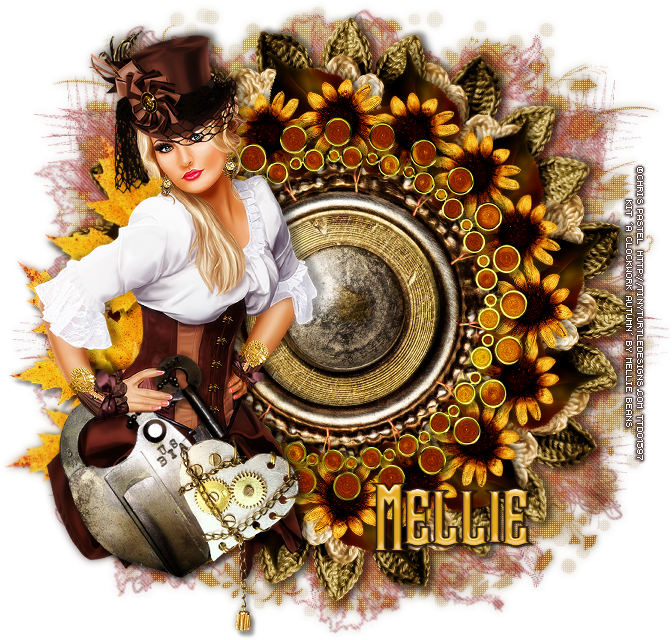
A Clock Work Autumn


I made this tag for an Auction at BAS - Bag-A-Snag Forum
and it only can have two copies, one with my name and one with the auction winner's name.


== NEW CT MELLIE BEANS PTU TAGS ==

Featuring "A Clock Work Autumn" by Mellie Beans
at Mystical Scraps Store and Heartbeatz Creationz.

This Steampunk themed Autumn kit is a must have for every Steampunk lover! 
Mellie Bean's kit has 92 elements, 4 wordarts and 10 papers so you can play with it. The colors are beautiful and you can create different styles of tags.

Kit can be found at:

-> Mystical Scraps Store, here

-> Heartbeatz Creationz, here

Visit her blog:


August 23, 2015

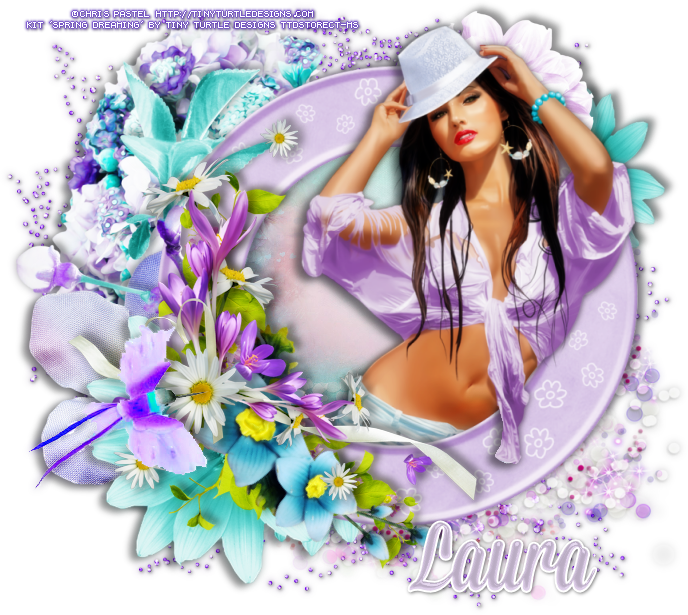
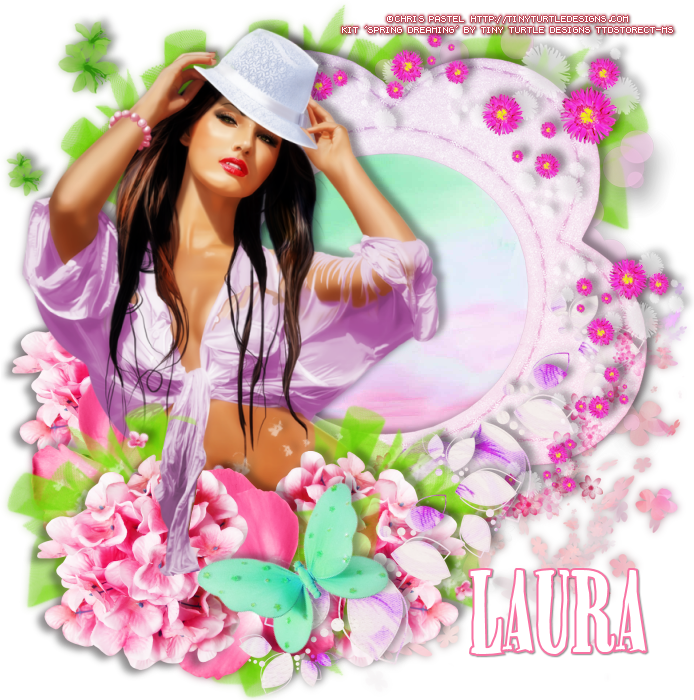
Spring Dreaming with Shana - Show Off


== NEW PTU TAG TINY TURTLE DESIGNS CT ==
AND THE ART OF CHRIS PASTEL

Featuring "Shana", a Chris Pastel tube and
"Spring Dreaming", Tiny Turtle Design kit at TinyTurtleDesign Store.

Tiny Turtle Design kit has 43 papers and 214 elements so you can play with it. 

Chris Pastel's tube can be found  at:
-> TinyTurtleDesign Store, here

Tiny Turtle Design kit can be found  at:
-> TinyTurtleDesign Store, here


August 12, 2015

SHOW OFF - Joanne Salgado


== NEW PTU TAG TINY TURTLE DESIGNS CT ==
AND THE ART OF CHRIS PASTEL

Featuring "Tenderness", tube by Chris Pastel and 
"Noir Melody", Tiny Turtle Design kit at TinyTurtleDesign Store. 

Chris Pastel's tube can be found  at:
-> TinyTurtleDesign Store, here

Tiny Turtle Design kit can be found  at:
-> TinyTurtleDesign Store, here


July 10, 2015

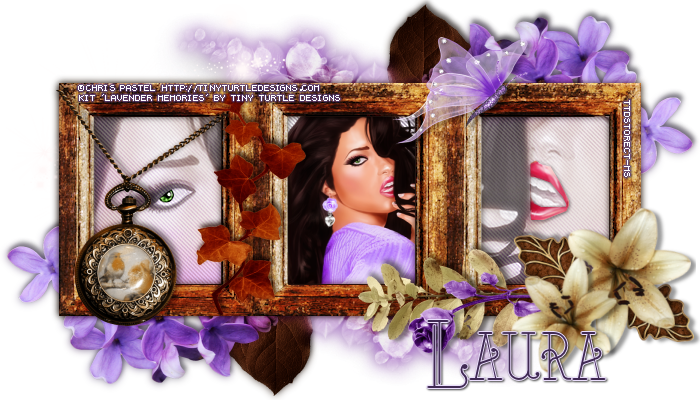
Lavender Memories with Marine - Show Off


== NEW PTU TAG TINY TURTLE DESIGNS CT ==
AND THE ART OF CHRIS PASTEL

Featuring "Marine", a Chris Pastel tube 
and "Lavender Memories", Tiny Turtle Design kit at TinyTurtleDesign Store.

Tiny Turtle Design kit has 31 papers and 112 elements so you can play with it. 

Chris Pastel's tube can be found  at:
-> TinyTurtleDesign Store, here


Tiny Turtle Design kit can be found  at:
-> TinyTurtleDesign Store, here


June 27, 2015

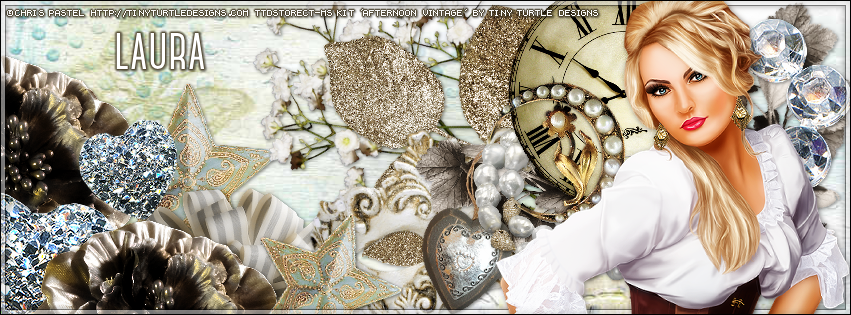
Afternoon Vintage with Marianne - Show Off


**Click to see original size**


== NEW PTU TAG TINY TURTLE DESIGNS CT ==
AND THE ART OF CHRIS PASTEL

Featuring "Marianne", a Chris Pastel tube 
and "Afternoon Vintage", Tiny Turtle Design kit at TinyTurtleDesign Store.

Tiny Turtle Design kit has 36 papers and 118 elements so you can play with it. 

Chris Pastel's tube can be found  at:
-> TinyTurtleDesign Store, here

Tiny Turtle Design kit can be found  at:
-> TinyTurtleDesign Store, here


May 15, 2015

Oceane ~ by Joanne Salgado


Tutorial written by Joanne Salgado on May 15th, 2015
for those who have a working knowledge of PSP.
Any resemblance to any other tutorial is coincidental.
Do not copy and paste this tutorial anywhere on the net.
If you want to translate please ask first. 

Tube: Oceane by Chris Pastel - you can purchase here
Kit Oceane by Whisper In The Wind - you can purchase here
Mask by Dee (first one) here
Font: Lineal Simpes St

Don't forget to save often.
At any point if you have doubts check my tag.

1. Open a new image 600x500

2. Open element 'Oceane El 44' copy and paste as new layer. Resize 80%. Arrange it to bottom.

3. Open your tube. Copy and paste as new layer. Resize as you prefer and arrange it to the bottom.

4. Open element 'Oceane El 54' copy and paste as new layer. Resize 40%. Move this layer below the tube layer. Arrange it to the bottom right.

5. Open element 'Oceane El 55' copy and paste as new layer. Resize 30%. Arrange it to the bottom right.

6. Open element 'Oceane El 69' copy and paste as new layer. Resize 70%. Arrange it to the top.

7. Open element 'Oceane El 62' copy and paste as new layer. Resize 30%. Arrange it to the top right. Move this layer below the bubbles layer.

8. Open element 'Oceane El 34' copy and paste as new layer. Resize 30%. Arrange it to the left.

9. Open element 'Oceane El 39' copy and paste as new layer. Resize 20%. Arrange it to the bottom. Move this above the tube layer.

10. Open paper 'Oceane Paper 11' copy and paste as new layer. Resize 75%. Arrange this layer to the bottom (below everything). Open your mask, apply it to the paper. Merge Group. Flip.

11. Open element 'Oceane El 92' copy and paste as new layer. Resize 75%. Arrange it to bottom. Move this layer above above the tube layer.

12. Open element 'Oceane El 96' copy and paste as new layer. Resize 60%. Arrange it to the left. Duplicate. Mirror.

13. Open element 'Oceane El 85' copy and paste as new layer. Resize 15%. Arrange it to bottom left. Move this below the bubbles layer.

14. Open element 'Oceane El 75' copy and paste as new layer. Resize 20%. Arrange it in the middle.

15. Add shadow. I used: 1-1-65-2 #808080.

16. Add name. I used: Lineal Simpes St / size: 36

Save as PNG