Showing posts with label Whisper In The Wind. Show all posts

February 2, 2016

Love Bear ~ by Joanne Salgado


Tutorial written by Joanne Salgado on February 02th, 2016
for those who have a working knowledge of PSP.
Any resemblance to any other tutorial is coincidental.
Do not copy and paste this tutorial anywhere on the net.
If you want to translate please ask first. 

Tube: Love Bear by Mariel - you can purchase here
Kit Love Bear by Whisper in the Wind - you can purchase here
Font: Alex Brush

Don't forget to save often.
At any point if you have doubts check my tag.

1. Open a new image 650x550

2. Open element 'WITWLoveBearFrame2' copy and paste as new layer. Resize 70%.

3. Open element 'WITWLoveBearEl26' copy and paste as new layer. Resize 50%. Move this layer below the frame layer. Arrange it to the top left. Duplicate. Arrange it to the right.

4. Open element 'WITWLoveBearEl64' copy and paste as new layer. Resize 50%. Arrange it to the left. Duplicate. Arrange it to the bottom right. Now clean all the parts of the flowers that appears inside the transparent area of the frame.

5. Open paper 'WITWLoveBearPaper6' copy and paste as new layer. Resize 50%. Clean the parts that appears outside it.

6. Open element 'WITWLoveBearEl102' copy and paste as new layer. Resize 70%. Arrange it to the right. Duplicate. Mirror/Flip.

7. Open element 'WITWLoveBearEl7' copy and paste as new layer. Resize 70%. Arrange it to the top right.

8. Open your tube. Copy and paste as new layer. Resize as you prefer. Arrange it to the left.

9. Open element 'WITWLoveBearEl72' copy and paste as new layer. Resize 25%. Rotate left 25. Arrange it to the right.

10. Open element 'WITWLoveBearEl85' copy and paste as new layer. Resize 25%. Arrange it to the top left of the butterfly.

11. Add shadow as you prefer.

12. Add copyright. Add name. Save as PNG.

August 8, 2015

Gothic Dina ~ by Joanne Salgado


Tutorial written by Joanne Salgado on August 08th, 2015
for those who have a working knowledge of PSP.
Any resemblance to any other tutorial is coincidental.
Do not copy and paste this tutorial anywhere on the net.
If you want to translate please ask first. 

Tube: Gothic Dina by Ishika Chowdhury - you can purchase here
Kit Gothic Dina by Whisper In The Wind - you can purchase here
Font: Mirielle

Don't forget to save often.
At any point if you have doubts check my tag.

1. Open a new image 650x550

2. Open element 'WITWGothicDina El 70png' copy and paste as new layer. Resize 70%. Arrange it to bottom.

3. Open element 'WITWGothicDina El 16' copy and paste as new layer. Resize 60%. Arrange it to the bottom left.

4. Open element 'WITWGothicDina El 6' copy and paste as new layer. Resize 50%. Arrange it behind the couch (move the layer below the couch layer).

5. Open element 'WITWGothicDina El 36' copy and paste as new layer. Resize 50%. Arrange it behind the couch to the left.

6. Open element 'WITWGothicDina El 48' copy and paste as new layer. Resize 50%. Arrange it behind the couch to the right.

7. Open element 'WITWGothicDina El 27' copy and paste as new layer. Resize 60%. Move this layer above the couch layer. Arrange it to the center.

8. Open element 'WITWGothicDina El 47' copy and paste as new layer. Resize 20%. Mirror. Arrange it above the couch to the left.

9. Open your tube. Copy and paste as new layer. Resize as you prefer and arrange it a little to the right.

10. Open element 'WITWGothicDina El 72png' copy and paste as new layer. Resize 25%. Arrange it to the left.

11. Open element 'WITWGothicDina El 30' copy and paste as new layer. Resize 20%. Arrange it above the little table we just added.

12. Open element 'WITWGothicDina El 7' copy and paste as new layer. Resize 60%. Mirror. Arrange it to the bottom.

13. Open element 'WITWGothicDina El 2' copy and paste as new layer. Resize 70%. Arrange it to the bottom, a little to the right.

14. Open element 'WITWGothicDina El 96' copy and paste as new layer. Resize 70%. Arrange it to the right.

15. Open element 'WITWGothicDina El 75png' copy and paste as new layer. Resize 30%. Arrange it to the bottom left (at the end of the blue lace we added).

16. Open element 'WITWGothicDina El 39' copy and paste as new layer. Resize 30%. Arrange it to the bottom right.

17. Open element 'WITWGothicDina El 17' copy and paste as new layer. Resize 20%. Mirror. Free Rotate right-15. Add sharpen. Arrange it to the bottom right.

18. Open element 'WITWGothicDina El 38' copy and paste as new layer. Resize 30%. Arrange it to the bottom right.

19. Open element 'WITWGothicDina El 91' copy and paste as new layer. Resize 20%. Free Rotate left-20. Add sharpen. Arrange it to the right.

20. Using the blue lace as the end of the images, clean the ground pattern, the couch legs, so it looks like my tag.

21. Add shadow. I used: 1-1-65-2 #404
040

22. Add copyright.

23. Add name.

Save as PNG

July 27, 2015

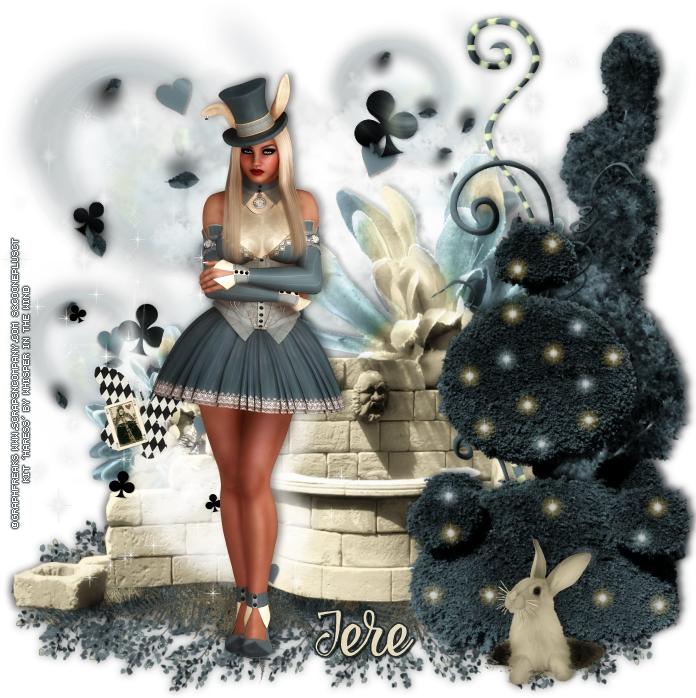
Haress

PRETTY HARESS TUTORIAL


Tutorial written by Marcia Salgado on July 28th, 2015
for those who have a working knowledge of PSP.
Any resemblance to any other tutorial is coincidental.
Do not copy and paste this tutorial anywhere on the net.
If you want to translate please ask first. 

****************************************
Material:

Tube: "Haress" by GraphFreaks, you can purchase it here
do not use without the proper #license.
PTU Kit "Haress" by Whisper In The Wind, you can purchase it here 
Font: Frosting for Breakfast

****************************************

--> Remember to save often and use my tag as reference if necessary. Use a Drop shadow you like on layers. 

1. Create a new image 700x700.

2. Open WITWHaress El84. Resize 85%. Copy and paste as new layer. Move it down.

3. Open WITWHaress El26. Resize 85%. Copy and paste as new layer. Move it up.

4. Open WITWHaress El13. Resize 40%. Copy and paste as new layer. Move it down left.

5. Open WITWHaress El43. Resize 80%. Copy and paste as new layer. Move it up left. Duplicate. Resize 60%. Move it up right. Duplicate and move it down left.

6. Open WITWHaress El74. Resize 60%. Copy and paste as new layer. Move it to right. Duplicate. Resize 50%. Mirror. Move it a little to left and down.

7. Open WITWHaress El3. Resize 70%. Copy and paste as new layer. Move it to right.

8. Open WITWHaress El67. Resize 70%. Mirror. Move it down and left.

9. Open WITWHaress El25. Resize 60%. Copy and paste as new layer. Move it to right and place in front the previous tree.

10. Open WITWHaress El97. Resize 10%. Copy and paste as new layer. Place it over the second tree. Duplicate as much as need to cover the tree as flowers. Merge all layers of this element. Blend Mode: Hard Light. Low the layer opacity to 70. Do the same with WITWHaress El96. Just change the blend mode to Screen.

11. Open WITWHaress El91. Resize 75%. Copy and paste as new layer. Move it up right.

12. Open WITWHaress El79. Resize 20% Copy and paste as new layer. Move it down right and place it in front the second tree, at its bottom.

13. Open WITWHaress El33. Resize 50%. Copy and paste as new layer. Move it down left.

14. Open your tube. Copy and paste as new layer. Move it to left. Add a suitable shadow.

--> Resize if wanted. Add your copyright info and license#. Add your name and save as PNG.


July 10, 2015

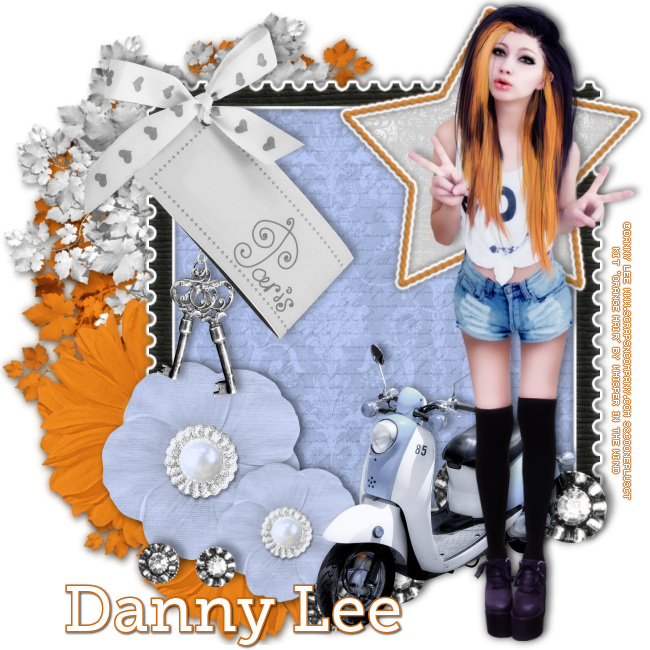
Orange Hair

PEACE TUTORIAL


Tutorial written by Marcia Salgado on July 10th, 2015
for those who have a working knowledge of PSP.
Any resemblance to any other tutorial is coincidental.
Do not copy and paste this tutorial anywhere on the net.
If you want to translate please ask first. 

****************************************
Material:

Tube: "Orange Hair" by Danny Lee, you can purchase it here
do not use without the proper #license.
PTU Kit "Orange Hair" by Whisper In The Wind,
you can purchase it here 
Font: Museo Slab 500

****************************************

--> Remember to save often and use my tag as reference if necessary. Used the Drop Shadow: 1-1-50-5 in most layers. 

1. Create a new image 650x650. 

2. Open WITWOrangeHair El 74. Resize 70%. Free Rotate: Right-90. Copy and paste as new layer. Move it to left.

3. Open WITWOrangeHair El 75. Resize 70%. Copy and paste as new layer. Move it to top left.

4. Open WITWOrangeHair El 28. Resize 35%. Copy and paste as new layer. Move it to left. Duplicate. Move it down and right.

5. Open WITWOrangeHair Frame 3. Resize 60%. Copy and paste as new layer. Move it to right. Select inside the frame, expand it by 3 and add a new layer. Open WITWOrangeHair Paper 1. Copy and paste into selection. Deselect. Click on frame layer and add a white border. Move this layer up.

6. Open WITWOrangeHair El 103. Resize 50%. Copy and paste as new layer. Move it down left. Place over the frame bottom left corner. Duplicate. Resize 70%. Move it to down and right.

7. Open WITWOrangeHair El 77. Resize 60%. Copy and paste as new layer. Move it down and right.

8. Open WITWOrangeHair El 85. Resize 50%. Copy and paste as new layer. Move it up and right. Select inside the star. Expand > 2. Add a new layer. Open WITWOrangeHair Paper 6. Copy and paste into selection. Click on start frame layer. Add a white border. Move this layer up.

9. Open WITWOrangeHair El 16. Resize 40%. Copy and paste as new layer. Move it up and left.

10. Open WITWOrangeHair El 62. Resize 40%. Copy and paste asnew layer. Move it to top left. Place over the top left corner.

11. Open WITWOrangeHair El 24. Resize 40%. Copy and paste as new layer. Move it down and to right.

12. Open your tube. Resize if needed. Copy and paste as new layer. Move it to right. Add a suitable shadow.

--> Resize if wanted. Add your copyright info and license#. Add your name and save as PNG.

June 27, 2015

Smile

BEAUTIFUL TUTORIAL


Tutorial written by Marcia Salgado on June 10th, 2015
for those who have a working knowledge of PSP.
Any resemblance to any other tutorial is coincidental.
Do not copy and paste this tutorial anywhere on the net.
If you want to translate please ask first. 

****************************************
Material:

Tube: "Smile" by Danny Lee, you can purchase it here
do not use without the proper #license.
PTU Kit "Smile" by Whisper in the wind,
you can purchase it here 
Plugin: OPTIONAL - Eye Candy 6
Font: KG Shake it Off

****************************************

--> Remember to save often and use my tag as reference if necessary. Used the Drop Shadow: 1-1-50-5 in most layers. 

--> The elements placements are chosen to be used with my tube, if you are using a different one you may want to arrange them to better fit yours.

1. Create a new image 700x700. Open WITWSmile El 53. Resize 70%. Copy and paste as new layer. Move it to top left corner.

2. Open WITWSmile El 51. Resize 70%. Mirror. Copy and paste as new layer. Move it to top left.

3. Open WITWSmile El 65. Resize 70%. Flip. Copy and paste as new layer. Move it up and left.

4. Open WITWSmile El 30. Resize 80%. Copy and paste as new layer.

5. Open WITWSmile El 20. Resize 60%. Copy and paste as new layer. Move it up and right.

6. Open WITWSmile El 17. Resize 70%. Copy and paste as new layer. Move it up and left.

7. Open WITWSmile El 8. Resize 50%. Copy and paste as new layer. Move it to top right corner. Duplicate. Mirror. Flip. Merge down.

8. Open WITWSmile El 77. Resize 70%. Free Rotate: Right-30. Copy and paste as new layer. Move it a little up and to right. Select inside the frame. Look to see if all space inside the frame is selected. Expand > 5. Add a new layer and move it below the frame layer.

9. Open WITWSmile Paper 1. Copy and paste into selection. Add a new layer. Open WITWSmile Paper 6. Copy and paste into selection. Blend Mode: Screen. Add a new layer. Open WITWSmile Paper 11. Copy and paste into selection. Blend Mode: Multiply. Deselect.

10. Click on first layer, should be the frame layer. Open WITWSmile El 72. Resize 45%. Copy and paste as new layer. Move it up and place it over the frame at top.

11. Open WITWSmile El 39. Resize 30%. Copy and paste as new layer. Move it to bottom right.

12. Open WITWSmile El 91. Resize 60%. Copy and paste as new layer. Place it over the frame bottom, on right side.

13. Open WITWSmile El 79. Resize 30%. Copy and paste as new layer. Move it to right and place over the frame border on left.Duplicate. Move it up and more to right. Duplicate. Resize 80%. And place it over the previous flowers on the middle.

14. Open WITWSmile El 87 and WITWSmile El 85. Resize 15%. Copy and paste as new layer. Place the smilies over the big daisies center (stamens).

15. Open WITWSmile El 37. Resize 30%. Free Rotate: Left-15. Copy and paste as new layer. Move it to top. 

16. Open WITWSmile El 56. Resize 40%. Copy and paste as new layer. Place it hanging on element smile over the letter "e".

17. Open WITWSmile El 50. Resize 40%. Copy and paste as new layer. Place it over the black pearl circle on the bottom at left. Duplicate and move it to right keeping it over the black pearl circle.

18. Open WITWSmile El 12. Resize 40%. Copy and paste as new layer. Move it to bottom right corner. Add a yellow border using Eye Candy 6 > Gradient Glow (Use the preset Simple Thin > Black and change the Glow Radius (%) to 1 and the color to #f8c93e) or just select the wordart and expand > 2.

19. Open your tube. Resize if needed. Copy and paste as new layer. Move it to left. Add a suitable shadow.

--> Resize if wanted. Add your copyright info and license#. Add your name and save as PNG.


May 31, 2015

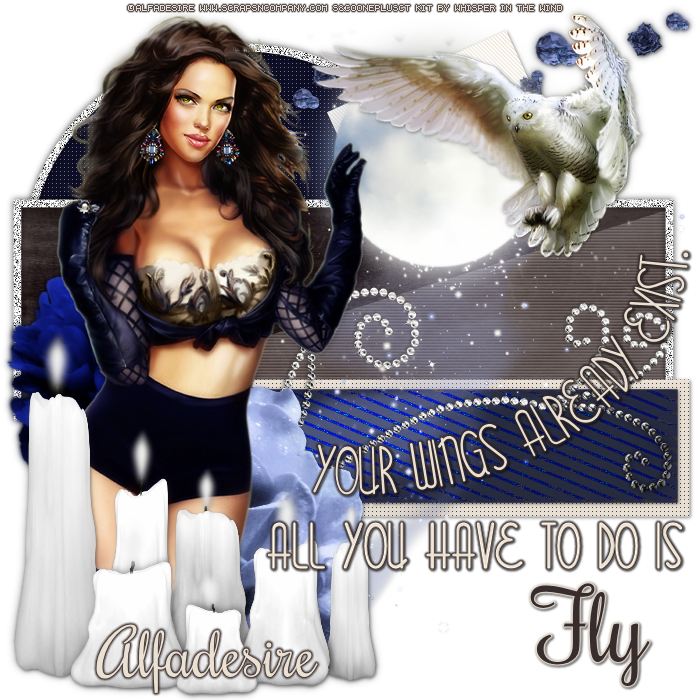
Owl with Angela's Butterfly Dreams

WINGS TO FLY TUTORIAL


Tutorial written by Marcia Salgado on May 31th, 2015
for those who have a working knowledge of PSP.
Any resemblance to any other tutorial is coincidental.
Do not copy and paste this tutorial anywhere on the net.
If you want to translate please ask first. 

****************************************
Material:

Tube: "Owl" by Alfadesire, you can purchase it here
do not use without the proper #license.
PTU Kit "Angela's Butterfly Dreams" by Whisper in the Wind,
you can purchase it here
Template: by me, mar2015_template11 here
Plugin: Penta.com > Jeans
Font: Rochester

****************************************

--> Remember to save often and use my tag as reference if necessary. Used the Drop Shadow: 1-1-50-5 in most layers. 

1. Open my template. Duplicate. Close the original. Delete layers © and Fontes Used. Click on square bottom layer. Merge down. Click on square up layer. Apply Penta.com > Jeans.

2. Open BD El 8. Resize 70% Copy and paste as new layer. Move it upper right.

3. Click on big rectangle layer. Select it. Add a new layer. Open BD Paper 2. Copy and paste into selection. Blend Mode: Luminance (Legacy). 

4. Click on half big rectangle layer. Blend Mode: Exclusion.

5. Click on small rectangle layer. Select it. Add a new layer. Open BD Paper 7. Copy and paste into selection. Blend Mode: Color.

6. OPen BD El 70. Resize 80%. Copy and paste as new layer. Move a little to right.

7. Open BD El 73. Resize 40%. Free Rotate: Right-20. Copy and paste as new layer. Move it left. Place over big rectangle bottom left corner.

8. Open BD El 69. Resize 40%. Copy and paste as new layer. Move it up a little to right.

9. Open BD El 19. Resize 70%. Copy and paste as new layer. Move it a little down. Place its base over the small rectangle.

10.Open BD El 71. Resize 40%. Mirror. Copy and paste as new layer. Move it down left.

11. Open your tube. Resize if needed. Copy and paste as new layer. Move it to left. Add a suitable shadow. Arrange the elements to better fit your tube. My main tube has two owls that came together, I chose one and paste it as new layer. Place it on right top.

12. Open BD El 26. Resize 50%. Copy and paste as new layer. Move it to bottom left. Place it over the tube legs.

13. Add a border of 2px #382D2D to your wings... and all you have... layers.

14. Add a border of 2px #EBE1D3 to fly layer.

--> Resize if wanted. Add your copyright info and license#. Add your name and save as PNG.


May 15, 2015

Oceane ~ by Joanne Salgado


Tutorial written by Joanne Salgado on May 15th, 2015
for those who have a working knowledge of PSP.
Any resemblance to any other tutorial is coincidental.
Do not copy and paste this tutorial anywhere on the net.
If you want to translate please ask first. 

Tube: Oceane by Chris Pastel - you can purchase here
Kit Oceane by Whisper In The Wind - you can purchase here
Mask by Dee (first one) here
Font: Lineal Simpes St

Don't forget to save often.
At any point if you have doubts check my tag.

1. Open a new image 600x500

2. Open element 'Oceane El 44' copy and paste as new layer. Resize 80%. Arrange it to bottom.

3. Open your tube. Copy and paste as new layer. Resize as you prefer and arrange it to the bottom.

4. Open element 'Oceane El 54' copy and paste as new layer. Resize 40%. Move this layer below the tube layer. Arrange it to the bottom right.

5. Open element 'Oceane El 55' copy and paste as new layer. Resize 30%. Arrange it to the bottom right.

6. Open element 'Oceane El 69' copy and paste as new layer. Resize 70%. Arrange it to the top.

7. Open element 'Oceane El 62' copy and paste as new layer. Resize 30%. Arrange it to the top right. Move this layer below the bubbles layer.

8. Open element 'Oceane El 34' copy and paste as new layer. Resize 30%. Arrange it to the left.

9. Open element 'Oceane El 39' copy and paste as new layer. Resize 20%. Arrange it to the bottom. Move this above the tube layer.

10. Open paper 'Oceane Paper 11' copy and paste as new layer. Resize 75%. Arrange this layer to the bottom (below everything). Open your mask, apply it to the paper. Merge Group. Flip.

11. Open element 'Oceane El 92' copy and paste as new layer. Resize 75%. Arrange it to bottom. Move this layer above above the tube layer.

12. Open element 'Oceane El 96' copy and paste as new layer. Resize 60%. Arrange it to the left. Duplicate. Mirror.

13. Open element 'Oceane El 85' copy and paste as new layer. Resize 15%. Arrange it to bottom left. Move this below the bubbles layer.

14. Open element 'Oceane El 75' copy and paste as new layer. Resize 20%. Arrange it in the middle.

15. Add shadow. I used: 1-1-65-2 #808080.

16. Add name. I used: Lineal Simpes St / size: 36

Save as PNG

March 8, 2015

Pink Hard ~ by Joanne Salgado


Tutorial written by Joanne Salgado on February 18th, 2015
for those who have a working knowledge of PSP.
Any resemblance to any other tutorial is coincidental.
Do not copy and paste this tutorial anywhere on the net.
If you want to translate please ask first. 

Tube: Pink Hard by Andy Cooper - you can purchase here 
Kit Purple Candy by Whisper In The Wind - you can purchase here 
Template 455 by Missy here 
Font: KG Candy Cane Stripe

Don't forget to save often.

1. Open template. Duplicate. Close original. Delete layer cr.

2. Open paper 'PC Paper 6' with flood fill (match mode: RGB Value) change to pattern (scale 60) and colorize layers CIRCLE1 and CIRCLE2.

3. Open paper 'PC Paper 9' still with the flood fill, look for the paper and colorize layers CIRCLE3, CIRCLE4, ROUND EDGE RECT1 and ROUND EDGE RECT2.

4. Open paper 'PC Paper 4' with flood fill, look for the paper and colorize layers SQUARE1 and SQUARE2.

5. Open paper 'PC Paper 1' with flood fill, look for the paper and colorize layer CENTRE CIRCLE2.

6. Open element 'PC El 87' copy and paste as new layer. Resize 90%. Arrange it to the bottom. Move this layer above the layer RECTANGLE2.

7. Open element 'PC El 88' copy and paste as new layer. Resize 40%. Arrage it to the far upper left. Duplicate. Mirror.

8. Open element 'PC El 55' copy and paste as new layer. Resize 50%. Arrange it to the upper left of the circle (at any point check my tag if you have doubts).

9. Open element 'PC El 45' copy and paste as new layer. Resize 50%. Arrange it to the bottom left of the circle.

10. Select layer CIRCLE BACK and add noise uniform/40/monochrome checked.

11. Open element 'PC El 4' copy and paste as new layer. Resize 30%. Move this layer above the layer CENTRE CIRCLE2. Arrange it to the bottom right of the circle.

12. Open element 'PC El 1' copy and paste as new layer. Resize 30%. Arrange it to the right of the circle. (For mine to look brighter I duplicated three times and in all three duplicates I changed blend mode to screen).

13. Open element 'PC El 5' copy and paste as new layer. Resize 30%. Arrange it to the center between the two other roses we just added.

14. Open element 'PC El 67' copy and paste as new layer. Resize 30%. Free Rotate 25-left. Arrange it to the bottom left of the circle.

15. Open element 'PC El 46' copy and paste as new layer. Resize 15%. Arrange it above the butterfly.

16. Open element 'PC El 68' copy and paste as new layer. Resize 20%. Arrange it to the upper right above the thin rectangle. Duplicate. Mirror. Arrange it to the bottom left above the thin rectangle.

17. Open element 'PC El 74' copy and paste as new layer. Resize 20%. Arrange it to the upper left of the circle.

18. Open element 'PC El 46' again, copy and paste as new layer. Resize 20%. Arrange it to the center of the flower we just added.

19. Open your tube. I'm using Pink Hard by Andy Cooper. Resize as you like. Arrange it to the right above the roses.

20. Open element 'PC El 100' copy and paste as new layer. Resize 70%.

21. Open element 'PC El 99' copy and paste as new layer. Resize 80%.

22. Arrange the wordart of the template to the left. Select the layer WORDART BY MISSY. Adjust/Color Balance/Manual Color Correction - source: #e01a85 and target: #6c2b68.

23. Add shadow as you like. I used 1-1-65-2 black.

24. Add copyright.

25. Add name. I used: KG Candy Cane Stripe size: 48.

Save.