Showing posts with label Graphfreaks. Show all posts

February 10, 2016

My Valentine ~ by Joanne Salgado


Tutorial written by Joanne Salgado on February 10th, 2016
for those who have a working knowledge of PSP.
Any resemblance to any other tutorial is coincidental.
Do not copy and paste this tutorial anywhere on the net.
If you want to translate please ask first. 

Tube: My Valentine by GraphFreaks - you can purchase here
Kit My Valentine by Design by Joan - you can purchase here
Font: Canter Bold

Don't forget to save often.
At any point if you have doubts check my tag.

1. Open a new image 851x315

2. Open paper 'MY VALENTINE_DBJ-PP (2)' copy and paste as new layer. Use Raster Deform Tool to stretch the paper so it fits the canvas. Mirror. Arrange it to the window appears well.

3. Open element 'MY VALENTINE_DBJ-ELEM (52)' copy and paste as new layer. Arrange it to the far left (so it wont appear above the window). Duplicate. Mirror. Arrange it to the right (again so it wont appear above the window).

4. Open element 'MY VALENTINE_DBJ-ELEM (17)' copy and paste as new layer. Arrange it by the left side of the window. Duplicate. Mirror. Arrange it a little above the window, but not much.

5. Open element 'MY VALENTINE_DBJ-ELEM (37)' copy and paste as new layer. Arrange it to the left showing just the ballons.

6. Open element 'MY VALENTINE_DBJ-ELEM (19)' copy and paste as new layer. Arrange it below the window. Just a small part of it will show.

7. Open element 'MY VALENTINE_DBJ-ELEM (79)' copy and paste as new layer. Arrange it to the bottom left. Duplicate. Mirror.

8. Open element 'MY VALENTINE_DBJ-ELEM (31)' copy and paste as new layer. Resize 40%. Arrange it to the bottom left above the black flower.

9. Open element 'MY VALENTINE_DBJ-ELEM (85)' copy and paste as new layer. Resize 40%. Arrange it to the bottom right above the black flower (more to the left of the black flower).

10. Open element 'MY VALENTINE_DBJ-ELEM (73)' copy and paste as new layer. Resize 40%. Arrange it to the top left. Duplicate. Mirror.

11. Open element 'MY VALENTINE_DBJ-ELEM (81)' copy and paste as new layer. Resize 50%. Arrange it to the bottom left. It will be above the clock, so just a small part of it will show.

12. Open element 'MY VALENTINE_DBJ-ELEM (50)' copy and paste as new layer. Resize 60%. Arrange it to bottom left (it will be a little above the flowers, clock) clean the parts that stay above the window.

13. Open element 'MY VALENTINE_DBJ-ELEM (61)' copy and paste as new layer. Resize 50%. Arrange it to the top right.

14. Open element 'MY VALENTINE_DBJ-ELEM (65)' copy and paste as new layer. Resize 40%. Mirror. Arrange it above the fan.

15. Open element 'MY VALENTINE_DBJ-ELEM (2)' copy and paste as new layer. Resize 50%. Arrange it to the bottom right.

16. Open element 'MY VALENTINE_DBJ-ELEM (26)' copy and paste as new layer.

17. Open your tube. Copy and paste as new layer. Resize as needed. Arrange it near the window.

18. Open element 'MY VALENTINE_DBJ-ELEM (75)' copy and paste as new layer. Arrange it to the far bottom right. Duplicate. Mirror. Duplicate. Flip. Duplicate. Mirror.

19. Add a new layer. Select all, fill with black. Contract 2. Fill with white, add noise uniform 50 monochrome checked. Contract 2. Hit delete on the keyboard. Select none.

20. Add shadow as you prefer.

21. Add copyright. Add name. Save as PNG.


July 27, 2015

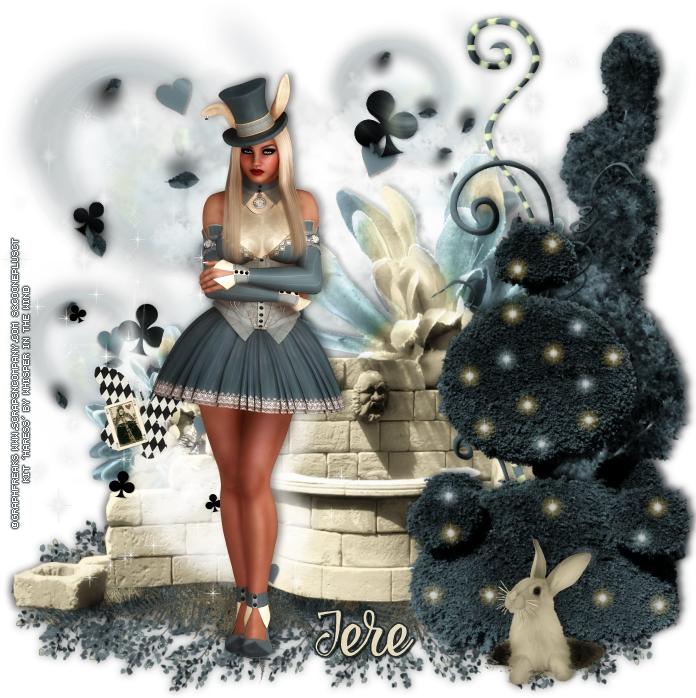
Haress

PRETTY HARESS TUTORIAL


Tutorial written by Marcia Salgado on July 28th, 2015
for those who have a working knowledge of PSP.
Any resemblance to any other tutorial is coincidental.
Do not copy and paste this tutorial anywhere on the net.
If you want to translate please ask first. 

****************************************
Material:

Tube: "Haress" by GraphFreaks, you can purchase it here
do not use without the proper #license.
PTU Kit "Haress" by Whisper In The Wind, you can purchase it here 
Font: Frosting for Breakfast

****************************************

--> Remember to save often and use my tag as reference if necessary. Use a Drop shadow you like on layers. 

1. Create a new image 700x700.

2. Open WITWHaress El84. Resize 85%. Copy and paste as new layer. Move it down.

3. Open WITWHaress El26. Resize 85%. Copy and paste as new layer. Move it up.

4. Open WITWHaress El13. Resize 40%. Copy and paste as new layer. Move it down left.

5. Open WITWHaress El43. Resize 80%. Copy and paste as new layer. Move it up left. Duplicate. Resize 60%. Move it up right. Duplicate and move it down left.

6. Open WITWHaress El74. Resize 60%. Copy and paste as new layer. Move it to right. Duplicate. Resize 50%. Mirror. Move it a little to left and down.

7. Open WITWHaress El3. Resize 70%. Copy and paste as new layer. Move it to right.

8. Open WITWHaress El67. Resize 70%. Mirror. Move it down and left.

9. Open WITWHaress El25. Resize 60%. Copy and paste as new layer. Move it to right and place in front the previous tree.

10. Open WITWHaress El97. Resize 10%. Copy and paste as new layer. Place it over the second tree. Duplicate as much as need to cover the tree as flowers. Merge all layers of this element. Blend Mode: Hard Light. Low the layer opacity to 70. Do the same with WITWHaress El96. Just change the blend mode to Screen.

11. Open WITWHaress El91. Resize 75%. Copy and paste as new layer. Move it up right.

12. Open WITWHaress El79. Resize 20% Copy and paste as new layer. Move it down right and place it in front the second tree, at its bottom.

13. Open WITWHaress El33. Resize 50%. Copy and paste as new layer. Move it down left.

14. Open your tube. Copy and paste as new layer. Move it to left. Add a suitable shadow.

--> Resize if wanted. Add your copyright info and license#. Add your name and save as PNG.


May 26, 2015

Unspoken ~ by Joanne Salgado


Tutorial written by Joanne Salgado on May 26th, 2015
for those who have a working knowledge of PSP.
Any resemblance to any other tutorial is coincidental.
Do not copy and paste this tutorial anywhere on the net.
If you want to translate please ask first. 

Tube: The Unspoken by Graphfreaks - you can purchase here
Kit The Unspoken by Devilish Dezines - you can purchase here
Font: BankGothic Lt BT

Don't forget to save often.
At any point if you have doubts check my tag.

1. Open a new image 600x500

2. Open element 'frame2' copy and paste as new layer. Resize 60%.

3. Open element 'element3' copy and paste as new layer. Resize 75%. Move this below the frame layer. Arrange it to the top.

4. Open element 'element22' copy and paste as new layer. Resize 60%. Arrange it to the right. Duplicate. Mirror. Arrange it a little lower to the left and clean the parts that show at the bottom.

5. Open paper 'paper4' copy and paste as new layer. Resize 50%. Clean the parts that appears outside the frame.

6. Open your close up tube. Copy and paste as new layer. Arrange it inside the frame and clean the parts that appears outside it. Hue and Saturation both with 0. Lower opacity to 30.

7. Open element 'element31' copy and paste as new layer. Resize 30%. Arrange it to the bottom right. Duplicate.

8. Open element 'element48' copy and paste as new layer. Resize 60%. Arrange it to the bottom left.

9. Open element 'element41' copy and paste as new layer. Resize 60%. Arrange it to the top right.

10. Open element 'element42' copy and paste as new layer. Resize 60%. Arrange it to the right.

11. Open element 'element49' copy and paste as new layer. Resize 30%. Mirror. Arrange it to the bottom right.

12. Open element 'element30' copy and paste as new layer. Resize 60%. Arrange it to the top left.

13. Open element 'element16' copy and paste as new layer. Resize 30%. Arrange it to the bottom left.

14. Open element 'element32' select the corner right mouse. Copy and paste as new layer. Resize 30%. Mirror. Arrange it to bottom.

15. Open your tube. Copy and paste as new layer. Resize as you prefer and arrange it to the left.

16. Add shadow. I used: 1-1-65-2 black.

17. Add copyright.

18. Add name. I used: BankGothic Lt BT / size: 30

Save as PNG

May 13, 2015

Elizabeth with Empire of Elizabeth kit

ELIZABETH TIMELINE TUTORIAL


** Click to see original size **

Tutorial written by Marcia Salgado on April 10th, 2015
for those who have a working knowledge of PSP.
Any resemblance to any other tutorial is coincidental.
Do not copy and paste this tutorial anywhere on the net.
If you want to translate please ask first. 

****************************************
Material:

Tube: "Elizabeth" by GraphFreaks, you can purchase it here
do not use without the proper #license.
PTU Kit "Empire of Elizabeth" by Chili Designz,
you can purchase it here
Font: SimpleRonde

****************************************

--> Remember to save often and use my tag as reference if necessary. Used the Drop Shadow: 1-1-50-5 in most layers. 

1. Create a new image 851x315. Open CHILI_DESIGNZ_Empire_of Elizabeth_paper. Copy and paste as new layer. Open CHILI_DESIGNZ_Empire_of Elizabeth_paper7. Copy and paste as new layer. Blend Mode: Luminance (Legacy).

2. Open CHILI_DESIGNZ_Empire_of Elizabeth_flower3. Copy and paste as new layer. Move it to bottom, half way left. Open CHILI_DESIGNZ_Empire_of Elizabeth_flower8. Copy and paste as new layer. Move it to bottom left corner. Duplicate. Move it a lttle to right. Merge down. Open CHILI_DESIGNZ_Empire_of Elizabeth_jewel2. Copy and paste as new layer. Move it bottom left.

3. Open CHILI_DESIGNZ_Empire_of Elizabeth_flowerspray. Resize 60%. Copy and paste as new layer. Move to to right. Open CHILI_DESIGNZ_Empire_of Elizabeth_greenery3. Resize 38%. Copy and paste as new layer. Move it way to right. Open CHILI_DESIGNZ_Empire_of Elizabeth_column. Resize 38%. Copy and paste as new layer. Move it way right and place it in front of greenery.

4. Open CHILI_DESIGNZ_Empire_of Elizabeth_pendant. Resize 50%. Copy and paste as new layer. Move it to right. Place it in front of the column. Open CHILI_DESIGNZ_Empire_of Elizabeth_deco. Resize 50%. Copy and paste as new layer. Move it way left.

5. Open CHILI_DESIGNZ_Empire_of Elizabeth_pearls. Resize 50%. Mirror. Copy and paste as new layer. Free Rotate: Right-45. Move it to upper left corner. Open CHILI_DESIGNZ_Empire_of Elizabeth_dove. Resize 30%. Mirror. Copy and paste as new layer. Move it way left, place it over deco element.

6. Open your tube. Copy and paste as new layer and move it to right. Add a new layer. Fill with one of the gold patterns I offer below (Just right click and save). Select all. Contract > 4. Delete. Keep selected. Add a new layer. Fill with white. Contract > 1. Delete. Deselect. Add a new layer. Fill it with black. Contract > 1. Delete. Deselect.


--> Add your copyright info and license#. Do not forget you suppose not to use any URL on the image by Facebook rules. Add your name - no blanks allowed. Save as PNG.

FOR PICTURE PROFILE / AVATAR

1. Create a new image 180x180. Open CHILI_DESIGNZ_Empire_of Elizabeth_paper. Copy and paste as new layer. Open CHILI_DESIGNZ_Empire_of Elizabeth_paper7. Copy and paste as new layer. Blend Mode: Luminance (Legacy).

2. Open CHILI_DESIGNZ_Empire_of Elizabeth_pearls. Resize 50%. Mirror. Copy and paste as new layer. Free Rotate: Right-45. Move it to upper left corner. 

3. Open CHILI_DESIGNZ_Empire_of Elizabeth_dove. Resize 30%. Mirror. Copy and paste as new layer. Move it to bottom middle.

4. Add a new layer. Fill with one of the gold patterns I offer above. Select all. Contract > 4. Delete. Keep selected. Add a new layer. Fill with white. Contract > 1. Delete. Deselect. Add a new layer. Fill it with black. Contarct > 1. Delete. Deselect.

--> Add your copyright info and license# if needed. Add your name or your initials. Save as PNG.


April 8, 2015

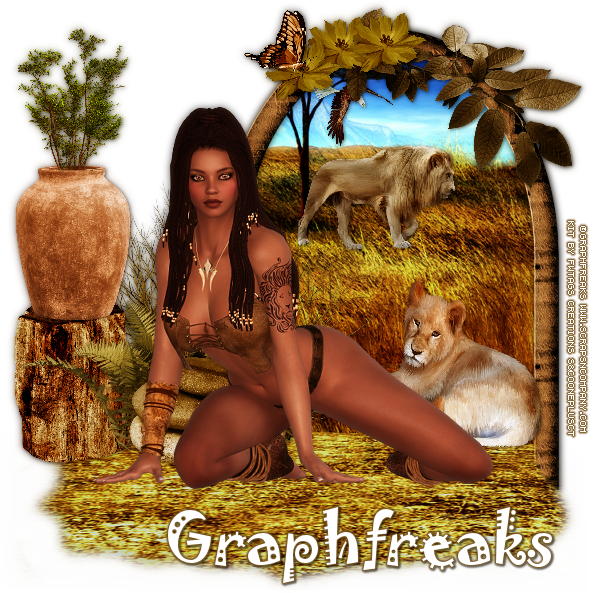
Lioness

LIONESS TUTORIAL


Tutorial written by Marcia Salgado on April 8th, 2015
for those who have a working knowledge of PSP.
Any resemblance to any other tutorial is coincidental.
Do not copy and paste this tutorial anywhere on the net.
If you want to translate please ask first. 

****************************************
Material:

Tube: "Lioness" GraphFreaks, you can purchase it at S&Co., here
do not use without the proper #license.
PTU Kit "Lioness" by FwTags Creations Kits,
you can purchase it at S&Co., here
Font: Jokerman

****************************************

--> Remember to save often and use my tag as reference if necessary. Used the Drop Shadow: 1-1-50-5 in most layers. 

1. Create a new image 600x600. Open FwTagsLionessPAPER (2). Copy and paste as new layer. Duplicate and turn the copy invisible. Click on original layer. Open FwTagsLionessFRAME (4). Resize 51%. Copy and paste as new layer. Move it to right, place over a part of the background image that shows sky and earth. Select inside the frame. Expand > 4. Click on background image. Invert selection. Delete. Click on invisible background copy and move the layer above the frame. Turn it visible again. Select all. Selections > Clip to canvas. Image > Crop to selection. Erase most part of the image, leave only the ground part as it's coming out the frame. 

2. Open FwTagsLionessELEMENT (11). Resize 40%. Copy and paste as new layer. Place it at frame bottom left side. Open FwTagsLionessELEMENT (8). Resize 20%. Copy and paste as new layer. Place it at frame left side a little ahead of bushes.

3. Open FwTagsLionessELEMENT (6). Resize 20%. Copy and paste as new layer. Place ot above the log. Open FwTagsLionessELEMENT (60). Resize 20%. Copy and paste as new layer. Place ot above the vase. Erase the steam, so it looks like is inside the vase.

4. Open FwTagsLionessELEMENT (7). Resize 40%. Copy and paste as new layer. Move it to bottom left side of the frame. Open FwTagsLionessELEMENT (1). Resize 30%. Mirror. Copy and paste as new layer. Move it to bottom right side of the frame. Open FwTagsLionessELEMENT (26). Resize 20%. Mirror. Copy and paste as new layer. Place it inside the frame, near a tree. 

5. Open FwTagsLionessELEMENT (17). Resize 10%. Mirror. Copy and paste as new layer. Move it inside the frame and place somewhere in the sky. Open FwTagsLionessELEMENT (18). Resize 30%. Copy and paste as new layer. Place it over the right top of the frame. 

6. Open FwTagsLionessELEMENT (24). Resize 20%. Copy and paste as new layer. Place it at bottom left side really near the frame. Open FwTagsLionessELEMENT (27). Resize 10%. Copy and paste as new layer. Place it at top frame border. Duplicate and move it a little to left. Duplicate again and move it a little to left too.  

7. Open FwTagsLionessELEMENT (31). Resize 10%. Mirror. Copy and paste as new layer. Place it over one of the top flowers. 

8. Open your tube and resize if needed. Copy and paste as new layer and place it somewhere over the outside ground. Add a suitable shadow.

--> Add your copyright info and license#. Add your name and save as PNG.


April 5, 2015

Bimbo ~ by Joanne Salgado


Tutorial written by Joanne Salgado on April 05th, 2015
for those who have a working knowledge of PSP.
Any resemblance to any other tutorial is coincidental.
Do not copy and paste this tutorial anywhere on the net.
If you want to translate please ask first. 

Tube: Bunny Bombshells by Graphfreaks - you can purchase here 
Kit Easter Basket by Marie Designs - you can purchase here 
Font: BPscript

Don't forget to save often.
At any point if you have doubts check my tag.

1. Open a new image 500x500.

2. Open element '94' copy and paste as new layer. Resize 60%. Arrange it to the top right of the canvas.

3. Open element '93' copy and paste as new layer. Resize 60%. Mirror. Arrange it to the top left of the canvas.

4. Open element '57' copy and paste as new layer. Resize 70%. Arrange it to the right. It will be at the end of the bridge.

5. Open element '77' copy and paste as new layer. Resize 15%. Free Rotate left-25.

6. Open element '91' copy and paste as new layer. Resize 80%. Arrange it to the bottom.

7. Open element '66' copy and paste as new layer. Resize 25%. Mirror. Arrange it to the bottom right of the bridge.

8. Open your tube. Copy and paste as new layer. Resize as you prefer and arrange it to the left.

9. Add shadow as you prefer. I used 1-1-65-2 black.

10. Add copyright.

11. Add name. I used: BPscript / size: 48

Save as PNG

Bambi ~ by Joanne Salgado


Tutorial written by Joanne Salgado on April 05th, 2015
for those who have a working knowledge of PSP.
Any resemblance to any other tutorial is coincidental.
Do not copy and paste this tutorial anywhere on the net.
If you want to translate please ask first. 

Tube: Bunny Bombshells by Graphfreaks - you can purchase here 
Kit Spring Fairytale by DnScraps - you can purchase here 
Font: AR BONNIE

Don't forget to save often.
At any point if you have doubts check my tag.

1. Open a new image 500x500

2. Open element 'Springfairytalednkitpustars' copy and paste as new layer. Resize 60%. Arrange it to the bottom left. Duplicate. Mirror/Flip.

3. Open element 'Springfairytalednkitpumagiclights' copy and paste as new layer. Resize 60%.

4. Open element 'Springfairytalednkitpumagiclights2' copy and paste as new layer. Resize 60%. Arrange it to the left. Duplicate. Mirror.

5. Open frame 'Springfairytalednkitpudiamondframe' copy and paste as new layer. Resize 70%. 

6. Open paper 'Springfairytalekitpupaper2' copy and paste as new layer. Resize 50%. Move this layer below the frame layer. Clean all the paper parts that appears outside of the frame.

7. Open element 'Springfairytalednkitpuwater' copy and paste as new layer. Resize 50%. Arrange it to the inside bottom of the frame.

8. Open element 'Springfairytalednkitpucutemushroom' copy and paste as new layer. Resize 30%. Mirror. Arrange it to the inside bottom left of the frame.

9. Open element 'Springfairytalednkitpustringflowers' copy and paste as new layer. Resize 50%. Arrange it to the inside top of the frame. Clean the parts that appears outside the frame.

10. Open element 'Springfairytalednkitpurabbit' copy and paste as new layer. Resize 20%. Move this layer above the frame layer. Arrange it to the bottom right.

11. Open element 'Springfairytalednkitpumagicbutterfly' copy and paste as new layer. Resize 20%. Free Rotate left-25. Arrange it to the top right.

12. Open your tube. Copy and paste as new layer. Resize as you prefer. Arrange it to the left.

13. Add shadow as you prefer. I used 1-1-65-2 black.

14. Add copyright.

15. Add name. I used: AR BONNIE / size: 48

Save as PNG

March 29, 2015

Black Magic ~ by Joanne Salgado


Tutorial written by Joanne Salgado on February 18th, 2015
for those who have a working knowledge of PSP.
Any resemblance to any other tutorial is coincidental.
Do not copy and paste this tutorial anywhere on the net.
If you want to translate please ask first. 

Tube: Black Magic by Graphfreaks - you can purchase here
Kit Black Magic by FwTags Creations - you can purchase here 
Template by Dee here 
Font: AR BERKLEY

Don't forget to save often.
At any point if you have doubts check my tag.

1. Open the template. Duplicate. Close original. Delete layers: font info, info, mistake black, mistake white, raster 17, biggest blue, biggest white, copy of raster 17, you look like (both layers), copy (2), pink star, pink star white, small white star, small blue star, black star, black stripe and bg.

2. Open element 'FwTagsBlackMagicELEMENT (62)' copy and paste as new layer. Resize 60%. Mirror. Arrange it to bottom. Move this layer bellow the pink rectangle layer.

3. Open paper 'FwTagsBlackMagicPAPER (1)' colorize the layer pink rectangle with it. Now open paper 'FwTagsBlackMagicPAPER (5)' colorize the layer blue rectangle. Now open paper 'FwTagsBlackMagicPAPER (2)' colorize the layer pink circle. With the same paper colorize the layer blue circle and center blue rectangle. Now open paper 'FwTagsBlackMagicPAPER (4)' colorize layers bottom black circle, top black circle and center pink rectangle.

4. Select layer pink circle, apply plugins/penta.com/jeans (amount 62/border width 4). Select layer blue circle, apply plugins/penta.com/color dot (value 90/distance 2/all three color 255).

5. Add noise with uniform/50/monochrome checked on layers pink circle back, blue circle back, bottom black circle back, top black circle back, center pink rectangle, center white rectangle.

6. Open element 'FwTagsBlackMagicELEMENT (83)' copy and paste as new layer. Resize 60%. Move this layer above the center blue rectangle.

7. Open element 'FwTagsBlackMagicELEMENT (78)' copy and paste as new layer. Resize 75%. 

8. Open element 'FwTagsBlackMagicELEMENT (21)' copy and paste as new layer. Resize 30%. Arrange it to the bottom left.

9. Open element 'FwTagsBlackMagicELEMENT (13)' copy and paste as new layer. Resize 30%. Arrange it to the bottom left. Duplicate. Arrange it to the bottom right.

10. Open element 'FwTagsBlackMagicELEMENT (75)' copy and paste as new layer. Resize 30%. Arrange it to the bottom right.

11. Open element 'FwTagsBlackMagicELEMENT (14)' copy and paste as new layer. Resize 60%. Arrange it to the upper right.

12. Open element 'FwTagsBlackMagicELEMENT (46)' copy and paste as new layer. Resize 50%. Arrange it to the upper left.

13. Open element 'FwTagsBlackMagicELEMENT (77)' copy and paste as new layer. Resize 40%. Arrange it to the bottom right.

14. Open element 'FwTagsBlackMagicELEMENT (73)' copy and paste as new layer. Resize 40%. Arrange it to the bottom left. Duplicate. Change blend mode to screen. Blur/Gaussian Blur 3. 

15. Open element 'FwTagsBlackMagicELEMENT (64)' copy and paste as new layer. Resize 15%. Arrange it to the left next the ball we just added.

16. Open element 'FwTagsBlackMagicELEMENT (43)' copy and paste as new layer. Resize 20%. Arrange it to the bottom left.

17. Open element 'FwTagsBlackMagicELEMENT (21)' copy and paste as new layer. Resize 30%. Arrange it to the bottom left.

18. Open element 'FwTagsBlackMagicELEMENT (39)' copy and paste as new layer. Resize 20%. Arrange it to the bottom left.

19. Open element 'FwTagsBlackMagicELEMENT (70)' copy and paste as new layer. Resize 15%. Arrange it to the bottom left.

20. Open your tube. I'm using Black Magic from Graphfreaks. Copy and paste as new layer. Resize as you prefer and arrange it to the right. 

21. Open element 'FwTagsBlackMagicELEMENT (42)' copy and paste as new layer. Resize 75%. Arrange it to bottom.

22. Open element 'FwTagsBlackMagicELEMENT (56)' copy and paste as new layer. Resize 75%. Arrange it to bottom.

23. Add shadow as you prefer. I used 1-1-65-2 black.

24. Add copyright.

25. Add name. I used: AR BERKLEY / size: 72

Save as PNG

March 26, 2015

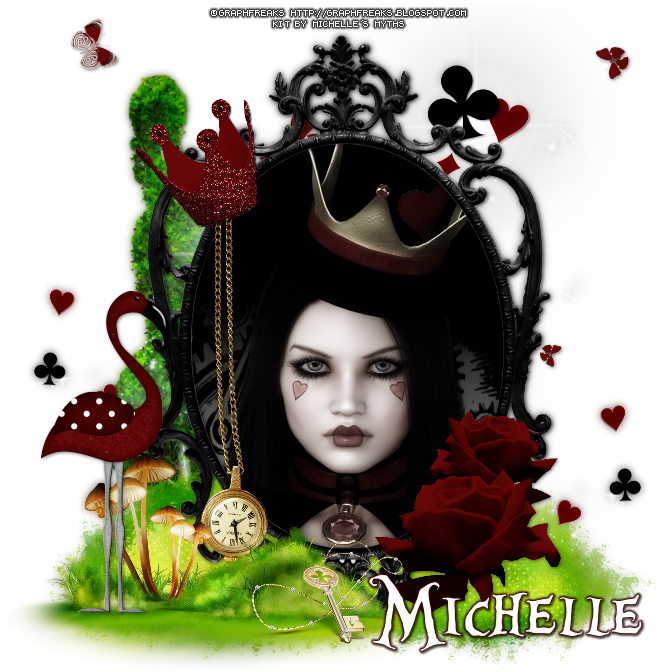
Wicked Red Queen

RED QUEEN TUTORIAL


Tutorial written by Marcia Salgado on March 26th, 2015
for those who have a working knowledge of PSP.
Any resemblance to any other tutorial is coincidental.
Do not copy and paste this tutorial anywhere on the net.
If you want to translate please ask first. 

****************************************
Material:

Tube: Wicked Red Queen by GraphFreaks,
info on how to purchase her tubes can be found at her blog
PTU Kit "Wicked Red Queen" by Michelle's Myths,
you can purchase it here
Font: Alice in Wonderland

****************************************

--> Remember to save often and use my tag as reference if necessary. Used the Drop Shadow: 1-1-50-5 in most layers. 

1. Create a new image of 700x700. Open Frame (7). Copy and paste as new layer. Select inside the frame. Add a new layer. Open Paper  (6). Copy. Paste into selection. Move this layer down. Keep selected. Copy your tube close up and paste as new layer. Invert selection. Delete. Deselect. Change Blend Mode to Luminance (Legacy); Duplicate the layer. Gaussian Blur: 4. Change Blend Mode to Soft Light.  

2. Open Wicked Red Queen (77). Copy and paste as new layer. Move it up. Send the layer down, below all layers. Open Wicked Red Queen (17). Mirror. Copy and paste as new layer. Move it to left. Behind the frame. Open Wicked Red Queen (65). Resize 25%. Copy and paste as new layer. Move it to bottom. Open Wicked Red Queen (23). Resize 70%. Copy and paste as new layer. Move it up. Duplicate. Move it down left. Duplicate. Mirror.

3. Click on first layer. Open Wicked Red Queen (78). Resize 40%. Copy and paste as new layer. Move it to left, over the frame. Open Wicked Red Queen (25). Resize 30%. Copy and paste as new layer. Move it to bottom right, in front of the frame. Duplicate resize 70%. Mirror. Move it above the first rose and a layer below.

4. Open Wicked Red Queen (71). Resize 50%. Mirror. Copy and paste as new layer. Move it down left. Open Wicked Red Queen (62). Mirror. Copy and paste as new layer. Move it to left, over the grass. Open Wicked Red Queen (61). Resize 50%. Copy and paste as new layer. Move it center down. Open Wicked Red Queen (74). Resize 50%. Mirror. Copy and paste as new layer. Move it up left over the top chain.

--> Resize if needed. Add your copyright info. Add your name. Save as PNG.


March 21, 2015

We're All Mad

WE'RE ALL MAD TUTORIAL


Tutorial written by Marcia Salgado on March 21th, 2015
for those who have a working knowledge of PSP.
Any resemblance to any other tutorial is coincidental.
Do not copy and paste this tutorial anywhere on the net.
If you want to translate please ask first. 

****************************************
Material:

Tube: Maddie Hatter by GraphFreaks,
info on how to purchase her tubes can be found at her blog
PTU Kit "We're All Mad" by Michelle's Myths,
you can purchase it here
Font: Alice in Wonderland

****************************************

--> Remember to save often and use my tag as reference if necessary. Used the Drop Shadow: 1-1-50-5 in most layers. 

1. Create a new image 700x700. Open We'reAllMad (8). Copy and paste as new image. Move ot to left. Duplicate. Mirror. Duplicate. Mirror. Resize 50%. Move it up and left.

2. Open We'reAllMad (60). Copy and paste as new layer. Move down left. Open We'reAllMad (23). Copy and paste as new layer. Move it up right. 

3. Open We'reAllMad (65). Copy and paste as new layer. Move it to middle bottom. Place it ovr the grass. Open We'reAllMad (71). Copy and paste as new layer. Move it a little to bottom. Add a white border. Open We'reAllMad (79). Copy and paste as new layer. Move it to middle bottom, over the grass and at the side of the globe on pedestal. 

4. Open We'reAllMad (89). Resize 80%. Copy and paste as new layer. Move it down. Place it in front of blue element bottom. Open We'reAllMad (59). Resize 50%. Mirror. Copy and paste as new layer. Move it to bottom, in front of the watch. 

5. Open We'reAllMad (25). Copy and paste as new layer. Move it upper right. OPen your tube close up. Resize if needed. Copy and paste as new layer. Move it in front of the star. Click on star layer and select inside it with the magic wand. Invert selection. Click on the close up layer and delete. Change blend mode to Luminance (Legacy) and down the opacity to 52. Duplicate. Gaussian Blur > 4. Change Blend Mode to Soft Light. 

6. Open We'reAllMad (56). Mirror. Copy and paste as new layer. Move it bottom right. Open your tube. Copy and paste as new layer. Move it to left. Add a suitable shadow. Arrange the elements to better fit your tube.

--> Resize if wanted. Add your copyright info and #license. Add your name. Save as PNG.


March 3, 2015

Love of Mime


== NEW PTU MICHELLE'S MYTHS CT TAG ==

Featuring "Love of Mimes" Kit by Michelle's Myths at PicsForDesign - PFD and Featuring "Love of Mime and Love of Mime III" tube by Graphfreaks.


Michelle's Myths beautiful kit with 60 elements and 9 papers for you to play with.

Michelle's Myths kit can be found at:

-> PicsForDesign - PFD, here

Graphfreaks tubes can be found at:

-> Graphfreaks blog,  here