Showing posts with label Alfadesire. Show all posts

November 26, 2016

SHOW OFF - Cats


== NEW PTU TAG TINY TURTLE DESIGNS CT ==
AND THE ART OF ALFADESIRE

Featuring "Cats", tube by Alfadesire and
"Christmas Carol", Tiny Turtle Design kit at TinyTurtleDesign Store.

Alfadesire's tube can be found  at
-> TinyTurtleDesign Store, here

Tiny Turtle Design kit can be found  at
-> TinyTurtleDesign Store, here


November 14, 2016

Melancholy Fall kit with Black Chicken tube


== NEW PTU TAG TINY TURTLE DESIGNS CT ==
AND THE ART OF ALFADESIRE

Featuring "Black Chicken", a Alfadesire FREE tube and
 "Melancholy Fall", Tiny Turtle Design kit at TinyTurtleDesign Store.


Tiny Turtle Design kit has 30 papers and 154 elements so you can play with it. 

Alfadesire's FREE tube can be found  at:
-> TinyTurtleDesign Store, here 

Tiny Turtle Design kit can be found  at:
-> TinyTurtleDesign Store, here 


SHOW OFF - Christmas Whimsy


== NEW PTU TAG TINY TURTLE DESIGNS CT ==
AND THE ART OF ALFADESIRE

Featuring "New Cutie", tube by Alfadesire and
"Christmas Whimsy", Tiny Turtle Design kit at TinyTurtleDesign Store.

Alfadesire's tube can be found  at
-> TinyTurtleDesign Store, here

Tiny Turtle Design kit can be found  at
-> TinyTurtleDesign Store, here


October 12, 2016

SHOW OFF - Magic Potions


== NEW PTU TAG TINY TURTLE DESIGNS CT ==
AND THE ART OF ALFADESIRE

Featuring "Black 2", tube by Alfadesire and
"Magic Potions", Tiny Turtle Design kit at TinyTurtleDesign Store.

Alfadesire's tube can be found  at
-> TinyTurtleDesign Store, here

Tiny Turtle Design kit can be found  at
-> TinyTurtleDesign Store, here


March 30, 2016

SHOW OFF - Spring Thing


== NEW PTU TAG TINY TURTLE DESIGNS CT ==
AND THE ART OF ALFADESIRE

Featuring "Easter Girl", tube by Alfadesire and 
"Spring Thing", Tiny Turtle Design kit at TinyTurtleDesign Store.


Alfadesire's tube can be found  at:
-> TinyTurtleDesign Store, here

Tiny Turtle Design kit can be found  at:
-> TinyTurtleDesign Store, here


March 26, 2016

Eggstra Special ~ Joanne Salgado


Tutorial written by Joanne Salgado on March 26th, 2016
for those who have a working knowledge of PSP.
Any resemblance to any other tutorial is coincidental.
Do not copy and paste this tutorial anywhere on the net.
If you want to translate please ask first. 

Tube: Easter Girl by Alfadesire - you can purchase here
Kit Eggstra Special Easter by Creative Scraps by Crys - you can purchase here
Font: BachelorScript

Don't forget to save often.
At any point if you have doubts check my tag.

1. Open a new image 650x550

2. Open frame 'ESE_Frame_2' copy and paste as new layer. Resize 65%.

3. Open element 'ESE_Element_51' copy and paste as new layer. Rotate left 90. Move this layer below the frame layer. Arrange it to top left. Duplicate. Mirror.

4. Open element 'ESE_Element_27' copy and paste as new layer. Resize 60%. Mirror. Arrange it to the top left. Duplicate. Rotate right 90. Arrange it to the top center, a little to the right.

5. Open element 'ESE_Element_28' copy and paste as new layer. Resize 60%. Arrange it to the top right. Duplicate. Rotate left 90. Arrange it to the top center a little to the left.

6. Open paper 'ESE_Paper_2' copy and paste as new layer. Resize 40%.

7. Open element 'ESE_Element_17' copy and paste as new layer. Arrange it to bottom (don't worry its supposed to have some parts outside the frame).

8. Open element 'ESE_Element_46' copy and paste as new layer. Resize 25%. Arrange it to the left inside the frame.

9. Open element 'ESE_Element_37' copy and paste as new layer. Resize 20%. Arrange it to the left in front of the house (a little more to bottom).

10. Open element 'ESE_Element_18' copy and paste as new layer. Resize 35%. Arrange it to the right.

11. Open element 'ESE_Element_20' copy and paste as new layer. Resize 20%. Arrange it to the right of the house (in front).

12. Open element 'ESE_Element_14' copy and paste as new layer. Resize 10%. Rotate right 10. Arrange it to bottom right of the tree.

13. Open element 'ESE_Element_15' copy and paste as new layer. Resize 10%. Rotate left 10. Arrange it to bottom left of the boy.

14. Open element 'ESE_Element_13' copy and paste as new layer. Resize 10%. Arrange it to bottom right of the boy.

15. Open element 'ESE_Element_62' copy and paste as new layer. Resize 60%. Move this layer above the frame layer. Arrange it to the bottom left of the frame.

16. Open element 'ESE_Element_61' copy and paste as new layer. Resize 60%. Arrange it to the bottom right of the frame.

17. Open element 'ESE_Element_60' copy and paste as new layer. Arrange it to bottom.

18. Open element 'ESE_Element_59' copy and paste as new layer. Arrange it to bottom.

19. Open your tube. Copy and paste as new layer. Resize as needed and arrange it to the left.

20. Open element 'ESE_Element_16' copy and paste as new layer. Resize 35%. Arrange it to the bottom right.

21. Open element 'ESE_Element_3' copy and paste as new layer. Resize 40%. Arrange it to the bottom right (to the right of the basket).

22. Add shadow as you prefer.

23. Add copyright. Add name. Save as PNG.

February 26, 2016

Kattie ~ by Joanne Salgado


Tutorial written by Joanne Salgado on February 26th, 2016
for those who have a working knowledge of PSP.
Any resemblance to any other tutorial is coincidental.
Do not copy and paste this tutorial anywhere on the net.
If you want to translate please ask first. 

Tube: Kattie by Alfadesire - you can purchase here
Kit Evening Glamour by Design by Joan - you can purchase here
Font: Just Realize

Don't forget to save often.
At any point if you have doubts check my tag. 

1. Open a new image 650x550

2. Open element 'EVENING GLAMOUR_DBJ70' copy and paste as new layer. Resize 70%. Rotate left 20. Arrange it to the left.

3. Open element 'EVENING GLAMOUR_DBJ38' copy and paste as new layer. Resize 60%. Move this layer below the frame layer. Arrange it to the top right. Duplicate. Mirror. Arrange it to the top left.

4. Open element 'EVENING GLAMOUR_DBJ87' copy and paste as new layer. Resize 70%. Arrange it to the riht o f the frame, above the leafs.

5. Open element 'EVENING GLAMOUR_DBJ27' copy and paste as new layer. Resize 60%. Arrange it to the top of the frame.

6. Open element 'EVENING GLAMOUR_DBJ74' copy and paste as new layer. Resize 60%. Arrange it to the top right of the frame.

7. Open element 'EVENING GLAMOUR_DBJ71' copy and paste as new layer. Resize 60%. Arrange it to the top right of the frame above the white flowers.

8. Open element 'EVENING GLAMOUR_DBJ42' copy and paste as new layer. Resize 60%. Arrange it to the bottom left of the frame.

9. Open element 'EVENING GLAMOUR_DBJ58' copy and paste as new layer. Resize 60%. Arrange it to the left of the frame.

10. Open element 'EVENING GLAMOUR_DBJ21' copy and paste as new layer. Clean almost all the beads and bow, you'll need only the heart part and a few beads near the heart. Arrange it to the bottom left.

11. Open element 'EVENING GLAMOUR_DBJ16' copy and paste as new layer. Resize 60%. Arrange it to the top left of the frame.

12. Open paper 'PPEVENING GLAMOUR_DBJ-6' copy and paste as new layer. Resize 30%. Arrange it inside the frame and clean the outside parts.

13. Open element 'EVENING GLAMOUR_DBJ95' copy and paste as new layer. Resize 90%. Arrange it to top.

14. Open element 'EVENING GLAMOUR_DBJ93' copy and paste as new layer. Arrange it to top.

15. Open element 'EVENING GLAMOUR_DBJ34' copy and paste as new layer. Resize 50%. Move this layer above the frame layer. Arrange it to the bottom right (just a small part of the left side will be above the frame).

16. Open element 'EVENING GLAMOUR_DBJ61' copy and paste as new layer. Resize 60%. Arrange it to bottom right.

17. Open element 'EVENING GLAMOUR_DBJ73' copy and paste as new layer. Resize 60%. Arrange it to the top left of the frame.

18. Open element 'EVENING GLAMOUR_DBJ75' copy and paste as new layer. Resize 40%. Arrange it to the left above the bottom part of the flower we just added.

19. Open element 'EVENING GLAMOUR_DBJ94' copy and paste as new layer. Resize 70%. Arrange it to the left.

20. Open your tube. Copy and paste as new layer. Resize as needed and arrange it in the middle.

21. Open element 'EVENING GLAMOUR_DBJ12' copy and paste as new layer. Resize 30%. Mirror. Arrange it to the bottom right.

22. Open element 'EVENING GLAMOUR_DBJ29' copy and paste as new layer. Resize 25%. Arrange it to the bottom left.

23. Open element 'EVENING GLAMOUR_DBJ39' copy and paste as new layer. Resize 20%. Arrange it above the fireplace to the left.

24. Open element 'EVENING GLAMOUR_DBJ101' copy and paste as new layer. Resize 13%. Arrange it to the bottom left, to the right of the rose we added there.

25. Open element 'EVENING GLAMOUR_DBJ77' copy and paste as new layer. Resize 15%. Arrange it above the fireplace to the right. Duplicate. Mirror. Arrange it near the one we just added.

26. Open element 'EVENING GLAMOUR_DBJ89' copy and paste as new layer. Resize 10%. Arrange it above the fireplace to the left of the champagne.

27. Add shadow as you prefer.

28. Add copyright. Add name. Save as PNG.

October 28, 2015

Scary Fall with Black 2 - CT Show Off


== NEW PTU TAG TINY TURTLE DESIGNS CT ==
AND THE ART OF ALFADESIRE

Featuring "Black 2", a Alfadesire tube and
"Scary Fall", Tiny Turtle Design kit at TinyTurtleDesign Store.

Tiny Turtle Design kit has 25 papers and 98 elements so you can play with it. 

Alfadesire's tube can be found  at:
-> TinyTurtleDesign Store, here 

Tiny Turtle Design kit can be found  at:
-> TinyTurtleDesign Store, here 


October 2, 2015

Late Fall with Witch 2 - Show Off


== NEW PTU TAG TINY TURTLE DESIGNS CT ==
AND THE ART OF ALFADESIRE

Featuring "Witch 2", a  Alfadesire tube and
 "Late Fall ", Tiny Turtle Design kit at TinyTurtleDesign Store.

Tiny Turtle Design kit has 30 papers and 138 elements so you can play with it. 

Alfadesire's tube can be found  at:
-> TinyTurtleDesign Store, here

Tiny Turtle Design kit can be found  at:
-> TinyTurtleDesign Store, here


July 1, 2015

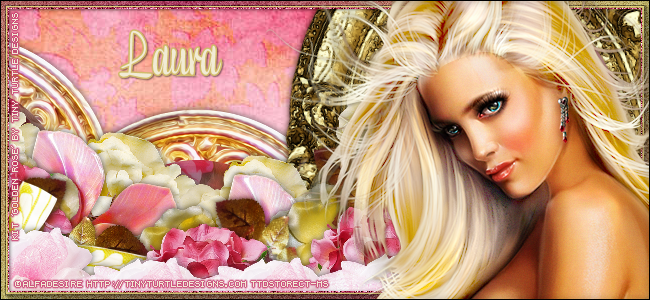
Golden Rose with Just Love - Show Off


== NEW PTU TAG TINY TURTLE DESIGNS CT ==
AND THE ART OF ALFADESIRE

Featuring "Just Love", a Alfadesire tube 
and "Golden Rose", Tiny Turtle Design kit at TinyTurtleDesign Store.

Tiny Turtle Design kit has 45 papers and 111 elements 
so you can play with it. 

Alfadesire's tube can be found  at:
-> TinyTurtleDesign Store, here

Tiny Turtle Design kit can be found  at:
-> TinyTurtleDesign Store, here


June 1, 2015

Icecream ~ by Joanne Salgado


Tutorial written by Joanne Salgado on June 01st, 2015
for those who have a working knowledge of PSP.
Any resemblance to any other tutorial is coincidental.
Do not copy and paste this tutorial anywhere on the net.
If you want to translate please ask first. 

Tube: Icecream by Alfadesire - you can purchase here
Kit Candyland by Bibi's Collection - you can purchase here
Font: AR HERMANN

Don't forget to save often.
At any point if you have doubts check my tag.

1. Open a new image 700x600

2. Open element 'BIBICANDYLAND ELEM (13)' copy and paste as new layer. Resize 65%.

3. Open element 'BIBICANDYLAND ELEM (88)' copy and paste as new layer. Resize 35%. Arrange it to bottom.

4. Open element 'BIBICANDYLAND ELEM (45)' copy and paste as new layer. Arrange it to the right.

5. Open element 'BIBICANDYLAND ELEM (35)' copy and paste as new layer. Arrange it to the left.

6. Open your tube. Copy and paste as new layer. Resize as you prefer and arrange it to the right.

7. Add shadow. I used: 1-1-65-2 black.

8. Add copyright.

9. Add name. I used: AR HERMANN / size: 60

Save as PNG

May 31, 2015

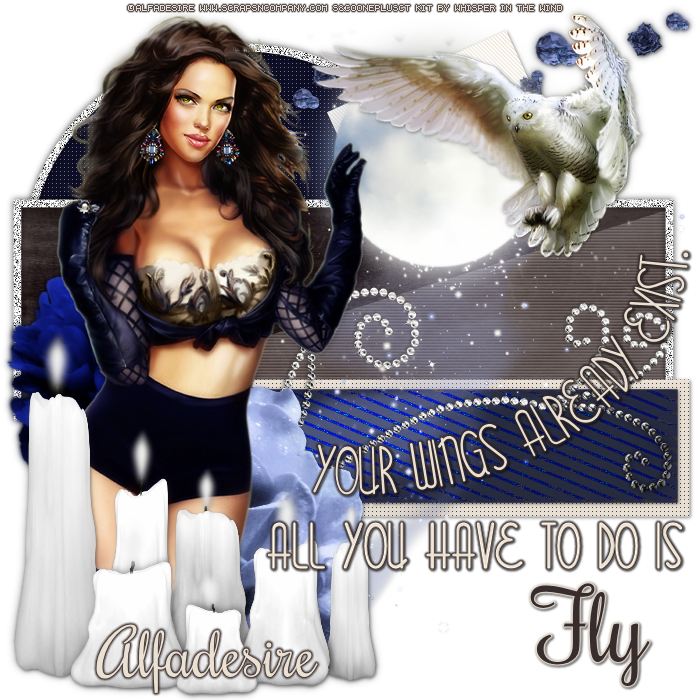
Owl with Angela's Butterfly Dreams

WINGS TO FLY TUTORIAL


Tutorial written by Marcia Salgado on May 31th, 2015
for those who have a working knowledge of PSP.
Any resemblance to any other tutorial is coincidental.
Do not copy and paste this tutorial anywhere on the net.
If you want to translate please ask first. 

****************************************
Material:

Tube: "Owl" by Alfadesire, you can purchase it here
do not use without the proper #license.
PTU Kit "Angela's Butterfly Dreams" by Whisper in the Wind,
you can purchase it here
Template: by me, mar2015_template11 here
Plugin: Penta.com > Jeans
Font: Rochester

****************************************

--> Remember to save often and use my tag as reference if necessary. Used the Drop Shadow: 1-1-50-5 in most layers. 

1. Open my template. Duplicate. Close the original. Delete layers © and Fontes Used. Click on square bottom layer. Merge down. Click on square up layer. Apply Penta.com > Jeans.

2. Open BD El 8. Resize 70% Copy and paste as new layer. Move it upper right.

3. Click on big rectangle layer. Select it. Add a new layer. Open BD Paper 2. Copy and paste into selection. Blend Mode: Luminance (Legacy). 

4. Click on half big rectangle layer. Blend Mode: Exclusion.

5. Click on small rectangle layer. Select it. Add a new layer. Open BD Paper 7. Copy and paste into selection. Blend Mode: Color.

6. OPen BD El 70. Resize 80%. Copy and paste as new layer. Move a little to right.

7. Open BD El 73. Resize 40%. Free Rotate: Right-20. Copy and paste as new layer. Move it left. Place over big rectangle bottom left corner.

8. Open BD El 69. Resize 40%. Copy and paste as new layer. Move it up a little to right.

9. Open BD El 19. Resize 70%. Copy and paste as new layer. Move it a little down. Place its base over the small rectangle.

10.Open BD El 71. Resize 40%. Mirror. Copy and paste as new layer. Move it down left.

11. Open your tube. Resize if needed. Copy and paste as new layer. Move it to left. Add a suitable shadow. Arrange the elements to better fit your tube. My main tube has two owls that came together, I chose one and paste it as new layer. Place it on right top.

12. Open BD El 26. Resize 50%. Copy and paste as new layer. Move it to bottom left. Place it over the tube legs.

13. Add a border of 2px #382D2D to your wings... and all you have... layers.

14. Add a border of 2px #EBE1D3 to fly layer.

--> Resize if wanted. Add your copyright info and license#. Add your name and save as PNG.


Deviant ~ by Joanne Salgado


Tutorial written by Joanne Salgado on May 31th, 2015
for those who have a working knowledge of PSP.
Any resemblance to any other tutorial is coincidental.
Do not copy and paste this tutorial anywhere on the net.
If you want to translate please ask first. 

Tube: Be Deviant by Alfadesire - you can purchase here
Kit Deviant Darkness by Disturbed Scraps - you can purchase here
Font: Zombie Holocaust

Don't forget to save often.
At any point if you have doubts check my tag.

1. Open a new image 700x600.

2. Open element 'DS - DD Element (72)' copy and paste as new layer. Resize 85%.

3. Open element 'DS - DD Element (59)' copy and paste as new layer. Resize 90%. Arrange it to bottom.

4. Open element 'DS - DD Element (14)' copy and paste as new layer. Resize 60%. Arrange it to the bottom right. Move this below the floor layer.

5. Open element 'DS - DD Element (54)' copy and paste as new layer. Resize 70%. Arrange it to the left. Duplicate. Mirror.

6. Open element 'DS - DD Element (36)' copy and paste as new layer. Resize 60%. Move this above the floor layer. Arrange it to the bottom left.

7. Open your tube. Copy and paste as new layer. Resize as you prefer and arrange it to the right.

8. Open element 'DS - DD Element (60)' copy and paste as new layer. Resize 30%. Arrange it to the bottom left. Duplicate. Arrange it to the middle. Duplicate. Arrange it to the right.

9. Open element 'DS - DD Element (52)' copy and paste as new layer. Resize 30%. Arrange it to the face of the necromancer. Change blend mode to screen.

10. Add shadow. I used: 1-1-65-2 black.

11. Add copyright.

12. Add name. I used: Zombie Holocaust / size: 48

Save as PNG.

May 19, 2015

Sugar Skull with Skull Collab

SKULL TIMELINE TUTORIAL


**Click to see original size**

Tutorial written by Marcia Salgado on May 19th, 2015
for those who have a working knowledge of PSP.
Any resemblance to any other tutorial is coincidental.
Do not copy and paste this tutorial anywhere on the net.
If you want to translate please ask first. 

****************************************
Material:

Tube: "Sugar Skull" by Alfadesire, you can purchase it here
do not use without the proper #license.
PTU Kit "Skull Collab" by Bibi's Collection Scraps and Design by Joan,
you can purchase it here 
Plugin: MuRa's Meister > Copies
Font: Xiomara

****************************************

--> Remember to save often and use my tag as reference if necessary. Used the Drop Shadow: 1-1-50-5 in most layers. 

1. Create a new image 851x315. Open BIBIBEAUTIFULSKULLPAPER (4). Copy and paste as new layer. Open SKULLDBJ70. Resize 70%. Copy and paste as new layer. Move it down left. Open BIBIBEAUTIFULSKULLPAPER (2), Resize 50%. Copy and paste as new layer. Move it way right. Rename this layer to FILL1. 

2. Open BIBIBEAUTIFULSKULL ELEMS (71). Resize 50%. Copy and paste as new layer. Move it way right down. Leave only a part showing.

3. Open BIBIBEAUTIFULSKULL ELEMS (3). Copy and paste as new layer. Move it down left. Just leave a part showing. Duplicate. Free Rotate: Right-90. Move it to more to left and place it in the middle. Merge down until you have only one layer with this element.

4. Open BIBIBEAUTIFULSKULL ELEMS (73). Resize 50%. Copy and paste as new layer. Move it to down left corner.

5. Open SKULLDBJ39. Resize 50%. Copy and paste as new layer. Move it way down left. Duplicate and place it around the border.  Duplicate. Mirror. Place again around the left and bottom borders. Repeat it again. Merge down until you have only one layer with this element.

6. Open BIBIBEAUTIFULSKULL ELEMS (42). Resize 60%. Copy and paste as new layer. Move it way left. Duplicate and place it down. Duplicate and move it a little to the middle. Duplicate. Keep placing it around the bottom border. Repeat the process one more time. Merge down until you have only one layer with this element.

7. Open SKULLDBJ56. Resize 40%. Copy and paste as new layer. Move it way left. Duplicate it more 6 times and arrange them around the bottom border at the left size of the image. Merge down until you have only one layer with this element. 

8. Add a new layer and fill it with white. Select all. Contract > 15. Delete. Add a new layer. Select all. Contract > 5. Fill it with black. Contract > 5. Delete. Noise: Gaussian-100-Monochrome.

9. Open SKULLDBJ-6. Free Rotate: Right-35. Copy and paste as new layer. Move it way right. Click on FILL1 layer and erase all part of the paper that is outside the skull frame.

10. Click on first layer. Open your tube. Resize if needed. Copy and paste as new layer. Move it to the right. Add a suitable shadow. Replace some elements to fit your tube better.

--> Add your copyright info and license# (do not add any URL by Facebook TOU) and save as PNG.

--> Sometimes I had to change my Timeline size to 846x313 because when I add it to Facebook the image has extra pixels and do not fit perfectly. So try this size if the same is happening to you.

TIMELINE AVATAR

1. Create a new image of 180x180. Open SKULLDBJ56. Resize 30%. Copy and paste as new layer. Apply Mura's Copies > Wall Paper (Rotate).

2. Add a new layer. Fill it with white. Noise: Gaussian-100-Monochrome. Blinds: 3-25-Black-Horizontal. Low opacity to 50.

3. Open SKULLDBJ-6. Resize 41%. Copy and paste as new layer. Select inside the frame. Expand > 4. Add a new layer and arrange it below frame layer. Open BIBIBEAUTIFULSKULLPAPER (4). Resize 30%. Copy and paste into selection. Deselect.

4. Click on layer frame. Open SKULLDBJ-5. Resize 30%. Copy and paste as new layer. Move it to bottom left and place it over the frame corner.

5. Add a new layer. Fill with black. Select all. Contract > 1. Delete.

--> Add your copyright info and your initial. Save as PNG.


May 17, 2015

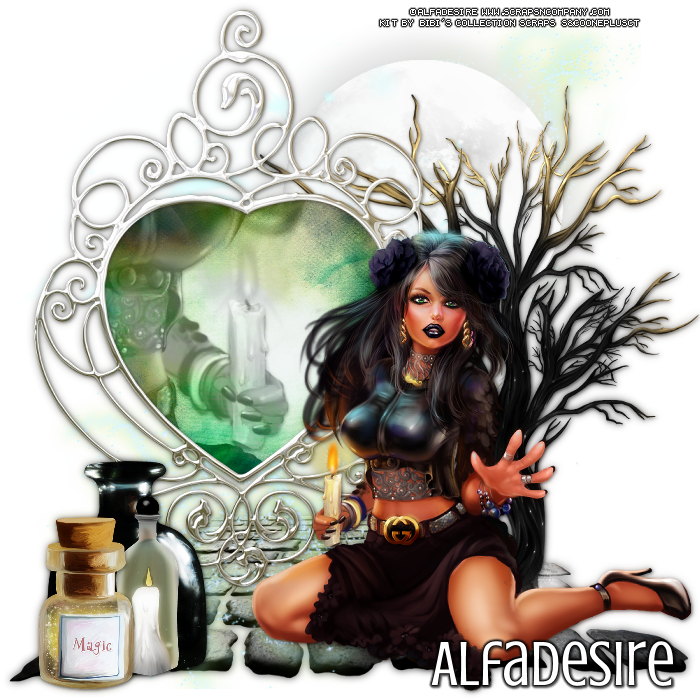
Magic Candle

ENCHANTING TUTORIAL


Tutorial written by Marcia Salgado on May 17th, 2015
for those who have a working knowledge of PSP.
Any resemblance to any other tutorial is coincidental.
Do not copy and paste this tutorial anywhere on the net.
If you want to translate please ask first. 

****************************************
Material:

Tube: "Magic Candle" by Alfadesire, you can purchase it here
do not use without the proper #license.
PTU Kit "Magic Candles" by Bibi's Collection Scraps,
you can purchase it here
Font: Crushed

****************************************

--> Remember to save often and use my tag as reference if necessary. Used the Drop Shadow: 1-1-50-5 in most layers. 

1. Create a new image 700x700. Open BIBI-MAGIC CANDLE ELEMS (81). Resize 80%. Copy and paste as new layer. Move it to bottom.

2. Open BIBI-MAGIC CANDLE ELEMS (90). Copy and paste as new layer. Open BIBI-MAGIC CANDLE ELEMS (58). Copy and paste as new layer. Move it up right.

3. Open BIBI-MAGIC CANDLE ELEMS (45). Copy and paste as new layer. Move it up left.

4. Open BIBI-MAGIC CANDLE ELEMS (63). Resize 70%. Copy and paste as new layer. Move it right down.

5. Open BIBI-MAGIC CANDLE ELEMS (62). Resize 70%. Copy and paste as new layer. Move it to left. Select inside the frame. Add a new layer, move this layer below the frame layer. Open BIBI-MAGIC CANDLE PAPERS (8). Copy and paste into selection. Keep selected.

6. Open your close up tube. Copy and paste as new layer. Move it to place a part inside the frame. Invert Selection. Delete. Select all. Selection > Clip to canvas. Image > Crop to selection. Blend Mode: Luminance (Legacy). Low layer opacity > 64.

7. Click on first layer (should be the frame layer). Open your tube, resize if needed. Copy and paste as new layer. Move it to bottom right.

8. Open BIBI-MAGIC CANDLE ELEMS (47). Resize 60%. Copy and paste as new layer. Move it bottom left.

9. Open BIBI-MAGIC CANDLE ELEMS (51). Resize 40%. Copy and paste as new layer. Move it bottom left. Place in front the first bottle.

10. Open BIBI-MAGIC CANDLE ELEMS (25). Resize 40%. Copy and paste as new layer. Move it far bottom left.

--> Add your copyright info and proper license#. Add your name. Save as PNG.