Showing posts with label Creative Scraps by Crys. Show all posts

November 20, 2016

SHOW OFF - Amok Amok Amok


== NEW CT CREATIVE SCRAPS BY CRYS PTU ==

Featuring "Amok Amok Amok" Kit by Creative Scraps by Crys.


Run children, beware...don't let the virgin blow out the black flame candle.  Don't listen to beautiful singing on Halloween night.  Stay away from the Witches who will give fright.  Amok Amok Amok has 54 Elements and 10 Papers.

Kit can be found at:
-> Mystical Scraps here

Don't forget to visit her blog


October 26, 2016

SHOW OFF - Halloween Flight


== NEW CT CREATIVE SCRAPS BY CRYS PTU ==

Featuring "Fantasmita 8" by Oky Draft and
"Halloween Flight" Kit by Creative Scraps by Crys.


All Hallows Eve brings flying bats across the moon, Wiches working in their book of shadows and pumpkins all aglow!  Come have fun with Halloween Flight and cast a spell or 2.  Kit includes 65 Elements and 14 papers

Kit can be found at:
-> Mystical Scraps here

Don't forget to visit her blog

October 13, 2016

Alice in Zombieland


== NEW CT CREATIVE SCRAPS 
BY CRYS PTU SHOWOFF ==


Featuring "Alice in Zombieland" Kit by Creative Scraps by Crys.


Yikes.... Wonderland has been invaded by Zombies!!! 
Grab your ax and off with their heads!!! 
The Queen and Alice are going to have to work together to fix this! 
 Help them out with this kit!  
Alice in Zombieland has 80 Elements and 18 Papers. 
Using Dee's WA4b wordart that you can find HERE  and one of her geo masks.

Kit can be found at:

-> Mystical Scraps here

Don't forget to visit her blog:


August 9, 2016

SHOW OFF - Lost Toys


== NEW CT CREATIVE SCRAPS BY CRYS PTU ==

Featuring "Lost Toys" Kit by Creative Scraps by Crys.


To cherish and love a toy gives it life. But when a new toy comes along, the old one is forgotten and stowed away.  Come take a look in my attic to find a once loved and long forgotten toy.  Tagger kit has 74 Elements and 18 Papers.

Kit can be found at:

-> Mystical Scraps here

Don't forget to visit her blog


July 12, 2016

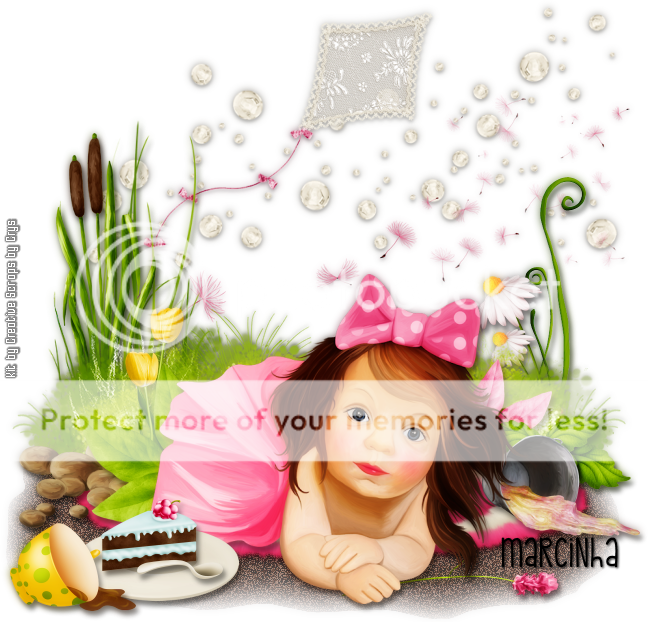
Hello Spring

CUTE SPRING TUTORIAL


Tutorial written by Marcia Salgado on July 12th, 2016
for those who have a working knowledge of PSP.
Any resemblance to any other tutorial is coincidental.
Do not copy and paste this tutorial anywhere on the net.
If you want to translate please ask first. 

****************************************
Material:

PTU Kit "Hello Spring" by Creative Scraps by Crys, you can purchase it here  
Material: ground made by me, mar2016_groundHS, just click and save.
Font: kg pdx bridgetown

****************************************

--> Remember to save often and use my tag as reference if necessary. Use a Drop Shadow of your choice. 


1. Create a new image 650x650.

2. Open my ground. Copy and paste as new layer. Move it down. 

3. Open HS_Element_39. Resize 90%. Copy and paste as new layer. Move it up.

4. Open HS_Element_49. Resize 65%. Mirror. Copy and paste as new layer. Move it up and a little to left.

5. Open HS_Element_86. Copy and paste as new layer. Move it a little up and to left.

6. Open HS_Element_101. Resize 80%. Copy and paste as new layer. Move it to left.

7. Open HS_Element_80. Resize 50%. Mirror. Copy and paste as new layer. Move it to right.

8. Open HS_Element_64. Resize 35%. Mirror. Copy and paste as new layer. Move it a little down and to right.

9. Open HS_Element_98. Resize 45%. Copy and paste as new layer. Move it to left. Place it over the grass.

10. Open HS_Element_74. Copy and paste as new layer. Move it halfway down.  Now look the daisies, see if the bow is hidden behind this bush.

11. Open HS_Element_40. Resize 35%. Copy and paste as new layer. Move it a little down and to left. Duplicate. Place it a little down and on the left side of the first tulip.

12. Open HS_Element_82. Resize 85%. Copy and paste as new layer. Move it down.

13. Open HS_Element_32. Resize 30%. Copy and paste as new layer. Move it down and to right. A little far from the bush edge.

14. Open HS_Element_100. Resize 35%. Copy and paste as new layer. Move it halfway down and way to left.

15. Open HS_Element_33. Resize 35%. Mirror. Copy and paste as new layer. Move it to left. Place it a little over the rocks on the left.

16. Open HS_Element_17. Resize 35%. Copy and paste as new layer. Move it halfway down and way to right.

17. Open HS_Element_99. Resize 35%. Copy and paste as new layer. Place it over the previous foliage at bottom.

18. Open HS_Element_65. Resize 65%. Copy and paste as new layer. Move it down. Place her over the rug.

19. Open HS_Element_14. Resize 40%. Copy and paste as new layer. Move it halfway to left and down. 

20. Open HS_Element_10. Resize 20%. Copy and paste as new layer. Place it on the plate.

21. Open HS_Element_15. Resize 20%. Copy and paste as new layer. Place it in front of the cake slice.

22. Open HS_Element_7. Resize 30%. Mirror. Copy and paste as new layer. Move it way down and way to left.

23. Open HS_Element_57. Resize 35%. Move it down and to right. Copy and paste as new layer. Send this layer below the girl layer. Place it under her hand.

24. Use Crop > Merged Opaque to get rid of all extra spaces.


--> Add your copyright and license#. Add your name and save as PNG.


-------------------------------------------------------------------------

Ideas for a Forum Style tag and an Avatar


July 10, 2016

SHOW OFF - Lets Celebrate


== NEW CT CREATIVE SCRAPS BY CRYS PTU ==

Featuring "Lets Celebrate" Kit by Creative Scraps by Crys.

Come on and Party with me!!! Grab a hat, make a wish, eat some cake!!! Just make sure to have some fun! This kit has 48 Elements and 10 Papers.

Kit can be found at:

-> Mystical Scraps here

Don't forget to visit her blog:


July 3, 2016

Monsters in my Closet

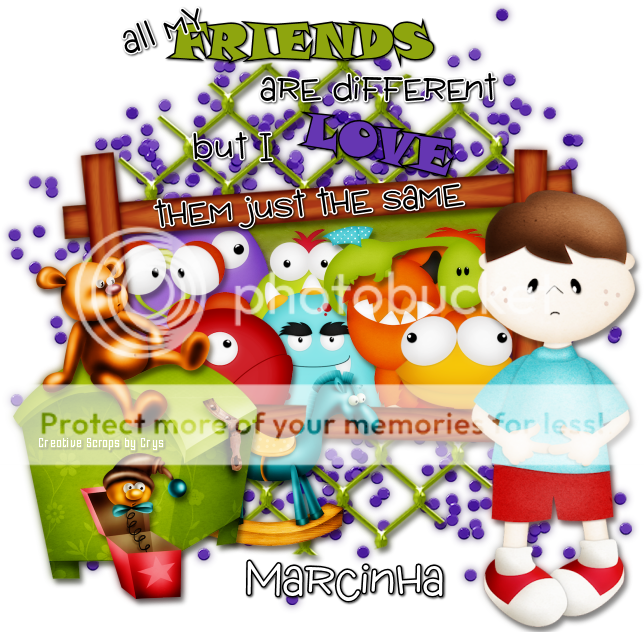
MY DIFFERENT FRIENDS TUTORIAL


Tutorial written by Marcia Salgado on July 2nd, 2016
for those who have a working knowledge of PSP.
Any resemblance to any other tutorial is coincidental.
Do not copy and paste this tutorial anywhere on the net.
If you want to translate please ask first. 

****************************************
Material:

PTU Kit "Monsters in my Closet" by Creative Scraps by Crys
you can purchase it here  
Font: Wacky Action BTN

****************************************

--> Remember to save often and use my tag as reference if necessary. Use a Drop Shadow of your choice. 

1. Create a new image 650x650.

2. Open MIMC_Element_45. Resize 80%. Copy and paste as new layer.

3. Open MIMC_Frame_1. Resize 85%. Copy and paste as new layer.

4. Select inside the frame. Expand > 5. Add a new layer and move it below the frame layer. Open MIMC_Paper_16. Copy and paste into selection. Invert selection.

5. Open the following Monsters and resize them as indicated. Place them inside the frame as you wish. After the monter is in the position you wanted click delete and move to the next monster.

MIMC_Element_4. Resize 45%. Copy and paste as new layer.

MIMC_Element_10. Resize 45%. Copy and paste as new layer.

MIMC_Element_7. Resize 45%. Copy and paste as new layer.

MIMC_Element_11. Resize 45%. Mirror. Copy and paste as new layer.

MIMC_Element_13. Resize 45%. Copy and paste as new layer.

MIMC_Element_6. Resize 45%. Copy and paste as new layer.

MIMC_Element_12. Resize 30%. Copy and paste as new layer.

MIMC_Element_9. Resize 40%. Copy and paste as new layer. Deselect.

6. Click on the frame layer. Open MIMC_Element_29. Resize 40%. Copy and paste as new layer. Move it down and a little to left.

7. Open MIMC_Element_18. Resize 50%. Mirror. Copy and paste as new layer. Move it down and to left.

8. Open MIMC_Element_27. Resize 40%. Copy and paste as new layer. Place it above the green chest.

9. Open MIMC_Element_28. Resize 30%. Copy and paste as new layer. Place it at left on the bottom right of the chest.

10. Open MIMC_Element_17. Resize 70%. Copy and paste as new layer. Move it down and to right.

11. Open my wordart - just click on it and save - and copy and paste as new layer. Move it up.


--> Add your copyright info and license# if necessary. Add your name and save as PNG.


May 30, 2016

Paint Your Dreams

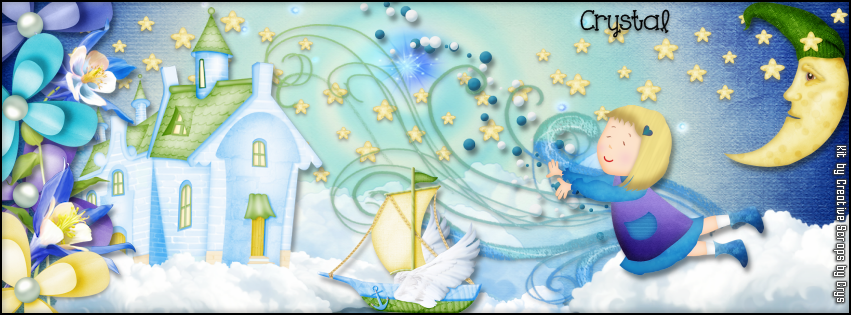
DREAMING TUTORIAL

**Click to see original size**

Tutorial written by Marcia Salgado on May 30th, 2016
for those who have a working knowledge of PSP.
Any resemblance to any other tutorial is coincidental.
Do not copy and paste this tutorial anywhere on the net.
If you want to translate please ask first. 

****************************************
Material:

PTU Kit "Paint Your Dreams" by Creative Scraps by Crys
you can purchase it here  
Font: KG One Thing

****************************************

--> Remember to save often and use my tag as reference if necessary. Use a Drop Shadow of your choice. 


1. Create a new image 851x315.

2. Open paper9. Copy and paste as new layer. Stretch it on both sides to fit the background size.

3. Open cloud2. Resize 45%. Copy and paste as new layer. Move way down. Showing only the top.

4. Open star. Resize 50%. Copy and paste as new layer. Move it up and to left. Duplicate. Mirror. Duplicate and move it a little down and to left, place it in the middle.

5. Open scatter. Resize 45%. Copy and paste as new layer. Move it up and a little to right.

6. Open breeze. Resize 75%. Mirror. Copy and paste as new layer. Move it to right.

7. Open moon. Resize 30%. Mirror, Copy and paste as new layer. Move it up and to right.

8. Open cloud. Resize 75%. Copy and paste as new layer. Move it down and to left. Showing only a quarter of the element.

9. Open house. Resize 65%. Mirror. Copy and paste as new layer. Move it to left.

10. Open boat. Resize 30%. Mirror. Copy and paste as new layer. Move it down.

11. Open flower 4, flower 5, flower 6 and flower 7. Resize 35%. Copy and paste them as new layer. Move them way to ledt. Use mirror and flip to better place them as a border.

12. Open flower. Resize 60%. Copy and paste as new layer. Move it up and way to left. Interlace it between the previous flowers layers.

13. Open flowers. Copy and paste as new layer. Move it down and interlace it between the flowers layers too.

14. Open dreamingirl. Resize 35%. Mirror. Copy and paste as new layer. Move it a little down and to right. 


--> Add your copyright info and license#. Add your name or initials. Save as PNG.

--> Sometimes I had to change my Timeline size to 846x313 because when I add it to Facebook the image has extra pixels and do not fit perfectly. So try this size if the same is happening to you.

-------------------------------------------------------------

My idea for the FB Picture Profile


May 21, 2016

A Passion for Reading

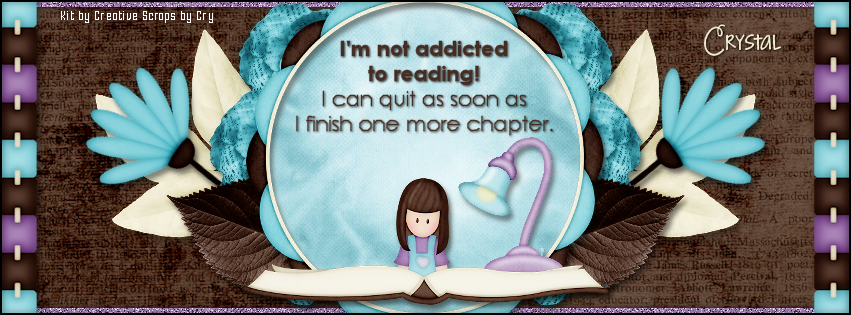
READING TUTORIAL

**Click to see original size**

Tutorial written by Marcia Salgado on May 21th, 2016
for those who have a working knowledge of PSP.
Any resemblance to any other tutorial is coincidental.
Do not copy and paste this tutorial anywhere on the net.
If you want to translate please ask first. 

****************************************
Material:

PTU Kit "A Passion for Reading" by Creative Scraps by Crys
you can purchase it here 
Wordart: by me, just click and save.

Font: KG Strawberry Limeade

****************************************

--> Remember to save often and use my tag as reference if necessary. Use a Drop Shadow of your choice. 


1. Create a new image 815x315.

2. Open APFR_Paper_8. Copy and paste as new layer.

3. Open APFR_Paper_1. Copy and paste as new layer. Low the layer opacity to 64. Blend Mode: Soft Light.

4. Add a new layer. Select all. Fill it with #aa87b6. Contract > 7. Deselect. Noise: Random - 55 - Monochrome. 

5. Open APFR_Frame_3. Copy and paste as new layer. Move it way to left. Leave it showing only the right side of the frame. Duplicate. Mirror. Merge down.


6. Open APFR_Frame_2. Resize 60%. Copy and paste as new layer. 

7. Open APFR_Element_20. Resize 45%. Copy and paste as new layer. Move it up and to right. Duplicate. Mirror. Merge down.

8. Open APFR_Element_4. Resize 60%. Free Rotate: Left-55. Copy and paste as new layer. Move it to left. Duplicate. Mirror. Merge down.

9. Open APFR_Element_21. Resize 30%. Copy and paste as new layer. Move it up and to right. Duplicate it twice and place all three around the frame. Merge these three layers together. Duplicate. Mirror. Merge down.

10. Open APFR_Element_19. Resize 35%. Copy and paste as new layer. Move it down and to right. Duplicate. Mirror. Merge down.

11. Click on frame layer. Select inside the frame. Expand > 5. Add a new layer and move it below the frame layer. Open APFR_Paper_6. Copy and paste into selection. Deselect.

12. Click on frame layer again. Open APFR_Element_10. Resize 30%. Copy and paste as new layer. Move it a little down and a little to right.

13. Open APFR_Element_25. Resize 60%. Copy and paste as new layer. Move it down.

14. Open my wordart. Copy and paste as new layer. Move it up.


--> Add your copyright info and license#. Add your name or initials. Save as PNG.

--> Sometimes I had to change my Timeline size to 846x313 because when I add it to Facebook the image has extra pixels and do not fit perfectly. So try this size if the same is happening to you.


March 26, 2016

Eggstra Special ~ Joanne Salgado


Tutorial written by Joanne Salgado on March 26th, 2016
for those who have a working knowledge of PSP.
Any resemblance to any other tutorial is coincidental.
Do not copy and paste this tutorial anywhere on the net.
If you want to translate please ask first. 

Tube: Easter Girl by Alfadesire - you can purchase here
Kit Eggstra Special Easter by Creative Scraps by Crys - you can purchase here
Font: BachelorScript

Don't forget to save often.
At any point if you have doubts check my tag.

1. Open a new image 650x550

2. Open frame 'ESE_Frame_2' copy and paste as new layer. Resize 65%.

3. Open element 'ESE_Element_51' copy and paste as new layer. Rotate left 90. Move this layer below the frame layer. Arrange it to top left. Duplicate. Mirror.

4. Open element 'ESE_Element_27' copy and paste as new layer. Resize 60%. Mirror. Arrange it to the top left. Duplicate. Rotate right 90. Arrange it to the top center, a little to the right.

5. Open element 'ESE_Element_28' copy and paste as new layer. Resize 60%. Arrange it to the top right. Duplicate. Rotate left 90. Arrange it to the top center a little to the left.

6. Open paper 'ESE_Paper_2' copy and paste as new layer. Resize 40%.

7. Open element 'ESE_Element_17' copy and paste as new layer. Arrange it to bottom (don't worry its supposed to have some parts outside the frame).

8. Open element 'ESE_Element_46' copy and paste as new layer. Resize 25%. Arrange it to the left inside the frame.

9. Open element 'ESE_Element_37' copy and paste as new layer. Resize 20%. Arrange it to the left in front of the house (a little more to bottom).

10. Open element 'ESE_Element_18' copy and paste as new layer. Resize 35%. Arrange it to the right.

11. Open element 'ESE_Element_20' copy and paste as new layer. Resize 20%. Arrange it to the right of the house (in front).

12. Open element 'ESE_Element_14' copy and paste as new layer. Resize 10%. Rotate right 10. Arrange it to bottom right of the tree.

13. Open element 'ESE_Element_15' copy and paste as new layer. Resize 10%. Rotate left 10. Arrange it to bottom left of the boy.

14. Open element 'ESE_Element_13' copy and paste as new layer. Resize 10%. Arrange it to bottom right of the boy.

15. Open element 'ESE_Element_62' copy and paste as new layer. Resize 60%. Move this layer above the frame layer. Arrange it to the bottom left of the frame.

16. Open element 'ESE_Element_61' copy and paste as new layer. Resize 60%. Arrange it to the bottom right of the frame.

17. Open element 'ESE_Element_60' copy and paste as new layer. Arrange it to bottom.

18. Open element 'ESE_Element_59' copy and paste as new layer. Arrange it to bottom.

19. Open your tube. Copy and paste as new layer. Resize as needed and arrange it to the left.

20. Open element 'ESE_Element_16' copy and paste as new layer. Resize 35%. Arrange it to the bottom right.

21. Open element 'ESE_Element_3' copy and paste as new layer. Resize 40%. Arrange it to the bottom right (to the right of the basket).

22. Add shadow as you prefer.

23. Add copyright. Add name. Save as PNG.

March 24, 2016

A Beautiful Innocence

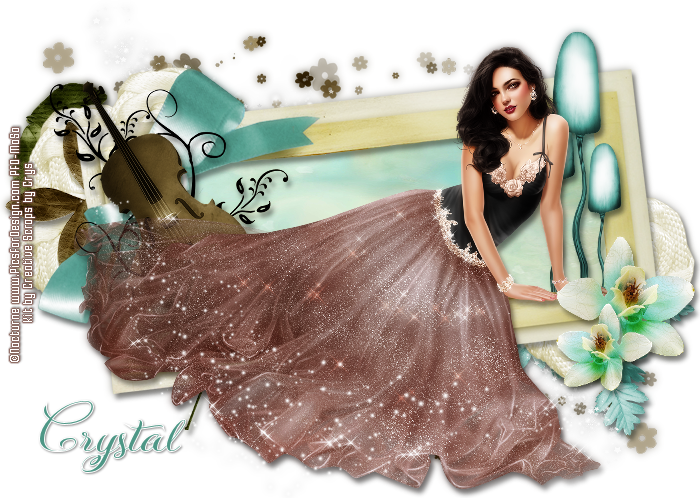
GLITTERING TUTORIAL


Tutorial written by Marcia Salgado on March 24th, 2016
for those who have a working knowledge of PSP.
Any resemblance to any other tutorial is coincidental.
Do not copy and paste this tutorial anywhere on the net.
If you want to translate please ask first. 

****************************************
Material:

Tube: "Reine" by Nocturne, you can purchase it here 
do not use without the proper #license.
PTU Kit "A Beautiful Innocence" by Creative Scraps by Crys, you can purchase it here  
Font: KazincBarcika Script Demo

****************************************

--> Remember to save often and use my tag as reference if necessary. Use a Drop Shadow of your choice. 


1. Create a new image 700x500.

2. Open ABI_Element_8. Copy and paste as new layer. Move it down and to right. Duplicate. Mirror and flip. Merge down.

3. Open ABI_Frame_2. Copy and paste as new layer. Move it a little up.

4. Open ABI_Element_41. Resize 60%. Copy and paste as new layer. Move it down and to right, Place it over the frame's bottom right corner. Move this layer below frame layer.

5. Open ABI_Element_47. Resize 50%. Copy and paste as new layer. Move it up and to left. Place it near the frame ribbon. Duplicate. Mirror. Flip. Move it down and to right. Place it below the frame's bottom right corner. Merge down.
6. Open ABI_Element_1. Resize 60%. Copy and paste as new layer. Move it up and to left. Place it below the frame's top left corner.

7. Open ABI_Element_56. Resize 60%. Copy and paste as new layer. Duplicate it four times and place them around the frame's top left corner and bottom right corner. Merge them together to keep only one layer with the element.

8. Open ABI_Element_2. Resize 50%. Copy and paste as new layer. Move it up and to left.

9. Click on first layer (should be the frame layer). Select inside the frame. Expand > 5. Add a new layer. Move it below the frame layer. Open ABI_Paper_10. Copy and paste into selection. Deselect.

10. Open ABI_Element_34. Resize 60%. Copy and paste as new layer. Move it to right.

11. Open ABI_Element_33. Resize 60%. Copy and paste as new layer. Move it to left.

12. Open your tube. Resize if needed. Copy and paste as new layer. Place it over the frme. My tube looks like seated over the frame's bottom border.

13. Open ABI_Element_29. Resize 30%. Copy and paste as new layer. Place it over the frame's bottom right corner. Duplicate. resize 70%. Mirror. Place it on left size of the fiirst orchid, a little down.

14. OPTIONAL - Open ABI_Element_19. Resize 75%. Free Rotate: Left-27. Copy and paste as new layer. I placed it over the tube's dress.


--> Add your copyright info and license#. Add your name and save as PNG.


March 14, 2016

Love Bunny ~ by Joanne Salgado


Tutorial written by Joanne Salgado on March 14th, 2016
for those who have a working knowledge of PSP.
Any resemblance to any other tutorial is coincidental.
Do not copy and paste this tutorial anywhere on the net.
If you want to translate please ask first. 

Tube: My Love Bunny by Lysisange - you can purchase here
Kit On The Hunt by Creative Scraps by Crys - you can purchase here
Font: Claudia

Don't forget to save often.
At any point if you have doubts check my tag.

1. Open a new image 650x550

2. Open frame 'OTH_Frame_6' copy and paste as new layer. Resize 70%.

3. Open element 'OTH_Element_53' copy and paste as new layer. Move this layer bellow the frame layer. Arrange it to the top right. Duplicate. Mirror/Flip.

4. Open element 'OTH_Element_52' copy and paste as new layer. Arrange it to the top left. Duplicate. Arrange it to the bottom right.

5. Open paper 'OTH_Paper_2' copy and paste as new layer. Resize 60%. Arrange it inside the frame and clean the outside parts.

6. Open element 'OTH_Element_27' copy and paste as new layer. Resize 80%. Mirror. Move this layer above the frame layer. Arrange it to the left.

7. Open element 'OTH_Element_60' copy and paste as new layer. Resize 50%. Arrange it to the bottom left.

8. Open element 'OTH_Element_26' copy and paste as new layer. Arrange it to bottom.

9. Open element 'OTH_Element_66' copy and paste as new layer. Resize 15%. Arrange it to the top left inside the frame.

10. Open element 'OTH_Element_65' copy and paste as new layer. Resize 15%. Mirror. Arrange it a little to the bottom right of the red butterfly.

11. Open element 'OTH_Element_68' copy and paste as new layer. Resize 40%. Arrange it to the bottom right.

12. Open element 'OTH_Element_35' copy and paste as new layer. Resize 50%. Mirror. Arrange it to the bottom right.

13. Open your tube. Copy and paste as new layer. Resize as needed and arrange it to the bottom right.

14. Open element 'OTH_Element_40' copy and paste as new layer. Resize 40%. Arrange it to the bottom left.

15. Open element 'OTH_Element_72' copy and paste as new layer. Resize 30%. Arrange it to the bottom left, a little to the right of the flower we added.

16. Open element 'OTH_Element_50' copy and paste as new layer. Resize 30%. Arrange it to the bottom right.

17. Open element 'OTH_Element_1' copy and paste as new layer. Resize 15%. Rotate right 15. Arrange it as its inside the basket and clean the lower parts.

18. Open element 'OTH_Element_33' copy and paste as new layer. Resize 20%. Arrange it inside the basket and clean the outside parts.

19. Open element 'OTH_Element_2' copy and paste as new layer. Resize 15%. Rotate left 15. Arrange it inside the basket and clean the outside parts.

20. Open element 'OTH_Element_46' copy and paste as new layer. Resize 15%. Rotate right 15. Arrange it as embelishment of the basket.

21. Open element 'OTH_Element_42' copy and paste as new layer.

22. Add shadow as you prefer.
23. Add copyright. Add name. Save as PNG.

Other Exemple on how to use this awesome kit


March 13, 2016

Forever Love

ELEGANT VALENTINE TUTORIAL


Tutorial written by Marcia Salgado on March 13th, 2016
for those who have a working knowledge of PSP.
Any resemblance to any other tutorial is coincidental.
Do not copy and paste this tutorial anywhere on the net.
If you want to translate please ask first. 

****************************************
Material:

Tube: Scarlett Chow - http://www.scarlettchou.com.
This is a "PAID GROUP PERMISSION". Under no circumstances are these tubes to be shared. They are for the personal use of members of Angels Design
do not use without the proper #license.
PTU Kit "Forever Love" by Creative Scraps by Crys, you can purchase it here  
Font: HMS Gilbert Brush

****************************************

--> Remember to save often and use my tag as reference if necessary. Use a Drop Shadow of your choice. 

1. Create a new image 650x650.

2. Open FY_Element_60. Copy and paste as new layer. Move it to right.

3. Open FY_Element_41. Copy and paste as new layer. Move it up and to right.

4. Open FY_Frame_3. Resize 85%. Copy and paste as new layer. Move it to left.

5. Select inside the hearts. Expand > 5. Add a new layer and move this layer below the frame layer. Open FY_Paper_8. Copy and paste into selection. Deselect.

6. Click on frame layer. Open FY_Element_40. Resize 75%. Copy and paste as new layer.

7. Open FY_Element_11. Resize 75%. Copy and paste as new layer. Place it over the upper frame heart.

8. Open FY_Element_72. Resize 80%. Copy and paste as new layer. Place it between the heart frames.

9. Open FY_Element_67. Resize 55%. Copy and paste as new layer. Place it at the right side of the bench.

10. Open your tube. Copy and paste as new layer. I'm using an awesome Group PTU tube by Scalett Chow, just placed her on the bench. 

11. Open FY_Element_69. Resize 50%. Mirror. Copy and paste as new layer. Place it on the left side of the bench.

12. Open FY_Element_18. Resize 50%. Copy and paste as new layer. Move it down and a little to right.

13. Open FY_Element_30. Resize 40%. Free Rotate: Left-20. Copy and paste as new layer. Place it on the left side of the chocolate box. 

14. Open FY_Element_58. Resize 65%. Copy and paste as new layer. Move it down and to right. Apply Manua Color Correction as shown below:


15. Open FY_Element_48, FY_Element_49 and FY_Element_50, Resize 10%. Copy and paste them as new layer. Place them on the right side of the wordart just before the end of it.

16. Use the Crop > Merged Opaque to get rid of all extra spaces.


--> Add your copyright info and license#. Add your name and save as PNG.


February 28, 2016

SHOW OFF - Whispers of Spring


== NEW CT CREATIVE SCRAPS BY CRYS PTU TAG ==


Featuring "Whispers of Spring" Kit by Creative Scraps by Crys and tube by Ismael Rac.

Weather is warming up and flowers are starting to peek out, rain is falling, bringing the whispers of spring.  It has 30 Elements/9 Papers.

Kit can be found at:

-> Mystical Scraps here

Don't forget to visit her blog:


February 22, 2016

Autumn Harvest

AUTUMN MUSIC TUTORIAL


Tutorial written by Marcia Salgado on February 22th, 2016
for those who have a working knowledge of PSP.
Any resemblance to any other tutorial is coincidental.
Do not copy and paste this tutorial anywhere on the net.
If you want to translate please ask first. 

****************************************
Material:

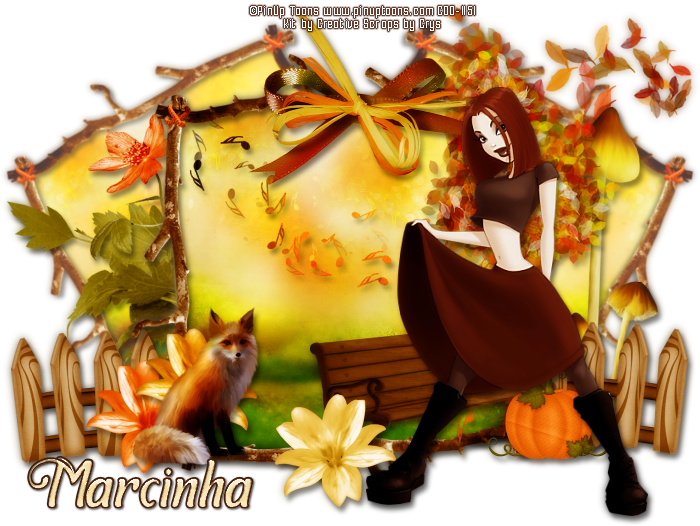
Tube: "Skirt Boots" by PinUp Toons, you can purchase it here 
do not use without the proper #license.
PTU Kit "Autumn Harvest" by Creative Scraps by Crys, you can purchase it here  
Font: Symphony

****************************************

--> Remember to save often and use my tag as reference if necessary. Use a Drop Shadow of your choice. 


1. Create a new image 700x550,

2. Open AH_Frame_3. Resize 70%. Copy and paste as new layer. Select inside the frame. Expand > 10. Add a new layer and move it below the frame layer. Open AH_Paper_1. Copy and paste into selection. Deselect.

3. Add a suitable shadow on the frame and merge visible. Duplicate. Resize 85%. Free Rotate: Left-25. Move it a little up and way to left. Duplicate. Mirror. Move this layer below the bigger frame. Apply Histogram Adjustments (Adjust > Brightness and Contrast), with the following settings:


4. Open AH_Element_6. Resize 75%. Copy and paste as new layer . Move it up and to right.

5. Open AH_Element_32. Resize 55%. Copy and paste as new layer. Move it fdown and to left.

6. Open AH_Element_37. Resize 70%. Mirror. Copy and paste as new layer. Move it to left and place it right behind the frme's left border.

7. Open AH_Element_5. Resize 70%. Copy and paste as new layer. Move it down and to right. 

8. Open AH_Element_21. Resize 60%. Copy and paste as new layer. Move it down and way right. Duplicate. Mirror. Adjust it of left side of the frame. Merge down.

9. Open AH_Element_14. Resize 70%. Copy and paste as new layer. Move it to left and place over the right bigger frame border.

10. Click on first layer, should be the big frame. Open AH_Element_16. Resize 60%. Copy and paste as new layer. Duplicate. Blend Mode: Multiply.

11. Open AH_Element_28. Resize 30%. Copy and paste as new layer. Place it on bigger frame left bottom corner.

12. Open AH_Element_20. Resize 45%. Copy and paste as new layer. Move it down and to right.

13. Open AH_Element_34. Resize 50%. Copy and paste as new layer. Place it over the bigger frame on top.

14. Open AH_Element_55. Resize 25%. Copy and paste as new layer. Move it down and to right. Place it in foront of bigger frame's bottom right corner.

15. Open your tube. Resize if needed. Copy and paste as new layer. Move it a little down and to right.

16. Open the elements AH_Element_42, AH_Element_43 and AH_Element_44. Resize 25%. Copy and paste as new layer. Placethem around the bottom of the tag. Place some below the fox element. Some above the bench element. Have fun with it.

17. Use Crop > Merged Opaque to get rid of all extra space.


--> Add your copyright info and license#. Add your name and save as PNG.


February 21, 2016

Honey ~ by Joanne Salgado


Tutorial written by Joanne Salgado on February 21th, 2016
for those who have a working knowledge of PSP.
Any resemblance to any other tutorial is coincidental.
Do not copy and paste this tutorial anywhere on the net.
If you want to translate please ask first. 

Tube: Jemma 1 by KiwiBG - you can purchase at S&CO
Kit Be My Honey by Creative Scraps by Crys - you can purchase here
Font: A.D.MONO

Don't forget to save often.
At any point if you have doubts check my tag. 

1. Open a new image 650x550

2. Open frame 'BMH_Frame_3' copy and paste as new layer. Resize 80%. Arrange it to top.

3. Open element 'BMH_Element_30' copy and paste as new layer. Move this layer below the frame layer. Arrange it to bottom. Duplicate. Mirror/Flip.

4. Open element 'BMH_Element_45' copy and paste as new layer. Arrange it to the bottom left. Duplicate. Mirror/Flip.

5. Open element 'BMH_Element_42' copy and paste as new layer. Resize 70%. Arrange it to the top left of your frame. Clean every part that appears inside the frame. Duplicate. Mirror.

6. Open element 'BMH_Element_40' copy and paste as new layer. Resize 80%. Arrange it to bottom.

7. Open paper 'BMH_Paper_6' copy and paste as new layer. Resize 30%. Arrange it inside the frame.

8. Open element 'BMH_Element_7' copy and paste as new layer. Resize 45%. Move this layer above the frame layer. Arrange it to the bottom of the frame so it looks like the honey is droping from the window.

9. Open your tube. Copy and paste as new layer. Resize as needed. Arrange it inside the frame and clean the parts needed so it looks like your tube is inside the window. I left the top part looking like is outside the window.

10. Open element 'BMH_Element_26' copy and paste as new layer. Resize 30%. Arrange it to the bottom left of the window.

11. Open element 'BMH_Element_16' copy and paste as new layer. Resize 25%. Arrange it to the bottom left, in front from H (honey).

12. Open element 'BMH_Element_6' copy and paste as new layer. Resize 20%. Arrange it to the bottom left of the window (near the bear).

13. Open element 'BMH_Element_5' copy and paste as new layer. Resize 20%. Arrange it to the right of the window.

14. Add shadow as you prefer.

15. Add copyright. Add name. Save as PNG.

February 11, 2016

Frog-A-Licious

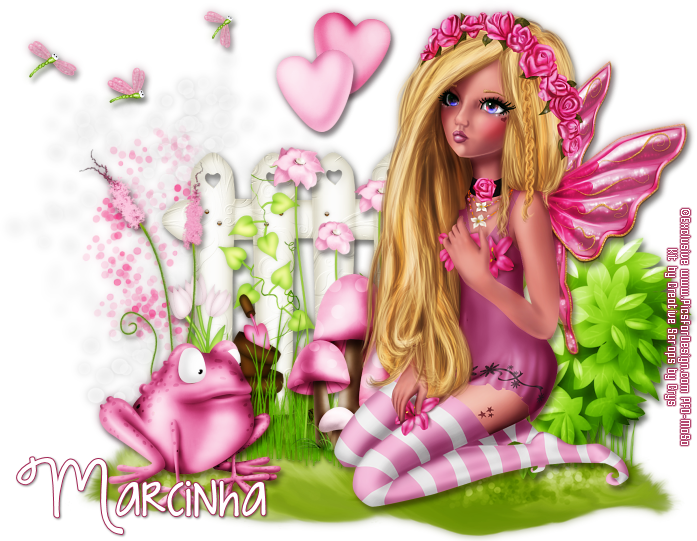
FAIRY IN LOVE TUTORIAL


Tutorial written by Marcia Salgado on February 11th, 2016
for those who have a working knowledge of PSP.
Any resemblance to any other tutorial is coincidental.
Do not copy and paste this tutorial anywhere on the net.
If you want to translate please ask first. 

****************************************
Material:

Tube: "Lis" a PFD Exclusive Tube, you can purchase it here 
do not use without the proper #license.
PTU Kit "Frog-A-Licious" by Creative Scraps by Crys, you can purchase it here 
Font: KG Strawberry Limeade

****************************************

--> Remember to save often and use my tag as reference if necessary. Use a Drop Shadow of your choice. 

1. Create a new image 700x550.

2. Open FAL_Element_37. Resize 75%. Mirror. Copy and paste as new layer. Move it to left.

3. Open FAL_Element_32. Copy and paste as new layer. Move it down and to right.

4. Open FAL_Element_47. Resize 50%. Copy and paste as new layer. Move it a loittle down. Place it over the mound of grass, in the middle, more or less.

5. OPen FAL_Element_8. Resize 65%. Copy and paste as new layer. Move it down and to right. Place it over the right side of the mound of grass, Duplicate and move it to left to cover it all.

6. OPen FAL_Element_45. Resize 65%. Copy and paste as new layer. Place it over the fence middle.

7. Open FAL_Element_30. Resize 40%. Copy and paste as new layer. Place it in front of the previous flowers.

8. Open FAL_Element_42. Resize 65%. Copy and paste as new layer. Move it to left and place it over the mound of grass left border.

9. Open FAL_Element_21. Resize 65%. Copy and paste as new layer. Move it to right. Place it over the mound of grass right border.

10. Open FAL_Element_29. Resize 40%. Copy and paste as new layer. Move it down and to left. 

11. Open FAL_Element_18. Resize 50%. Mirror. Copy and paste as new layer. Move it up and to left.

12. Open your tube, resize it if needed. Copy and paste as new layer. Move it to right.

13. Open FAL_Element_22 and FAL_Element_23. Resize 50% on both. Copy and paste them as new layer. Place them on middle at the top of your tag, the dark one a little up than the other and the light pink over the dark one.

14. Using Crop Merged Opaque remove the tag extra space.


--> Add your copyright info and license#. Add your name and save as PNG.


February 5, 2016

Love Bugs

PINK LOVE TUTORIAL


Tutorial written by Marcia Salgado on February 5th, 2016
for those who have a working knowledge of PSP.
Any resemblance to any other tutorial is coincidental.
Do not copy and paste this tutorial anywhere on the net.
If you want to translate please ask first. 

****************************************
Material:

Tube: "Individual Tube 80-2" by Anna Liwanag, you can purchase it here
do not use without the proper #license.
PTU Kit "Love Bugs" by Creative Scraps by Crys, you can purchase it here 
Mask: Dee's Mask, DD_GeoMask_3, here
Font: Fabulous

****************************************

--> Remember to save often and use my tag as reference if necessary. Use a Drop Shadow of your choice. 

1. Create a new image 650x600.

2. Open sparkles 2. Copy and paste as new layer. Move it to right.

3. OPen butterfly hearts. Free Rotate: Left-25. Copy and paste as new layer. Move it up and to left.

4. Open scatter. Copy and paste as new layer. Move it to left.

5. Open flower 3. Resize 70%. Copy and paste as new layer. Move it down and to left.

6. Open leaf 2. Resize 70%. Mirror. Free Rotate: Right-20. Copy and paste as new layer. Move it way to left.

7. Open flower 5. Resize 70%. Copy and paste as new layer. Move it down and left. Place it over the first flower. but a little up and to right than the previous one.

8. Open pink lilacs. Copy and paste as new layer. Move it down and to right.

9. Open leaves. Resize 70%. Mirror. Copy and paste as new layer. Move it a little down and to right.

10. Open flower 6. Resize 45%. Copy and paste as new layer. Move it down and a little to right.

9. Open your tube closeup. Resize it if needed. Copy and paste as new layer.
In mine I used mirror and move it a little to right and a little down.

10. Open rose petal hearts. Resize 55%. Free Rotate:Left-25. Copy and paste as new layer. Move it down and use it to cover the tube bottom.

11. Open stem. Resize 50%. Copy and paste as new layer. Move it down and to left. Place over the pink petals heart. 

12. Open rose petal hearts 4. Resize 40%. Free Rotate: Right-20. Copy and paste as new layer. Move it down and a little to left. Place it over the pink petals hear on its right side.

13. Open word art. Resize 35%. Fre Rotate: Right-15. Copy and paste as new layer. Move it down and a little to right.

14. Add a new layer. Select all. Open Love bug paper 11. Copy and paste into selection. Apply Dee's mask. Merge group. Move this layer to bottom.

15. Rearrange the elements if wanted to better fit your tube. Use Crop > Merged opaque to get rid of any extra space.


--> Add your copyright info and license#. Add your name and save as PNG.