Showing posts with label Ismael Rac. Show all posts

March 26, 2017

Iconic Pose ~ by Joanne Salgado


Tutorial written by Joanne Salgado on March 25th, 2017
for those who have a working knowledge of PSP.
I'm using PSP9 to create my tuts.
Any resemblance to any other tutorial is coincidental.
Do not copy and paste this tutorial anywhere on the net.
If you want to translate please ask first. 

****************************************
Material:

Tube: "Iconic Pose HDSL" by Ismael Rac, you can purchase it here
do not use without the proper #license.
PTU Kit "IconiX Pose" by Kizzed by Kelz, you can purchase it here
Font: Kaitlyn

****************************************

--> Remember to save often and use my tag as reference if necessary.

1. Open a new image 650x550

2. Open element 'KBK_IconixPose (116)' copy and paste as new layer.

3. Open element 'KBK_IconixPose (63)' copy and paste as new layer. Move this layer below the frame layer.

4. Open element 'KBK_IconixPose (62)' copy and paste as new layer. Resize 50%. Arrange it to the top left. Duplicate. Mirror.

5. Open element 'KBK_IconixPose (8)' copy and paste as new layer. Resize 50%. Clean outside the frame.

6. Open element 'KBK_IconixPose (115)' copy and paste as new layer. Resize 25%. Arrange it to the top left inside the frame.

7. Open element 'KBK_IconixPose (61)' copy and paste as new layer. Resize 50%. Arrange it to the right. Move this layer above the frame layer.

8. Open element 'KBK_IconixPose (112)' copy and paste as new layer. Resize 30%. Arrange it to the bottom right.

9. Open element 'KBK_IconixPose (113)' copy and paste as new layer. Resize 30%. Arrange it to the bottom left.

10. Open element 'KBK_IconixPose (114)' copy and paste as new layer. Resize 30%. Arrange it to the bottom right.

11. Open element 'KBK_IconixPose (9)' copy and paste as new layer. Resize 20%. Arrange it to the bottom right.

12. Open element 'KBK_IconixPose (16)' copy and paste as new layer. Resize 20%. Arrange it to the bottom left.

13. Open element 'KBK_IconixPose (38)' copy and paste as new layer. Resize 20%. Rotate. Arrange it to the left.

14. Open element 'KBK_IconixPose (40)' copy and paste as new layer.

15. Open element 'KBK_IconixPose (120)' copy and paste as new layer.

16. Open element 'KBK_IconixPose (37)' copy and paste as new layer.

17. Open element 'KBK_IconixPose (41)' copy and paste as new layer.

18. Open your tube. Copy and paste as new layer. Resize as needed and arrange it to the right.

19. Open element 'KBK_IconixPose (119)' copy and paste as new layer. Resize 20%. Arrange it to the top left.

20. Open element 'KBK_IconixPose (105)' copy and paste as new layer. Resize 25%. Mirror. Arrange it to the bottom right.

21. Add shadow as you prefer.

22. Add copyright. Add name. Save as PNG.

December 22, 2016

Samus Cosplay tube with So Chic kit


== NEW PTU TAG S&CO. CT ==
ISMAEL RAC AND DISTURBED SCRAPS

Featuring "Samus Cosplay", an Ismael Rac tube and
 "So Chic", Disturbed Scraps kit at Scraps N Company - S&Co.


The kit has 14 papers and 77 elements so you can play with it.
 Very versatile and can be used with any other tubes and artists you have.

Tube can be found  at:
-> Scraps N Company - S&Co., here 

Kit can be found  at:
-> Scraps N Company - S&Co., here 


December 4, 2016

SHOW OFF - Morrigan Sophie


== NEW PTU S&CO. CT ==
FOR ISMAEL RAC AND DESIGNS BY JOAN

Featuring "Morrigan Sophie" tube by Ismael Rac and
"Darkness" Kit by Designs By Joan at Scraps N Company - S&Co.

Tube by Ismael Rac - you can purchase here

Kit by Designs By Joan - you can purchase here


November 26, 2016

SHOW OFF - One UP


== NEW PTU S&CO. CT ==
FOR ISMAEL RAC AND RIENEKE DESIGNS

Featuring "One Up" tube by Ismael Rac and
"Dreamland" Kit by Rieneke Designs at Scraps N Company - S&Co.

Tube by Ismael Rac - you can purchase here

Kit by Rieneke Designs - you can purchase here


SHOW OFF - Minion Girl


== NEW PTU S&CO. CT ==
FOR ISMAEL RAC AND KIZZED BY KELZ

Featuring "Minion Girl" tube by Ismael Rac and
"Minion Girl" Kit by Kizzed By Kelz at Scraps N Company - S&Co.

Tube by Ismael Rac - you can purchase here

Kit by Kizzed By Kelz - you can purchase here


Wonder Woman


== NEW PTU TUTORIAL S&CO. CT ==
ISMAEL RAC AND TAGCATZ DESIGN

Featuring "Cosplay Wonder Woman", an Ismael Rac tube and
 "Wonder Woman", Tagcatz Design kit at Scraps N Company - S&Co.


My heroine! Wonder Woman - nostalgic, fun, great role model and perfect for tags. 
Wonder Woman is a match for Ismael Rac's great Wonder Woman tube
It has 80 elements and 6 papers. PU only. 
Not all shown. Drop shadows on preview only. 
Very versatile and can be used with any other tubes and artists you have.

Tube can be found  at:
-> Scraps N Company - S&Co., here 

Kit can be found  at:
-> Scraps N Company - S&Co., here 


November 23, 2016

Sexy Call tube with Always Yours kit

SAY YOU LOVE ME TUTORIAL


Tutorial written by Marcia Salgado on November 20th, 2016
for those who have a working knowledge of PSP.
I'm using PSP9 to create my tuts.
Any resemblance to any other tutorial is coincidental.
Do not copy and paste this tutorial anywhere on the net.
If you want to translate please ask first. 

****************************************
Material:

Tube: "Sexy Call" by Ismael Rac, you can purchase it here 
do not use without the proper #license.
PTU Kit "Always Yours" by Rieneke Designs, you can purchase it here 
Font: Aventure Scriptine

****************************************

--> Remember to save often and use my tag as reference if necessary. Use a Drop Shadow of your preference on layers. 


1. Open 'element' 70. Resize 65%. Copy and paste as new layer. Move it up and to left. Duplicate. Mirror. Flip. 

2. Open 'element' 2. Resize 85%. Copy and paste as new layer. 

3. Open 'element' 55. Copy and paste as new layer. 

4. Open 'element' 77. Copy and paste as new layer. Move it a little down. Duplicate. Mirror and move it a little up. Duplicate. Mirror. Move it a little up. 

5. Open 'element' 60. Resize 40%. Copy and paste as new layer. Move it to left. Duplicate. Mirror. Flip. Move it a little up. 

6. Open 'element' 8. Resize 55%. Copy and paste as new layer. Move it down and to left.

7. Open 'element' 49. Resize 55%. Copy and paste as new layer. Move it up and to right.

8. Open 'element' 33. Resize 40%. Mirror. Free Rotate: Left-25. Copy and paste as new layer. Move it down and to left. Duplicate. Move it up and to right.

9. Open 'element' 27. Resize 65%. Copy and paste as new layer. 

10. Select inside the frame; Expand > 5. Add a new layer and move it below the frame layer. Open 'paper' 7. Copy and paste into selection. Deselect.

11. Click on frame layer. Open 'element' 75. Resize 55%. Copy and paste as new layer. Move it down and to right.

12. Open your tube. Resize. Copy and paste as new layer. Move it to right and erase unwanted parts. You may want to rearrange some elements to better fit with your tube.

13. Open 'element' 41. Resize 50%. Copy and paste as new layer. Move it down and to right.

14. Open 'element' 46. Resize 40%. Copy and paste as new layer. Place over the last leaves.

15. Open 'element' 35. Resize 35%. Copy and paste as new layer. Move it down.

16. Apply your chosen shadow on layers. Use Crop > Merged Opaque and get rid of all extra spaces.


--> Add your copyright info and license#. Add your name and save as PNG.


November 22, 2016

Retro Wonder tube with Super Girl kit


== NEW PTU SHOWOFF S&CO. CT ==
ISMAEL RAC AND BIBI'S COLLECTION

Featuring "Retro Wonder", an Ismael Rac tube and
 "Super Girl", Bibi's Collection kit at Scraps N Company - S&Co.


The kit has 20 papers and 160 elements so you can play with it. 
Very versatile and can be used with any other tubes and artists you have.

Tube can be found  at:
-> Scraps N Company - S&Co., here 

Kit can be found  at:
-> Scraps N Company - S&Co., here 


November 10, 2016

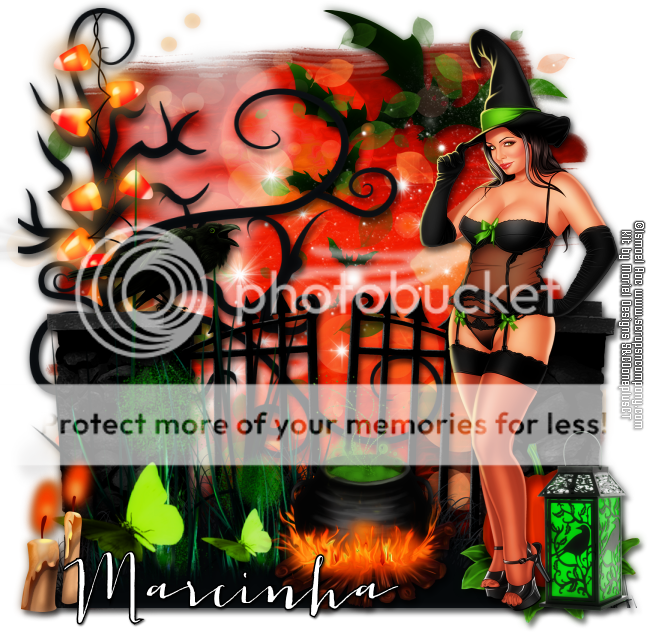
Happy Holloween Girl

HALLOWFEST 2016 TUTORIAL


Tutorial written by Marcia Salgado on October 25th, 2016
for those who have a working knowledge of PSP.
I'm using PSP9 to create my tuts.
Any resemblance to any other tutorial is coincidental.
Do not copy and paste this tutorial anywhere on the net.
If you want to translate please ask first. 

****************************************
Material:

Tube: "Happy Holloween Girl" by Ismael Rac, you can purchase it here 
do not use without the proper #license.
PTU Kit "Happy Holloween Girl" by Kizzed By Kelz, you can purchase it here 
Mask: Dee's mask, DD_NFM_2015_5, HERE 
Plugin: MuRa's Meister
Font: Fairytales Script

****************************************

--> Remember to save often and use my tag as reference if necessary. Use a Drop Shadow of your preference on layers. 


1. Open a new image 650x550

2. Open element 'KBK_HappyHolloweenGirl (89)' copy and paste as new layer. Resize 30%. Use MuRa'S encircle with settings bellow.


3. Open element 'KBK_HappyHolloweenGirl (43)' copy and paste as new layer. Resize 30%. Flip. Use MuRa'S encircle with settings bellow.


4. Open paper 'KBK_HappyHolloweenGirl (7)' copy and paste as new layer. Apply mask.

5. Create a circle with ellipse tool. Align at center.

6. Open element 'KBK_HappyHolloweenGirl (30)' copy and paste as new layer. Resize 50%. Rotate right 20. Move this layer below the circle layer and arrange it to the top right.

7. Open element 'KBK_HappyHolloweenGirl (26)' copy and paste as new layer. Resize 50%. Rotate left 20. Arrange it to the top left.

8. Open element 'KBK_HappyHolloweenGirl (23)' copy and paste as new layer. Resize 50%. Rotate right 40. Arrange it to the right.

9. Open paper 'KBK_HappyHolloweenGirl (1)' copy and paste as new layer. Arrange as you prefer (I used the borders because they are darker). Clean the parts outside the circle.

10. Open element 'KBK_HappyHolloweenGirl (111)' copy and paste as new layer. Resize 50%. Arrange it to the right inside the circle. Clean the parts outside.

11. Open element 'KBK_HappyHolloweenGirl (92)' copy and paste as new layer. Resize 70%. Arrange it to the top left. Duplicate. Mirror. Arrange it so it touches the other side of the leafs. Clean inside the circle.

12. Open element 'KBK_HappyHolloweenGirl (87)' copy and paste as new layer. Arrange it inside the circle and clean outside.

13. Open element 'KBK_HappyHolloweenGirl (85)' copy and paste as new layer. Arrange it to bottom inside the circle and clean outside.

14. Open element 'KBK_HappyHolloweenGirl (97)' copy and paste as new layer. Resize 30%. Arrange it to the right inside the circle and clean outside.

15. Open element 'KBK_HappyHolloweenGirl (94)' copy and paste as new layer. Resize 25%. Move this layer above the circle layer. Arrange it to the left of the one we just added.

16. Open element 'KBK_HappyHolloweenGirl (93)' copy and paste as new layer. Resize 25%. Arrange it to the bottom right.

17. Open element 'KBK_HappyHolloweenGirl (102)' copy and paste as new layer. Resize 30%. Arrange it to the bottom left.

18. Open element 'KBK_HappyHolloweenGirl (129)' copy and paste as new layer. Arrange it to the left.

19. Open element 'KBK_HappyHolloweenGirl (60)' copy and paste as new layer. Resize 90%. Rotate left 90. Arrange it to top.

20. Open your tube. Copy and paste as new layer. Resize as needed and arrange it to the left.

21. Use Crop > Merged Opaque to get rid of all extra spaces.


--> Add your copyright info and license#. Add your name. Save as PNG.


October 26, 2016

Sweet Dreams ~ by Joanne Salgado


Tutorial written by Joanne Salgado on October 26th, 2016
for those who have a working knowledge of PSP.
I'm using PSP9 to create my tuts.
Any resemblance to any other tutorial is coincidental.
Do not copy and paste this tutorial anywhere on the net.
If you want to translate please ask first. 

****************************************
Material:

Tube: "Sweet Dreams" by Ismael Rac - you can purchase it here
do not use without the proper #license.
PTU Kit "Sweet Dreams" by Rieneke Designs - you can purchase it here
Font: Dorayaki

****************************************

Don't forget to save often.
At any point if you have doubts check my tag.

1. Open a new image 650x550

2. Open element 'RD-SweetDreams-element (41)' copy and paste as new layer. Resize 75%. Rotate 90 right.

3. Open element 'RD-SweetDreams-element (39)' copy and paste as new layer. Resize 50%. Move this layer below the frame layer. Arrange it to the bottom right. Duplicate. Mirror.

4. Open element 'RD-SweetDreams-element (14)' copy and paste as new layer. Resize 50%. Arrange it to top.

5. Open element 'RD-SweetDreams-element (15)' copy and paste as new layer. Resize 50%. Arrange it to the top right. Duplicate. Mirror. Arrange it to the top left.

6. Open element 'RD-SweetDreams-element (14)' again, copy and paste as new layer. Resize 50%. Arrange it to the right. Duplicate. Mirror.

7. Open paper 'RD-SweetDreams-paper (2)' copy and paste as new layer. Resize 40%. Arrange it inside the frame and clean the outside parts.

8. Open element 'RD-SweetDreams-element (42)' copy and paste as new layer. Resize 90%. Move this layer above the frame layer.

9. Open your tube. Copy and paste as new layer. Resize as needed and arrange it inside the frame.

10. Open element 'RD-SweetDreams-element (47)' copy and paste as new layer. Resize 40%. Mirror. Arrange it to the left.

11. Open element 'RD-SweetDreams-element (37)' copy and paste as new layer. Resize 50%. Arrange it to the bottom right.

12. Open element 'RD-SweetDreams-element (40)' copy and paste as new layer. Resize 30%. Arrange it to the bottom right.

13. Open element 'RD-SweetDreams-element (46)' copy and paste as new layer. Resize 35%. Arrange it above the skull.

14. Open element 'RD-SweetDreams-element (4)' copy and paste as new layer. Resize 30%. Arrange it to the bottom left.

15. Open element 'RD-SweetDreams-element (28)' copy and paste as new layer.

16. Add shadow as you prefer.

17. Add copyright. Add name. Save as PNG.

October 19, 2016

Trick or Treat

DARE YOU TO TRICK ME TUTORIAL


Tutorial written by Marcia Salgado on October 19th, 2016
for those who have a working knowledge of PSP.
I'm using PSP9 to create my tuts.
Any resemblance to any other tutorial is coincidental.
Do not copy and paste this tutorial anywhere on the net.
If you want to translate please ask first. 

****************************************
Material:

Tube: "Trick or Treat HD SL" by Ismael Rac, you can purchase it here 
do not use without the proper #license.
PTU Kit "Trick or Treat" by Mariel Designs, you can purchase it here 
Font: Jacques & Gilles

****************************************

--> Remember to save often and use my tag as reference if necessary. Use a Drop Shadow of your preference on layers. 


1. Open 'element' 1-1. Copy and paste as new layer.

2. Open 'element' 7. Resize 50%. Copy and paste as new layer. Move it up and to right.

3. Open 'element' 99-1. Copy and paste as new layer. Move it a little to left.

4. Open 'element' 62-1. Copy and paste as new layer. Move it a little up.

5. Open 'element' 100. Copy and paste as new layer. Move it a little up.

6. Open 'element' 64. Copy and paste as new layer. Move it a little to left.

7. Open 'element' 63. Copy and paste as new layer. Move it to left.

8. Open 'element' 4. Resize 75%. Mirror. Copy and paste as new layer. Move it up and to left.

9. Open 'element' 53-1. Copy and paste as new layer. Place it over the black tree.

10. Open 'element' 58. Copy and paste as new layer. Move it down.

11. Open 'element' 5. Copy and paste as new layer. Move it way down.

12. Open 'element' 42. Resize 75%. Copy and paste as new layer. Move it down and to left.

13. Open 'element' 25-1. Resize 30%. Copy and paste as new layer. Move it down and to right.

14. Open 'element' 59. Resize 30 Mirror. Copy and paste as new layer. Move it to left and place it above the gate's wall.

15. Open 'element' 76. Resize 30%. Copy and paste as new layer. Move it way down and way to right.

16. Open 'element' 86-1. Resize 30%. Copy and paste as new layer. Move it way down and way to left.

17. Open 'element' 20-1. Resize 40%. Copy and paste as new layer. Move it down and place it in front of the gate.

18. Open your tube. Resize. Move it to right. You may want to re-arrange some elements now.

19. Use Crop > Merged Opaque to get rid of all extra spaces.


--> Add your copyright info and license#. Add your name and save as PNG.


September 28, 2016

Bonus MM

MY DIVA TUTORIAL


Tutorial written by Marcia Salgado on September 17th, 2016
for those who have a working knowledge of PSP.
I'm using PSP9 to create my tuts.
Any resemblance to any other tutorial is coincidental.
Do not copy and paste this tutorial anywhere on the net.
If you want to translate please ask first. 

****************************************
Material:

Tube: "Bonus MM" by Ismael Rac, you can purchase it here 
or you can receive it as a gift with a purchase.
do not use without the proper #license.
PTU Kit "Bonus MM" by Kizzed by Kelz, you can purchase it here 
Font: HMS Gilbert Brush

****************************************

--> Remember to save often and use my tag as reference if necessary. Use a Drop Shadow of your preference on layers. 


1. Open KBK_BonusMM (55). Copy and paste as new layer.

2. Open KBK_BonusMM (95). Flip. Copy and paste as new layer. Move it a little up.

3. Open KBK_BonusMM (134). Copy and paste as new layer. 

4. Open KBK_BonusMM (113). Resize 45%. Copy and paste as new layer. Move it below the frame layer. Place inside the first frame, arrange it as you wish. Duplicate. Turn the copy layer invisible. 

5. Click on frame layer and select inside the first frame. Expand > 2. Invert selection. Click on original Marylin image and delete.Deselect. 

6. Turn Copy os Raster 1 visible. Duplicate and turn Copy of Raster 2 invisible. Back on Copy of Raster 1 layer. Mirror. Place inside the second frame as you want. 

7. Click on frame layer and select inside the second layer. Expand > 2. Invert selection. Click on Copy of Raster 1 layer. Delete. Deselect. Repeat the process with third and fourth frames.

8. Apply a shadow on the frame layer and merge all Marylin images in only one layer. Duplicate. On original merged layer use Colorize 0-0. On copy use Gaussian Blur > 4. Blend Mode: Soft Light. Low opacity layer to 80.

9. Leave only the frame and images visible and merge them. Duplicate twice, move the Merged layer above the copies. Click on first copy. Free Rotate: Left-20. Low the layer opacity to 60. Use Blinds as shown below.


10. Click on second copy. Free Rotate: Right-20. Low the layer opacity to 60. Use Blinds as used before. Turn all layers visible. Preview of the frames below:


11. Open KBK_BonusMM (72). Resize 75%. Copy and paste as new layer. Move it to right.

12. Open KBK_BonusMM (119). Resize 55%. Copy and paste as new layer. Move it tp and to left.

13. Open KBK_BonusMM (83). Copy and paste as new layer.

14. Click on original frame layer

15. Open your tube. Resize. Copy and paste as new layer. Move it up and to right.

16. Open KBK_BonusMM (107). Resize 65%. Copy and paste as new layer. Move it down and to right.

17. Open KBK_BonusMM (70). Resize 40%. Copy and paste as new layer. Move it down and a little to right.

18. Open KBK_BonusMM (12). Resize 50%. Free Rotate: Left-20. Copy and paste as new layer. Move it down and to left.

19. Open KBK_BonusMM (105). Resize 40%. Copy and paste as new layer. Move it down.

20. Use Crop > Merged Opaque to get rid of all extra space.


--> Add your copyright info and license#.Add your name and save as PNG.


September 20, 2016

Sparkles ~ by Joanne Salgado


Tutorial written by Joanne Salgado on September 20th, 2016
for those who have a working knowledge of PSP.
I'm using PSP9 to create my tuts.
Any resemblance to any other tutorial is coincidental.
Do not copy and paste this tutorial anywhere on the net.
If you want to translate please ask first. 

****************************************
Material:

Tube: "Sweater Attitude" by Ismael Rac - you can purchase it here
do not use without the proper #license.
PTU Kit "Magic Sparkles Fairy" by Designs By Joan - you can purchase it here
Font: Montelago Flare

****************************************

Don't forget to save often.
At any point if you have doubts check my tag.

1. Open a new image 650x550

2. Open element 'MAGIC SPARKLES FAIRY_DBJ-PP (53)' copy and paste as new layer. Resize 80%.

3. Open element 'MAGIC SPARKLES FAIRY_DBJ-PP (23)' copy and paste as new layer. Arrange it a little to the top right.

4. Open element 'MAGIC SPARKLES FAIRY_DBJ-PP (60)' copy and paste as new layer. Resize 40%. Arrange it to bottom. Change opacity to 60. Adjust/Hue and saturation/Colorize both 0.

5. Open element 'MAGIC SPARKLES FAIRY_DBJ-PP (10)' copy and paste as new layer. Resize 60%. Arrange it to bottom.

6. Open element 'MAGIC SPARKLES FAIRY_DBJ-PP (15)' copy and paste as new layer. Resize 25%. Mirror. Arrange it to the bottom left.

7. Open element 'MAGIC SPARKLES FAIRY_DBJ-PP (65)' copy and paste as new layer. Resize 70%. Arrange it to the bottom left.

8. Open element 'MAGIC SPARKLES FAIRY_DBJ-PP (27)' copy and paste as new layer. Resize 15%. Arrange it to the bottom right.

9. Open element 'MAGIC SPARKLES FAIRY_DBJ-PP (63)' copy and paste as new layer. Resize 20%. Arrange it to the bottom right.

10. Open element 'MAGIC SPARKLES FAIRY_DBJ-PP (7)' copy and paste as new layer. Resize 20%. Arrange it to the bottom right.

11. Open element 'MAGIC SPARKLES FAIRY_DBJ-PP (3)' copy and paste as new layer. Resize 15%. Arrange it to bottom.

12. Open element 'MAGIC SPARKLES FAIRY_DBJ-PP (39)' copy and paste as new layer. Resize 25%. Arrange it to the bottom left. Duplicate. Arrange it to the bottom above the dark flower.

13. Open element 'MAGIC SPARKLES FAIRY_DBJ-PP (40)' copy and paste as new layer. Resize 25%. Arrange it a little to top. Paste again, resize 20%, mirror. Arrange it to the bottom right. Paste again, resize 15%. Arrange a little below the big one. Duplicate. Mirror. Arrange it to the bottom left.

14. Open element 'MAGIC SPARKLES FAIRY_DBJ-PP (74)' copy and paste as new layer. Resize 20%. Arrange it to the bottom left.

15. Open your tube. Copy and paste as new layer. Resize as needed and arrange it a little to the left.

16. Open element 'MAGIC SPARKLES FAIRY_DBJ-PP (57)' copy and paste as new layer. Arrange it to the bottom left.

17. Open element 'MAGIC SPARKLES FAIRY_DBJ-PP (49)' copy and paste as new layer.

18. Add shadow as you prefer.

19. Add copyright. Add name. Save as PNG.

February 28, 2016

SHOW OFF - Whispers of Spring


== NEW CT CREATIVE SCRAPS BY CRYS PTU TAG ==


Featuring "Whispers of Spring" Kit by Creative Scraps by Crys and tube by Ismael Rac.

Weather is warming up and flowers are starting to peek out, rain is falling, bringing the whispers of spring.  It has 30 Elements/9 Papers.

Kit can be found at:

-> Mystical Scraps here

Don't forget to visit her blog:


March 15, 2015

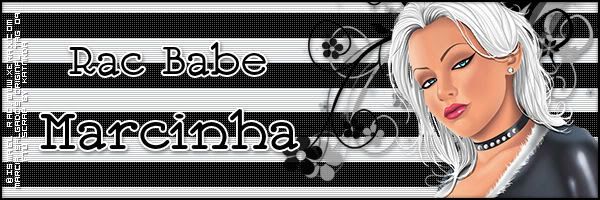
Striped Tag Tutorial

STRIPED TAG TUTORIAL


Tutorial written by Marcia Salgado
for those who have a working knowledge of PSP.
Any resemblance to any other tutorial is coincidental.
Do not copy and paste this tutorial anywhere on the net.
If you want to translate please ask first. 
It's one of my first Forum Style Tutorial, it's a very old tag
I created when I was in Rac's Forum.

****************************************
Material:

Tube: ©Ismael Rac (a free one no longer available) 
you can find many more great ones at his site www.xeracx.com/, 
remember to follow the artist TOU. 
Do not use it without the #license.
Filter: Penta.com > ColorDot 
Gradient by me, here
A doodle, used one from a FTU Kit Inked created by Kat,
no longer available, you can use a Dingbat font - one good: SLSquiggles.
Font:ITC Jeepers

****************************************

*~* First - Tag. *~*

1. Put the gradient in your gradient folder (My PSP Files > Gradients). If you downloaded the free kit Inked, open element27, duplicate it (Shift+D) and close the original. Open the tube, duplicate and close the original.

2. Choose 2 colors from your tube. Open the gradient 2masa and use: Angle=0 Repeat=7. Open a new canvas of 600 x 200 and fill with your gradient.

3. Select the lighter color strips with the Magic Wandt and apply Effects > Texture Effects > Blinds, with the follow: Widht=3, Opacity=60, Horizontal marked and color #C0C0C0. Selections > Select None.

4. Select the darker color strips and apply Penta.com filter, preset Color Dot (Effects > Plugins > penta.com > color dot), using: 60-2-255-255-255. Selections > Select None.

5. Use the element27 from FTU Kit Inked criated by Kat - NKDigitAlart OR any other doodle OR even a dingbat. Colorize it to go with your tube if necessary (Adjust > Hue and Saturation > Colorize). Apply a shadow, I used: H=2, V=1, Opacity=55, Blur=5 and the color black. 

6. Add your tube and put it wherever you want it, remember to leave space to your name. Apply the same shadow used before. Select the Crop tool. At Tools Options use Widht=600 and Height=200 and apply it.

7. Add a new Raster Layer, move it over your tube layer. Selections > Select All. Selections > Modify > Select Borders with: Both, Width=2 and Antialias marked. Fill this selection with the darker color and apply a shadow, I used: V-H=0, Opacity=40, Blur=10 Color: Black.

8. Add a new Raster Layer. Add Copyright info needed. 

9. Add a new Raster Layer to your name. Apply same shadow. Save as JPG or PNG.


*~* Second - Avatar *~*

1. Open a new canvas of 150 x 150. (When this tut was written the forum avatar was 150x120)

2. Now is very simple, leave the name, the copyright and the frame layers invisible, with Selection tool, Rectangle shape, draw a selection around your tube and doodle (see mine for example). Edit > Copy > Copy Merged.

3. Click on canvas of 150 x 150, Selections > Select All. Edit > Paste Into Selection. Repeat step 7 to recreate the frame. Add a new layer to add Copyright info and another one for your name or just your initials. Save as JPG or PNG.