Showing posts with label Kizzed By Kelz Kits. Show all posts

May 16, 2017

Tea Alice ~ by Joanne Salgado


Tutorial written by Joanne Salgado on May 10th, 2017
for those who have a working knowledge of PSP.
I'm using PSP9 to create my tuts.
Any resemblance to any other tutorial is coincidental.
Do not copy and paste this tutorial anywhere on the net.
If you want to translate please ask first. 

****************************************
Material:

Tube: "Alice 3" by Alehandra Vanhek - you can purchase it here
do not use without the proper #license.
PTU Kit "Sexy Alice 3" by Kizzed by Kelz - you can purchase it here
Font: Anemone

****************************************

--> Remember to save often and use my tag as reference if necessary.

1. Open a new image 650x550

2. Open element 'KBK_SexyAlice3 (24)' copy and paste as new layer. Resize 70%. Rename layer to frame 1.

3. Open element 'KBK_SexyAlice3 (109)' copy and paste as new layer. Resize 70%. Arrange it to the bottom left. Rename layer to frame 2.

4. Open element 'KBK_SexyAlice3 (104)' copy and paste as new layer. Move this layer below both frames. Arrange it to bottom.

5. Open element 'KBK_SexyAlice3 (108)' copy and paste as new layer. Resize 90%. Arrange it to the right.

6. Open paper 'KBK_SexyAlice3 (1)' copy and paste as new layer. Resize 47%. Arrange it inside the frame 1 and clean outside it.

7. Open element 'KBK_SexyAlice3 (25)' copy and paste as new layer. Resize 30%. Arrange it to the bottom right inside the frame.

8. Open element 'KBK_SexyAlice3 (9)' copy and paste as new layer. Resize 40%. Arrange it to the bottom right.

9. Open element 'KBK_SexyAlice3 (5)' copy and paste as new layer. Resize 70%. Mirror. Move this layer above frame 1. Arrange it to the right.

10. Open element 'KBK_SexyAlice3 (110)' copy and paste as new layer. Resize 80%. Arrange it to the top left.

11. Open element 'KBK_SexyAlice3 (6)' copy and paste as new layer. Resize 30%. Arrange it to the bottom right.

12. Open element 'KBK_SexyAlice3 (32)' copy and paste as new layer. Resize 20%. Arrange it to the bottom right.

13. Open element 'KBK_SexyAlice3 (84)' copy and paste as new layer. Resize 20%. Arrange it to the bottom right.

14. Open paper 'KBK_SexyAlice3 (15)' copy and paste as new layer. Resize 30%. Arrange it inside frame 2 and clean outside it.

15. Open element 'KBK_SexyAlice3 (126)' copy and paste as new layer. Move this layer above the frame 2 layer. Arrange it to the top left.

16. Open your tube. Copy and paste as new layer. Arrange it to the left inside frame 2.

17. Open element 'KBK_SexyAlice3 (72)' copy and paste as new layer. Resize 10%. Arrange it above the bunny's head from tube.

18. Open element 'KBK_SexyAlice3 (59)' copy and paste as new layer. Resize 20%. Arrange it above the bunny'd head from tube.

19. Open element 'KBK_SexyAlice3 (66)' copy and paste as new layer. Resize 20%. Arrange it to top.

20. Open element 'KBK_SexyAlice3 (117)' copy and paste as new layer. Resize 25%. Rotate. Arrange it to the bottom left.

21. Add shadow as you prefer.

22. Add copyright. Add name. Save as PNG.

May 2, 2017

Time Alice ~ by Joanne Salgado


Tutorial written by Joanne Salgado on April 15th, 2017
for those who have a working knowledge of PSP.
I'm using PSP9 to create my tuts.
Any resemblance to any other tutorial is coincidental.
Do not copy and paste this tutorial anywhere on the net.
If you want to translate please ask first. 

****************************************
Material:

Tube: "Alice 4" by Alehandra Vanhek, you can purchase it here
do not use without the proper #license.
PTU Kit "Alice 4" by Kizzed By Kelz, you can purchase it here
Font: Afatar

****************************************

--> Remember to save often and use my tag as reference if necessary.

1. Open a new image 650x550

2. Open element 'KBK_Alice4 (38)'copy and paste as new layer. Resize 80%.

3. Open element 'KBK_Alice4 (49)' copy and paste as new layer. Resize 70%. Move this layer below the frame layer. Arrange it to the right. Duplicate. Flip. Mirror.

4. Open element 'KBK_Alice4 (32)' copy and paste as new layer. Resize 50%. Arrange it to the bottom right.

5. Open element 'KBK_Alice4 (97)' copy and paste as new layer. Resize 50%. Arrange it to the top right.

6. Open element 'KBK_Alice4 (81)' copy and paste as new layer. Resize 50%. Arrange it to the bottom left.

7. Open element 'KBK_Alice4 (87)' copy and paste as new layer. Resize 50%. Arrange it to the top left.

8. Open paper 'KBK_Alice4 (7)' copy and paste as new layer. Resize 50%. Clean the outside parts.

9. Open element 'KBK_Alice4 (133)' copy and paste as new layer. Move this layer above the frame layer.

10. Open element 'KBK_Alice4 (18)' copy and paste as new layer. Use Manual Color Correction source #d45f68 target #b48e0d.

11. Open element 'KBK_Alice4 (111)' copy and paste as new layer.

12. Open element 'KBK_Alice4 (16)' copy and paste as new layer. Resize 40%. Arrange it to bottom.

13. Open your tube. Copy and paste as new layer. Resize as needed and arrange it to the left.

14. Open element 'KBK_Alice4 (119)' copy and paste as new layer. Resize 30%. Flip. Arrange it to bottom.

15. Open element 'KBK_Alice4 (23)' copy and paste as new layer. Arrange it to the right.

16. Open element 'KBK_Alice4 (105)' copy and paste as new layer. Resize 90%.

17. Open element 'KBK_Alice4 (102)' copy and paste as new layer. Resize 50%. Arrange it to the bottom left.

18. Open element 'KBK_Alice4 (45)' copy and paste as new layer. Resize 30%. Mirror. Arrange it to the right.

19. Add copyright. Add name. Save as PNG.

April 6, 2017

Frenchmaid ~ by Joanne Salgado


Tutorial written by Joanne Salgado on April 06th, 2017
for those who have a working knowledge of PSP.
I'm using PSP9 to create my tuts.
Any resemblance to any other tutorial is coincidental.
Do not copy and paste this tutorial anywhere on the net.
If you want to translate please ask first. 

****************************************
Material:

Tube: "Frenchmaid" by Vi Nina, you can purchase it here
do not use without the proper #license.
PTU Kit "Frenchmaid" by Kizzed by Kelz, you can purchase it here
Font: catfish script

****************************************

--> Remember to save often and use my tag as reference if necessary.

1. Open a new image 650x550

2. Open element 'KBK_Frenchmaid (96)' copy and paste as new layer. Resize 70%.

3. Open element 'KBK_Frenchmaid (70)' copy and paste as new layer. Move this layer below the frame layer. Arrange it to the top left. Duplicate. Mirror/Flip.

4. Open element 'KBK_Frenchmaid (111)' copy and paste as new layer. Resize 50%. Arrange it to the top left. Duplicate. Mirror.

5. Open element 'KBK_Frenchmaid (3)' copy and paste as new layer. Resize 50%. Arrange it to the bottom left. Duplicate. Mirror.

6. Open element 'KBK_Frenchmaid (2)' copy and paste as new layer. Resize 50%. Arrange it to the left. Duplicate. Mirror.

7. Open element 'KBK_Frenchmaid (103)' copy and paste as new layer. Resize 50%. Arrange it to the top.

8. Open paper 'KBK_Frenchmaid (3)' copy and paste as new layer. Resize 45%. Arrange it inside the frame.

9. Open element 'KBK_Frenchmaid (133)' copy and paste as new layer. Resize 70%.

10. Open element 'KBK_Frenchmaid (60)' copy and paste as new layer. Resize 50%. Arrange it to top inside the frame and clean outside.

11. Open element 'KBK_Frenchmaid (91)' copy and paste as new layer. Resize 65%. Move this layer above the frame layer. Arrange it to the top right. Duplicate. Mirror.

12. Open element 'KBK_Frenchmaid (95)' copy and paste as new layer. Resize 20%. Arrange it to the top right. Duplicate. Mirror.

13. Open element 'KBK_Frenchmaid (71)' copy and paste as new layer. Resize 90%.

14. Open element 'KBK_Frenchmaid (13)' copy and paste as new layer. Resize 20%. Arrange it to the top right. Duplicate. Mirror.

15. Open element 'KBK_Frenchmaid (67)' copy and paste as new layer. Resize 50%. Mirror. Arrange it to the bottom left.

16. Open your tube. Copy and paste as new layer. Resize as needed and arrange it to the right.

17. Open element 'KBK_Frenchmaid (6)' copy and paste as new layer. Resize 30%. Arrange it to the top left.

18. Open element 'KBK_Frenchmaid (14)' copy and paste as new layer. Resize 30%. Mirror. Arrange it to the right.

19. Open element 'KBK_Frenchmaid (104)' copy and paste as new layer. Resize 20%. Arrange it to the left.

20. Add shadow as you prefer.

21. Add copyright. Add name. Save as PNG.

March 26, 2017

Iconic Pose ~ by Joanne Salgado


Tutorial written by Joanne Salgado on March 25th, 2017
for those who have a working knowledge of PSP.
I'm using PSP9 to create my tuts.
Any resemblance to any other tutorial is coincidental.
Do not copy and paste this tutorial anywhere on the net.
If you want to translate please ask first. 

****************************************
Material:

Tube: "Iconic Pose HDSL" by Ismael Rac, you can purchase it here
do not use without the proper #license.
PTU Kit "IconiX Pose" by Kizzed by Kelz, you can purchase it here
Font: Kaitlyn

****************************************

--> Remember to save often and use my tag as reference if necessary.

1. Open a new image 650x550

2. Open element 'KBK_IconixPose (116)' copy and paste as new layer.

3. Open element 'KBK_IconixPose (63)' copy and paste as new layer. Move this layer below the frame layer.

4. Open element 'KBK_IconixPose (62)' copy and paste as new layer. Resize 50%. Arrange it to the top left. Duplicate. Mirror.

5. Open element 'KBK_IconixPose (8)' copy and paste as new layer. Resize 50%. Clean outside the frame.

6. Open element 'KBK_IconixPose (115)' copy and paste as new layer. Resize 25%. Arrange it to the top left inside the frame.

7. Open element 'KBK_IconixPose (61)' copy and paste as new layer. Resize 50%. Arrange it to the right. Move this layer above the frame layer.

8. Open element 'KBK_IconixPose (112)' copy and paste as new layer. Resize 30%. Arrange it to the bottom right.

9. Open element 'KBK_IconixPose (113)' copy and paste as new layer. Resize 30%. Arrange it to the bottom left.

10. Open element 'KBK_IconixPose (114)' copy and paste as new layer. Resize 30%. Arrange it to the bottom right.

11. Open element 'KBK_IconixPose (9)' copy and paste as new layer. Resize 20%. Arrange it to the bottom right.

12. Open element 'KBK_IconixPose (16)' copy and paste as new layer. Resize 20%. Arrange it to the bottom left.

13. Open element 'KBK_IconixPose (38)' copy and paste as new layer. Resize 20%. Rotate. Arrange it to the left.

14. Open element 'KBK_IconixPose (40)' copy and paste as new layer.

15. Open element 'KBK_IconixPose (120)' copy and paste as new layer.

16. Open element 'KBK_IconixPose (37)' copy and paste as new layer.

17. Open element 'KBK_IconixPose (41)' copy and paste as new layer.

18. Open your tube. Copy and paste as new layer. Resize as needed and arrange it to the right.

19. Open element 'KBK_IconixPose (119)' copy and paste as new layer. Resize 20%. Arrange it to the top left.

20. Open element 'KBK_IconixPose (105)' copy and paste as new layer. Resize 25%. Mirror. Arrange it to the bottom right.

21. Add shadow as you prefer.

22. Add copyright. Add name. Save as PNG.

December 22, 2016

Mishel 3


== NEW PTU TAG S&CO. CT ==
OKY DRAFT AND KIZZED BY KELZ

Featuring "Mishel 3", an Oky Draft Dolls tube and
 "Mishel 3", Kizzed By Kelz kit at Scraps N Company - S&Co.


"Cheers to  a very Merry Christmas and a Happy New Year. 
S&CO exclusive matching kit for Oky Draft's Mishel 3 tube." 
The kit has 15 papers and 135 elements so you can play with it. 
Very versatile and can be used with any other tubes and artists you have.

Tube can be found  at:
-> Scraps N Company - S&Co., here 

Kit can be found  at:
-> Scraps N Company - S&Co., here 


December 4, 2016

SHOW OFF - Caroline


== NEW PTU S&CO. CT ==
FOR VI NINA AND KIZZED BY KELZ

Featuring "Caroline" tube by Vi Nina and
"Caroline" Kit by Kizzed By Kelz at Scraps N Company - S&Co.

Tube by Vi Nina - you can purchase here

Kit by Kizzed By Kelz - you can purchase here


November 26, 2016

SHOW OFF - 3RD ANNIVERSARY COLLAB 2


== NEW PTU S&CO. CT ==
FOR LADYMISHKA AND KIZZED BY KELZ

Featuring "3rd Anniversary JOAN & BIBI DOLLS" tube by LadyMishka and
"Romantic Sweet" Kit by Kizzed by Kelz at Scraps N Company - S&Co.

Tube by LadyMishka - you can purchase here

3RD ANNIVERSARY COLLAB 2 - you can purchase here


SHOW OFF - Minion Girl


== NEW PTU S&CO. CT ==
FOR ISMAEL RAC AND KIZZED BY KELZ

Featuring "Minion Girl" tube by Ismael Rac and
"Minion Girl" Kit by Kizzed By Kelz at Scraps N Company - S&Co.

Tube by Ismael Rac - you can purchase here

Kit by Kizzed By Kelz - you can purchase here


November 14, 2016

SHOW OFF - Turkey Time


== NEW PTU S&CO. CT ==
FOR LIL MZ'S BRAINSTORMS AND KIZZED BY KELZ

Featuring "Sloane" tube by Lil Mz's Brainstorms and
"Turkey Time" Kit by Kizzed by Kelz at Scraps N Company - S&Co.

TURKEY TIME STORE COLLAB - you can purchase here


November 10, 2016

Happy Holloween Girl

HALLOWFEST 2016 TUTORIAL


Tutorial written by Marcia Salgado on October 25th, 2016
for those who have a working knowledge of PSP.
I'm using PSP9 to create my tuts.
Any resemblance to any other tutorial is coincidental.
Do not copy and paste this tutorial anywhere on the net.
If you want to translate please ask first. 

****************************************
Material:

Tube: "Happy Holloween Girl" by Ismael Rac, you can purchase it here 
do not use without the proper #license.
PTU Kit "Happy Holloween Girl" by Kizzed By Kelz, you can purchase it here 
Mask: Dee's mask, DD_NFM_2015_5, HERE 
Plugin: MuRa's Meister
Font: Fairytales Script

****************************************

--> Remember to save often and use my tag as reference if necessary. Use a Drop Shadow of your preference on layers. 


1. Open a new image 650x550

2. Open element 'KBK_HappyHolloweenGirl (89)' copy and paste as new layer. Resize 30%. Use MuRa'S encircle with settings bellow.


3. Open element 'KBK_HappyHolloweenGirl (43)' copy and paste as new layer. Resize 30%. Flip. Use MuRa'S encircle with settings bellow.


4. Open paper 'KBK_HappyHolloweenGirl (7)' copy and paste as new layer. Apply mask.

5. Create a circle with ellipse tool. Align at center.

6. Open element 'KBK_HappyHolloweenGirl (30)' copy and paste as new layer. Resize 50%. Rotate right 20. Move this layer below the circle layer and arrange it to the top right.

7. Open element 'KBK_HappyHolloweenGirl (26)' copy and paste as new layer. Resize 50%. Rotate left 20. Arrange it to the top left.

8. Open element 'KBK_HappyHolloweenGirl (23)' copy and paste as new layer. Resize 50%. Rotate right 40. Arrange it to the right.

9. Open paper 'KBK_HappyHolloweenGirl (1)' copy and paste as new layer. Arrange as you prefer (I used the borders because they are darker). Clean the parts outside the circle.

10. Open element 'KBK_HappyHolloweenGirl (111)' copy and paste as new layer. Resize 50%. Arrange it to the right inside the circle. Clean the parts outside.

11. Open element 'KBK_HappyHolloweenGirl (92)' copy and paste as new layer. Resize 70%. Arrange it to the top left. Duplicate. Mirror. Arrange it so it touches the other side of the leafs. Clean inside the circle.

12. Open element 'KBK_HappyHolloweenGirl (87)' copy and paste as new layer. Arrange it inside the circle and clean outside.

13. Open element 'KBK_HappyHolloweenGirl (85)' copy and paste as new layer. Arrange it to bottom inside the circle and clean outside.

14. Open element 'KBK_HappyHolloweenGirl (97)' copy and paste as new layer. Resize 30%. Arrange it to the right inside the circle and clean outside.

15. Open element 'KBK_HappyHolloweenGirl (94)' copy and paste as new layer. Resize 25%. Move this layer above the circle layer. Arrange it to the left of the one we just added.

16. Open element 'KBK_HappyHolloweenGirl (93)' copy and paste as new layer. Resize 25%. Arrange it to the bottom right.

17. Open element 'KBK_HappyHolloweenGirl (102)' copy and paste as new layer. Resize 30%. Arrange it to the bottom left.

18. Open element 'KBK_HappyHolloweenGirl (129)' copy and paste as new layer. Arrange it to the left.

19. Open element 'KBK_HappyHolloweenGirl (60)' copy and paste as new layer. Resize 90%. Rotate left 90. Arrange it to top.

20. Open your tube. Copy and paste as new layer. Resize as needed and arrange it to the left.

21. Use Crop > Merged Opaque to get rid of all extra spaces.


--> Add your copyright info and license#. Add your name. Save as PNG.


October 20, 2016

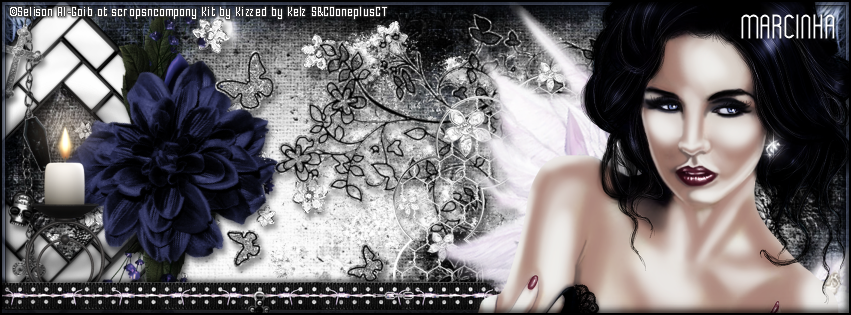
Carmela

BE BRIGHT AND SHINY TUTORIAL

**Click to see original size**

Tutorial written by Marcia Salgado on October 20th, 2016
for those who have a working knowledge of PSP.
I'm using PSP9 to create my tuts.
Any resemblance to any other tutorial is coincidental.
Do not copy and paste this tutorial anywhere on the net.
If you want to translate please ask first. 

****************************************
Material:

Tube: "Carmela" by Selisan Al-Gaib, you can purchase it here
do not use without the proper #license.
PTU Kit "Carmela" by Kizzed By Kelz, you can purchase it here 
Font: Wytherness

****************************************

--> Remember to save often and use my tag as reference if necessary. Use a Drop Shadow of your preference on layers. 


1. Create a new image 851x315.

2. Open 'paper' KBK_Carmela (12). Resize 65%. Copy and paste as new layer. Move it way to left and down to show the lights. Duplicate. Mirror. Move it below the original paper layer. Click on original layer. Erase a little the right side of the paper to better fit the paper below.

3. Open KBK_Carmela (42). Resize 70%. Copy and paste as new layer. Move it to left.

4. Open KBK_Carmela (16). Resize 45%. Free Rotate: Left-45. Copy and paste as new layer. Move it way to left.

5. Open KBK_Carmela (62). Resize 65%. Free Rotate: Right-90. Copy and paste as new layer. Place it over the frame right corner. 

6. Open KBK_Carmela (54). Resize 35%. Free Rotate: Left-25. Copy and paste as new layer. Place it over the previous flower.

7. Open KBK_Carmela (95). Resize 70%. Mirror. Copy and paste as new layer. Move it way to left.

8. Open KBK_Carmela (19). Resize 60%. Mirror. Copy and paste as new layer. 

9. Open KBK_Carmela (40). Resize 70%. Mirror. Flip. Copy and paste as new layer. 

10. Open KBK_Carmela (43). Resize 65%. Copy and paste as new layer. Move it way down and to right.

11. Open KBK_Carmela (28). Resize 40%. Copy and paste as new layer. Move it down and to left.

12. Add a new layer. Select all. Fill with #b3c0e2. Contract > 5. Delete. Keep selected. Fill with Black. Contract > 1. Delete. Deselect.

13. Open KBK_Carmela (94). Copy and paste as new layer. Move it way down. Dulicate. Mirror. Move the copy layer below the original element layer. Move it until you like the position.

14. Open your tube. Resize. Move it to right. You may want to re-arrange some elements to better fit your tube.

15. Add a new layer. Fill with Black. Contract > 2. Delete. Deselect.


-> Add your copyright info (no URL by Facebook TOU) and license#. 
Add your name or initials. Save as PNG.

--> Sometimes I had to change my Timeline size to 846x313 because when I add it to Facebook the image has extra pixels and do not fit perfectly. So try this size if the same is happening to you.

-----------------------------------------------------------------------

An idea for a Picture Profile


September 28, 2016

Bonus MM

MY DIVA TUTORIAL


Tutorial written by Marcia Salgado on September 17th, 2016
for those who have a working knowledge of PSP.
I'm using PSP9 to create my tuts.
Any resemblance to any other tutorial is coincidental.
Do not copy and paste this tutorial anywhere on the net.
If you want to translate please ask first. 

****************************************
Material:

Tube: "Bonus MM" by Ismael Rac, you can purchase it here 
or you can receive it as a gift with a purchase.
do not use without the proper #license.
PTU Kit "Bonus MM" by Kizzed by Kelz, you can purchase it here 
Font: HMS Gilbert Brush

****************************************

--> Remember to save often and use my tag as reference if necessary. Use a Drop Shadow of your preference on layers. 


1. Open KBK_BonusMM (55). Copy and paste as new layer.

2. Open KBK_BonusMM (95). Flip. Copy and paste as new layer. Move it a little up.

3. Open KBK_BonusMM (134). Copy and paste as new layer. 

4. Open KBK_BonusMM (113). Resize 45%. Copy and paste as new layer. Move it below the frame layer. Place inside the first frame, arrange it as you wish. Duplicate. Turn the copy layer invisible. 

5. Click on frame layer and select inside the first frame. Expand > 2. Invert selection. Click on original Marylin image and delete.Deselect. 

6. Turn Copy os Raster 1 visible. Duplicate and turn Copy of Raster 2 invisible. Back on Copy of Raster 1 layer. Mirror. Place inside the second frame as you want. 

7. Click on frame layer and select inside the second layer. Expand > 2. Invert selection. Click on Copy of Raster 1 layer. Delete. Deselect. Repeat the process with third and fourth frames.

8. Apply a shadow on the frame layer and merge all Marylin images in only one layer. Duplicate. On original merged layer use Colorize 0-0. On copy use Gaussian Blur > 4. Blend Mode: Soft Light. Low opacity layer to 80.

9. Leave only the frame and images visible and merge them. Duplicate twice, move the Merged layer above the copies. Click on first copy. Free Rotate: Left-20. Low the layer opacity to 60. Use Blinds as shown below.


10. Click on second copy. Free Rotate: Right-20. Low the layer opacity to 60. Use Blinds as used before. Turn all layers visible. Preview of the frames below:


11. Open KBK_BonusMM (72). Resize 75%. Copy and paste as new layer. Move it to right.

12. Open KBK_BonusMM (119). Resize 55%. Copy and paste as new layer. Move it tp and to left.

13. Open KBK_BonusMM (83). Copy and paste as new layer.

14. Click on original frame layer

15. Open your tube. Resize. Copy and paste as new layer. Move it up and to right.

16. Open KBK_BonusMM (107). Resize 65%. Copy and paste as new layer. Move it down and to right.

17. Open KBK_BonusMM (70). Resize 40%. Copy and paste as new layer. Move it down and a little to right.

18. Open KBK_BonusMM (12). Resize 50%. Free Rotate: Left-20. Copy and paste as new layer. Move it down and to left.

19. Open KBK_BonusMM (105). Resize 40%. Copy and paste as new layer. Move it down.

20. Use Crop > Merged Opaque to get rid of all extra space.


--> Add your copyright info and license#.Add your name and save as PNG.


May 29, 2016

Queen ~ by Joanne Salgado


Tutorial written by Joanne Salgado on May 19th, 2016
for those who have a working knowledge of PSP.
I'm using PSP9 to create my tuts.
Any resemblance to any other tutorial is coincidental.
Do not copy and paste this tutorial anywhere on the net.
If you want to translate please ask first. 

****************************************
Material:

Tube: "Queens" by Toriya - you can purchase it here
do not use without the proper #license.
PTU Kit "Queen" by Kizzed by Kelz - you can purchase it here
Font: Perfumerie Script Old Style

****************************************

Don't forget to save often.
At any point if you have doubts check my tag.

1. Open a new image 650x550

2. Open element 'KBK_Queen (4)' copy and paste as new layer.

3. Open paper 'KBK_Queen (30)' copy and paste as new layer. Arrange it inside the frame and clean the outside parts.

4. Open element 'KBK_Queen (100)' copy and paste as new layer. Mirror. Arrange it to the top right.

5. Open element 'KBK_Queen (9)' copy and paste as new layer. Rotate left 5. Arrange it to the left.

6. Open element 'KBK_Queen (34)' copy and paste as new layer. Resize 50%. Move this layer below the layer from element (9). Arrange it to the right.

7. Open element 'KBK_Queen (62)' copy and paste as new layer. Resize 50%. Mirror. Arrange it to the bottom right.

8. Open element 'KBK_Queen (98)' copy and paste as new layer. Arrange it to the top left. Duplicate. Mirror. Arrange it to the bottom right.

9. Open element 'KBK_Queen (32)' copy and paste as new layer. Resize 50%. Arrange it to the top left.

10. Open element 'KBK_Queen (65)' copy and paste as new layer. Resize 50%. Arrange it to the bottom right.

11. Open element 'KBK_Queen (24)' copy and paste as new layer. Resize 50%. Arrange it to the right.

12. Open element 'KBK_Queen (67)' copy and paste as new layer. Resize 30%. Arrange it to the bottom right.

13. Open element 'KBK_Queen (61)' copy and past as new layer. Resize 50%. Arrange it to the top left. Duplicate. Mirror. Arrange it to the bottom right.

14. Open element 'KBK_Queen (35)' copy and paste as new layer. Resize 50%. Arrange it to the top right.

15. Open element 'KBK_Queen (59)' copy and paste as new layer. Resize 70%. Arrange it to bottom.

16. Open your tube. Copy and paste as new layer. Resize as needed. Move this layer above the layer from element (9). Arrange it above the element and clean the outside parts.

17. Open element 'KBK_Queen (5)' copy and paste as new layer. Resize 50%. Arrange it to the bottom left.

18. Add shadow as you prefer.

19. Add copyright. Add name. Save as PNG.

May 8, 2016

Oriental Sun ~ by Joanne Salgado


Tutorial written by Joanne Salgado on May 07th, 2016
for those who have a working knowledge of PSP.
Any resemblance to any other tutorial is coincidental.
Do not copy and paste this tutorial anywhere on the net.
If you want to translate please ask first. 

****************************************
Material:

Tube: "Oriental Sun" by Lysisange, you can purchase it here
do not use without the proper #license.
PTU Kit "Oriental Sun" by Kizzed by Kelz, you can purchase it here
Plugin: MuRa's Meister
Font: Anna Nicole NF

****************************************

--> Remember to save often and use my tag as reference if necessary. Use a Drop Shadow of your preference on layers. 


1. Create a new image 650x650.

2. Open KBK_OrientalSun (34). Free Rotate: Right-10. Copy and paste as new layer. Apply MuRa's Meister > Copies > Encicle with settings below:


3. Open KBK_OrientalSun (59). Resize 65%. Copy and paste as new layer. Apply MuRa's Meister > Copies > Encicle with settings below: 


 4. Open KBK_OrientalSun (53). Copy and paste as new layer.

5. Open KBK_OrientalSun (78). Copy and paste as new layer.

6. Open KBK_OrientalSun (118). Copy and paste as new layer. Select outside the element. Click on layer below and delete. Click on first layer to continue.

7. Open KBK_OrientalSun (86). Copy and paste as new layer.

8. Open KBK_OrientalSun (75). Resize 70%. Copy and paste as new layer. Move it to left.

9. Open KBK_OrientalSun (111). Resize 50%. Copy and paste as new layer. Move it a little down and a little to left.

10. Open KBK_OrientalSun (74). Resize 80%. Mirror. Free Rotate: Right-20. Copy and paste as new layer. Move it a little up and to left.

11. Open KBK_OrientalSun (127). Resize 70%. Free Rotate: Right-90. Copy and paste as new layer. A little down and to left.

12. Open KBK_OrientalSun (58). Resize 40%. Copy and paste as new layer. Move it down and to left.

13. Open your tube and resize. Move it to left.

14. Open KBK_OrientalSun (73). Resize 55%. Copy and paste as new layer. Move it down and to left. Place it over the bottom of the tube.

15. Open elements KBK_OrientalSun (93), KBK_OrientalSun (94) and KBK_OrientalSun (103). Resize 30%. Copy and paste them as new layer. Move them down and to left. Place them near each other as a triangle, in front of the bottom part of the tube.

16. Open KBK_OrientalSun (69). Resize 60%. Copy and paste as new layer. Move it down and to left. Place it over the green leaf on its left side.


--> Add your copyright info and license#. Add your name and save as PNG.

April 25, 2016

Delicious Old Style 3 ~ by Joanne Salgado


Tutorial written by Joanne Salgado on April 25th, 2016
for those who have a working knowledge of PSP.
Any resemblance to any other tutorial is coincidental.
Do not copy and paste this tutorial anywhere on the net.
If you want to translate please ask first. 

Tube: Delicious Old Style 3 by Di Halim - you can purchase here
Kit Delicious Old Style by Kizzed by Kelz - you can purchase here
Font: Susanna

Don't forget to save often.
At any point if you have doubts check my tag.

1. Open a new image 650x550

2. Open paper 'KBK_DeliciousOldStyle (13)' copy and paste as new layer. Resize 30%.

3. Open element 'KBK_DeliciousOldStyle (138)' copy and paste as new layer. Use Raster Deform Tool to stretch it a little to both sides. Then holding shift take the uper part and push it to the center. It will end like mine, looking like its on the floor. If needed stretch it a little to the top so it has a better range of the canvas. The paper should still appear thought.

4. Open element 'KBK_DeliciousOldStyle (7)' copy and paste as new layer. Arrange it to the top of the canvas. Leave some space so the flowers we will add still apears.

5. Open element 'KBK_DeliciousOldStyle (106)' copy and paste as new layer Resize 50%. Move this layer below the wall we just added. Arrange it to the top right.

6. Open element 'KBK_DeliciousOldStyle (81)' copy and paste as new layer. Resize 50%. Arrange it to the top right a little to the left of the flower we added. Duplicate. Mirror. Arrange it to the bottom left of the wall.

7. Open element 'KBK_DeliciousOldStyle (105)' copy and paste as new layer. Resize 50%. Arrange it to the top right a little to the lelft of the leaf we added.

8. Open element 'KBK_DeliciousOldStyle (98)' copy and paste as new layer. Resize 50%. Arrange it to the top to the left of the flower we added.

9. Open element 'KBK_DeliciousOldStyle (82)' copy and paste as new layer. Resize 50%. Arrange it to the top to the left of the flower we added.

10. Open element 'KBK_DeliciousOldStyle (101)' copy and paste as new layer. Resize 50%. Arrange it to the top left of the wall.

11. Open element 'KBK_DeliciousOldStyle (80)' copy and paste as new layer. Resize 50%. Arrange it to the right of the wall.

12. Open element 'KBK_DeliciousOldStyle (88)' copy and paste as new layer. Resize 50%. Arrange it to the bottom right of the wall.

13. Open element 'KBK_DeliciousOldStyle (68)' copy and paste as new layer. Resize 30%. Arrange it to the bottom right.

14. Open element 'KBK_DeliciousOldStyle (17)' copy and paste as new layer. Resize 25%. Mirror. Arrange it above the boxes we just added.

15. Open element 'KBK_DeliciousOldStyle (114)' copy and paste as new layer. Resize 40%. Arrange it to the top right of the wall.

16. Open element 'KBK_DeliciousOldStyle (115)' copy and paste as new layer. Resize 50%. Mirror. Arrange it to the bottom left.

17. Open element 'KBK_DeliciousOldStyle (12)' copy and paste as new layer. Resize 20%. Arrange it above the rack.

18. Open element 'KBK_DeliciousOldStyle (103)' copy and paste as new layer. Resize 17%. Mirror. Arrange it above the rack.

19. Open element 'KBK_DeliciousOldStyle (4)' copy and paste as new layer. Resize 15%. Arrange it above the rack.

20. Open element 'KBK_DeliciousOldStyle (9)' copy and paste as new layer. Resize 15%. Arrange it above the rack.

21. Open element 'KBK_DeliciousOldStyle (11)' copy and paste as new layer. Resize 18%. Arrange it above the rack.

22. Open element 'KBK_DeliciousOldStyle (6)' copy and paste as new layer. Resize 22%. Arrange it above the rack.

23. Open element 'KBK_DeliciousOldStyle (126)' copy and paste as new layer. Resize 30%. Arrange it to the bottom left in front of the rack.

24. Open element 'KBK_DeliciousOldStyle (16)' copy and paste as new layer. Resize 70%. Mirror. Arrange it to the bottom right.

25. Open your tube. Copy and paste as new layer. Resize as needed and arrange it sitting at the chair.

26. Open element 'KBK_DeliciousOldStyle (141)' copy and paste as new layer. Resize 20%. Arrange it to the bottom left.

27. Open element 'KBK_DeliciousOldStyle (50)' copy and paste as new layer. Resize 20%. Arrange it to the bottom right.

28. Open element 'KBK_DeliciousOldStyle (43)' copy and paste as new layer. Resize 25%. Arrange it to the bottom right.

29. Open element 'KBK_DeliciousOldStyle (129)' copy and paste as new layer. Resize 20%. Arrange it to the bottom left.

30. Open element 'KBK_DeliciousOldStyle (84)' copy and paste as new layer. Resize 30%. Arrange it to the bottom right.

31. Open element 'KBK_DeliciousOldStyle (21)' copy and paste as new layer. Resize 30%. Arrange it to the bottom right.

32. Open element 'KBK_DeliciousOldStyle (3)' copy and paste as new layer. Resize 15%. Arrange it above the rack.

33. Open element 'KBK_DeliciousOldStyle (23)' copy and paste as new layer. Arrange it to the left. Duplicate. Mirror/Flip.

34. Add shadow as you prefer.

35. Add copyright. Add name. Save as PNG.

April 18, 2016

Sacha ~ by Joanne Salgado


Tutorial written by Joanne Salgado on April 09th, 2016
for those who have a working knowledge of PSP.
Any resemblance to any other tutorial is coincidental.
Do not copy and paste this tutorial anywhere on the net.
If you want to translate please ask first. 

Tube: Sacha by Lysisange - you can purchase here
Kit Sacha by Kizzed by Kelz - you can purchase here
Font: Capella

Don't forget to save often.
At any point if you have doubts check my tag.

1. Open a new image 851x315

2. Open paper 'KBK_Sacha (25)' copy and paste as new layer. Use Raster Deform Tool to stretch the paper so it fills the canvas. Arrange it as you prefer. I used the lower part of the paper.

3. Open element 'KBK_Sacha (3)' copy and paste as new layer. Arrange it to bottom right.

4. Open element 'KBK_Sacha (65)' copy and paste as new layer. Arrange it at the center.

5. Open element 'KBK_Sacha (56)' copy and paste as new layer. Arrange it to bottom.

6. Open element 'KBK_Sacha (71)' copy and paste as new layer. Arrange it to left.

7. Open element 'KBK_Sacha (72)' copy and paste as new layer. Arrange it to left. Duplicate. Arrange it to right.

8. Open element 'KBK_Sacha (50)' copy and paste as new layer. Resize 30%. Rotate left 15. Arrange it a little to the left.

9. Open element 'KBK_Sacha (103)' copy and paste as new layer. Resize 50%. Arrange it to bottom right.

10. Open element 'KBK_Sacha (112)' copy and paste as new layer. Resize 50%. Arrange it to bottom right.

11. Open element 'KBK_Sacha (108)' copy and paste as new layer. Resize 50%. Arrange it above the white flower we just added.

12. Open element 'KBK_Sacha (36)' copy and paste as new layer. Resize 50%. Arrange it to bottom left.

13. Open element 'KBK_Sacha (38)' copy and paste as new layer. Resize 30%. Arrange it to left above the blue flower.

14. Open element 'KBK_Sacha (80)' copy and paste as new layer. Arrange it to right.

15. Open element 'KBK_Sacha (9)' copy and paste as new layer. Resize 50%. Rotate right 15. Arrange it to bottom right.

16. Open element 'KBK_Sacha (18)' copy and paste as new layer. Resize 30%. Rotate right 15. Arrange it to left.

17. Open element 'KBK_Sacha (10)' copy and paste as new layer. Resize 30%. Arrange it to right.

18. Open element 'KBK_Sacha (62)' copy and paste as new layer. Arrange it to left.

19. Open your tube. Copy and paste as new layer. Resize as needed and arrange it a little to the right.

20. Open element 'KBK_Sacha (70)' copy and paste as new layer. Arrange it to left. Duplicate. Arrange it to right.

21. Add a new layer. Select all. Fill with white. Contract 7. Delect on your keyboard. Select none. Change opacity to 50.

22. Add a new layer. Select all. Fill with white. Contract 2. Delect on your keyboard. Select none. Add noise uniform/50/monochrome checked.

21. Add a new layer. Select all. Fill with #031449. Contract 1. Delect on your keyboard. Select none.

22. Add shadow as you prefer.
23. Add copyright. Add name. Save as PNG.