Showing posts with label Vi Nina. Show all posts

April 6, 2017

Frenchmaid ~ by Joanne Salgado


Tutorial written by Joanne Salgado on April 06th, 2017
for those who have a working knowledge of PSP.
I'm using PSP9 to create my tuts.
Any resemblance to any other tutorial is coincidental.
Do not copy and paste this tutorial anywhere on the net.
If you want to translate please ask first. 

****************************************
Material:

Tube: "Frenchmaid" by Vi Nina, you can purchase it here
do not use without the proper #license.
PTU Kit "Frenchmaid" by Kizzed by Kelz, you can purchase it here
Font: catfish script

****************************************

--> Remember to save often and use my tag as reference if necessary.

1. Open a new image 650x550

2. Open element 'KBK_Frenchmaid (96)' copy and paste as new layer. Resize 70%.

3. Open element 'KBK_Frenchmaid (70)' copy and paste as new layer. Move this layer below the frame layer. Arrange it to the top left. Duplicate. Mirror/Flip.

4. Open element 'KBK_Frenchmaid (111)' copy and paste as new layer. Resize 50%. Arrange it to the top left. Duplicate. Mirror.

5. Open element 'KBK_Frenchmaid (3)' copy and paste as new layer. Resize 50%. Arrange it to the bottom left. Duplicate. Mirror.

6. Open element 'KBK_Frenchmaid (2)' copy and paste as new layer. Resize 50%. Arrange it to the left. Duplicate. Mirror.

7. Open element 'KBK_Frenchmaid (103)' copy and paste as new layer. Resize 50%. Arrange it to the top.

8. Open paper 'KBK_Frenchmaid (3)' copy and paste as new layer. Resize 45%. Arrange it inside the frame.

9. Open element 'KBK_Frenchmaid (133)' copy and paste as new layer. Resize 70%.

10. Open element 'KBK_Frenchmaid (60)' copy and paste as new layer. Resize 50%. Arrange it to top inside the frame and clean outside.

11. Open element 'KBK_Frenchmaid (91)' copy and paste as new layer. Resize 65%. Move this layer above the frame layer. Arrange it to the top right. Duplicate. Mirror.

12. Open element 'KBK_Frenchmaid (95)' copy and paste as new layer. Resize 20%. Arrange it to the top right. Duplicate. Mirror.

13. Open element 'KBK_Frenchmaid (71)' copy and paste as new layer. Resize 90%.

14. Open element 'KBK_Frenchmaid (13)' copy and paste as new layer. Resize 20%. Arrange it to the top right. Duplicate. Mirror.

15. Open element 'KBK_Frenchmaid (67)' copy and paste as new layer. Resize 50%. Mirror. Arrange it to the bottom left.

16. Open your tube. Copy and paste as new layer. Resize as needed and arrange it to the right.

17. Open element 'KBK_Frenchmaid (6)' copy and paste as new layer. Resize 30%. Arrange it to the top left.

18. Open element 'KBK_Frenchmaid (14)' copy and paste as new layer. Resize 30%. Mirror. Arrange it to the right.

19. Open element 'KBK_Frenchmaid (104)' copy and paste as new layer. Resize 20%. Arrange it to the left.

20. Add shadow as you prefer.

21. Add copyright. Add name. Save as PNG.

December 4, 2016

SHOW OFF - Caroline


== NEW PTU S&CO. CT ==
FOR VI NINA AND KIZZED BY KELZ

Featuring "Caroline" tube by Vi Nina and
"Caroline" Kit by Kizzed By Kelz at Scraps N Company - S&Co.

Tube by Vi Nina - you can purchase here

Kit by Kizzed By Kelz - you can purchase here


November 2, 2016

Jennifer ~ by Joanne Salgado


Tutorial written by Joanne Salgado on November 02th, 2016
for those who have a working knowledge of PSP.
I'm using PSP9 to create my tuts.
Any resemblance to any other tutorial is coincidental.
Do not copy and paste this tutorial anywhere on the net.
If you want to translate please ask first. 

****************************************
Material:

Tube: "Jennifer" by Vi Nina - you can purchase it here
do not use without the proper #license.
PTU Kit "Autumn Chill" by Disturbed Scraps - you can purchase it here
Font: 2Peas Mister Giggles

****************************************

Don't forget to save often.
At any point if you have doubts check my tag.

1. Open a new image 650x550

2. Open element 'DS - ACH Element (73)' copy and paste as new layer. Arrange it to top.

3. Open element 'DS - ACH Element (29)' copy and paste as new layer. Resize 50%. Move this layer below the frame layer. Arrange it to the bottom left of the frame.

4. Open element 'DS - ACH Element (4)' copy and paste as new layer. Resize 50%. Arrange it to the bottom right of the frame.

5. Open element 'DS - ACH Element (66)' copy and paste as new layer. Resize 50%. Arrange it to the top right of the frame.

6. Open element 'DS - ACH Element (5)' copy and paste as new layer. Resize 50%. Arrange it to the top of the frame.

7. Open element 'DS - ACH Element (7)' copy and paste as new layer. Resize 50%. Arrange it to the bottom right.

8. Open element 'DS - ACH Element (3)' copy and paste as new layer. Resize 50%. Arrange it to the top of the frame.

9. Open element 'DS - ACH Paper 14' copy and paste as new layer. Resize 80%. Arrange it inside the frame and clean the outside parts.

10. Open element 'DS - ACH Element (43)' copy and paste as new layer. Resize 60%. Arrange it to bottom.

11. Open element 'DS - ACH Element (47)' copy and paste as new layer. Resize 50%. Arrange it to bottom. Duplicate. Arrange it to the right.

12. Open element 'DS - ACH Element (65)' copy and paste as new layer. Resize 40%. Arrange it to the bottom right.

13. Open element 'DS - ACH Element (61)' copy and paste as new layer. Resize 40%. Arrange it to the bottom a little to the left.

14. Open element 'DS - ACH Element (76)' copy and paste as new layer.

15. Open element 'DS - ACH Element (63)' copy and paste as new layer.

16. Open element 'DS - ACH Element (40)' copy and paste as new layer. Resize 40%. Arrange it a little to the left above the frame.

17. Open your tube. Copy and paste as new layer. Resize as needed and arrange it to the bottom right.

18. Open element 'DS - ACH Element (69)' copy and paste as new layer. Arrange it to the top of the frame. Add a small white border.

19. Open element 'DS - ACH Element (77)' copy and paste as new layer. Resize 80%. Arrange it to the left.

20. Open element 'DS - ACH Element (48)' copy and paste as new layer. Resize 30%. Arrange it to the bottom left.

21. Open element 'DS - ACH Element (18)' copy and paste as new layer. Resize 15%. Arrange it to the bottom right.

22. Add shadow as you prefer.

23. Add copyright. Add name. Save as PNG.

May 4, 2016

Rosie with Mamá

INNOCENCE TUTORIAL

Tutorial written by Marcia Salgado on May 4th, 2016
for those who have a working knowledge of PSP.
I'm using PSP9 to create my tuts.
Any resemblance to any other tutorial is coincidental.
Do not copy and paste this tutorial anywhere on the net.
If you want to translate please ask first. 

****************************************
Material:

Tube: "Rosie" by Vi Nina, you can purchase it here 
do not use without the proper #license.
PTU Kit "Mamá" by Bibi's Collection, you can purchase it here 
Plugin: MuRa's Meister
Font: Kathya

****************************************

--> Remember to save often and use my tag as reference if necessary. Use a Drop Shadow of your preference on layers. 


1. Create a new image 650x650.

2. Open BIBI-MAMA ELEMS (24). Resize 85%. Copy and paste as new layer.

3. Open BIBI-MAMA ELEMS (88). Resize 75%. Copy and paste as new layer.

4. Open BIBI-MAMA ELEMS (104). Resize 50%. Copy and paste as new layer. Move it up and to right. Duplicate. Mirror. Flip. Merge down.

5. Open BIBI-MAMA ELEMS (2). Resize 30%. Copy and paste as new layer. Apply MuRa's Meister > Copies > Encircle with the following settings:


6. Open BIBI-MAMA ELEMS (45). Resize 15%. Copy and paste as new layer.

7. Select inside the frame. Expand > 5. Add a new layer and move it below the frame layer. Open BIBI-MAMA PAPERS (10). Copy and paste into selection. Keep selected. Invert selection.

8. Open BIBI-MAMA ELEMS (53). Resize 25%. Copy and paste as new layer. Duplicate it twice and place them inside the frame. Merge down twice to keep only one layer with the wordart. Delete. Deselect. Blend Mode: Overlay.

9. Open BIBI-MAMA ELEMS (97). Resize 40%. Copy and paste as new layer. Move it to left and a little up.

10. Open BIBI-MAMA ELEMS (56). Resize 35%. Mirror. Copy and paste as new layer. Move it down and to left. Place it over the frame border.

11. Open BIBI-MAMA ELEMS (23). Resize 25%. Mirror. Copy and paste as new layer. Move it down and to left. Place it over the previous flower.

12. Open BIBI-MAMA ELEMS (34). Resize 40%. Copy and paste as new layer. Move it to right and a little up. 

13. Open BIBI-MAMA ELEMS (50). Resize 45%. Copy and paste as new layer. Move it to right and a little up. Place it over the previopus foliage.

14. Open BIBI-MAMA ELEMS (66). Resize 35%. Copy and paste as new layer. Move it up and to right. Place it as if it is hanging from the frame.

15. Open BIBI-MAMA ELEMS (60). Resize 35%. Copy and paste as new layer. Move it up and to right. Place it as if it is hanging from the frame.

16. Open BIBI-MAMA ELEMS (102). Resize 40%. Copy and paste as new layer. Place it as it is holding the previous elements attachedt to the frame.


--> Add your copyright info and license#. Add your name and save as PNG.


April 26, 2016

Kate with Flowers

GARDENING TUTORIAL


Tutorial written by Marcia Salgado on April 26th, 2016
for those who have a working knowledge of PSP.
I'm using PSP9 to create my tuts.
Any resemblance to any other tutorial is coincidental.
Do not copy and paste this tutorial anywhere on the net.
If you want to translate please ask first. 

****************************************
Material:

Tube: "Kate" by Vi Nina, you can purchase it here 
do not use without the proper #license.
PTU Kit "Flowers" by Bibi's Collection, you can purchase it here 
Font: AlFresco

****************************************

--> Remember to save often and use my tag as reference if necessary. Use a Drop Shadow of your preference on layers. 

1. Create a new image 650x650.

2. Open BIBI-KATE FLOWERS ELEM (74). Resize 55%. Copy and paste as new layer.

3. Open BIBI-KATE FLOWERS ELEM (53). Resize 50%. Copy and paste as new layer. Move it a little to right.

4. Open BIBI-KATE FLOWERS ELEM (105). Resize 50%. Copy and paste as new layer. Move it down.

5. Open BIBI-KATE FLOWERS ELEM (93). Resize 
45%. Free Rotate: Right-90. Copy and paste as new layer. Move it to right.

6. Open BIBI-KATE FLOWERS ELEM (30). Resize 40%. Copy and paste as new layer. Move it a little down.

7. Open BIBI-KATE FLOWERS ELEM (109). Resize 70%. Copy and paste as new layer. Move it up and to left.

8. open BIBI-KATE FLOWERS ELEM (99). Resize 65%. Copy and paste as new layer. Move it to left.

9. Open BIBI-KATE FLOWERS ELEM (110). Resize 30%. Copy and paste as new layer. Move it a little down and to left.

10. Open BIBI-KATE FLOWERS ELEM (82). Resize 30%. Copy and paste as new layer. Move it down and to left,

11. Open your tube. Resize it. Copy and paste as new layer. Place it over the grass, Rearrange the previous elemnts to better fit your tube.

12. Open BIBI-KATE FLOWERS ELEM (29). Resize 25%. Copy and paste as new layer. Move it down and to right. I placed mine over the tube's dress.

13. Open BIBI-KATE FLOWERS ELEM (61). Resize 45%. Copy and paste as new layer. Move it down and to right. 

14. Open BIBI-KATE FLOWERS ELEM (13). Resize 15%. Free Rotate: Right-25. Copy and paste as new layer. Move it up and to left.

15. Use Crop > Merged Opaque to get rid of all extra space.


--> Add your copyright info and license#. Add your name and save as PNG.


March 30, 2016

Babette 3 ~ by Joanne Salgado


Tutorial written by Joanne Salgado on March 30th, 2016
for those who have a working knowledge of PSP.
Any resemblance to any other tutorial is coincidental.
Do not copy and paste this tutorial anywhere on the net.
If you want to translate please ask first. 

Tube: Babette 3 by Vi Nina - you can purchase here
Kit Just Remember The Memories by Rieneke Designs - you can purchase here
Font: BachelorScript

Don't forget to save often.
At any point if you have doubts check my tag.

1. Open a new image 650x550

2. Open element 'RD-JRTM-element (57)' copy and paste as new layer. Resize 70%.

3. Open element 'RD-JRTM-element (73)' copy and paste as new layer. Move this layer below the frame layer. Arrange it to bottom left. Duplicate. Mirror/Flip.

4. Open element 'RD-JRTM-element (74)' copy and paste as new layer. Arrange it to top left. Duplicate. Mirror/Flip.

5. Open element 'RD-JRTM-element (38)' copy and paste as new layer. Arrange it to bottom left. Duplicate. Flip. Duplicate. Mirror. Duplicate. Flip.

6. Open element 'RD-JRTM-element (17)' copy and paste as new layer. Resize 60%. Arrange it to top left.

7. Open element 'RD-JRTM-element (19)' copy and paste as new layer. Resize 60%. Arrange it to left.

8. Open element 'RD-JRTM-element (3)' copy and paste as new layer. Resize 60%. Arrange it to bottom left.

9. Open element 'RD-JRTM-element (4)' copy and paste as new layer. Resize 60%. Arrange it to bottom right.

10. Open element 'RD-JRTM-element (2)' copy and paste as new layer. Resize 60%. Arrange it to right.

11. Open element 'RD-JRTM-element (50)' copy and paste as new layer. Resize 60%. Arrange it to top left.

12. Open element 'RD-JRTM-element (31)' copy and paste as new layer. Resize 60%. Arrange it to top.

13. Open paper 'RD-JRTM-paper (9)' copy and paste as new layer. Resize 40%. Clean the parts outside the frame.

14. Open your tube. Copy and paste as new layer. Resize as needed. Adjust/Hue and Saturation/Colorize both 0. Change opacity to 80. Arrange it inside the frame and clean the parts outside the frame.

15. Open element 'RD-JRTM-element (75)' copy and paste as new layer. Resize 50%. Mirror. Move this layer above the frame layer. Arrange it to bottom left.

16. Open element 'RD-JRTM-element (18)' copy and paste as new layer. Resize 40%. Arrange it to bottom left.

17. Open element 'RD-JRTM-element (27)' copy and paste as new layer. Resize 30%. Arrange it to top right a little to middle.

18. Open element 'RD-JRTM-element (33)' copy and paste as new layer. Resize 40%. Arrange it to top right.

19. Add shadow as you prefer.

20. Add copyright. Add name. Save as PNG.

March 20, 2016

Cowgirl ~ by Joanne Salgado


Tutorial written by Joanne Salgado on March 17th, 2016
for those who have a working knowledge of PSP.
Any resemblance to any other tutorial is coincidental.
Do not copy and paste this tutorial anywhere on the net.
If you want to translate please ask first. 

Tube: Babette 2 by Vi Nina - you can purchase here
Kit Babette 2 by FwTags Creations - you can purchase here
Font: Bachelor Script

Don't forget to save often.
At any point if you have doubts check my tag.

1. Open a new image 650x550.

2. Open frame 'FwTagsBabetteFRAME (4)' copy and paste as new layer.

3. Open element 'FwTagsBabetteELEMENT (58)' copy and paste as new layer. Move this layer below the frame layer. Arrange it to bottom.

4. Open element 'FwTagsBabetteELEMENT (11)' copy and paste as new layer. Resize 50%. Arrange it to the top left.

5. Open element 'FwTagsBabetteELEMENT (32)' copy and paste as new layer. Resize 50%. Arrange it to the bottom right.

6. Open element 'FwTagsBabetteELEMENT (60)' copy and paste as new layer. Resize 50%. Arrange it to the top.

7. Open paper 'FwTagsBabettePAPER (4)' copy and paste as new layer. Resize 70%. Arrange inside the frames and clean the outside parts.

8. Open element 'FwTagsBabetteELEMENT (14)' copy and paste as new layer. Move this layer above the frame layer. Arrange it to bottom.

9. Open element 'FwTagsBabetteELEMENT (56)' copy and paste as new layer. Resize 80%. Mirror. Arrange it to the top left.

10. Open element 'FwTagsBabetteELEMENT (59)' copy and paste as new layer. Resize 25%. Arrange it to the bottom left.

11. Open element 'FwTagsBabetteELEMENT (10)' copy and paste as new layer. Resize 35%. Arrange it to the bottom left - to the right of the barrel.

12. Open element 'FwTagsBabetteELEMENT (34)' copy and paste as new layer. Resize 35%. Arrange it to the bottom right.

13. Open element 'FwTagsBabetteELEMENT (31)' copy and paste as new layer. Resize 90%.

14. Open element 'FwTagsBabetteELEMENT (23)' copy and paste as new layer. Arrange it to the top.

15. Open element 'FwTagsBabetteELEMENT (50)' copy and paste as new layer. Resize 90%.

16. Open element 'FwTagsBabetteELEMENT (45)' copy and paste as new layer. Resize 70%. Arrange it to the bottom left.

17. Open element 'FwTagsBabetteELEMENT (12)' copy and paste as new layer. Resize 40%. Mirror. Arrage it to the bottom left.

18. Open your tube. Copy and paste as new layer. Resize as needed and arrange it to the right.

19. Open element 'FwTagsBabetteELEMENT (6)' copy and paste as new layer. Resize 80%. Arrange it to the bottom left.

20. Open element 'FwTagsBabetteELEMENT (4)' copy and paste as new layer. Resize 40%. Arrange it to the bottom right. -- my tube doesnt have the legs drawn, so I used this to cover it.

21. Open element 'FwTagsBabetteELEMENT (39)' copy and paste as new layer. Clean the three bottom ones. Mirror. Arrange the one left to the bottom right above the cowgirl.

22. Add shadow as you prefer.

23. Add copyright. Add name. Save as PNG.

Babette ~ by Joanne Salgado


Tutorial written by Joanne Salgado on March 17th, 2016
for those who have a working knowledge of PSP.
Any resemblance to any other tutorial is coincidental.
Do not copy and paste this tutorial anywhere on the net.
If you want to translate please ask first. 

Tube: Babette 1 by Vi Nina - you can purchase here
Kit Babette by Bibi's Collection - you can purchase here
Font: Dorayaki

Don't forget to save often.
At any point if you have doubts check my tag.

1. Open a new image 650x550

2. Open element 'BIBI-BABETTE ELEMS (104)' copy and paste as new layer. Resize 70%.

3. Open element 'BIBI-BABETTE ELEMS (32)' copy and paste as new layer. Move this layer below the frame layer. Arrange it to the bottom left.

4. Open element 'BIBI-BABETTE ELEMS (41)' copy and paste as new layer. Resize 30%. Arrange it to the top left.

5. Open element 'BIBI-BABETTE ELEMS (72)' copy and paste as new layer. Resize 50%. Arrange it to the top right.

6. Open element 'BIBI-BABETTE ELEMS (37)' copy and paste as new layer. Arrange it to the top a little to the left.

7. Open element 'BIBI-BABETTE ELEMS (64)' copy and paste as new layer. Arrange it to the top right.

8. Open element 'BIBI-BABETTE ELEMS (6)' copy and paste as new layer. Arrange it to the bottom right.

9. Open element 'BIBI-BABETTE ELEMS (1)' copy and paste as new layer. Arrange it to the bottom left.

10. Open element 'BIBI-BABETTE ELEMS (63)' copy and paste as new layer. Resize 50%. Arrange it to the top left.

11. Open element 'BIBI-BABETTE ELEMS (35)' copy and paste as new layer. Arrange it to the bottom right.

12. Open element 'BIBI-BABETTE ELEMS (95)' copy and paste as new layer. Resize 50%. Arrange it to the bottom left.

13. Open paper 'BIBI-BABETTE PAPERS (9)' copy and paste as new layer. Resize 50%. Arrange it inside the frame and clean the outside parts.

14. Open element 'BIBI-BABETTE ELEMS (85)' copy and paste as new layer. Resize 30%. Mirror. Rotate right 20. Arrange it to the bottom inside the frame and clean the parts outside it.

15. Open element 'BIBI-BABETTE ELEMS (42)' copy and paste as new layer. Resize 30%. Mirror. Move this layer above the frame layer. Arrange it to the top.

16. Open your tube. Copy and paste as new layer. Resize as needed and arrange it to the right.

17. Open element 'BIBI-BABETTE ELEMS (51)' copy and paste as new layer. Resize 30%. Arrange it to the bottom right (my tube doesnt have the full legs, so I used this to cover it).

18. Open element 'BIBI-BABETTE ELEMS (7)' copy and paste as new layer. Resize 40%. Arrange it to the bottom right.

19. Open element 'BIBI-BABETTE ELEMS (79)' copy and paste as new layer. Resize 10%. Arrange it to the bottom right.

20. Open element 'BIBI-BABETTE ELEMS (53)' copy and paste as new layer. Resize 30%. Arrange it to the bottom right.

21. Open element 'BIBI-BABETTE ELEMS (112)' copy and paste as new layer. Resize 15%. Arrange it to the bottom right.

22. Open element 'BIBI-BABETTE ELEMS (66)' copy and paste as new layer. Resize 30%. Rotate left 20. Arrange it to the left a little to bottom.

23. Open element 'BIBI-BABETTE ELEMS (78)' copy and paste as new layer. Resize 40%. Arrange it to the bottom left.

24. Open element 'BIBI-BABETTE ELEMS (2)' copy and paste as new layer. Resize 65%. Manual Color Correction - source: #ffd103 target: #ffffff. Arrange it to the left.

25. Add shadow as you prefer.

26. Add copyright. Add name. Save as PNG.

March 13, 2016

Nadine ~ by Joanne Salgado


Tutorial written by Joanne Salgado on March 09th, 2016
for those who have a working knowledge of PSP.
Any resemblance to any other tutorial is coincidental.
Do not copy and paste this tutorial anywhere on the net.
If you want to translate please ask first. 

Tube: Nadine by Vi Nina - you can purchase here
Kit Winter Time by Design by Joan - you can purchase here
Font: JasmineUPC

Don't forget to save often.
At any point if you have doubts check my tag.

1. Open a new image 650x550

2. Open element 'WINTER TIME_DBJ-ELEM (58)' copy and paste as new layer. Resize 80%.

3. Open element 'WINTER TIME_DBJ-ELEM (34)' copy and paste as new layer. Resize 50%. Flip. Move this layer below the window layer. Arrange it to the bottom left. Duplicate. Mirror.

4. Open element 'WINTER TIME_DBJ-ELEM (54)' copy and paste as new layer. Resize 50%. Arrange it to the top right. Duplicate. Mirror.

5. Open element 'WINTER TIME_DBJ-ELEM (38)' copy and paste as new layer. Resize 50%. Arrange it to the top right. Duplicate. Mirror.

6. Open element 'WINTER TIME_DBJ-ELEM (37)' copy and paste as new layer. Resize 50%. Arrange it to the right. Duplicate. Mirror.

7. Open element 'WINTER TIME_DBJ-ELEM (43)' copy and paste as new layer. Resize 50%. Arrange it to the bottom left. Duplicate. Mirror.

8. Open element 'WINTER TIME_DBJ-ELEM (43)' copy and paste as new layer. Resize 50%. Arrange it to the bottom left. Duplicate. Mirror.

9. Open element 'WINTER TIME_DBJ-ELEM (59)' copy and paste as new layer. Resize 50%. Arrange it to the top right. Duplicate. Mirror. Duplicate. Flip. Duplicate. Mirror.

10. Open element 'WINTER TIME_DBJ-ELEM (29)' copy and paste as new layer. Resize 70%. Arrange it to the left. Duplicate. Mirror.

11. Open element 'WINTER TIME_DBJ-ELEM (77)' copy and paste as new layer. Resize 50%. Move this layer above the window layer. Mirror. Arrange it to the bottom right. Duplicate. Mirror/Flip.

12. Open element 'WINTER TIME_DBJ-ELEM (83)' copy and paste as new layer. Resize 30%. Arrange it to the right inside the window frame.

13. Open element 'WINTER TIME_DBJ-ELEM (97)' copy and paste as new layer. Resize 30%. Arrange it to the right inside the window.

14. Open element 'WINTER TIME_DBJ-ELEM (22)' copy and paste as new layer. Resize 30%. Mirror. Arrange it above the books we added.

15. Open element 'WINTER TIME_DBJ-ELEM (82)' copy and paste as new layer. Resize 30%. Mirror. Arrange it to the bottom left of the window.

16. Open your tube. Copy and paste as new layer. Resize as needed and arrange it to the bottom left of the window.

17. Open element 'WINTER TIME_DBJ-ELEM (44)' copy and paste as new layer. Resize 30%. Arrange it to the bottom left. My case I arranged it between my tube's legs and cleaned so it looks like its crossing the legs not just in front.

18. Open element 'WINTER TIME_DBJ-ELEM (61)' copy and paste as new layer. If needed clean the sparkles from the dog face.

19. Add shadow as you prefer.

20. Add copyright. Add name. Save as PNG.
March 9, 2016

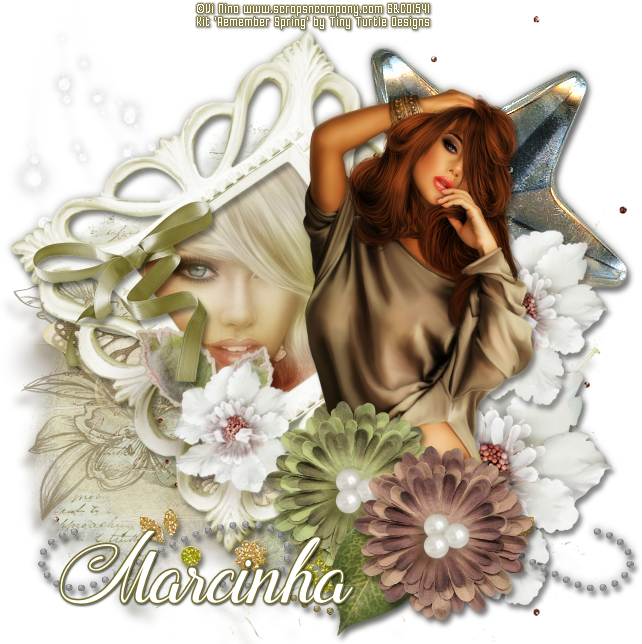
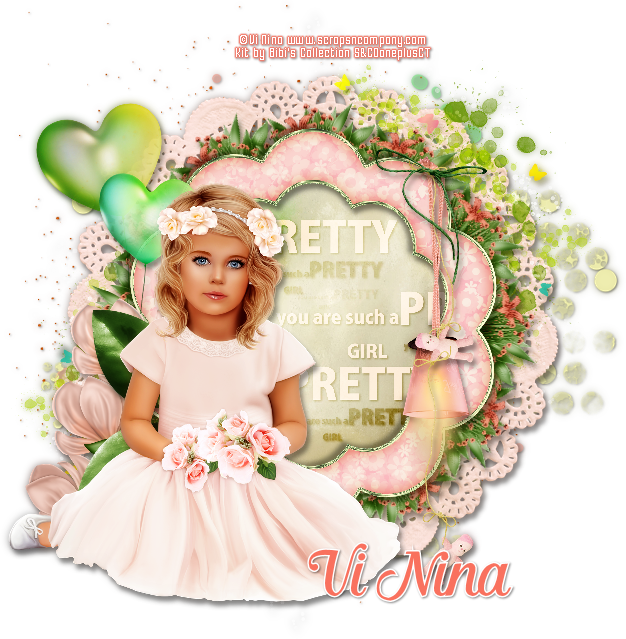
Remember Spring


== NEW PTU TAG TINY TURTLE DESIGNS CT ==

Featuring "Remember Spring", Tiny Turtle Design kit at TinyTurtleDesign Store.


Tiny Turtle Design kit has 28 papers and 109 elements so you can play with it. 

Tiny Turtle Design kit can be found  at:
-> TinyTurtleDesign Store, here


February 21, 2016

Dottie BB ~ by Joanne Salgado


Tutorial written by Joanne Salgado on February 21th, 2016
for those who have a working knowledge of PSP.
Any resemblance to any other tutorial is coincidental.
Do not copy and paste this tutorial anywhere on the net.
If you want to translate please ask first. 

Tube: Dottie by Vi Nina - you can purchase here
Kit Lovers by Bibi's Collection - you can purchase here
Font: AndantinoJF

Don't forget to save often.
At any point if you have doubts check my tag.

1. Open a new image 650x550

2. Open element 'BIBI-LOVERS  ELEMS (18)' copy and paste as new layer. Resize 55%.

3. Open element 'BIBI-LOVERS  ELEMS (83)' copy and paste as new layer. Resize 60%. Move this layer below the frame layer. Arrange it to the right. Change opacity to 70. Duplicate. Mirror.

4. Open element 'BIBI-LOVERS  ELEMS (2)' copy and paste as new layer. Resize 50%. Arrange it to the top right.

5. Open element 'BIBI-LOVERS  ELEMS (2)' again, copy and paste as new layer. Arrange it to the top left.

6. Open element 'BIBI-LOVERS  ELEMS (72)' copy and paste as new layer. Resize 50%. Arrange it to the top left above the flower.

7. Open element 'BIBI-LOVERS  ELEMS (51)' copy and paste as new layer. Resize 50%. Flip. Arrange it to the bottom left. Duplicate. Mirror.

8. Open element 'BIBI-LOVERS  ELEMS (93)' copy and paste as new layer. Resize 50%. Arrange it to the top right above the white flower. Duplicate. Mirror. Arrange it to the left above the bottom of the white flower.

9. Open element 'BIBI-LOVERS  ELEMS (80)' copy and paste as new layer. Resize 50%. Arrange it to the right. Just a part will appear.

10. Open element 'BIBI-LOVERS  ELEMS (66)' copy and paste as new layer. Arrange it to bottom.

11. Open element 'BIBI-LOVERS  ELEMS (52)' copy and paste as new layer. Resize 50%. Arrange it to the top right (the white flower should still appear a part).

12. Open element 'BIBI-LOVERS  ELEMS (100)' copy and paste as new layer. Resize 50%. Arrange it to the top left above the heart (a part of the heart should still appear).

13. Open element 'BIBI-LOVERS  ELEMS (101)' copy and paste as new layer. Resize 50%. Arrange it to the bottom right.

14. Open element 'BIBI-LOVERS  ELEMS (45)' copy and paste as new layer. Resize 50%. Rotate left 15. Arrange it to the bottom right. Sharpen.

15. Open element 'BIBI-LOVERS  ELEMS (50)' copy and paste as new layer. Resize 50%. Arrange it to the top.

16. Open element 'BIBI-LOVERS  ELEMS (64)' copy and paste as new layer. Resize 50%. Arrange it to the right.

17. Open element 'BIBI-LOVERS  ELEMS (105)' copy and paste as new layer. Resize 70%. Arrange it to the left. Duplicate. Mirror. Flip.

18. Open paper 'BIBI-LOVERS PAPERS (9)' copy and paste as new layer. Resize 30%. Arrange inside the frame and clean the parts that appears outside it.

19. Open your tube. Copy and paste as new layer. Resize as needed. Arrange it inside the frame and clean the outside parts. Duplicate. Close duplicate for now, select the original layer. Hue and Saturation/Colorize both 0. Open the duplicate again and change blend mode to screen.

20. Open element 'BIBI-LOVERS  ELEMS (73)' copy and paste as new layer. Resize 30%. Move this layer above the frame layer. Arrange it to the bottom left of the circle frame.

21. Add shadow as you prefer.

22. Add copyright. Add name. Save as PNG.

Dottie KBK ~ by Joanne Salgado


Tutorial written by Joanne Salgado on February 21th, 2016
for those who have a working knowledge of PSP.
Any resemblance to any other tutorial is coincidental.
Do not copy and paste this tutorial anywhere on the net.
If you want to translate please ask first. 

Tube: Dottie by Vi Nina - you can purchase here
Kit Dottie by Kizzed by Kelz - you can purchase here
Font: Dorayaki

Don't forget to save often.
At any point if you have doubts check my tag.

1. Open a new image 650x550

2. Open element 'KBK_Dottie (86)' copy and paste as new layer. Resize 80%.

3. Open element 'KBK_Dottie (90)' copy and paste as new layer. Move this layer below the frame layer. Arrange it a little to the top.

4. Open element 'KBK_Dottie (31)' copy and paste as new layer. Resize 70%. Arrange it to the right. Duplicate. Mirror. Arrange it a little to the top left. Clean all the parts that appears inside the frame.

5. Open element 'KBK_Dottie (17)' copy and paste as new layer. Resize 25%. Move this layer above the frame layer. Arrange it to the top right.

6. Open your tube. Copy and paste as new layer. Resize as needed. Clean the parts needed so it looks a part inside the frame and a part outside of it.

7. Open element 'KBK_Dottie (98)' copy and paste as new layer. Arrange it to top. Clean the ones on your tube's face.

8. Open element 'KBK_Dottie (33)' copy and paste as new layer. Resize 60%. Arrange it to the bottom right.

9. Open element 'KBK_Dottie (16)' copy and paste as new layer. Resize 50%. Arrange it to the bottom left.

10. Open element 'KBK_Dottie (132)' copy and paste as new layer. Clean the sparkles on your tube's face and over the monkey and mask.

11. Open element 'KBK_Dottie (131)' copy and paste as new layer. Arrange it to the bottom right.

12. Add shadow as you prefer.

13. Add copyright. Add name. Save as PNG.
January 7, 2016

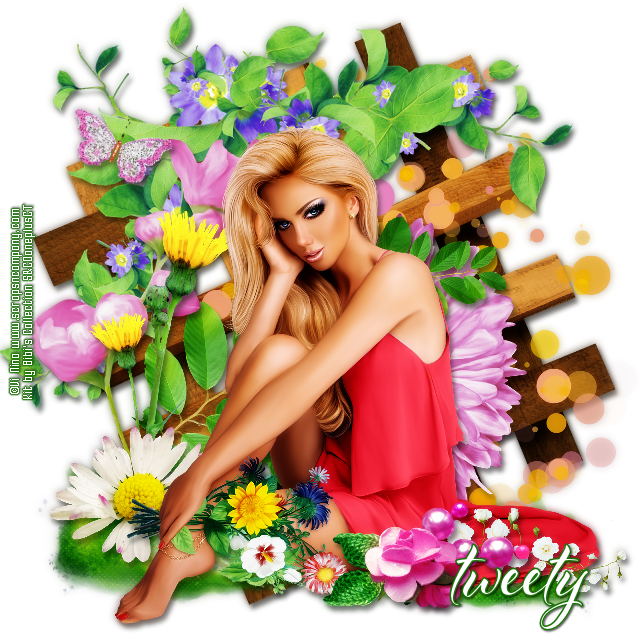
New Year Lady II

SPECIAL TUTORIAL


Tutorial written by Marcia Salgado on January 7th, 2016
for those who have a working knowledge of PSP.
I'm using PSP9 to create my tuts.
Any resemblance to any other tutorial is coincidental.
Do not copy and paste this tutorial anywhere on the net.
If you want to translate please ask first. 

****************************************
Material:

Tube: "New Year Lady" by Vi Nina, you can purchase it here
do not use without the proper #license.
PTU Kit "New Year Lady" by Bibi's Collections, you can purchase it here
Wordart: by me, here - just click and save.
Font: Khanza Script

****************************************

--> Remember to save often and use my tag as reference if necessary. Use a Drop Shadow of your preference on layers.

1. Create new image 700x700.

2. BIBI-NEW YEAR LADY ELEM (2). Rezise 45%. Copy and paste as new layer. Move it up and left. Place it on upper left corner.

3. BIBI-NEW YEAR LADY ELEM (55). Copy and paste as new layer. Move it up and to left.

4. BIBI-NEW YEAR LADY ELEM (125). Copy and paste as new layer. Move it up and to right. 

5. BIBI-NEW YEAR LADY ELEM (33). Resize 60%. Copy and paste as new layer. Move it a little to right.

6. BIBI-NEW YEAR LADY ELEM (139). Copy and paste as new layer. Move it down and to left.

7. BIBI-NEW YEAR LADY ELEM (71). Copy and paste as new layer. 

8. BIBI-NEW YEAR LADY ELEM (25). Copy and paste as new layer. Move it a little up and to left. 

9. BIBI-NEW YEAR LADY ELEM (46). Free Rotate: Left-90. Mirror. Copy and paste as new layer. Move it to left.

10. BIBI-NEW YEAR LADY ELEM (109). Resize 45%. Mirror. Copy and paste as new layer. Move it down and a little to left.

11. BIBI-NEW YEAR LADY ELEM (34). Resize 50%. Copy and paste as new layer. Move it down.

12. BIBI-NEW YEAR LADY ELEM (102). Resize 70%. Copy and paste as new layer. Move it down and to left.

13. Open your tube. Resize if needed. Paste as new layer and move it way to left. Rearrange the elements to better fit your tube.

14. BIBI-NEW YEAR LADY ELEM (50). Resize 50%. Copy and paste as new layer. Move it down and to left.

15. Open my wordart. Copy and paste as new layer. Move it up and to right.


--> Add your copyright info and license#. Add your name and save as PNG.


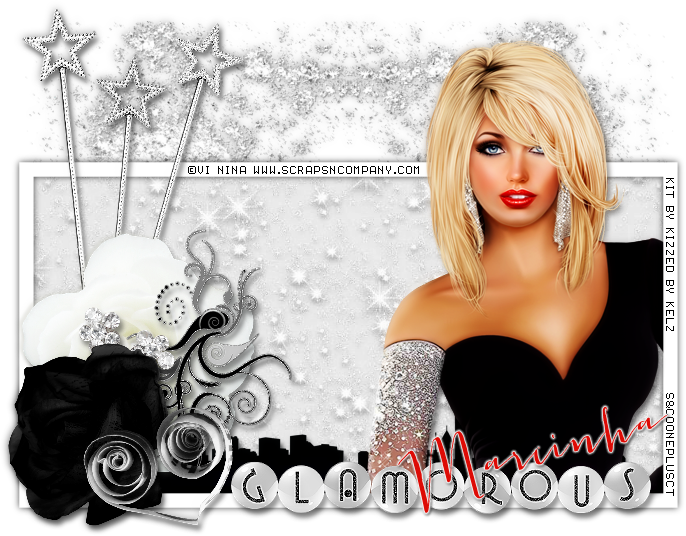
New year Lady

GLAMOROUS TUTORIAL


Tutorial written by Marcia Salgado on January 7th, 2016
for those who have a working knowledge of PSP.
I'm using PSP9 to create my tuts.
Any resemblance to any other tutorial is coincidental.
Do not copy and paste this tutorial anywhere on the net.
If you want to translate please ask first. 

****************************************
Material:

Tube: "New year Lady" by Vi Nina, you can purchase it here
do not use without the proper #license.
PTU Kit "New year Lady" by Kizzed by Kelz, you can purchase it here
Frame: by me -> here, just clic to enlarge and save.

Font: Jacques & Gilles

****************************************

--> Remember to save often and use my tag as reference if necessary. Use a Drop Shadow of your preference on layers. 

1. Open my white frame. Duplicate it and close the original.

2. Open KBK_NewYearLady (128). Resize 70%. Copy and paste as new layer. Move it up and to right. Place it on right top corner. Duplicate. Mirror. Merge down. Move this layer below frame layer.

3. Click on frame layer. Select inside the frame. Expand > 6. Open PAPER KBK_NewYearLady (2). Copy and paste into selection. Deselect.

4. Open KBK_NewYearLady (121). Copy and paste as new layer. Move it down and to left. Place it on frame's bottom.

5. Click on first layer. Open your tube. Resize if needed. Copy and paste as new layer. Move it to left. Clean all areas outside the frame. Select all. Clip to canvas. Crop to selection.

6. Open KBK_NewYearLady (10). Resize 70%. Copy and paste as new layer. Move it up and to left.

7. Open KBK_NewYearLady (135).  Resize 40%. Copy and paste as new layer. Move it to left.

8. Open KBK_NewYearLady (28). Resize 50%. Copy and paste as new layer. Move it down and a little to left.

9. Open KBK_NewYearLady (115). Resize 30%. Copy and paste as new layer. Move ita little down and to left.

10. Open KBK_NewYearLady (137). Resize 35%. Mirror. Copy and paste as new layer. Move it down and way to left.

11. Open KBK_NewYearLady (34). Resize 25%. Copy and paste as new layer. Move it down and to left.

12. Open KBK_NewYearLady (112). Resize 70%. Copy and paste as new layer. Move it down and to right.

--> Add your copyright info and licese#. Add your name and save as PNG.


October 31, 2015

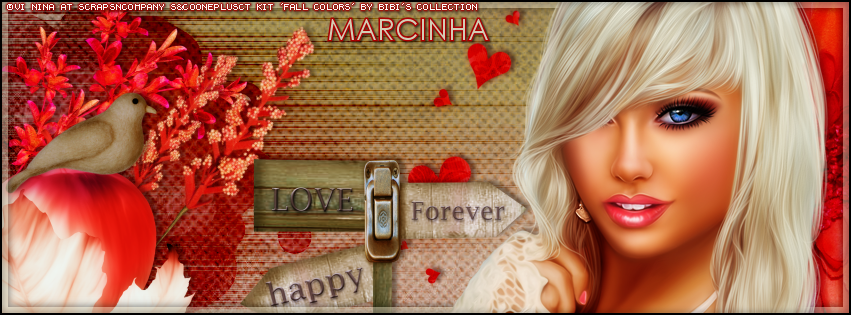
Fall Colors

FOREVER IN LOVE TUTORIAL

**Click to see original size**

Tutorial written by Marcia Salgado on October 31th, 2015
for those who have a working knowledge of PSP.
Any resemblance to any other tutorial is coincidental.
Do not copy and paste this tutorial anywhere on the net.
If you want to translate please ask first. 

****************************************
Material:

Tube: "Fall Colors" by Vi Nina, you can purchase it here
do not use without the proper #license.
PTU Kit "Fall Colors" by Bibi's Collection, you can purchase it here
Plugin: DSB Flux > Blast
Font: Century Cothic

****************************************

--> Remember to save often and use my tag as reference if necessary. Use a Drop Shadow of your preference on layers. 

1. Create a new image 851x315.

2. Open BIBI-FALL COLORS PAPERS (9). Copy and paste as new layer. Move it up until the end of the paper. Open BIBI-FALL COLORS PAPERS (8). Copy and paste as new layer. Blend Mode: Saturation.

3. OPen BIBI-FALL COLORS ELEMS (119). Copy and paste as new layer. Move it way left. Show only half ot it. Apply filter DSB Flux > Blast. Settings below. Blend Mode: Burn.


4. Open BIBI-FALL COLORS ELEMS (61). Resize 50%. Mirror. Copy and paste as new layer. Move it a little up and way left.

5. Open BIBI-FALL COLORS ELEMS (66). Resize 50%. Free Rotate: Right-40. Copy and paste as new layer. Move it to left.

6. Open BIBI-FALL COLORS ELEMS (22). Resize 25%. Copy and paste as new layer. Move it down and way to the left. er PSP versions) and on tool options mark Position X: -77,00 and Position Y: 129,00. This step place your apple on the same place of mine.

7. Open BIBI-FALL COLORS ELEMS (117). Resize 35%. Mirror. Click on Deform Tool (or Pick on newer PSP versions) and on tool options mark Position X: 5,00 and Position Y: 92,00. This step is to make sure your dove will be on top of your profile picture.

8. Open BIBI-FALL COLORS ELEMS (106). Copy and paste as new layer. Move it way right. Show only half of it.

9. Open BIBI-FALL COLORS ELEMS (113). Resize 50%. Copy and paste as new layer. Move it a little to right.

10. Open BIBI-FALL COLORS ELEMS (88). Copy and paste as new layer. Move it down.

11. Add a new layer. Select all. Fill with #d3ccb4. Contract > 8. Delete. Low the layer opacity to 50.

12. Open your tube. Resize if needed. I used Mirror on mine. Copy and paste as new layer. Move it down and to right. You may want to re-arrange all elements to better fit your tube.

13. Add a new layer. Fill it with black. Contract > 2. Delete.

--> Add your copyright info (no URL by Facebook TOU) and license#. Add your name. Save as PNG.

--> Sometimes I had to change my Timeline size to 846x313 because when I add it to Facebook the image has extra pixels and do not fit perfectly. So try this size if the same is happening to you.

----------------------------------------------------------------------

Here is how I made my Picture Profile: