Showing posts with label Tammy's Welt. Show all posts

July 4, 2016

Hawaii Jane

PINK-HAWAII TUTORIAL
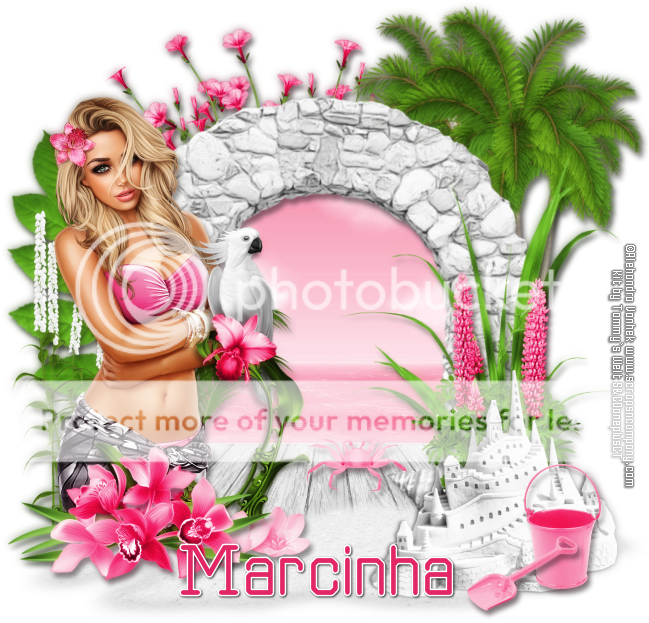

Tutorial written by Marcia Salgado on July 4th, 2016
for those who have a working knowledge of PSP.
I'm using PSP9 to create my tuts.
Any resemblance to any other tutorial is coincidental.
Do not copy and paste this tutorial anywhere on the net.
If you want to translate please ask first. 

****************************************
Material:

Tube: "Hawaii Jane" by Alehandra Vanhek, you can purchase it here
do not use without the proper #license.
PTU Kit "Hawaii Jane" by Tammy's Welt, you can purchase it here
Font: Separator Bold

****************************************

--> Remember to save often and use my tag as reference if necessary. Use a Drop Shadow of your preference on layers. 


1. Create a nre image 650x650.

2. Open hawaii jane (76). Resize 70%. Copy and paste as new layer.

3. Open hawaii jane (31). Copy and paste as new layer. Move it up and to left, not too close to the edge.

4. Open hawaii jane (40). Resize 75%. Copy and paste as new layer. Move it below the arch layer. Move it up and to right.

5. Open hawaii jane (38). Resize 65%. Mirror. Free Rotate: Right-35. Copy and paste as new layer. Move it to left.

6. Create a selection with free hand selection tool arounf the arch overture. Add a new layer. Open paper 1. Copy and paste into selection. Deselect.

7. Click on arch layer. Open hawaii jane (39).png 85%. Copy and paste as new layer. Move it down and to right. Place in front of the right side of the arch at bottom.

8. Open hawaii jane (22).png 20%. Copy and paste as new layer. Place it on the deck at right.

9. Open hawaii jane (67). Copy and paste as new layer. Move it down.

10. Open hawaii jane (78). Resize 30%. Copy and paste as new layer. Move it down and to right. Place it a little inside the arch at bottom.

11. Open hawaii jane (32). Resize 55%. Copy and paste as new layer. Move it down and to right. Place it before the right side of the arch.

12. Open hawaii jane (54). Resize 65%. Copy and paste as new layer. Move it way down and way to right. 

13. Open hawaii jane (20). Resize 25%. Copy and paste as new layer. Move it down and to right.

14. Open hawaii jane (11). Resize 30%. Copy and paste as new layer. Move it down and to right, place it before the bucket.

15. Open hawaii jane (49). Resize 40%. Copy and paste as new layer. Place it before the left side of the arch at bottom.

16. Open hawaii jane (29). Resize 55%. Copy and paste as new layer. Place it on the left sid of the previous foliage.

17. Open the tube. Resize. Copy and paste as new layer. I mirrored mine. Move it to left.

18. Open hawaii jane (36). Resize 55%. Mirror. Copy and paste as new layer. Place it in front of the tube a little more to right at bottom.

19. Open hawaii jane (26). Resize 30%. Copy and paste as new layer. Cover the right bottom of the previous element.

20. Open hawaii jane (35). Resize 55%. Mirror. Copy and paste as new layer. Place it over the cacatua element at bottom. Cover all bottom of the tube with it too.

21. Use Crop > Merged Opaque to get rid of all extra spaces.


--> Add your copyright info and license#. Add your name and save as PNG.


June 25, 2016

Blue Butterfly ~ by Joanne Salgado


Tutorial written by Joanne Salgado on June 25th, 2016
for those who have a working knowledge of PSP.
I'm using PSP9 to create my tuts.
Any resemblance to any other tutorial is coincidental.
Do not copy and paste this tutorial anywhere on the net.
If you want to translate please ask first. 

****************************************
Material:

Tube: "Butterfly in Hair" by Andy Cooper - you can purchase it here
do not use without the proper #license.
PTU Kit "Butterfly in Hair" by Tammy's Welt - you can purchase it here
Font: Theodista Decally

****************************************

Don't forget to save often.
At any point if you have doubts check my tag.

1. Open a new image 650x550

2. Open element 'butterfly in hair (64)' copy and paste as new layer. Resize 70%.

3. Open element 'butterfly in hair (53)' copy and paste as new layer. Resize 50%. Move this layer below the frame layer. Arrange it a little to bottom. Duplicate. Mirror.

4. Open element 'butterfly in hair (48)' copy and paste as new layer. Resize 50%. Arrange it to the top left.

5. Open paper 'paper 7' copy and paste as new layer. Resize 45%. Clean the parts outside the frame.

6. Open element 'butterfly in hair (78)' copy and paste as new layer. Move this layer above the frame layer.

7. Open element 'butterfly in hair (77)' copy and paste as new layer. Resize 80%.

8. Open your tube. Copy and paste as new layer. Resize as needed and arrange it inside the frame. Clean the parts not needed.

9. Open element 'butterfly in hair (57)' copy and paste as new layer. Resize 30%. Arrange it to the top left.

10. Open element 'butterfly in hair (59)' copy and paste as new layer. Resize 50%. Arrange it to the top left.

11. Open element 'butterfly in hair (30)' copy and paste as new layer. Resize 50%. Arrange it to the right.

12. Open element 'butterfly in hair (44)' copy and paste as new layer. Resize 50%. Arrange it to the right.

13. Open element 'butterfly in hair (55)' copy and paste as new layer. Resize 50%. Mirror. Arrange it to the right.

14. Open element 'butterfly in hair (35)' copy and paste as new layer. Mirror. Clean the stem and arrange it to the bottom right.

15. Open element 'butterfly in hair (36)' copy and paste as new layer. Mirror. Arrange it to the bottom right.

16. Open element 'butterfly in hair (41)' copy and paste as new layer. Resize 30%. Arrange it to the bottom left.

17. Open element 'butterfly in hair (24)' copy and paste as new layer. Resize 30%. Arrange it to the bottom right.

18. Open element 'butterfly in hair (76)' copy and paste as new layer. Resize 50%. Arrange it to the left.

19. Add shadow as you prefer.

20. Add copyright. Add name. Save as PNG.

May 31, 2016

Bikini Redhead

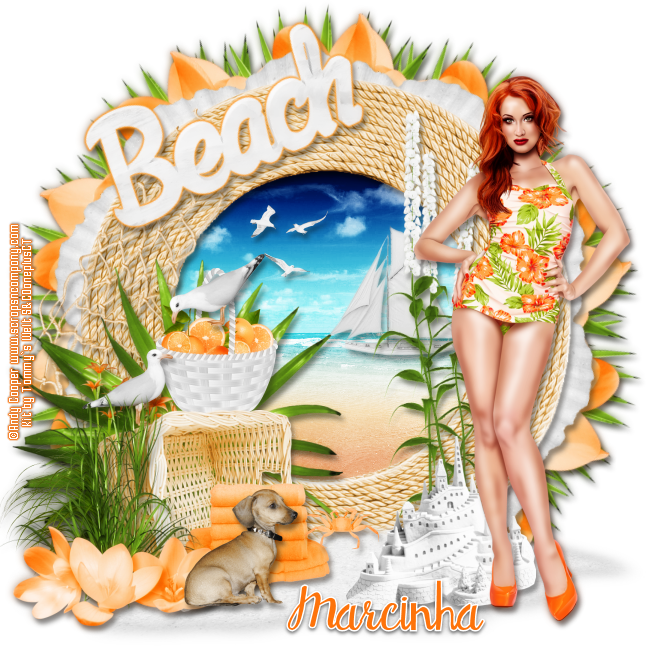
BEACH TUTORIAL


Tutorial written by Marcia Salgado on May 30th, 2016
for those who have a working knowledge of PSP.
I'm using PSP9 to create my tuts.
Any resemblance to any other tutorial is coincidental.
Do not copy and paste this tutorial anywhere on the net.
If you want to translate please ask first. 

****************************************
Material:

Tube: "Bikini Redhead" by Andy Cooper, you can purchase it here 
do not use without the proper #license.
PTU Kit "Bikini Redhead" by Tammy's Welt, you can purchase it here 
Plugin: MuRa's Meister and Eye Candy 6
Material: my gradient, mar2016_beach1 (or mar2016_beach1 JPG), here
Font: Stephany

****************************************

--> Remember to save often and use my tag as reference if necessary. Use a Drop Shadow of your preference on layers. 


1. Create a new image 650x650.

2. Open bikini redhead (33). Resize 65%. Copy and paste as new layer. Apply MuRa's Meister > Copies > Encircle with settings below:


3. Open bikini redhead (54). Copy and paste as new layer. Use MuRa's Meister > Copies > Encircle with same settings before.

3. Open bikini redhead (71). Resize 45%. Copy and paste as new layer. Again, use MuRa's Mesiter > Copies > Encircle with same settings used before.

4. Open bikini redhead (10).png. Resize 80%. Copy and paste as new layer.

5. Select inside the frame. Expand > 10. Open paper 4. Copy and paste into selection. Keep selected.

6. Add a new layer. You can fill it using my gradient or open my mar2016_beach1 paper, copy and paste into selection. Blend Mode: Overlay. Deselect.

7. Open bikini redhead (69). Resize 20%. Copy and paste as new layer. Place it inside the frame on top at left side.

8. Open bikini redhead (60). Resize 35%. Copy and paste as new layer. Keep it inside the frame. Place it on middle at right.

9. Click on frame layer. Open bikini redhead (13). Resize 95%. Copy and paste as new layer. Move it to left and place it over the frame border.

10. Open bikini redhead (59). Copy and paste as new layer. Move it down. To keep the tag clean erase all parts showing below the whitesand layer (parts erased belong to the layers where was used MuRa's Maister filter on elements.)

11. Open bikini redhead (55). Resize 75%. Copy and paste as new layer. Move it to right. Place it over the frame border.

12. Open bikini redhead (66). Resize 50%. Copy and paste as new layer. Move it down and to right.

13. Open bikini redhead (31). Resize 60%. Copy and paste as new layer. Move it down and to left.

14. Open bikini redhead (38). Resize 45%. Copy and paste as new layer. Move it down and to left.

15. Open bikini redhead (6). Resize 30%. Copy and paste as new layer. Move it a little to left.

16. Open bikini redhead (9). Resize 30%. Mirror. Copy and paste as new layer. Place it above the oranges in the white basket.

17. Open bikini redhead (8). Resize 30%. Copy and paste as new layer. Place it near the white basket at left.

18. Open bikini redhead (14). Resize 60%. Mirror. Copy and paste as new layer. Place it below the white basket.

19. Open bikini redhead (42). Resize 30%. Copy and paste as new layer. Place it in front of the rattan basket.

20. Open bikini redhead (26). Resize 65%. Copy and paste as new layer. Move it down and to left.

21. Open bikini redhead (54). Resize 45%. Copy and paste as new layer. Move it down and to left.

22. Open bikini redhead (49). Resize 15%. Copy and paste as new layer. Move it down. Place it over the frame border at bottom.

23. Open bikini redhead (7). Resize 30%. Mirror. Copy and paste as new layer. Move it down and a little to left.

24. Open bikini redhead (67). Resize 45%. Free Rotate: Left-25. Copy and paste as new layer. Move it up and a little to left. Place it over the frame border. Add a border with color #fd730b using Eye Candy 6 > Gradient Glow with settings below:


25. Open your tube. Resize. Copy and paste as new layer. Move it to right.

26. Use Crop > Merged Opaque to get rid of all extra space.


--> Add your copyright and license#. Add your name and save as PNG.


March 5, 2016

Golden Wings ~ by Joanne Salgado


Tutorial written by Joanne Salgado on March 05th, 2016
for those who have a working knowledge of PSP.
Any resemblance to any other tutorial is coincidental.
Do not copy and paste this tutorial anywhere on the net.
If you want to translate please ask first. 

Tube: Golden Wings by Andy Cooper - you can purchase here
Kit Golden Wings by Tammys Welt - you can purchase here
Font: Segoe Script

Don't forget to save often.
At any point if you have doubts check my tag.

1. Open a new image 650x550

2. Open element 'golden wings (41)' copy and paste as new layer. Resize 80%.

3. Open element 'golden wings (3)' copy and paste as new layer. Resize 70%. Move this layer below the frame layer. Arrange it to the top left. Duplicate. Mirror.

4. Open element 'golden wings (17)' copy and paste as new layer. Arrange it to the bottom left.

5. Open element 'golden wings (16)' copy and paste as new layer. Arrange it to the bottom right.

6. Open element 'golden wings (26)' copy and paste as new layer. Arrange it to the top left.

7. Open element 'golden wings (18)' copy and paste as new layer. Flip. Arrange it to top.

8. Open paper 'paper 2' copy and paste as new layer. Resize 60%. Arrange it inside the frame and clean the outside parts.

9. Open element 'golden wings (61)' copy and paste as new layer. Move this layer above the frame layer. Arrange it to the top left. Duplicate. Mirror.

10. Open element 'golden wings (64)' copy and paste as new layer. Arrange it to the top left.

11. Open element 'golden wings (34)' copy and paste as new layer. Resize 70%. Arrange it to the top of the frame.

12. Open element 'golden wings (33)' copy and paste as new layer. Resize 50%. Arrange it to the bottom right.

13. Open element 'golden wings (6)' copy and paste as new layer. Resize 50%. Arrange it to the bottom right above the right side of the white butterfly.

14. Open your tube. Copy and paste as new layer. Resize as needed and arrange it to the left.

15. Open element 'golden wings (60)' copy and paste as new layer. Resize 80%. Arrange it to bottom.

16. Add shadow as you prefer.

17. Add copyright. Add name. Save as PNG.

August 23, 2015

Butterfly Beauty ~ by Joanne Salgado


Tutorial written by Joanne Salgado on August 23th, 2015
for those who have a working knowledge of PSP.
Any resemblance to any other tutorial is coincidental.
Do not copy and paste this tutorial anywhere on the net.
If you want to translate please ask first. 

Tube: Butterfly Beauty by Andy Cooper - you can purchase here
Kit Butterfly Beauty by Tammy's Welt - you can purchase here
Font: Almond Script

Don't forget to save often.
At any point if you have doubts check my tag.

1. Open a new image 650x600

2. Open element 'butterfly beauty (48)' copy and paste as new layer. Resize 85%.

3. Open element 'butterfly beauty (13)' copy and paste as new layer. Resize 80%. Mirror. Arrange it to the right.

4. Open element 'butterfly beauty (61)' copy and paste as new layer. Move this below the frame layer. Arrange it to the bottom left.

5. Open element 'butterfly beauty (60)' copy and paste as new layer. Arrange it to the left.

6. Open element 'butterfly beauty (11)' copy and paste as new layer. Resize 50%. Arrange it to the top left.

7. Open element 'butterfly beauty (18)' copy and paste as new layer. Resize 50%. Arrange it to the top.

8. Open element 'butterfly beauty (43)' copy and paste as new layer. Resize 50%. Arrange it to the bottom right.

9. Open paper 'paper 4' copy and paste as new layer. Arrange it inside the frame and clean the outside parts.

10. Open element 'butterfly beauty (53)' copy and paste as new layer. Resize 50%. Move this above the frame layer. Arrange it to the top right (above the frame).

11. Open element 'butterfly beauty (37)' copy and paste as new layer. Resize 35%. Arrange it to the bottom left.

12. Open element 'butterfly beauty (49)' copy and paste as new layer. Resize 50%. Arrange it to the right.

13. Open element 'butterfly beauty (68)' copy and paste as new layer. Resize 95%.

14. Open your tube. Copy and paste as new layer. Resize as you prefer and arrange it to the left.

15. Open element 'butterfly beauty (70)' copy and paste as new layer. Arrange it to the bottom left.

16. Add shadow. I used: 1-1-65-2 black.

17. Add copyright.

18. Add name.

Save as PNG

June 26, 2015

USA Country Girl

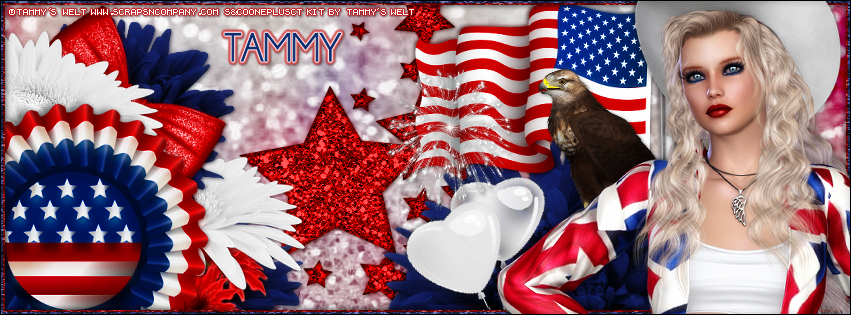
4th OF JULY TUTORIAL

**Click to see original size**

Tutorial written by Marcia Salgado on June 26th, 2015
for those who have a working knowledge of PSP.
Any resemblance to any other tutorial is coincidental.
Do not copy and paste this tutorial anywhere on the net.
If you want to translate please ask first. 

****************************************
Material:

Tube: "USA Country Girl" by Tammy's Welt, you can purchase it here
do not use without the proper #license.
PTU Kit "USA Country" by Tammy's Welt, you can purchase it here
Plugin: MuRa's Meister > Copies
Font: Champagne & Limousines

****************************************

--> Remember to save often and use my tag as reference if necessary. Used the Drop Shadow: 1-1-50-5 in most layers. 

1. Create a new image 831x315. Add a new layer. Select all. Open paper 8. Custom Selection: Left-0, Top-250, Right-800, Bottom-550. Copy and paste into selection.

2. Open your tube. Select a piece of the tube. Copy and paste as new layer. MuRa's Meister > Copies > Wall Paper(rotate) > Default. Gaussian Blur > 30. Blend Mode: Burn.

3. Open usa country (41). Copy and paste as new layer. Move it a little to left.

4. Open usa country (9). Resize 70%. Copy and paste as new layer. Move it a little to right and all way down.

5. Open usa country (77). Resize 30%. Free Rotate: Left-25. Copy and paste as new layer. Move it down and to right.

6. Open usa country (5). Resize 70%. Mirror. Copy and paste as new layer. Move it to right and up.

7. Open usa country (9). Resize 50%. Copy and paste as new layer. Move it left up. Duplicate. Mirror and move it down a little to right.

8. Open usa country (48). Copy and paste as new layer. Move it to left and way way down. Leave out only the top flowers. And place it between the upper and lower blue flowers.

9. Open usa country (68). Resize 70%. Copy and paste as new layer. Move it down left. This layer goes directly over the red flower layer. Duplicate. Arrange this layer on top of first blue flower layer. Move it up and to left.

10. Open usa country (42). Resize 50%. Free Rotate: Right-45. Copy and paste as new layer. Move it up and to left. Place it under the top white flower.

11. Click on first layer (should be the top white flower). Open usa country (4). Resize 70%. Copy and paste as new layer. Move it way down to left bottom corner. 

12. Open usa country (69). Resize 30%. Copy and paste as new layer. Move it a little up and a little to right. Place it over the flag.

13. Open usa country (52). Resize 40%. Copy and paste as new layer. Move it up and to right. Place it over the flag right side.

14. Add a new layer. Select all. Open paper 2. Copy and paste into selection. Contract > 5. Delete. Deselect.

15. Add a new layer. Select all. Open paper 3. Copy and paste into selection. Contract > 3. Delete. Deselect.

16. Open your tube. Resize if needed. Copy and paste as new layer. Move it way to right. Add a suitable shadow.

17. Add a new layer. Select all. Fill with black. Contract > 1. Delete.

--> Add your copyright info (no URL by Facebook TOU) and license#. Add your name. Save as PNG.

--> Sometimes I had to change my Timeline size to 846x313 because when I add it to Facebook the image has extra pixels and do not fit perfectly. So try this size if the same is happening to you. 


May 17, 2015

Summertime ~ by Joanne Salgado


Tutorial written by Joanne Salgado on May 17th, 2015
for those who have a working knowledge of PSP.
Any resemblance to any other tutorial is coincidental.
Do not copy and paste this tutorial anywhere on the net.
If you want to translate please ask first. 

Tube: Blue Hair by Danny Lee - you can purchase here
Kit Summertime by Tammys Welt - you can purchase here
Font: KG Two is Better Than One / size: 48

Don't forget to save often.
At any point if you have doubts check my tag.

1. Open a new image 600x500

2. Open element 'summertime (43)' copy and paste as new layer. Resize 70%. Arrange it to the left.

3. Open your tube. Copy and paste as new layer. Resize as you prefer and arrange it sitting on the bench.

4. Open element 'summertime (20)' copy and paste as new layer. Resize 40%. Arrange it to the right.

5. Open element 'summertime (27)' copy and paste as new layer. Resize 30%. Arrange by the side of the tube. Move this below the tube layer.

6. Open element 'summertime (28)' copy and paste as new layer. Resize 30%. Arrange it to the bottom left of the bench.

7. Open element 'summertime (4)' copy and paste as new layer. Resize 30%. Arrange it to the bottom left. Move this below the yellow flowers.

8. Open element 'summertime (13)' copy and paste as new layer. Resize 70%. Arrange it to the left. Move this below the bench layer.

9. Open element 'summertime (40)' copy and paste as new layer. Resize 30%. Arrange it to the bottom left. Move this above the yellow flowers.

10. Open element 'summertime (30)' copy and paste as new layer. Resize 30%. Arrange it to the right. Move this above the bush layer.

11. Open element 'summertime (38)' copy and paste as new layer. Resize 60%. Arrange it to the top right. Move this to the bottom (last layer).

12. Open element 'summertime (2)' copy and paste as new layer. Resize 40%. Mirror. Arrange it to the right.

13. Open element 'summertime (48)' copy and paste as new layer. Resize 25%. Mirror. Arrange it to the left. Move this above the bench layer.

14. Open element 'summertime (50)' copy and paste as new layer. Resize 30%. Mirror. Arrange it to the left. 

15. Open element 'summertime (49)' copy and paste as new layer. Resize 80%. Flip. Arrange it to bottom. Move this above all layers.

16. Add shadow. I used: 1-1-65-2 #404040.

17. Add copyright.

18. Add name. I used: KG Two is Better Than One / size: 48

Save as PNG

March 22, 2015

Minami

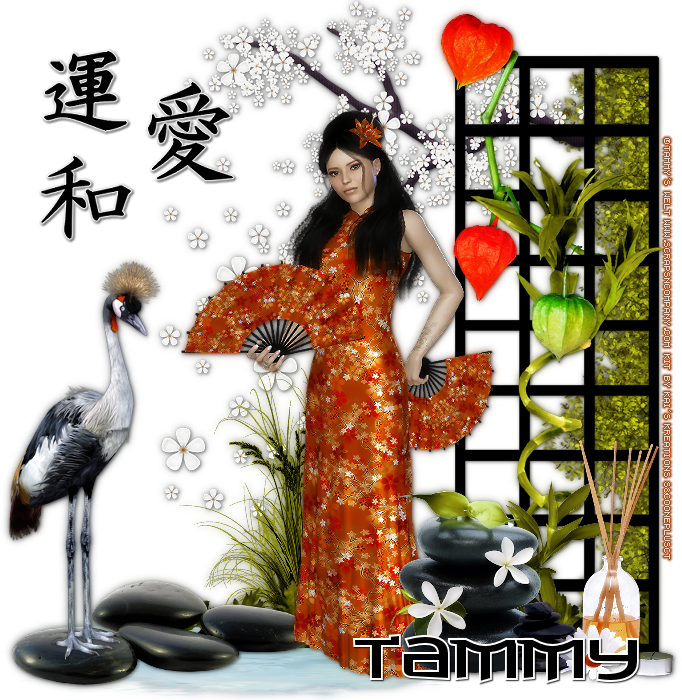
ORANGE MINAMI TUTORIAL


Tutorial written by Marcia Salgado on March 22th, 2015
for those who have a working knowledge of PSP.
Any resemblance to any other tutorial is coincidental.
Do not copy and paste this tutorial anywhere on the net.
If you want to translate please ask first. 

****************************************
Material:

Tube: Tammy's Welt, you can purchase it at S&Co., here,
do not use without the proper #license.
PTU Kit "Orange Japan" by Kai Kreations,
you can purchase it at S&Co., here
Font: Made in China

****************************************

--> Remember to save often and use my tag as reference if necessary. Used the Drop Shadow: 1-1-50-5 in most layers. 

1. Create a new image of 700x700. Open kai-oj-e49. Copy and paste as new layer. Move it far right. Open kai-oj-e20. Resize 60%. Copy and paste as new layer. Move it a little to left. Open kai-oj-e58. Resize 70%. Copy and paste as new layer. Free Rotate: Left-90. Arrange this layer below the squares one. Move the elemento to far right, just under the last wquare column. 

2. Open kai-oj-e18. Resize 70%. Copy and paste as new layer. Move it middle top. Open kai-oj-e57. Resize 45%. Copy and paste as new layer. Move it middle bottom. Open kai-oj-e63. Resize 60%. Copy and paste as new layer. Move it to bottom. Open kai-oj-e59. Resize 75%. Copy and paste as new layer. Move it to bottom. Open kai-oj-e43. Resize 60%. Copy and paste as new layer. Move it to bottom left. 

3. Open your tube. Resize if needed. Copy and paste as new layer. Move it down. Iver left side of tall grass and stones.Apply a ruitable shadow. Open kai-oj-e39. Copy and paste as new layer. Move it far right, over middle square column. 

4. Open kai-oj-e64. Resize 80%. Mirror. Copy and paste as new layer. Move it far left. Place it over the stones. Open kai-oj-e44. Resize 50%. Copy and paste as new layer. Move it bottom right. Open kai-oj-e41. Resize 40%. Copy and paste as new layer. Move it far bottom right.

5. Open kai-oj-e72. Resize 60%. Mirror. Copy and paste as new layer. Move it far upper right. Place it over the square columns. Suplicate and sent the copy to the bottom. Back to original layer. Erase some parts of the element so it looks like interlaced with the black lines. The bottom copy will cover any eraser mistake, so don't worry.

--> Resize if wanted. Add your copyright info and #license. Add your name and save as PNG.


March 21, 2015

Safari Girl ~ by Joanne Salgado


Tutorial written by Joanne Salgado on February 18th, 2015
for those who have a working knowledge of PSP.
Any resemblance to any other tutorial is coincidental.
Do not copy and paste this tutorial anywhere on the net.
If you want to translate please ask first. 

Tube: Safari Girl by Tammy's Welt - you can purchase here 
Kit A MAGIC ADVENTURE -part 1- BACK TO THE WILD by P-O Concept - you can purchase here 
Glass settings here 
Font: 1 Archer DNA

Plugins
Eye Candy 5 / Glass

Don't forget to save often.
At any point if you have doubts check my tag.

1. Open a new image 600x600

2. Open paper 'PO-backtopp8' copy and paste as new layer. Resize 50%.

3. Open element 'PO-backto29' copy and paste as new layer. With magic wand select inside it. Add a new layer. Flood Fill with white. Add noise with uniform/50/monochrome checked. Contract 4. Hit delete n your key board. Expand 5. Add a new layer. Plugins/Eye Candy 5/Glass - use the settings I offered. Selections none. Move the frame layer above this two we just added. (the circle noise should be above the glass layer).

4. Open element 'PO-backto14' copy and paste as new layer. Resize 70%. Arrange it to the right.

5. Open element 'PO-backto10' copy and paste as new layer. Resize 70%. Arrange it to the bottom right.

6. Open element 'PO-backto58' copy and paste as new layer. Resize 50%. Arrange it to the bottom right.

7. Open element 'PO-backto26' copy and paste as new layer. Resize 90%. Arrange it to the left.

8. Your tube. I'm using Safari Girl by Tammy's Welt. Copy and paste as new layer. Resize as you prefer and arrange it to the left.

9. Open element 'PO-backto2' copy and paste as new layer. Resize 40%. Mirror. Arrange it to the bottom left.

10. Open element 'PO-backto61' copy and paste as new layer. Resize 40%. Arrange it to the top right.

11. Open element 'PO-backto81' copy and paste as new layer. Arrange it to the bottom left.

12. Open element 'PO-backto49' copy and paste as new layer. 

13. Add shadow as you like. I used 1-1-65-2 black.

14. Add copyright.

15. Add name. I used: 1 Archer DNA / size: 60

Save as PNG

March 18, 2015

Voodoo Queen ~ by Joanne Salgado


Tutorial written by Joanne Salgado on February 18th, 2015
for those who have a working knowledge of PSP.
Any resemblance to any other tutorial is coincidental.
Do not copy and paste this tutorial anywhere on the net.
If you want to translate please ask first. 

Tube: Voodoo Queen by Tammy's Welt - you can purchase here
Kit Voodoo by Disturbed Scraps - you can purchase here 
Font: Canter Bold

Don't forget to save often.
At any point if you have doubts check my tag.

1. Open a new image 600x600
2. Open element 'DS - Voodoo Element (84)' copy and paste as new layer. Resize 70%. Change opacity to 72.

3. Open element 'DS - Voodoo Element (57)' copy and paste as new layer. Resize 60%. Arrange it to the top right. Duplicate. Change the duplicated layer blend mode to screen.

4. Open element 'DS - Voodoo Element (29)' copy and paste as new layer. Resize 70%. Arrange it to bottom. With the eraser tool remove the three and the mushrooms, don't worry, we will cover it.

5. Open element 'DS - Voodoo Element (74)' copy and paste as new layer. Resize 60%. Arrange it to the bottom right.

6. Open element 'DS - Voodoo Element (79)' copy and paste as new layer. Resize 30%. Arrange it to the bottom right.

7. Open element 'DS - Voodoo Element (82)' copy and paste as new layer. Resize 70%. Arrange it to the left.

8. Open you tube. I'm using Voodoo Queen by Tammy Welt. Copy and paste as new layer. Resize as you prefer. Arrange it to the left.

9. Open element 'DS - Voodoo Element (72)' copy and paste as new layer. Resize 25%. Arrange it to the left hand of the Voodoo Queen.

10. Open element 'DS - Voodoo Element (14)' copy and paste as new layer. Resize 40%. Arrange it to the bottom right.

11. Open element 'DS - Voodoo Element (61)' copy and paste as new layer. Resize 30% Arrange it to the bottom left.

12. Add shadow as you prefer. I used 1-1-65-2 black.

13. Add copyright.

14. Add name. I used Canter Bold / size: 60.

Save as PNG

March 16, 2015

Sarina ~ by Joanne Salgado


Tutorial written by Joanne Salgado on February 18th, 2015
for those who have a working knowledge of PSP.
Any resemblance to any other tutorial is coincidental.
Do not copy and paste this tutorial anywhere on the net.
If you want to translate please ask first. 

Tube: Sarina by Tammy's Welt - you can purchase here 
Kit Magic Lamp by DnScraps - you can purchase here 
Mask by Dee here (the second one).
Font: SNF Ambrosia Bold

Don't forget to save often.
At any point if you have doubts check my tag.

1. Open a new image 600x600

2. Open element 'Magiclandkitpudnwireframe' copy and paste as new layer. Resize 70%.

3. Open element 'Magiclandkitpudnglass' copy and paste as new layer. Resize 80%. Mirror. Arrange it to the bottom of the frame. Move this layer bellow the frame layer.

4. Open element 'Magiclandkitpudnglittersstars' copy and paste as new layer. Resize 75%.

5. Open paper 'Magiclampdnkitpupaper12' copy and paste as new layer. Resize 60%. Select the frame layer. With the magic wand select inside it, expand 1, invert. Select the paper layer and kit delete on your keyboard. Selections None.

6. Open element 'Magiclandkitpustars' copy and paste as new layer. Resize 70%.

7. Open element 'Magiclandkitpudndragonfly' copy and paste as new layer. Resize 70%. Arrange it to the left.

8. Open element 'Magiclandkitpubottle' copy and paste as new layer. Resize 15%. Arrange it to the bottom, a little to the right from the frame.

9. Open element 'Magiclandkitpulamp2' copy and paste as new layer. Resize 20%. Arrange it next to the bottle.

10. Open element 'Magiclandkitpudngenius' copy and paste as new layer. Resize 50%. Mirror. Arrange it to the right as the fog is coming out of the lamp.

11. Open element 'Magiclandkitpubird' copy and paste as new layer. Resize 15%. Free Rotate right-25. Arrange it to the bottom, above the bottle.

12. Open your tube. I'm using Sarina by Tammy Welt. Copy and paste as new layer. Resize as you prefer. Arrange it to the left of the frame.

13. Open element 'Magiclandkitpulatterns' copy and paste as new layer. Resize 40%. Arrange it to the bottom right next the tube.

14. Open paper 'Magiclampdnkitpupaper5' copy and paste as new layer. Layers/Arrange/Send to bottom. Resize 73%. Open your mask, I used 'DD_NFM_2015_2' apply your mask on the paper layer. Merge group.

15. Add shadow as you prefer. I used 1-1-65-2 black.

16. Add copyright.

17. Add name. I used: SNF Ambrosia Bold / size: 72.

Save as PNG