Showing posts with label S&Co Exclusive Tube. Show all posts

September 26, 2015

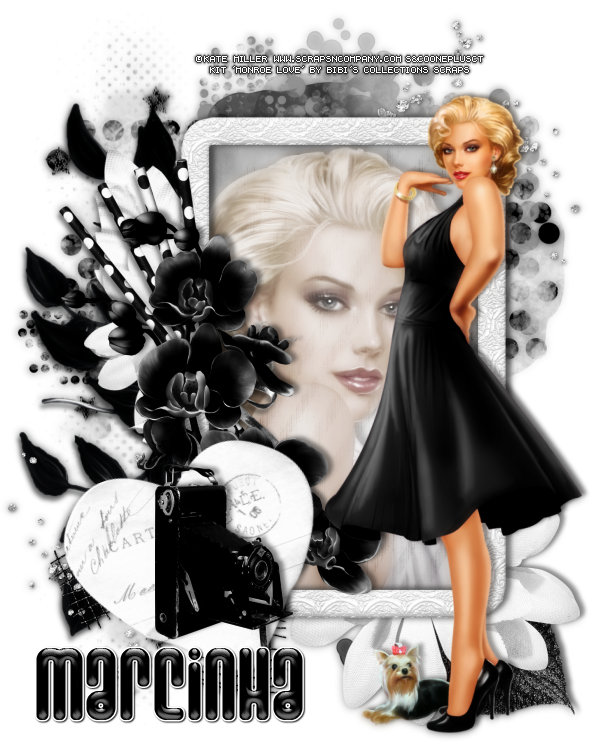
Monroe Love - S&Co. CT Tutorial

DIVA TUTORIAL


Tutorial written by Marcia Salgado on September 10th, 2015
for those who have a working knowledge of PSP.
Any resemblance to any other tutorial is coincidental.
Do not copy and paste this tutorial anywhere on the net.
If you want to translate please ask first. 

****************************************
Material:

Tube: "Monroe Love" by Kate Miller Exclusive, you can purchase it here
do not use without the proper #license.
PTU Kit "Monroe Love" by Bibi's Collection, you can purchase it here 
Font: Ashbury

****************************************

--> Remember to save often and use my tag as reference if necessary. Use a Drop Shadow of your preference on layers. 

1. Open a new image 600x750.

2. Open BIBI-MONROE LOVE ELEMS (68). Resize 60%. Copy and paste as new layer. Move a little up.

3. Open BIBI-MONROE LOVE ELEMS (72). Resize 65%. Copy and paste as new layer. Move it a little to right.

4. Open BIBI-MONROE LOVE ELEMS (78). Copy and paste as new layer. Move it down and to left. Duplicate. Flip. Merge down.

5. Open BIBI-MONROE LOVE ELEMS (82). Resize 70%. Mirror. Copy and paste as new layer, Move it to left. Move this layer below frame layer.

6. Open BIBI-MONROE LOVE ELEMS (75). Resize 40%. Copy and paste as new layer. Move it down and left. Duplicate. Mirror. Flip. Merge down.

7. Open BIBI-MONROE LOVE ELEMS (91). Resize 60%. Copy and paste as new layer. Move it to left.

8. Open BIBI-MONROE LOVE ELEMS (47). Resize 70%. Mirror. Flip. Copy and paste as new layer. Move it down and to right.

9. Open BIBI-MONROE LOVE ELEMS (67). Resize 50%. Copy and paste as new layer. Move it down and to right. Plafe it over the black leaf. Duplicate. Resize 70%. Move it up and to left and place it over the white leaf.

10. Click on the first layer and select inside the frame. Add a new layer and move it below frame layer. Open BIBI-MONROE LOVE PAPERS (8). Copy and paste into selection. Keep selected. Add a new layer. Open BIBI-MONROE LOVE PAPERS (3). Copy and paste into selection. Blend Mode: Soft Light. Open your tube close up, copy and paste as new layer. Place it as you wish. Invert selection. Delete. Deselect. Blend Mode: Luminance Legacy. Lower the opacity layer to 56. Duplicate and change the blend mode to soft light (I increase the opacity to 100). Select all. Clip to canvas. Image > Crop to selection.

11. Click on frame layer. Open BIBI-MONROE LOVE ELEMS (69). Mirror. Resize 60%. Copy and paste as new layer. Move it a little up and to left.

12. Ope BIBI-MONROE LOVE ELEMS (61). Resize 40%. Copy and paste as new layer. Move it a little down and to left.

13. Open BIBI-MONROE LOVE ELEMS (65). Resize 40%. Flip. Copy and paste as new layer. Move it down and to left. Place over the frame border.

14. Open BIBI-MONROE LOVE ELEMS (112). Resize 40%. Free Rotate: Left-20. Copy and paste as new layer. Move it down and to the left.

15. Open BIBI-MONROE LOVE ELEMS (97). Resize 30%. Copy and paste as new layer. Move it down and to the left. Place it over the white heart.

16. Open your tube. Resize if needed. I have to use mirror on mine. Copy and paste as new layer. Move it to right.  Re-arrange the elements to better fit your tube.

--> Resize all layer if wanted. Add your copyright info and license#. Add your name and save as PNG.




September 15, 2015

Autumn Green ~ by Joanne Salgado


Tutorial written by Joanne Salgado on September 15th, 2015
for those who have a working knowledge of PSP.
Any resemblance to any other tutorial is coincidental.
Do not copy and paste this tutorial anywhere on the net.
If you want to translate please ask first.

Tube: AUTUMN DOLL 3 by LadyMishka Dolls - you can purchase here
Template by Me here
Texture here
Font: PonytailScriptSSK

Don't forget to save often.
At any point if you have doubts check my tag.

1. Open the template I've created. Duplicate. Close the original.

2. Open your texture. Copy and paste as new layer. Move this below all layers. Duplicate, change blend mode to multiply. Duplicate, change blend mode to overlay. (you may want to skip some of the steps depending on your texture and color choise).

3. Add a new layer and fill with the color of your choise. I used: #c3d8b4. Change blend mode to color.

4. Select the 'inside' layer. Change the border color to white. Select inside it with magic wand. Invert selection. Select the texture layer and Adjust/Hue and Saturation/Colorize both 0. Select all texture layers you have and apply the same in all. Select the color layer and hit delete on your keyboard. Select none. Add shadow on the inside layer. I used 1-1-65-2 black.

5. Open your tube. Copy and paste as new layer. Arrange it to the right. Select the 'outside' layer. Select inside it with magic wand. Invert Selection. Select your tube layer and hit delete on your keyboard. Select the textures layers and delete too. Select none.

6. Open your texture again. Resize 40%. Arrange it above the 'white circles' layer so it will fill the circles around the frame. Select the 'circles' layer. Select inside with magic wand, invert selection. Select the texture we just added and hit delete on your keyboard. Invert selection again, add a new layer and fill with the same color we used before. Change the blend mode to color. Select none. Merge down (so the texture and the color are one layer). Duplicate. Mirror/Flip. Merge them together. Rename layer as ANI.

7. Duplicate ANI two times, so you have a total of three layers. Select the first one, add noise uniform/10/monochrome checked. Select the other two and apply the same noise.

8. I used the tube roses around the circles.

9. Add copyright.

10. Add name.

FOR ANIMATION

1. Close the two copies from ANI we made. Copy merged. Go to animation and paste as new animation.

2. Go back to PSP, close ANI and open Copy of ANI. Copy merged. Go to animation and paste after current.

3. Go back to PSP, close Copy of ANI and open Copy (2) of ANI. Copy merged. Go to animation and paste after current.

Save as GIF

September 10, 2015

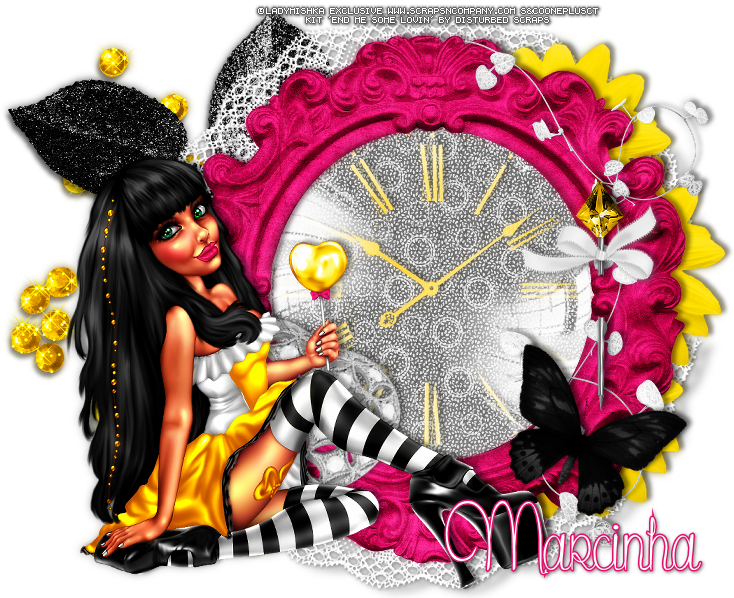
Eva Lollipop 5 with Send Me Some Lovin

BRIGHT TIME TUTORIAL


Tutorial written by Marcia Salgado on September 10th, 2015
for those who have a working knowledge of PSP.
Any resemblance to any other tutorial is coincidental.
Do not copy and paste this tutorial anywhere on the net.
If you want to translate please ask first. 

****************************************
Material:

Tube: "Eva Lollipop 5" by Lady Mishka Exclusive Tube,
you can purchase it here do not use without the proper #license.
PTU Kit "Send Me Some Lovin" by Disturbed Scraps,
ou can purchase it here  
Font: Secret of the Octopus

****************************************

--> Remember to save often and use my tag as reference if necessary. Use a Drop Shadow of yor choice on layers.

1. Create a new image 750x600.

2. Open DS - SSL Element (62). Resize 60%. Copy and paste as new layer. Move it to left.

3. Open DS - SSL Element (10). Resize 60%. Mirror. Copy and paste as new layer. Move it up and left.

4. Open DS - SSL Element (60). Copy and paste as new layer. Move it up and to right.  Duplicate. Flip. Merge down.

5. Open DS - SSL Element (6). Resize 60%. Copy and paste as new layer. Move it to right and down. Place it over the laces border. Duplicate and move it up. Repeat. Merge the three flowers layers into one.

6. Open DS - SSL Element (75). Resize 60%. Copy and paste as new layer. Place it over the flowers. Select inside the frame. Expand > 4. Add a new layer. Move it below frame layer.

7. Open DS - SSL Paper 7. Copy and paste into selection. Add a new layer. Open DS - SSL Paper 6. Copy and paste into selection. Blend Mode: Overlay. Low the opacity to 50.

8. Open DS - SSL Element (64). Resize 60%. Copy and paste as new layer. Place it inside the frame.

9. Open DS - SSL Element (80). Copy and paste as new layer. Place it over the clock.

10. Click on first layer. Open DS - SSL Element (9). Resize 60%. Copy and paste as new layer. Move it to right. Place it over the frame. Place the top stem on top of the frame.

11. Open DS - SSL Element (49), Resize 80¨. Copy and paste as new layer. Move it to right and place it over the frame border.

12. Open DS - SSL Element (39). Resize 40%. Free Rotate: Right-25. Copy and paste as new layer. Move it down and to right. Place it over the frame border.

13. Open DS - SSL Element (15). Resize 60 %. Free Rotate: Right-25. Copy and paste as new layer. Move it to left and down. Place it over the frame.

14. Open your tube. Resize if needed. Copy and paste as new layer and move it to left.

--> Add your copyright info and license#. Add your name and save as PNG.


August 8, 2015

Steampunk ~ by Joanne Salgado


Tutorial written by Joanne Salgado on August 08th, 2015
for those who have a working knowledge of PSP.
Any resemblance to any other tutorial is coincidental.
Do not copy and paste this tutorial anywhere on the net.
If you want to translate please ask first. 

Tube: Steampunk by Kate Miller - you can purchase here
Kit Steam Pretty by Bibi's Collection - you can purchase here
Font: Adine Kimberg

Don't forget to save often.
At any point if you have doubts check my tag.

1. Open a new image 

2. Open element 'BIBI-STEAM PRETTY ELEMS (92)' copy and paste as new layer. Resize 90%.

3. Open element 'BIBI-STEAM PRETTY ELEMS (49)' copy and paste as new layer. Resize 40%. Mirror. Arrange it to the top right.

4. Open element 'BIBI-STEAM PRETTY ELEMS (118)' copy and paste as new layer. Resize 70%. Move this layer below all layers. Arrange it to the bottom left.

5. Open element 'BIBI-STEAM PRETTY ELEMS (119)' copy and paste as new layer. Resize 70%. Arrange it to the bottom right.

6. Open element 'BIBI-STEAM PRETTY ELEMS (91)' copy and paste as new layer. Resize 50%. Mirror. Arrange it to the top right.

7. Open element 'BIBI-STEAM PRETTY ELEMS (121)' copy and paste as new layer. Resize 50%. Arrange it to the bottom right. Behind the frames.

8. Open element 'BIBI-STEAM PRETTY ELEMS (59)' copy and paste as new layer. Resize 50%. Free Rotate left-15. Arrange it to the left.

9. Open element 'BIBI-STEAM PRETTY ELEMS (15)' copy and paste as new layer. Resize 70%. Arrange it to the left.

10. Open element 'BIBI-STEAM PRETTY ELEMS (39)' copy and paste as new layer. Resize 50%. Arrange it to the right.

11. Open your tube. Copy and paste as new layer. Resize if needed. Arrange it inside one of the frames. Duplicate. Mirror. Arrange it inside the other frame. Clean the outside parts.

12. Open element 'BIBI-STEAM PRETTY ELEMS (79)' copy and paste as new layer. Resize 40%. Free Rotate right-15. Move this layer above the bird layer. Arrange it to the middle between the frames.

13. Open element 'BIBI-STEAM PRETTY ELEMS (42)' copy and paste as new layer. Resize 50%. Arrange it to the bottom a little above the brown butterfly.

14. Add shadow. I used: 1-1-65-2 #1b0a01

15. Add copyright.

16. Add name.

Save as PNG

May 31, 2015

Latticed Tutorial

LATTICED TUTORIAL


Tutorial written by Marcia Salgado on May 30th, 2015
for those who have a working knowledge of PSP.
Any resemblance to any other tutorial is coincidental.
Do not copy and paste this tutorial anywhere on the net.
If you want to translate please ask first. 

****************************************
Material:

Tube: "Dolly" an Exclusive by Sweet Doll Artist,
you can purchase it at S&Co. here
do not use without the proper #license.
Mask: Narah_Mask_0304 here and my mar2015_latticed mask here
Plugin: Redfield > Lattice Composer 1.02
Simple > Top Left Mirror
Brush: PNG Brush by Cybrea, here (TOU here)
Font: Sofia

****************************************

--> Remember to save often and use my tag as reference if necessary. Used the Drop Shadow: 1-1-50-5 in most layers. My Manual Color Correction tutorial can be found HERE

1. Create a new image of 600x300. Copy your tube and paste as new layer. Apply MuRa's Meister > Copies > Wall Paper(rotate) > Default.

2. Select all. Selections > Clip to Canvas. Image > Crop to selection. Gaussian Blur > 30. Add Noise: Uniform > 10 (Monochrome not marked).

3. Add new layer. Fill it with #FEC5BA. Apply Redfield > Lattice Composer 1.02 > Rags Fall > Default OR, if you do not have the filter, use the mask I provide in my materials, called mar2015_latticed, the effect is similar. Apply Simple > Top Left Mirror. Blend Mode: Soft Mirror. --> In case of be using the mask see the blend mode that better fit the color you're using.

4. Add a new layer. Fill it with white. Apply Narah_Mask_0304. Merge Group. 

5. Add a new layer. Custom Selection: Left-0, Top-100, Right-600, Bottom-200. Fill it with #FFE0DB. Deselect. Custom Selection: Left-0, Top-20, Right-600, Bottom-280. Selection > Invert. Fill it with #FFE0DB. Deselect. Add Noise: Uniform-30-Monochrome. Blend Mode: Soft Light. Drop Shadow: 0-0-70-10-Black.

6. Custom Selection: Left-0, Top-120, Right-600, Bottom-180. Delete. Add a new layer. Fill it with white. Blinds: 3-25-Horizontal-Black. Blend Mode: Overlay. Drop Shadow: 0-0-70-10-Black.

7. Used as embellishment a Cybrea PNG Brush. Used #21. Resized and changed the color from Black to #FFE0DB using Manual Color Correction.Free Rotate: Right-90. Move it to left. Duplicate it twice (have a total of three layers with the PNG brush).

8. Rename the layers 1, 2 and 3. Click on layer 3. Add Noise: Gaussian-50-Monochrome. Drop Shadow: 1-1-50-5-Black. Turn this layer invisible. Click on layer 2. Add Noise: Gaussian-50-Monochrome. Drop Shadow: 1-1-50-5-Black. Turn this layer invisible. Click on layer 1. Add Noise: Gaussian-50-Monochrome. Drop Shadow: 1-1-50-5-Black. Let this layer visible.

9. Open your tube. Resize if needed. Copy and paste as new layer. Move it to right. Add a suitable shadow. 

--> Add your copyright info and license#. Add your name. I used Sofia Size: 30 Color: #FFE0DB. Add a border #110100. Drop Shadow: 1-1-50-5-Black.

ANIMATION SHOP

1. On PSP -> Click on Edit. Copy Merged. On Animation Shop -> Click on Edit. Paste > As new animation.

2. On PSP -> Turn layer 1 invisible and layer 2 visible. Click on Edit. Copy Merged. On Animation Shop -> Click on Edit. Paste > After Current Frame.

3. On PSP -> Turn layer 2 invisible and layer 3 visible. Click on Edit. Copy Merged. On Animation Shop -> Click on Edit. Paste > After Current Frame. Save as GIF.


May 18, 2015

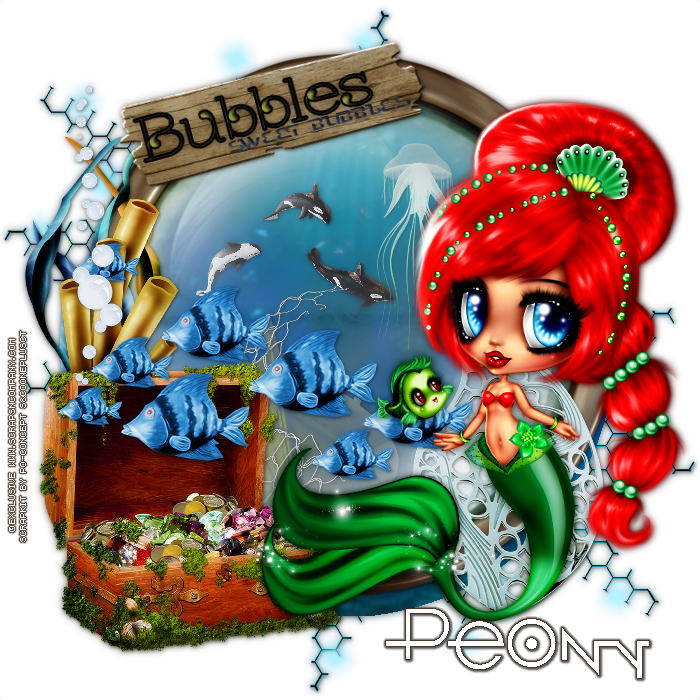
Mermaid 3 with Timida Sirena Kit

OCEANIA TUTORIAL


Tutorial written by Marcia Salgado on May 18th, 2015
for those who have a working knowledge of PSP.
Any resemblance to any other tutorial is coincidental.
Do not copy and paste this tutorial anywhere on the net.
If you want to translate please ask first. 

****************************************
Material:

Tube: "Mermaid 3" an Exclusive Lady Mishka tube,
you can purchase it here
do not use without the proper #license.
PTU Kit "Timida Sirena" by P.O. Concept,
you can purchase it here
Font: O 10 Type

****************************************

--> Remember to save often and use my tag as reference if necessary. Used the Drop Shadow: 1-1-50-5 in most layers. 

1. Create a new image 700x700. Open PO-ti68. Copy and paste as new layer. Move it upper left. Duplicate. Mirror. Flip. Merge Down.

2. Open PO-ti72. Copy and paste as new layer. Move it upper left. Duplicate. Mirror. Flip. Merge Down.

3. Open PO-ti83. Copy and paste as new layer. Select outside the frame. Expand > 4. Invert selection. Add a new layer and move it below frame layer. Open PO-tipp4. Copy and paste into selection.

4. Open PO-ti55. Resize 40%. Copy and paste as new layer. Open PO-ti40. Resize 30%. Copy and paste as new layer. Move it to left a little up. Open PO-ti61. Resize 40%. Copy and paste as new layer. Move it up and right. Open PO-ti74. Resize 60%. Mirror. Copy and paste as new layer. Move it left down. 

5. Click on first layer (should be the frame). Open PO-ti81. Resize 55%. Copy and paste as new layer. Move it right down.

6. Open PO-ti85. Resize 55%. Copy and paste as new layer. Move it left. Place on the frame edge. 

7. Open PO-ti62. Resize 40%. Copy and paste as new layer. Move it to left. Place it in front on the seaweed element.

8. Open PO-ti1. Resize 50%. Copy and paste as new layer. Move it to down left.

9. Open PO-ti104. Resize 70% Copy and paste as new layer. Move it a little down left.

10. Open PO-ti106. Resize 45%. Copy and paste as new layer. Move it way left.

11. Open PO-ti88. Resize 70%. Free Rotate: Left-15. Copy and paste as new layer. Move it upper left. Place it over the frame top edge.

--> Resize if wanted. Add your copyright info and proper license#. Add your name and save as PNG.


May 14, 2015

Hearts ~ by Joanne Salgado


Tutorial written by Joanne Salgado on May 14th, 2015
for those who have a working knowledge of PSP.
Any resemblance to any other tutorial is coincidental.
Do not copy and paste this tutorial anywhere on the net.
If you want to translate please ask first. 

Tube: Fancy Doll 3 by LadyMishka Dolls - you can purchase here
Kit Red Love by Design by Joan - you can purchase here
Font: AR HERMANN

Don't forget to save often.
At any point if you have doubts check my tag.

1. Open a new image 500x500

2. Open element 'DBJ_RED34' copy and paste as new layer.

3. Open element 'DBJ_RED47' copy and paste as new layer. Move this layer below the frame layer. Arrange it to the top right.

4. Open element 'DBJ_RED19' copy and paste as new layer. Mirror, flip. Arrange it to the bottom left.

5. Open paper 'PP-DBJRED-9' copy and paste as new layer. Resize 55%. Clean the parts that appears outside of the frame.

6. Open element 'DBJ_RED98' copy and paste as new layer. Resize 60%. Move this layer above the frame layer.

7. Open your tube. Copy and paste as new layer. Resize as you prefer and arrange it to the right.

8. Open element 'DBJ_RED30' copy and paste as new layer. Resize 35%. Arrange it to the left.

9. Add shadow. I used: 1-1-65-2 black.

10. Add copyright.

11. Add name. I used: AR HERMANN / size: 36

Save as PNG

Orange Angel ~ by Joanne Salgado


Tutorial written by Joanne Salgado on May 14th, 2015
for those who have a working knowledge of PSP.
Any resemblance to any other tutorial is coincidental.
Do not copy and paste this tutorial anywhere on the net.
If you want to translate please ask first. 

Tube: Little Angel 3 by LadyMishka Dolls - you can purchase here
Kit Bunny Black by Design by Joan - you can purchase here
Font: DilleniaUPC

Don't forget to save often.
At any point if you have doubts check my tag.

1. Open a new image 500x500

2. Open element 'BUNNYBLACK_DBJ17' copy and paste as new layer. Resize 58%.

3. Open element 'BUNNYBLACK_DBJ99' copy and paste as new layer. Resize 60%. Move this layer below the frame layer. Arrange it to the bottom left. Duplicate. Mirror.

4. Open paper 'PP_BUNNYBLACK-DBJ-3' copy and paste as new layer. Resize 50%. Arrange it inside the frame and clean all the parts that appears outside it.

5. Open element 'BUNNYBLACK_DBJ101' copy and paste as new layer. Arrange it inside the frame and clean the parts that appears outside it.

6. Open your tube. Copy and paste as new layer. Resize as you prefer. Move this layer above the frame layer.

7. Add shadow. I used 1-1-65-2 #6a6a6a

8. Add copyright.

9. Add name. I used: DilleniaUPC / size: 48

Save as PNG

I Love You ~ by Joanne Salgado


Tutorial written by Joanne Salgado on May 14th, 2015
for those who have a working knowledge of PSP.
Any resemblance to any other tutorial is coincidental.
Do not copy and paste this tutorial anywhere on the net.
If you want to translate please ask first. 

Tube: Angel Bunny by LadyMishka Dolls - you can purchase here 
Kit Lovely Elfo by Bibi's Collection - you can purchase here 
Font: Saginaw

Don't forget to save often.
At any point if you have doubts check my tag.

1. Open a new image 500x500

2. Open element 'BIBI-LOVELY ELF ELEMS (87)' copy and paste as new layer. Resize 40%. Arrange it to bottom.

3. Open element 'BIBI-LOVELY ELF ELEMS (60)' copy and paste as new layer. Resize 40%. Arrange it to the top left.

4. Open element 'BIBI-LOVELY ELF ELEMS (37)' copy and paste as new layer. Resize 40%. Arrange it to the left next the words.

5. Open your tube. Copy and paste as new layer. Resize as you prefer and arrange it to the right.

6. Open element 'BIBI-LOVELY ELF ELEMS (66)' copy and paste as new layer. Resize 20%. Arrange it to the bottom left.

7. Open element 'BIBI-LOVELY ELF ELEMS (105)' copy and paste as new layer. Resize 55%. Manual Color Correction source: #a60071 target: #de1847.

8. Open element 'BIBI-LOVELY ELF ELEMS (62)' copy and paste as new layer. Resize 40%. Arrange it to the top.

9. Add shadow as you prefer. I didn't use any.

10. Add copyright.

11. Add name. I used: Saginaw / size: 48

Save as PNG

Purple Princess ~ by Joanne Salgado


Tutorial written by Joanne Salgado on May 14th, 2015
for those who have a working knowledge of PSP.
Any resemblance to any other tutorial is coincidental.
Do not copy and paste this tutorial anywhere on the net.
If you want to translate please ask first. 

Tube: Boo 4 by LadyMishka Dolls - you can purchase here
Kit Rayas by Bibi's Collection - you can purchase here
Font: AR ESSENCE

Don't forget to save often.
At any point if you have doubts check my tag.

1. Open a new image 500x500

2. Open element 'BIBIRAYAS ELEMS (9)' copy and paste as new layer. Resize 60%.

3. Open element 'BIBIRAYAS ELEMS (2)' copy and paste as new layer. Resize 60%. Move this layer below the frame layer. Arrange it to the top right. Duplicate. Mirror, flip.

4. Open paper 'BIBIRAYAS PAPERS (11)' copy and paste as new layer. Resize 40%. Clean the parts of the paper that appears outside the frame.

5. Open element 'BIBIRAYAS ELEMS (76)' copy and paste as new layer. Resize 50%. Clean the parts that appears outside the frame.

6. Open element 'BIBIRAYAS ELEMS (33)' copy and paste as new layer. Resize 50%. Move this layer above the frame layer. Arrange it to the top right.

7. Open element 'BIBIRAYAS ELEMS (67)' copy and paste as new layer. Resize 40%. Arrange it to the bottom left.

8. Open your tube. Copy and paste as new layer. Resize as you prefer and arrange it to the right.

9. Add shadow. I used: 1-1-65-2 black.

10. Add copyright.

11. Add name. I used: AR ESSENCE / size: 48

Save as PNG

Blue Moon ~ by Joanne Salgado


Tutorial written by Joanne Salgado on May 14th, 2015
for those who have a working knowledge of PSP.
Any resemblance to any other tutorial is coincidental.
Do not copy and paste this tutorial anywhere on the net.
If you want to translate please ask first. 

Tube: Maya Steampunk 4 by LadyMishka Dolls - you can purchase here
Kit Black Magic by FwTags Creations - you can purchase here
Font: Segoe Print

Don't forget to save often.
At any point if you have doubts check my tag.

1. Open a new image 500x500

2. Open element 'FwTagsBlackMagicELEMENT (62)' copy and paste as new layer. Resize 50%. Arrange to bottom.

3. Open element 'FwTagsBlackMagicELEMENT (14)' copy and paste as new layer. Resize 50%. Arrange it to the left.

4. Open element 'FwTagsBlackMagicELEMENT (83)' copy and paste as new layer. Resize 50%.

5. Open element 'FwTagsBlackMagicELEMENT (7)' copy and paste as new layer. Resize 30%. Arrange it to the bottom right.

6. Open element 'FwTagsBlackMagicELEMENT (63)' copy and paste as new layer. Resize 25%. Mirror. Arrange it to the bottom right.

7. Open element 'FwTagsBlackMagicELEMENT (10)' copy and paste as new layer. Resize 15%. Mirror. Arrange it to the top right.

8. Open your tube. Copy and paste as new layer. Resize as you prefer and arrange it to the left.

9. Add shadow. I used: 1-1-65-2 black.

10. Add copyright.

11. Add name. I used: Segoe Print / size: 36

Save as PNG

Loves ~ by Joanne Salgado


Tutorial written by Joanne Salgado on May 14th, 2015
for those who have a working knowledge of PSP.
Any resemblance to any other tutorial is coincidental.
Do not copy and paste this tutorial anywhere on the net.
If you want to translate please ask first. 

Tube: Bonnie Red by LadyMishka Dolls - you can purchase here
Kit Red Kiss by Bibi's Collection - you can purchase here
Font: Rookies Showtimes

Don't forget to save often.
At any point if you have doubts check my tag.

1. Open a new image 500x500

2. Open element 'BIBIREDKISS ELEM (78)' copy and paste as new layer. Resize 70%.

3. Open paper 'BIBIREDKISS PAPERS (14)' copy and paste as new layer. Resize 50%. Move this layer below the frame layer. Clean the parts outside.

4. Open element 'BIBIREDKISS ELEM (123)' copy and paste as new layer. Clean the parts outside the frame.

5. Open element 'BIBIREDKISS ELEM (97)' copy and paste as new layer. Resize 40%. Free Rotate right-15. Move this layer above the frame layer. Arrange it to the top left.

6. Open element 'BIBIREDKISS ELEM (135)' copy and paste as new layer. Resize 25%. Arrange it to the bottom left.

7. Open your tube. Copy and paste as new layer. Resize as you prefer and arrange it to the right.

8. Add shadow. I used: 1-1-65-2 black.

9. Add copyright.

10. Add name. I used: Rookies Showtimes / size: 48

Save as PNG

Daisy ~ by Joanne Salgado


Tutorial written by Joanne Salgado on May 14th, 2015
for those who have a working knowledge of PSP.
Any resemblance to any other tutorial is coincidental.
Do not copy and paste this tutorial anywhere on the net.
If you want to translate please ask first. 

Tube: Bonnie Blue by LadyMishka Dolls - you can purchase here
Kit Healthy Choice by Bibi's Collection - you can purchase here
Font: AR HERMANN

Don't forget to save often.
At any point if you have doubts check my tag.

1. Open a new image 500x500

2. Open element 'BIBI HEALTHY CHOICE ELEMS (29)' copy and paste as new layer. Resize 60%.

3. Open element 'BIBI HEALTHY CHOICE PAPERS (5)' copy and paste as new layer. Resize 30%. Move this layer below the frame layer. Clean the outside parts.

4. Open element 'BIBI HEALTHY CHOICE ELEMS (9)' copy and paste as new layer. Resize 50%. Move this layer above the frame layer. Arrange it to the bottom right.

5. Open element 'BIBI HEALTHY CHOICE ELEMS (80)' copy and paste as new layer. Resize 50%.

6. Open element 'BIBI HEALTHY CHOICE ELEMS (37)' copy and paste as new layer. Resize 60%.

7. Open your tube. Copy and paste as new layer. Resize as you prefer and arrange it to the left.

8. Add shadow. I used: 1-1-65-2 #808080.

9. Add copyright.

10. Add name. I used: AR HERMANN / size: 48

Save as PNG

Pinkland ~ by Joanne Salgado


Tutorial written by Joanne Salgado on May 14th, 2015
for those who have a working knowledge of PSP.
Any resemblance to any other tutorial is coincidental.
Do not copy and paste this tutorial anywhere on the net.
If you want to translate please ask first. 

Tube: Angel Cutie by LadyMishka Dolls - you can purchase here
Kit Elyna by Designz by Sue - you can purchase here
Font: Saginaw

Don't forget to save often.
At any point if you have doubts check my tag.

1. Open a new image 500x500

2. Open element 'ELYNA_009' copy and paste as new layer. Resize 80%.

3. Open element 'ELYNA_033' copy and paste as new layer. Resize 65%. Move this layer below the frame layer. Arrange it to the top. Duplicate. Mirror.

4. Open paper 'ELYNA_PAPER 002' copy and paste as new layer. Resize 50%. Clean the parts of the paper that appears outside the frame.

5. Open element 'ELYNA_055' copy and paste as new layer. Resize 60%. Move this layer above the frame layer. Arrange it to the bottom left.

6. Open element 'ELYNA_001' copy and paste as new layer. Resize 50%. Mirror. Arrange it to the top left of the frame.

7. Open your tube. Copy and paste as new layer. Resize as you prefer and arrange it to the right.

8. Open element 'ELYNA_016' copy and paste as new layer. Resize 80%. Arrange it to bottom.

9. Add shadow. I used 1-1-65-5 #808080.

10. Add copyright.

11. Add name. I used: Saginaw / size: 48

Save as PNG

Rainbow ~ by Joanne Salgado


Tutorial written by Joanne Salgado on May 14th, 2015
for those who have a working knowledge of PSP.
Any resemblance to any other tutorial is coincidental.
Do not copy and paste this tutorial anywhere on the net.
If you want to translate please ask first. 

Tube: Bonnie Purple by LadyMishka Dolls - you can purchase here
Kit St Patrick by Designz by Sue - you can purchase here
Font: AR CHRISTY

Don't forget to save often.
At any point if you have doubts check my tag.

1. Open a new image 500x500

2. Open element 'ST. PATRICK_ 055' copy and paste as new layer. Resize 65%.

3. Open paper 'ST. PATRICK PAPERS_ 003' copy and paste as new layer. Resize 50%. Move this layer below the frame layer. Clean the parts from the paper that appears outside the frame.

4. Open element 'ST. PATRICK_ 066' copy and paste as new layer. Resize 70%. Arrange it inside the frame. Clean the parts that appears outside the frame.

5. Open element 'ST. PATRICK_ 005' copy and paste as new layer. Clean the parts that appears outside the frame.

6. Open element 'ST. PATRICK_ 003' copy and paste as new layer. Resize 40%. Mirror. Move this layer above the frame layer. Arrange it to the bottom left of the frame.

7. Open your tube. Copy and paste as new layer. Resize as you prefer and arrange it to the right.

8. Add shadow. I used: 1-1-65-2 black.

9. Add copyright.

10. Add name. I used: AR CHRISTY / size: 36

Save as PNG

Moments ~ by Joanne Salgado


Tutorial written by Joanne Salgado on May 14th, 2015
for those who have a working knowledge of PSP.
Any resemblance to any other tutorial is coincidental.
Do not copy and paste this tutorial anywhere on the net.
If you want to translate please ask first. 

Tube: Bonnie Pink by LadyMishka Dolls - you can purchase here
Kit Spring White by DnScraps - you can purchase here
Font: Almond Script

Don't forget to save often.
At any point if you have doubts check my tag.

1. Open a new image 500x500

2. Open element 'Springwhitekitpudnstarss2' copy and paste as new layer. Resize 60%. Arrange it to the left. Duplicate, mirror.

3. Open element 'Springwhitekitpudngrungeframe' copy and paste as new layer. Resize 60%.

4. Open paper 'Springwhitekitdnpaper8' copy and paste as new layer. Resize 50%. Move this layer below the frame layer. Arrange it inside the frame and clean the parts that appears outside the frame.

5. Open element 'Springwhitekitpudntulips' copy and paste as new layer. Resize 40%. Move this layer above the frame layer. Arrange it to the bottom left the frame as its coming from inside the frame. Clean the parts that appears outside.

6. Open your tube. Copy and paste as new layer. Resize as you prefer and arrange it to the left.

7. Open element 'Springwhitekitpudnbubbles' copy and paste as new layer. Resize 50%. Mirror.

8. Add shadow as you prefer. I used: 1-1-65-2 #404040.

9. Add copyright.

10. Add name. I used: Almond Script / size: 36

Save as PNG

Green Queen ~ by Joanne Salgado


Tutorial written by Joanne Salgado on May 13th, 2015
for those who have a working knowledge of PSP.
Any resemblance to any other tutorial is coincidental.
Do not copy and paste this tutorial anywhere on the net.
If you want to translate please ask first. 

Tube: Seriously Punk 2 by LadyMishka Dolls - you can purchase here
Kit Patricia by Disturbed Scraps - you can purchase here
Font: AR BONNIE

Don't forget to save often.
At any point if you have doubts check my tag.

1. Open a new image 500x500

2. Open element 'DS - Patricia Element (64)' copy and paste as new layer. Resize 70%. Adjust/Hue and Saturarion/Colorize both with 0.

3. Open element 'DS - Patricia Element (84)' copy and paste as new layer. Resize 60%. Move this layer below the frame layer. Arrange it to the left. Duplicate. Mirror.

4. Open element 'DS - Patricia Element (1)' copy and paste as new layer. Resize 70%. Arrange it to the right. Clean the lower part of it. Duplicate. Mirror.

5. Open paper 'DS - Patricia Paper 7' copy and paste as new layer. Resize 60%. Clean the parts that appears outside the frame.

6. Open element 'DS - Patricia Element (62)' copy and paste as new layer. Resize 60%. Arrange it to the inside bottom of the frame. Clean the lower part of the tube that appears outside the frame. Change blend mode to Luminance (L) and low opacity to 50.

7. Open your tube. Copy and paste as new layer. Resize as you prefer and arrange it inside the frame. Move this laye above the frame layer. Clean the lower part that appears outside the frame.

8. Add shadow. I used: 1-1-65-2 black.

9. Add copyright.

10. Add name. I used: AR BONNIE / size: 48

Save as PNG