Showing posts with label Sweet Doll Artist. Show all posts

May 31, 2015

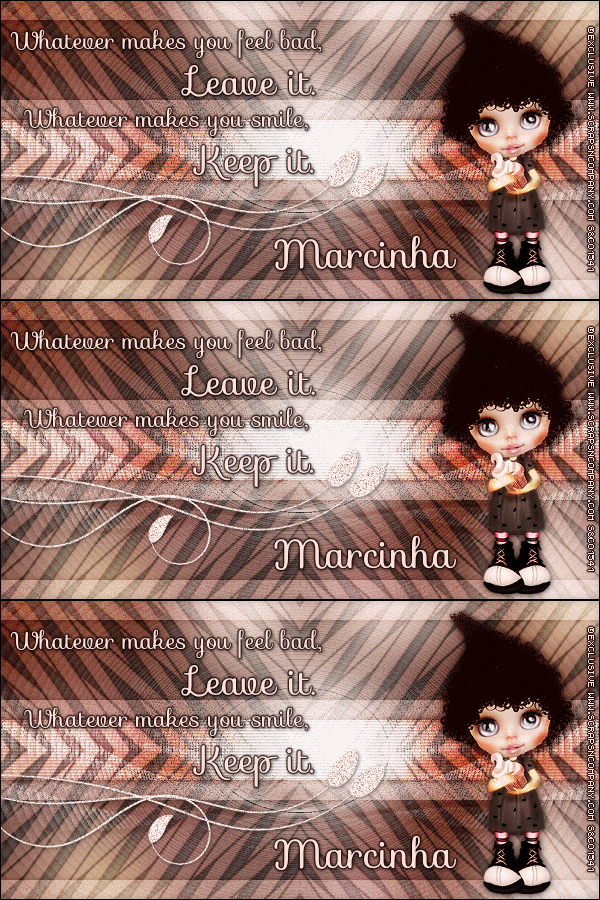
Latticed Tutorial

LATTICED TUTORIAL


Tutorial written by Marcia Salgado on May 30th, 2015
for those who have a working knowledge of PSP.
Any resemblance to any other tutorial is coincidental.
Do not copy and paste this tutorial anywhere on the net.
If you want to translate please ask first. 

****************************************
Material:

Tube: "Dolly" an Exclusive by Sweet Doll Artist,
you can purchase it at S&Co. here
do not use without the proper #license.
Mask: Narah_Mask_0304 here and my mar2015_latticed mask here
Plugin: Redfield > Lattice Composer 1.02
Simple > Top Left Mirror
Brush: PNG Brush by Cybrea, here (TOU here)
Font: Sofia

****************************************

--> Remember to save often and use my tag as reference if necessary. Used the Drop Shadow: 1-1-50-5 in most layers. My Manual Color Correction tutorial can be found HERE

1. Create a new image of 600x300. Copy your tube and paste as new layer. Apply MuRa's Meister > Copies > Wall Paper(rotate) > Default.

2. Select all. Selections > Clip to Canvas. Image > Crop to selection. Gaussian Blur > 30. Add Noise: Uniform > 10 (Monochrome not marked).

3. Add new layer. Fill it with #FEC5BA. Apply Redfield > Lattice Composer 1.02 > Rags Fall > Default OR, if you do not have the filter, use the mask I provide in my materials, called mar2015_latticed, the effect is similar. Apply Simple > Top Left Mirror. Blend Mode: Soft Mirror. --> In case of be using the mask see the blend mode that better fit the color you're using.

4. Add a new layer. Fill it with white. Apply Narah_Mask_0304. Merge Group. 

5. Add a new layer. Custom Selection: Left-0, Top-100, Right-600, Bottom-200. Fill it with #FFE0DB. Deselect. Custom Selection: Left-0, Top-20, Right-600, Bottom-280. Selection > Invert. Fill it with #FFE0DB. Deselect. Add Noise: Uniform-30-Monochrome. Blend Mode: Soft Light. Drop Shadow: 0-0-70-10-Black.

6. Custom Selection: Left-0, Top-120, Right-600, Bottom-180. Delete. Add a new layer. Fill it with white. Blinds: 3-25-Horizontal-Black. Blend Mode: Overlay. Drop Shadow: 0-0-70-10-Black.

7. Used as embellishment a Cybrea PNG Brush. Used #21. Resized and changed the color from Black to #FFE0DB using Manual Color Correction.Free Rotate: Right-90. Move it to left. Duplicate it twice (have a total of three layers with the PNG brush).

8. Rename the layers 1, 2 and 3. Click on layer 3. Add Noise: Gaussian-50-Monochrome. Drop Shadow: 1-1-50-5-Black. Turn this layer invisible. Click on layer 2. Add Noise: Gaussian-50-Monochrome. Drop Shadow: 1-1-50-5-Black. Turn this layer invisible. Click on layer 1. Add Noise: Gaussian-50-Monochrome. Drop Shadow: 1-1-50-5-Black. Let this layer visible.

9. Open your tube. Resize if needed. Copy and paste as new layer. Move it to right. Add a suitable shadow. 

--> Add your copyright info and license#. Add your name. I used Sofia Size: 30 Color: #FFE0DB. Add a border #110100. Drop Shadow: 1-1-50-5-Black.

ANIMATION SHOP

1. On PSP -> Click on Edit. Copy Merged. On Animation Shop -> Click on Edit. Paste > As new animation.

2. On PSP -> Turn layer 1 invisible and layer 2 visible. Click on Edit. Copy Merged. On Animation Shop -> Click on Edit. Paste > After Current Frame.

3. On PSP -> Turn layer 2 invisible and layer 3 visible. Click on Edit. Copy Merged. On Animation Shop -> Click on Edit. Paste > After Current Frame. Save as GIF.


May 14, 2015

Kitchen Dream ~ by Joanne Salgado


Tutorial written by Joanne Salgado on May 14th, 2015
for those who have a working knowledge of PSP.
Any resemblance to any other tutorial is coincidental.
Do not copy and paste this tutorial anywhere on the net.
If you want to translate please ask first. 

Tube + Kit: Kitchen Dream by Sweet Doll Artist - you can purchase here
Font: AR CHRISTY

Don't forget to save often.
At any point if you have doubts check my tag.

1. Open a new image 600x500.

2. Open cluster 'KD-Cluster1-2' copy and paste as new layer. Resize 30%.

3. Select inside the cluster, expand 3. Add a new layer. Fill with white. Select None. Move this layer below the cluster layer. Add noise uniform-30-monochrome checked.

4. Open paper 'KD-Paper07' copy and paste as new layer. Resize 30%. Clean the parts that appears outside the cluster. Change opacity to 50.

5. Open element 'KD-Element1-20' copy and paste as new layer. Resize 25%. Arrange it to the inside top right of the cluster.

6. Open element 'KD-Element1-27' copy and paste as new layer. Resize 30%. Arrange it to the inside bottom left of the cluster.

7. Open element 'KD-Element1-11' copy and paste as new layer. Resize 20%. Move this layer above the cluster layer. Arrange it to the bottom right.

8. Open element 'KD-Element1-26' copy and paste as new layer. Resize 25%. Arrange it to the bottom left.

9. Open element 'KD-Element1-7' copy and paste as new layer. Resize 20%. Arrange it above the table.

10. Open element 'KD-Element1-23' copy and paste as new layer. Resize 20%. Arrange it to the bottom left.

11. Open element 'KD-Element1-28' copy and paste as new layer. Resize 20%. Arrange it to the bottom left.

12. Open your tube. Copy and paste as new layer. Resize as you prefer and arrange it in  the bottom center.

13. Add shadow. I used: 1-1-65-2 #808080.

14. Add copyright.

15. Add name. I used: AR CHRISTY / size: 40

Save as PNG

April 25, 2015

Jade ~ by Joanne Salgado


Tutorial written by Joanne Salgado on April 25th, 2015
for those who have a working knowledge of PSP.
Any resemblance to any other tutorial is coincidental.
Do not copy and paste this tutorial anywhere on the net.
If you want to translate please ask first. 

Tube: Jade by Sweet Doll Artist - you can purchase here 
Kit Sweet Jade by Ginnibug Designz - you can purchase here 
Font: MA Sexy

Don't forget to save often.
At any point if you have doubts check my tag.

1. Open a new image 500x500.

2. Open element 'j56' copy and paste as new layer. Arrange it to bottom.

3. Open element 'j6' copy and paste as new layer. Resize 40%. Arrange it to the bottom left.

4. Open element 'j17' copy and paste as new layer. Resize 70%. Arrange it to the left.

5. Open element 'j18' copy and paste as new layer. Resize 70%.

6. Open element 'j25' copy and paste as new layer. Resize 25%. Mirror. Arrange it to the bottom left.

7. Open your tube. Copy and paste as new layer. Resize as you prefer and arrange it to the right.

8. Open element 'j45' copy and paste as new layer. Resize 55%. Arrange it to bottom.

9. Add shadow. I used: 1-1-65-2 #a38a6e.

10. Add copyright.

11. Add name. I used: MA Sexy / size: 36

Save as PNG

April 2, 2015

Teddy ~ by Joanne Salgado


Tutorial written by Joanne Salgado on February 18th, 2015
for those who have a working knowledge of PSP.
Any resemblance to any other tutorial is coincidental.
Do not copy and paste this tutorial anywhere on the net.
If you want to translate please ask first. 

Tube: CU/PU I LOVE MY TEDDY by Sweet Doll Artist - you can purchase here 
Kit I Love My Teddy by FwTags Creations - you can purchase here 
Font: AR HERMANN

Don't forget to save often.
At any point if you have doubts check my tag.

1. Open a new image 500x500.

2. Open element 'FwTagsILoveMyTeddyELEMENT (60)' copy and paste as new layer. Resize 50%. Arrange it to bottom.

3. Open element 'FwTagsILoveMyTeddyELEMENT (73)' copy and paste as new layer. Resize 55%. 

4. Open element 'FwTagsILoveMyTeddyELEMENT (37)' copy and paste as new layer. Resize 55%.

5. Open element 'FwTagsILoveMyTeddyELEMENT (30)' copy and paste as new layer. Resize 30%. Arrange it to the top left.

6. Open element 'FwTagsILoveMyTeddyELEMENT (67)' copy and paste as new layer. Resize 25%. Arrange it to the bottom right above the rug.

7. Open element 'FwTagsILoveMyTeddyELEMENT (49)' copy and paste as new layer. Resize 15%. Arrange it to the bottom right.

8. Open element 'FwTagsILoveMyTeddyELEMENT (62)' copy and paste as new layer. Resize 30%. Arrange it to the top left.

9. Open element 'FwTagsILoveMyTeddyELEMENT (26)' copy and paste as new layer. Resize 15%. Arrange it to the bottom left.

10. Open your tube. Copy and paste as new layer. Resize as you prefer. Arrange it to the right.

11. Open element 'FwTagsILoveMyTeddyELEMENT (9)' copy and paste as new layer. Resize 15%. Arrange it to the left of the tube.

12. Add shadow as you prefer. I used 1-1-65-2 black.

13. Add copyright.

14. Add name. I used: AR HERMANN / size: 48

Save as PNG

April 1, 2015

Easter Collab Bunny

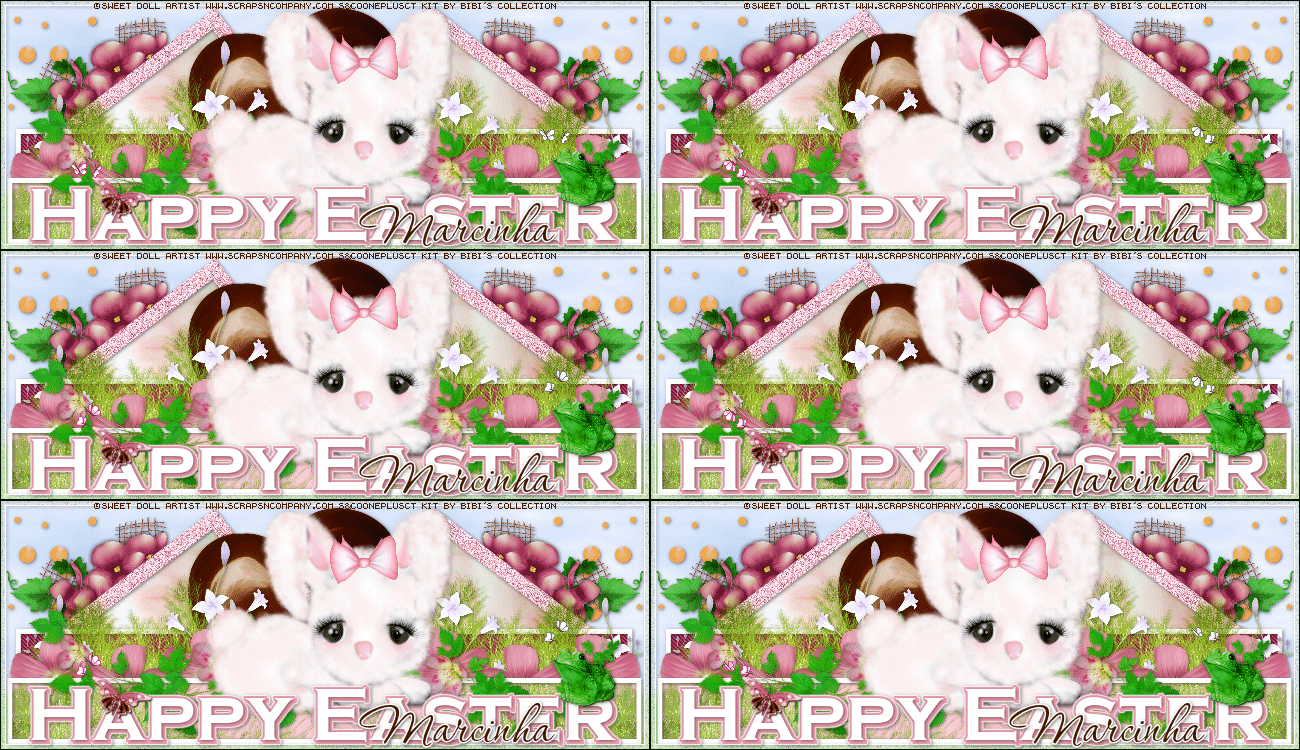
HAPPY EASTER TUTORIAL


Tutorial written by Marcia Salgado on March 10th, 2015
for those who have a working knowledge of PSP.
Any resemblance to any other tutorial is coincidental.
Do not copy and paste this tutorial anywhere on the net.
If you want to translate please ask first. 

****************************************
Material:

Tube: "Easter Collab Bunny", by Sweet Doll Artist
you can purchase it at S&Co., here
do not use without the proper #license.
PTU Kit "Easter Bunny Collab" by Bibi's Collection Scraps,
you can purchase it at S&Co., here
Template: by me, mar2015_template05, here
Plugin: MuRa's Meister - Penta.com
Font: Corinthia

****************************************

--> Remember to save often and use my tag as reference if necessary. Used the Drop Shadow: 1-1-50-5 in most layers. 

1. Open my template. Duplicate. Close the original. Delete © layer. Click on bg layer. Add #b6cef6 as your foreground color and white as your background color. Use MuRa's Meister > Clouds > Default.

2. Open BIBI-EASTERBUNNY COLLAB ELEMS (26). Resize 50%. Copy and paste as new layer. Move it far top left. Duplicate. Mirror. Merge down. Open BIBI-EASTERBUNNY COLLAB ELEMS (37). Resize 70%. Copy and paste as new layer. Move it far right. Duplicate. Mirror. Merge down. Open BIBI-EASTERBUNNY COLLAB ELEMS (29). Resize 50%. Copy and paste as new layer. Move it far left. Duplicate. Mirror. Merge down. Open BIBI-EASTERBUNNY COLLAB ELEMS (6). Resize 40%. Copy and paste as new layer. Move it far right. Duplicate. Mirror. Merge down. 

3. Click on right bg square layer. Select it. Open BIBI-EASTERBUNNY COLLAB PAPERS (1). Copy and paste into selection. Deselect. Click on right frame layer. Change color to #ffc3d3. Apply Noise: Gaussian-60-Monochrome. Click on left bg square layer. Select it and paste the same paper used before. Deselect. Click  on left frame, change color to #ffc3d3. Apply the same noise. 

4. Open BIBI-EASTERBUNNY COLLAB ELEMS (8). Resize 50%. Copy and paste as new layer. Move it a little up and left. Click on center bg layer. Change color to #820d40. Apply Penta.com > Jeans > Default (62,4). 

5. Open BIBI-EASTERBUNNY COLLAB ELEMS (39). Resize 50%. Copy and paste as new layer. Move it down and far right. Duplicate. Mirror. Duplicate again, move it back to right a little down. Duplicate and mirror. Merge down three times, keep only one bush layer. Duplicate. Rename to GRASS and let this layer invisible for now.

6. Open BIBI-EASTERBUNNY COLLAB ELEMS (34). Resize 30%. Copy and paste as new layer. Copy and paste as new layer. Move it far left. Duplicate and move it to far right. Merge down. Open BIBI-EASTERBUNNY COLLAB ELEMS (15). Resize 50% Copy and paste as new layer. Move it way down. Open BIBI-EASTERBUNNY COLLAB ELEMS (49). Resize 30%. Copy and paste as new layer. Move it far down left. Show only half of the flower. Duplicate. Move it a little to right a little more down. Duplicate. Move a little more to right and a little up. Merge down twice, keep only one pink flower layer. Duplicate. Mirror. Merge down. 

7. Click on bottom bg layer and change the color to #f9ccd4. Move GRASS layer above bottom bg layer. Turn it visible now. Click on bottom frame and select inside. Expand > 3. Invert selection. Click on GRASS layer and delete. 

8. Open BIBI-EASTERBUNNY COLLAB ELEMS (31). Image > Rotate > Rotate Clockwise 90. Resize 50%. Copy and paste as new layer. Move it down. Click on border with transp layer and add the same noise used before. Open your tube. Resize if needed. Copy and paste as new layer and move it a little down but keep it in center.

9. Click on black wordart layer and change the color to #f0a2b3. Add a white border of 1px. Open BIBI-EASTERBUNNY COLLAB ELEMS (60). Resize 10%. Free Rotate: Right-20. Copy and paste as new layer. Place it over letter A. Open BIBI-EASTERBUNNY COLLAB ELEMS (47). Resize 40%. Mirror. Copy and paste as new layer. Place it over letter R. 


--> Add your copyright info and license#. Add your name and save as PNG.

--> To make it animated as mine, merge visible, copy and take it to Animation Shop. Open the animation you want to use and see how many frames it has. Duplicate the frames on yout tag until you have the same number of chosen animation. Select al frames. Select all frames of animation and copy. Paste into selected frames on your tag, chose a place and click to add it and save as GIF.