Showing posts with label Mysterfeerie Creation. Show all posts

March 30, 2016

Aurika ~ by Joanne Salgado


Tutorial written by Joanne Salgado on March 30th, 2016
for those who have a working knowledge of PSP.
Any resemblance to any other tutorial is coincidental.
Do not copy and paste this tutorial anywhere on the net.
If you want to translate please ask first. 

Tube: Aurika Pretty by Toriya - you can purchase here
Kit Aurika Pretty by Mysterfeerie Creation - you can purchase here
Font: Andover

Don't forget to save often.
At any point if you have doubts check my tag.

1. Open a new image 650x550

2. Open element '24' copy and paste as new layer. Arrange it to the top left. Duplicate. Mirror. Duplicate. Flip. Duplicate. Mirror.

3. Open element '28' copy and paste as new layer. Resize 50%. Plugins/Mura'S Meister/Copies with settings below: 


4. Open element '55' copy and paste as new layer. Resize 50%. Copies again with the settings below:


5. Open element '31' copy and paste as new layer. Resize 70%. Copies with the settings below:


6. Open element '18' copy and paste as new layer. Resize 30%. Copies with the settings below: 


7. Open element '37' copy and paste as new layer. Resize 30%. Flip. Copies with the settings below:


8. Open paper '08' copy and paste as new layer. Resize 40%. When we add frame, clean the parts that appears outside.

9. Open frame '03' copy and paste as new layer. Resize 70%. If you select paper to clean, don't forget to select the frame layer again to continue.

10. Open your tube. Copy and paste as new layer. Resize as needed and arrange it inside the frame. Clean the parts needed.

11. Open element '05' copy and paste as new layer. Resize 50%. Arrange it to top left.

12. Open element '07' copy and paste as new layer. Resize 50%. Arrange it to bottom right.

13. Open element '12' copy and paste as new layer. Resize 40%. Arrange it to bottom right.

14. Add shadow as you prefer.

15. Add copyright. Add name. Save as PNG.

February 25, 2016

Gothica ~ by Joanne Salgado


Tutorial written by Joanne Salgado on February 25th, 2016
for those who have a working knowledge of PSP.
Any resemblance to any other tutorial is coincidental.
Do not copy and paste this tutorial anywhere on the net.
If you want to translate please ask first. 

Tube: Goth Punk Purple by Danny Lee - you can purchase here
Kit Gothica Purple by Mysterfeerie Creation - you can purchase here
Font: A Gothique Time

Don't forget to save often.
At any point if you have doubts check my tag.

1. Open a new image 650x550

2. Open frame '03' copy and paste as new layer. Resize 80%.

3. Open element '70' copy and paste as new layer. Mirror. Move this layer below the frame layer.

4. Open element '59' copy and paste as new layer.

5. Open element '05' copy and paste as new layer. Arrange it to the top right. Duplicate. Mirror. Duplicate. Flip. Duplicate. Mirror.

6. Open paper '01' copy and paste as new layer. Resize 50%. Clean the outside parts.

7. Open element '65' copy and paste as new layer. Arrange it to the top left. Duplicate. Flip

8. Open element '15' copy and paste as new layer. Arrange it inside the frame.

9. Open element '09' copy and paste as new layer. Resize 50%. Arrange it to the bottom of the frame. Clean the outside parts.

10. Open element '55' copy and paste as new layer. Resize 50%. Arrange it to the top left.

11. Open element '63' copy and paste as new layer. Resize 30%. Arrange it to the left.

12. Open your tube. Copy and paste as new layer. Resize as needed and arrange it to the right.

13. Open element '33' copy and paste as new layer. Resize 50%. Arrange it behing the tube.

14. Add shadow as you prefer.

15. Add copyright. Add name. Save as PNG.

February 6, 2016

My Valentine ~ by Joanne Salgado


Tutorial written by Joanne Salgado on February 06th, 2016
for those who have a working knowledge of PSP.
Any resemblance to any other tutorial is coincidental.
Do not copy and paste this tutorial anywhere on the net.
If you want to translate please ask first. 

Tube: My Valentine by Lysisange
Kit Be My Valentine by Mysterfeerie Creation
Part of the BE MY VALENTINE 2016 COLLAB - you can purchase here
Font: White Pine

Don't forget to save often.
At any point if you have doubts check my tag.

1. Open a new image 650x550

2. Open frame '05' copy and paste as new layer. Resize 80%

3. Open element '27' copy and paste as new layer. Resize 50%. Move this layer below the frame layer. Arrange it to the top right of the frame. Duplicate. Mirror/Flip.

4. Open element '10' copy and paste as new layer. Resize 50%. Arrange it to the top right. Duplicate. Mirror/Flip.

5. Open element '53' copy and paste as new layer. Rotate left 25. Arrange it to the top left. Duplicate. Arrange it to the bottom right.

6. Open paper '05' copy and paste as new layer. Resize 50%. Mirror. Arrange it inside the frame and clean the parts that appears outside it.

7. Open element '46' copy and paste as new layer. Mirror. Move this layer above the frame layer.

8. Open element '26' copy and paste as new layer. Resize 90%. Arrange it to the left. Clean the parts that appears on the right side.

9. Open element '36' copy and paste as new layer. Arrange it to the bottom left.

10. Open your tube. Copy and paste as new layer. Resize as needed and arrange it inside the frame. Clean the parts needed so it looks like mine (part inside the frame and part outside)

11. Open element '11' copy and paste as new layer. Resize 30%. Arrange it to the top left.

12. Open element '38' copy and paste as new layer. Resize 50%. Arrange it to the bottom right of the frame.

13. Open element '18' copy and paste as new layer. Resize 45%. Arrange it to the bottom right of the frame.

14. Open element '06' copy and paste as new layer. Resize 90%. Clean the parts that cover our tube's face.

15. Open element '16' copy and paste as new layer. Arrange it to the right.

16. Add shadow as you prefer.

17. Add copyright. Add name. Save as PNG.

December 16, 2015

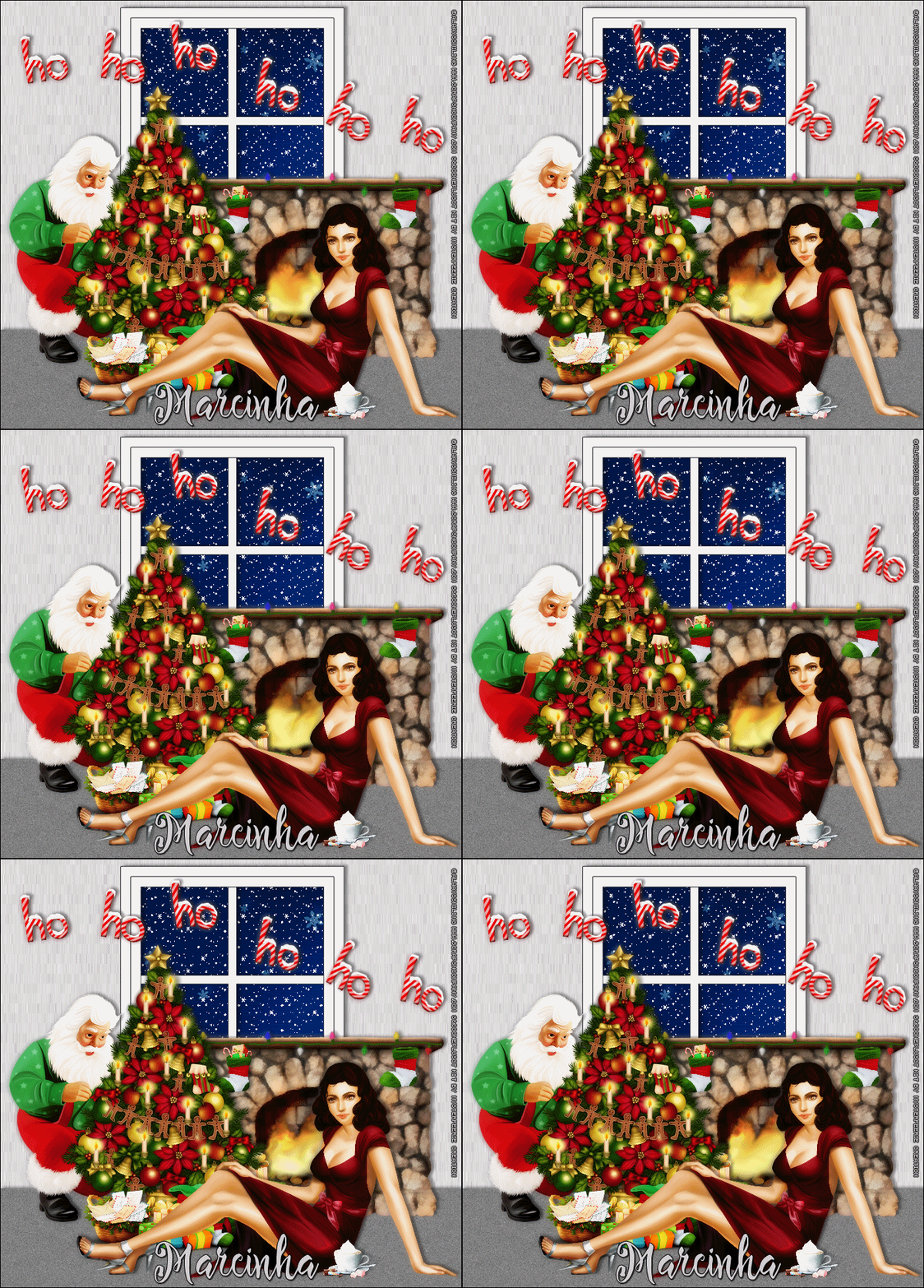
Adel with Audrey and Santa Claus

XMAS WARMTH TUTORIAL

*Click to see original size*

Tutorial written by Marcia Salgado on December 16th, 2015
for those who have a working knowledge of PSP.
Any resemblance to any other tutorial is coincidental.
Do not copy and paste this tutorial anywhere on the net.
If you want to translate please ask first. 

****************************************
Material:

Tube: "Adel" by Alwayssmiling, you can purchase it here
do not use without the proper #license.
PTU Kit "Audrey and Santa Claus" by Mysterfeerie Creation, you can purchase it here
Material: All created by me, here
Font: Painting Script

****************************************

--> Remember to save often and use my tag as reference if necessary. Use a Drop Shadow of your preference on layers. 

1. Create a new image 700x650.

2. Open 'element' 80. Resize 70%. Copy and paste as new layer. Move it down and to right. Rename this layer to FIREPLACE.

3. Open 'element' 87. Resize 63%. Copy and paste as new layer. Place it on fireplace top border.

4. Open 'elements' 13 and 63. Resize 15%. Copy and paste as new layer. Hang them on the fireplace, one on each side.

5. Open 'elemet" 70. Resize 50%. Copy and paste as new layer. Move it up and to left. Duplicate. Free Rotate: Right-20. Move it to right and place it above the fireplace.

6. Open 'element' 31. Resize 35%. Copy and paste as new layer. Move it down. Place it over the fireplica bottom left.

7. Open 'element" 43. Resize 65%. Copy and paste as new layer. Move it way to left. Later he will suppose to like he is fixing the Christmas tree.

8. Open 'element' 55. Resize 70%. Copy and paste as new layer. Move it to left. In front of the presents and near Santa.

9. Open 'element' 23. Resize 45%. Copy and paste as new layer. Move it down and left. Place it over the tree's bottom.

10. Open your tube. Resize if needed. Copy and paste as new layer. I mirrored mine and move it to bottom and to right. You may want to rearrange the elements to better fit your tube.

11. Open 'element' 76. Resize 15%. Copy and paste as new layer. Move it to bottom and place in front of your tube.

12. Click on bottom layer. Open 'paper' 04. Copy and paste as new layer. Select all. Clip to canvas. Crop to selection. Rename this layer to BACK.

13. Open my window. Copy and paste as new layer and move it up. Select the space outside the window. Expand > 5.

14. Add a new layer and fill it with the color: #d1cfcf. Apply Noise: Gaussian - 45 - Monochrome. Use Distortion Effect > Pixelate: 1-15.

14. Add a new layer. Use the Custom Selection: Left-0 Top-500 Right-700 Bottom-650. Fill with the color: #808080. Apply Noise: Gaussian - 15 - Monochrome. Deselect.

15. Click on first layer. Add a new layer. Fill with black. Select all. Contract > 1. Delete. Deselect.

--> Add your copyright info and license#. Add your name and if you do not want to add the animations just save as PNG and it's done.

ANIMATION

1. PSP -> Click on back layer. Copy.

2. AS -> Open my mar2015_neve. Select all. Activate Propagate Paste. Paste the back as new animation. Duplicate it to have 10 frames, the same number of the neve animation. Select all. Activate mar2015_neve and copy. Activate the back and paste into selected frames. Position it on center top.

3. PSP -> Turn all layers from top until FIREPLACE layer invisible. Leave FIREPLACE to bottom except BACK layer visible. Copy merged. 

4. AS -> Paste as new animation. Copy. Activate your back and paste it into selected frames. Open my mar2015_fireplace. Select all. Copy. Activate the tag. Paste into selected frames.

5. PS -> Turn layers from FIREPLACE to bottom invisible and all layer from FIREPLACE to top visible (FIREPLACE layer must be invisible too). Copy merged.

6. AS -> Paste as new animation. Copy. Activate the tag. Paste into selected frames. Save as GIF.


June 20, 2015

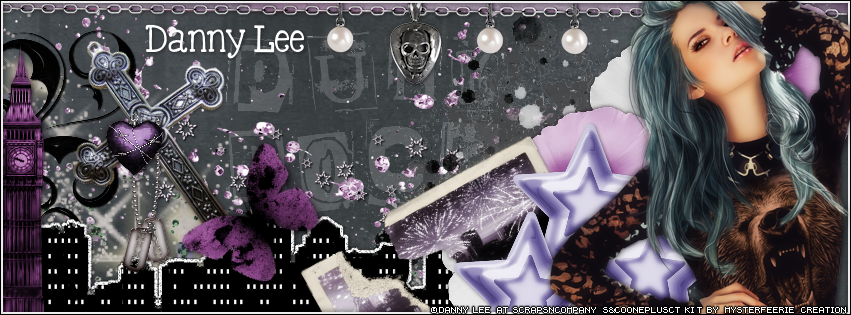
Grizzly Bear with Punk Grizzly

PURPLE PUNK TIMELINE

**Click to see original size**

Tutorial written by Marcia Salgado on June 10th, 2015
for those who have a working knowledge of PSP.
Any resemblance to any other tutorial is coincidental.
Do not copy and paste this tutorial anywhere on the net.
If you want to translate please ask first. 

****************************************
Material:

Tube: "Grizzly Bear" by Danny Lee, you can purchase it here
do not use without the proper #license.
PTU Kit "Punk Grizzly" by Mysterfeerie Creation,
you can purchase it here
Font: KG Be Still & Know

****************************************

--> Remember to save often and use my tag as reference if necessary. Used the Drop Shadow: 1-1-50-5 in most layers. 

1. Create a new image 851x315. Add a new layer. Select all. Open 'paper' 4. Custom Selection: Left-0, Top-500, Right-800, Bottom-800. Copy and paste into selection. Deselect.

2. Open 'element' 73. Resize 50%. Copy and paste into selection. Move it a little to left. Blend Mode: Screen.

3. Open 'element' 72. Copy and paste as new layer. Move it to left.

4. Open 'element' 48. Resize 50%. Copy and paste as new layer. Move it way down left. Blend Mode: Exclusion.

5. Open 'element' 45. Copy and paste as new layer.

6. Open 'element' 58. Resize 40%. Copy and paste as new layer. Move it way left. Blend Mode: Multiply.

7. Open 'element' 69. Copy and paste as new layer. Move it to right.

8. Open 'element' 10. Resize 60%. Free Rotate: left-35. Copy and paste as new layer. Move it to left.

9. Open 'element' 42. Copy and paste as new layer. Move down left.

10. Open 'element' 55. Resize 60%. Copy and paste as new layer. Move it way left.

11. Open 'element' 51. Copy and paste as new layer. Move it to right at top. Duplicate and move the copy to left. Erase the point to connect the chains. Merge down.

12. Open 'element' 34 and 22. Resize 40%. Copy and paste as new layer. Duplicate each one and place them on right. Merge this layers in one.

13. Open 'element' 49. Resize 50%. Select the black parts. Open 'paper' 03. Copy and paste into selection. Free Rotate: Left-30. Copy and paste as new layer.Move it down and a little to right.

14. Open 'element' 39. Resize 50%. Copy and paste as new layer. Move it down right. Duplicate it twice, one move up left and the other move left. Merge them together.

15. Open 'element' 06. Resize 30%. Free Rotate: left-50. Copy and paste as new layer. Move it to left. Place it over the cross at its bottom.

16. Open 'element' 65. Resize 30%. Copy and paste as new layer. Move it to left and place it over the cross.

17. Open 'element' 47. Resize 20%. Copy and paste as new layer. Move it to left and place it over the cross.

18. Add a new layer. Select all, fill it with white. Contract > 3. Delete. Deselect.

19. Open your tube and resize if needed. Copy and paste as new layer. Move it to right.

20. Add a new layer. Select all. Fill it with black. Contract > 1. Delete. Deselect.


--> Add your copyright info (no URL by Facebook TOU) and license#. Add your name. Save as PNG.

--> Sometimes I had to change my Timeline size to 846x313 because when I add it to Facebook the image has extra pixels and do not fit perfectly. So try this size if the same is happening to you.


June 4, 2015

Unicorn ~ by Joanne Salgado


Tutorial written by Joanne Salgado on June 04th, 2015
for those who have a working knowledge of PSP.
Any resemblance to any other tutorial is coincidental.
Do not copy and paste this tutorial anywhere on the net.
If you want to translate please ask first. 

Tube: Sweet Unicorn by Andy Cooper - you can purchase here 
Kit Sweet Unicorn by Mysterfeerie Creation - you can purchase here 
Font: SNF Ambrosia Bold

Don't forget to save often.
At any point if you have doubts check my tag.

1. Open a new image 851x315

2. Open element '24' copy and paste as new layer. Plugins/ MuRa's Meister/Copies - Wallpaper Rotate (default settings). Use it again so it fills the canvas. Blur/Motion Blur - 62/100. Enhance.

3. Add a new layer. Select all. Contract 15. Fill with white. Change opacity to 70. Keep selected.

4. Add a new layer. Fill with #76c3b4. Contract 1. Hit delete on your keyboard. Add shadow 1-1-50-5 black. Change opacity to 50. Select None.

5. Open element '23' copy and paste as new layer. Arrange it to the left. Duplicate. Mirror.

6. Open element '24' again. Copy and paste as new layer. Arrange it to the bottom left. Duplicate. Mirror. Arrange it to the top left. Duplicate. Mirror. Arrange it to the bottom.

7. Open element '42' copy and paste as new layer. Arrange it to the top right.

8. Open your tube. Copy and paste as new layer. Resize as you prefer and arrange it to the middle.

9. Open element '39' copy and paste as new layer. Mirror/Flip. Arrange it to the top right.

10. Open element '47' copy and paste as new layer.

12. Open element '54' copy and paste as new layer. Mirror. Arrange it to the left.

13. Open element '57' copy and paste as new layer. You may want to clean the sparkles that appears on your tube's face.

14. Add a new layer. Move this above all layers. Fill with white. Contract 1. Hit delete on your keyboard. Duplicate your rainbow background and move the layer below the new one we just added. Contract 2. Add noise 50-uniform-monochrome checked. Contract 2. Fill with white. Contract 1. Hit delete on your keyboard. Select none.

15. Add shadow if wanted. I didn't use any.

16. Add copyright.

17. Add name. I used: SNF Ambrosia Bold / size: 48

Save as PNG.

May 26, 2015

Giraffe ~ by Joanne Salgado


Tutorial written by Joanne Salgado on May 26th, 2015
for those who have a working knowledge of PSP.
Any resemblance to any other tutorial is coincidental.
Do not copy and paste this tutorial anywhere on the net.
If you want to translate please ask first. 

Tube: Giraffe by Danny Lee - you can purchase here
Kit My Baby Giraffe by Mysterfeerie Creation - you can purchase here
Font: Pea Nani's Notebook

Don't forget to save often.
At any point if you have doubts check my tag.

1. Open a new image 600x500

2. Open element 'mcf56' copy and paste as new layer. Resize 80%. Free Rotate right-90. Arrange it to bottom.

3. Open element 'mcf47' copy and paste as new layer. Resize 95%. Free Rotate right-90. Arrange it to the top.

4. Open element 'mcf73' copy and paste as new layer. Resize 99%.

5. Open element 'mcf49' copy and paste as new layer. Resize 20%. Arrange it to the top right. Move this below the clouds layer.

6. Open element 'mcf67' copy and paste as new layer. Move this above the clouds layer.

7. Open element 'mcf60' copy and paste as new layer. Resize 30%. Arrange it to the right.

8. Open element 'mcf71' copy and paste as new layer. Resize 20%. Free Rotate right-15. Arrange it to the left.

9. Open element 'mcf50' copy and paste as new layer. Resize 15%. Free Rotate left-15. Arrange it to the left above the blue butterfly.

10. Open your tube. Copy and paste as new layer. Resize as you prefer.

11. Open element 'mcf69' copy and paste as new layer. Resize 80%.

12. Open element 'mcf33' copy and paste as new layer.

13. Add shadow. I used: 1-1-65-2 #404040.

14. Add copyright.

15. Add name. I used: Pea Nani's Notebook / size: 24

Save as PNG